2020 VOLVO S90 TWIN ENGINE service
[x] Cancel search: servicePage 440 of 655

||
STARTING AND DRIVING
438
NOTE
When switching to higher octane fuel or changing gasoline brands, it may be neces-sary to fill the tank more than once before adifference in engine operation is noticea-ble.
Fuel FormulationsDo not use gasoline that contains lead or man- ganese as a knock inhibitor, and do not uselead additives. Besides damaging the exhaustemission control systems on your vehicle, leadhas been strongly linked to certain forms ofcancer. Many fuels contain benzene as a solvent. Unburned benzene has been strongly linked tocertain forms of cancer. If you live in an areawhere you must fill your own gas tank, takeprecautions. These may include: standing upwind away from the filler noz-zle while refueling
refueling only at gas stations with vaporrecovery systems that fully seal the mouthof the filler neck during refueling
wearing neoprene gloves while handling afuel filler nozzle.
Use of AdditivesWith the exception of gas line antifreeze dur-ing winter months, do not add solvents, thick-eners, or other store-bought additives to yourvehicle's fuel, cooling, or lubricating systems.Overuse may damage your engine, and someof these additives contain organically volatilechemicals. Do not needlessly expose yourselfto these chemicals.
WARNING
Never carry a cell phone that is
switched
on while refueling your vehicle. If the
phone rings, this may cause a spark that could ignite gasoline fumes, resulting in fireand injury.
WARNING
Carbon monoxide is a poisonous, colorless, and odorless gas. It is present in all exhaustgases. If you ever smell exhaust fumesinside the vehicle, make sure the passengercompartment is ventilated, and immedi-ately return the vehicle to a trained andqualified Volvo service technician for cor-rection.
Demanding drivingIn demanding driving conditions, such as when towing a trailer or driving in hot weather or for prolonged periods at high altitudes, it may be a good idea to switch to a higher- octane fuel (AKI
9
91 or higher) or to switch to
another brand of gasoline in order to fully uti- lize the vehicle's engine capacity and optimizetraction.
Related information
Fuel (p. 436)
Emission controls (p. 439)
9
AKI (Anti Knock Index) is an average value of RON (Research Octane Number) and MON (Motor Octane Number) - (RON)+(MON)/2
Page 443 of 655

STARTING AND DRIVING
}}
441
Jump starting using another battery If the start battery is discharged, current from another battery can be used to start the vehi-cle.
Jumper cable connecting points.
CAUTION
The charging point of the vehicle is only intended for jump starting the vehicle inquestion. The charging point is notintended for jump-starting another vehicle.Using the charging point to start anothervehicle could cause a fuse to blow, whichwould cause the charging point to stopworking.
If a fuse has blown, 12 V Battery Fuse failure
Service required will be displayed in the instrument panel. Volvo recommends contact- ing an authorized Volvo workshop. To avoid short circuits or other damage, the following steps are recommended when jumpstarting the battery:
1. Put the ignition in mode
0.
2. Make sure the auxiliary battery (the bat- tery used to jump start the discharged battery) has a voltage of 12 volts.
3. If the auxiliary battery is in another vehicle, turn off that vehicle's engine and makesure that the vehicles are not touchingeach other.
4. Clamp the red jumper cable onto the auxil- iary battery's positive (+) terminal (1).
CAUTION
Connect the jump cable carefully to pre- vent short circuits with other componentsin the engine compartment.
5. Fold back the cover over your vehicle'spositive (+) jump start terminal (2).
6. Clamp the other end of the red jumper cable to your vehicle's positive (+) jump start terminal (2).
7. Clamp the black jumper cable onto the auxiliary battery's negative (-) terminal (3). 8. Clamp the other end of the black jumper
cable to your vehicle's negative (-) groundpoint (4).
9. Make sure the jumper cables are securely attached to help prevent sparks whilejump starting.
10. Start the engine of the assisting vehicle and let it run for a few minutes at a higheridling speed than normal, about1500 rpm.
Page 446 of 655
||
STARTING AND DRIVING
* Option/accessory.
444
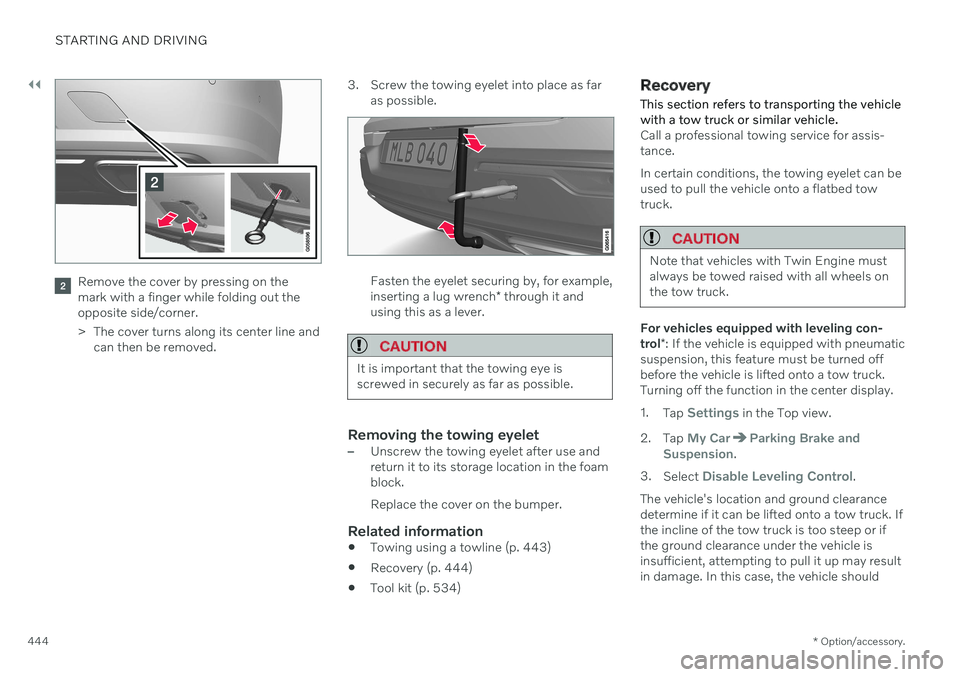
Remove the cover by pressing on the mark with a finger while folding out theopposite side/corner.
> The cover turns along its center line and
can then be removed. 3. Screw the towing eyelet into place as far
as possible.Fasten the eyelet securing by, for example, inserting a lug wrench * through it and
using this as a lever.
CAUTION
It is important that the towing eye is screwed in securely as far as possible.
Removing the towing eyelet–Unscrew the towing eyelet after use and return it to its storage location in the foamblock. Replace the cover on the bumper.
Related information
Towing using a towline (p. 443)
Recovery (p. 444)
Tool kit (p. 534)
Recovery
This section refers to transporting the vehicle with a tow truck or similar vehicle.
Call a professional towing service for assis- tance. In certain conditions, the towing eyelet can be used to pull the vehicle onto a flatbed towtruck.
CAUTION
Note that vehicles with Twin Engine must always be towed raised with all wheels onthe tow truck.
For vehicles equipped with leveling con- trol *: If the vehicle is equipped with pneumatic
suspension, this feature must be turned off before the vehicle is lifted onto a tow truck.Turning off the function in the center display. 1. Tap
Settings in the Top view.
2. Tap
My CarParking Brake and
Suspension.
3. Select
Disable Leveling Control.
The vehicle's location and ground clearance determine if it can be lifted onto a tow truck. Ifthe incline of the tow truck is too steep or ifthe ground clearance under the vehicle isinsufficient, attempting to pull it up may resultin damage. In this case, the vehicle should
Page 456 of 655

AUDIO, MEDIA AND INTERNET
* Option/accessory.
454
Apps
The App view contains applications (apps) that provide access to certain vehicle servi-ces.
Swipe the center display screen from right to left 1
to access the App view from the Home
view. This view displays downloaded apps (third-party apps) as well as apps for inte- grated functions, such as
FM radio.
App view. (generic illustration; basic apps vary depending on market and model)
Several basic apps are always available. More apps such as web radio and music servicescan be downloaded when the car is connectedto the Internet. Some apps can only be used when the vehicle is connected to the Internet. Start an app by pressing the app in the centerdisplay's app view. All apps used should be updated to the latest version.
Related information
Download apps (p. 455)
Updating apps (p. 455)
Deleting apps (p. 456)
Apple ®
CarPlay ®
* (p. 482)
Android Auto
* (p. 486)
Internet-connected vehicle
* (p. 498)
Hard disk storage space (p. 506)
Terms of use and data sharing (p. 504)
1
Applies for left-hand drive vehicles. For right-hand drive vehicles, swipe in the other direction.
Page 457 of 655

AUDIO, MEDIA AND INTERNET
}}
* Option/accessory.455
Download apps New apps can be downloaded when the vehi- cle is connected to the Internet.
NOTE
Data downloading can affect other services such as transfer data, e.g. web radio. If theaffect on other services is experienced asproblematic, the download can be interrup-ted. Alternatively, it may be appropriate toswitch off or cancel other services.
NOTE
When downloading using a phone, pay extra attention to the data traffic costs.
1.
Open the Download Center app in App
view.
2. Select New apps to open a list of apps
that are available but are not installed in the vehicle. 3. Tap on the row for an app in order to
expand in the list and get more informa-tion about the app.
4. Select
Install to start the download and
installation of the app.
> The current status of the download and installation will be shown. If a download cannot be started imme- diately, a message will be displayed.The app will remain in the list and it willbe possible to reattempt downloading.
Canceling a download
–Tap Abort to cancel a download in pro-
gress.
Note that only a download can be cancelled. An installation cannot be cancelled once it hasbegun.
Related information
Apps (p. 454)
Updating apps (p. 455)
Deleting apps (p. 456)
Internet-connected vehicle
* (p. 498)
Handling system updates via DownloadCenter (p. 566)
Hard disk storage space (p. 506)
Updating apps
Apps can be updated when the vehicle is connected to the Internet.
NOTE
Data downloading can affect other services such as transfer data, e.g. web radio. If theaffect on other services is experienced asproblematic, the download can be interrup-ted. Alternatively, it may be appropriate toswitch off or cancel other services.
NOTE
When downloading using a phone, pay extra attention to the data traffic costs.
If an app is being used while an update is in progress, it will be restarted to complete theupdate.
Update all
1. Open the Download Center app in App
view.
2. Select Install all.
> The update will begin.
Page 462 of 655

AUDIO, MEDIA AND INTERNET
* Option/accessory.
460
Radio settings
There are a number of different radio func- tions that can be activated and deactivated.
Canceling a traffic messageA current broadcast (e.g. a traffic message) can be temporarily interrupted by pressing
in the right-side steering wheel keypad or
tapping Cancel in the center display.
Activating and deactivating radio
functions
Pull down Top view and select SettingsMedia and the desired waveband to see avail-
able functions.
FM Radio
HD Radio FM: HD Radio ™
Technology:
makes it possible to achieve a sound qual- ity comparable with a CD.
Show Broadcast Information: shows
information on program content, artists, etc.
Freeze Program Name: select to stop
the program service name from scrolling continuously. Instead it freezes after 20seconds.
SiriusXM ®
Satellite radio *
Pull down Top view and select Settings
MediaSiriusXM to show a list of available
options.
Related information
Radio (p. 456)
Settings for SiriusXM ®
Satellite radio *
(p. 466)
Symbols in the center display status bar (p. 121)
RBDS
RBDS radio
RBDS (Radio Broadcast Data System) ena- bles certain functionality 2
, such as:
Searches for program types or new broad- casts
Text information about currently broadcastprograms
Related information
Radio (p. 456)
Radio settings (p. 460)
Page 466 of 655

AUDIO, MEDIA AND INTERNET
* Option/accessory.
464
SiriusXM ®
Satellite radio *
The SiriusXM ®
Satellite system broadcasts
from of a number of high elevation satellites in geosynchronous orbit.
Listening to satellite radioThe digital signals from the satellites are line- of-sight, which means that physical obstruc-tions such as bridges, tunnels, etc, may tem-porarily interfere with signal reception. Avoid any obstructions, such as metallic objects transported on roof racks or in a skibox, or other antennas that may impede sig- nals from the SiriusXM ®
satellites.
Selecting SiriusXM ®
Satellite radio
mode
1. From the center display's Home view, swipe from right to left to come to App view.
2.Tap the SiriusXM ®
Satellite radio icon.
Home view with SiriusXM ®
Satellite radio activated
If there is no subscription activated, tap chan- nel 1, where you will be prompted on the screen to phone SiriusXM ®
.
If a cell phone is paired and connected to the vehicle, you can also subscribe by:
1. From Home view, pull down the Settings menu. 2.
Open the settings menu for SiriusXM ®
Satellite radio.
3. Tap
Unsubscribed Services.
4. To call SiriusXM ®
, enter the phone num-
ber. They will activate the subscription of your choice. This may take severalminutes.
When the subscription has been activated, tap the SiriusXM ®
Satellite radio icon to start the
function and display the channel list included in your subscription.
Related information
Radio (p. 456)
Using SiriusXM ®
Satellite radio * (p. 465)
Settings for SiriusXM ®
Satellite radio *
(p. 466)
SiriusXM Travel Link ®
* (p. 468)
Page 469 of 655

AUDIO, MEDIA AND INTERNET
* Option/accessory.467
Traffic Jump
Tap to display a list of cities from which you can choose to get traffic/weather information (or
Traffic jump off to deactivate the feature).
Tap to select a city (JUMP will be displayed
on the Home screen next to Library). TapBack to return to the list of settings or Closeto return to the Home screen. From the Home screen, tap
JUMP to activate
the function. When traffic/weather information is available from the selected city, the radiowill automatically tune to the channel provid-ing the information. When the information/announcement is finished, the radio will auto-matically return to the channel that you werepreviously listening to. During an announcement, tap
JUMP to inter-
rupt the message and return to the station that you were currently listening to.
Alert Notifications
Tap the box to activate/deactivate. When acti- vated, you will be notified if a song, artist, etc.that you have selected is playing. You will beasked if you want to listen.
Alert Notifications Sound
Opt to receive an audible alert when one of your selected choices is being played.
Sort Channels
Select how to sort your channels list.
iTunes Tagging
Tap to display a menu with the options:iTunes Tagging and Tags List. With this fea-
ture activated, songs can be tagged for later purchase from the iTunes store.
Game Alerts
Tap to display a list of sports. Tap a sport to display a list of teams and tap a box on the right side of the screen to select ateam as a favorite. An alert will then be provi-ded when information about the team is beingbroadcast. Tap
Confirm below the list to return to the list
of sports. Tap
Back to return to the list of settings orClose to return to the main screen.
Unsubscribed Services
If you have a SiriusXM ®
Satellite radio sub-
scription, any channels not included in the subscription will be listed here. CallSiriusXM ™ to subscribe. The phone number
will be shown on the screen. If a cell phone ispaired and connected to the vehicle, tap thephone number to make the call.
Skipped Stations
Tap to display a list of channels that you would like to skip (hide). Hide channels from thechannel list by tapping the boxes to the rightof the screen. Skipped (hidden) channels willnot be shown in the channel list. However, a channel previously selected as a favorite willstill be displayed in the list of favorites, even ithas been added to the skip list.
Skipped Categories
Tap to display a list of categories. Tap a cate- gory to skip (hide) it. It will not be displayed inthe list of categories.
Related information
SiriusXM ®
Satellite radio * (p. 464)
Using SiriusXM ®
Satellite radio * (p. 465)