Page 624 of 674
622 MULTIMEDIA
STEERING WHEEL AUDIO CONTROLS — IF
EQUIPPED
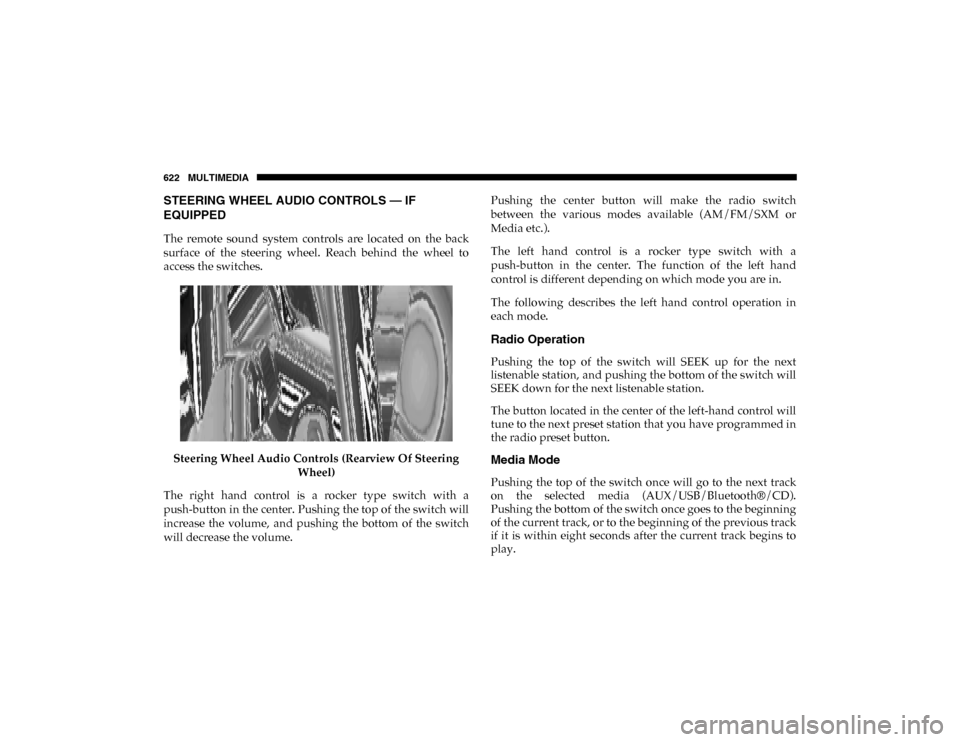
The remote sound system controls are located on the back
surface of the steering wheel. Reach behind the wheel to
access the switches.Steering Wheel Audio Controls (Rearview Of Steering Wheel)
The right hand control is a rocker type switch with a
push-button in the center. Pushing the top of the switch will
increase the volume, and pushing the bottom of the switch
will decrease the volume. Pushing the center button will make the radio switch
between the various modes available (AM/FM/SXM or
Media etc.).
The left hand control is a rocker type switch with a
push-button in the center. The function of the left hand
control is different depending on which mode you are in.
The following describes the left hand control operation in
each mode.
Radio Operation
Pushing the top of the switch will SEEK up for the next
listenable station, and pushing the bottom of the switch will
SEEK down for the next listenable station.
The button located in the center of the left-hand control will
tune to the next preset station that you have programmed in
the radio preset button.
Media Mode
Pushing the top of the switch once will go to the next track
on the selected media (AUX/USB/Bluetooth®/CD).
Pushing the bottom of the switch once goes to the beginning
of the current track, or to the beginning of the previous track
if it is within eight seconds after the current track begins to
play.
2020_DT_1500_OM_US.book Page 622
Page 625 of 674
MULTIMEDIA 623
IPOD®/USB/MP3 CONTROL — IF EQUIPPED
Located on the center stack, just below the instrument panel,
is the main media hub. There are four total USB Ports: Two
Mini-USBs (Type C) and two Standard USBs (Type A). There
is also an AUX Port located in the middle of the USB Ports.
NOTE:
• Two devices can be plugged in at the same time, and bothports will provide charging capabilities. Only one port can
transfer data to the system at a time. A pop-up will appear
and allow you to select the device transferring data.
For example, if a device is plugged into the Type A USB port
and another device is plugged into the Type C USB port, a
message will appear and allow you to select which device to
use. Center Stack USB/AUX Media Hub
1 — Standard USB Type A Port #1
2 — AUX Port
3 — Standard USB Type A Port #2
9
2020_DT_1500_OM_US.book Page 623
Page 626 of 674
624 MULTIMEDIA
A third and fourth USB Ports are located behind the center
console, above the Power Inverter. These USBs Ports are
charge only.Rear Center Console Mini-USB (Type C) USB Ports Rear Center Console Standard (Type A) USB Ports
1 — Mini-USB Type C Port #1
2 — Mini-USB Type C Port #2
1 — Standard USB Type A Port #1
2 — Standard USB Type A Port #2
2020_DT_1500_OM_US.book Page 624
Page 627 of 674
MULTIMEDIA 625
Different scenarios are shown below when a non-phone
device is plugged into the smaller and larger USB Ports and
when a phone device is plugged into the smaller and larger
USB Ports:Device Plugged In Message Screen Plugging in a phone or another USB device may cause the
connection to a previous device to be lost.
If equipped, your vehicle may also contain a USB Port
located on the top tray of the vehicles center console.
Center Console USB Port
9
2020_DT_1500_OM_US.book Page 625
Page 628 of 674

626 MULTIMEDIA
If equipped, two Mini-USB Ports (Type C), two Standard
USB Ports (Type A), and one AUX Port may be located to the
left of the center stack, just below the climate controls.Center Console USB/AUX Media Hub Some USB ports support media and charging. You can use
features, such as Apple CarPlay®, Android Auto™,
Pandora®, and others while charging your phone.
NOTE:
Plugging in a phone or another USB device may cause the
connection to a previous device to be lost.
For further information, refer to the Uconnect Owner’s
Manual Supplement or visit
UconnectPhone.com.
RADIO OPERATION AND MOBILE PHONES
Under certain conditions, the mobile phone being on in your
vehicle can cause erratic or noisy performance from your
radio. This condition may be lessened or eliminated by relo -
cating the mobile phone antenna. This condition is not
harmful to the radio. If your radio performance does not
satisfactorily “clear” by the repositioning of the antenna, it is
recommended that the radio volume be turned down or off
during mobile phone operation when not using Uconnect (if
equipped).
1 — Standard USB Type A Ports
2 — Mini-USB Type C Ports
3 — AUX Port
2020_DT_1500_OM_US.book Page 626
Page 645 of 674

MULTIMEDIA 643
To use the Uconnect App:
• Download the Uconnect App to your mobile device.
• Press the Info button on the navigation bar at the bottom ofthe app for Vehicle Info.
• Press the Remote button on the navigation bar at the bottom of the app to Lock/Unlock, Remote Start, and acti -
vate your horn and lights remotely.
• Press the Location button on the navigation bar at the bottom of the app to bring up a map to locate your vehicle
or send a location to your vehicle’s navigation system.
• Press the Settings button in the upper left corner of the app to bring up app settings and access the Assist Call Centers.
NOTE:
For further information, please visit DriveUconnect.com (US
Residents) or DriveUconnect.ca (Canadian Residents).SiriusXM® Travel Link (4C NAV)
Need to find a gas station, view local movie listings, check a
sports score or the 5 - day weather forecast? SiriusXM®
Travel Link is a suite of services that brings a wealth of infor -
mation right to your Uconnect 4C NAV system.
Push the VR button . After the beep, say one of the
following commands:
• “Show fuel prices ”.
• “Show 5-day weather forecast ”.
• “Show extended weather ”.
TIP:
Traffic alerts are not accessible with Voice Command.
9
2020_DT_1500_OM_US.book Page 643
Page:
< prev 1-8 9-16 17-24


