and rearview mirror position
storage).
The volume can be set to 7 levels
identified by numbers from "1" to
"7" by pressing the "+" or "–"
softkey.
•Light Sensor
This feature allows to adjust the
sensitivity of the twilight sensor for
turning on the lights.
The feature can be set to 3 levels:
"Low", "Medium" (default setting)
and "High".
•Speed Limit
This feature allows to set a speed
limit and activate an alarm signal
which will sound when themaximum speed limit set is
exceeded.
Checkmarked the softkey to enable
the feature.
Press then the "+" or "–" softkey to
increase or decrease the speed limit.
Each touch increases/decreases the
value by 5 units.
Lights
Press the “Lights” softkey to set the
following modes.
•Daytime Lights(DRL, for
versions/markets where provided)
If activated, this feature allows the
automatic switching on of the DRL
upon switching off of the position
lights and vice versa. When the
position lights switch on, the DRL
switch off.
See “Lights” in section
“Understanding the Vehicle” for
further information.
Doors & Locks
Press the “Doors & Locks” softkey to
set the following modes.
•Auto Door Locks(Autoclose)
When this feature is selected, all
doors will automatically lock whenthe vehicle is in motion. The feature
can be set to “On” or “Off”.
•Independent Trunk Lid Unlocking
When this feature is selected and
checkmarked, only the trunk
compartment lid remains unlocked
and can be opened by pressing the
button between the license plate
lights.
When there is not checkmark, the
trunk lid unlocking follows the logic
of the doors.
•Key Fob Unlocks
By selecting this feature you may set
up only the driver's door or all doors
mode will unlock on the first press
of the
button on the radio
control case (key fob). When "Driver
Door" is selected, you must press the
key fob
button twice to unlock
also the passenger’s door. When
Dashboard Instruments and Controls
4
146
unlocking "All Doors" by first press
selection mode, all doors will unlock
on the first press of the key fob
button.
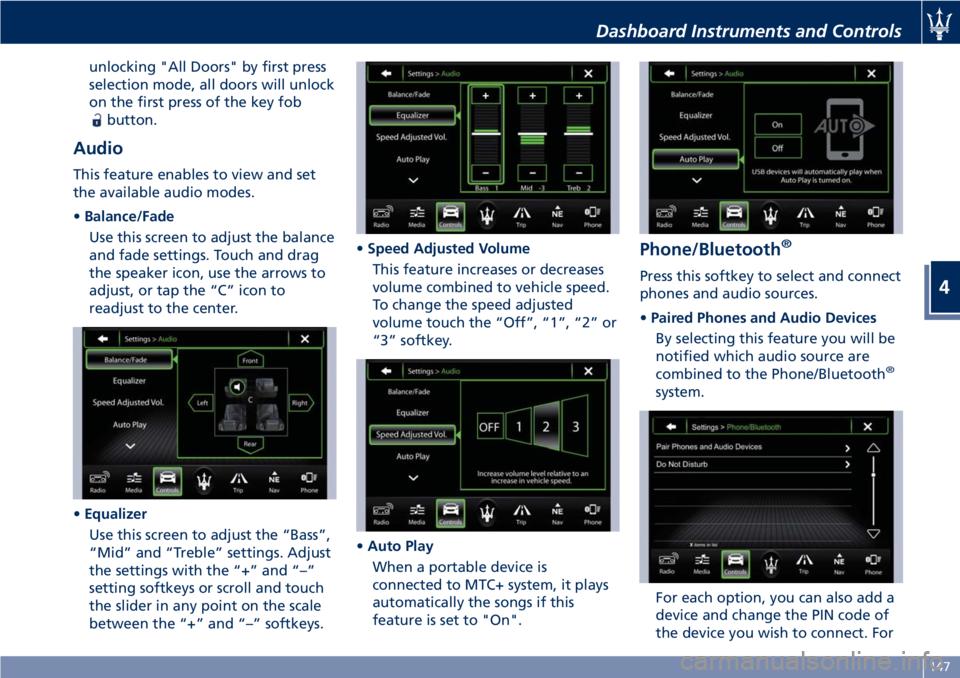
Audio
This feature enables to view and set
the available audio modes.
•Balance/Fade
Use this screen to adjust the balance
and fade settings. Touch and drag
the speaker icon, use the arrows to
adjust, or tap the “C” icon to
readjust to the center.
•Equalizer
Use this screen to adjust the “Bass”,
“Mid” and “Treble” settings. Adjust
the settings with the “+” and “–”
setting softkeys or scroll and touch
the slider in any point on the scale
between the “+” and “–” softkeys.•Speed Adjusted Volume
This feature increases or decreases
volume combined to vehicle speed.
To change the speed adjusted
volume touch the “Off”, “1”, “2” or
“3” softkey.
•Auto Play
When a portable device is
connected to MTC+ system, it plays
automatically the songs if this
feature is set to "On".
Phone/Bluetooth®
Press this softkey to select and connect
phones and audio sources.
•Paired Phones and Audio Devices
By selecting this feature you will be
notified which audio source are
combined to the Phone/Bluetooth
®
system.
For each option, you can also add a
device and change the PIN code of
the device you wish to connect. For
Dashboard Instruments and Controls
4
147