2020 LINCOLN NAVIGATOR page 32
[x] Cancel search: page 32Page 84 of 622

Number of MyKeys
Indicates the number of MyKeys
programmed to your vehicle. Use this feature
to detect how many MyKeys you have for
your vehicle and determine when all MyKeys
have been deleted.
Number of Admin Keys
Indicates how many admin keys are
programmed to your vehicle. Use this feature
to determine how many admin keys you have
for your vehicle, and detect if an additional
MyKey has been programmed.
USING MYKEY WITH REMOTE
START SYSTEMS
MyKey is not compatible with non
Ford-approved, aftermarket remote start
systems. If you choose to install a remote
start system, see an authorized dealer for a
Ford-approved remote start system.
MYKEY – TROUBLESHOOTING Potential causes
Condition
· The key or transmitter used to start the vehicle does not have admin
privileges.
I cannot create a MyKey.
· Vehicles with keyless start: Make sure you place the transmitter into
the backup slot. See Passive Anti-Theft System (page 94).
· The key or transmitter used to start the vehicle is the only admin key.
There always has to be at least one admin key.
· SecuriLock passive anti-theft system is disabled or in unlimited mode.
· The key or transmitter used to start the vehicle does not have admin
privileges.
I cannot program the configurable settings.
81
Navigator (TB9) Canada/United States of America, enUSA, Edition date: 201907, Second-Printing MyKey™
Page 85 of 622
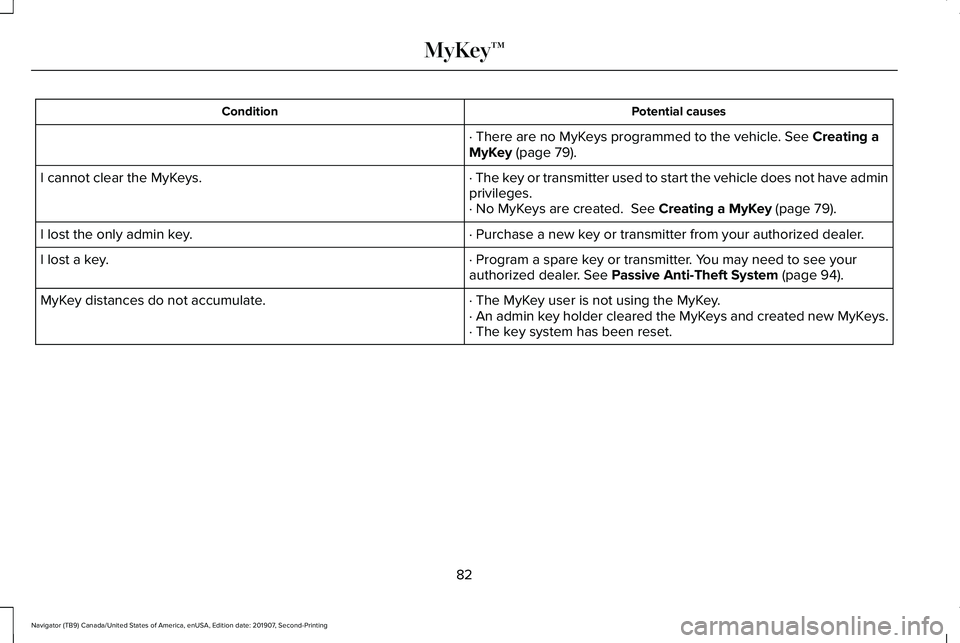
Potential causes
Condition
· There are no MyKeys programmed to the vehicle. See Creating a
MyKey (page 79).
· The key or transmitter used to start the vehicle does not have admin
privileges.
I cannot clear the MyKeys.
· No MyKeys are created.
See Creating a MyKey (page 79).
· Purchase a new key or transmitter from your authorized dealer.
I lost the only admin key.
· Program a spare key or transmitter. You may need to see your
authorized dealer.
See Passive Anti-Theft System (page 94).
I lost a key.
· The MyKey user is not using the MyKey.
MyKey distances do not accumulate.
· An admin key holder cleared the MyKeys and created new MyKeys.
· The key system has been reset.
82
Navigator (TB9) Canada/United States of America, enUSA, Edition date: 201907, Second-Printing MyKey™
Page 86 of 622

LOCKING AND UNLOCKING
You can use the power door lock control or
the remote control to lock and unlock your
vehicle.
Power Door Locks
The power door lock control is on the driver
and front passenger door panels.
Unlock.
A
Lock.B Door Lock Indicator
An LED on each door window trim illuminates
when you lock the door. It remains on for
up to 10 minutes after you switch the ignition
off.
Door Lock Switch Inhibitor
When you electronically lock your vehicle,
the power door lock switch and interior trunk
release switch do not operate after 20
seconds. You must unlock your vehicle with
the remote control or keyless keypad, or
switch the ignition on, to restore function to
these switches. You can switch this feature
on or off in the information display. See
General Information (page 133).
Note: Switch the ignition on and off after
changing the setting in the information
display.
Rear Door Unlocking and Opening
Pull the interior door handle twice to unlock
and open a rear door. The first pull unlocks
the door and the second pull opens the door. Remote Control
You can use the remote control at any time.
The liftgate release button only operates
when your vehicle's speed is less than 3 mph
(5 km/h)
.
Unlocking the Doors (Two-Stage Unlock) Press the button to unlock the
driver door.
Press the button again within three seconds
to unlock all doors. The direction indicators
will flash.
Note: If the system does not function, use
the key blade to lock and unlock your
vehicle.
Press and hold both the lock and unlock
buttons on the remote control for three
seconds to change between driver door or
all doors unlock mode. The direction
indicators flash twice to confirm the change.
Driver door mode only unlocks the driver
door when you press the unlock button
once. All door mode unlocks all doors when
83
Navigator (TB9) Canada/United States of America, enUSA, Edition date: 201907, Second-Printing Doors and LocksE138628 E138629
Page 87 of 622

you press the unlock button once. The
unlocking mode applies to the remote
control, keyless entry keypad and intelligent
access. You can also change between the
unlocking modes using the information
display. See General Information (page 133).
Reprogramming the Unlocking Function
Note:
When you press the unlock button,
either all the doors are unlocked or only the
driver door is unlocked. Pressing the unlock
button again unlocks all the doors.
Press and hold the unlock and lock buttons
on the remote control simultaneously for at
least four seconds with the ignition off. The
direction indicators flash twice to confirm the
change.
To return to the original unlocking function,
repeat the process.
Locking the Doors Press the button to lock all doors.
The direction indicators will flash. Press the button again within three seconds
to confirm that all the doors are closed. The
door lock again, the horn sounds and the
direction indicators flash if all the doors and
the liftgate are closed.
Note:
If the system does not function, use
the key blade to lock and unlock your
vehicle.
Mislock
If any door or the liftgate is open, or if
the hood is open on vehicles with an
anti-theft alarm or remote start, the horn
sounds twice and the direction
indicators do not flash. You can switch
this feature on or off in the information
display. See General Information (page
133).
Opening the Liftgate Press twice within three seconds
to open the liftgate.Activating Intelligent Access
General Information
You can unlock and lock the vehicle without
taking the keys out of your pocket or purse
when your intelligent access key is within
3 ft (1 m)
of your vehicle. Intelligent access
uses a sensor on the back of the door handle
for unlocking and a separate sensor on the
face of each door handle for locking.
The system does not function if:
• Your vehicle battery has no charge.
• The key battery has no charge.
• The key frequencies are jammed.
Note: The system may not function if the key
is close to metal objects or electronic
devices, for example keys or a cell phone.
Note: If the system does not function, use
the key blade to lock and unlock your
vehicle.
See Remote Control (page 69).
84
Navigator (TB9) Canada/United States of America, enUSA, Edition date: 201907, Second-Printing Doors and LocksE138623 E267940
Page 89 of 622

Locking and Unlocking the Doors with
the Key Blade
A key cylinder is located under the driver
side door handle. You can use your key
blade to manually lock and unlock the driver
side door. See Remote Control (page 69).
Smart Unlocks for Intelligent Access
Keys
This helps to prevent you from locking your
key inside the passenger compartment or
rear cargo area.
When you electronically lock your vehicle
with any door open, the transmission is in
park (P) and the ignition is off, the system
searches for an intelligent access key inside
your vehicle after you close the last door. If
the system finds a key, all the doors
immediately unlock and the horn sounds
twice, indicating that a key is inside.
You can override the smart unlock feature
and intentionally lock the intelligent access
key inside your vehicle. To do this, lock your vehicle after you have
closed all the doors by:
•
Using the keyless entry keypad.
• Pressing the lock button on another
intelligent access key.
When you open one of the front doors and
lock your vehicle using the power door lock
control, all doors will lock then unlock if:
• The ignition is on.
• The ignition is off and the transmission
is not in park (P).
Autolock
(If Equipped)
Autolock locks all the doors when:
• All doors are closed.
• The ignition is on.
• You shift into any gear putting your
vehicle in motion.
• Your vehicle reaches a speed greater
than
12.4 mph (20 km/h). Autolock repeats when:
•
You open then close any door while the
ignition is on and your vehicle speed is
9 mph (15 km/h)
or lower.
• Your vehicle reaches a speed greater
than
12 mph (20 km/h).
Autounlock
Autounlock unlocks all the doors when:
• The ignition is on, all the doors are
closed, and your vehicle has been
moving at a speed greater than 12.4 mph
(20 km/h)
.
• Your vehicle comes to a stop and you
switch the ignition off, or to the accessory
position.
• You open the driver door within 10
minutes of switching the ignition off or to
accessory.
Note: The doors do not autounlock if you
electronically lock your vehicle after you
switch the ignition off and before you open
the driver door.
86
Navigator (TB9) Canada/United States of America, enUSA, Edition date: 201907, Second-Printing Doors and Locks
Page 90 of 622

Enabling or Disabling Autounlock
You can enable or disable the autounlock
feature in the information display or an
authorized dealer can do it for you. See
General Information (page 133).
Illuminated Entry
The interior lamps and some exterior lamps
illuminate when you unlock the doors with
the remote control.
The lamps turn off if:
• The ignition is on.
• You press the remote control lock button.
• 25 seconds have elapsed.
The lamps do not turn off if:
• You turn them on with the lamp control.
• Any door is open.
Illuminated Exit
The interior lamps and some exterior lamps
illuminate when all doors are closed and you
switch the ignition off. The lamps turn off if all the doors remain
closed and:
•
25 seconds have elapsed.
• You press the push button ignition
switch.
Approach Detection Illumination
When you approach your vehicle and a valid
key is detected, the exterior door handles
and some exterior lamps illuminate.
Battery Saver
If you leave the courtesy lamps, interior
lamps or headlamps on, the battery saver
shuts them off 10 minutes after you switch
the ignition off.
Battery Saver for Intelligent Access Keys
If you leave the ignition switched on, it shuts
off when it detects a certain amount of
battery drain, or after 30 minutes. KEYLESS ENTRY
SECURICODE™ KEYLESS ENTRY
KEYPAD
The keypad is near the driver window. It
illuminates when touched.
Note:
If you enter your entry code too fast
on the keypad, the unlock function may not
work. Enter your entry code again more
slowly. 87
Navigator (TB9) Canada/United States of America, enUSA, Edition date: 201907, Second-Printing Doors and LocksE138637
Page 94 of 622

Note:
Make sure the area behind your
vehicle is free from obstruction and that
there is enough room for you to operate the
liftgate. Objects too close to your vehicle,
for example a wall, garage door or another
vehicle may come into contact with the
moving liftgate. This could damage the
liftgate and its components.
Note: Be careful when opening or closing
the liftgate in a garage or other enclosed
area to avoid damaging the liftgate.
Note: Do not leave the liftgate open when
driving. This could damage the liftgate and
its components.
From the Instrument Panel With the transmission in park (P),
press the button on the instrument
panel.
Remote Control Press the button twice within a few
seconds. Outside Control
Liftgate window. See Liftgate
Window (page 124).
A
Liftgate.
B Opening the Liftgate
1. Unlock the liftgate with the remote
control or power door unlock control. If
an intelligent access key is within
3 ft
(1 m) of the liftgate, the liftgate unlocks
when you press the liftgate release
button.
2. Press button B.
Note: Allow the power system to open the
liftgate. Manually pushing or pulling the
liftgate may activate the system’ s obstacle
detection and stop the power operation or
reverse its direction, replicate a strut failure
or damage mechanical components.
Stopping the Liftgate Movement
Note: Do not apply sudden excessive force
to the liftgate when it is in motion. This could
damage the power liftgate and its
components.
91
Navigator (TB9) Canada/United States of America, enUSA, Edition date: 201907, Second-Printing Liftgate E267940 E247048
Page 95 of 622

You can stop the liftgate movement by doing
any of the following:
•
Pressing the liftgate control button.
• Pressing the liftgate button on the remote
control twice.
• Pressing the liftgate button on the
instrument panel.
Setting the Liftgate Open Height
1. Open the liftgate.
2. Stop the liftgate movement by pressing the control button on the liftgate when it
reaches the desired height.
Note: Once the liftgate has stopped moving,
you can also manually move it to the desired
height.
3. Press and hold the liftgate control button
on the liftgate until a tone sounds,
indicating programming is complete.
Note: You can only use the liftgate control
button to program the height.
Note: You cannot program the height if the
liftgate position is too low. The new open liftgate height is recalled
when the power liftgate is opened. To
change the programmed height, repeat the
above procedure. Once you open the power
liftgate, you can manually move it to a
different height.
Note:
The system recalls the new
programmed height, even if you disconnect
the battery.
When operating the power liftgate after you
have programmed a lower height than fully
open, you can fully open the liftgate by
manually pushing it upward to the maximum
open position.
Obstacle Detection
Note: Entering your vehicle while the liftgate
is closing can cause your vehicle to bounce
and activate obstacle detection. To prevent
this, let the power liftgate close completely
before you enter your vehicle. Before driving
off, check the instrument cluster for a liftgate
or door ajar message or warning indicator.
Failure to do this could result in
unintentionally leaving the liftgate open
when driving. When Closing
The system stops when it detects an
obstacle. Three tones sound and the system
reverses to open. When you remove the
obstacle, you can power close the liftgate.
When Opening
The system stops when it detects an
obstacle and two short tones sound.
Remove the obstacle to operate the liftgate.
Switching the Power Liftgate On or Off
You can switch the power liftgate on or off
through the vehicle settings menu. See
General Information (page 133).
When switched off, the liftgate only unlatches
and will not power open or close.
Using the Hands-Free Liftgate
(If Equipped)
Make sure you have an intelligent access
key within
3 ft (1 m) of the liftgate.
1. Stand behind your vehicle, and face the liftgate.
92
Navigator (TB9) Canada/United States of America, enUSA, Edition date: 201907, Second-Printing Liftgate