Page 476 of 622

Status Bar
Cell phone microphone muted.
Audio system muted.
Software update installed.
Wi-Fi connected.
Cell phone roaming.
Text message received.
Automatic crash notification system
off.
Cell phone network signal
strength.
Vehicle data sharing on. Vehicle location sharing on.
Vehicle data and vehicle location
sharing on.
Wireless charger active.
Feature Bar Select to use the radio, a USB, a
media player or a Bluetooth
device. See Entertainment (page
485). Select to adjust climate settings
See
Climate (page 497).
Select to make calls and access
the phonebook on your cell phone.
See
Phone (page 500).
Select to use the navigation
system. See Navigation (page 502). Select to search for and use
compatible apps on your iOS or
Android device.
See Apps (page
510). Select to adjust system settings.
See
Settings (page 513).
Cleaning the Touchscreen
See
Cleaning the Interior (page 397).
Updating the System
Updating the System Using a USB Drive
Downloading an Update
1. Go to the SYNC update page on the local
Ford website.
2. Download the update.
Note: The website notifies you if an update
is available.
3. Insert a USB drive into your computer.
Note: The USB drive needs to be empty and
meet the minimum requirements detailed on
the website.
473
Navigator (TB9) Canada/United States of America, enUSA, Edition date: 201907, Second-Printing SYNC™ 3 E100027 E283811 E280315
Page 477 of 622

4. Follow the instructions provided to
download the update to the USB drive.
Installing an Update
Note: You can use the system when an
installation is in progress.
1. Disconnect all other USB devices from the USB ports.
2. Connect the USB drive with the update to a USB port.
Note: Installation starts automatically within
10 minutes.
Updating the System Using a Wi-Fi Network
Connection
Connecting to a Wi-Fi Network Select the settings option on the
feature bar.
1. Select Automatic Updates.
2. Select
System Wi-Fi.
3. Switch
System Wi-Fi on.
4. Select
Available Wi-Fi Networks.
5. Select an available Wi-Fi network. Note:
Enter the network password to
connect to a secure network.
Switching Automatic System Updates On Select the settings option on the
feature bar.
1. Select
Automatic Updates.
2. Switch
Automatic System Updates on.
The system is now set to check for and
receive system updates when it is connected
to a Wi-Fi network.
Note: You can use the system when a
download is in progress.
Note: If the system is disconnected from the
Wi-Fi network when a download is in
progress, the download continues the next
time the system is connected to a Wi-Fi
network.
Additional Information and Assistance
For additional information and assistance,
we recommend that you contact an
authorized dealer or refer to the local Ford
website. USING VOICE RECOGNITION
The SYNC 3 system allows you to use voice
commands, to control features like audio and
climate controls. By using voice commands,
you can keep your hands on the wheel and
your eyes on the road.
You can access each feature controlled by
SYNC 3 through a variety of commands.
To activate the SYNC 3 voice
commands push the voice button
on the steering wheel and wait for
the prompt.
___ is a dynamic listing, meaning that it can
be the name of anything, such as artist, the
name of contact or number. The context and
the description of the command tell you what
to say for this dynamic option.
There are some commands that work for
every feature, these commands are:
474
Navigator (TB9) Canada/United States of America, enUSA, Edition date: 201907, Second-Printing SYNC™ 3E280315 E280315 E142599
Page 479 of 622

Audio Voice Commands
___ is a dynamic listing, meaning that for
audio voice commands it can be the name
of a Sirius channel or a channel number, a
radio frequency number, or the name of an
artist, album, song or a genre.
To control the media features, press the voice button and when prompted, \
say: Description
Voice command
You can say the Sirius channel name or number such as "Sirius channel 16"\
.
1
Sirius Channel ___
You can also turn to a Sirius channel by saying the channel's name, such as "The Pulse".
Allows you to tune to a specific FM or AM frequency such as "FM 88.7" or "AM
1580".
AM ___
FM ___
Allows you to tune to a specific HD frequency such as “FM 88.7 HD 1” .
1
FM ___ HD ___
Allows you to listen to music on your Bluetooth connected device.
Bluetooth Audio
Allows you to listen to music on your USB connected device.
USB
For USB audio only, you can say the name of an artist, album, song or a genre
to listen to that selection. Your system must finish indexing before this option
is available. For example, you could say "Play artist The Beatles" or "Play song
Penny Lane".
Play Genre ___
Play Playlist ___
Play Artist ___
Play Album ___
Play Podcast ___
476
Navigator (TB9) Canada/United States of America, enUSA, Edition date: 201907, Second-Printing SYNC™ 3
Page 480 of 622
Description
Voice command
Play Song ___
Play Audiobook ___ For USB audio only, you can say the name of an artist, album, or a genre to
browse by that selection. Your system must finish indexing before this option
is available. For example you can say "Browse artist The Beatles" or "Browse
genre folk".
Browse ___
Browse Artist ___
Browse Album ___
Browse Genre ___
Browse Playlist ___
Browse Audiobook ___
Browse Podcast ___
1 This option may not be available in all markets or may require a subscription.
Climate Voice Commands (If Equipped)
You can control the temperature of the
vehicle using voice commands. ___ is a dynamic listing, meaning that for
climate voice commands it can be the
desired degrees for the temperature setting.
477
Navigator (TB9) Canada/United States of America, enUSA, Edition date: 201907, Second-Printing SYNC™ 3
Page 489 of 622
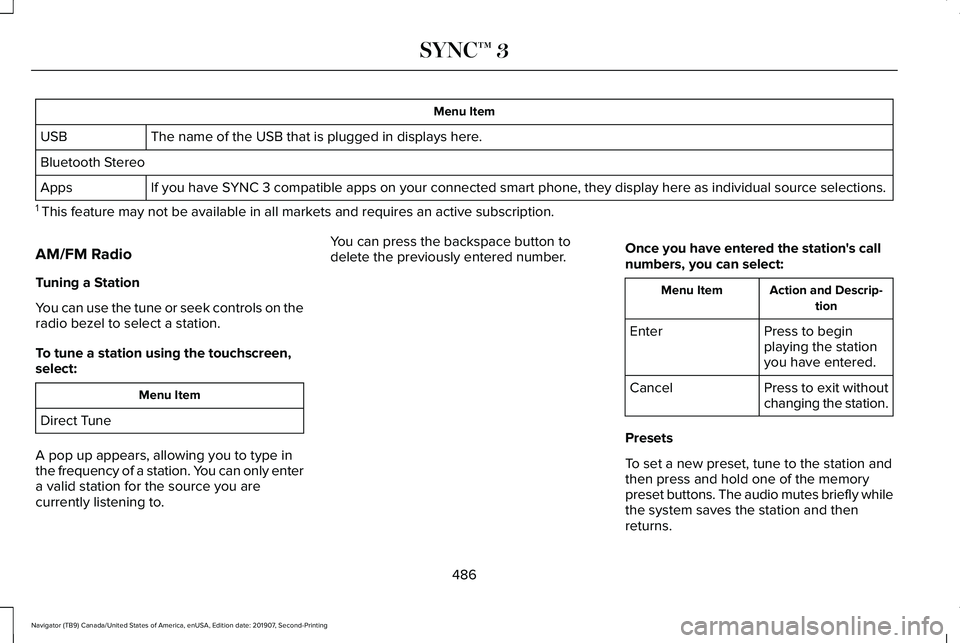
Menu Item
The name of the USB that is plugged in displays here.
USB
Bluetooth Stereo
If you have SYNC 3 compatible apps on your connected smart phone, they display here as individual source selections.
Apps
1 This feature may not be available in all markets and requires an active subscription.
AM/FM Radio
Tuning a Station
You can use the tune or seek controls on the
radio bezel to select a station.
To tune a station using the touchscreen,
select: Menu Item
Direct Tune
A pop up appears, allowing you to type in
the frequency of a station. You can only enter
a valid station for the source you are
currently listening to. You can press the backspace button to
delete the previously entered number.
Once you have entered the station's call
numbers, you can select: Action and Descrip-
tion
Menu Item
Press to begin
playing the station
you have entered.
Enter
Press to exit without
changing the station.
Cancel
Presets
To set a new preset, tune to the station and
then press and hold one of the memory
preset buttons. The audio mutes briefly while
the system saves the station and then
returns.
486
Navigator (TB9) Canada/United States of America, enUSA, Edition date: 201907, Second-Printing SYNC™ 3
Page 498 of 622

You can use the forward, reverse, pause or
play buttons to control the audio playback.
Bluetooth Stereo or USB
Bluetooth Stereo and USB allow you to
access media that you store on your
Bluetooth device or USB device such as
music, audio books or podcasts.
The following buttons are available for Bluetooth and USB: Function
Button
Pressing the repeat button toggles the repeat setting through three mode\
s: repeat off (button not
highlighted), repeat all (button highlighted) and repeat track (butt\
on highlighted with a small number
one).
Repeat
Play the tracks in random order.
Shuffle
You can use the forward, reverse, pause or
play buttons to control the audio playback.
To get more information about the currently
playing track, press the cover art or Info
button. For some devices, SYNC 3 is able to provide
30-second skip buttons when you listen to
audio books or podcasts. These buttons
allow you to skip forward or backward within
a track.
While playing audio from a USB device you
can look for certain music by selecting the
following:
495
Navigator (TB9) Canada/United States of America, enUSA, Edition date: 201907, Second-Printing SYNC™ 3
Page 499 of 622
Function
Button
If available, displays the list of tracks in the Now Playing playlist.
Browse
This option, which is available under browse, allows you to play all
tracks or to filter the available media into one of the below categories\
.
New Search
Play All
Playlists
Artist
Albums
Songs
Genres
Podcasts
Audio books
Composers
This button allows you to choose a specific letter to view within the
category you are browsing.
A-Z Jump
If available, this allows you to browse the folders and files on your
USB device.
Explore Device
496
Navigator (TB9) Canada/United States of America, enUSA, Edition date: 201907, Second-Printing SYNC™ 3
Page 500 of 622

USB Ports
The USB ports are in the center console or
behind a small access door in the instrument
panel.
This feature allows you to plug in USB media
devices, memory sticks, flash drives or thumb
drives, and charge devices if they support
this feature.
Select this option to play audio from your
USB device. Apps
The system supports the use of certain audio
apps such as iHeartRadio through a USB or
Bluetooth enabled device.
Each app gives you different on-screen
options depending on the app's content.
See Apps (page 510).
Supported Media Players, Formats and
Metadata Information
The system is capable of hosting nearly any
digital media player, including iPod, iPhone,
and most USB drives.
Supported audio formats include MP3, WMA,
WAV, AAC, and FLAC.
Supported audio file extensions include MP3,
WMA, WAV, M4A, M4B, AAC, and FLAC.
Supported USB file systems include: FAT,
exFAT, and NTFS.
SYNC 3 is also able to organize the media
from your USB device by metadata tags.
Metadata tags, which are descriptive
software identifiers embedded in the media
files, provide information about the file. If your indexed media files contain no
information embedded in these metadata
tags, SYNC 3 may classify the empty
metadata tags as unknown.
SYNC 3 is capable of indexing up to 50,000
songs per USB device, for up to 10 devices.
CLIMATE
Touch the climate button on the touchscreen
to access your climate control features.
Note:
You can switch temperature units
between Fahrenheit and Celsius.
See
Settings (page 513).
Accessing the Climate Control Menu Touch the button to access
additional controls for the front
climate system.
Directing the Airflow Touch the button to direct airflow
to the windshield air vents and
de-mister.
497
Navigator (TB9) Canada/United States of America, enUSA, Edition date: 201907, Second-Printing SYNC™ 3E211463 E265038

