2020 LINCOLN CORSAIR display
[x] Cancel search: displayPage 148 of 591

Tire Pressure Monitoring System
Action
Message
One or more tires on your vehicle have low tire pressure. See Tire Pressure Monitoring System (page 371).
Tire Pressure Low
The tire pressure monitoring system is malfunctioning. If the warning st\
ays on or continues tocome on, contact an authorized dealer.
See Tire Pressure Monitoring System (page 371).
Tire Pressure Monitor Fault
A tire pressure sensor is malfunctioning, or your spare tire is in use. For more information on
how the system operates under these conditions, See Tire Pressure Monitoring System (page 371
). If the warning stays on or continues to come on, contact an authorized \
dealer as soon as possible.
Tire Pressure Sensor Fault
Trailer Action
Message
A correct trailer connection is sensed during a given ignition cycle.
Trailer Connected
A trailer connection becomes disconnected, either intentionally or unint\
entionally,and has been sensed during a given ignition cycle.
Trailer Disconnected
The trailer sway control has detected trailer sway.
Trailer Sway Reduce Speed
There are certain faults in your vehicle wiring and trailer wiring or br\
ake system.See
Towing a Trailer (page 288).
Trailer Wiring Fault
145
Corsair (CTF) Canada/United States of America, enUSA, Edition date: 201906, Second-Printing Information Displays
Page 149 of 591

Action
Message
There is a fault with your trailer turn lamp. Check your lamp.
Trailer Left Turn Lamps Fault Check Lamps
There is a fault with your trailer turn lamp. Check your lamp.
Trailer Right Turn Lamps Fault Check Lamps
There is a fault with your trailer battery. See Towing a Trailer (page 288).
Trailer Battery Not Charging See Manual
There is a fault with your vehicle trailer lighting module.
See Towing a Trailer
(page 288).
Trailer Lighting Module Fault See Manual
Transmission Action
Message
You switched the engine off and the gear selector is in any position othe\
r than park (P).
Shift to Park
The transmission is too cold. Wait for it to warm up before you drive.
Transmission Warming Up Please Wait
Displays when you need to press the brake pedal.
Press Brake Pedal
The transmission is overheating and needs to cool. Stop in a safe place as soon as it’ s possible.
Transmission Over Temperature Stop
Safely
See an authorized dealer.
Transmission Service Required
The transmission is overheating and needs to cool. Stop in a safe place as soon as it’ s possible.
Transmission Too Hot Press Brake
The transmission has limited functionality. See an authorized dealer.
Transmission Limited Function See Manual
146
Corsair (CTF) Canada/United States of America, enUSA, Edition date: 201906, Second-Printing Information Displays
Page 150 of 591

Action
Message
A reminder to shift into park. In addition, this message is typical afte\
r reconnecting or rechargingthe battery until you cycle the ignition to the on mode. See Changing the 12V Battery (page
340).
Transmission Not in Park
Displays when there is a system fault and the park brake needs to be depressed before exitingthe vehicle. See your authorized dealer.
SHIFT SYS FAULT Confirm Park Brake
Apply Before Exiting the Vehicle
See your authorized dealer.
SHIFT SYS FAULT Service Required
Displays when there is a system fault while the vehicle is shifting to p\
ark. See your authorized dealer.
SHIFT SYS FAULT Vehicle is Shifting to
Park
Displays when there is a system fault while the vehicle is shifting to r\
everse. See your authorized dealer.
SHIFT SYS FAULT Reverse Unavailable
Service Required
See an authorized dealer.
SHIFT SYS FAULT Drive Unavailable Select
S for Drive Service Required
See your authorized dealer.
SHIFT SYS FAULT Neutral Unavailable
Service Required
See your authorized dealer.
SHIFT SYS FAULT Sport Unavailable
Service Required
Displays when an invalid gear has been selected.
Invalid Gear Selection
Displays when the brake pedal needs to be depressed to enable the transmission to shift from park.
Depress Brake to Shift from Park
147
Corsair (CTF) Canada/United States of America, enUSA, Edition date: 201906, Second-Printing Information Displays
Page 151 of 591

HEAD UP DISPLAY
The head up display (HUD) is a visual system
that shows information in your field of view
as you drive. The information comes from
various vehicle systems and includes vehicle
speed, speed limit, navigation, and advanced
driver assistance systems such as adaptive
cruise control and the lane keeping system.
This system projects the information off the
windshield, and focuses the image near the
end of the hood approximately 7 ft (2 m) in
front of the driver. Viewing this information
does not require you to significantly move
your head, allowing you to keep your eyes
on the road while having quick and easy
access to information. Configuring The Head Up Display
You can control the system's options through
the information display by using the 4-way
toggle on the right-hand side of your steering
wheel.
See General Information (page 123).
You can adjust the display according to your
height to make viewing the content easier.
You can also adjust what content displays
and the brightness of the content. The
system's options appear in the instrument
cluster while the updates happen in the head
up display.
Note: If HUD On is unchecked, other options
of the system are hidden. Note:
The head up display menu
automatically closes after a certain period
of inactivity.
Note: The head up display image brightness
automatically adjusts to the brightness of
the ambient environment. You have the
ability to adjust the brightness further
according to your preference.
Note: In some instances, sunlight can cause
some reflections in and around the head up
display image. Head-Up Display (HUD)
Turns the head up display on and off.
HUD On
Follow onscreen directions to confirm or modify your settings.
Brightness
Follow onscreen directions to confirm or
modify your settings.
Vertical Position
HUD Position
Image Rotation
148
Corsair (CTF) Canada/United States of America, enUSA, Edition date: 201906, Second-Printing Information Displays
Page 152 of 591
Head-Up Display (HUD)
Turns the distance to empty, time and temperature on and off.
HUD Content
Select Your Setting
Cruise and Lane Control
Note: When you save a memory preset position, your current head up display set\
tings are also saved to that memory preset position. See
Memory Function (page 165).
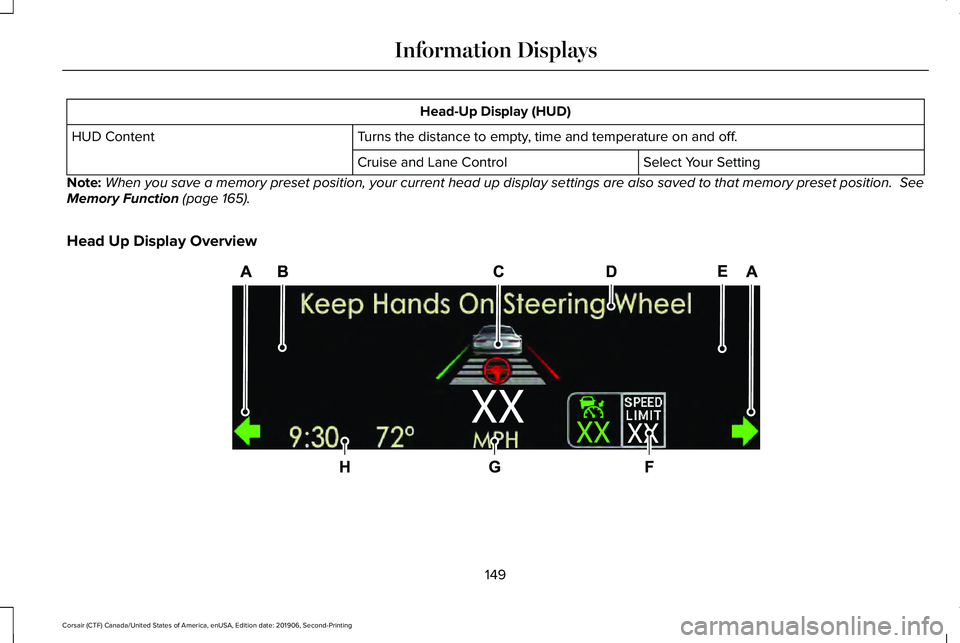
Head Up Display Overview 149
Corsair (CTF) Canada/United States of America, enUSA, Edition date: 201906, Second-Printing Information DisplaysE307581
Page 153 of 591

Signaling and traffic indication.
A
Navigation display area.
B
Advanced driver assistance systems display area.
C
System message display area.
D
Advanced driver assistance systems message display area.
E
Speed limit display area.
F
Speedometer display area.
G
Status bar.
H
Signaling and Traffic Indication
Displays direction indicators and blind spot
information (if direction indicators are active).
Navigation Display Area
Displays navigation next turn instructions.
Advanced Driver Assistance Systems
Display Area
Displays adaptive cruise control, lane
centering aid and lane keeping system status
and warnings. System Message Display Area
Displays system messages and notifications
including an incoming phone call.
Advanced Driver Assistance Systems
Message Display Area
Displays advanced driver assistance systems
messages and image adjustment prompts.
Speed Limit Display Area
Displays your speed limit information if it is
available in the map database or is detected
by the camera.Speedometer Display Area
Displays your current vehicle speed and your
transmission gear selection.
Status Bar
Displays Distance To Empty (DTE), time and
outside air temperature. Next to DTE, the
fuel gauge fill color changes to yellow in low
fuel conditions. You can switch off the status
bar in the head up display settings menu.
150
Corsair (CTF) Canada/United States of America, enUSA, Edition date: 201906, Second-Printing Information Displays
Page 154 of 591
Maintaining Your Head Up Display
•
Do not place objects onto the transparent
cover, as they may block you from seeing
portions of the image. These objects
could also damage the cover and affect
the quality of the projected image.
• The system uses a special windshield
designed to provide the optimum image
quality. You must replace the windshield
in a vehicle with this system with a
certified original equipment
manufactured (OEM) head up display
windshield. Replacing this system's
windshield with a non-head up display
windshield causes a double image or
distorted image. Have an authorized
dealer or authorized repair facility replace
the windshield.
• Light conditions such as oncoming
headlamps, sunrise, sunset or reflections
off road surfaces can affect the driver's
ability to see the head up display image.
• Clean the windshield often for optimal
head up display performance. See
Cleaning the Windows and Wiper
Blades
(page 349).
151
Corsair (CTF) Canada/United States of America, enUSA, Edition date: 201906, Second-Printing Information Displays
Page 159 of 591

Note:
Do not remove ice from the mirrors
with a scraper or adjust the mirror glass
when it is frozen in place.
Note: Do not clean the mirror housing or
glass with harsh abrasives, fuel or other
petroleum-based cleaning products. The
vehicle warranty may not cover damage
caused to the mirror housing or glass.
CABIN AIR FILTER
The cabin air filter is under the instrument
panel in the passenger footwell area or
under the center console on the passenger
side.
The system filters airborne particles such as
dust, spores and pollen in the air supplied to
and recirculated in the interior of your
vehicle.
Make sure you have a cabin air filter installed
at all times. Running the system without a
filter in place could degrade or damage the
system. Your vehicle cabin air filter gives you and
your passengers the following benefits:
•
It improves your driving comfort by
reducing particle concentration.
• It improves the interior compartment
cleanliness.
• It protects the climate control
components from particle deposits.
Change the air filter element at the proper
intervals. See Scheduled Maintenance
(page 502).
For additional cabin air filter information, or
to replace the filter, see an authorized dealer.
REMOTE START
(IF EQUIPPED)
The system adjusts the interior temperature
depending on your chosen settings during
remote start.
You cannot adjust the climate control setting
during remote start operation. When you
switch the ignition on, the climate control
system returns to the previous settings. You
can now make adjustments. Some features may remain on if they turn on
during remote start:
•
Driver heated seat.
• Driver ventilated seat.
• Heated steering wheel.
• Heated mirrors.
• Heated rear window.
• Windshield wiper de-icer.
Note: If the passenger heated or ventilated
seats are on when you switch the vehicle
off, they default to the driver setting when
you switch the vehicle on.
You can adjust the default remote start
settings using the information display
controls. See Information Displays (page
123).
Automatic Settings
In hot weather, the system sets to
72°F
(22°C). The ventilated seats set to high (if
available, and if you select AUTO in the
information display).
156
Corsair (CTF) Canada/United States of America, enUSA, Edition date: 201906, Second-Printing Climate Control