2020 LINCOLN CORSAIR navigation
[x] Cancel search: navigationPage 170 of 591
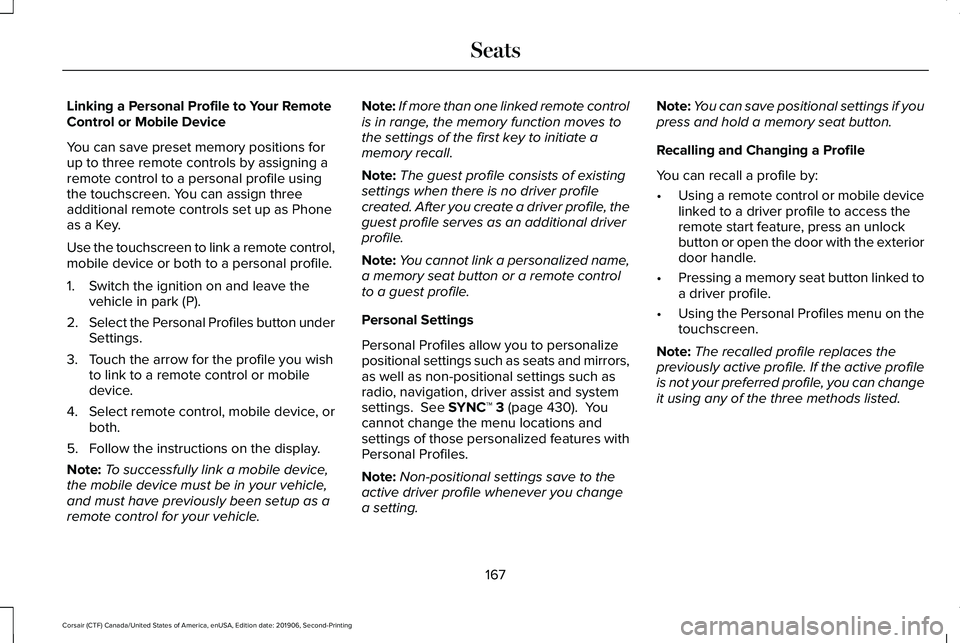
Linking a Personal Profile to Your Remote
Control or Mobile Device
You can save preset memory positions for
up to three remote controls by assigning a
remote control to a personal profile using
the touchscreen. You can assign three
additional remote controls set up as Phone
as a Key.
Use the touchscreen to link a remote control,
mobile device or both to a personal profile.
1. Switch the ignition on and leave the
vehicle in park (P).
2. Select the Personal Profiles button under
Settings.
3. Touch the arrow for the profile you wish to link to a remote control or mobile
device.
4. Select remote control, mobile device, or
both.
5. Follow the instructions on the display.
Note: To successfully link a mobile device,
the mobile device must be in your vehicle,
and must have previously been setup as a
remote control for your vehicle. Note:
If more than one linked remote control
is in range, the memory function moves to
the settings of the first key to initiate a
memory recall.
Note: The guest profile consists of existing
settings when there is no driver profile
created. After you create a driver profile, the
guest profile serves as an additional driver
profile.
Note: You cannot link a personalized name,
a memory seat button or a remote control
to a guest profile.
Personal Settings
Personal Profiles allow you to personalize
positional settings such as seats and mirrors,
as well as non-positional settings such as
radio, navigation, driver assist and system
settings. See SYNC™ 3 (page 430). You
cannot change the menu locations and
settings of those personalized features with
Personal Profiles.
Note: Non-positional settings save to the
active driver profile whenever you change
a setting. Note:
You can save positional settings if you
press and hold a memory seat button.
Recalling and Changing a Profile
You can recall a profile by:
• Using a remote control or mobile device
linked to a driver profile to access the
remote start feature, press an unlock
button or open the door with the exterior
door handle.
• Pressing a memory seat button linked to
a driver profile.
• Using the Personal Profiles menu on the
touchscreen.
Note: The recalled profile replaces the
previously active profile. If the active profile
is not your preferred profile, you can change
it using any of the three methods listed.
167
Corsair (CTF) Canada/United States of America, enUSA, Edition date: 201906, Second-Printing Seats
Page 258 of 591
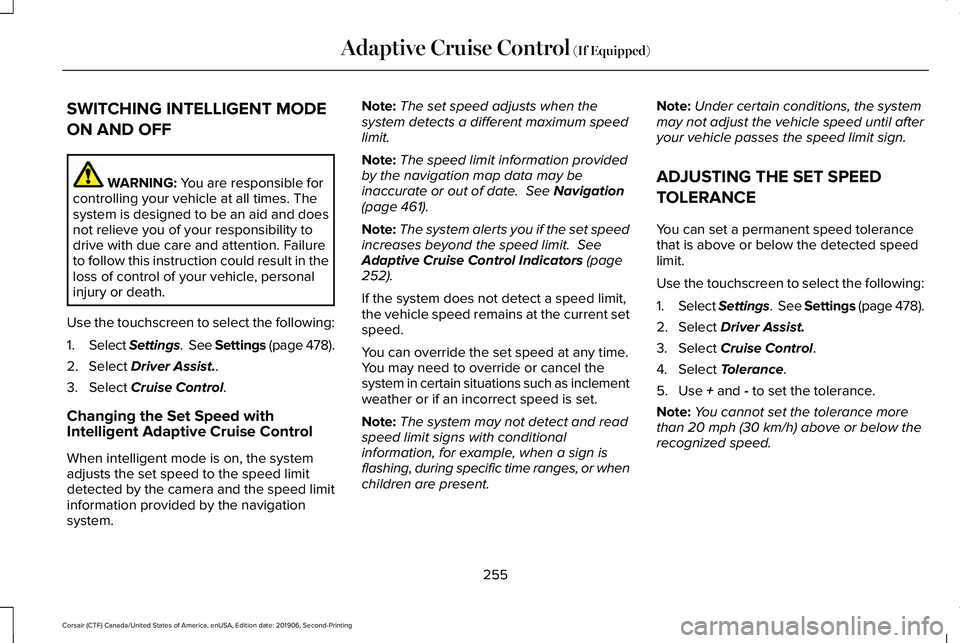
SWITCHING INTELLIGENT MODE
ON AND OFF
WARNING: You are responsible for
controlling your vehicle at all times. The
system is designed to be an aid and does
not relieve you of your responsibility to
drive with due care and attention. Failure
to follow this instruction could result in the
loss of control of your vehicle, personal
injury or death.
Use the touchscreen to select the following:
1. Select Settings. See Settings (page
478).
2. Select
Driver Assist..
3. Select
Cruise Control.
Changing the Set Speed with
Intelligent Adaptive Cruise Control
When intelligent mode is on, the system
adjusts the set speed to the speed limit
detected by the camera and the speed limit
information provided by the navigation
system. Note:
The set speed adjusts when the
system detects a different maximum speed
limit.
Note: The speed limit information provided
by the navigation map data may be
inaccurate or out of date.
See Navigation
(page 461).
Note: The system alerts you if the set speed
increases beyond the speed limit.
See
Adaptive Cruise Control Indicators (page
252).
If the system does not detect a speed limit,
the vehicle speed remains at the current set
speed.
You can override the set speed at any time.
You may need to override or cancel the
system in certain situations such as inclement
weather or if an incorrect speed is set.
Note: The system may not detect and read
speed limit signs with conditional
information, for example, when a sign is
flashing, during specific time ranges, or when
children are present. Note:
Under certain conditions, the system
may not adjust the vehicle speed until after
your vehicle passes the speed limit sign.
ADJUSTING THE SET SPEED
TOLERANCE
You can set a permanent speed tolerance
that is above or below the detected speed
limit.
Use the touchscreen to select the following:
1. Select Settings. See Settings (page
478).
2. Select
Driver Assist.
3. Select
Cruise Control.
4. Select
Tolerance.
5. Use
+ and - to set the tolerance.
Note: You cannot set the tolerance more
than
20 mph (30 km/h) above or below the
recognized speed.
255
Corsair (CTF) Canada/United States of America, enUSA, Edition date: 201906, Second-Printing Adaptive Cruise Control
(If Equipped)
Page 344 of 591

For longer, trouble-free operation, keep the
top of the battery clean and dry.
If you see any corrosion on the battery or
terminals, remove the cables from the
terminals and clean with a wire brush. You
can neutralize the acid with a solution of
baking soda and water.
Because a computer electronically controls
your vehicle's engine, power from the battery
maintains some control conditions. When
you disconnect or have a new battery
installed, the engine must relearn its idle and
fuel trim strategy for optimum driveability and
performance. Flexible fuel vehicles (FFV)
must also relearn the ethanol content of the
fuel for optimum driveability and
performance.
To restore the settings, do the following:
1. Apply the parking brake.
2. Shift into park (P) or neutral (N).
3. Switch off all the accessories.
4. Press the brake pedal and start your
vehicle. 5. Run the engine until it reaches normal
operating temperature. While the engine
is warming up, complete the following:
Reset the clock. Reset the power
windows bounce-back feature. See
Windows and Mirrors (page 108). Reset
the radio station presets. See Audio
System (page 420).
6. Allow the engine to idle for at least one minute.
7. Drive the vehicle at least 10 mi (16 km) to
completely relearn the idle trim and fuel
trim strategy.
Note: If you do not allow the engine to
relearn the idle and fuel trim strategy, you
could adversely affect the idle quality of your
vehicle until the engine computer eventually
relearns the idle trim and fuel trim strategy.
Note: For flexible fuel vehicles, if you are
operating on E85, you could experience poor
starts or an inability to start the engine and
driveability problems until the fuel trim and
ethanol content have been relearned. Make sure that you dispose of old batteries
in an environmentally friendly way. Seek
advice from your local authority about
recycling old batteries.
If storing your vehicle for more than 30 days
without recharging the battery, we
recommend that you disconnect the negative
battery cable to maintain battery charge for
quick starting.
Battery Management System
(If Equipped)
The battery management system monitors
battery conditions and takes actions to
extend battery life. If the system detects
excessive battery drain, it temporarily
disables some electrical systems to protect
the battery.
Systems included are:
• Heated rear window.
• Heated seats.
• Climate control.
• Heated steering wheel.
• Audio unit.
• Navigation system.
341
Corsair (CTF) Canada/United States of America, enUSA, Edition date: 201906, Second-Printing Maintenance
Page 433 of 591

GENERAL INFORMATION
WARNING: Driving while distracted
can result in loss of vehicle control, crash
and injury. We strongly recommend that
you use extreme caution when using any
device that may take your focus off the
road. Your primary responsibility is the safe
operation of your vehicle. We recommend
against the use of any hand-held device
while driving and encourage the use of
voice-operated systems when possible.
Make sure you are aware of all applicable
local laws that may affect the use of
electronic devices while driving.
About SYNC
The system allows you to interact with the
entertainment, information and
communication systems on your vehicle
using voice commands and a touchscreen.
The system provides easy interaction with
audio, phone, navigation, mobile apps and
settings. Note:
You can switch the system on and use
it for up to an hour without switching the
ignition on.
Note: You can use the system after you
switch the ignition off for up to 10 minutes or
until you open a door.
Note: For your safety, some features are
speed-dependent. Their use is limited to
when your vehicle speed is less than 3 mph
(5 km/h)
. Using the Touchscreen Status bar.
A
Home screen.
B
Clock.
See Settings (page 478).
C
Outside air temperature.
D
Feature bar.
E
430
Corsair (CTF) Canada/United States of America, enUSA, Edition date: 201906, Second-Printing SYNC™ 3E297844
Page 434 of 591

Status Bar
Cell phone microphone muted.
Audio system muted.
Software update installed.
Wi-Fi connected.
Cell phone roaming.
Text message received.
Automatic crash notification system
off.
Cell phone network signal
strength.
Vehicle data sharing active. Vehicle location sharing active.
Vehicle data and location sharing
active.
Feature Bar Select to use the radio, a USB, a
media player or a Bluetooth
device. See Entertainment (page
444). Select to adjust climate settings
See
Climate (page 456).
Select to make calls and access
the phonebook on your cell phone.
See
Phone (page 459).
Select to use the navigation
system. See Navigation (page 461).
Select to search for and use
compatible apps on your iOS or
Android device.
See Apps (page
475). Select to adjust system settings.
See
Settings (page 478).
Cleaning the Touchscreen
See
Cleaning the Interior (page 350).
Updating the System
Updating the System Using a USB Drive
Downloading an Update
1. Go to the SYNC update page on the regional website.
2. Download the update.
Note: The website notifies you if an update
is available.
3. Insert a USB drive into your computer.
Note: The USB drive needs to be empty and
meet the minimum requirements detailed on
the website.
4. Follow the instructions provided to download the update to the USB drive.
431
Corsair (CTF) Canada/United States of America, enUSA, Edition date: 201906, Second-Printing SYNC™ 3 E100027 E283811 E280315
Page 442 of 591
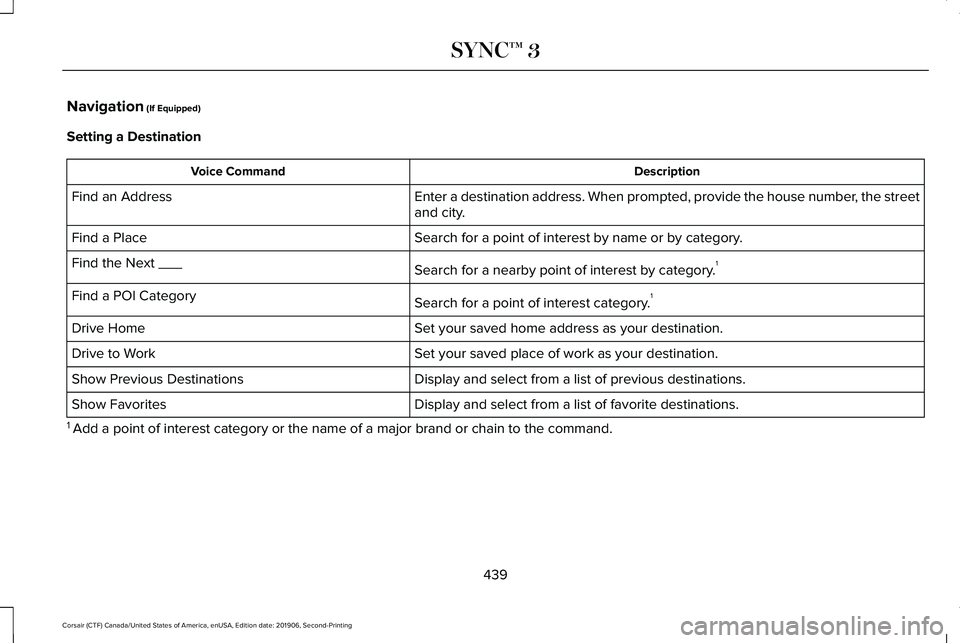
Navigation (If Equipped)
Setting a Destination Description
Voice Command
Enter a destination address. When prompted, provide the house number, the street
and city.
Find an Address
Search for a point of interest by name or by category.
Find a Place
Search for a nearby point of interest by category.1
Find the Next ___
Search for a point of interest category.1
Find a POI Category
Set your saved home address as your destination.
Drive Home
Set your saved place of work as your destination.
Drive to Work
Display and select from a list of previous destinations.
Show Previous Destinations
Display and select from a list of favorite destinations.
Show Favorites
1 Add a point of interest category or the name of a major brand or chain t\
o the command.
439
Corsair (CTF) Canada/United States of America, enUSA, Edition date: 201906, Second-Printing SYNC™ 3
Page 464 of 591

Using Text Messaging
Description
Menu Item
Hear the text message.
Hear It
View the text message.
View
Call the sender.
Call
Reply to the text message with a standard text message.
Reply
Apple CarPlay (If Equipped)
1. Connect your device to a USB port.
2. Follow the instructions on the touchscreen.
Note: Certain features of the system are not
available when you are using Apple CarPlay.
Switching Apple CarPlay Off Select the settings option on the
feature bar.
1. Select
Apple CarPlay Preferences.
2. Switch
Apple CarPlay off. Android Auto
(If Equipped)
1. Connect your device to a USB port.
2. Follow the instructions on the touchscreen.
Note: You might need to enable Android
Auto from the settings menu.
Note: Certain features of the system are not
available when you are using Android Auto.
Switching Android Auto Off Select the settings option on the
feature bar.
1. Select
Android Auto. 2. Switch
Android Auto off.
NAVIGATION
(IF EQUIPPED)
Note: For more information, refer to our
website. Select the navigation option on the
feature bar.
461
Corsair (CTF) Canada/United States of America, enUSA, Edition date: 201906, Second-Printing SYNC™ 3
Page 469 of 591
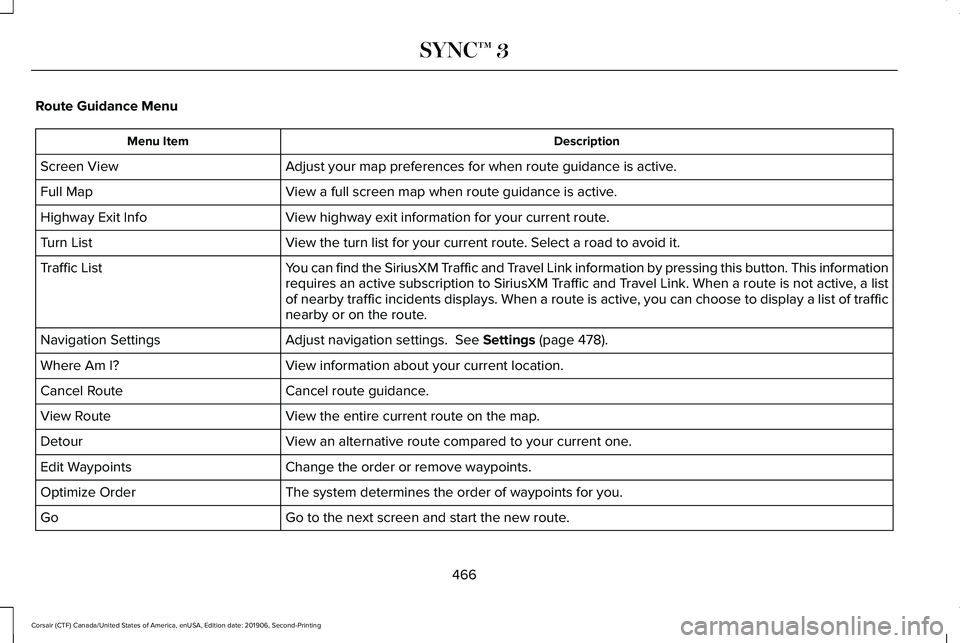
Route Guidance Menu
Description
Menu Item
Adjust your map preferences for when route guidance is active.
Screen View
View a full screen map when route guidance is active.
Full Map
View highway exit information for your current route.
Highway Exit Info
View the turn list for your current route. Select a road to avoid it.
Turn List
You can find the SiriusXM Traffic and Travel Link information by pressing this button. This information
requires an active subscription to SiriusXM Traffic and Travel Link. When a route is not active, a list
of nearby traffic incidents displays. When a route is active, you can choose to display a list of traffic
nearby or on the route.
Traffic List
Adjust navigation settings. See Settings (page 478).
Navigation Settings
View information about your current location.
Where Am I?
Cancel route guidance.
Cancel Route
View the entire current route on the map.
View Route
View an alternative route compared to your current one.
Detour
Change the order or remove waypoints.
Edit Waypoints
The system determines the order of waypoints for you.
Optimize Order
Go to the next screen and start the new route.
Go
466
Corsair (CTF) Canada/United States of America, enUSA, Edition date: 201906, Second-Printing SYNC™ 3