Page 396 of 777
3955-1. Basic Operations
5
Lexus Display Audio system
RX350/RX350L_U
■“Menu” screen
To display the “Menu” screen, press the “MENU” button on the Lexus Display
Audio controller.
*: Available in the 48 states, D.C. and Alaska
ButtonFunction
“Radio”Display the radio top screen ( P. 420)
“Media”Display the media top screen ( P. 427, 434, 438, 442, 447)
“Climate”Display the air conditioning control screen ( P. 506, 508)
“Phone”Display the phone top screen ( P. 455)
“Connected Navi”*
If a turn-by-turn navigation application has been downloaded
to a connected phone, the appl ication will be displayed and
can be used.
“Info”Display the “Information” screen ( P. 482)
“Setup”Display the “Setup” screen ( P. 406)
“Display”Display the display settings screen ( P. 411)
Page 403 of 777

4025-1. Basic Operations
RX350/RX350L_U
■Adjusting the volume
The volume of the Mobile Assist ant can be adjusted using the
“PWR·VOL” knob or
steering wheel volume switch es. The Mobile Assistant and phone call volumes are syn-
chronized.
■Microphone
It is not necessary to speak directly into the microphone when using the Mobile Assis-
tant.
●Wait for the listening beeps before using the Mobile Assistant.
●The Mobile Assistant may not recognize commands in the following situations:
• When spoken too quickly.
• When spoken at a low or high volume.
• When the roof or windows are open.
• When passengers are talking while th e Mobile Assistant is being used.
• When the air conditioning syst em’s fan speed is set high.
• When the air conditioning vents are turned toward the microphone.
■Mobile Assistant precautions
●The available features and functions may vary based on the iOS version installed on the
connected device.
●Some Siri features are limited in Eyes Free mode. If you attempt to use an unavailable
function, Siri will inform you that the function is not available.
●If Siri is not enabled on the ce llular phone connected via Bluetooth, an error message
will be displayed on the screen.
●While a phone call is active, the Mobile Assistant cannot be used.
●If using the navigation feature of the cellular phone, ensure the active audio source is
Bluetooth audio or iPod in order to hear turn by turn direction prompts.
Page 427 of 777
4265-4. Using the radio
RX350/RX350L_U
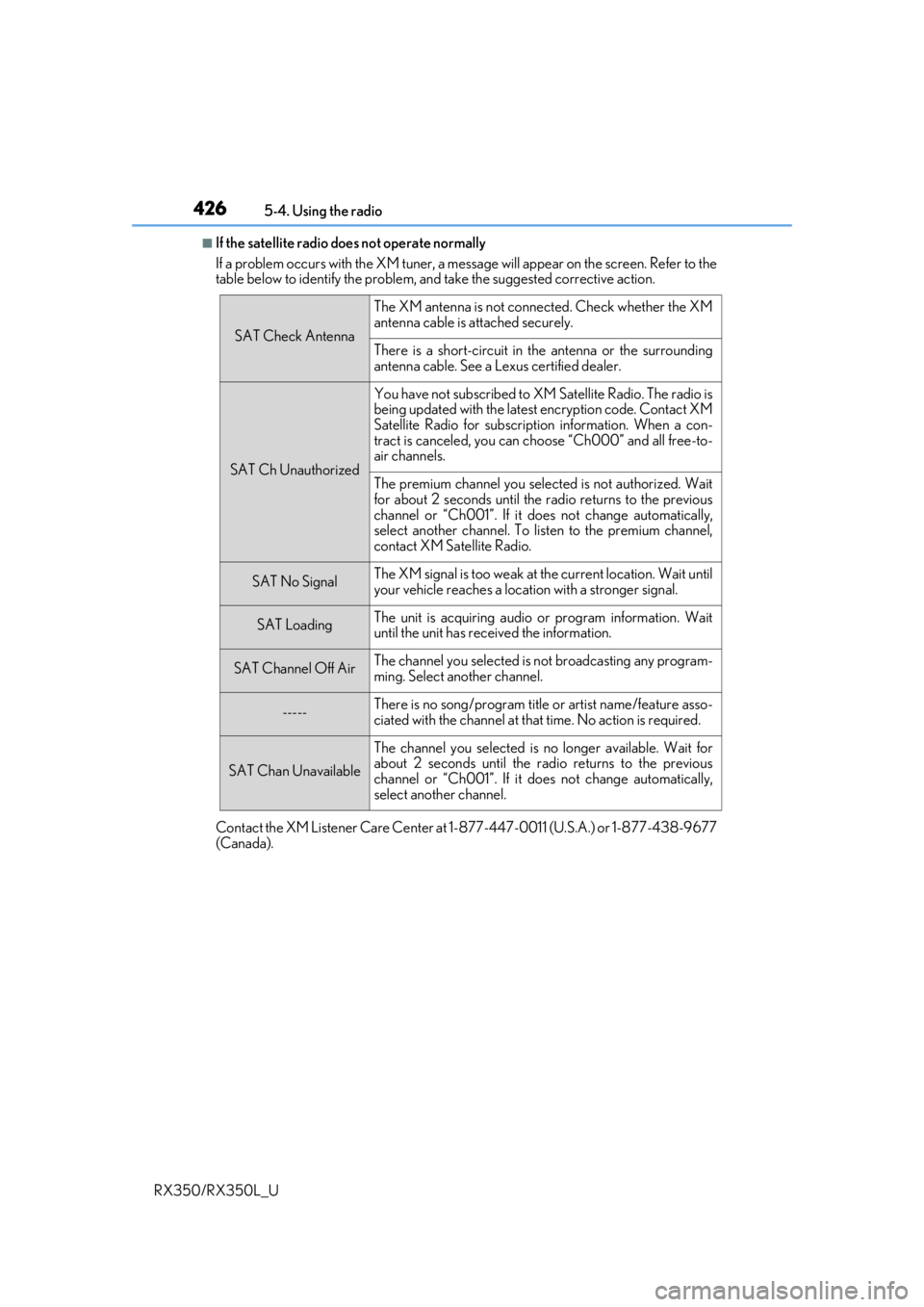
■If the satellite radio does not operate normally
If a problem occurs with the XM tuner, a message will appear on the screen. Refer to the
table below to identify the problem, an d take the suggested corrective action.
Contact the XM Listener Care Center at 1-877-447-0011 (U.S.A.) or 1-877-438-9677
(Canada).
SAT Check Antenna
The XM antenna is not connected. Check whether the XM
antenna cable is attached securely.
There is a short-circuit in the antenna or the surrounding
antenna cable. See a Lexus certified dealer.
SAT Ch Unauthorized
You have not subscribed to XM Satellite Radio. The radio is
being updated with the latest encryption code. Contact XM
Satellite Radio for subscripti on information. When a con-
tract is canceled, you can choose “Ch000” and all free-to-
air channels.
The premium channel you selected is not authorized. Wait
for about 2 seconds until the radio returns to the previous
channel or “Ch001”. If it does not change automatically,
select another channel. To listen to the premium channel,
contact XM Satellite Radio.
SAT No SignalThe XM signal is too weak at the current location. Wait until
your vehicle reaches a location with a stronger signal.
SAT LoadingThe unit is acquiring audio or program information. Wait
until the unit has rece ived the information.
SAT Channel Off AirThe channel you selected is not broadcasting any program-
ming. Select another channel.
-----There is no song/program title or artist name/feature asso-
ciated with the channel at that time. No action is required.
SAT Chan Unavailable
The channel you selected is no longer available. Wait for
about 2 seconds until the radio returns to the previous
channel or “Ch001”. If it does not change automatically,
select another channel.
Page 446 of 777

4455-7. Connecting Bluetooth®
5
Lexus Display Audio system
RX350/RX350L_U
Turn the Bluetooth® connection setting of your device set to on.
Go to “Bluetooth
* Setup”: “MENU” button “Setup” “Bluetooth*”
Move the controller to the left and then select “Add Device”.
When this screen is displayed,
search for the device name dis-
played on this screen on your
Bluetooth
® device.
For operation of the Bluetooth® device,
see the manual that comes with your
Bluetooth
® device.
Register the Bluetooth® device
using your Bluetooth® device.
A PIN code are not required for SSP (Secur e Simple Pairing) compatible Bluetooth®
devices. Depending on the device, you may need to select Yes to register, or No to
cancel on the device.
If an error message is displayed, follow the guidance on the screen to try again.
*: Bluetooth is a registered trademark of Bluetooth SIG, Inc.
Go to “Bluetooth* Setup”: “MENU” button “Setup” “Bluetooth*”
Move the controller to the left and then select “Remove Device”.
Select the device to remove.
*: Bluetooth is a registered trademark of Bluetooth SIG, Inc.
Registering a Bluetooth® device
Bluetooth® compatible phones (HFP) and portable audio players (AVP) can
be registered simultaneously. You can register up to 5 Bluetooth® devices.
How to register a Bluetooth® device
1
2
3
4
5
Removing a Bluetooth® device
1
2
3
Page 477 of 777

4765-11. Bluetooth®
RX350/RX350L_U
■When using the Bluetooth® audio system
●In the following situations, the system may not function.
• If the portable audio player is turned off
• If the portable audio player is not connected
• If the portable audio player’s battery is low
●There may be a delay if a cellular phone connection is made during Bluetooth® audio
play.
●Depending on the type of portable audio play er that is connected to the system, opera-
tion may differ slight ly and certain functions may not be available.
■When using the hands-free system
●The audio system is mu ted when making a call.
●If both parties speak at the same time, it may be difficult to hear.
●If the received call volume is over ly loud, an echo may be heard.
If the Bluetooth® phone is too close to the system, quality of the sound may deteriorate
and connection status may deteriorate.
●In the following situations, it may be difficult to hear the other party:
• When driving on unpaved roads
• When driving at high speeds
• If a window is open
• If the air conditioning is blow ing directly on the microphone
• If there is interference from the network of the cellular phone
●Depending on the type phone, certain functions may not be available.
■Conditions under which the system will not operate
●If using a cellular phone that does not support Bluetooth®
●If the cellular phone is turned off
●If you are outside of cellular phone service coverage
●If the cellular phone is not connected
●If the cellular phone’s battery is low
●When outgoing calls are controlled, due to heavy traffic on phone lines, etc.
●When the cellular phone itself cannot be used
●When transferring phonebook da ta from the cellular phone
Bluetooth®
Page 489 of 777
4885-12. Other function
RX350/RX350L_U
■Microphone
P. 456
■When using the microphone
●It is unnecessary to speak directly into the microphone when giving a command.
●Wait for the confirmation beep before speaking a command.
●Voice commands may not be recognized if:
• Spoken too quickly.
• Spoken at a low or high volume.
• The roof or windows are open.
• Passengers are talking while voice commands are spoken.
• The air conditioning speed is set high.
• The air conditioning vents are turned towards the microphone.
●In the following conditions, the system ma y not recognize the command properly and
using voice commands may not be possible:
• The command is incorrect or unclear. No te that certain words, accents or speech
patterns may be difficult for the system to recognize.
• There is excessive background noise, such as wind noise.
■When searching for a track
●A USB memory or iPod must be connected to enable track searching and playback.
( P. 403)
●When a USB memory or iPod is connected, recognition data is created so tracks can
be searched using voice commands.
●Recognition data is updated un der the following conditions:
• When the USB memory or iPod data has changed.
• When the voice recognition language is changed. ( P. 407)
●While the recognition data is being created or being updated, a track search cannot be
performed using a voice command.
■The Gracenote® media database
Page 495 of 777
494
RX350/RX350L_U
6-1. Basic operation of the Remote Touch screen
Remote Touch............................. 496
12.3-inch display ....................... 500
6-2. Using the air conditioning system and defogger
Lexus Climate Concierge..................................502
Front automatic air conditioning system ...............503
Rear automatic air conditioning system ................ 518
Heated steering wheel/ seat heaters/
seat ventilators .......................... 521
6-3. Using the interior lights Interior lights list ......................... 524
• Interior lights .......................... 525
• Personal lights ....................... 526
6Interior features
Page 499 of 777

4986-1. Basic operation of the Remote Touch screen
RX350/RX350L_U
■Screen display during low temperatures
When the ambient temperature is extremely low, screen response may be delayed even
if the Remote Touch is operated.
WARNING
■When using the Remote Touch
●Do not allow fingers, fingernails or hair to become caught in the Remote Touch as this
may cause an injury.
●Be careful when selecting the Remote Touch in extreme temperatures as it may
become very hot or cold due to the temperature inside the vehicle.
NOTICE
■To prevent damage to the Remote Touch
●Do not allow the Remote Touch to come into contact with food, liquid, stickers or lit
cigarettes as doing so may cause it to change color, emit a strange odor or stop func-
tioning.
●Do not subject the Remote Touch to excessive pressure or strong impact as the knob
may bend or break off.
●Do not allow coins, contact lenses or ot her such items to become caught in the
Remote Touch as this may cause it to stop functioning.
●Items of clothing may rip if they become caught on the Remote Touch knob.
●If your hand or any object is on the Remote Touch knob when the engine switch is in
ACCESSORY mode, the Remote Touch knob may not operate properly.

