2020 INFINITI Q50 seat
[x] Cancel search: seatPage 36 of 276
![INFINITI Q50 2020 Infiniti Intouch 2. Getting started
Setting itemResult
[Touch Sensitive Door Sensor] When this item is turned ON, you can unlock vehicle doors by
touching the inside of the door handle. When it is OFF, you can
unlock](/manual-img/42/35001/w960_35001-35.png "INFINITI Q50 2020 Infiniti Intouch 2. Getting started
Setting itemResult
[Touch Sensitive Door Sensor] When this item is turned ON, you can unlock vehicle doors by
touching the inside of the door handle. When it is OFF, you can
unlock")
2. Getting started
Setting itemResult
[Touch Sensitive Door Sensor] When this item is turned ON, you can unlock vehicle doors by
touching the inside of the door handle. When it is OFF, you can
unlock vehicle doors by pushing the request switch. Refer to the
vehicle Owner’s Manual for details.
[Lane Change (3 Flashes)] Sets Lane change 3 flash.
[Reverse Link Wiper] Sets the Reverse Link Wiper.
[Drip Wipe] Sets Drip wipe.
[Answer Back Exterior Light] Sets welcome light and farewell light function.
[Selective Door Unlock] When this item is turned ON, you can use this function to unlock an
assigned door. When this item is turned OFF, all doors will unlock.
[Lift Steering upon Exit] Sets Lift Steering upon Exit.
[Slide Driver Seat Back on Exit] Sets Driver Seat Back on Exit.
[Return All Settings to Default] All vehicle setting values are returned to the default settings.
[Drive Mode Enhancement] [ECO Pedal] Sets the ECO pedal to [OFF], [Soft], or [Standard]. Refer to the
vehicle Owner’s Manual for details.
2-24
Page 84 of 276

3. Audio system
MOBILE ENTERTAINMENT
SYSTEM (MES) (if so equipped)
If your vehicle is equipped with the Mobile
Entertainment System (MES), rear seat
passengers can enjoy playing audio and
movie files on the rear displays with images
and sound.
Playable source:. USB device
. HDMI device
Only the compatible devices connected to
the rear media interface can be played on the
rear displays.
Rear media interface (USB connection port
and HDMI port) location:
“Rear media interface” (page 3-50)
The left/right rear displays can show differ-
ent sources individually.
WARNING
The driver must not attempt to operate
the Mobile Entertainment System while
driving so full attention may be given to
vehicle operation.
CAUTION
. Do not attempt to use the system in
extremely high or low temperature
conditions [below -4°F (-20°C) or
above 158°F (70°C)].
. To avoid draining the vehicle battery,
do not operate the system for more
than 15 minutes without starting the
engine.
PRECAUTIONS
Start the engine when using the Mobile
Entertainment System.
WARNING
The driver must not attempt to operate
the Mobile Entertainment System or
wear the headphones while the vehicle is
in motion so that full attention may be
given to vehicle operation.
Park the vehicle in a safe location and
apply the parking brake to view the
images on the front touch screen display
with the Mobile Entertainment System.
CAUTION
.Only operate the Mobile Entertain-
ment System while the engine is
running. Operating the Mobile Enter-
tainment System for extended peri-
ods of time with the engine turned off
can discharge the vehicle battery.
. Do not allow the system to get wet.
Excessive moisture, such as spilled
liquids, may cause the system to
malfunction.
3-36
Page 96 of 276
3. Audio system
To replace the battery:
1. Open the lid as illustrated above.
2. Replace both batteries with new ones.
.Recommended battery: Size AA x 2
.Be careful not to touch the batteryterminal.
.Make sure that the +and 7ends on
the batteries match the markings in-
side the compartment.
3. Close the lid securely.
.If you will not be using the remote controller for long periods of time,
remove the batteries.
.Replacement of the batteries is
needed when the remote controller
only functions at extremely close
distances to the Mobile Entertain-
ment System or when it does not
function at all.
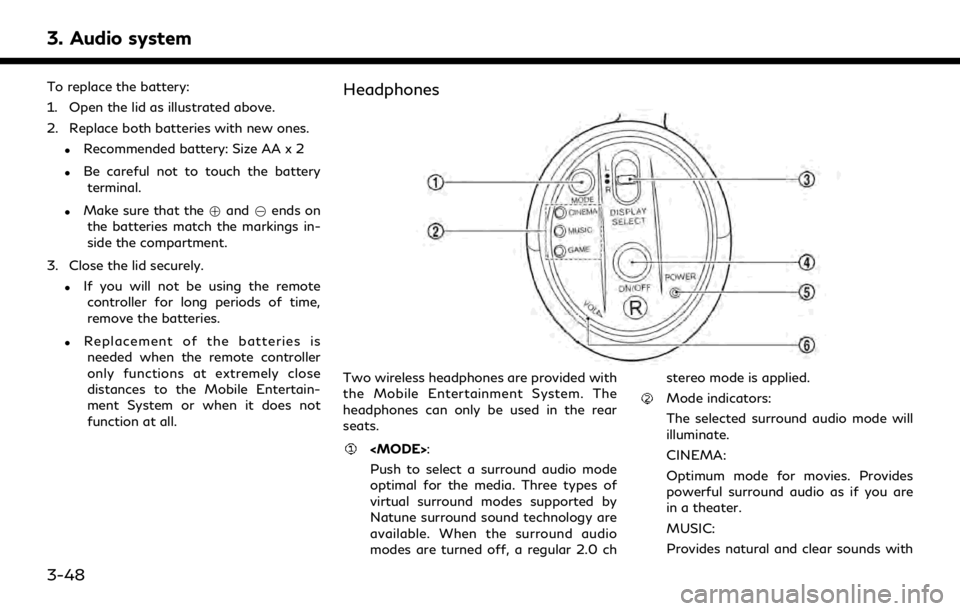
Headphones
Two wireless headphones are provided with
the Mobile Entertainment System. The
headphones can only be used in the rear
seats.
Push to select a surround audio mode
optimal for the media. Three types of
virtual surround modes supported by
Natune surround sound technology are
available. When the surround audio
modes are turned off, a regular 2.0 ch stereo mode is applied.
Mode indicators:
The selected surround audio mode will
illuminate.
CINEMA:
Optimum mode for movies. Provides
powerful surround audio as if you are
in a theater.
MUSIC:
Provides natural and clear sounds with
3-48
Page 99 of 276

.Applying pressure to the display
screens may damage it.
“Care and maintenance”
(page 3-56)
The rear displays are located on the back of
the front head restraints.
Use the remote controller to operate the
rear display screens.
“Remote controller” (page 3-46)
Select the left or right rear display using
controller and push <
>to activate the
corresponding rear display. When the
display is turned on, a green indicator on
the lower corner of the display will
illuminate.
The lower part of the rear displays
functions as a signal receiver/transmitter
for the remote controller and wireless head-
phones, and should not be blocked or
covered.
Turning the rear displays on/off can also be
done on the front display.
“Controlling the rear system on the
front display” (page 3-53)
NOTE:
. The rear displays may turn off auto-
matically when the temperature is high
to protect the display screens from
being damaged.
. The movement of the images displayed
on the rear displays could slow down
when the temperature is below 32°F
(0°C) but this is not a malfunction. The
movement will return to normal when
the temperature rises between 32°F
(0°C) and 122°F (50°C).
. The following conditions may occur but
these are characteristics of the crystal
display and are not malfunctions:
— Black spots, bright spots and after-
images appear on this display.
— The screen appears faint or dimmed
depending on the angle viewed.OPERATIONS ON REAR DIS-
PLAYS
Use the remote controller and take the
following steps to operate the rear displays
from the rear seats:
1. Turn on the rear displays pushing <
>
on the remote controller.
2. Push
the [Rear USB] or [Rear HDMI].
When USB is selected for the first time
after the USB memory device is con-
nected, select a file you wish to play from
the File Browser screen.
Menus
Push
Page 101 of 276
![INFINITI Q50 2020 Infiniti Intouch Available items:. [Display Adjustment]
— [Picture Mode] Select image quality from normal,
dynamic, cinema and game.
— [Auto Bright] Select from normal, bright, off and
dark. The brightness of the](/manual-img/42/35001/w960_35001-100.png "INFINITI Q50 2020 Infiniti Intouch Available items:. [Display Adjustment]
— [Picture Mode] Select image quality from normal,
dynamic, cinema and game.
— [Auto Bright] Select from normal, bright, off and
dark. The brightness of the")
Available items:. [Display Adjustment]
— [Picture Mode] Select image quality from normal,
dynamic, cinema and game.
— [Auto Bright] Select from normal, bright, off and
dark. The brightness of the screen is
adjusted automatically according to
the brightness inside the vehicle
compartment. The sensor is located
on the rear displays.
— [Brightness]/[Tint]/[Contrast]/[Col- or]/[Black Level]
Adjust the levels using <
>or <>
on the remote controller.
— [Default] Select this item to reset the screen
settings to the default value.
. [Automatic Detail Enhancement]
The enhancement of the contrast for
details can be adjusted automatically
with this function. Select the level of
the function from high, medium and low.
. [Super Resolution]
Blurred images with a low resolution can
be converted and adjusted into more
crisp, clearer images. Select the level of the function from high, medium and low.
. [Automatic Contrast Adjustment]
Objects in dark images that are difficult
to view can be adjusted and enhanced
automatically for clearer viewing. Select
the level of the function from high,
medium and low.
. [Noise Reduction]
With the noise reduction function, block
noise that accompanies images can be
reduced. Select the level of the function
from high, medium and low.Software information
To display the software information of the
Mobile Entertainment System, push
[Information].
CONTROLLING THE REAR SYS-
TEM ON THE FRONT DISPLAY
To control the rear displays and the rear
speakers on the front display, push
Page 105 of 276
![INFINITI Q50 2020 Infiniti Intouch AUDIO SETTINGS
1. Push<MENU> and touch [Settings].
2. Touch [Sound].
Available setting items may vary depending on models and specifications.
Available setting items
Setting items Action
[Bass]
Adjust](/manual-img/42/35001/w960_35001-104.png "INFINITI Q50 2020 Infiniti Intouch AUDIO SETTINGS
1. Push<MENU> and touch [Settings].
2. Touch [Sound].
Available setting items may vary depending on models and specifications.
Available setting items
Setting items Action
[Bass]
Adjust")
AUDIO SETTINGS
1. Push
Page 224 of 276
7. Voice recognition
VOICE RECOGNITION
USING VOICE RECOGNITION
SYSTEM
Initialization
When the ignition switch is in the ON or ACC
position, voice recognition is initialized.
When the initialization is complete, the
system is ready to accept voice commands.
If <
>on the steering wheel is pushed
before the initialization completes, the
display will show a message to wait until
the system is ready.
BEFORE STARTING
To get the best recognition performance
from voice recognition, observe the follow-
ing items.
. The interior of the vehicle should be as
quiet as possible. Close the windows to
eliminate the surrounding noises (traffic
noise, vibration sounds, etc.), which may
prevent the system from correctly re-
cognizing the voice commands.
. Wait until the tone sounds before speak-
ing a command. .
Speak in a natural conversational voice
without pausing between words.
. The system cannot recognize voice com-
mands spoken from passenger seats.
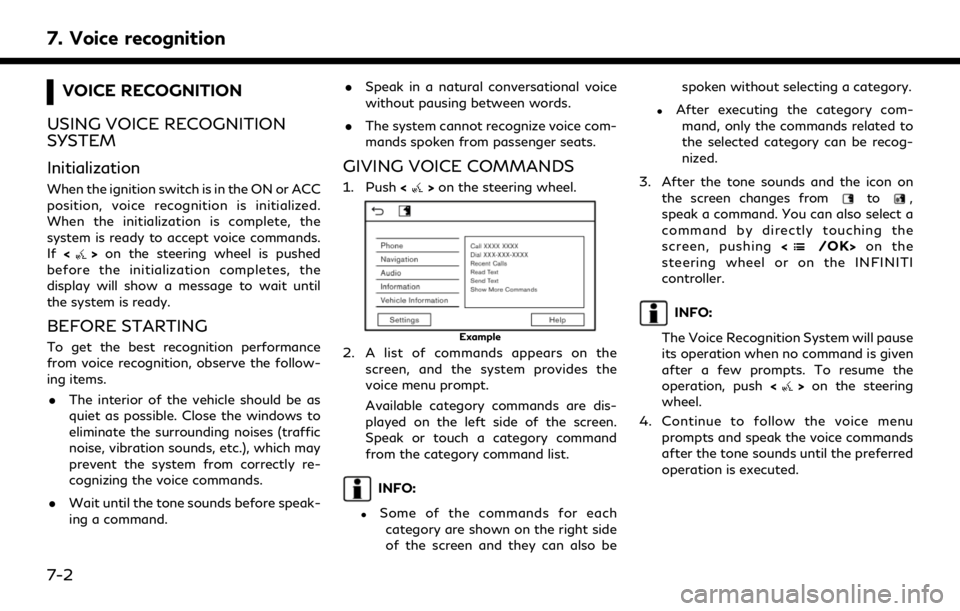
GIVING VOICE COMMANDS
1. Push <>on the steering wheel.
Example
2. A list of commands appears on the
screen, and the system provides the
voice menu prompt.
Available category commands are dis-
played on the left side of the screen.
Speak or touch a category command
from the category command list.
INFO:
.Some of the commands for eachcategory are shown on the right side
of the screen and they can also be spoken without selecting a category.
.After executing the category com-
mand, only the commands related to
the selected category can be recog-
nized.
3. After the tone sounds and the icon on the screen changes from
to,
speak a command. You can also select a
command by directly touching the
screen, pushing <
/OK>on the
steering wheel or on the INFINITI
controller.
INFO:
The Voice Recognition System will pause
its operation when no command is given
after a few prompts. To resume the
operation, push <
>on the steering
wheel.
4. Continue to follow the voice menu prompts and speak the voice commands
after the tone sounds until the preferred
operation is executed.
7-2
Page 245 of 276

BLUETOOTH® HANDS-FREE PHONE SYSTEM
SymptomPossible cause Possible solution
A cellular phone cannot be registered. The cellular phone is not compatible with the in- vehicle Hands-Free Phone System. Use a cellular phone compatible with the system. Visit
www.infinitiusa.com/bluetooth/ to check compat-
ibility.
Registration of the cellular phone has been
performed incorrectly. Check the registration procedure, and then register
the cellular phone again.
A cellular phone cannot be connected or is
disconnected after the registration is
completed. The Bluetooth® setting of the in-vehicle Hands-
Free Phone System is turned off.
Turn on the Bluetooth® setting of the system.
The Bluetooth® setting of the cellular phone is
turned off. Turn on the Bluetooth® setting of the cellular phone.
The remaining battery level of the cellular phone
is low. Charge the battery of the cellular phone.
The wireless Bluetooth® connection may be
disrupted depending on the location of the
cellular phone. Do not place the cellular phone in an area surrounded
by metal or far away from the in-vehicle Hands-Free
Phone System. Do not place the cellular phone close
to the seats or your body.
Registration of the cellular phone is not com-
pleted. Perform registration of the cellular phone.
A call to a particular phone number fails. If the system tries to make a call several times to the same phone number (for example: the party
does not respond to the call, the party is out of
the service area, or the call is abandoned before
the party responds), the system may reject a
request to make a call to the phone number. Turn off the cellular phone and turn it on again to
reset the connection.
8. Troubleshooting guide
8-15