Page 98 of 445

3-10
If the smart key is in close proximity
to your mobile phone, the signal
could be blocked by your mobile
phone's normal operational signals.
This is specifically relevant when the
phone is active such as making and
receiving calls, text messaging,
and/or sending/receiving emails.
Avoid placing the smart key and your
mobile phone in the same location
and always try to maintain an ade-
quate distance between the two
devices.
Keep the smart key away from
electromagnetic materials that
blocks electromagnetic waves to
the key surface.
Always have the smart key with
you when leaving the vehicle. If
the smart key is left near the vehi-
cle, the vehicle battery may be dis-
charged.Information
This device complies with Part 15 of
the FCC rules.
Operation is subject to the following
three conditions:
1. This device may not cause harmful
interference, and
2. This device must accept any inter-
ference received, including interfer-
ence that may cause undesired
operation.
3. Changes or modifications not
expressly approved by the party
responsible for compliance could
void the user's authority to operate
the device.
Battery replacement
If the Smart Key is not working properly,
try replacing the battery with a new one.
Battery Type: CR2032
To replace the battery:
1. Remove the mechanical key.
2. Use a slim tool to pry open the rear
cover of the smart key.
3. Remove the old battery and insert
the new battery. Make sure the bat-
tery position is correct.
4. Reinstall the rear cover of the smart
key.
If you suspect your smart key might
have sustained some damage, or you
feel your smart key is not working cor-
rectly, contact an authorized HYUNDAI
dealer.
i
NOTICE
NOTICE
Convenient features of your vehicle
OHCA047004
HCa HMA 3a(~84).qxp 4/9/2019 2:59 PM Page 10
Page 135 of 445

3-47
Convenient features of your vehicle
3
Information
• If you press the door unlock button
(2), the Smart Trunk function will
be deactivated temporarily. But, if
you do not open any door for 30 sec-
onds, the smart trunk function will
be activated again.
• If you press the trunk open button
(3) for more than 1 second, the
trunk opens.
• If you press the door lock button (1)
or trunk open button (3) when the
Smart Trunk function is not in the
Detect and Alert stage, the smart
trunk function will not be deactivated.
• In case you have deactivated the
Smart Trunk function by pressing
the smart key button and opened a
door, the smart trunk function can
be activated again by closing and
locking all doors.
Detecting area
The Smart Trunk operates with a
welcome alert if the smart key is
detected within 20~40 inches
(50~100 cm) from the trunk.
The alert stops at once if the smart
key is positioned outside the
detecting area during the Detect
and Alert stage.
Information
• The Smart Trunk function will not
work if any of the following occurs:
- The smart key is close to a radio
transmitter such as a radio station
or an airport which can interfere
with normal operation of the trans-
mitter.
- The smart key is near a mobile two
way radio system or a cellular phone.
- Another vehicle's smart key is being
operated close to your vehicle.
• The detecting range may decrease
or increase when :
- One side of the tire is raised to
replace a tire or to inspect the vehicle.
- The vehicle is parked on a slope or
unpaved road, etc.
ii
OHCR046023
HCa HMA 3a(~84).qxp 4/9/2019 3:01 PM Page 47
Page 137 of 445

3-49
Convenient features of your vehicle
3
Closing the fuel filler door
1. To install the fuel tank cap, turn it
clockwise until it "clicks" one time.
2. Close the fuel filler door until it is
latched securely.Gasoline is highly flammable
and explosive. Failure to follow
these guidelines may result in
SERIOUS INJURY or DEATH:
Read and follow all warnings
posted at the gas station.
Before refueling, note the
location of the Emergency
Gasoline Shut-Off, if available,
at the gas station.
Before touching the fuel noz-
zle, you should eliminate the
potential build-up of static
electricity by touching a metal
part of the vehicle, a safe dis-
tance away from the fuel filler
neck, nozzle, or other gas
source, with your bare hand.
Do not use cellular phones
while refueling. Electric cur-
rent and/or electronic interfer-
ence from cellular phones can
potentially ignite fuel vapors
and cause a fire.
(Continued)
WARNING (Continued)
Do not get back into a vehicle
once you have begun refuel-
ing. You can generate a build-
up of static electricity by
touching, rubbing or sliding
against any item or fabric
capable of producing static
electricity. Static electricity
discharge can ignite fuel
vapors causing a fire. If you
must re-enter the vehicle, you
should once again eliminate
potentially dangerous static
electricity discharge by touch-
ing a metal part of the vehicle,
away from the fuel filler neck,
nozzle or other gasoline
source, with your bare hand.
When using an approved
portable fuel container, be
sure to place the container on
the ground prior to refueling.
Static electricity discharge
from the container can ignite
fuel vapors causing a fire.
(Continued)
OHCA047024
HCa HMA 3a(~84).qxp 4/9/2019 3:01 PM Page 49
Page 213 of 445

3-125
Convenient features of your vehicle
3
Close the vanity mirror cover
securely and return the sunvisor
to its original position after use.
Do not put several tickets in the
ticket holder at one time. This
could cause damage to the ticket
holder.
Power Outlet (if equipped)
The power outlet is designed to pro-
vide power for mobile telephones or
other devices designed to operate
with vehicle electrical systems. The
devices should draw less than 180 W
(Watts) with the engine running.To prevent damage to the Power
Outlets :
Use the power outlet only when
the engine is running and
remove the accessory plug after
use. Using the accessory plug
for prolonged periods of time
with the engine off could cause
the battery to discharge.
Only use 12V electric acces-
sories which are less than 180 W
(Watts) in electric capacity.
Adjust the air-conditioner or
heater to the lowest operating
level when using the power outlet.
Close the cover when not in use.
(Continued)
NOTICE
NOTICE
NOTICE
Avoid electrical shocks. Do not
place your fingers or foreign
objects (pin, etc.) into a power
outlet or touch the power outlet
with a wet hand.
WARNING
OHCA047694
■Front
OHCA047377■Center
For your safety, do not block
your view when using the sunvi-
sor.
WARNING
HCa HMA 3b(85~).qxp 5/7/2018 12:23 PM Page 125
Page 218 of 445

Multimedia System
Multimedia system .................................................4-2
AUX, USB and iPod®Port ...............................................4-2
Antenna ...............................................................................4-2
Steering Wheel Audio Control........................................4-3
Bluetooth®Wireless Technology Hands-Free ..........4-4
How Vehicle Audio Works ...............................................4-5
Features of Your Vehicle.................................................4-7
Audio (With Touch Screen) ..................................4-9
Feature of Your Audio ...................................................4-10
Feature of Your Audio ...................................................4-13
Radio...................................................................................4-18
List ......................................................................................4-19
SiriusXM Radio.................................................................4-21
Media..................................................................................4-22
Phone .................................................................................4-34
Setup ..................................................................................4-42
4
HCa HMA 4.qxp 12/1/2017 5:29 PM Page 1
Page 221 of 445
4-4
Multimedia System
MODE (3)
Press the MODE button to toggle
through Radio, SXM, or AUX modes.
MUTE ( ) (4)
Press the MUTE button to mute the
sound.
Press the MUTE button again to
activate the sound.
Information
Detailed information for audio control
buttons are described in the separately
supplied manual with the vehicle.
Bluetooth®Wireless
Technology Hands-Free
With the Bluetooth®Wireless
Technology in the vehicle, you can
use the phone wireless.
(1) Call / Answer button
(2) Call end button(3) Microphone
Detailed information for the
Bluetooth®
Wireless Technology hands-free is
described in the Car Multimedia
User's Manual.
iOHCR046338
OPD046348
HCa HMA 4.qxp 12/1/2017 5:29 PM Page 4
Page 225 of 445
4-8
Multimedia System
iPod®
iPod®is a registered trademark of Apple Inc.
Bluetooth®Wireless Technology
The Bluetooth®word mark and logos are registered
trademarks owned by Bluetooth SIG, Inc. and any use of
such marks by HYUNDAI is under license. Other trade-
marks and trade names are those of their respective
owners.
A
Bluetooth®Wireless Technology enabled cell phone is
required to use
Bluetooth®Wireless Technology.
Bluetooth®Wireless Technology phone compatibility can
be checked by visiting https://www.hyundaiusa.com/blue-
tooth.
HCa HMA 4.qxp 12/1/2017 5:29 PM Page 8
Page 231 of 445
4-14
Multimedia System
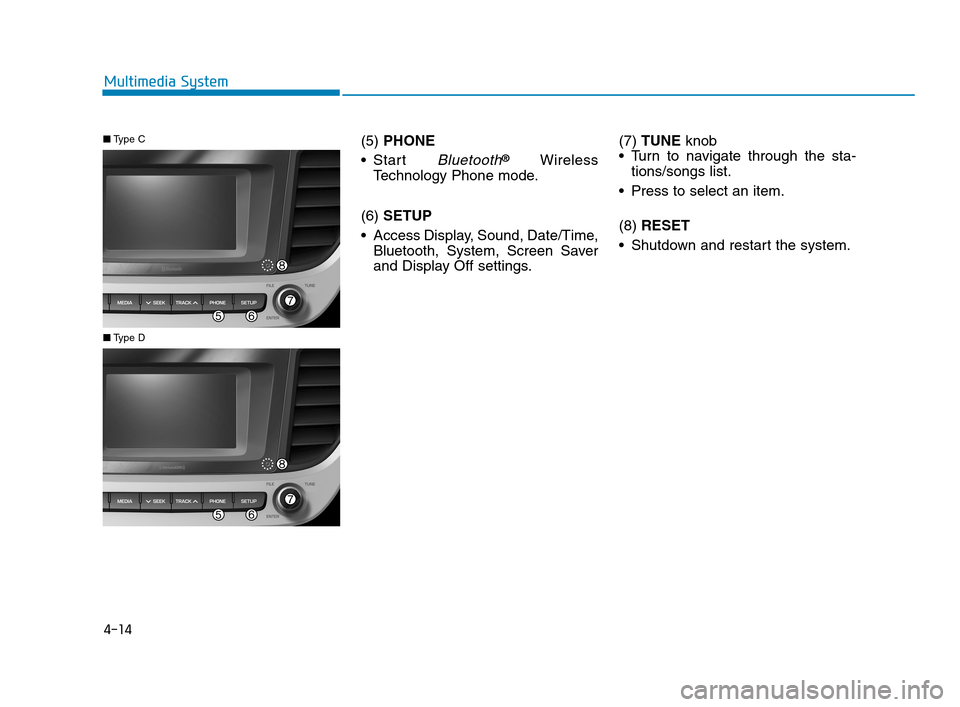
(5) PHONE
Start
Bluetooth®Wireless
Technology Phone mode.
(6)SETUP
Access Display, Sound, Date/Time,
Bluetooth, System, Screen Saver
and Display Off settings.(7) TUNE knob
Turn to navigate through the sta-
tions/songs list.
Press to select an item.
(8) RESET
Shutdown and restart the system.
■Type C
■Type D
HCa HMA 4.qxp 12/1/2017 5:30 PM Page 14