Page 54 of 116
GMC Infotainment System (U.S./Canada 2.6) (GMNA-Localizing-U.S./Canada-
13583174) - 2020 - CRC - 4/15/19
Navigation 53
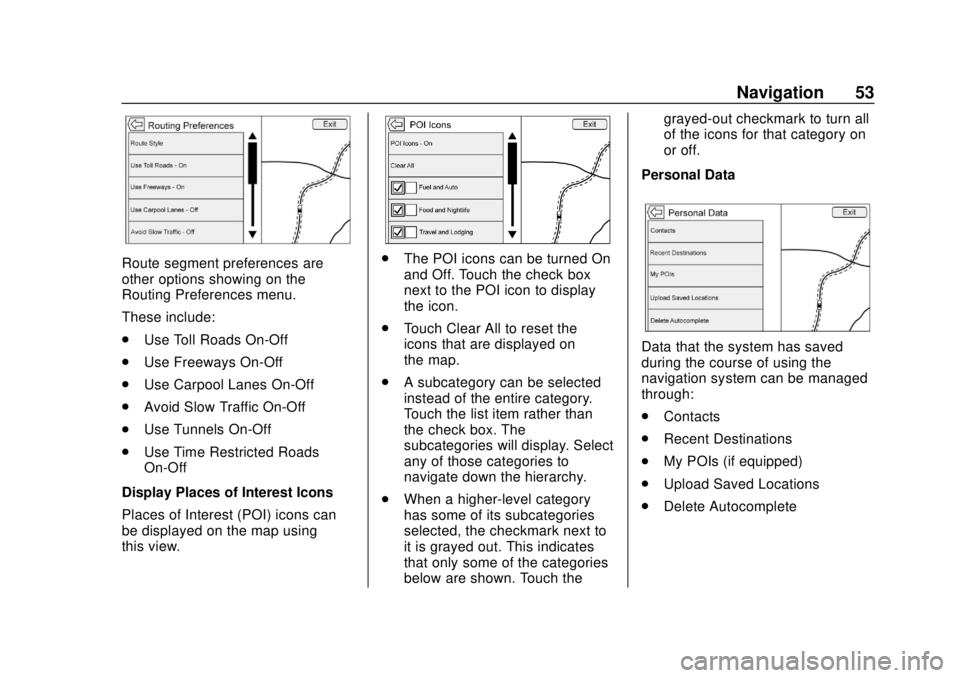
Route segment preferences are
other options showing on the
Routing Preferences menu.
These include:
.Use Toll Roads On-Off
. Use Freeways On-Off
. Use Carpool Lanes On-Off
. Avoid Slow Traffic On-Off
. Use Tunnels On-Off
. Use Time Restricted Roads
On-Off
Display Places of Interest Icons
Places of Interest (POI) icons can
be displayed on the map using
this view.. The POI icons can be turned On
and Off. Touch the check box
next to the POI icon to display
the icon.
. Touch Clear All to reset the
icons that are displayed on
the map.
. A subcategory can be selected
instead of the entire category.
Touch the list item rather than
the check box. The
subcategories will display. Select
any of those categories to
navigate down the hierarchy.
. When a higher-level category
has some of its subcategories
selected, the checkmark next to
it is grayed out. This indicates
that only some of the categories
below are shown. Touch the grayed-out checkmark to turn all
of the icons for that category on
or off.
Personal Data
Data that the system has saved
during the course of using the
navigation system can be managed
through:
. Contacts
. Recent Destinations
. My POIs (if equipped)
. Upload Saved Locations
. Delete Autocomplete
Page 58 of 116
GMC Infotainment System (U.S./Canada 2.6) (GMNA-Localizing-U.S./Canada-
13583174) - 2020 - CRC - 4/15/19
Navigation 57
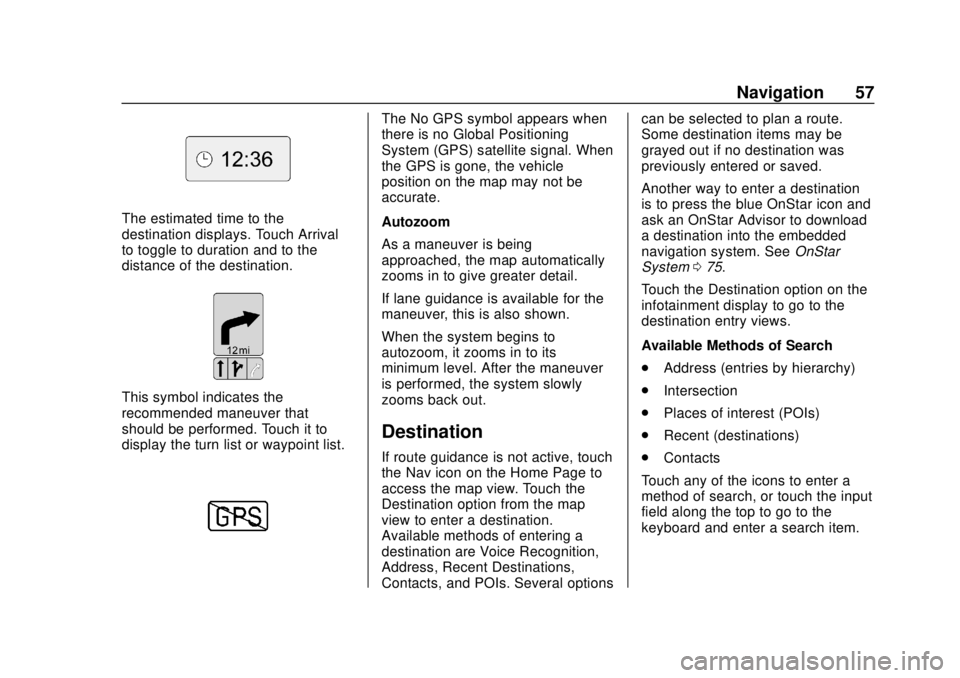
The estimated time to the
destination displays. Touch Arrival
to toggle to duration and to the
distance of the destination.
This symbol indicates the
recommended maneuver that
should be performed. Touch it to
display the turn list or waypoint list.
The No GPS symbol appears when
there is no Global Positioning
System (GPS) satellite signal. When
the GPS is gone, the vehicle
position on the map may not be
accurate.
Autozoom
As a maneuver is being
approached, the map automatically
zooms in to give greater detail.
If lane guidance is available for the
maneuver, this is also shown.
When the system begins to
autozoom, it zooms in to its
minimum level. After the maneuver
is performed, the system slowly
zooms back out.
Destination
If route guidance is not active, touch
the Nav icon on the Home Page to
access the map view. Touch the
Destination option from the map
view to enter a destination.
Available methods of entering a
destination are Voice Recognition,
Address, Recent Destinations,
Contacts, and POIs. Several optionscan be selected to plan a route.
Some destination items may be
grayed out if no destination was
previously entered or saved.
Another way to enter a destination
is to press the blue OnStar icon and
ask an OnStar Advisor to download
a destination into the embedded
navigation system. See
OnStar
System 075.
Touch the Destination option on the
infotainment display to go to the
destination entry views.
Available Methods of Search
. Address (entries by hierarchy)
. Intersection
. Places of interest (POIs)
. Recent (destinations)
. Contacts
Touch any of the icons to enter a
method of search, or touch the input
field along the top to go to the
keyboard and enter a search item.
Page 60 of 116
GMC Infotainment System (U.S./Canada 2.6) (GMNA-Localizing-U.S./Canada-
13583174) - 2020 - CRC - 4/15/19
Navigation 59
characters, slide a finger left or right
to adjust the highlight of the special
character.
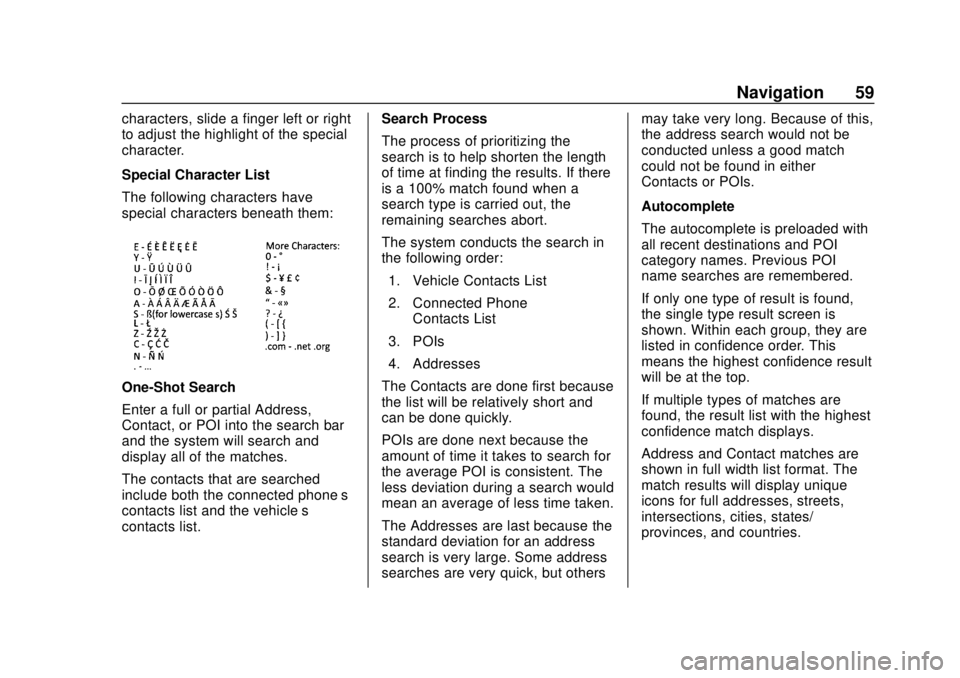
Special Character List
The following characters have
special characters beneath them:
One-Shot Search
Enter a full or partial Address,
Contact, or POI into the search bar
and the system will search and
display all of the matches.
The contacts that are searched
include both the connected phone’s
contacts list and the vehicle’s
contacts list.Search Process
The process of prioritizing the
search is to help shorten the length
of time at finding the results. If there
is a 100% match found when a
search type is carried out, the
remaining searches abort.
The system conducts the search in
the following order:
1. Vehicle Contacts List
2. Connected Phone Contacts List
3. POIs
4. Addresses
The Contacts are done first because
the list will be relatively short and
can be done quickly.
POIs are done next because the
amount of time it takes to search for
the average POI is consistent. The
less deviation during a search would
mean an average of less time taken.
The Addresses are last because the
standard deviation for an address
search is very large. Some address
searches are very quick, but others may take very long. Because of this,
the address search would not be
conducted unless a good match
could not be found in either
Contacts or POIs.
Autocomplete
The autocomplete is preloaded with
all recent destinations and POI
category names. Previous POI
name searches are remembered.
If only one type of result is found,
the single type result screen is
shown. Within each group, they are
listed in confidence order. This
means the highest confidence result
will be at the top.
If multiple types of matches are
found, the result list with the highest
confidence match displays.
Address and Contact matches are
shown in full width list format. The
match results will display unique
icons for full addresses, streets,
intersections, cities, states/
provinces, and countries.
Page 63 of 116
GMC Infotainment System (U.S./Canada 2.6) (GMNA-Localizing-U.S./Canada-
13583174) - 2020 - CRC - 4/15/19
62 Navigation
When a list displays, it can be
filtered for a particular type by
touching the filter along the top
of the display. If there are no
particular results for a selected
filter type, it is indicated in
the list.
5. Pan or zoom the map using the finger gestures to minimize the
POI list and to interact with the
map. The icons that were
shown before continue to be
displayed and updated. The list
is also updated based on
where the map was panned or
zoomed. The search for POIs
is constrained to where the
map has been moved to.
6. If the search map is touched to re-center, the crosshairs are
shown to indicate the center of
the new search location. If a
POI icon is touched while in
the full expanded map, a
callout for that location
displays. Touch the callout to
display the Destination
Details view. 7. Touch the map Reset to return
the map to automatic zooming
and searching. It is recentered
around the vehicle’s position,
the route, the destination,
or another location that was
specified for the search. The
map Reset only displays if the
map is manually adjusted.
If multiple types of matches are
found, the All list is shown with the
results sorted by confidence order
with the highest confidence result at
the top.
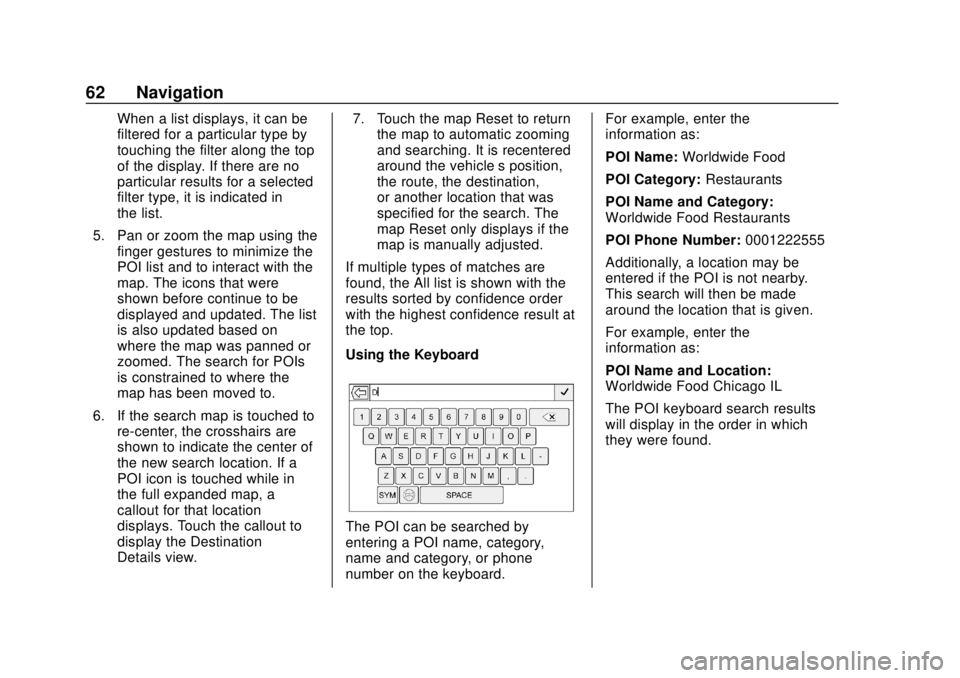
Using the Keyboard
The POI can be searched by
entering a POI name, category,
name and category, or phone
number on the keyboard. For example, enter the
information as:
POI Name:
Worldwide Food
POI Category: Restaurants
POI Name and Category:
Worldwide Food Restaurants
POI Phone Number: 0001222555
Additionally, a location may be
entered if the POI is not nearby.
This search will then be made
around the location that is given.
For example, enter the
information as:
POI Name and Location:
Worldwide Food Chicago IL
The POI keyboard search results
will display in the order in which
they were found.