2020 FORD TRANSIT CONNECT radio
[x] Cancel search: radioPage 378 of 509

SiriusXM Satellite Radio Service
Note:
SiriusXM reserves the unrestricted
right to change, rearrange, add or delete
programming including canceling, moving
or adding particular channels, and its prices,
at any time, with or without notice to you.
Ford Motor Company shall not be
responsible for any such programming
changes. SiriusXM satellite radio is a
subscription-based satellite radio service
that broadcasts a variety of music, sports,
news, weather, traffic and entertainment
programming. Your factory-installed
SiriusXM satellite radio system includes
hardware and a limited subscription term,
which begins on the date of sale or lease
of your vehicle. See an authorized dealer
for availability.
For more information on extended
subscription terms (a service fee is
required), the online media player and a
complete list of SiriusXM satellite radio
channels, and other features, please visit
www.siriusxm.com in the United States,
www.siriusxm.ca in Canada, or call
SiriusXM at 1-888-539-7474.
Satellite Radio Electronic Serial
Number (ESN)
You need your ESN to activate, modify or
track your satellite radio account. When in
satellite radio mode, tune to channel 0.
Troubleshooting Action
Condition
Message
No action required. This
message should disappear
shortly.
Radio requires more than
two seconds to produce
audio for the selected
channel.
Acquiring…
If this message does not
clear shortly, or with an igni-
tion key cycle, your receiver
may have a fault. See an
authorized dealer for service.
There is an internal module
or system failure present.
Satellite antenna fault
SIRIUS system failure
Tune to another channel or
choose another preset.
The channel is no longer
available.
Invalid Channel
Contact SiriusXM at 1-888-
539-7474 to subscribe to
the channel, or tune to
another channel.
Your subscription does not
include this channel.
Unsubscribed Channel
374
2020 Transit Connect (CHC) Canada/United States of America, CG3739en enUSA, Edition date: 201903, First-Printing Audio SystemE208625
Page 382 of 509
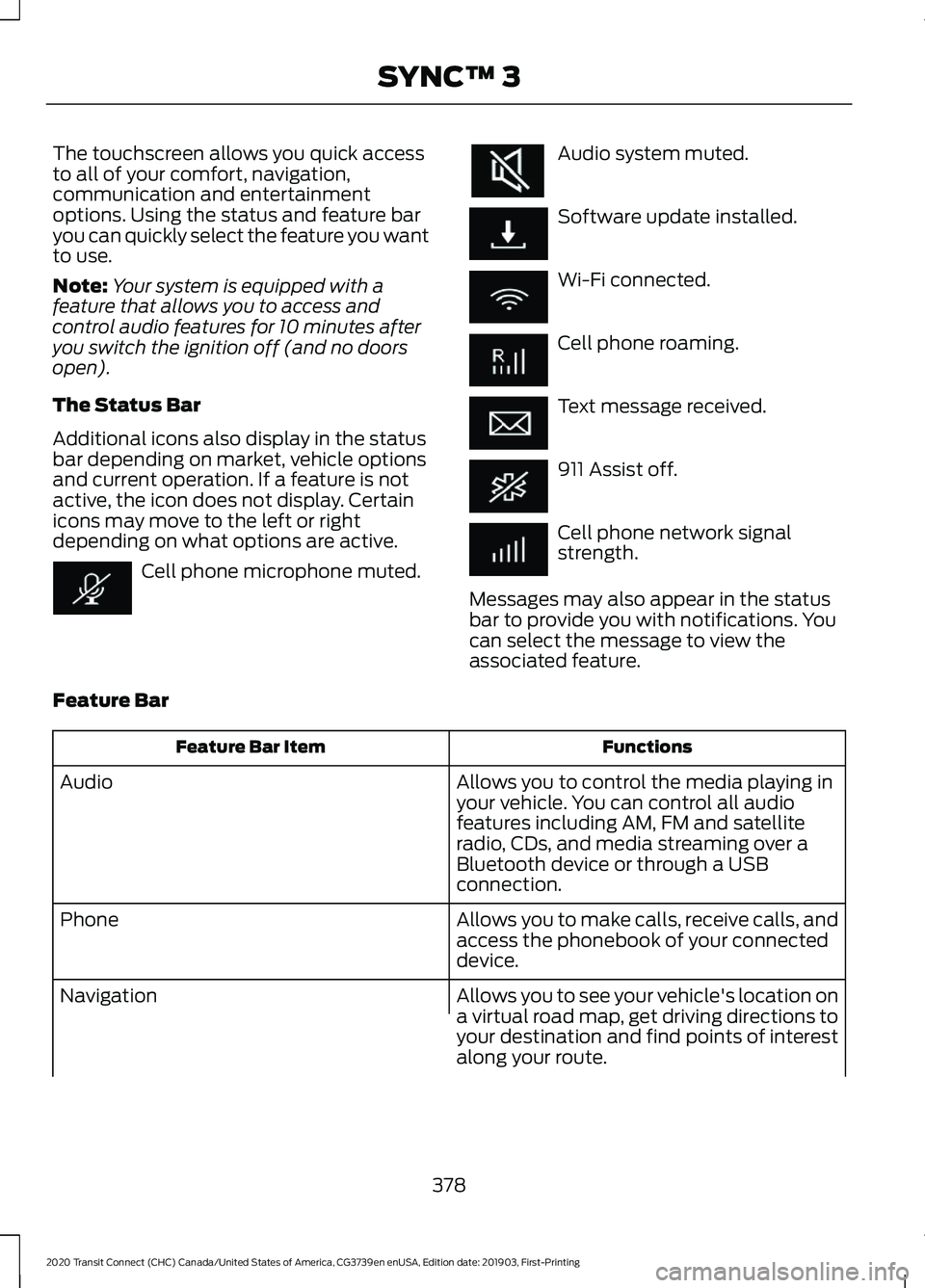
The touchscreen allows you quick access
to all of your comfort, navigation,
communication and entertainment
options. Using the status and feature bar
you can quickly select the feature you want
to use.
Note:
Your system is equipped with a
feature that allows you to access and
control audio features for 10 minutes after
you switch the ignition off (and no doors
open).
The Status Bar
Additional icons also display in the status
bar depending on market, vehicle options
and current operation. If a feature is not
active, the icon does not display. Certain
icons may move to the left or right
depending on what options are active. Cell phone microphone muted. Audio system muted.
Software update installed.
Wi-Fi connected.
Cell phone roaming.
Text message received.
911 Assist off.
Cell phone network signal
strength.
Messages may also appear in the status
bar to provide you with notifications. You
can select the message to view the
associated feature.
Feature Bar Functions
Feature Bar Item
Allows you to control the media playing in
your vehicle. You can control all audio
features including AM, FM and satellite
radio, CDs, and media streaming over a
Bluetooth device or through a USB
connection.
Audio
Allows you to make calls, receive calls, and
access the phonebook of your connected
device.
Phone
Allows you to see your vehicle's location on
a virtual road map, get driving directions to
your destination and find points of interest
along your route.
Navigation
378
2020 Transit Connect (CHC) Canada/United States of America, CG3739en enUSA, Edition date: 201903, First-Printing SYNC™ 3
Page 383 of 509

Functions
Feature Bar Item
(If equipped) Connect and control SYNC 3 compatible
apps running on your iPhone or Android
device. Also, access built-in additional
features such as SiriusXM Traffic and Travel
Link (if equipped).
Apps
You can customize your system with
various settings for the touchscreen display,
feature preferences, and how you want to
interact with your vehicle.
Settings
Cleaning the Touchscreen
You can remove fingerprints with a dry,
clean, soft cloth.
If dirt or fingerprints are still on the screen,
apply a small amount of alcohol to the
cloth and try to clean it again.
Note: Do not use detergent or any type of
solvent to clean the touchscreen.
Note: Do not pour or spray alcohol onto the
touchscreen.
Using Voice Recognition
Using voice commands allows you to keep
your hands on the wheel and focus on
what is in front of you. The system provides
feedback through audible tones, prompts,
questions and spoken confirmations
depending on the situation and the chosen
level of interaction (voice settings).
The system also asks short questions
(confirmation prompts) when it is not sure
of your request or when there are multiple
possible responses to your request.
When using voice commands, words and
icons may appear in the status bar
indicating the status of the voice command
session. See Using Voice Recognition
(page 384). Using the Controls on the Steering
Wheel
Depending on your vehicle and option
package, you can use different controls on
your steering wheel to interact with the
touchscreen system in different ways.
VOL:
Control the volume of audio output.
Mute:
Mute the audio output.
Voice:
Press to start a voice session. Press
again to stop the voice prompt and
immediately begin speaking. Press and
hold to end a voice session.
SEEK NEXT:
• While in radio mode, press to seek
between memory presets.
• While in USB, Bluetooth Audio or CD
mode, press to seek between songs or
press and hold to fast seek.
SEEK PREVIOUS:
• While in radio mode, press to seek
between memory presets.
• While in USB, Bluetooth Audio or CD
mode, press to seek between songs or
press and hold to fast seek.
PHONE ACCEPT:
Press to answer a call
or switch between calls.
PHONE REJECT:
Press to end a call or
reject an incoming call.
379
2020 Transit Connect (CHC) Canada/United States of America, CG3739en enUSA, Edition date: 201903, First-Printing SYNC™ 3
Page 389 of 509

Description
Voice Command
Go to the next page.
Next Page
Go to the previous page.
Previous Page
1 Add the name of the feature to the command.
Entertainment
Audio Source Description
Voice Command
Use the radio.
Radio
Use the CD player.
CD Player
Use a Bluetooth device.
Bluetooth Stereo
Use a USB or media player.
USB
Radio Description
Voice Command
Listen to AM radio.
AM
Tune to a specific AM frequency.1
AM ___
Listen to DAB radio.
DAB
Listen to FM radio.
FM
Tune to a specific FM frequency.1
FM ___
1 Add the radio frequency to two decimal places to the command.
385
2020 Transit Connect (CHC) Canada/United States of America, CG3739en enUSA, Edition date: 201903, First-Printing SYNC™ 3
Page 394 of 509
Automatic Blower Motor Speed
Reduction
If necessary, the system decreases the
blower motor speed when you are using
voice commands to reduce the amount of
background noise in your vehicle. It returns
to normal when you are finished.
Switching Automatic Blower Motor
Speed Reduction Off
Simultaneously press the A/C and
recirculated air buttons.
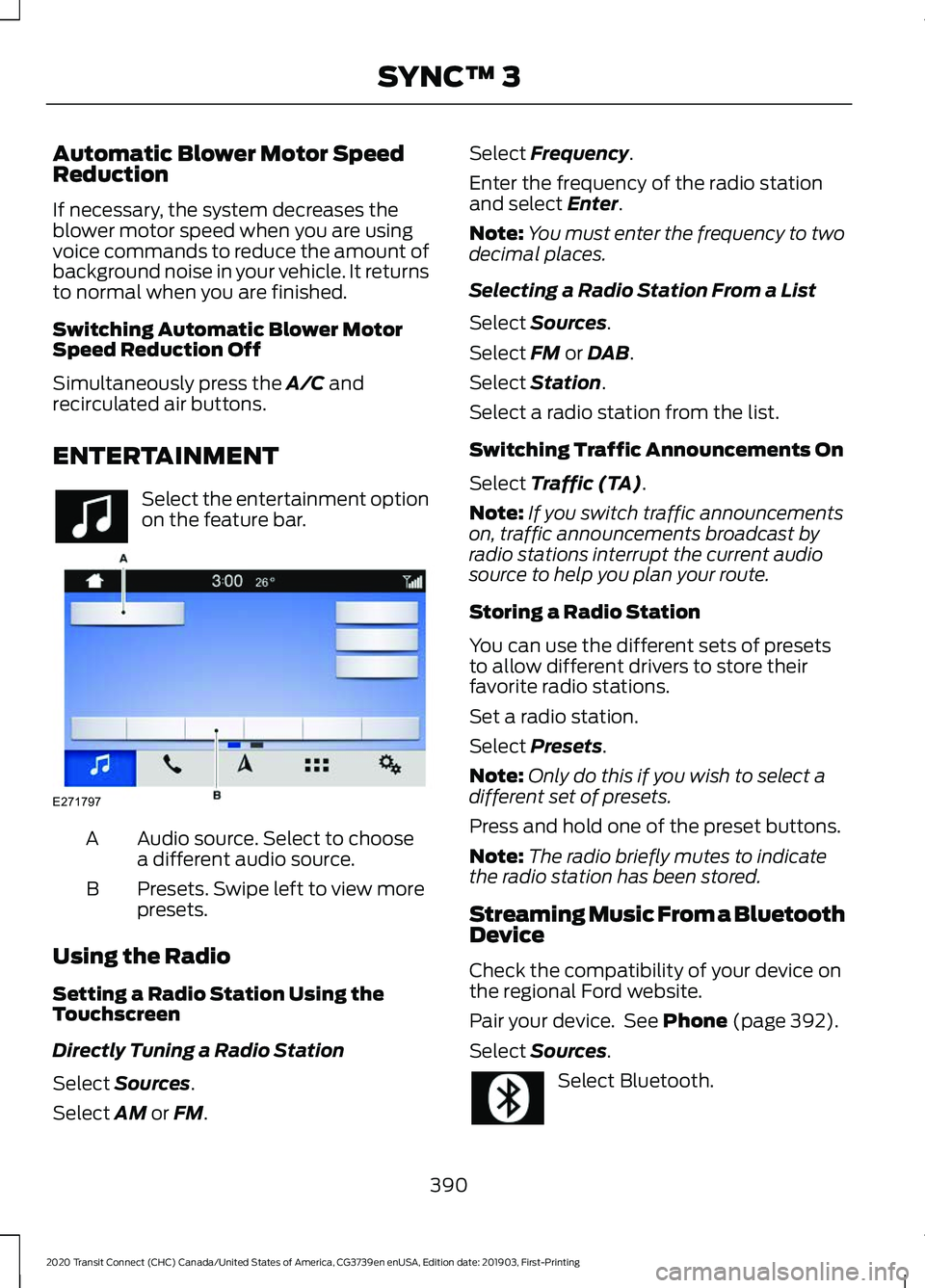
ENTERTAINMENT Select the entertainment option
on the feature bar.
Audio source. Select to choose
a different audio source.
A
Presets. Swipe left to view more
presets.
B
Using the Radio
Setting a Radio Station Using the
Touchscreen
Directly Tuning a Radio Station
Select
Sources.
Select
AM or FM. Select
Frequency.
Enter the frequency of the radio station
and select
Enter.
Note: You must enter the frequency to two
decimal places.
Selecting a Radio Station From a List
Select
Sources.
Select
FM or DAB.
Select
Station.
Select a radio station from the list.
Switching Traffic Announcements On
Select
Traffic (TA).
Note: If you switch traffic announcements
on, traffic announcements broadcast by
radio stations interrupt the current audio
source to help you plan your route.
Storing a Radio Station
You can use the different sets of presets
to allow different drivers to store their
favorite radio stations.
Set a radio station.
Select
Presets.
Note: Only do this if you wish to select a
different set of presets.
Press and hold one of the preset buttons.
Note: The radio briefly mutes to indicate
the radio station has been stored.
Streaming Music From a Bluetooth
Device
Check the compatibility of your device on
the regional Ford website.
Pair your device. See
Phone (page 392).
Select
Sources. Select Bluetooth.
390
2020 Transit Connect (CHC) Canada/United States of America, CG3739en enUSA, Edition date: 201903, First-Printing SYNC™ 3 E271797
Page 407 of 509

Action and Description
Menu Item
Set Phone Ringtone
You can then select: No sound plays when a call comes to your phone.
No Ringtone
The currently selected ringtone on your phone plays when you receive
a call. This option may not be available for all phones. If this option
is available, it is the default setting.
Use Phone Ring-
tone
You can also select one of the three available ringers. Action and Description
Menu Item
Text Messaging
You can then select: No sound plays when a message comes to your phone.
No Alert
(Silence)
You can select one of the three available notification sounds.
When enabled, a voice prompt alerts you when you receive a new
message.
Voice Readout
You can enable and disable the following options as well: Action and Description
Menu Item
When enabled, vehicle audio (such as radio or apps) is muted for the
duration of the phone call even when the phone call is in privacy.
Mute Audio in
Privacy
When enabled, an alert displays that your phone is roaming when
you attempt to place a call.
Roaming
Warning
When enabled, a message displays when the battery on your phone
is running low.
Low Battery
Notification
911 Assist
Note: This service is only available in the
United States and Canada. Select this button to modify the on or off
setting for this feature. If the mobile
phone
’s contacts have been downloaded,
you can adjust the following option:
403
2020 Transit Connect (CHC) Canada/United States of America, CG3739en enUSA, Edition date: 201903, First-Printing SYNC™ 3
Page 408 of 509

Action and Description
Menu Item
You can select up to two numbers from your mobile device's phone-
book as emergency contacts for quick access at the end of the 911
Assist call process.
Set Emergency
Contacts
Radio
This button is available if a Radio source
such as AM or FM is the active media
source. Pressing the button allows you to
access the following features: Action and Description
Menu Item
Activation of this feature allows you to listen to HD radio broadcasts.
FM HD Radio
AM HD Radio
(Dependent on
current radio
source, If Avail-
able)
This feature is available when FM Radio is your active media source.
Activate this feature to have the system display radio text.
Radio Text
Refresh
Autoset Presets
(AST)
Selecting this option stores the six strongest stations in your current
location to the last preset bank of the currently tuned source.
Sirius XM (If equipped) Action and Description
Menu Item
After selecting a category, the seek function only stops on channels
that are inside that selected category.
Set Category for
Seek
Select to create a personal identification number (PIN). This allows
you to lock or unlock channels. Your initial PIN is 1234.
Parental
Lockout
Select to switch on, off or delete alerts.
Edit Alerts
The Electronic Serial Number is on this screen. This number is necessary to activate,
modify or track your account through Sirius XM.
404
2020 Transit Connect (CHC) Canada/United States of America, CG3739en enUSA, Edition date: 201903, First-Printing SYNC™ 3
Page 415 of 509

Onboard Modem Serial Number (ESN)
Selecting this button on the settings menu
shows you the ESN number for your
system. You need this number for certain
registrations such as Satellite Radio.
Display
To make adjustments using the touchscreen, select: Action and Description
Menu Item
The screen goes black and does not display anything. To switch the
screen back on, simply tap the screen.
Display Off
Make the screen display brighter or dimmer.
Brightness
Enable this option to have your screen display minimal content.
Pressing anywhere on the screen, using the reverse camera, or touching
an interactive icon returns the screen to normal content.
Calm Screen
Allows you to select a screen background color.
Background
You can select:
Mode
The screen automatically switches between day and
night modes based on the outside light level.
Auto
The screen displays with a light background to enhance
daytime viewing.
Day
The screen displays with a darker background to make
nighttime viewing easier.
Night
Enable this option to automatically dim the display brightness based
on ambient lighting conditions.
Auto Dim
Voice Control
You can adjust the voice control settings
by selecting the following options.
411
2020 Transit Connect (CHC) Canada/United States of America, CG3739en enUSA, Edition date: 201903, First-Printing SYNC™ 3