2020 FORD MUSTANG buttons
[x] Cancel search: buttonsPage 136 of 464

1. Remove the rubber covering (A) in the
cupholder.
2. Place the remote in the backup slot (B)
with the buttons facing up and the
keyring toward the front of the vehicle.
3. With the key in this position, press the brake pedal (automatic transmission)
or clutch pedal (manual transmission),
then the START button to switch the
ignition on and start your vehicle.
Fast Restart
The fast restart feature allows you to
restart the engine within 20 seconds of
switching it off, even if a valid key is not
present.
Within 20 seconds of switching the engine
off, press the brake pedal (automatic
transmission) or clutch pedal (manual
transmission) and press the button. After
20 seconds have expired, you can no
longer restart the engine without the key
present inside your vehicle.
Once the engine has started, it remains
running until you press the button, even if
the system does not detect a valid key. If
you open and close a door while the engine
is running, the system searches for a valid
key. You cannot restart the engine if the
system does not detect a valid key within
20 seconds. Failure to Start
If you cannot start the engine after three
attempts, wait 10 seconds and follow this
procedure:
1. If your vehicle is equipped with an
automatic transmission, fully press the
brake pedal. If your vehicle is equipped
with a manual transmission, fully press
the clutch pedal and apply the
handbrake.
2. Move the transmission selector lever to park (P) (automatic transmission)
or neutral (manual transmission).
3. Fully press the accelerator pedal and hold it there.
4. Start the engine.
Automatic Engine Shutdown
Your vehicle is equipped with a feature that
automatically shuts down the engine if it
has been idling for an extended period. The
ignition also turns off in order to save
battery power. Before the engine shuts
down, a message appears in the
information display showing a timer
counting down from 30 seconds. If you do
not intervene within 30 seconds, the engine
shuts down. Another message appears in
the information display to inform you that
the engine has shut down in order to save
fuel. Start your vehicle as you normally do.
Automatic Engine Shutdown Override
Note: You cannot permanently switch off
the automatic engine shutdown feature.
When you switch it off temporarily, it turns
on at the next ignition cycle.
You can stop the engine shutdown, or reset
the timer, at any point before the
30-second countdown has expired by
doing any of the following:
133
Mustang (CZG) Canada/United States of America, Vehicles Built From: 15-07-2019, enUSA, Edition date: 201906, Second-Printing Starting and Stopping the EngineE174956
Page 193 of 464

specifically for track usage only. This
mode is not intended for public roads.
See Using Stability Control (page
159). If your vehicle is equipped with
adaptive dampers, the suspension is
optimized for transient handling
maneuvers. This mode offers
maximum control and confidence in
handling on road courses or auto-cross
style events. Selectable steering
defaults to
Sport. Depending on
vehicle configuration, you could change
the selectable steering setting by
pressing the steering button.
• Drag Strip
- Provides a performance
driving experience tailored to driving
on a drag strip. The engine responds
directly to your inputs, and if your
vehicle has active exhaust, it takes on
a more powerful tone. This mode is not
intended for public roads. If your
vehicle has adaptive dampers, the
setting is optimized for straight line
maximum acceleration. Selectable
steering defaults to
Sport. Depending
on vehicle configuration, you could
change the selectable steering setting
by pressing the steering button.
• Snow / Wet
- Provides a confident
handling driving experience during poor
weather. If your vehicle has adaptive
dampers, the suspension delivers a
balanced combination of comfort and
handling. Selectable steering defaults
to
Normal. Depending on vehicle
configuration, you could change the
selectable steering setting by pressing
the steering button. Using MyMode (If Equipped)
You can use
MyMode to create a unique
drive mode.
To create or save
MyMode, press the
button on the steering wheel and access
the menu. See
General Information
(page 90). The available systems display.
Select your desired settings using the
appropriate buttons and menus. Press and
hold OK to save your settings. MyMode
is
added to the drive mode list and can be
selected the next time you drive your
vehicle.
Note: The system has diagnostic checks
that continuously monitor the system to
make sure it properly operates. If a mode is
unavailable due to a system fault or change
in gear position, the selected mode defaults
to
Normal.
Note: Pre-Collision Assist is automatically
disabled when
Track mode is selected. See
Pre-Collision Assist (page 185).
Note: If your vehicle has adaptive dampers,
the steering setting is optimized to work with
each drive mode. Other steering settings
may not be available.
Selectable Steering
Note: The steering setting defaults to
Normal
if the battery is disconnected or
removed.
190
Mustang (CZG) Canada/United States of America, Vehicles Built From: 15-07-2019, enUSA, Edition date: 201906, Second-Printing Driving AidsE294774
Page 253 of 464

Horizontal Aim Adjustment
The horizontal aim does not require any
adjustment for this vehicle. If a fault
occurs, have the system checked by an
authorized dealer.
WASHER FLUID CHECK
WARNING: If you operate your
vehicle in temperatures below 40°F
(5°C), use washer fluid with antifreeze
protection. Failure to use washer fluid
with antifreeze protection in cold
weather could result in impaired
windshield vision and increase the risk
of injury or accident.
Add fluid to fill the reservoir if the level is
low. Only use a washer fluid that meets
Ford specifications. See
Capacities and
Specifications (page 297).
State or local regulations on volatile
organic compounds may restrict the use
of methanol, a common windshield washer
antifreeze additive. Washer fluids
containing non-methanol antifreeze
agents should be used only if they provide
cold weather protection without damaging
the vehicle ’s paint finish, wiper blades or
washer system.
FUEL FILTER
Your vehicle is equipped with a lifetime
fuel filter that is integrated with the fuel
tank. Regular maintenance or replacement
is not needed. CHECKING THE WIPER
BLADES
Run the tip of your fingers over the edge of
the blade to check for roughness.
Clean the wiper blades with washer fluid
or water applied with a soft sponge or
cloth.
CHANGING THE WIPER
BLADES
1. Pull the wiper blade and arm away
from the glass and press the locking
buttons together. 2. Rotate and remove the wiper blade.
3. Attach the new blade to the arm and
snap it into place.
Replace wiper blades at least once per
year for optimum performance.
250
Mustang (CZG) Canada/United States of America, Vehicles Built From: 15-07-2019, enUSA, Edition date: 201906, Second-Printing MaintenanceE142463 E129990
1
1 2
Page 328 of 464

Accessing the Apps Menu
Press and release the button to
access the apps menu. Follow
the on-screen prompts to make
your selection.
Accessing the Clock Settings Press and release the button to
access the clock setting.
Use the center arrow controls to
change the hours and minutes.
Accessing the Media Source Menu Press and release to open the
media source menu.
You can press this multiple times to
change to a SYNC-Media device or scroll
through the media sources using the arrow
buttons. Press OK to select a source.
Accessing the Phone Features Press and release the button to
access the phone features of the
SYNC system.
Accessing the Settings Menu Press and release the button to
access the settings menu.
Follow the on-screen prompts
to make your selection.
Accessing the Sound Settings Press and release the button to
access settings for Treble,
Midrange, Bass, Fade and
Balance. Adjusting the Volume
Turn to adjust the volume.
Changing Radio Stations
In radio mode, turn to search through the
radio frequency band.
In satellite radio mode, turn to find the
previous or next available satellite radio
station.
325
Mustang (CZG) Canada/United States of America, Vehicles Built From: 15-07-2019, enUSA, Edition date: 201906, Second-Printing Audio SystemE249410 E265036 E265035 E142607 E265373 E265696
Page 329 of 464
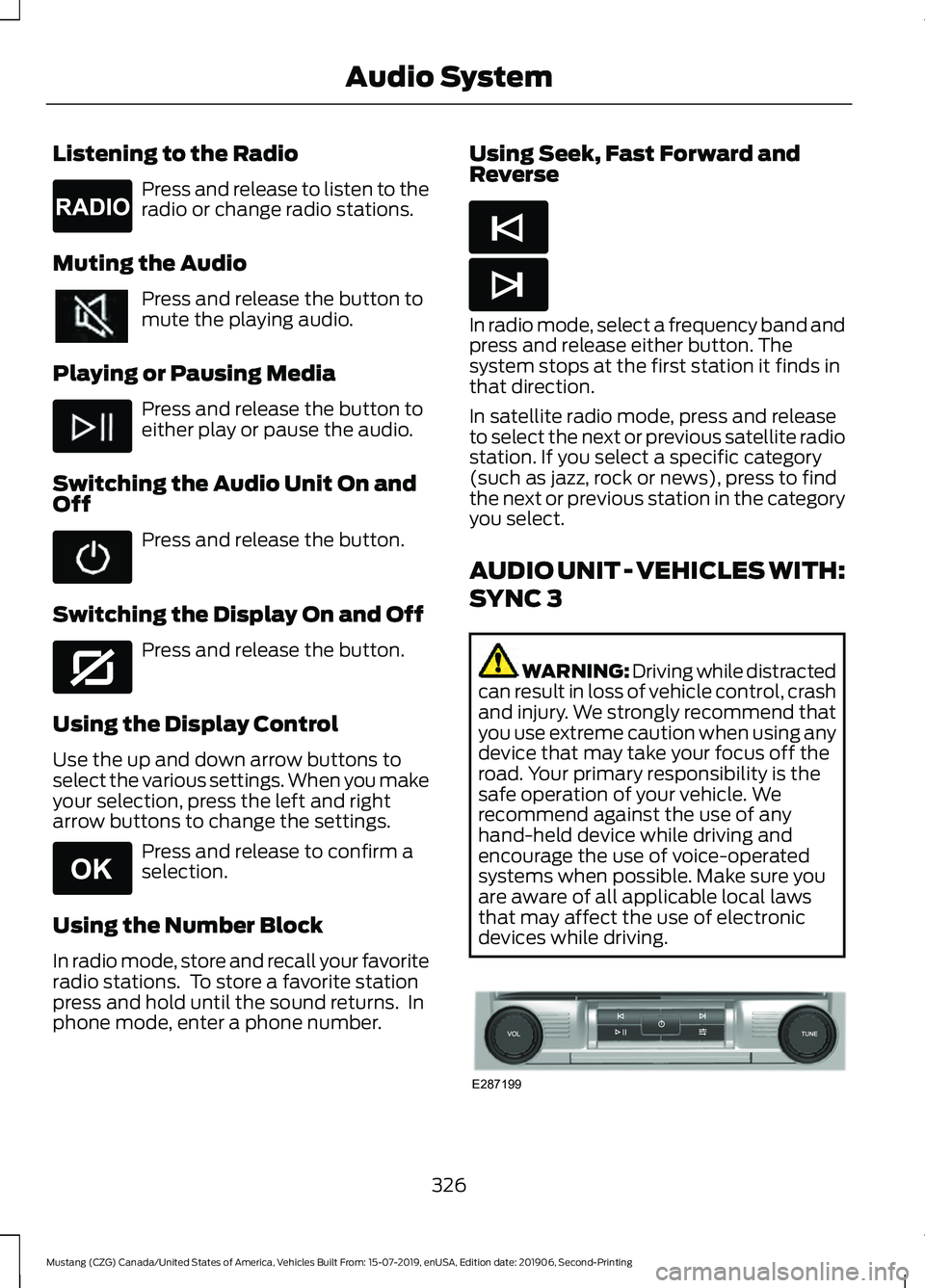
Listening to the Radio
Press and release to listen to the
radio or change radio stations.
Muting the Audio Press and release the button to
mute the playing audio.
Playing or Pausing Media Press and release the button to
either play or pause the audio.
Switching the Audio Unit On and
Off Press and release the button.
Switching the Display On and Off Press and release the button.
Using the Display Control
Use the up and down arrow buttons to
select the various settings. When you make
your selection, press the left and right
arrow buttons to change the settings. Press and release to confirm a
selection.
Using the Number Block
In radio mode, store and recall your favorite
radio stations. To store a favorite station
press and hold until the sound returns. In
phone mode, enter a phone number. Using Seek, Fast Forward and
Reverse In radio mode, select a frequency band and
press and release either button. The
system stops at the first station it finds in
that direction.
In satellite radio mode, press and release
to select the next or previous satellite radio
station. If you select a specific category
(such as jazz, rock or news), press to find
the next or previous station in the category
you select.
AUDIO UNIT - VEHICLES WITH:
SYNC 3
WARNING: Driving while distracted
can result in loss of vehicle control, crash
and injury. We strongly recommend that
you use extreme caution when using any
device that may take your focus off the
road. Your primary responsibility is the
safe operation of your vehicle. We
recommend against the use of any
hand-held device while driving and
encourage the use of voice-operated
systems when possible. Make sure you
are aware of all applicable local laws
that may affect the use of electronic
devices while driving. 326
Mustang (CZG) Canada/United States of America, Vehicles Built From: 15-07-2019, enUSA, Edition date: 201906, Second-Printing Audio SystemE265033 E272035 E265041 E265045 E265044 E287199
Page 341 of 464
__ is a dynamic listing, meaning that it
could be the name of anything, such as a
contact or phone number.
Phone Controls
Use the phone buttons on your steering
wheel to answer, reject, or hang up a call.
Accessing Features through the
Phone Menu
You can access your call history,
phonebook, sent text messages, as well
as access phone and system settings.
1. Press the PHONE button to enter the
phone menu.
2. Scroll through the menu to view contacts, text messages, and the
phone dialer.
SYNC™ APPLICATIONS AND
SERVICES
• 911 Assist: Can alert 911 in the event of
an emergency.
• SYNC AppLink: Allows you to connect
to and use certain applications (if your
phone is compatible).
These features may require activation.
Available AppLink enabled apps vary by
market.
911 Assist WARNING:
Unless the 911 Assist
setting is set on before a crash, the
system will not dial for help which could
delay response time, potentially
increasing the risk of serious injury or
death after a crash. WARNING:
Do not wait for 911
Assist to make an emergency call if you
can do it yourself. Dial emergency
services immediately to avoid delayed
response time which could increase the
risk of serious injury or death after a
crash. If you do not hear 911 Assist within
five seconds of the crash, the system or
phone may be damaged or
non-functional. WARNING:
Always place your
phone in a secure location in your vehicle
so it does not become a projectile or get
damaged in a crash. Failure to do so may
cause serious injury to someone or
damage the phone which could prevent
911 Assist from working properly.
Note: The SYNC 911 Assist feature must be
set on before the incident.
Note: The SYNC 911 Assist feature only
operates in the U.S., Canada or in a territory
in which 911 is the emergency number.
Note: Before setting this feature on, make
sure that you read the 911 Assist Privacy
Notice later in this section for important
information.
Note: If any user switches 911 Assist to on
or off, that setting applies for all paired
phones. If 911 Assist is switched off, either
a voice message plays or a display message
or an icon comes on when your vehicle is
started and after a previously paired phone
connects.
Note: Every phone operates differently.
While SYNC 911 Assist works with most
cellular phones, some may have trouble
using this feature.
338
Mustang (CZG) Canada/United States of America, Vehicles Built From: 15-07-2019, enUSA, Edition date: 201906, Second-Printing SYNC™
(If Equipped)
Page 348 of 464

USB and media issues
Possible solution(s)
Possible cause(s)
Issue
Make sure that the devicedoes not have an auto-
install program or active security settings.
Make sure you are not
leaving the device in your vehicle during very hot or cold temperatures.
This is a device limitation.
SYNC does not recognize
my device when I turn on the car.
Review the device compatib-ility chart on the SYNC
website to confirm your phone supports the
Bluetooth audio streaming function.
This is a phone-dependent
feature.
Bluetooth audio does not stream.
Make sure you correctly
connect the device to SYNC, and that you have pressed play on your device.
The device is not connected.
Make sure that all songdetails are populated.
Your music files may not
contain the correct artist,
song title, album or genre information.
SYNC does not recognize
music that is on my device. The file may be corrupted.
Some devices require you tochange the USB settings
from mass storage to MTP class.
The song may have copy-
right protection, which does not allow it to play.
Switch radio bands and
return to Sirius or switch the feature off. You can then
change the Sirius station using the directional buttons.
Sirius Replay is active.
I cannot change the Sirius
station.
345
Mustang (CZG) Canada/United States of America, Vehicles Built From: 15-07-2019, enUSA, Edition date: 201906, Second-Printing SYNC™ (If Equipped)
Page 353 of 464
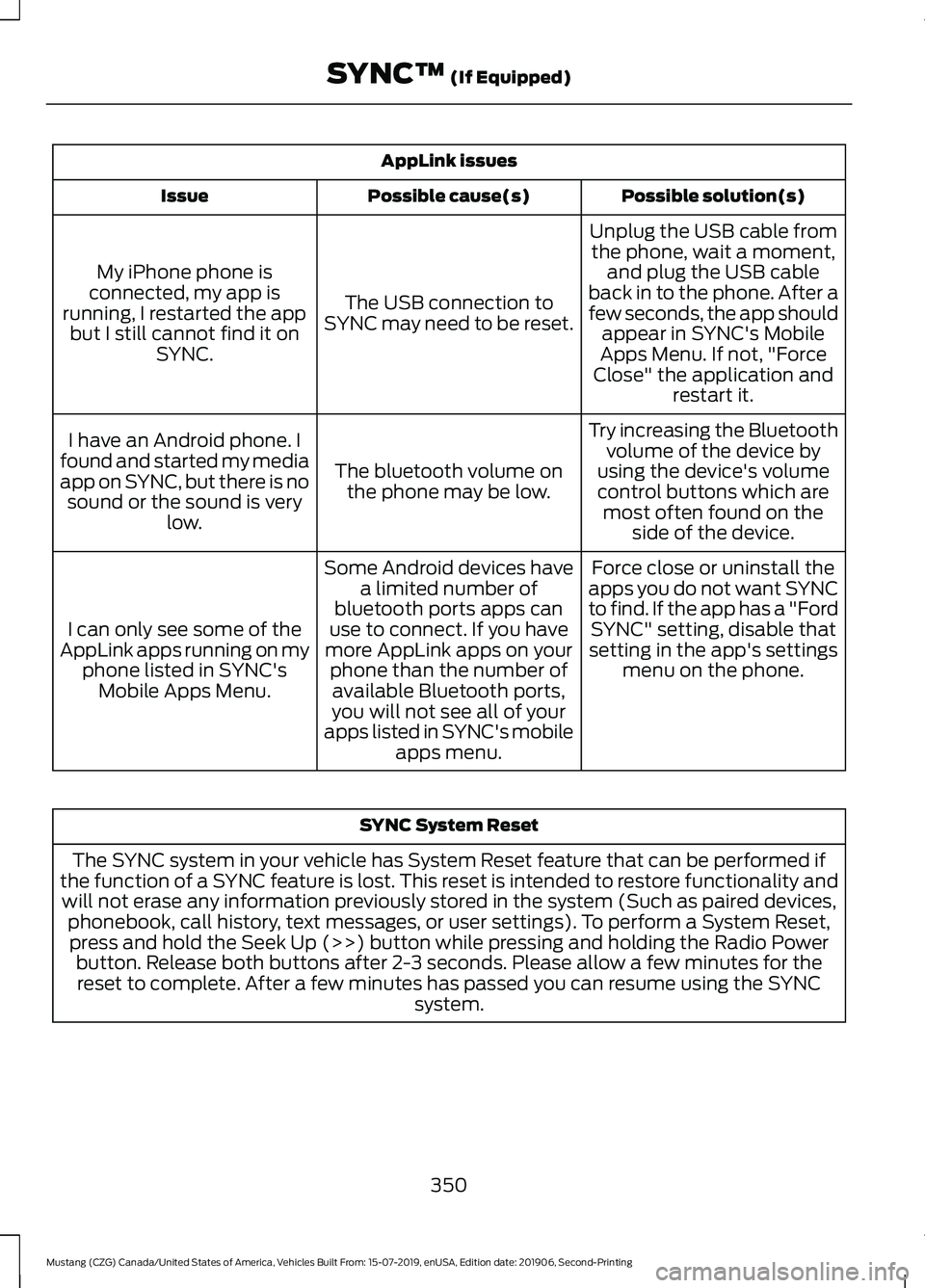
AppLink issues
Possible solution(s)
Possible cause(s)
Issue
Unplug the USB cable fromthe phone, wait a moment, and plug the USB cable
back in to the phone. After a
few seconds, the app should appear in SYNC's Mobile
Apps Menu. If not, "Force
Close" the application and restart it.
The USB connection to
SYNC may need to be reset.
My iPhone phone is
connected, my app is
running, I restarted the app but I still cannot find it on SYNC.
Try increasing the Bluetoothvolume of the device by
using the device's volume control buttons which are most often found on the side of the device.
The bluetooth volume on
the phone may be low.
I have an Android phone. I
found and started my media
app on SYNC, but there is no sound or the sound is very low.
Force close or uninstall the
apps you do not want SYNC
to find. If the app has a "Ford SYNC" setting, disable that
setting in the app's settings menu on the phone.
Some Android devices have
a limited number of
bluetooth ports apps can
use to connect. If you have
more AppLink apps on your phone than the number ofavailable Bluetooth ports,
you will not see all of your
apps listed in SYNC's mobile apps menu.
I can only see some of the
AppLink apps running on my phone listed in SYNC'sMobile Apps Menu. SYNC System Reset
The SYNC system in your vehicle has System Reset feature that can be performed if
the function of a SYNC feature is lost. This reset is intended to restore functionality and will not erase any information previously stored in the system (Such as paired devices, phonebook, call history, text messages, or user settings). To perform a System Reset,press and hold the Seek Up (>>) button while pressing and holding the Radio Power button. Release both buttons after 2-3 seconds. Please allow a few minutes for thereset to complete. After a few minutes has passed you can resume using the SYNC system.
350
Mustang (CZG) Canada/United States of America, Vehicles Built From: 15-07-2019, enUSA, Edition date: 201906, Second-Printing SYNC™ (If Equipped)