2020 FORD F-150 odometer
[x] Cancel search: odometerPage 18 of 625

Note:
To stop the connectivity device from
sharing this information, for example,
location and vehicle data, see your
Connectivity Settings through the FordPass
app. You may also remove the vehicle from
your FordPass account.
Note: The service can be unavailable or
interrupted for a number of reasons, for
example, environmental or topographical
conditions and data plan coverage.
Note: To find out if your vehicle has a
modem, visit www .For dC onne c t e d . c om .
Note: If you plan to no longer use your
vehicle, for example, by selling or donating
it, remember to remove the vehicle from
your FordPass account. If you recently
purchased the vehicle and want to disable
connectivity, please contact the Ford
Customer Relationship Center through the
FordPass app or by using the e-mail address
on the local Ford website.
Vehicles With SYNC
Mobile Device Data
If you connect a mobile device to your
vehicle, you can display data from your
device on the touchscreen for example,
music and album art. You can share your
vehicle data with mobile apps on your
device through the system. See
Apps
(page 532).
The mobile apps function operates by your
connected device sending data to us in the
United States. The data is encrypted and
includes the vehicle identification number
of your vehicle, the SYNC module serial
number, odometer, enabled apps, usage
statistics and debugging information. We
retain it only as long as necessary to
provide the service, to troubleshoot, for
continuous improvement and to offer you
products and services that may be of
interest to you according to your
preferences and where allowed by law. If you connect a cell phone to the system,
the system creates a profile that links to
that cell phone. The cell phone profile
enables more mobile features and efficient
operation. The profile contains, for
example, data from your phonebook, read
and unread text messages and call history,
including history of calls when your cell
phone was not connected to the system.
If you connect a media device, the system
creates and retains a media device index
of supported media content. The system
also records a short diagnostic log of
approximately 10 minutes of all recent
system activity.
The cell phone profile, media device index
and diagnostic log remain in your vehicle
unless you delete them and are generally
accessible only in your vehicle when you
connect your cell phone or media device.
If you no longer plan to use the system or
your vehicle, we recommend you use the
master reset function to erase the stored
information. See
Settings (page 535).
System data cannot be accessed without
special equipment and access to your
vehicle's module.
For additional information about our
privacy policy, refer to your local Ford
website.
Note: To find out if your vehicle has a
connectivity technology, visit
www .For dC onne c t e d . c om .
Vehicles With an Emergency Call
System
When the emergency call system is active,
it may disclose to emergency services that
your vehicle has been in a crash involving
the deployment of an airbag or activation
of the fuel pump shut-off. Certain versions
or updates to the emergency call system
may also be capable of electronically or
verbally disclosing to emergency services
operators your vehicle location or other
15
F-150 (TFC) Canada/United States of America, enUSA, Edition date: 201907, Third-Printing- Introduction
Page 117 of 625
Diesel Exhaust Fluid (DEF) Gauge
(If Equipped)
Indicates the current DEF level.
Information Display
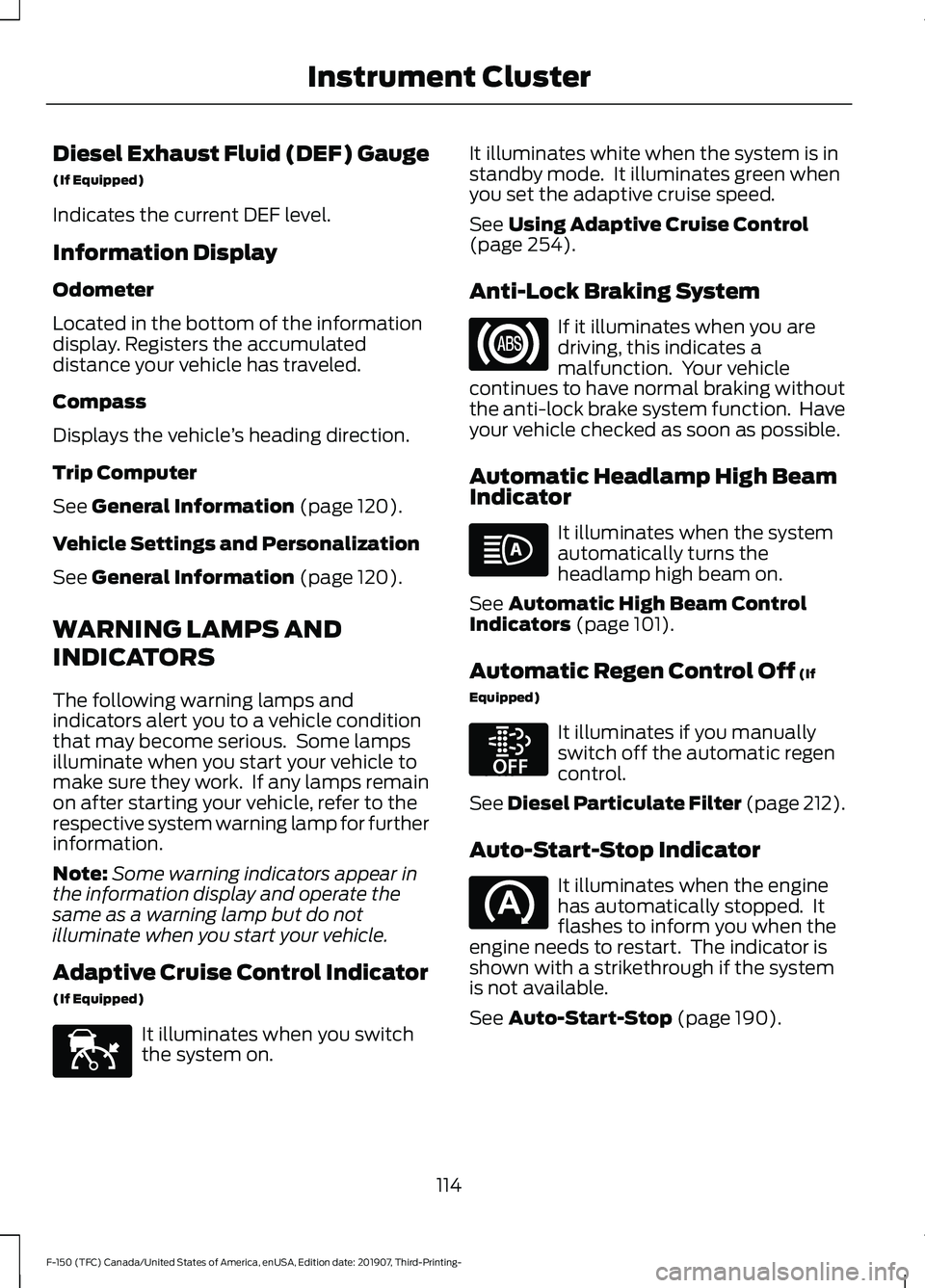
Odometer
Located in the bottom of the information
display. Registers the accumulated
distance your vehicle has traveled.
Compass
Displays the vehicle
’s heading direction.
Trip Computer
See General Information (page 120).
Vehicle Settings and Personalization
See
General Information (page 120).
WARNING LAMPS AND
INDICATORS
The following warning lamps and
indicators alert you to a vehicle condition
that may become serious. Some lamps
illuminate when you start your vehicle to
make sure they work. If any lamps remain
on after starting your vehicle, refer to the
respective system warning lamp for further
information.
Note: Some warning indicators appear in
the information display and operate the
same as a warning lamp but do not
illuminate when you start your vehicle.
Adaptive Cruise Control Indicator
(If Equipped) It illuminates when you switch
the system on. It illuminates white when the system is in
standby mode. It illuminates green when
you set the adaptive cruise speed.
See
Using Adaptive Cruise Control
(page 254).
Anti-Lock Braking System If it illuminates when you are
driving, this indicates a
malfunction. Your vehicle
continues to have normal braking without
the anti-lock brake system function. Have
your vehicle checked as soon as possible.
Automatic Headlamp High Beam
Indicator It illuminates when the system
automatically turns the
headlamp high beam on.
See
Automatic High Beam Control
Indicators (page 101).
Automatic Regen Control Off
(If
Equipped) It illuminates if you manually
switch off the automatic regen
control.
See
Diesel Particulate Filter (page 212).
Auto-Start-Stop Indicator It illuminates when the engine
has automatically stopped. It
flashes to inform you when the
engine needs to restart. The indicator is
shown with a strikethrough if the system
is not available.
See
Auto-Start-Stop (page 190).
114
F-150 (TFC) Canada/United States of America, enUSA, Edition date: 201907, Third-Printing- Instrument ClusterE144524 E252868
Page 124 of 625

Trip 1 & 2
Note:
Use the arrow buttons to choose between the following trip options. Trip 1 & 2
Digital Speed - Press OK for km/h
Trip Odometer
Trip Timer
DTE
Average Fuel
• Digital Speed - Shows a digital display of your vehicle speed.
• Trip Odometer - Registers the distance of individual journeys.
• Trip Timer - Registers the time of individual journeys.
• DTE - Shows the approximate distance your vehicle can travel before running out of
fuel.
• Average Fuel - Shows the average fuel economy for a given trip.
Note: Press and hold
OK to reset the currently displayed trip information.
Fuel Economy
Note: Use the arrow buttons to choose the desired fuel economy display. Fuel Economy
Distance to E
Instant Fuel Economy
Average Fuel Economy
121
F-150 (TFC) Canada/United States of America, enUSA, Edition date: 201907, Third-Printing- Information Displays
Page 127 of 625

Display Mode
Note:
Use the arrow buttons to choose between the following display options. Display Mode
Distance to Empty
DEF Status
Exhaust Filter Status
Tire Pressure
Digital Speedometer - Press OK for km/h
Engine Information
Transmission Temp.
• Distance to Empty - Shows the approximate distance your vehicle can travel before
running out of fuel.
• DEF Status - Shows DEF status on demand screen and DEF distance to empty.
• Exhaust Filter Status - Shows exhaust filter on demand screen.
• Tire Pressure - Shows the tire pressure. See
Tire Pressure Monitoring System
(page 408).
• Engine Information - Shows engine hours and engine idle hours. Hold
OK to Reset
• Transmission Temp.- Shows the transmission temperature of your vehicle.
Trip/Fuel
Note: Use the arrow buttons to choose between the following trip and fuel options. Trip/Fuel
Enter the submenu for items such as trip timer, DTE,
odometer and avg fuel economy
Trip 1
Enter the submenu for items such as trip timer, DTE,
odometer and avg fuel economy
Trip 2
Enter the submenu and select your setting
Fuel Economy
Enter the submenu and select your setting
Fuel History
Enter the submenu and select your setting
Compass
124
F-150 (TFC) Canada/United States of America, enUSA, Edition date: 201907, Third-Printing- Information Displays
Page 128 of 625

Trip/Fuel
Enter the submenu and select your setting
Average Speed
Auto StartStop
Trip 1 or 2
• Trip Timer - Registers the time of individual journeys.
• DTE - Shows the approximate distance your vehicle can travel before running out of
fuel.
• Odometer - Registers the distance of individual journeys.
• Avg - Shows the average fuel economy for a given trip.
Fuel Economy - Shows your instantaneous fuel usage as a bar graph and average fuel
economy.
Fuel History - Shows your fuel usage based on time. The graph is updated each minute
with the fuel economy that you achieved during 30 minutes of driving.
Average Speed - Shows the average speed your vehicle travels.
Auto StartStop - Shows the current status of the Auto StartStop system.
Note: Press and hold OK to reset the currently displayed information.
Towing
Note: Use the arrow buttons to configure different towing setting choices.
Note: Once you select a trailer, it remains active until you set it as no longer active. An active
trailer still accumulates miles even after you physically disconnect it from your vehicle. Towing
Trailer Connection Status
Trailer Status
BLIS with Trailer Ready/Not Available/Not Setup/Off
Pro Trailer Backup Assist: Ready or Not Setup or Not Calibrated
Active Trailer Name or Default Trailer
Accumulated Trailer Miles
Trailer Brake Gain
Output
Trailer Sway Control
Trailer
Options
Enter the submenu and select your
setting
Select Trailer
125
F-150 (TFC) Canada/United States of America, enUSA, Edition date: 201907, Third-Printing- Information Displays
Page 131 of 625

MyView
Trip 1
Fuel Economy
Tire Pressure
Off Road Status Enter the submenu for Trip/
Fuel, Truck Info, Towing and
Off Road selections
Add/Remove Screens
Configure MyView
Enter the submenu and select
your setting
Reorder Screens
Trip/Fuel Use the arrow buttons to choose
between the following trip and
fuel options.
Trip/Fuel
Enter the submenu for items such as trip timer,
DTE, odometer and avg fuel economy
Trip 1
Enter the submenu for items such as trip timer,
DTE, odometer and avg fuel economy
Trip 2
Enter the submenu and select your setting
Fuel Economy
Enter the submenu and select your setting
Fuel History
128
F-150 (TFC) Canada/United States of America, enUSA, Edition date: 201907, Third-Printing- Information DisplaysE176095
Page 132 of 625

Trip/Fuel
Enter the submenu and select your setting
Navigation/Compass
Auto StartStop
Trip 1 or 2
• Trip Timer - Registers the time of individual journeys.
• DTE - Shows the approximate distance your vehicle can travel before running out of
fuel.
• Odometer - Registers the distance of individual journeys.
• Avg - Shows the average fuel economy for a given trip.
Fuel Economy - Shows your instantaneous fuel usage as a bar graph and average fuel
economy.
Fuel History - Shows your fuel usage based on time. The graph is updated each minute
with the fuel economy that you achieved during 30 minutes of driving.
Average Speed - Shows the average speed your vehicle travels.
Navigation/Compass - Shows navigation turn by turn or compass direction when a route
is not set.
Auto StartStop - Shows the current status of the Auto StartStop system.
Note: Press and hold OK to reset the currently displayed information.
Truck Info In this mode, off-road
information depicted with
graphics are available.
Note: Use the arrow buttons to choose between the following display options. Truck Info
Gauge View
Tire Pressure
Digital Speedometer
Diesel Exhaust Fluid Status
Diesel Exhaust Filter Status
129
F-150 (TFC) Canada/United States of America, enUSA, Edition date: 201907, Third-Printing- Information DisplaysE163181
Page 206 of 625

Filling the Fuel Tank
For consistent results when refueling:
•
Turn the ignition off before fueling; an
inaccurate reading results if the engine
is left running.
• Use the same fill rate
(low-medium-high) each time the tank
is filled.
• Allow no more than one automatic
shut-off when refueling.
Results are most accurate when the filling
method is consistent.
Calculating Fuel Economy
Your vehicle calculates fuel economy
figures through the trip computer average
fuel function. See Information Displays
(page 120).
The first
1,000 mi (1,500 km) of driving is
the break-in period of the engine. A more
accurate measurement is obtained after
2,000 mi (3,000 km)
.
1. Completely fill the fuel tank and record
the initial odometer reading.
2. Each time you fill the fuel tank, record the amount of fuel added.
3. After at least three fill ups, fill the fuel tank and record the current odometer
reading.
4. Subtract your initial odometer reading from the current odometer reading.
To calculate L/100 km (liters per 100
kilometers) fuel consumption, multiply the
liters used by 100, then divide by kilometers
traveled. To calculate MPG (miles per
gallon) fuel consumption, divide miles
traveled by gallons used. Keep a record for at least one month and
record the type of driving, for example city
or highway. This provides an accurate
estimate of your vehicle
’s fuel economy
under current driving conditions. Keeping
records during summer and winter shows
how temperature impacts fuel economy.
Conditions
• Heavily loading your vehicle reduces
fuel economy.
• Carrying unnecessary weight in your
vehicle may reduce fuel economy.
• Avoid adding accessories that increase
aerodynamic drag to your vehicle such
as bug deflectors, car top carriers and
ski or bike racks.
• Using fuel blended with alcohol may
lower fuel economy.
• Fuel economy may decrease with lower
temperatures.
• Fuel economy may decrease when
driving short distances.
• You will get better fuel economy when
driving on flat terrain than when driving
on hilly terrain.
203
F-150 (TFC) Canada/United States of America, enUSA, Edition date: 201907, Third-Printing- Fuel and Refueling