Page 115 of 555
GENERAL INFORMATION
WARNING: Driving while distracted
can result in loss of vehicle control, crash
and injury. We strongly recommend that
you use extreme caution when using any
device that may take your focus off the
road. Your primary responsibility is the
safe operation of your vehicle. We
recommend against the use of any
hand-held device while driving and
encourage the use of voice-operated
systems when possible. Make sure you
are aware of all applicable local laws
that may affect the use of electronic
devices while driving.
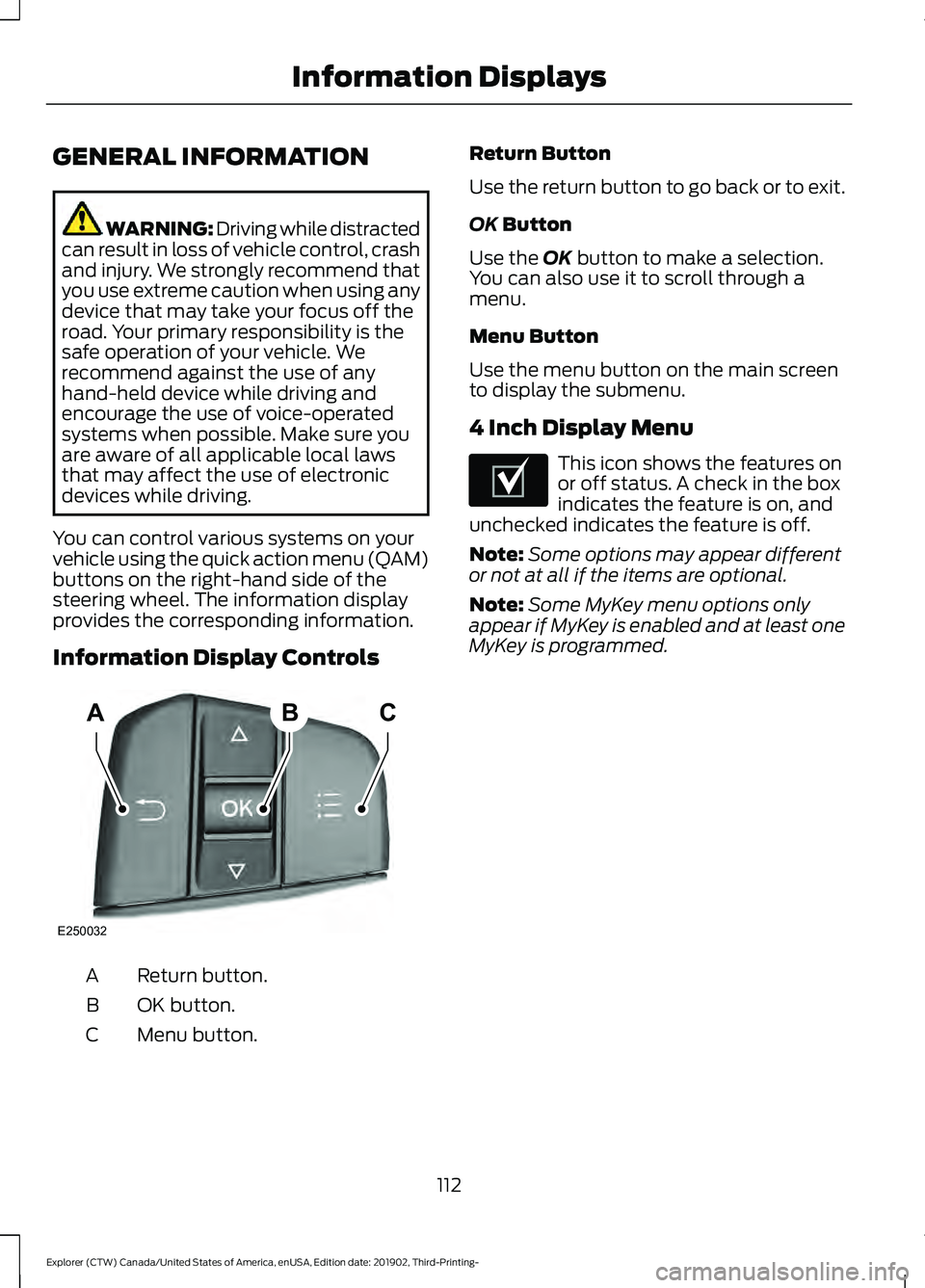
You can control various systems on your
vehicle using the quick action menu (QAM)
buttons on the right-hand side of the
steering wheel. The information display
provides the corresponding information.
Information Display Controls Return button.
A
OK button.
B
Menu button.
C Return Button
Use the return button to go back or to exit.
OK Button
Use the
OK button to make a selection.
You can also use it to scroll through a
menu.
Menu Button
Use the menu button on the main screen
to display the submenu.
4 Inch Display Menu This icon shows the features on
or off status. A check in the box
indicates the feature is on, and
unchecked indicates the feature is off.
Note: Some options may appear different
or not at all if the items are optional.
Note: Some MyKey menu options only
appear if MyKey is enabled and at least one
MyKey is programmed.
112
Explorer (CTW) Canada/United States of America, enUSA, Edition date: 201902, Third-Printing- Information DisplaysABC
E250032 E204495
Page 116 of 555
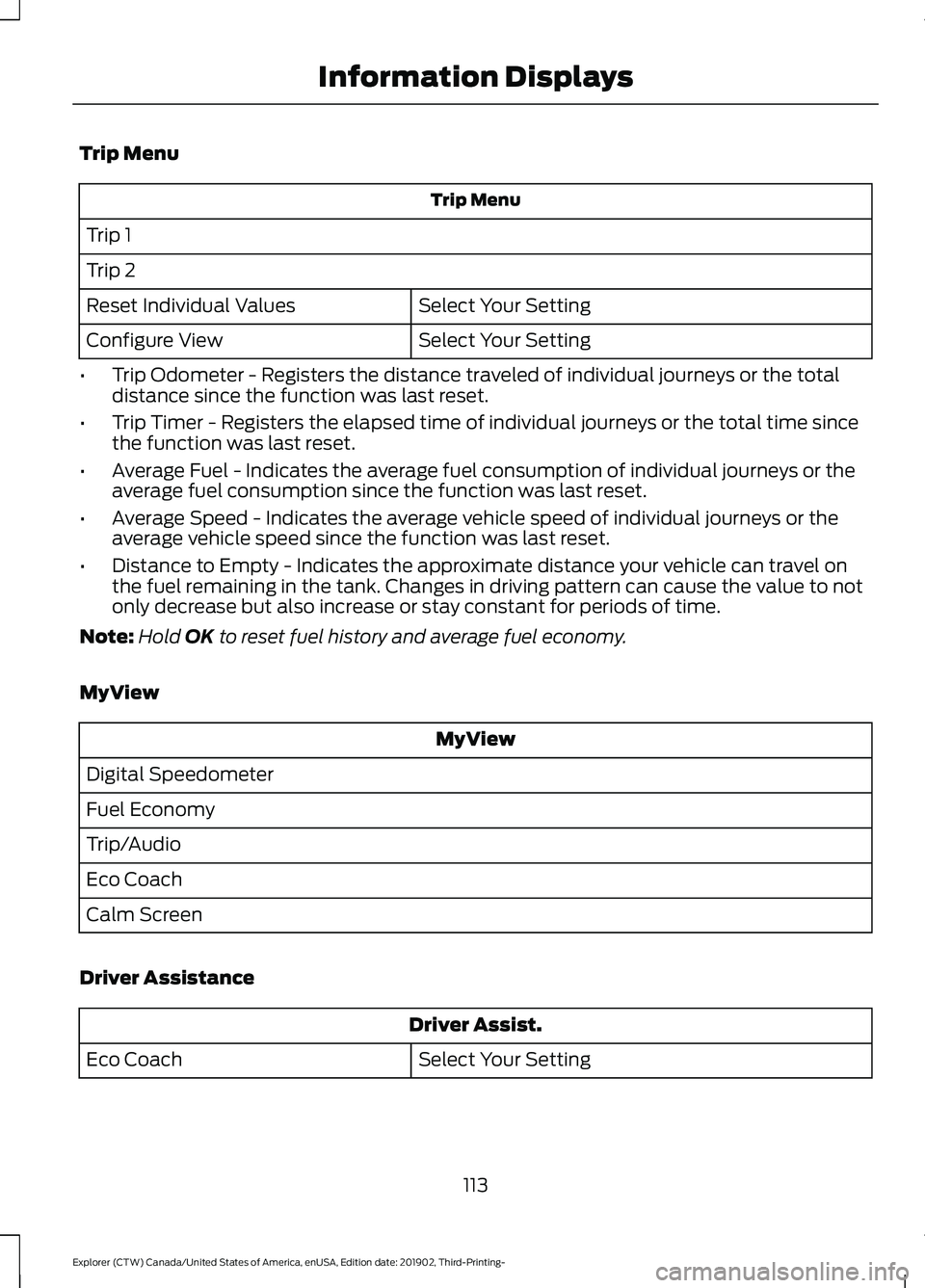
Trip Menu
Trip Menu
Trip 1
Trip 2 Select Your Setting
Reset Individual Values
Select Your Setting
Configure View
• Trip Odometer - Registers the distance traveled of individual journeys or the total
distance since the function was last reset.
• Trip Timer - Registers the elapsed time of individual journeys or the total time since
the function was last reset.
• Average Fuel - Indicates the average fuel consumption of individual journeys or the
average fuel consumption since the function was last reset.
• Average Speed - Indicates the average vehicle speed of individual journeys or the
average vehicle speed since the function was last reset.
• Distance to Empty - Indicates the approximate distance your vehicle can travel on
the fuel remaining in the tank. Changes in driving pattern can cause the value to not
only decrease but also increase or stay constant for periods of time.
Note: Hold OK to reset fuel history and average fuel economy.
MyView MyView
Digital Speedometer
Fuel Economy
Trip/Audio
Eco Coach
Calm Screen
Driver Assistance Driver Assist.
Select Your Setting
Eco Coach
113
Explorer (CTW) Canada/United States of America, enUSA, Edition date: 201902, Third-Printing- Information Displays
Page 117 of 555
Navigation
Navigation
Menu options covered in the SYNC chapter. See Navigation (page 460).
Audio Audio
Menu options covered in the SYNC chapter. See
Settings (page 469).
Phone Phone
Menu options covered in the SYNC chapter. See
Phone (page 458).
Settings Settings
Contains vehicle status information.
Select Your Setting.
Information
Select Your Setting
Language
Display
Measure unit
Temperature unit
Tire Pressure
Select Your Setting
Driver Assistance
Select Your Setting
Oil Life
Vehicle Maintenance
Tire Pressure
MyKey Info
MyKey
Create MyKey
Note: Additional vehicle settings are
available through your touchscreen. See
Settings
(page 469).
114
Explorer (CTW) Canada/United States of America, enUSA, Edition date: 201902, Third-Printing- Information Displays
Page 118 of 555
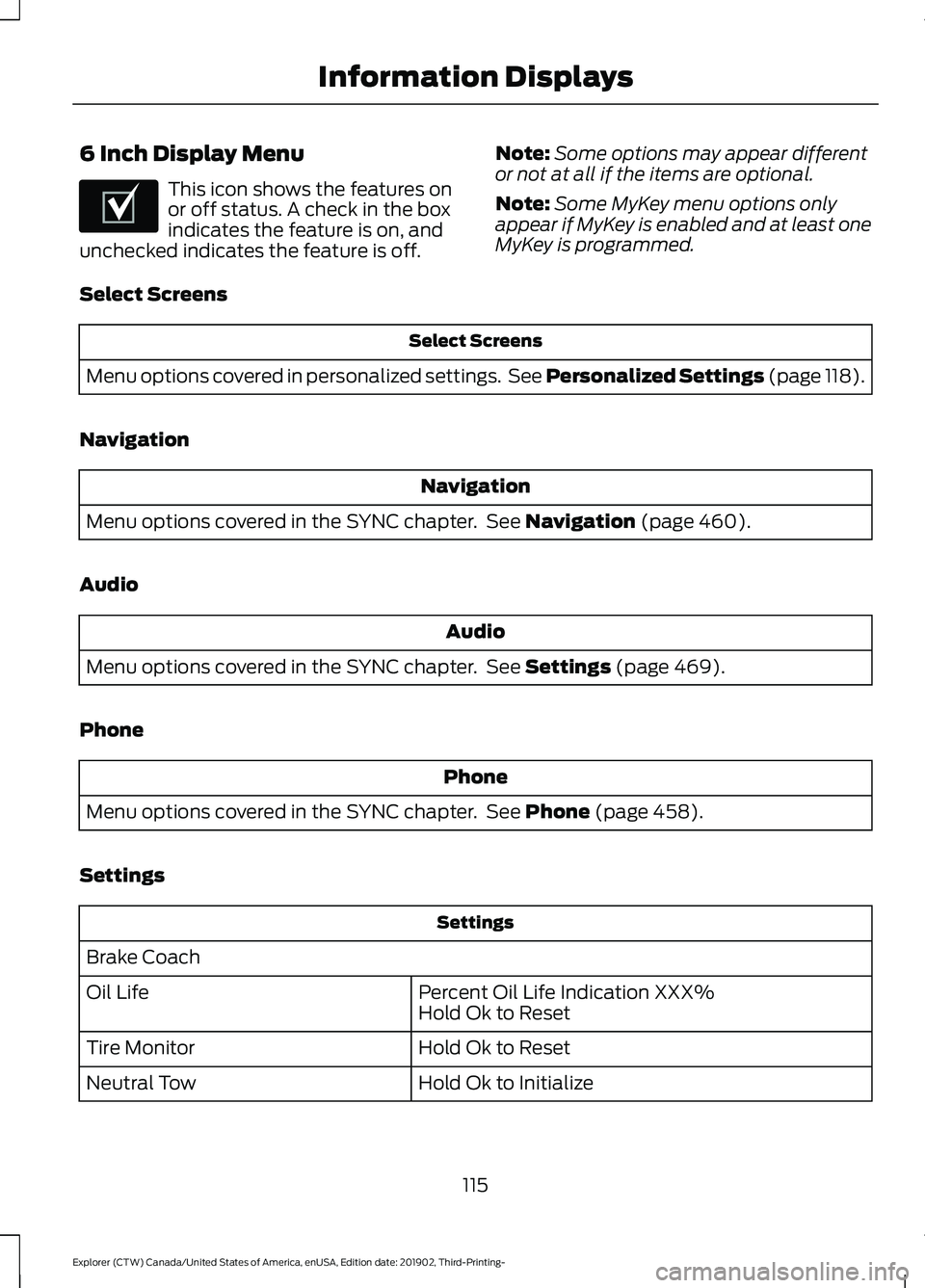
6 Inch Display Menu
This icon shows the features on
or off status. A check in the box
indicates the feature is on, and
unchecked indicates the feature is off. Note:
Some options may appear different
or not at all if the items are optional.
Note: Some MyKey menu options only
appear if MyKey is enabled and at least one
MyKey is programmed.
Select Screens Select Screens
Menu options covered in personalized settings. See Personalized Settings (page 118).
Navigation Navigation
Menu options covered in the SYNC chapter. See
Navigation (page 460).
Audio Audio
Menu options covered in the SYNC chapter. See
Settings (page 469).
Phone Phone
Menu options covered in the SYNC chapter. See
Phone (page 458).
Settings Settings
Brake Coach Percent Oil Life Indication XXX%
Hold Ok to Reset
Oil Life
Hold Ok to Reset
Tire Monitor
Hold Ok to Initialize
Neutral Tow
115
Explorer (CTW) Canada/United States of America, enUSA, Edition date: 201902, Third-Printing- Information DisplaysE204495
Page 119 of 555
Note:
Additional vehicle settings are
available through your touchscreen. See
Settings (page 469).
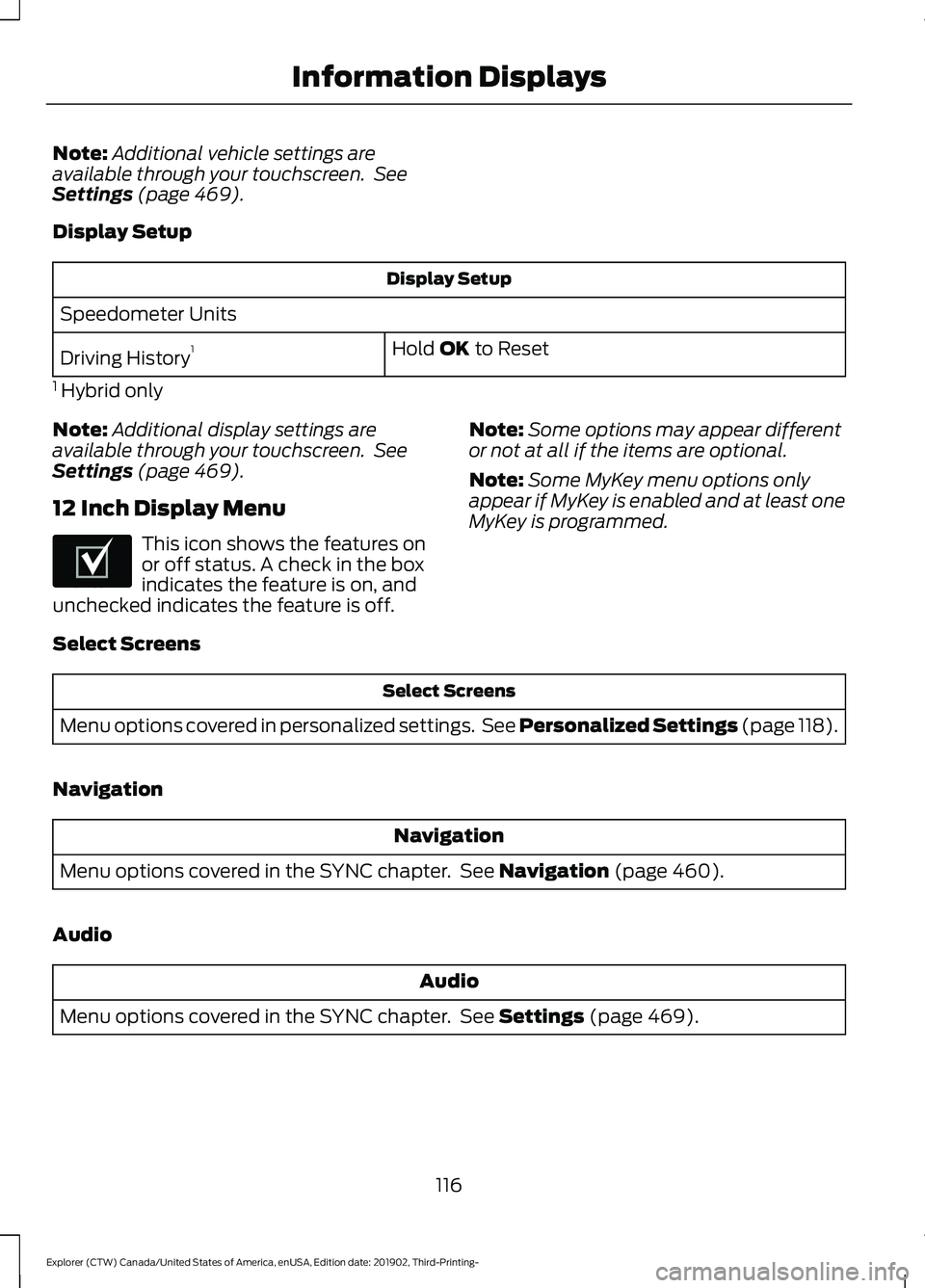
Display Setup Display Setup
Speedometer Units Hold
OK to Reset
Driving History 1
1 Hybrid only
Note: Additional display settings are
available through your touchscreen. See
Settings
(page 469).
12 Inch Display Menu This icon shows the features on
or off status. A check in the box
indicates the feature is on, and
unchecked indicates the feature is off. Note:
Some options may appear different
or not at all if the items are optional.
Note: Some MyKey menu options only
appear if MyKey is enabled and at least one
MyKey is programmed.
Select Screens Select Screens
Menu options covered in personalized settings. See
Personalized Settings (page 118).
Navigation Navigation
Menu options covered in the SYNC chapter. See
Navigation (page 460).
Audio Audio
Menu options covered in the SYNC chapter. See
Settings (page 469).
116
Explorer (CTW) Canada/United States of America, enUSA, Edition date: 201902, Third-Printing- Information DisplaysE204495
Page 120 of 555
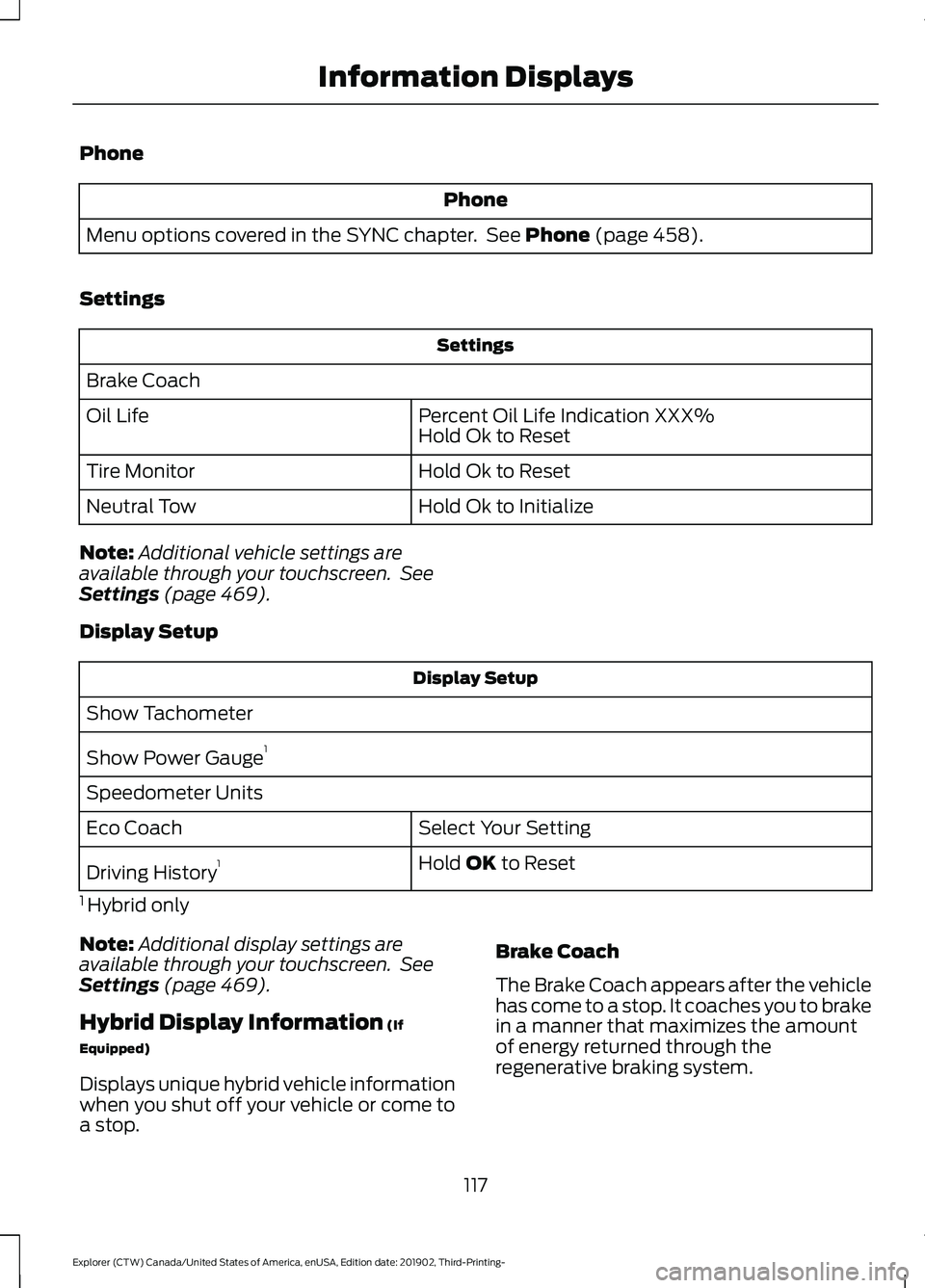
Phone
Phone
Menu options covered in the SYNC chapter. See Phone (page 458).
Settings Settings
Brake Coach Percent Oil Life Indication XXX%
Hold Ok to Reset
Oil Life
Hold Ok to Reset
Tire Monitor
Hold Ok to Initialize
Neutral Tow
Note: Additional vehicle settings are
available through your touchscreen. See
Settings
(page 469).
Display Setup Display Setup
Show Tachometer
Show Power Gauge 1
Speedometer Units Select Your Setting
Eco Coach
Hold
OK to Reset
Driving History 1
1 Hybrid only
Note: Additional display settings are
available through your touchscreen. See
Settings
(page 469).
Hybrid Display Information
(If
Equipped)
Displays unique hybrid vehicle information
when you shut off your vehicle or come to
a stop. Brake Coach
The Brake Coach appears after the vehicle
has come to a stop. It coaches you to brake
in a manner that maximizes the amount
of energy returned through the
regenerative braking system.
117
Explorer (CTW) Canada/United States of America, enUSA, Edition date: 201902, Third-Printing- Information Displays
Page 121 of 555
The percent displayed is an indication of
the regenerative braking efficiency with
100% representing the maximum amount
of energy recovery. Brake Coach can be
turned on or off in the settings menu.
Trip Summary
Displays upon shutting off your vehicle.
The values are cumulative since you last
started your vehicle.
The information shown is the same as the
This Trip on demand screen. See
Personalized Settings (page 118).
Vehicle Charging Status
Displays when you switch off your vehicle
and when you switch on your vehicle while
plugged in. Charging status includes the
charge start or charge end time as
appropriate. You can modify your vehicle
charge settings through the touchscreen.
See
SYNC™ 3 (page 438).
PERSONALIZED SETTINGS
Select one of these options to display on
your main screen.
Note: Some options may appear slightly
different or not at all if the items are
optional.
Note: EV Now information is only available
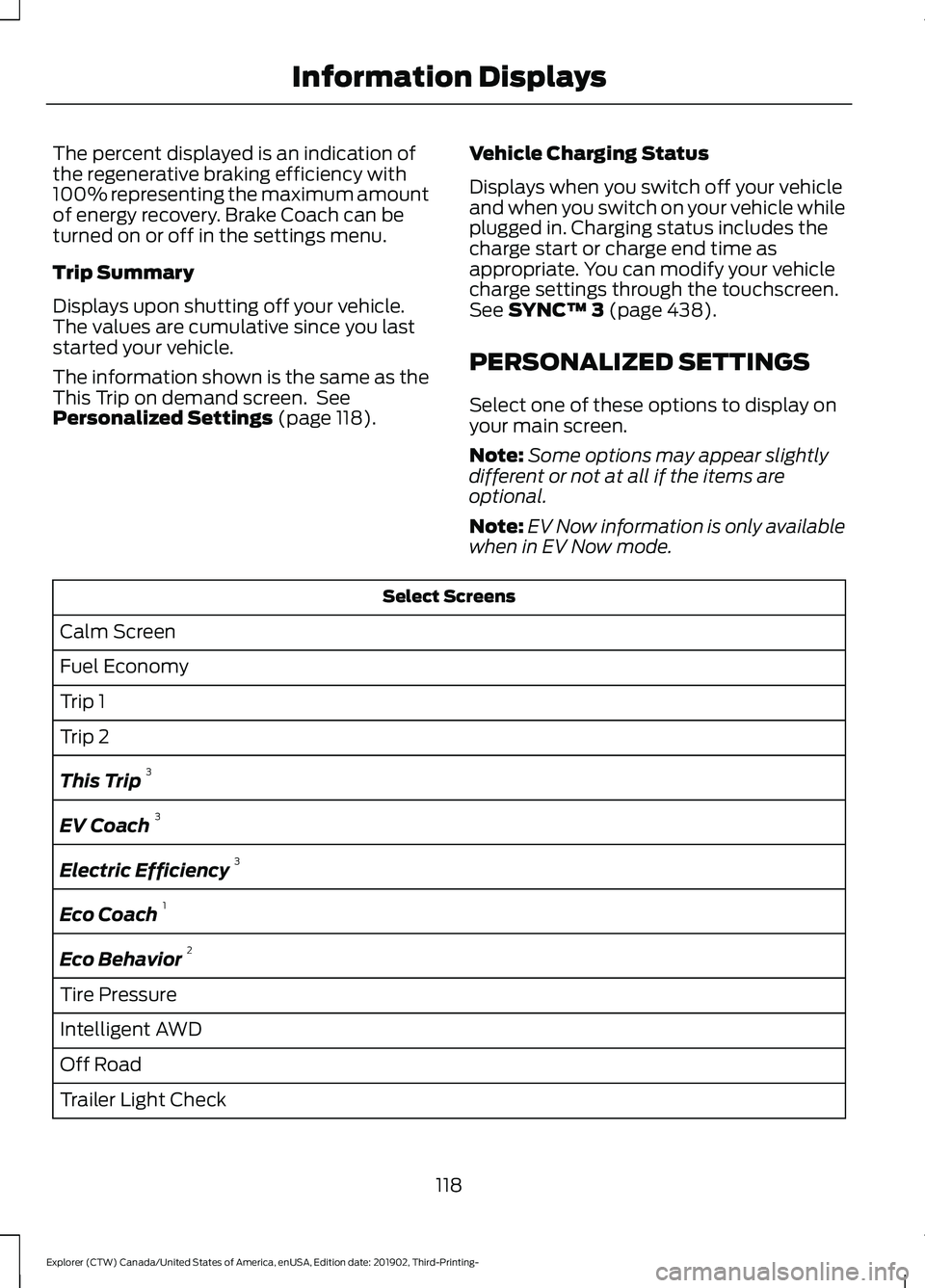
when in EV Now mode. Select Screens
Calm Screen
Fuel Economy
Trip 1
Trip 2
This Trip 3
EV Coach 3
Electric Efficiency 3
Eco Coach 1
Eco Behavior 2
Tire Pressure
Intelligent AWD
Off Road
Trailer Light Check
118
Explorer (CTW) Canada/United States of America, enUSA, Edition date: 201902, Third-Printing- Information Displays
Page 122 of 555

Select Screens
Seatbelts
Auto StartStop 4
Now Playing
EV Now 3
1 6 inch display only
2 12 inch display only
3 Hybrid only
4 Non-hybrid only
After making your selection
• Some features offer more information by pressing the OK button.
• You can also hold
OK to reset your fuel economy and trip 1 and 2.
Fuel Economy
An Instant Fuel Economy gauge is provided
along with average fuel economy. Average
fuel economy is continuously averaged
since the last reset.
Hybrid features:
• When the gasoline engine is off the
instant fuel economy gauge is replaced
with a electric driving message.
• For Plug-in vehicles, both electric only
and hybrid operation are included in
the calculation. More electric only
driving will result in greater average fuel
economy.
While viewing this screen you can reset
your average fuel economy by pressing and
holding
OK.
Trip 1 and 2
Provides trip timer, trip average fuel
economy and total trip distance traveled.
For hybrid vehicles, the trip also shows the
distance traveled on electric power only. Hybrid Information
(If Equipped)
This Trip
Provides trip timer, trip average fuel
economy, total trip distance traveled, and
distance traveled on electric power only
with the engine off. If the gasoline engine
has not turned on during the trip then trip
average fuel economy is not shown. This
Trip automatically resets each time you
start your vehicle.
EV Coach
EV Coach can help you to get the most out
of your vehicle ’s electric driving and
regenerative braking capabilities.
When you are accelerating or maintaining
speed you will see a blue or white solid bar
indicating vehicle power. You may also see
a blue rectangular box which shows the
power level at which the engine will turn
on.
119
Explorer (CTW) Canada/United States of America, enUSA, Edition date: 201902, Third-Printing- Information Displays