2020 FORD EXPEDITION navigation system
[x] Cancel search: navigation systemPage 15 of 542

Entertainment Data
Data recorded includes, for example:
•
Music, videos or album art.
• Contacts and corresponding address
book entries.
• Navigation destinations.
Services That We Provide
If you use our services, we collect and use
data, for example, account information,
vehicle location and driving characteristics,
that could identify you. We transmit this
data through a dedicated, protected
connection. We only collect and use data
to enable your use of our services to which
you have subscribed, with your consent or
where permitted by law. For additional
information, see the terms and conditions
of the services to which you have
subscribed.
Services That Third Parties
Provide
We recommend that you review the terms
and conditions and data privacy
information for any services to which you
subscribe. We take no responsibility for
services that third parties provide.
Vehicles With a Modem (If Equipped) The modem has a SIM. The
modem was enabled when your
vehicle was built and periodically
sends messages to stay connected to the
cell phone network, receive automatic
software updates and send vehicle-related
information to us, for example, diagnostic
information. These messages could
include information that identifies your
vehicle, the SIM and the electronic serial
number of the modem. Cell phone network service providers could have access to
additional information, for example, cell
phone network tower identification. For
additional information about our privacy
policy, visit
www .For dC onne c t e d . c om or
refer to your local Ford website.
Note: The modem continues to send this
information unless you disable the modem
or stop the modem from sharing vehicle
data by changing the modem settings. See
Connected Vehicle
(page 394).
Note: The service can be unavailable or
interrupted for a number of reasons, for
example, environmental or topographical
conditions and data plan coverage.
Note: To find out if your vehicle has a
modem, visit
www .For dC onne c t e d . c om .
Vehicles With SYNC
Mobile Device Data
If you connect a mobile device to your
vehicle, you can display data from your
device on the touchscreen for example,
music and album art. You can share your
vehicle data with mobile apps on your
device through the system. See
Apps
(page 454).
The mobile apps function operates by your
connected device sending data to us in the
United States. The data is encrypted and
includes the vehicle identification number
of your vehicle, the SYNC module serial
number, odometer, enabled apps, usage
statistics and debugging information. We
retain it only as long as necessary to
provide the service, to troubleshoot, for
continuous improvement and to offer you
products and services that may be of
interest to you according to your
preferences and where allowed by law.
12
Expedition (TB8) Canada/United States of America, enUSA, Edition date: 201907, Third-Printing- Introduction
Page 21 of 542

INSTRUMENT PANEL
Direction indicators. See Direction Indicators (page 97).
A
Wiper lever. See
Wipers and Washers (page 92).
B
Information display controls. See
Information Displays (page 114).
C
Instrument cluster. See
Instrument Cluster (page 107).
D
Navigation, media, phone.
E
Entertainment display.
F
Hazard warning flasher switch. See
Hazard Flashers (page 303).
G
Audio. See
Audio System (page 398).
H
Climate control. See
Climate Control (page 139).
I
Rear defrost.
J
Start button. See
Keyless Starting (page 173).
K
Voice control. See
Voice Control (page 89).
L
18
Expedition (TB8) Canada/United States of America, enUSA, Edition date: 201907, Third-Printing- At a GlanceE251633
Page 67 of 542
PRINCIPLE OF OPERATION
MyKey allows you to program keys with
restricted driving modes to promote good
driving habits. You can program the
restrictions to all keys except one. Any keys
that you did not program are administrator
keys or admin keys.
You can use admin keys to:
•
Create a MyKey with certain vehicle
restrictions.
• Program certain MyKey settings.
• Clear all MyKey restrictions.
After you program a MyKey, you can view
the following information through the
information display:
• The total number of admin keys and
MyKeys for your vehicle.
• The total distance a MyKey driver
traveled with your vehicle.
Note: Every MyKey receives the same
restrictions and settings. You cannot
program them individually.
Note: For vehicles equipped with a
push-button start switch: When both a
MyKey and an admin key are present when
you start your vehicle, the system recognizes
the admin key only. Standard Settings
Not every vehicle includes the features
listed below. If your vehicle has this
equipment, then you cannot change the
following settings when using a MyKey:
•
Seatbelt reminder or Belt-Minder™.
MyKey mutes the audio system until
drivers, and in some instances,
passengers, fasten their seatbelts.
Note: If your vehicle includes an
AM/FM radio or a very basic audio
system, then the radio may not mute.
• Earlier low-fuel warning. The low-fuel
warning activates earlier for MyKey
drivers, giving them more time to refuel.
• Certain driver alerts, stability systems
or parking aids turn on automatically
when you use the MyKey system. For
example, Blind Spot Information
System (BLIS), cross traffic alert, lane
departure warning or forward collision
warning. Note:
MyKey drivers may be
able to turn the lane departure warning
feature off, but this feature turns back
on automatically with every new key
cycle.
• Restricted touchscreen operation in
some markets. For example, MyKey
may prevent manual navigation
destination input while the vehicle is in
any gear other than park (P) or when
the vehicle reaches a certain rate of
speed.
• Satellite radio adult content
restrictions, if this feature is available
in your market.
Optional Settings
You can configure certain vehicle feature
settings when you first create a MyKey. You
can also change the settings afterward
with an admin key.
64
Expedition (TB8) Canada/United States of America, enUSA, Edition date: 201907, Third-Printing- MyKey
™
Page 123 of 542
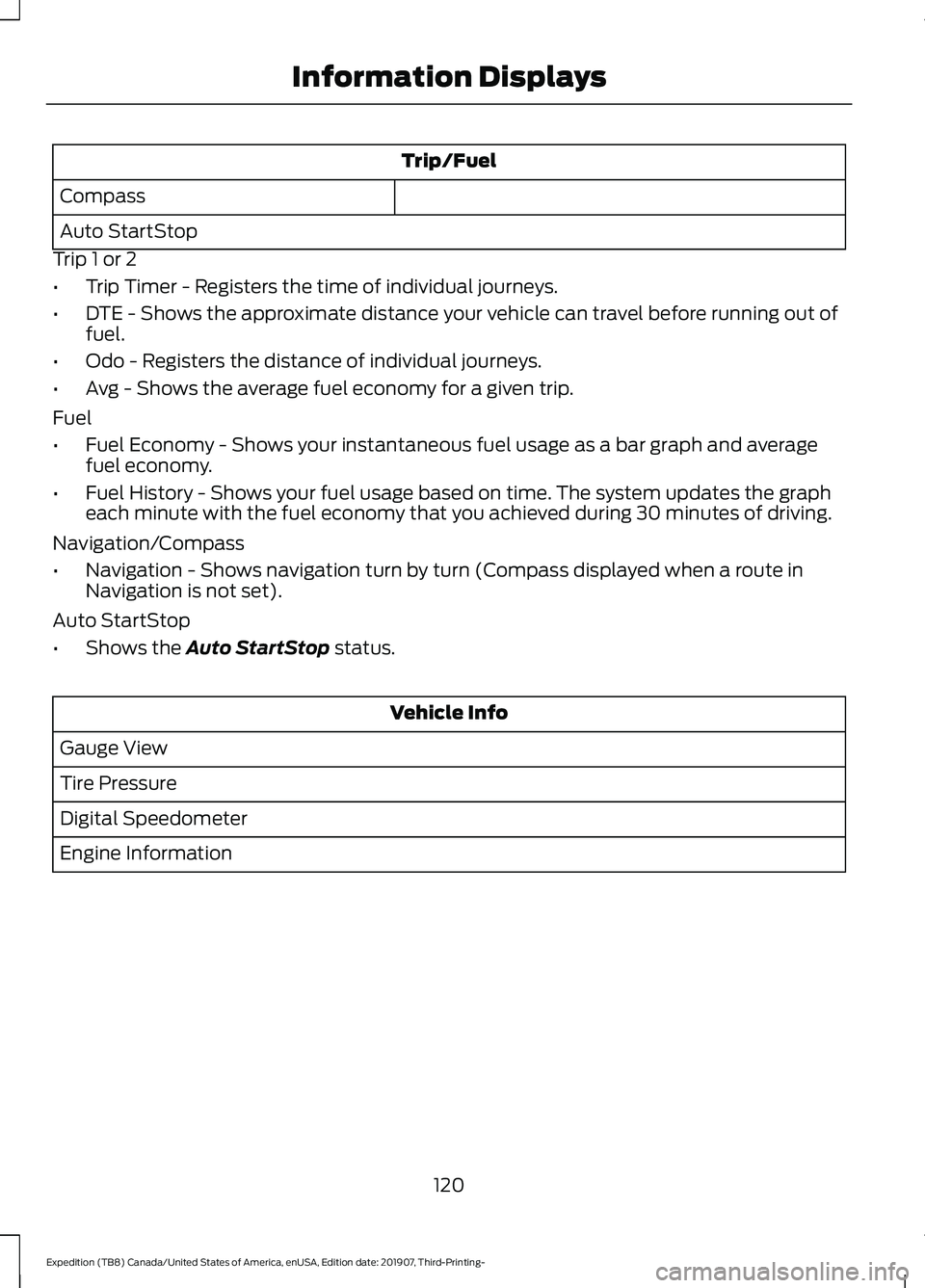
Trip/Fuel
Compass
Auto StartStop
Trip 1 or 2
• Trip Timer - Registers the time of individual journeys.
• DTE - Shows the approximate distance your vehicle can travel before running out of
fuel.
• Odo - Registers the distance of individual journeys.
• Avg - Shows the average fuel economy for a given trip.
Fuel
• Fuel Economy - Shows your instantaneous fuel usage as a bar graph and average
fuel economy.
• Fuel History - Shows your fuel usage based on time. The system updates the graph
each minute with the fuel economy that you achieved during 30 minutes of driving.
Navigation/Compass
• Navigation - Shows navigation turn by turn (Compass displayed when a route in
Navigation is not set).
Auto StartStop
• Shows the Auto StartStop status. Vehicle Info
Gauge View
Tire Pressure
Digital Speedometer
Engine Information
120
Expedition (TB8) Canada/United States of America, enUSA, Edition date: 201907, Third-Printing- Information Displays
Page 340 of 542

Make sure that you dispose of old batteries
in an environmentally friendly way. Seek
advice from your local authority about
recycling old batteries.
If storing your vehicle for more than 30
days without recharging the battery, we
recommend that you disconnect the
negative battery cable to maintain battery
charge for quick starting.
Battery Management System (If
Equipped)
The battery management system monitors
battery conditions and takes actions to
extend battery life. If excessive battery
drain is detected, the system temporarily
disables some electrical systems to
protect the battery.
Systems included are:
• Heated rear window.
• Heated seats.
• Climate control.
• Heated steering wheel.
• Audio unit.
• Navigation system.
A message may appear in the information
displays to alert you that battery
protection actions are active. These
messages are only for notification that an
action is taking place, and not intended to
indicate an electrical problem or that the
battery requires replacement.
After battery replacement, or in some
cases after charging the battery with an
external charger, the battery management
system requires eight hours of vehicle sleep
time to relearn the battery state of charge.
During this time your vehicle must remain
fully locked with the ignition switched off.
Note: Prior to relearning the battery state
of charge, the battery management system
may temporarily disable some electrical
systems. Electrical Accessory Installation
To make sure the battery management
system works correctly, do not connect an
electrical device ground connection
directly to the battery negative post. This
can cause inaccurate measurements of
the battery condition and potential
incorrect system operation.
Note:
If you add electrical accessories or
components to the vehicle, it may adversely
affect battery performance and durability.
This may also affect the performance of
other electrical systems in the vehicle.
ADJUSTING THE HEADLAMPS
Vertical Aim Adjustment
The headlamps on your vehicle are
properly aimed at the assembly plant. If
your vehicle has been in an accident,
contact an authorized dealer to check and
realign your headlamps.
Headlamp Aiming Target 8 feet (2.4 meters).
A
Center height of lamp to ground.
B
25 feet (7.6 meters).
C
Horizontal reference line.
D
337
Expedition (TB8) Canada/United States of America, enUSA, Edition date: 201907, Third-Printing- MaintenanceE142592
Page 429 of 542
GENERAL INFORMATION
WARNING: Driving while distracted
can result in loss of vehicle control, crash
and injury. We strongly recommend that
you use extreme caution when using any
device that may take your focus off the
road. Your primary responsibility is the
safe operation of your vehicle. We
recommend against the use of any
hand-held device while driving and
encourage the use of voice-operated
systems when possible. Make sure you
are aware of all applicable local laws
that may affect the use of electronic
devices while driving.
About SYNC
The system allows you to interact with the
entertainment, information and
communication systems on your vehicle
using voice commands and a touchscreen.
The system provides easy interaction with
audio, phone, navigation, mobile apps and
settings.
Note: You can switch the system on and
use it for up to an hour without switching
the ignition on.
Note: You can use the system after you
switch the ignition off for up to 10 minutes
or until you open a door.
Note: For your safety, some features are
speed-dependent. Their use is limited to
when your vehicle speed is less than 3 mph
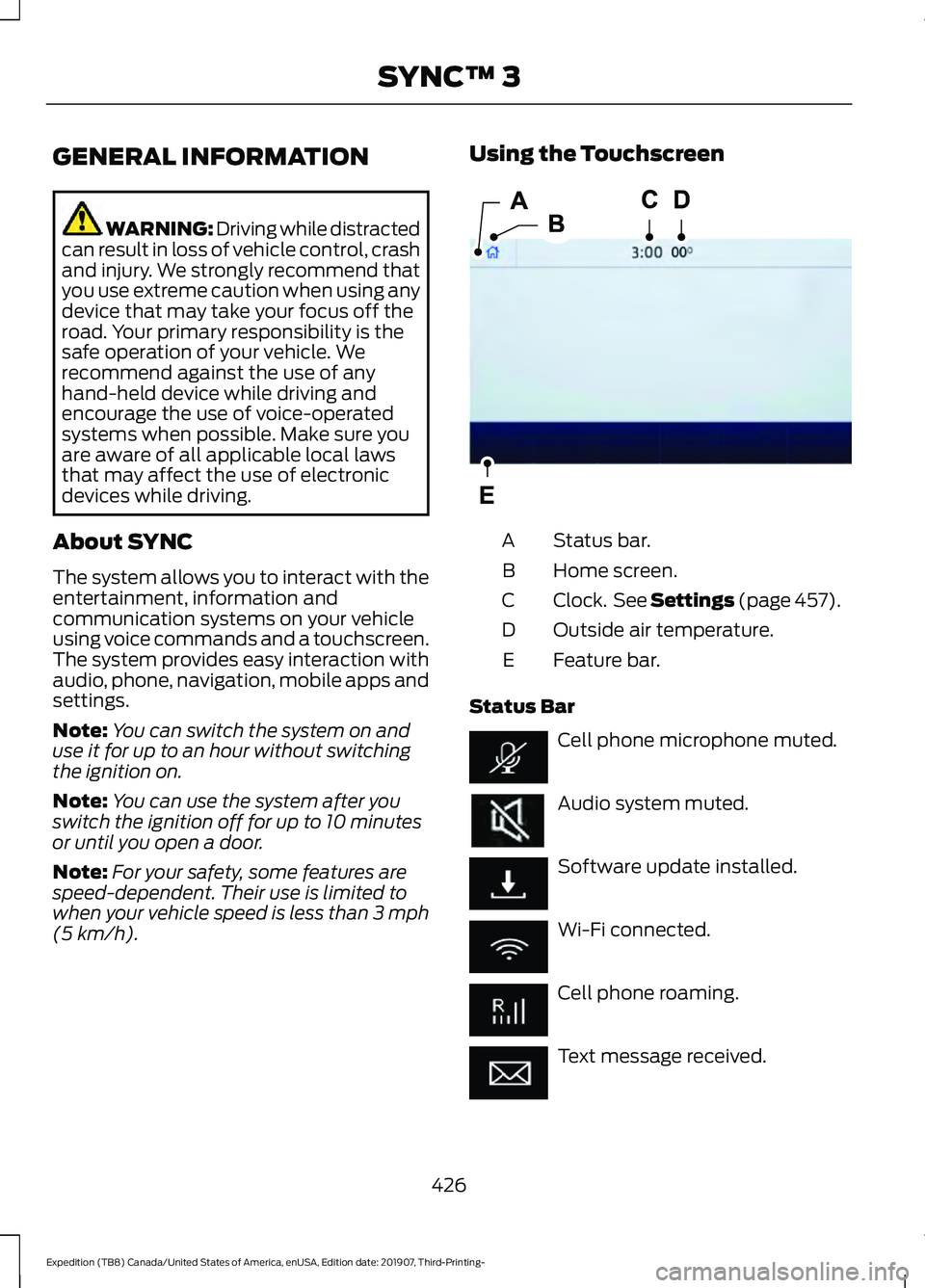
(5 km/h). Using the Touchscreen
Status bar.
A
Home screen.
B
Clock. See Settings (page 457).
C
Outside air temperature.
D
Feature bar.
E
Status Bar Cell phone microphone muted.
Audio system muted.
Software update installed.
Wi-Fi connected.
Cell phone roaming.
Text message received.
426
Expedition (TB8) Canada/United States of America, enUSA, Edition date: 201907, Third-Printing- SYNC™ 3E293823
Page 430 of 542
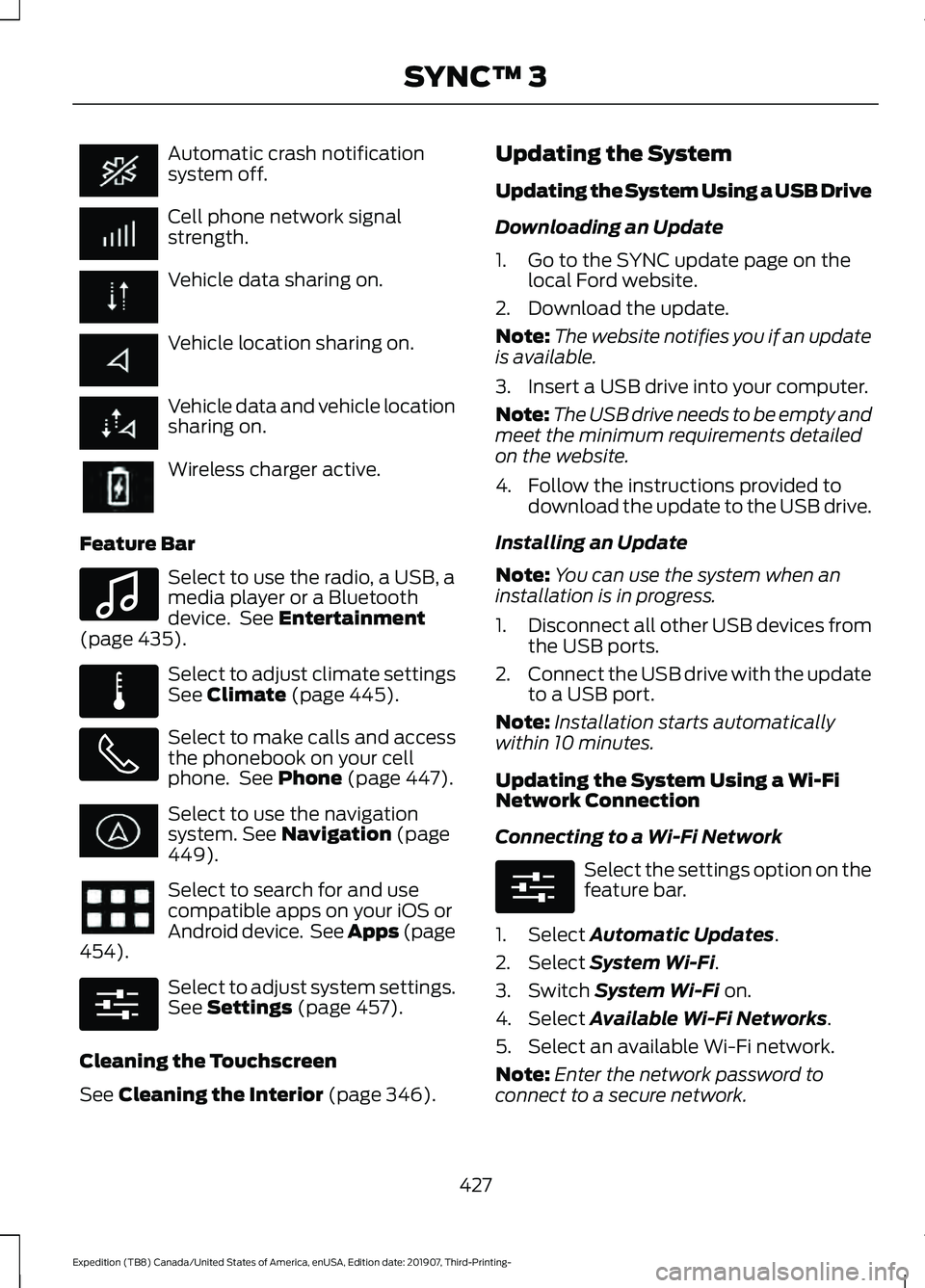
Automatic crash notification
system off.
Cell phone network signal
strength.
Vehicle data sharing on.
Vehicle location sharing on.
Vehicle data and vehicle location
sharing on.
Wireless charger active.
Feature Bar Select to use the radio, a USB, a
media player or a Bluetooth
device. See Entertainment
(page 435). Select to adjust climate settings
See
Climate (page 445).
Select to make calls and access
the phonebook on your cell
phone. See
Phone (page 447).
Select to use the navigation
system.
See Navigation (page
449). Select to search for and use
compatible apps on your iOS or
Android device. See Apps (page
454
). Select to adjust system settings.
See
Settings (page 457).
Cleaning the Touchscreen
See
Cleaning the Interior (page 346). Updating the System
Updating the System Using a USB Drive
Downloading an Update
1. Go to the SYNC update page on the
local Ford website.
2. Download the update.
Note: The website notifies you if an update
is available.
3. Insert a USB drive into your computer.
Note: The USB drive needs to be empty and
meet the minimum requirements detailed
on the website.
4. Follow the instructions provided to download the update to the USB drive.
Installing an Update
Note: You can use the system when an
installation is in progress.
1. Disconnect all other USB devices from
the USB ports.
2. Connect the USB drive with the update
to a USB port.
Note: Installation starts automatically
within 10 minutes.
Updating the System Using a Wi-Fi
Network Connection
Connecting to a Wi-Fi Network Select the settings option on the
feature bar.
1. Select
Automatic Updates.
2. Select
System Wi-Fi.
3. Switch
System Wi-Fi on.
4. Select
Available Wi-Fi Networks.
5. Select an available Wi-Fi network.
Note: Enter the network password to
connect to a secure network.
427
Expedition (TB8) Canada/United States of America, enUSA, Edition date: 201907, Third-Printing- SYNC™ 3 E100027 E283811 E280315 E280315
Page 431 of 542
Switching Automatic System Updates
On
Select the settings option on the
feature bar.
1. Select Automatic Updates.
2. Switch
Automatic System Updates
on.
The system is now set to check for and
receive system updates when it is
connected to a Wi-Fi network.
Note: You can use the system when a
download is in progress.
Note: If the system is disconnected from
the Wi-Fi network when a download is in
progress, the download continues the next
time the system is connected to a Wi-Fi
network.
Additional Information and
Assistance
For additional information and assistance,
we recommend that you contact an
authorized dealer or refer to the local Ford
website. USING VOICE RECOGNITION
The SYNC 3 system allows you to use voice
commands, to control features like audio
and climate controls. By using voice
commands, you can keep your hands on
the wheel and your eyes on the road.
You can access each feature controlled by
SYNC 3 through a variety of commands. To activate the SYNC 3 voice
commands push the voice
button on the steering wheel and
wait for the prompt.
___ is a dynamic listing, meaning that it can
be the name of anything, such as artist, the
name of contact or number. The context
and the description of the command tell
you what to say for this dynamic option.
There are some commands that work for
every feature, these commands are: Action and Description
Voice Command
Brings you to the main menu.
Main Menu
Returns you to the previous screen.
Go back
Ends the voice session.
Cancel
Gives you a list of possible voice commands.
List of Commands
You can name any feature and the system gives a list of
commands available for the feature. For example, you could
say:
___ List of Commands
Phone List of Commands
Navigation List of Commands
428
Expedition (TB8) Canada/United States of America, enUSA, Edition date: 201907, Third-Printing- SYNC™ 3E280315 E142599