2020 DODGE GRAND CARAVAN light
[x] Cancel search: lightPage 281 of 380

MULTIMEDIA279
Audio Control Menu
Push the Audio button located on the faceplate
on the right side of the radio.
Use either of the Arrow buttons or the cross-hair
on the screen to change the Balance and Fade.
The Center button resets the settings. Push the
Equalizer button to change tone settings. Use either the Arrow buttons or the sliders on
the screen to adjust Bass, Mid, and/or Treble.
Getting Started
Change The Language
The radio will conform to the vehicle language
set in the instrument cluster display.
If you change the language in the radio, the
vehicle will change the language for all display
information.
To change the language with the radio:
1. Push the Menu button on the right side of
the radio.
2. Then press the System Setup button to get to the System Setup menu.
3. Press the Language Setup button and select a language.
4. Press the Save button to activate the new language selection.
Set The Time — Radio 430
1. Press the Time Display button in the lower left corner of the screen.
2. Adjust the hours and minutes using the Up and Down buttons.
3. Press the Set Time Zone button to change to the desired time zone.
4. Press the Daylight Savings button to switch Daylight Savings on or off.
9
20_RT_OM_EN_USC_t.book Page 279
Page 282 of 380

280MULTIMEDIA
Set The Time — Radio 430 NAV
1. Press the Time Display button in the lower
left corner of the screen.
The time is automatically set by the GPS sys-
tem for the time zone selected. The radio
default is GPS time, where the vehicle time
is automatically set by the GPS system. If
the vehicle is not able to receive the GPS
signals, the vehicle time is only updated
when the GPS satellite signals are being re -
ceived (which requires the vehicle to be out -
side with a clear view to the sky).
2. It is possible to set the time manually (ahead or behind actual GPS time), by
pressing the User Time button. 3. Press the Daylight Savings button to switch
Daylight Savings on or off.
Store Radio Presets
1. Push the Radio button to display AM, FM, or SAT.
2. Select the radio band by pressing either the
AM, FM, or SAT buttons.
3. Either press the Seek Up/Down buttons or press the Scan button, Direct Tune button
or the Left/Right arrows to change the
currently playing station.
4. Press and hold one of the Presets buttons in the list to the right until you hear a confir -
mation beep (approximately two seconds).
You can use the Page button to scroll
through the list of presets.
NOTE:
If the preset list is not displayed, press the
Presets button located in the bottom line of the
screen.
You can use the Full Screen button to toggle
between full and split-screen mode. Long preset
names are displayed in full-screen mode.
20_RT_OM_EN_USC_t.book Page 280
Page 283 of 380

MULTIMEDIA281
Radio Mode
Overview
The radio is equipped with three different
tuners:
FM 87.7 MHz - 107.9 MHz (RBDS capable)
AM 530 kHz - 1710 kHz
SiriusXM® Satellite Radio (if equipped)
Push the Radio button. The different tuner
modes can be selected by pressing the tabs on
the radio touchscreen.
SiriusXM® Satellite Radio
With over 130 channels, SiriusXM® Satellite
Radio brings you more of what you love. Get 69
channels of 100% commercial-free music, plus
all of your favorite sports, news, talk and
entertainment. Hear every NFL® game, every
NASCAR® race, college sports and more. The
biggest and most compelling names in talk with
Howard Stern and Martha Stewart,
laugh-out-loud comedy, plus kids' programming,
wold-class news, local traffic and weather. All of
this with crystal clear, coast-to-coast coverage.
Everything worth listening to is now on SiriusXM®. A one-year SiriusXM® Satellite
Radio subscription is included.
SiriusXM® and all related marks and logos are
trademarks of SiriusXM® Radio Inc. and its
subsidiaries. SiriusXM® Radio requires a
subscription, sold separately after trial
subscription included with vehicle purchase.
Prices and programming are provided by
SiriusXM® and are subject to change.
Subscriptions governed by Terms & Conditions
available at
www.siriusxm.com . SiriusXM®
Radio US service only available to those at least
18 years of age in the 48 contiguous United
States, D.C., and PR. Service available in
Canada; see www.siriusxm.ca .
To receive satellite radio, the vehicle needs to
be outside with a clear view to the sky. If the
screen shows Acquiring Signal, you might have
to change the vehicle position to receive a
signal. In most cases, the satellite radio does
not receive a signal in underground parking
garages or tunnels.
Station Presets
There are 12 station presets available for
storing the radio stations in each tuner range.
To store the desired station, press and hold one
of the station Presets buttons for two seconds
and you will see the highlighted button change
from green to beige. You will also see the radio
station stored in the highlighted button and you
will hear a confirmation beep when the station
is saved. Pressing the Presets buttons in SAT
mode changes the information shown in the list
between the Channel Name, name of the Artist
currently playing on the channel and name of
the Song currently playing on the channel.
9
20_RT_OM_EN_USC_t.book Page 281
Page 287 of 380

MULTIMEDIA285
Re-Subscribe To SiriusXM® Satellite Radio
New vehicle purchasers or lessees will receive a
free limited time subscription to SiriusXM®
Satellite Radio with your radio. Following
expiration of the free services, it will be
necessary to access the information on the
Subscription Information screen to
re-subscribe.
Press the Subscription button on the
touchscreen to access the Subscription
Information screen.
Write down the SiriusXM® ID numbers for your
receiver. To reactivate your service, either call
the number listed on the screen or visit the
provider online. NOTE:
SiriusXM® Travel Link is a separate
subscription only available on the
Radio 430 Nav.
Display Settings
Push the Menu button on the faceplate, and
press the Display Setting button on the
touchscreen to access the Display Settings
menu.
Select the Daytime Colors button to switch to
manual daytime mode and to adjust the
brightness of the display using daytime colors.
Select the Nighttime Colors button to switch to
manual nighttime mode and to adjust the
brightness of the display using nighttime colors.
Select the Auto Color button to switch to
automatic daytime/nighttime mode and to
control the brightness of the display using the
light switch of the vehicle.
Press the Up or Down arrows to adjust the
Brightness.
Press the Done button to save your settings and
to return to the AM/FM/SAT Menu.
Screen Off
To turn off the screen (so only the clock is
shown, and audio is still heard through the
vehicle’s speakers), push the Menu button on
the faceplate and press the Screen Off button
on the touchscreen.
Once the Screen Off is active, push any button
on the faceplate or press the touchscreen
display to deactivate it.
9
20_RT_OM_EN_USC_t.book Page 285
Page 306 of 380

304MULTIMEDIA
You can also select a different audio device in
the Select Aux Device screen. Press the icon to
enter the Select Aux Device screen. The
currently playing device is highlighted, you can
push and select a different device.
Uconnect Phone— If Equipped
Uconnect Phone is a voice-activated,
hands-free, in-vehicle communications system.
Uconnect Phone allows you to dial a phone
number with your mobile phone* using simple
voice commands (e.g., “Call” … “Mike” …
“Work” or “Dial” … “248-555-1212”). Your
mobile phone's audio is transmitted through
your vehicle's audio system; the system
automatically mutes your radio when using the
Uconnect Phone. NOTE:
Uconnect Phone requires a mobile phone
equipped with the Bluetooth® “Hands-Free
Profile,” Version 0.96 or higher. See the
Uconnect website for supported phones.
For Uconnect customer support:
US residents - visit
UconnectPhone.com or
call 1-877-855-8400 (24 hours a day 7 days
a week).
Canadian Residents - visit Uconnect-
Phone.com or call 1-800-465-2001 (English)
or 1-800-387-9983 (French).
Mon. – Fri., 8:00 am – 8:00 pm, ET
Sat., 9:00 am – 5:00 pm, ET
Sun., Closed
Uconnect Phone allows you to transfer calls
between the system and your mobile phone as
you enter or exit your vehicle and enables you to
mute the system's microphone for private
conversation. The Uconnect Phone is driven through your
Bluetooth® “Hands-Free Profile” mobile phone.
Uconnect features Bluetooth® technology - the
global standard that enables different
electronic devices to connect to each other
without wires or a docking station, so Uconnect
Phone works no matter where you stow your
mobile phone (be it your purse, pocket, or
briefcase), as long as your phone is turned on
and has been paired to the vehicle's Uconnect
Phone. The Uconnect Phone allows up to seven
mobile phones to be linked to the system. Only
one linked (or paired) mobile phone can be
used with the system at a time. The system is
available in English, Spanish, or French
languages.
WARNING!
ALWAYS drive safely with your hands on the
wheel. You have full responsibility and
assume all risks related to the use of the
Uconnect features and applications in this
vehicle. Only use Uconnect when it is safe to
do so. Failure to do so may result in an
accident involving serious injury or death.
20_RT_OM_EN_USC_t.book Page 304
Page 314 of 380

312MULTIMEDIA
NOTE:
The emergency number dialed is based on
the country where the vehicle is purchased
(911 for the US and Canada and 060 for
Mexico). The number dialed may not be appli -
cable with the available mobile service and
area.
If supported, this number may be program -
mable on some systems. To do this, push the
Phone button and say “Setup,” followed
by “Emergency.”
The Uconnect Phone does slightly lower your
chances of successfully making a phone call. Roadside Assistance/Towing Assistance
If you need roadside assistance:
Push the Phone button to begin.
After the “Ready” prompt and the following
beep, say “Towing Assistance”.
NOTE:
You should program the desired Towing
Assistance phone number using the Voice
Command system. To do this, push the Phone
button and say “Setup,” followed by “Towing
Assistance.” When prompted say
1-800-521-2779 for U.S., 1-800-363-4869 for
Canada, 55-14-3454 for Mexico City and
1-800-712-3040 for outside Mexico City in
Mexico.
Paging
To learn how to page, refer to “Working With
Automated Systems.” Paging works properly
except for pagers of certain companies, which
time out a little too soon to work properly with
the Uconnect Phone.
Voice Mail Calling
To learn how to access your voice mail, refer to
“Working With Automated Systems.” Working With Automated Systems
This method is used in instances where one
generally has to press numbers on the mobile
phone keypad while navigating through an
automated telephone system.
You can use your Uconnect Phone to access a
voice mail system or an automated service,
such as a paging service or automated
customer service line. Some services require
immediate response selection. In some
instances, that may be too quick for use of the
Uconnect Phone.
When calling a number with your Uconnect
Phone that normally requires you to enter in a
touch-tone sequence on your mobile phone
keypad, you can push the Voice Recognition
button and say the sequence you wish to
enter, followed by the word “Send.” For
example, if required to enter your PIN followed
with a pound, (3 7 4 6 #), you can push the
Voice Recognition button and say, “3 7 4 6 #
Send.” Saying a number, or sequence of
numbers, followed by “Send,” is also to be used
for navigating through an automated customer
service center menu structure, and to leave a
number on a pager.
WARNING!
To use your Uconnect Phone System in an
emergency, your mobile phone must be:
Turned on.
Paired to the Uconnect System.
Have network coverage.
20_RT_OM_EN_USC_t.book Page 312
Page 344 of 380

342MULTIMEDIA
Turning it counterclockwise (backward)
by one click will jump to the previous
track in the list or push the VR button and
say "Previous Track".
Jump backward in the current track by
pushing and holding the << RW button.
Holding the << RW button long enough will
jump to the beginning of the current track.
Jump forward in the current track by pushing
and holding the FF >> button.
A single push backward << RW or forward FF
>> will jump backward or forward respec -
tively, for five seconds.
Use the << SEEK and SEEK >> buttons to
jump to the previous or next track. Pushing
the SEEK >> button during play mode will
jump to the next track in the list, or push the
VR button and say "Next or Previous Track."
While a track is playing, push the INFO button
to see the associated metadata (artist, track
title, album, etc.) for that track. Pushing the
INFO button again jumps to the next screen
of data for that track. Once all screens have
been viewed, the last INFO button push will
go back to the play mode screen on the radio.
Pushing the Repeat button will change the
audio device mode to repeat the current
playing track or push the VR button and say
"Repeat On" or "Repeat Off".
Push the Scan button to use AUX/USB/MP3
device scan mode, which will play the first 10
seconds of each track in the current list and
then forward to the next song. To stop Scan
mode and start playing the desired track,
when it is playing the track, push the Scan
button again. During Scan mode, pushing the
<< SEEK and SEEK >> buttons will select the
previous and next tracks.
RND button: Pushing this button toggles
between Shuffle ON and Shuffle OFF modes
for the external USB device, or push the VR
button and say "Shuffle On" or "Shuffle Off." If
the RND icon is showing on the radio display,
then the shuffle mode is On.
List Or Browse Mode
During Play mode, pushing any of the buttons
described below will bring up List mode. List
mode enables scrolling through the list of
menus and tracks on the audio device. Tune control knob: The Tune control knob
functions in a similar manner as the scroll
wheel on the audio device or external USB
device.
Turning it clockwise (forward) and counter-
clockwise (backward) scrolls through the
lists, displaying the track detail on the radio
display. Once the track to be played is high-
lighted on the radio display, push the Tune
control knob to select and start playing the
track. Turning the TUNE control knob fast will
scroll through the list faster. During fast
scroll, a slight delay in updating the informa
-
tion on the radio display may be noticeable.
In List mode, the radio Preset buttons are used
as shortcuts to the following lists on the
external USB device:
Preset 1 – Playlists
Preset 2 – Artists
Preset 3 – Albums
Preset 4 – Genres
Preset 5 – Audiobooks
Preset 6 – Podcasts
20_RT_OM_EN_USC_t.book Page 342
Page 347 of 380
MULTIMEDIA345
When connecting an external source to the AUX
input, be sure to follow the standard color
coding for the VES jacks.
NOTE:
Certain high-end video game consoles will
exceed the power limit of the vehicle's Power
Inverter. Refer to “Power Inverter — If Equipped”
in “Getting To Know Your Vehicle” for more
information.
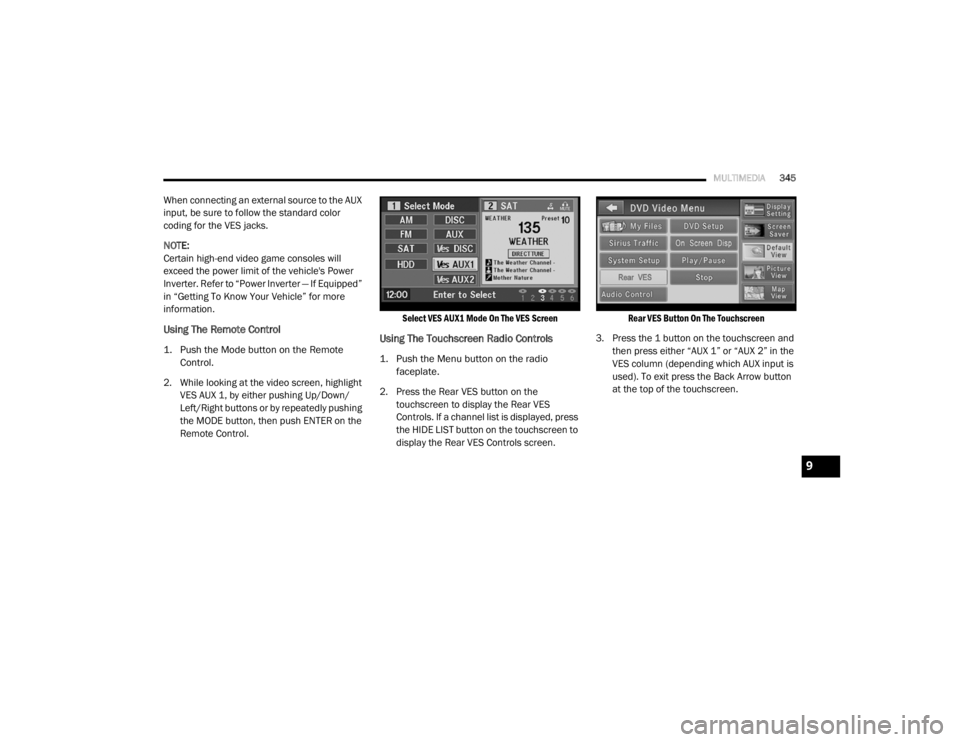
Using The Remote Control
1. Push the Mode button on the Remote
Control.
2. While looking at the video screen, highlight VES AUX 1, by either pushing Up/Down/
Left/Right buttons or by repeatedly pushing
the MODE button, then push ENTER on the
Remote Control.
Select VES AUX1 Mode On The VES Screen
Using The Touchscreen Radio Controls
1. Push the Menu button on the radio
faceplate.
2. Press the Rear VES button on the touchscreen to display the Rear VES
Controls. If a channel list is displayed, press
the HIDE LIST button on the touchscreen to
display the Rear VES Controls screen.
Rear VES Button On The Touchscreen
3. Press the 1 button on the touchscreen and then press either “AUX 1” or “AUX 2” in the
VES column (depending which AUX input is
used). To exit press the Back Arrow button
at the top of the touchscreen.
9
20_RT_OM_EN_USC_t.book Page 345