2020 CHRYSLER VOYAGER Instrument
[x] Cancel search: InstrumentPage 390 of 516

388
TECHNICAL SPECIFICATIONS
IDENTIFICATION DATA
Vehicle Identification Number
The Vehicle Identification Number (VIN) is on
the left front corner of the instrument panel and
is visible from outside of the vehicle through the
windshield.
Vehicle Identification Number
NOTE:
It is illegal to remove or alter the VIN.
BRAKE SYSTEM
Your vehicle is equipped with dual hydraulic
brake systems. If either of the two hydraulic
systems loses normal capability, the remaining
system will still function. However, there will be
some loss of overall braking effectiveness. You
may notice increased pedal travel during
application, greater pedal force required to slow
or stop, and potential activation of the Brake
Warning Light.
In the event power assist is lost for any reason
(i.e., repeated brake applications with the
engine off) the brakes will still function.
However, the effort required to brake the
vehicle will be much greater than that required
with the power system operating.
WHEEL AND TIRE TORQUE SPECIFICATIONS
Proper lug nut/bolt torque is very important to
ensure that the wheel is properly mounted to
the vehicle. Any time a wheel has been removed
and reinstalled on the vehicle, the lug nuts/
bolts should be torqued using a properly
calibrated torque wrench using a high quality six
sided (hex) deep wall socket.
Torque Specifications
**Use only authorized dealer recommended
lug nuts/bolts and clean or remove any dirt or
oil before tightening.
Lug Nut/Bolt
Torque **Lug Nut/
Bolt SizeLug Nut/Bolt
Socket Size
100 Ft-Lbs
(135 N·m) M12 x 1.5 19 mm
20_RU_OM_EN_US_t.book Page 388
Page 400 of 516
398MULTIMEDIA
Privacy of any wireless and wired
communications cannot be assured. Third
parties may unlawfully intercept information
and private communications without your
consent. For further information, refer to “Data
Collection & Privacy” in your Uconnect Owner’s
Manual Supplement or “Onboard Diagnostic
System (OBD II) Cybersecurity” in “Getting To
Know Your Instrument Panel”.
UCONNECT SETTINGS
The Uconnect system uses a combination of
buttons on the touchscreen and buttons on the
faceplate located on the center of the
instrument panel. These buttons allow you to
access and change the Customer
Programmable Features. Many features can
vary by vehicle.
Buttons on the faceplate are located below
and/or beside the Uconnect system in the
center of the instrument panel. In addition,
there is a Scroll/Enter control knob located on
the right side. Turn the control knob to scroll
through menus and change settings. Push the
center of the control knob one or more times to
select or change a setting.
Your Uconnect system may also have Screen
Off and Mute buttons on the faceplate. Push the Screen Off button on the faceplate to
turn off the Uconnect screen. Push the button
again or tap the screen to turn the screen on.
Push the Back Arrow button to exit out of a
Menu or certain option on the Uconnect system.
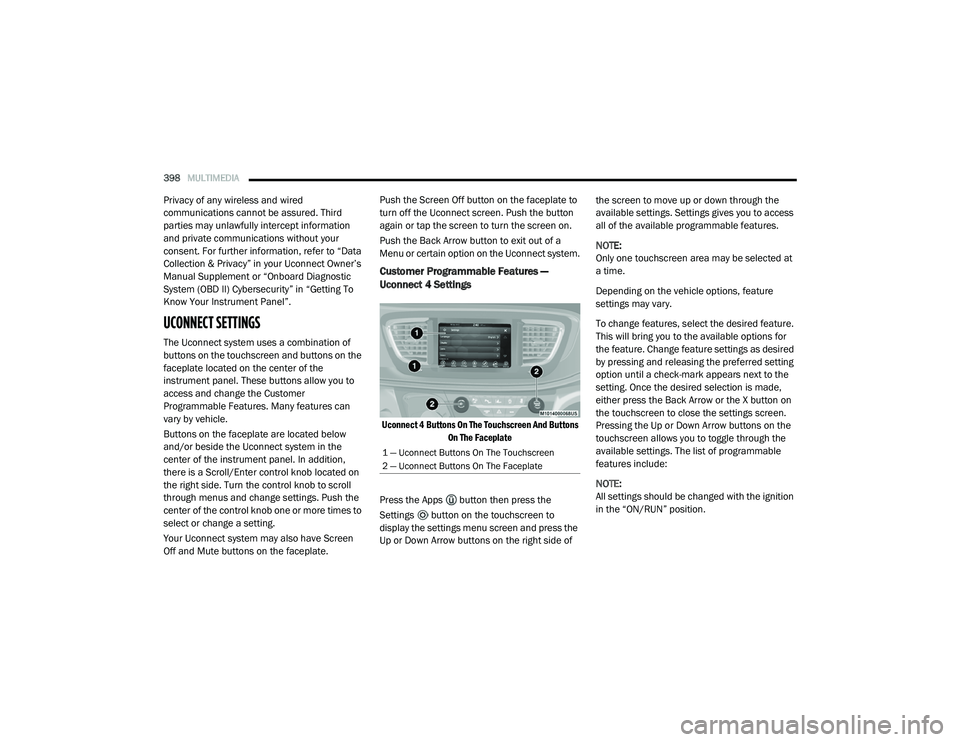
Customer Programmable Features —
Uconnect 4 Settings
Uconnect 4 Buttons On The Touchscreen And Buttons
On The Faceplate
Press the Apps button then press the
Settings button on the touchscreen to
display the settings menu screen and press the
Up or Down Arrow buttons on the right side of the screen to move up or down through the
available settings. Settings gives you to access
all of the available programmable features.
NOTE:
Only one touchscreen area may be selected at
a time.
Depending on the vehicle options, feature
settings may vary.
To change features, select the desired feature.
This will bring you to the available options for
the feature. Change feature settings as desired
by pressing and releasing the preferred setting
option until a check-mark appears next to the
setting. Once the desired selection is made,
either press the Back Arrow or the X button on
the touchscreen to close the settings screen.
Pressing the Up or Down Arrow buttons on the
touchscreen allows you to toggle through the
available settings. The list of programmable
features include:
NOTE:
All settings should be changed with the ignition
in the “ON/RUN” position.
1 — Uconnect Buttons On The Touchscreen
2 — Uconnect Buttons On The Faceplate
20_RU_OM_EN_US_t.book Page 398
Page 403 of 516

MULTIMEDIA401
NOTE:
To make changes to the "Display Brightness With Headlights ON" setting, the headlights must be on and the interior dimmer switch must not be in
the "party" or "parade" position. The setting can be changed from 1-10.
Display Brightness Headlights OFF +-
NOTE:
To make changes to the "Display Brightness With Headlights OFF" setting, the headlights must be off and the interior dimmer switch must not be in
the "party" or "parade" position. Touchscreen Beep OnOff
Control Screen Time-Out — If Equipped OnOff
NOTE:
When the “Control Screen Time-Out” feature is selected, the Control Screen will stay open for five seconds before the screen times out. With the
feature deselected, the screen will stay open until it is manually closed.
Navigation Turn-By-Turn In Cluster — If Equipped OnOff
NOTE:
When the “Navigation Turn-By-Turn In Cluster” feature is selected, the turn-by-turn directions will appear in the instrument cluster display as the
vehicle approaches a designated turn within a programmed route. Phone Pop-Ups Displayed in Cluster — If Equipped On
Off
Setting Name Selectable Options
9
20_RU_OM_EN_US_t.book Page 401
Page 422 of 516

420MULTIMEDIA
Units
After pressing the Units button on the touchscreen, the following settings will be available:Touchscreen Beep
OnOff
Control Screen Time-Out — If Equipped On
Off
NOTE:
When the “Control Screen Time-Out” feature is selected, the Control Screen will stay open for five seconds before the screen times out. With the
feature deselected, the screen will stay open until it is manually closed. Navigation Next Turn Pop-ups In Cluster — If Equipped On
Off
NOTE:
When the “Navigation Next Turn Pop-ups In Cluster” feature is selected, the turn-by-turn directions will appear in the instrument cluster display as the
vehicle approaches a designated turn within a programmed route. Phone Pop-Ups Displayed in Cluster On
Off
Ready to Drive Pop-Up — If Equipped On
Off
Setting Name Selectable Options
Setting NameSelectable Options
UnitsUSMetric Custom
NOTE:
The “Custom” option allows you to set the “Speed” (MPH, or km/h), “Distance” (mi, or km), “Fuel Consumption” [MPG (US), MPG (UK), L/100 km, or
km/L], “Pressure” (psi, kPa, or bar), and “Temperature” (°C, or °F) units of measurement independently.
20_RU_OM_EN_US_t.book Page 420
Page 467 of 516

MULTIMEDIA465
Join Calls
When two calls are in progress (one active and
one on hold), press the Join Calls button on the
Phone main screen to combine all calls into a
Conference Call.
Call Termination
To end a call in progress, momentarily press the
Phone End button on the touchscreen or the
Phone End button on the steering wheel. Only
the active call(s) will be terminated and if there
is a call on hold, it will become the new active
call.
Redial
Press the Redial button on the touchscreen, or
push the VR button and after the “Listening”
prompt and the following beep, say “Redial.”
The Uconnect Phone will call the last number
that was dialed from your mobile phone.
Call Continuation
Call continuation is the progression of a phone
call on the Uconnect Phone after the vehicle
ignition has been switched to OFF. NOTE:
The call will remain within the vehicle audio
system until the phone becomes out of range
for the Bluetooth® connection. It is recom
-
mended to press the Transfer button on the
touchscreen when leaving the vehicle.
Browsing SMS
Using the steering wheel commands, you can
view and manage the last 10 SMS messages
received on the instrument panel. To use this
function, the mobile phone must support the
SMS exchange function through Bluetooth®.
Select the PHONE button on the instrument
panel menu, and then select “SMS Reader”
using the arrow keys on the steering wheel
controls.
The “SMS Reader” submenu allows the last
10 SMS messages to be displayed.
Advanced Phone Connectivity
Transfer Call To And From Mobile Phone
The Uconnect Phone allows ongoing calls to be
transferred from your mobile phone to the
Uconnect Phone without terminating the call. To
transfer an ongoing call from your connected mobile phone to the Uconnect Phone or vice
versa, press the Transfer button on the Phone
main screen.
Connect Or Disconnect Link Between The
Uconnect Phone And Mobile Phone
If you would like to connect or disconnect the
Bluetooth® connection between a Uconnect
Phone paired mobile phone and the Uconnect
Phone, follow the instructions described in your
mobile phone User's Manual.
Things You Should Know About Your
Uconnect Phone
Voice Command
For the best performance:
Adjust the rearview mirror to provide at least
½-inch (1 cm) gap between the overhead
console (if equipped) and the mirror.
Always wait for the beep before speaking.
Speak normally, without pausing, just as you
would speak to a person sitting a few feet/
meters away from you.
Ensure that no one other than you is
speaking during a voice command period.
9
20_RU_OM_EN_US_t.book Page 465
Page 470 of 516

468MULTIMEDIA
AUX/USB/MP3 CONTROL
There are numerous USB ports located
throughout the vehicle. This feature allows an
external USB device to be plugged into the USB
port.
Plugging in a smartphone device to a USB Port
may activate Android Auto™ or Apple CarPlay®
features, if equipped. For further information,
refer to “Android Auto™” or “Apple CarPlay®” in
the Owner’s Manual Supplement.
Front Center Stack AUX Jack And USB Ports
The data USB ports are located on the
instrument panel below the climate controls.
There are multiple USB “Charge Only” ports in
this vehicle.
In the center console
On the back of the front row seats in the
Uconnect Theater Media hubs
Above the rear cup holders in the third row of
seats
Center Console USB Charging Port
NOTE:
The USB outlet in the bottom of the instrument
panel can be switched from ignition only to
constant battery powered all the time. See an
authorized dealer for details.
3rd Row USB Charging Port
NOTE:
The USB “Charge Only” ports will recharge
battery operated USB devices when connected.
1 — USB Port
2 — AUX Jack
3 — Uconnect Theater Rear Data USB Port (if
equipped)
20_RU_OM_EN_US_t.book Page 468
Page 477 of 516

MULTIMEDIA475
General Information
The following regulatory statement applies to all
Radio Frequency (RF) devices equipped in this
vehicle:
This device complies with Part 15 of the FCC
Rules and with Innovation, Science and
Economic Development Canada license-exempt
RSS standard(s). Operation is subject to the
following two conditions:
1. This device may not cause harmful
interference, and
2. This device must accept any interference received, including interference that may
cause undesired operation.
Brand: Delphi
Model: FCA REMOTE
Le présent appareil est conforme aux CNR
d`Innovation, Science and Economic
Development applicables aux appareils radio
exempts de licence. L'exploitation est autorisée
aux deux conditions suivantes:
1. l'appareil ne doit pas produire de
brouillage, et
2. l'utilisateur de l'appareil doit accepter tout brouillage radioélectrique subi, même si le
brouillage est susceptible d'en compro -
mettre le fonctionnement.
Marque: Delphi
Modèle: FCA REMOTE
La operación de este equipo está sujeta a las
siguientes dos condiciones:
1. es posible que este equipo o dispositivo no cause interferencia perjudicial y
2. este equipo o dispositivo debe aceptar cualquier interferencia, incluyendo la que
pueda causar su operación no deseada.
Marca: Delphi
Modelo: FCA REMOTE
NOTE:
Changes or modifications not expressly
approved by the party responsible for compli -
ance could void the user’s authority to operate
the equipment.
Play A DVD/Blu-ray™ Or USB Media File
From Uconnect System
1. Insert a Blu-ray™ Disc or DVD disc into the disc player with the label facing up, or
insert a USB drive into rear Video USB port.
NOTE:
The DVD/Blu-ray™ Disc player and Video USB
port are both located under the radio controls in
the instrument panel.
2. Press the Uconnect Theater button on the radio touchscreen.
Refer to “Accessing The System From The
Uconnect System” in this section for further
information.
3. Select Disc or USB from the source controls (i.e. select the desired source from the
“Select Input 1” or “Select Input 2” menu
for the respective screen).
9
20_RU_OM_EN_US_t.book Page 475
Page 509 of 516

507
I
Ignition
............................................................ 18Switch......................................................... 18In Vehicle Help Vehicle User Guide...................................... 12Inside Rearview Mirror............................ 59, 301Instrument Cluster......................................... 126Descriptions.............................................. 149Display...................................................... 127Menu Items............................................... 131Instrument Panel Lens Cleaning.................... 387Interior And Instrument Lights......................... 66Interior Appearance Care............................... 386Interior Lights.................................................. 66Intermittent Wipers (Delay Wipers).................. 68InverterPower........................................................ 119iPod/USB/MP3 Control................................. 447
J
Jack Location................................................. 320Jack Operation..................................... 320, 366Jump Starting................................................ 337
K
Key Fob........................................................... 13Arm The System.......................................... 24Disarm The Alarm........................................ 24Programming Additional Key Fobs....... 16, 23
Key Fob Battery Service (Remote Keyless
Entry)............................................................... 15Key Fob Programming (Remote Keyless
Entry)............................................................... 16Keys................................................................. 13Replacement............................................... 23
L
Lane Change And Turn Signals........................ 63Lane Change Assist.................................. 63, 66LaneSense.................................................... 280Lap/Shoulder Belts....................................... 174Latches......................................................... 218Hood............................................................ 97Lead Free Gasoline....................................... 389Leaks, Fluid.................................................. 218Life Of Tires................................................... 377Liftgate............................................................ 99Power....................................................... 100Light Bulbs........................................... 218, 309LighterCigar......................................................... 120Lights............................................................ 218Air Bag.................................... 141, 184, 217Battery Saver............................................... 66Brake Assist Warning............................... 156Brake Warning.......................................... 141Bulb Replacement........................... 306, 309Center Mounted Stop............................... 311Cruise.............................................. 148, 149
Daytime Running.........................................63Dimmer Switch, Headlight...........................63Engine Temperature Warning................... 143Exterior............................................ 218, 309Fog..................................................... 65, 310Headlights.................................. 63, 64, 308High Beam/Low Beam Select......................63Instrument Cluster.......................................63Intensity Control..........................................67Interior.........................................................66Lights On Reminder..............................63, 65Malfunction Indicator (Check Engine)....... 145Parade Mode (Daytime Brightness).............68Park.......................................................... 148Passing.................................................63, 64Reading.......................................................66Seat Belt Reminder.................................. 143Security Alarm.......................................... 144Service...................................................... 306Side Marker.............................................. 309SmartBeams................................................64Traction Control........................................ 156Turn Signals..................... 63, 149, 218, 309Warning Instrument Cluster Descriptions................................ 143, 149Load Floor, Cargo.......................................... 103Load Shed Battery Saver Mode..................... 138Load Shed Battery Saver On......................... 138Load Shed Electrical Load Reduction........... 138Load Shed Intelligent Battery Sensor............ 138
11
20_RU_OM_EN_US_t.book Page 507