2020 CHEVROLET SONIC steering
[x] Cancel search: steeringPage 120 of 329
Chevrolet Sonic Owner Manual (GMNA-Localizing-U.S./Canada-13566834) -
2020 - CRC - 10/4/19
Lighting 119
Lighting
Exterior Lighting
Exterior Lamp Controls . . . . . . . 119
Headlamp High/Low-BeamChanger . . . . . . . . . . . . . . . . . . . . 120
Flash-to-Pass . . . . . . . . . . . . . . . . 120
Daytime Running Lamps (DRL) . . . . . . . . . . . . . . . 120
Automatic Headlamp System . . . . . . . . . . . . . . . . . . . . . . 121
Hazard Warning Flashers . . . . . 121
Turn and Lane-Change Signals . . . . . . . . . . . . . . . . . . . . . . 121
Fog Lamps . . . . . . . . . . . . . . . . . . . 122
Interior Lighting
Instrument Panel Illumination Control . . . . . . . . . . . . . . . . . . . . . . 123
Courtesy Lamps . . . . . . . . . . . . . . 123
Dome Lamps . . . . . . . . . . . . . . . . . 123
Reading Lamps . . . . . . . . . . . . . . 123
Lighting Features
Entry Lighting . . . . . . . . . . . . . . . . 124
Exit Lighting . . . . . . . . . . . . . . . . . . 124
Battery Load Management . . . 124
Battery Power Protection . . . . . 125
Exterior Lighting Battery Saver . . . . . . . . . . . . . . . . . . . . . . . 125Exterior Lighting
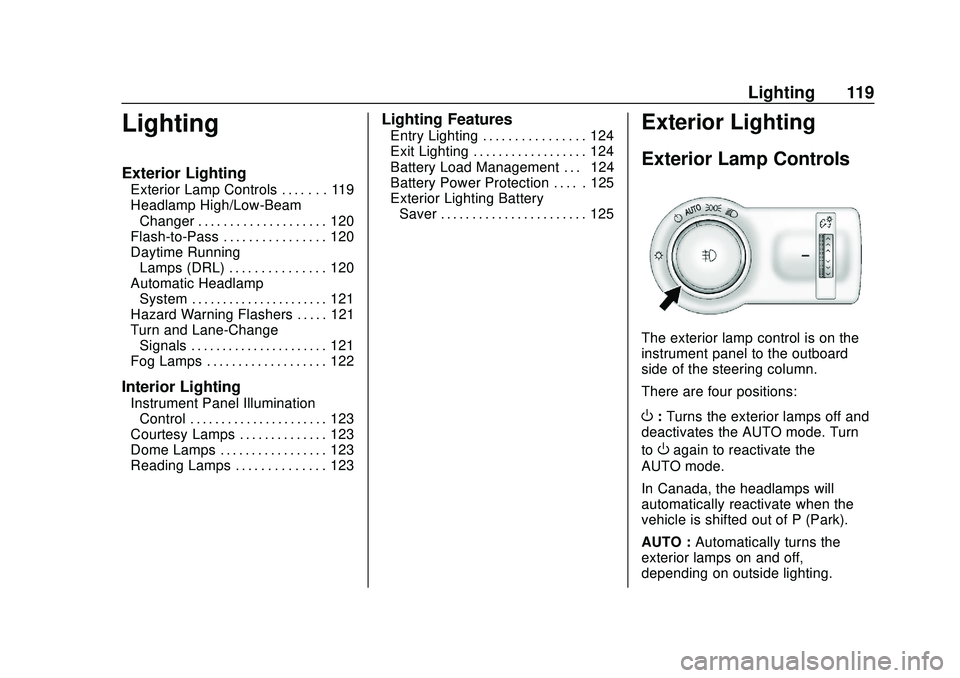
Exterior Lamp Controls
The exterior lamp control is on the
instrument panel to the outboard
side of the steering column.
There are four positions:
O: Turns the exterior lamps off and
deactivates the AUTO mode. Turn
to
Oagain to reactivate the
AUTO mode.
In Canada, the headlamps will
automatically reactivate when the
vehicle is shifted out of P (Park).
AUTO : Automatically turns the
exterior lamps on and off,
depending on outside lighting.
Page 124 of 329

Chevrolet Sonic Owner Manual (GMNA-Localizing-U.S./Canada-13566834) -
2020 - CRC - 10/4/19
Lighting 123
Interior Lighting
Instrument Panel
Illumination Control
This feature controls the brightness
of the instrument panel controls and
infotainment display screen. The
thumbwheel is to the left of the
steering column on the instrument
panel.
D:Move the thumbwheel up or
down and hold, to brighten or dim
the instrument panel controls and
infotainment display screen.
Courtesy Lamps
The courtesy lamps come on
automatically when any door is
opened and the dome lamp is in the
door position.
Dome Lamps
The dome lamp controls are in the
headliner above the rear seats.
9: Press to turn the lamps off,
even when a door is open.
H: When the button is returned to
the middle position, the lamps turn
on automatically when a door is
opened.
R: Press to turn on the dome lamps.
Reading Lamps
For vehicles with front reading
lamps, they are in the overhead
console.
#or$:Press to turn each lamp
on or off.
Page 127 of 329

Chevrolet Sonic Owner Manual (GMNA-Localizing-U.S./Canada-13566834) -
2020 - CRC - 10/4/19
126 Infotainment System
Infotainment
System
Introduction
Introduction . . . . . . . . . . . . . . . . . . . 126
Overview . . . . . . . . . . . . . . . . . . . . . 127
Using the System . . . . . . . . . . . . 129
Radio
AM-FM Radio . . . . . . . . . . . . . . . . 131
Satellite Radio . . . . . . . . . . . . . . . . 133
Radio Reception . . . . . . . . . . . . . . 133
Backglass Antenna . . . . . . . . . . . 133
Multi-Band Antenna . . . . . . . . . . 134
Audio Players
Avoiding Untrusted MediaDevices . . . . . . . . . . . . . . . . . . . . . 134
USB Port . . . . . . . . . . . . . . . . . . . . . 134
Auxiliary Jack . . . . . . . . . . . . . . . . 137
Bluetooth Audio . . . . . . . . . . . . . . 138
OnStar System
OnStar System . . . . . . . . . . . . . . . 139
Phone
Bluetooth (Overview) . . . . . . . . . 140
Bluetooth (Pairing and Using a Phone) . . . . . . . . . . . . . . . . . . . . . . 141
Apple CarPlay and Android Auto . . . . . . . . . . . . . . . . 146
Settings
Settings . . . . . . . . . . . . . . . . . . . . . . 147
Trademarks and License
Agreements
Trademarks and License
Agreements . . . . . . . . . . . . . . . . . 151
Introduction
Read the following pages to
become familiar with the features.
{Warning
Taking your eyes off the road for
too long or too often while using
any infotainment feature can
cause a crash. You or others
could be injured or killed. Do not
give extended attention to
infotainment tasks while driving.
Limit your glances at the vehicle
displays and focus your attention
on driving. Use voice commands
whenever possible.
The infotainment system has built-in
features intended to help avoid
distraction by disabling some
functions when driving. These
functions may gray out when they
are unavailable. Many infotainment
features are also available through
the instrument cluster and steering
wheel controls.
Page 129 of 329

Chevrolet Sonic Owner Manual (GMNA-Localizing-U.S./Canada-13566834) -
2020 - CRC - 10/4/19
128 Infotainment System
Infotainment System
The infotainment system is controlled by using the infotainment display, the
controls on the center stack, and the steering wheel controls.
1.{
.Press to go to the Home
Page. See “Home Page”
following.
2.
g
. Radio: Press and release to
go to the previous station or
channel. Press and hold to
fast seek the previous
strongest station.
. USB/Music/Pictures: Press
to go to the previous
content. Press and hold to
fast rewind.
3.
O
. When off, pressOto turn
the system on. Press and
hold to turn off.
. When on, press
Oto mute
the system and display a
status pane. Press
Oagain
to unmute the system.
. Turn to decrease or
increase the volume.
Page 138 of 329

Chevrolet Sonic Owner Manual (GMNA-Localizing-U.S./Canada-13566834) -
2020 - CRC - 10/4/19
Infotainment System 137
2. Select an audiobook to get alist of chapters.
3. Select the chapter from the list to begin playback.
File System and Naming
File systems supported by the USB:
. FAT32
. HFS+
The songs, artists, albums, and
genres are taken from the file’s
song information and are only
displayed if present. The radio
displays the file name as the track
name if the song information is not
available.
Supported Apple Devices
To view supported devices, see
my.chevrolet.com/learn.
Storing and Recalling Media
Favorites
To store media favorites, touch
Browse to display a list of media
types.
Select from one of the following
Browse options to save a favorite: Playlists :
Touch
Hnext to any
playlist to store the playlist as a
favorite. Touch a saved favorite to
recall a favorite playlist. The first
song in the playlist begins to play.
Artists : Touch
Hnext to any artist
to store the artist as a favorite.
Touch a saved favorite to recall a
favorite artist. The first song in the
artist list begins to play.
Songs : Touch
Hnext to any song
to store the song as a favorite.
Touch a saved favorite to recall a
favorite song.
Albums : Touch
Hnext to any
album to store the album as a
favorite. Touch a saved favorite to
recall a favorite album. The first
song in the album list begins to play.
Genres : Touch
Hnext to any
genre to store the genre as a
favorite. Touch a saved favorite to
recall a favorite genre. The first
song of the genre begins to play. Podcasts :
Touch
Hnext to any
podcast to store the podcast as a
favorite. Touch a saved favorite to
recall a favorite podcast. The
podcast begins to play.
Audiobooks : Touch
Hnext to any
audiobook to store the audiobook as
a favorite. Touch a saved favorite to
recall a favorite audiobook. The first
chapter in the audiobook begins
to play.
Media Playback and Mute
USB playback will be paused if the
system is muted. If the steering
wheel mute control is pressed
again, playback will resume.
If the source is changed while in
mute, playback resumes and audio
will unmute.
Auxiliary Jack
This vehicle has an auxiliary input
jack in the center stack. Possible
auxiliary audio sources include:
. Laptop computer
. Audio music player
Page 141 of 329

Chevrolet Sonic Owner Manual (GMNA-Localizing-U.S./Canada-13566834) -
2020 - CRC - 10/4/19
140 Infotainment System
A destination transfer from OnStar
will show the detail view of the
destination when it is transferred
from OnStar to the Navigation
application. Touch OK to go back to
the previous menu. An ABS and
Guidance or Navigation Add-On
Plan is required. See
www.onstar.com for a coverage
map. Services vary by model. Map
coverage is available in the United
States, Puerto Rico, and Canada.
Wi-Fi Hotspot
Touch to display the Settings page,
which shows the configurations for
the vehicle hotspot and allows them
to be changed.
For more information, see
www.onstar.com.Phone
Bluetooth (Overview)
The Bluetooth-capable system can
interact with many cell phones,
allowing:
.Placement and receipt of calls in
a hands-free mode.
. Sharing of the cell phone’s
address book or contact list with
the vehicle.
To minimize driver distraction,
before driving, and with the vehicle
parked:
. Become familiar with the
features of the cell phone.
Organize the phone book and
contact lists clearly and delete
duplicate or rarely used entries.
If possible, program speed dial
or other shortcuts.
. Review the controls and
operation of the infotainment
system. .
Pair cell phone(s) to the vehicle.
The system may not work with
all cell phones. See “Pairing”
later in this section.
Vehicles with a Bluetooth system
can use a Bluetooth-capable cell
phone with a Hands-Free Profile to
make and receive phone calls. The
infotainment system and voice
recognition are used to control the
system. The system can be used
when the ignition is on or in ACC/
ACCESSORY. The range of the
Bluetooth system can be up to 9.1 m
(30 ft). Not all phones support all
functions and not all phones work
with the Bluetooth system. See
my.chevrolet.com for more
information about compatible
phones.
Controls
Use the controls on the center stack
and the steering wheel to operate
the Bluetooth system.
Page 142 of 329

Chevrolet Sonic Owner Manual (GMNA-Localizing-U.S./Canada-13566834) -
2020 - CRC - 10/4/19
Infotainment System 141
Steering Wheel Controls
b/g:Press to answer incoming
calls. Hold to start voice recognition
on your connected Bluetooth phone,
for example Siri and Google.
$/i: Press to end a call, decline
a call, or cancel an operation. Press
to mute or unmute the infotainment
system when not on a call.
Infotainment System Controls
For information about how to
navigate the menu system using the
infotainment controls, see
Introduction 0126.
Phone
Touch the Phone icon on the Home
Page to enter the phone
main menu.
Audio System
When using the Bluetooth phone
system, sound comes through the
vehicle's front audio system
speakers and overrides the audio
system. The volume level while on a
phone call can be adjusted by
pressing the steering wheel controls or by touching the volume control on
the center stack. The adjusted
volume level remains in memory for
later calls. The volume cannot be
lowered beyond a certain level.
Bluetooth (Pairing and
Using a Phone)
Pairing
A Bluetooth-enabled cell phone
must be paired to the Bluetooth
system and then connected to the
vehicle before it can be used. See
the cell phone manufacturer's user
guide for Bluetooth functions before
pairing the cell phone.
Pairing Information
.
If no mobile device has been
connected, the Phone main
page on the infotainment display
will show the Connect Phone
option. Touch this option to
connect. Another way to connect
is to touch the Phones tab at the
top right of the display and then
touch Add Phone. .
A Bluetooth phone with music
capability can be paired to the
vehicle as a phone and a music
player at the same time.
. Up to 10 devices can be paired
to the Bluetooth system.
. The pairing process is disabled
when the vehicle is moving.
. Pairing only needs to be
completed once, unless the
pairing information on the cell
phone changes or the cell phone
is deleted from the system.
. If multiple paired cell phones are
within range of the system, the
system connects to the paired
cell phone that is set to First to
Connect. If there is no phone set
to First to Connect, it will link to
the device which was used last.
To link to a different paired
phone, see “Linking to a
Different Phone” later in this
section.
Pairing a Phone 1. Make sure Bluetooth has been enabled on the cell phone
before pairing is started.
Page 146 of 329
Chevrolet Sonic Owner Manual (GMNA-Localizing-U.S./Canada-13566834) -
2020 - CRC - 10/4/19
Infotainment System 145
Accepting or Declining a Call
When an incoming call is received,
the infotainment system mutes and
a ring tone is heard in the vehicle.
Accepting a Call
There are two ways to accept a call:
.Press
b/gon the steering
wheel controls.
. Touch Answer on the
infotainment display.
Declining a Call
There are two ways to decline
a call:
. Press
$/ion the steering
wheel controls.
. Touch Ignore on the infotainment
display.
Call Waiting
Call waiting must be supported on
the Bluetooth phone and enabled by
the wireless service carrier to work. Accepting a Call
There are two ways to accept a
call-waiting call:
.
Press
b/gon the steering
wheel controls.
. Touch Switch on the
infotainment display.
Declining a Call
There are two ways to decline a
call-waiting call:
. Press
$/ion the steering
wheel controls.
. Touch Ignore on the infotainment
display.
Switching Between Calls (Call
Waiting Calls Only)
To switch between calls, press the
Phone icon on the Home Page to
display Call View. While in Call
View, touch the call information of
the call on hold to change calls.
Three-Way Calling
Three-way calling must be
supported on the Bluetooth phone
and enabled by the wireless service
carrier to work.
To start a three-way call while in a
current call: 1. In the Call View, touch Add Call to add another call.
2. Initiate the second call by selecting from Recents,
Contacts, or Keypad.
3. When the second call is active, touch the merge icon to
conference the three-way call
together.
Ending a Call
.Press$/ion the steering
wheel controls.
. Touch
#on the infotainment
display, next to a call to end only
that call.