2020 BUICK ENCORE GX Dic
[x] Cancel search: DicPage 125 of 442

Buick Encore GX Owner Manual (GMNA-Localizing-U.S./Canada/Mexico-
14018934) - 2020 - CRC - 2/27/20
124 Instruments and Controls
.ECO
Some of the displayed functions
differ between vehicle driving and
standstill and some functions are
only active when the vehicle is
driving. See Vehicle Personalization
0 135.
Type 1
The DIC has different displays
which can be accessed by using the
DIC buttons on the turn signal lever.
DIC Buttons
1.
l: Press to set, or press and
hold to clear, the menu item
displayed. 2.
m:
Use the band to scroll
through the items in each menu.
3. SELECT : Press to access the
cluster applications. This button is
also used to return to or exit the last
screen displayed on the DIC.
Type 2
worx: Move thumbwheel up (w)
or down (
x) in a list.
oorp: Press to move between
the interactive display zones in the
cluster. Thumbwheel :
Press to open a
menu or select a menu item. Press
and hold to reset values on certain
screens.
Trip/Fuel Menu (TRIP) Items
Press SELECT on the turn signal
lever until the VEHICLE menu is
displayed. Use
mor thumbwheel
up/down to scroll through the menu
items. Not all items are available on
every vehicle. The following is a list
of all possible menu items:
Speed : Shows the vehicle speed in
either kilometers per hour (km/h) or
miles per hour (mph).
Trip 1/2 or A/B : Shows the current
distance traveled, in either
kilometers (km) or miles (mi), since
the trip odometer was last reset.
This also shows the approximate
average liters per 100 kilometers
(L/100 km) or miles per gallon
(mpg). This number is calculated
based on the number of L/100 km
(mpg) recorded since the last time
this menu item was reset. This
number reflects only the
approximate average fuel economy
Page 127 of 442

Buick Encore GX Owner Manual (GMNA-Localizing-U.S./Canada/Mexico-
14018934) - 2020 - CRC - 2/27/20
126 Instruments and Controls
shown in amber. SeeTire Pressure
Monitor System 0352 and
Tire Pressure Monitor Operation
0 353.
Following Distance : When
Adaptive Cruise Control (ACC) is
not engaged, the current follow time
to the vehicle ahead is displayed as
a time value on this page.
If equipped and when ACC has
been engaged, the display switches
to the gap setting page. This page
shows the current gap setting along
with the vehicle ahead indicator.
Brake Pad Life : This displays an
estimate of the remaining life of the
front and rear brake pads.
Messages will display based on
brake pad wear and the state of the
system. Reset the Brake Pad Life
display after replacing the brake
pads. See Brake Pad Life System
0 324
Units : Press
lor thumbwheel on
the turn signal lever while units is
displayed. Select imperial or metric
units by turning adjuster wheel.
Confirm by pressing
lor
thumbwheel.
ECO Drive Assist Menu (ECO)
Items
This menu is only available on some
vehicles. Press MENU on the turn
signal lever until the ECO menu is
displayed. Use
mor thumbwheel
up/down to scroll through the menu
items. Not all items are available on
every vehicle. The following is a list
of all possible menu items:
Fuel Economy : The center
displays the approximate
instantaneous fuel economy as a
number and bar graph. Displayed
above the bar graph is a running
average of fuel economy for the
most recently traveled selected
distance. Displayed below the bar
graph is the best average fuel
economy that has been achieved for
the selected distance. The selected
distance is displayed at the top of
the page as “last xxx mi/km.”
Top Consumers : List of top
comfort consumers currently
switched on is displayed in
descending order. Fuel saving
potential is indicated. During sporadic driving conditions,
the engine will activate the heated
rear window automatically. In this
event, the heated rear window is
indicated as one of the top
consumers, without activation by the
driver.
Economy Trend :
Shows history of
the Average Fuel Economy from the
last 50 km (30 mi). Each bar
represents about 5 km (3 mi) of
driving. During driving the bars will
shift to always reflect the most
recent distance on the right side.
Press and hold
lor thumbwheel to
clear the graph.
ECO Index : Provides feedback on
the efficiency of current driving
behavior. The bar graph shows a
value that is based on current fuel
consumption compared to what is
expected from the vehicle with good
and bad driving habits.
Page 128 of 442

Buick Encore GX Owner Manual (GMNA-Localizing-U.S./Canada/Mexico-
14018934) - 2020 - CRC - 2/27/20
Instruments and Controls 127
Driver Information Center
(DIC) (Uplevel)
The DIC displays are shown in the
center of the instrument cluster in
the Info app. SeeInstrument Cluster
0 107. The displays show the status
of many vehicle systems. The
controls for the DIC are on the right
steering wheel control.
DIC Operation and Displays
Selectable menu pages are:
.
{(Home)
.
4(Info) .
f(Audio)
.
n(Navigation)
.
5(Phone)
.
8(Options)
Not all application will be available
on all vehicles.
< Type 1 >
The DIC has different displays
which can be accessed by using the
DIC buttons on the turn signal lever. DIC Buttons
1.
l:
Press to set, or press and
hold to clear, the menu item
displayed.
2.
m: Use the band to scroll
through the items in each menu.
3. SELECT : Press to access the
cluster applications. This button is
also used to return to or exit the last
screen displayed on the DIC.
If equipped with steering wheel
controls, see “Driver Information
Center (DIC) (Uplevel)” later in this
section.
Page 129 of 442
Buick Encore GX Owner Manual (GMNA-Localizing-U.S./Canada/Mexico-
14018934) - 2020 - CRC - 2/27/20
128 Instruments and Controls
< Type 2 >
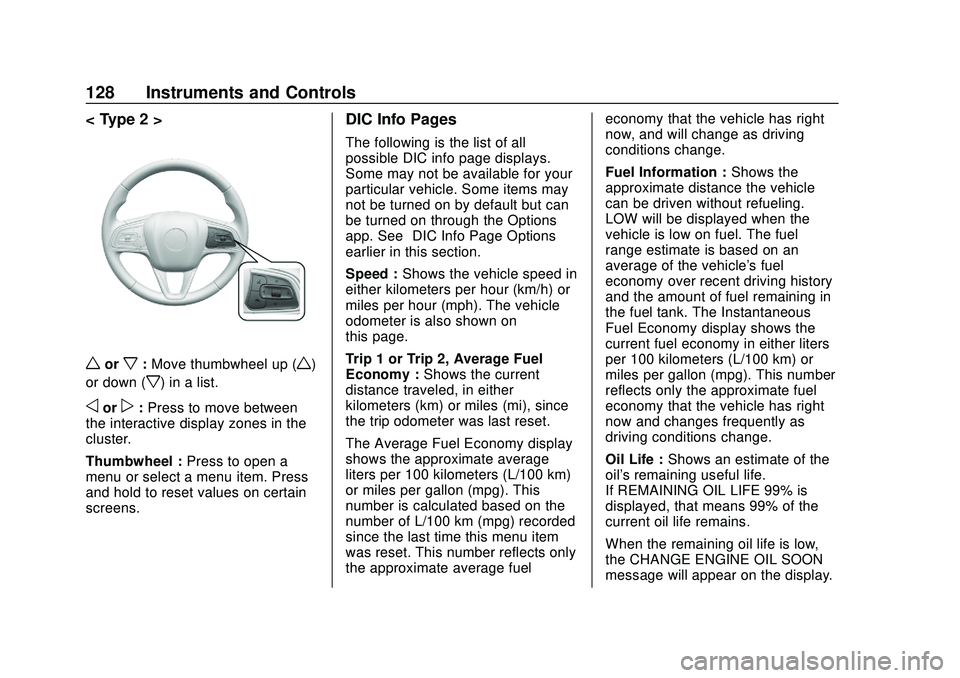
worx:Move thumbwheel up (w)
or down (
x) in a list.
oorp: Press to move between
the interactive display zones in the
cluster.
Thumbwheel : Press to open a
menu or select a menu item. Press
and hold to reset values on certain
screens.
DIC Info Pages
The following is the list of all
possible DIC info page displays.
Some may not be available for your
particular vehicle. Some items may
not be turned on by default but can
be turned on through the Options
app. See “DIC Info Page Options”
earlier in this section.
Speed : Shows the vehicle speed in
either kilometers per hour (km/h) or
miles per hour (mph). The vehicle
odometer is also shown on
this page.
Trip 1 or Trip 2, Average Fuel
Economy : Shows the current
distance traveled, in either
kilometers (km) or miles (mi), since
the trip odometer was last reset.
The Average Fuel Economy display
shows the approximate average
liters per 100 kilometers (L/100 km)
or miles per gallon (mpg). This
number is calculated based on the
number of L/100 km (mpg) recorded
since the last time this menu item
was reset. This number reflects only
the approximate average fuel economy that the vehicle has right
now, and will change as driving
conditions change.
Fuel Information :
Shows the
approximate distance the vehicle
can be driven without refueling.
LOW will be displayed when the
vehicle is low on fuel. The fuel
range estimate is based on an
average of the vehicle's fuel
economy over recent driving history
and the amount of fuel remaining in
the fuel tank. The Instantaneous
Fuel Economy display shows the
current fuel economy in either liters
per 100 kilometers (L/100 km) or
miles per gallon (mpg). This number
reflects only the approximate fuel
economy that the vehicle has right
now and changes frequently as
driving conditions change.
Oil Life : Shows an estimate of the
oil's remaining useful life.
If REMAINING OIL LIFE 99% is
displayed, that means 99% of the
current oil life remains.
When the remaining oil life is low,
the CHANGE ENGINE OIL SOON
message will appear on the display.
Page 130 of 442
Buick Encore GX Owner Manual (GMNA-Localizing-U.S./Canada/Mexico-
14018934) - 2020 - CRC - 2/27/20
Instruments and Controls 129
The oil should be changed as soon
as possible. SeeEngine Oil0311.
In addition to the engine oil life
system monitoring the oil life,
additional maintenance is
recommended. See Maintenance
Schedule 0390.
The Oil Life display must be reset
after each oil change. It will not
reset itself. Do not reset the Oil Life
display at any time other than when
the oil has just been changed.
It cannot be reset accurately until
the next oil change. To reset the
engine oil life system, press and
hold the center toggle switch for
several seconds while the Oil Life
display is active. See Engine Oil
Life System 0313.
Tire Pressure : Shows the
approximate pressures of all four
tires. Tire pressure is displayed in
either kilopascal (kPa) or in pounds
per square inch (psi). If the pressure
is low, the value for that tire is
shown in amber. See Tire Pressure
Monitor System 0352 and
Tire Pressure Monitor Operation
0 353. Air Filter Life :
Shows an estimate
of the engine air filter ’s remaining
useful life and the state of the
system. Engine Air Filter Life 95%
means 95% of the current air filter
life remains. Messages will display
based on the engine air filter life and
the state of the system. When the
REPLACE AT NEXT OIL CHANGE
message displays, the engine air
filter should be replaced at the time
of the next oil change. When the
REPLACE NOW message displays,
the engine air filter should be
replaced as soon as possible.
The Air Filter Life display must be
reset after the engine air filter
replacement. To reset, see Engine
Air Filter Life System 0314.
Brake Pad Life : This displays an
estimate of the remaining life of the
front and rear brake pads.
Messages will display based on
brake pad wear and the state of the
system. Reset the Brake Pad Life
display after replacing the brake
pads. See Brake Pad Life System
0 324. Fuel Economy :
Displays average
fuel economy, the best fuel
economy over the selected
distance, and a bar graph showing
instantaneous fuel economy.
Follow Distance : When Adaptive
Cruise Control (ACC) is not
engaged, the current follow time to
the vehicle ahead is displayed as a
time value on this page.
If equipped and when ACC has
been engaged, the display switches
to the gap setting page.
This page shows the current gap
setting along with the vehicle ahead
indicator.
Top Consumers : List of top
comfort consumers currently
switched on is displayed in
descending order. Fuel saving
potential is indicated.
During sporadic driving conditions,
the engine will activate the heated
rear window automatically. In this
event, the heated rear window is
indicated as one of the top
consumers, without activation by the
driver.
Page 133 of 442
Buick Encore GX Owner Manual (GMNA-Localizing-U.S./Canada/Mexico-
14018934) - 2020 - CRC - 2/27/20
132 Instruments and Controls
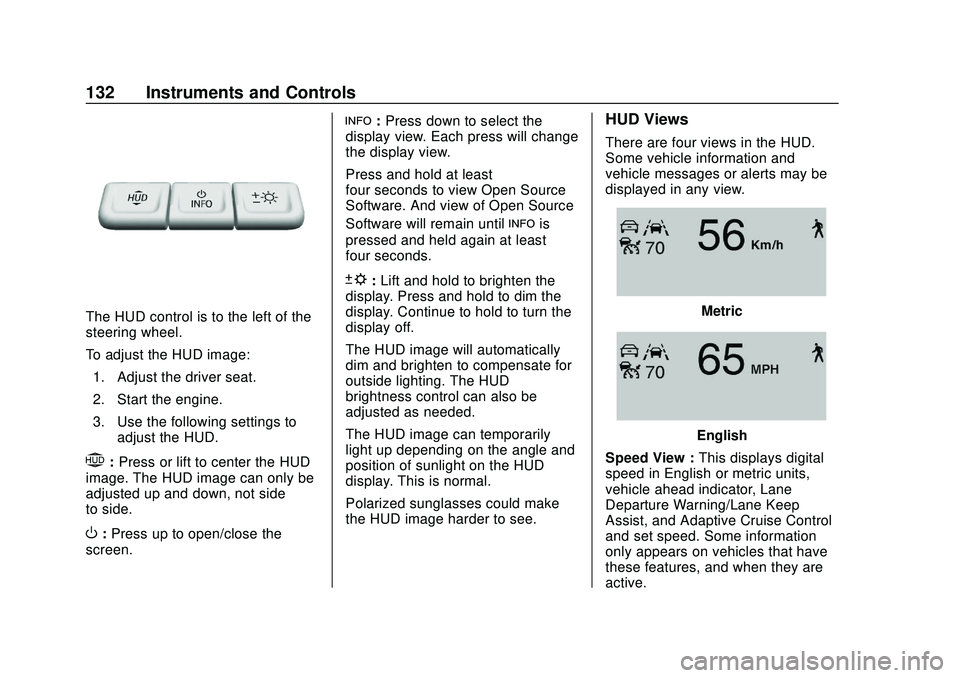
The HUD control is to the left of the
steering wheel.
To adjust the HUD image:1. Adjust the driver seat.
2. Start the engine.
3. Use the following settings to adjust the HUD.
$:Press or lift to center the HUD
image. The HUD image can only be
adjusted up and down, not side
to side.
O: Press up to open/close the
screen.
!: Press down to select the
display view. Each press will change
the display view.
Press and hold at least
four seconds to view Open Source
Software. And view of Open Source
Software will remain until
!is
pressed and held again at least
four seconds.
D: Lift and hold to brighten the
display. Press and hold to dim the
display. Continue to hold to turn the
display off.
The HUD image will automatically
dim and brighten to compensate for
outside lighting. The HUD
brightness control can also be
adjusted as needed.
The HUD image can temporarily
light up depending on the angle and
position of sunlight on the HUD
display. This is normal.
Polarized sunglasses could make
the HUD image harder to see.
HUD Views
There are four views in the HUD.
Some vehicle information and
vehicle messages or alerts may be
displayed in any view.
Metric
English
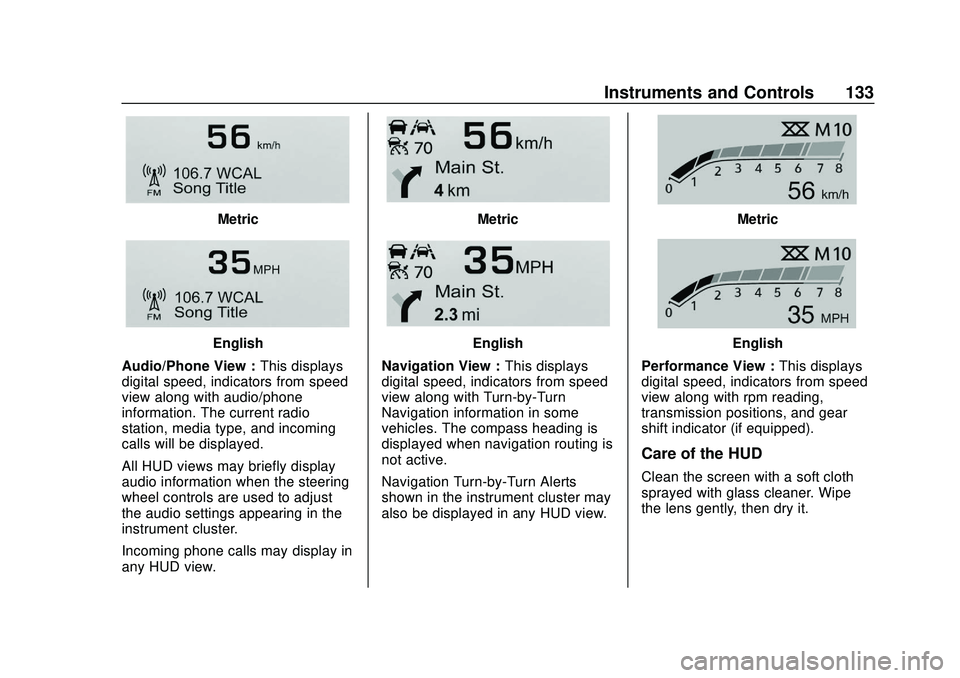
Speed View : This displays digital
speed in English or metric units,
vehicle ahead indicator, Lane
Departure Warning/Lane Keep
Assist, and Adaptive Cruise Control
and set speed. Some information
only appears on vehicles that have
these features, and when they are
active.
Page 134 of 442
Buick Encore GX Owner Manual (GMNA-Localizing-U.S./Canada/Mexico-
14018934) - 2020 - CRC - 2/27/20
Instruments and Controls 133
Metric
English
Audio/Phone View : This displays
digital speed, indicators from speed
view along with audio/phone
information. The current radio
station, media type, and incoming
calls will be displayed.
All HUD views may briefly display
audio information when the steering
wheel controls are used to adjust
the audio settings appearing in the
instrument cluster.
Incoming phone calls may display in
any HUD view.
Metric
English
Navigation View : This displays
digital speed, indicators from speed
view along with Turn-by-Turn
Navigation information in some
vehicles. The compass heading is
displayed when navigation routing is
not active.
Navigation Turn-by-Turn Alerts
shown in the instrument cluster may
also be displayed in any HUD view.
Metric
English
Performance View : This displays
digital speed, indicators from speed
view along with rpm reading,
transmission positions, and gear
shift indicator (if equipped).
Care of the HUD
Clean the screen with a soft cloth
sprayed with glass cleaner. Wipe
the lens gently, then dry it.
Page 135 of 442
Buick Encore GX Owner Manual (GMNA-Localizing-U.S./Canada/Mexico-
14018934) - 2020 - CRC - 2/27/20
134 Instruments and Controls
HUD Troubleshooting
If you cannot see the HUD image
when the ignition is on, check that:
.Nothing is covering the HUD
cover.
. The HUD brightness setting is
not too dim or too bright.
. The HUD is adjusted to the
proper height.
. Polarized sunglasses are
not worn.
. The screen is clean.
If the HUD image is not correct,
contact your dealer.
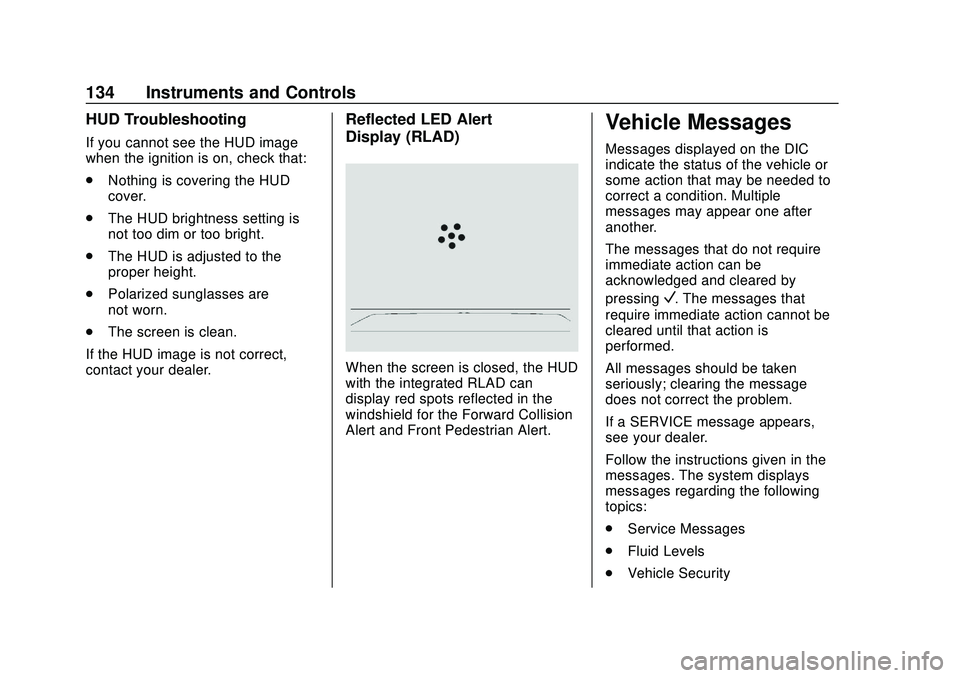
Reflected LED Alert
Display (RLAD)
When the screen is closed, the HUD
with the integrated RLAD can
display red spots reflected in the
windshield for the Forward Collision
Alert and Front Pedestrian Alert.
Vehicle Messages
Messages displayed on the DIC
indicate the status of the vehicle or
some action that may be needed to
correct a condition. Multiple
messages may appear one after
another.
The messages that do not require
immediate action can be
acknowledged and cleared by
pressing
V. The messages that
require immediate action cannot be
cleared until that action is
performed.
All messages should be taken
seriously; clearing the message
does not correct the problem.
If a SERVICE message appears,
see your dealer.
Follow the instructions given in the
messages. The system displays
messages regarding the following
topics:
. Service Messages
. Fluid Levels
. Vehicle Security