2020 BUICK ENCORE GX load
[x] Cancel search: loadPage 9 of 89
Buick Infotainment System (U.S./Canada 2.6) (GMNA-Localizing-U.S./Canada-
13583164) - 2020 - CRC - 2/26/19
8 Introduction
c:Press to decline an incoming
call or end a current call. Press to
mute or unmute the infotainment
system.
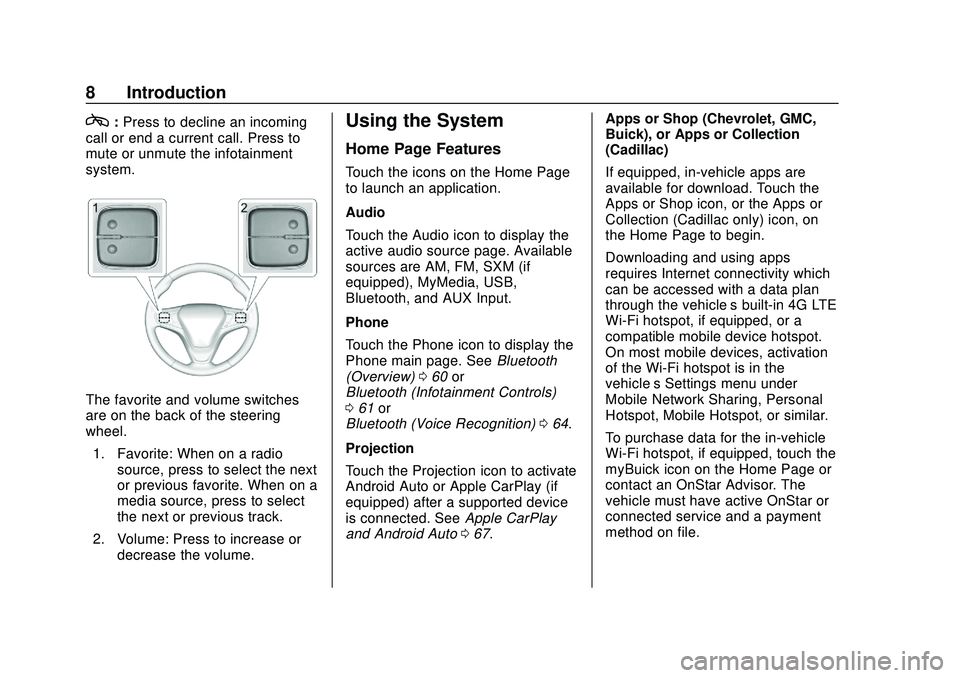
The favorite and volume switches
are on the back of the steering
wheel.
1. Favorite: When on a radio source, press to select the next
or previous favorite. When on a
media source, press to select
the next or previous track.
2. Volume: Press to increase or decrease the volume.
Using the System
Home Page Features
Touch the icons on the Home Page
to launch an application.
Audio
Touch the Audio icon to display the
active audio source page. Available
sources are AM, FM, SXM (if
equipped), MyMedia, USB,
Bluetooth, and AUX Input.
Phone
Touch the Phone icon to display the
Phone main page. See Bluetooth
(Overview) 060 or
Bluetooth (Infotainment Controls)
0 61 or
Bluetooth (Voice Recognition) 064.
Projection
Touch the Projection icon to activate
Android Auto or Apple CarPlay (if
equipped) after a supported device
is connected. See Apple CarPlay
and Android Auto 067. Apps or Shop (Chevrolet, GMC,
Buick), or Apps or Collection
(Cadillac)
If equipped, in-vehicle apps are
available for download. Touch the
Apps or Shop icon, or the Apps or
Collection (Cadillac only) icon, on
the Home Page to begin.
Downloading and using apps
requires Internet connectivity which
can be accessed with a data plan
through the vehicle’
s built-in 4G LTE
Wi-Fi hotspot, if equipped, or a
compatible mobile device hotspot.
On most mobile devices, activation
of the Wi-Fi hotspot is in the
vehicle’s Settings menu under
Mobile Network Sharing, Personal
Hotspot, Mobile Hotspot, or similar.
To purchase data for the in-vehicle
Wi-Fi hotspot, if equipped, touch the
myBuick icon on the Home Page or
contact an OnStar Advisor. The
vehicle must have active OnStar or
connected service and a payment
method on file.
Page 23 of 89

Buick Infotainment System (U.S./Canada 2.6) (GMNA-Localizing-U.S./Canada-
13583164) - 2020 - CRC - 2/26/19
22 Audio Players
displays the file name as the track
name if the song information is not
available.
Supported Apple Devices
See my.buick.com/learn.
Loss of Audio
If a phone currently paired over
Bluetooth is plugged in with a USB
cable, the system will automatically
mute the phone audio. Playback
can be resumed by changing the
audio source from Bluetooth to USB
cable.
Source USB from Media on the
infotainment display to resume
playback.
Bluetooth Streaming Audio and
Voice Recognition
SeeBluetooth Audio 023 for
information using voice recognition
with Bluetooth streaming audio.
Make sure all devices have the
latest software downloaded.Auxiliary Jack
This vehicle has an auxiliary input
jack in the center console under the
armrest. Possible auxiliary audio
sources include:
. Laptop computer
. Audio music player
This jack is not an audio output. Do
not plug headphones into the
auxiliary input jack. Set up an
auxiliary device while the vehicle is
in P (Park).
Connect a 3.5 mm (1/8 in) cable
from the auxiliary device to the
auxiliary input jack. When a device
is connected, the system can play
audio from the device over the
vehicle speakers.
If an auxiliary device has already
been connected, but a different
source is currently active, touch
Media on the infotainment display to
scroll through audio sources, until
the AUX source displays. Playing from the AUX Port
An auxiliary device is played
through the audio system and
controlled through the device itself.
AUX Menu
Press MENU on the center stack to
display the AUX menu and the
following may display:
Tone Settings :
Select to adjust
Bass, Midrange, Treble, Balance,
Fade, and EQ (Equalizer). See
AM-FM Radio 012.
Auto Volume (If Equipped) : This
feature adjusts the volume based on
the vehicle speed. See AM-FM
Radio 012.
Bose AudioPilot Noise
Compensation Technology
(If Equipped) : This feature adjusts
the volume based on the noise in
the vehicle and speed. See AM-FM
Radio 012.
DSP Modes (If Equipped) : With a
Bose Centerpoint sound system,
adjusts the DSP modes. See “DSP
Modes (If Equipped)” inAM-FM
Radio 012.
Page 30 of 89

Buick Infotainment System (U.S./Canada 2.6) (GMNA-Localizing-U.S./Canada-
13583164) - 2020 - CRC - 2/26/19
Navigation 29
Audio Information
Touch to turn the audio information
view on or off from the main
map view.
The audio status display contains:
.Station Frequency
. Artist Information
. Song Information
.
r/jor Station and Channel
Controls
Press the
g,7ord,6station
controls to go to the next or
previous strong signal station or
digital channel.
When the audio status pane
displays Artist and Song
information, press
g,7ord,6
to go to the next or previous track
based on the current media mode. Day/Night Mode
Touch to access the Day/Night
Mode menu.
The options are:
.
Day Mode: Brightens the map
background.
. Night Mode: Darkens the map
background.
. Auto: Adjusts the display
background automatically
depending on the exterior
lighting conditions. Routing Preferences
Touch the Routing Preferences
option to access the Routing
Preferences menu. Options on how
the routes are created for route
guidance are listed on this menu.
Route Style
Touch this option to change the
route type preferences.
The options are:
.
Fast (default)
. Eco Friendly (if equipped)
. Short
. Configure Eco Profile
The Configure Eco Profile can be
used to configure two parameters
for the Eco Friendly route. These
parameters are roof load and trailer.
For each parameter, the options are
None, Small, Medium, and Large.
Touch to scroll through the list. The
default for both is None.
These preferences are used for all
routes generated.
Page 31 of 89

Buick Infotainment System (U.S./Canada 2.6) (GMNA-Localizing-U.S./Canada-
13583164) - 2020 - CRC - 2/26/19
30 Navigation
Route segment preferences are
other options showing on the
Routing Preferences menu.
These include:
.Use Toll Roads On-Off
. Use Freeways On-Off
. Use Carpool Lanes On-Off
. Avoid Slow Traffic On-Off
. Use Tunnels On-Off
. Use Time Restricted Roads
On-Off
Display Places of Interest Icons
Places of Interest (POI) icons can
be displayed on the map using
this view.. The POI icons can be turned On
and Off. Touch the check box
next to the POI icon to display
the icon.
. Touch Clear All to reset the
icons that are displayed on the
map view.
. A subcategory can be selected
instead of the entire category.
Touch the list option itself rather
than the check box. The
subcategories will display. Touch
any of those categories to
navigate down the hierarchy.
. When a higher-level category
has some of its subcategories
selected, the checkmark next to
it is grayed out. This indicates
that only some of the categories
below are shown. Touch the grayed-out checkmark to turn all
of the icons for that category on
or off.
Personal Data
Data that the system has saved
during the course of using the
navigation system can be managed
through:
. Contacts
. Recent Destinations
. My POIs (if equipped)
. Upload Saved Locations
. Delete Autocomplete
Page 32 of 89

Buick Infotainment System (U.S./Canada 2.6) (GMNA-Localizing-U.S./Canada-
13583164) - 2020 - CRC - 2/26/19
Navigation 31
Contacts1. Touch Delete All Entries to delete the entire list of
contacts. A pop-up displays to
confirm.
2. Touch Edit Contacts List to display the Contacts to edit.
Recent Destinations
. Touch Delete All Destinations to
delete the entire recent
destination list. A pop-up
displays asking to confirm the
deletion.
. Touch Delete Individual
Destinations to display a recent
destinations list. Touch the
individual entry to delete.
My POIs
. Touch My POIs to display a
menu of other options.
. Touch Delete Individual
Categories. A My POIs category
list displays.
. Touch the individual entry to
delete. .
Touch Delete All My POIs to
delete the entire list of
categories. A pop-up displays
asking to confirm the deletion.
. To exit out of a list, touch Exit in
the top right corner of the map to
return to the main map view.
Upload Saved Locations
. Touch Upload on the Upload
Saved Locations menu to save
the Vehicle Contacts list and any
My POIs that have been saved
to the vehicle.
. Once saved locations have been
uploaded to a USB, they can be
transferred to a different vehicle
or restored to the current
contacts list.Delete Autocomplete
Touch Delete on the Delete
Autocomplete History menu to clear
personal data from the keyboard.
A pop-up displays a message to
Delete all keyboard autocomplete
history. The system clears all
navigation addresses, POIs, etc.
The autocomplete will not delete
recent destinations. Touch Cancel to
stop the process.
Map Adjustments
ZOOM –/+ can be used to adjust
the scale of view on the map. When
the end of the zoom level is
reached, ZOOM –/+ will gray out.
. ZOOM –(minus): To zoom out.
. ZOOM + (plus): To zoom in.
The zoom scales can be configured
for English or metric units. To
change from English to metric, see
“Instrument Cluster” in the owner’s
manual.
Page 35 of 89

Buick Infotainment System (U.S./Canada 2.6) (GMNA-Localizing-U.S./Canada-
13583164) - 2020 - CRC - 2/26/19
34 Navigation
A waypoint is a stopover destination
point added to the planned route.
The estimated time to the
destination displays. Touch the
Arrival option to toggle to duration
and to the distance of the
destination.
This symbol indicates the
recommended maneuver that
should be performed. Touch it to
display the turn list or waypoint list.
The No GPS symbol appears when
there is no Global Positioning
System (GPS) satellite signal. When
the GPS is gone, the vehicle
position on the map may not be
accurate.
Autozoom
As a maneuver is being
approached, the map automatically
zooms in to give greater detail.
If lane guidance is available for the
maneuver, this is also shown.
When the system begins to
autozoom, it zooms in to its
minimum level. After the maneuver
is performed, the system slowly
zooms back out.
Destination
If route guidance is not active, touch
Nav on the Home Page to access
the map view. Touch the Destination
option on the infotainment display
from the map view to enter a
destination. Available methods of
entering a destination are Address,
Intersection, POIs, Recent, and
Contacts. Several options can be
selected to plan a route. Some
destination items may be grayed out
if no destination was previously
entered or saved.
Another way to enter a destination
is to press the blue OnStar icon and
ask an OnStar Advisor to download
a destination into the embedded
navigation system. SeeOnStar
System 049.
Page 39 of 89

Buick Infotainment System (U.S./Canada 2.6) (GMNA-Localizing-U.S./Canada-
13583164) - 2020 - CRC - 2/26/19
38 Navigation
POIs are done next because the
amount of time it takes to search for
the average POI is consistent. The
less deviation during a search would
mean an average of less time taken.
The Addresses are last because the
standard deviation for an address
search is very large. Some address
searches are very quick, but others
may take very long. Because of this,
the address search would not be
conducted unless a good match
could not be found in either
Contacts or POIs.
Autocomplete
The autocomplete is preloaded with
all recent destinations and POI
category names. Previous POI
name searches are remembered.
If only one type of result is found,
the single type result screen is
shown. Within each group, they are
listed in confidence order. This
means the highest confidence result
will be at the top.
If multiple types of matches are
found, the result list with the highest
confidence match displays.Address and Contact matches are
shown in full width list format. The
match results will display unique
icons for full addresses, streets,
intersections, cities, states/
provinces, and countries.
POIs show in a split list format with
the map on the right displaying the
locations of the matches. The brand
icon or category icon will display for
the match results.
When a list displays, the results for
a particular type can be filtered by
touching the filters along the top of
the screen. If there are no particular
results for a selected type, a
message is indicated in the list.
For example:
.
For no addresses: “No
Addresses Found Within
. For no POIs: “No POIs Found
Within <75 km/50 mi/ 800 km/
500 mi>.” This distance is shown
depending on what radius is
completed and what current
units are selected. .
For no contacts: “No Contacts
Found.”
The system performs partial
searches on contacts, so typing a
first name or last name would find a
match. The entire contact name
does not need to be entered for it to
be found in a search.
Touching a contact listed on the
results list displays the standard
contact details view to select an
item, such as an address to start
routing, or a phone number to place
a call.
Address
. A destination can be searched
by typing out the address,
intersection, highway, or freeway
entrance ramps on the
Page 43 of 89

Buick Infotainment System (U.S./Canada 2.6) (GMNA-Localizing-U.S./Canada-
13583164) - 2020 - CRC - 2/26/19
42 Navigation
Creating and Downloading
Predefined POIs (My POIs)
In addition to the POIs already
stored in the Infotainment system,
predefined POIs can be created.
While creating a predefined POI, the
GPS coordinates for longitude and
latitude of the POI’s location and a
descriptive name will need to be
entered.
After creating the predefined POIs,
they can be downloaded to the
infotainment system from a USB
drive.
Once downloaded, the POI data
becomes a selectable destination in
the My POIs menu.
Creating a Text File with
Information
Create a text file by using a simple
text editor software. Save this file
with a name and extension of .csv,
for example,“TomsPOI.csv.” Enter the POI information into the
text file in the following format:
.
Longitude coordinate, Latitude
coordinate, “Name of POI,”
“Additional information,” “Phone
number.”
Example: 7.0350000,
50.6318040, “Michaels Home,”
“123 Maple Lane,”
“02379234567.”
. The GPS coordinates must be
expressed in decimal degrees
and can be taken from a
geographical map. The
additional information and phone
number strings are optional.
. The POI name and the
additional information string may
not exceed 60 characters.
. POI information for each
destination address must be
entered in a single separate line.
Storing the POI on a USB Device
In the root directory of a USB
device, create a folder name
“myPOIs,” for example, “F:\”is the
root directory of the USB device. In the
“myPOIs” folder, store the text
file with your POIs, for example,
“F:\myPOIs\TomsPOIs.csv.”
Downloading the POI to the
Infotainment System
Connect the USB device containing
the POI information to the USB port
of the infotainment system.
A message displays prompting
whether or not to download the POI
information from the USB drive. All
POIs found are saved even if they
are in multiple folders.
Subfolders can also be created to
organize the POIs into categories,
for example, “F:\myPOIs
\Restaurants\TomsPOIs.csv.”
If the message is dismissed or
ignored, no POI information is
downloaded. This prompt will not
reoccur for the current ignition cycle.
When the system is finished
downloading, a pop-up displays
asking to specify a category for the
new POIs, if desired.