2020 AUDI S4 Rear lid
[x] Cancel search: Rear lidPage 80 of 296

Stowing and using
Stowing and using
Power sources
When the ignition is switched on, you may be
able to use the power sources for external devi-
ces, depending on the vehicle equipment.
12 volt sockets
You can connect electrical accessories to the 12
volt sockets. The power usage must not exceed
120 watts.
The 12 volt sockets are labeled with the 12V
symbol. They are located in the front center con-
sole, in the rear* and on the side trim panel in the
luggage compartment*.
USB ports
Applies to: vehicles with USB input
You can charge mobile devices using the USB
ports. The USB ports are labeled with the «> or
[4 symbol or CHARGE ONLY.
ZA WARNING
—To reduce the risk of fatal injury, store all
connected devices securely when driving so
that they do not move around inside the ve-
hicle when braking or in the event of an acci-
dent.
— Incorrect usage can lead to serious injuries
or burns. To reduce the risk of injuries, never
leave children unattended in the vehicle
with the vehicle key.
@) Note
— Read the operating manuals for the con-
nected devices.
—To reduce the risk of damage to the vehicle
electrical system, never attempt to charge
the vehicle battery by connecting accesso-
ries that provide power to the power sour-
ces.
— Do not connect any device whose network
class (voltage) does not match the network
class designed for the socket.
— Disconnect the connectors from the power
sources carefully to reduce the risk of dam-
aging them.
78
Cup holders
Fig. 74 Rear center armrest*: cup holders
Your vehicle has cup holders in the front center
console and in the rear center armrest*.
Cup holders in the rear center armrest*
> Fold the center armrest* downward.
> To open the cup holders, pull the top cover on
the cup holders forward > fig. 74.
> To close the cup holder, fold the cover back un-
til it clicks into place.
ZX WARNING
— Do not put any hot beverages in the cup
holder while the vehicle is moving. Hot bev-
erages could spill, which increases the risk
of injury.
— Do not use any breakable beverage contain-
ers (for example, made out of glass or por-
celain). You could be injured by them in the
event of an accident.
@) Note
Beverage containers in the cup holders should
always
have a lid. Otherwise, the liquid inside
could spill and cause damage to vehicle
equipment.
Storage areas and
compartments
Depending on the vehicle equipment, there may
be a variety of storage areas, compartments, and
retainers at various locations in the vehicle. >
Page 82 of 296

Stowing and using
— Applies to: vehicles with luggage compart-
ment cover: The luggage compartment cov-
er must always be securely fastened when in
use to reduce the risk of an accident.
— Loose objects can be thrown around the ve-
hicle interior during sudden driving or brak-
ing maneuvers, which increases the risk of
an accident. Always stow objects securely in
the luggage compartment and secure them
at the tie-downs. Use straps suitable for
heavy objects.
— If pieces of luggage or objects are secured
to the tie-downs with unsuitable or dam-
aged straps, this can increase the risk of in-
jury during braking maneuvers or accidents.
— When transporting heavy objects, the vehi-
cle characteristics will change due to the
shift in the center of gravity, which increases
the risk of an accident. You may need to
adapt your driving style and speed to the
current conditions.
— The cargo net is only strong enough to se-
cure light objects. Heavy objects are not ade-
quately secured. Attempting to secure heavy
objects increases the risk of injury.
— Never exceed the permitted axle and load
and vehicle weight > page 278.
— Never secure a child safety seat to the tie-
downs.
— Never leave your vehicle unattended, espe-
cially if the luggage compartment lid is
open. Children could enter the luggage com-
partment and close the luggage compart-
ment lid from the inside. This creates the
risk of fatal injury, since the children would
be locked in and may not be able to escape
by themselves.
— Do not allow children to play in or on the ve-
hicle. Close and lock the luggage compart-
ment lid as well as all other doors when you
leave
the vehicle.
— Never transport passengers in the luggage
compartment. Every passenger must be cor-
rectly secured with the safety belts in the
vehicle > page 64.
— Be careful when releasing the backrest and
folding
it forward. To reduce the risk of be-
ing pinched, pay attention and check when
folding backrests forward.
— The backrest must be securely latched so
objects cannot slide forward out of the lug-
gage compartment during sudden braking.
— The backrest must be latched securely to en-
sure that the safety belt is protecting the
center seating position.
— Always pull forward on the backrest to make
sure it is check if it is correctly locked in
place.
80
() Note
—To reduce the risk of damage, move the rear
head restraints down before folding the rear
backrests forward > page 63.
— When folding the backrest forward, make
sure the outer safety belts are in the belt
guide recess so that they do not get pinched
in the backrest lock and damaged. Other ob-
jects should be removed from the rear
bench seat to protect the backrest from
damage.
— To reduce the risk of damaging the front
seats, make sure there is enough space be-
tween the front seat and the rear seat
equipment when folding the center backrest
forward.
— If you move the front seat back when the
rear seat backrest is folded forward, you
could damage the head restraints on the
rear seat.
— Make sure that the heating grid strips for
the rear window defogger are not damaged
by abrasive objects.
— Applies to: vehicles with manual luggage
compartment cover: Let the luggage com-
partment cover roll up slowly to reduce the
risk of damage.
— Applies to: vehicles with partition net: Let
the partition net roll up slowly to reduce the
risk of damage.
(i) Tips
— The tire pressure must be adapted to the
load > page 237.
— You can purchase straps at specialty stores.
Page 105 of 296

8W1012721BB
Driving
manually or automatically when you start to
drive.
Setting and releasing the parking brake
> Setting: pull the ©) switch.
> ris appears, the parking brake is hold-
ing the vehicle. You can remove your foot from
the brake pedal.
> Releasing: when the ignition is switched on,
press and hold the brake pedal and press the ©)
button.
If the red indicator light flashes, the braking
force has not built up enough or it has decreased.
You can also secure the vehicle by selecting the
“P” gear or pressing the brake pedal. Make sure
the indicator light is off before you start driving.
Automatically releasing the parking brake
when starting to drive
Requirement: the driver's door must be closed
and the driver’s safety belt must be fastened.
> Press the accelerator pedal to start to drive.
ZA\ WARNING
—To reduce the risk of an accident, always
make sure the vehicle is situated safely
while stationary.
— If the parking brake is set, it can release au-
tomatically when the accelerator pedal is
pressed. To reduce the risk of an accident,
do not inadvertently press the accelerator
pedal and always shift into “P” when the ve-
hicle is stopped.
— If the power supply fails, you cannot set the
parking brake once it is released, or release
it if it is set. In this case, park the vehicle on
level ground and secure it by engaging the
"P” gear. Contact an authorized Audi dealer
or authorized Audi Service Facility for assis-
tance.
@) Tips
— On steep inclines, especially when in trailer
mode, the vehicle may roll backwards unin-
tentionally when starting to drive. To re-
duces the risk of this happening, pull and
hold the ©) switch while pressing the accel-
erator pedal. If enough drive power has
built up at the wheels and the vehicle does
not roll backwards, then release the switch
to start to drive.
— If you leave the vehicle when “D” or “R” are
engaged, the parking brake will be set auto-
matically.
— Noises when the parking brake is set and re-
leased are normal and are not a cause for
concern.
— The parking brake goes through a self-test
cycle at regular intervals when the vehicle is
stopped. Any noises associated with this are
normal.
Emergency braking function
Emergency braking should only be used in an
emergency, if the standard brake pedal is mal-
functioning or obstructed. When the emergency
braking function is activated, the braking effect is
similar to a heavy braking maneuver.
> Pull and hold the ©) switch while driving.
» An audio warning signal will sound and emer-
gency braking will begin.
> If you press the accelerator pedal, emergency
braking will be canceled.
ZA WARNING
Heavy braking while driving through curves or
in poor road or weather conditions can cause
the vehicle to slide or the rear of the vehicle to
swerve, which increases the risk of an acci-
dent.
Ea / @ Parking brake: malfunction! Safely
stop vehicle. See owner's manual
EG / @ Parking brake: malfunction! Please
release parking brake
If one of the two messages appears, there is a
malfunction in the parking brake. If the message
appears while stationary, check if the parking
brake is released and can be reset. If this is the
case,
switch the ignition off and back on.
103
Page 119 of 296

8W1012721BB
Assist systems
Rear area
Depending on the vehicle equipment, the follow-
ing sensors and cameras may be installed:
— Rearview camera in the luggage compartment
lid
— Radar sensors at the rear corners of the vehicle
— Rear and side ultrasonic sensors
G) Tips
— The locations of the sensors may differ
slightly depending on vehicle equipment.
— Some sensors are installed under vehicle
components and cannot be seen from the
outside.
117
Page 144 of 296

Driver assistance
ZA WARNING
— Follow the safety precautions and note the
limits of the assist systems, sensors, and
cameras > page 114.
— Audi pre sense rear does not react to pedes-
trians, animals, crossing objects, and ob-
jects
not detected as vehicles.
G@) Tips
Audi pre sense rear functions may also switch
off if there is a malfunction in the side assist
system.
Saree cid
Applies to: vehicles with swerve assist
The swerve assist can help you to steer the vehi-
cle around an obstacle detected in a critical area.
If you avoid an obstacle after the acute warning,
then the swerve assist assists you by applying
slight steering adjustment to correct your steer-
ing wheel angle as long as you are actively steer-
ing. Swerve assist is available at speeds between
approximately 20 mph (30 km/h) and 90 mph
(150 km/h).
ZA WARNING
— Follow the safety precautions and note the
limits of the assist systems, sensors, and
cameras > page 114.
— Swerve assist does not react to pedestrians,
animals, crossing objects, and objects not
detected as vehicles.
@) Tips
— System functions may not be available if the
ESC is limited or switched off, or if there is a
malfunction.
— An indicator in the instrument cluster will
inform you when there is an intervention.
2) When making a right turn in countries with left-hand drive
vehicles.
2) Incertain countries
142
ae
Applies to: vehicles with turn assist
When your vehicle is turning
The turn assist can assist you with a braking in-
tervention when starting to drive or when driving
slowly, to reduce the risk of your vehicle colliding
with an oncoming vehicle when you are making a
left turn). The braking intervention causes your
vehicle to stay in its lane. The function is only
available when the turn signal is turned on and at
speeds up to maximum of 6 mph (10 km/h).
Z\ WARNING
— Follow the safety precautions and note the
limits of the assist systems, sensors, and
cameras > page 114.
— The turn assist does not react to pedes-
trians, animals, crossing objects, and ob-
jects not detected as vehicles.
@) Tips
— System functions may not be available if the
ESC is limited or switched off, or if there is a
malfunction.
— An indicator in the instrument cluster will
inform you when there is an intervention.
Adjusting Audi pre sense
Applies to: vehicles with Audi pre sense
You can adjust the Audi pre sense functions to
your preferences. The settings depend on the ve-
hicle equipment.
> Applies to MMI: Select on the home screen: VE-
HICLE > Driver assistance > Audi pre sense.
Possible settings:
The pre sense functions can be switched on and
off.
Prewarning” - The prewarning can be switched
off or the Audi pre sense warning time can be set
(Early/Medium/Late). >
Page 152 of 296

Parking and maneuvering
> Press bin the center display if the visual dis-
tance indicator is shown > page 148, fig. 129.
The system can be activated at low speeds, such
when maneuvering.
Automatic activation
The system activates automatically when reverse
gear is engaged while the engine is running. A
brief tone will sound.
Automatic deactivation
The system will deactivate automatically once
the vehicle exceeds a certain speed while driving
forward.
ZA\ WARNING
Follow the safety precautions and note the
limits of the assist systems, sensors, and
cameras > page 114.
Clean rearview camera
Applies to: vehicles with rearview camera/peripheral cameras
Depending on vehicle equipment, you may be
able to manually initiate rear view camera clean-
ing.
> Move the window wiper lever S7 into the posi-
tion for cleaning the rear window & & page 55.
Z\ WARNING
Follow the safety precautions and note the
limits of the assist systems, sensors, and
cameras > page 114.
Applies to: vehicles with rearview camera/peripheral cameras
Fig. 131 Center display: aiming at a parking spot
150
When parking with the rearview camera or pe-
ripheral camera, the parking aid plus audio and
visual warnings* will also assist you > page 148.
Visual orientation lines
@ The orange orientation lines show the vehi-
cle's direction of travel > @®. Turn the steer-
ing wheel until the orange orientation lines
align with the parking space.
@ Use the blue markings to help you estimate
the distance to an obstacle. Each marking
represents approximately 3 feet (1 meter).
The blue area represents an extension of the
vehicle's outline by approximately 16 feet (5
meters) to the rear.
@ You can recognize the rear bumper in the
lower display.
@® You should stop driving in reverse when the
red orientation line touches the edge of an
object, at the latest.
Symbols
Applies to: vehicles with peripheral cameras
If *2/&2/< is displayed and the display area
represented by that symbol is not available, then
the camera on the that side is not available. The
power exterior mirrors may have been folded in
or a door or the luggage compartment lid may
have been opened.
If % is displayed, there is a system malfunction
and the display area represented by that symbol
is not available. The camera is not working in this
area.
If one of the symbols continues to be displayed,
drive immediately to an authorized Audi dealer or
authorized Audi Service Facility to have the mal-
function repaired.
Z\ WARNING
— Follow the safety precautions and note the
limits of the assist systems, sensors, and
cameras > page 114.
— Sensors and cameras have spots in which
the surrounding area cannot be detected.
Objects, animals, and people may only be
detected with limitations may not be detect-
ed at all. Always monitor the trafficand the |>
Page 153 of 296
8W1012721BB
Parking and maneuvering
vehicle's surroundings directly and do not ner of the vehicle does not collide with any
become distracted. obstacles.
— Keep enough distance from the curb to
@) Note avoid damage to the rims.
— Only use the images provided by the camera
on the rear of the vehicle when the luggage
compartment lid is completely closed. Make
sure any objects you may have mounted on
the luggage compartment lid do not block
the rearview camera.
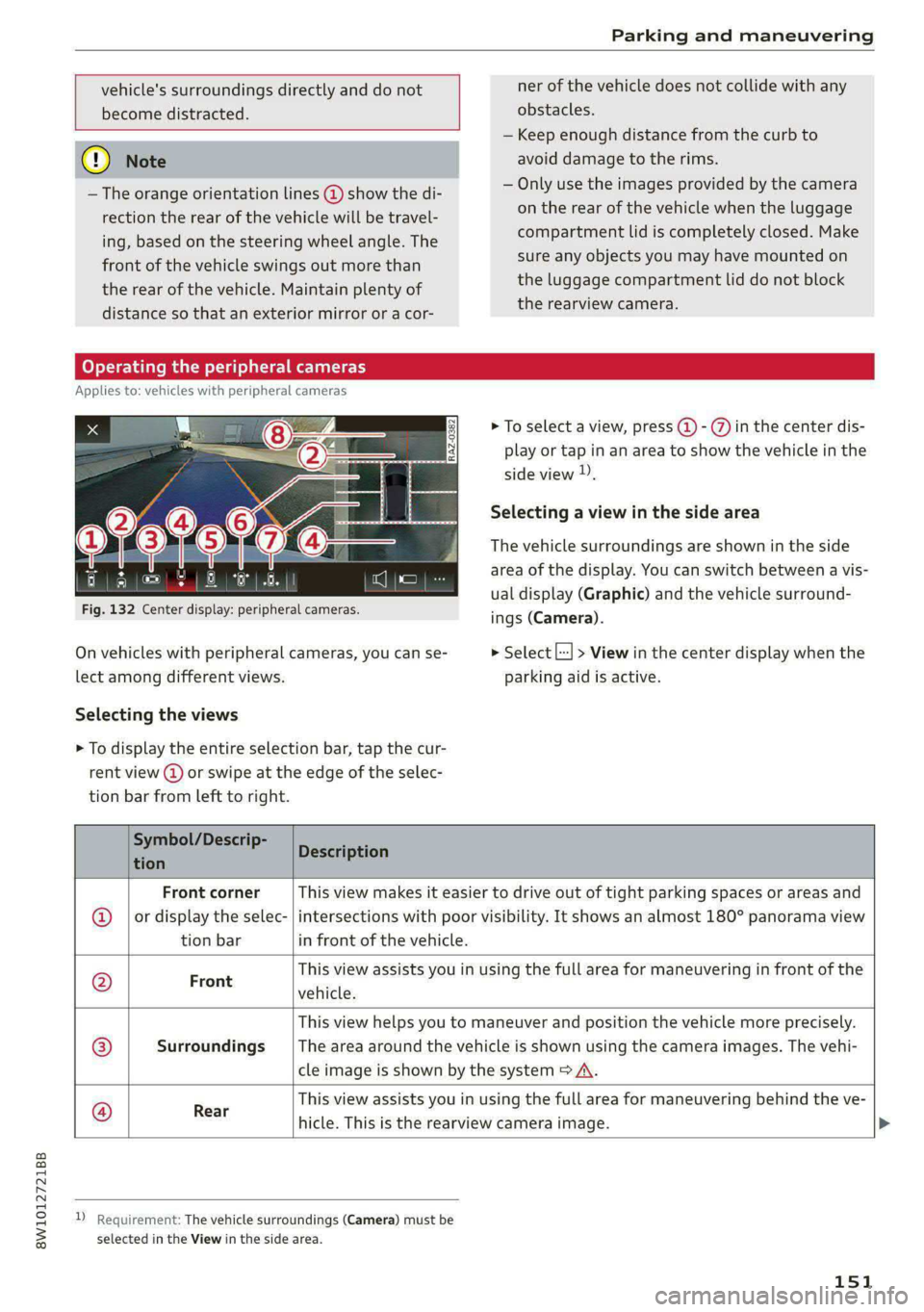
— The orange orientation lines @ show the di-
rection the rear of the vehicle will be travel-
ing, based on the steering wheel angle. The
front of the vehicle swings out more than
the rear of the vehicle. Maintain plenty of
distance so that an exterior mirror or a cor-
Operating the peripheral cameras
Applies to: vehicles with peripheral cameras
> To select a view, press (2) - %) in the center dis-
play or tap in an area to show the vehicle in the
side view )),
Selecting a view in the side area
The vehicle surroundings are shown in the side
area of the display. You can switch between a vis-
ual display (Graphic) and the vehicle surround-
ings (Camera).
Fig. 132 Center display: peripheral cameras.
On vehicles with peripheral cameras, you can se- > Select |---| > View in the center display when the
lect among different views. parking aid is active.
Selecting the views
> To display the entire selection bar, tap the cur-
rent view () or swipe at the edge of the selec-
tion bar from left to right.
Symbol/Descrip-
tion Description
Front corner This view makes it easier to drive out of tight parking spaces or areas and
or display the selec- | intersections with poor visibility. It shows an almost 180° panorama view
tion bar in front of the vehicle.
This view assists you in using the full area for maneuvering in front of the F
a vehicle.
This view helps you to maneuver and position the vehicle more precisely.
Surroundings _ |The area around the vehicle is shown using the camera images. The vehi-
cle image is shown by the system > A\.
This view assists you in using the full area for maneuvering behind the ve-
Rear
hicle. This is the rearview camera image.
®|
©
|®}]
©
D_ Requirement: The vehicle surroundings (Camera) must be
selected in the View in the side area.
151
Page 154 of 296
Parking and maneuvering
Symbol/Descrip-
Description
tion P
Rear corner
vehicle.
This view can assist you when driving out of tight parking spaces or areas
with poor visibility. It shows an almost 180° panorama view behind the
This view helps you to see the distance between the front tires and the
curb and the steering wheel angle when parking.
©
© Front tires
@ Rear tires
This view helps you to detect the distance between the rear wheels and
the curb when parking.
Steering wheel an-
The red lines represent the estimated direction of travel based on the
gle steering wheel angle > ©.
ZA WARNING
— Follow the safety precautions and note the
limits of the assist systems, sensors, and
cameras > page 114.
— The Surroundings view is created from the
individual camera images. The vehicle image
is shown by the system. Objects and obsta-
cles above the camera are not displayed.
@) Note
— Only use the images provided by the camera
on the rear of the vehicle when the luggage
compartment lid is completely closed. Make
sure any objects you may have mounted on
the luggage compartment lid do not block
the rearview camera.
— The front of the vehicle swings out more
than the rear of the vehicle. Maintain plenty
of distance so that an exterior mirror or a
corner of the vehicle does not collide with
any obstacles.
G) Tips
— Depending on the selected gear, it will auto-
matically switch between the Front and
Rear views. If you switch the view manually,
the automatic front/rear camera change will
be temporarily deactivated.
— When first activated while a forward gear is
engaged, the Front corner is displayed.
152
Rear cross-traffic assist
on
Applies to: vehicles with rear cross-traffic assist
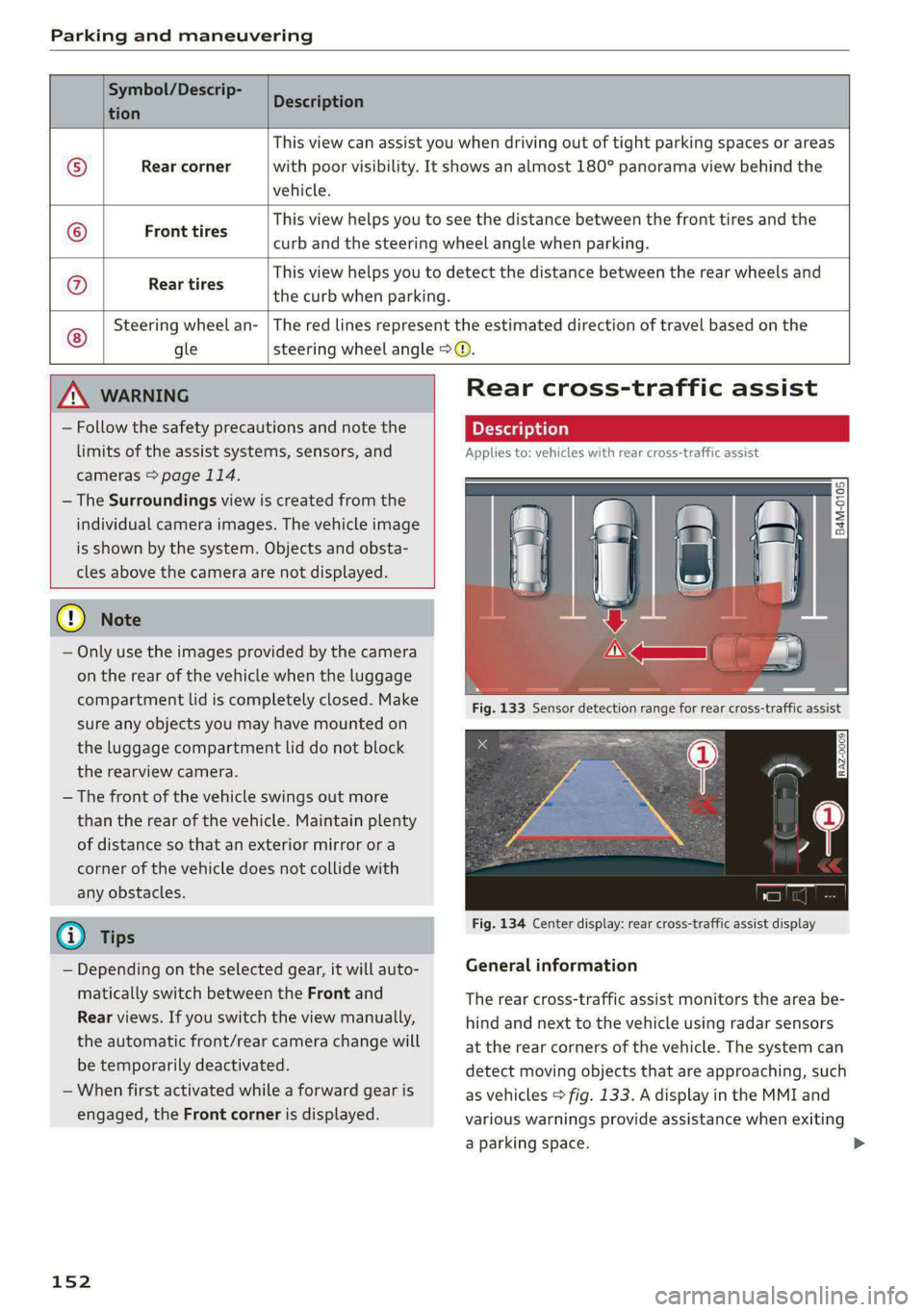
Fig. 134 Center display: rear cross-traffic assist display
General information
The rear cross-traffic assist monitors the area be-
hind and next to the vehicle using radar sensors
at the rear corners of the vehicle. The system can
detect moving objects that are approaching, such
as vehicles > fig. 133. A display in the MMI and
various warnings provide assistance when exiting
a parking space. >