2020 AUDI R8 COUPE infotainment
[x] Cancel search: infotainmentPage 87 of 308

4S1012721BA
Parking aid
@) Tips
— The settings are automatically stored and
assigned to the remote control key that is in
use.
— The new level is demonstrated briefly* when
the volume is adjusted.
Error messages
There is an error in the system if the LED in the
Pv button is blinking and you hear a continuous
alarm for a few seconds after switching on the
parking system or when the parking system is al-
ready activated. If the error is not corrected be-
fore you switch off the ignition, the LED in the Pa
button will blink the next time you switch on the
parking system by shifting into reverse.
Parking system plus*
If a sensor or speaker is faulty, the P4 symbol
will appear in front of/behind the vehicle in the
Infotainment display. If a rear sensor is faulty,
only obstacles that are in areas @) and @)
=> page 81, fig. 83 are shown. If a front sensor is
faulty, only obstacles that are in areas @) and @)
are shown.
Drive immediately to an authorized Audi dealer
or authorized Audi Service Facility to have the
malfunction repaired.
8s
Page 95 of 308

4S1012721BA
Multi Media Interface
Multi Media Interface
Traffic safety
information
Audi recommends performing certain Infotain-
ment system functions, such as entering a desti-
nation, only when the vehicle is stationary. Al-
ways be prepared to stop operating the Infotain-
ment system in the interest of your safety and
the safety of other road users.
Z\ WARNING
Only use the Infotainment system when road,
traffic, weather, and visibility conditions per-
mit and always in a way that allows you to
maintain complete control over your vehicle.
@) Tips
Certain functions are not available while driv-
ing.
Introduction
[RAH-8837,
Fig. 93 MMI control panel
The Multi Media Interface, or MMI for short,
combines various systems for communication,
navigation and entertainment in your Audi. You
can operate the MMI using the MMI control pan-
el, the multifunction steering wheel or the voice
recognition system.
MMI control panel overview
@ Control knob with joystick function . 94
@ MMI touch control pad .......... 95
@® Left control button ............. 94
@®
Right control button ............ 94
© Buttons for opening menus directly . 94
(B) [MENU] button socscc co escvon ov comers «5 94
@ [BACK] button ............0.0.. 94
MMI On/Off knob with
joystick function
Operating
RAH-8770|
Fig. 94 MMI On/Off knob with joystick function
Switching the MMI on/off: the MMI can be
switched on/off manually.
— Switching on manually: press the On/Off knob
@ briefly > fig. 94, or press the [MENU] button
© © page 93, fig. 93 or one of the buttons
used to open a menu G) > page 93, fig. 93.
— Switching off manually: press and hold the
On/Off knob @ © fig. 94 until the MMI
switches off. If the MMI has been switched off
manually, it does not switch on again automati-
cally the next time the ignition is switched on.
Additional functions:
— Adjusting the volume: turn the On/Off knob @
> fig. 94.
— Muting: press the On/Off knob @ © fig. 94
briefly.
— Selecting the previous/next function (for ex-
ample, a radio station/track): press the On/Off
knob @ ® fig. 94 briefly toward the left KM or
right DDI.
— Fast forwarding/rewinding (for example
songs): press and hold the On/Off knob @)
=> fig. 94 toward the right PPI or left Kd.
ZA\ WARNING
To reduce the risk of an accident, adjust the
volume of the audio systems so that signals >
93
Page 97 of 308

4S1012721BA
Multi Media Interface
Selection menu: through the selection menu,
you can open additional functions within a menu
item (such as Radio).
Requirement: the Selection menu symbol must
appear in the Infotainment system display.
Opening and closing a selection menu: Press the
left control button. Then you can select and con-
firm
a function using the control knob.
Options menu: using the options menu, you can
select and confirm context-dependent functions
as well as settings within a menu item (such as
Radio).
Requirement: the Options menu symbol [+] must
be displayed in the Infotainment system display.
Opening and closing the options menu: Press
the right control button. Then you can select and
confirm a function using the control knob.
Information about menu paths
This guide shows you at a glance the paths for
opening a desired menu and its settings and
functions.
Example of a path
RADIO > Select: button > left control button >
FM.
Following the path
> Press the [RADIO] button.
> Press the left control button.
> Turn the control knob to the FM menu item to
select it.
> Press the control knob to confirm the selected
FM menu item.
> The selected and confirmed function is execut-
ed. In this example, the FM frequency band is
set.
MMI touch
MMI touch control pad
RAH-8760,
OL
¥-wreashire Blvd, Los Angeles
ea asi N7« Angele:
ba 18
cis Meu es10
EG E Locust St
~
Fig. 98 Entering a navigation destination
You can enter data using handwriting recognition
on the MMI touch control pad.
The MMI touch control pad @) > page 93, fig. 93
is located on the control knob @) > page 93,
fig. 93.
Entering letters, numbers and symbols
uld you lik
©) Voicemail
a John Smith
& John Smith
Fig. 99 Display when MMI touch is active
The MMI touch allows you to enter data on the
MMI touch control pad using handwriting recog-
nition.
Requirement: it must be possible to enter text or
numbers and the symbol (@) must appear in the
Infotainment system display.
95
>
Page 98 of 308
Multi Media Interface
— Initial entry: write an individual upper case or
lower case letter or number/symbol on the
MMI touch control pad using your finger. A
symbol that is recognized clearly by the system
is displayed in the Infotainment system display
@ > page 95, fig. 98, confirmed with an audi-
ble signal if necessary, and transferred to the
input field.
— Entering spaces: move your finger across the
MMI touch control pad from left to right.
— Deleting characters: move your finger across
the MMI touch control pad from right to left.
— Deleting characters quickly: move your finger
quickly across the MMI touch control pad from
right to left.
—
Selecting the input suggestion: press the con-
trol knob.
— Switching directly to the results list: turn the
control knob to the right.
— Opening the speller: select the right control
button > Open speller. Text or numbers are en-
tered using the speller > page 99.
UUs eee
3 = % z < «
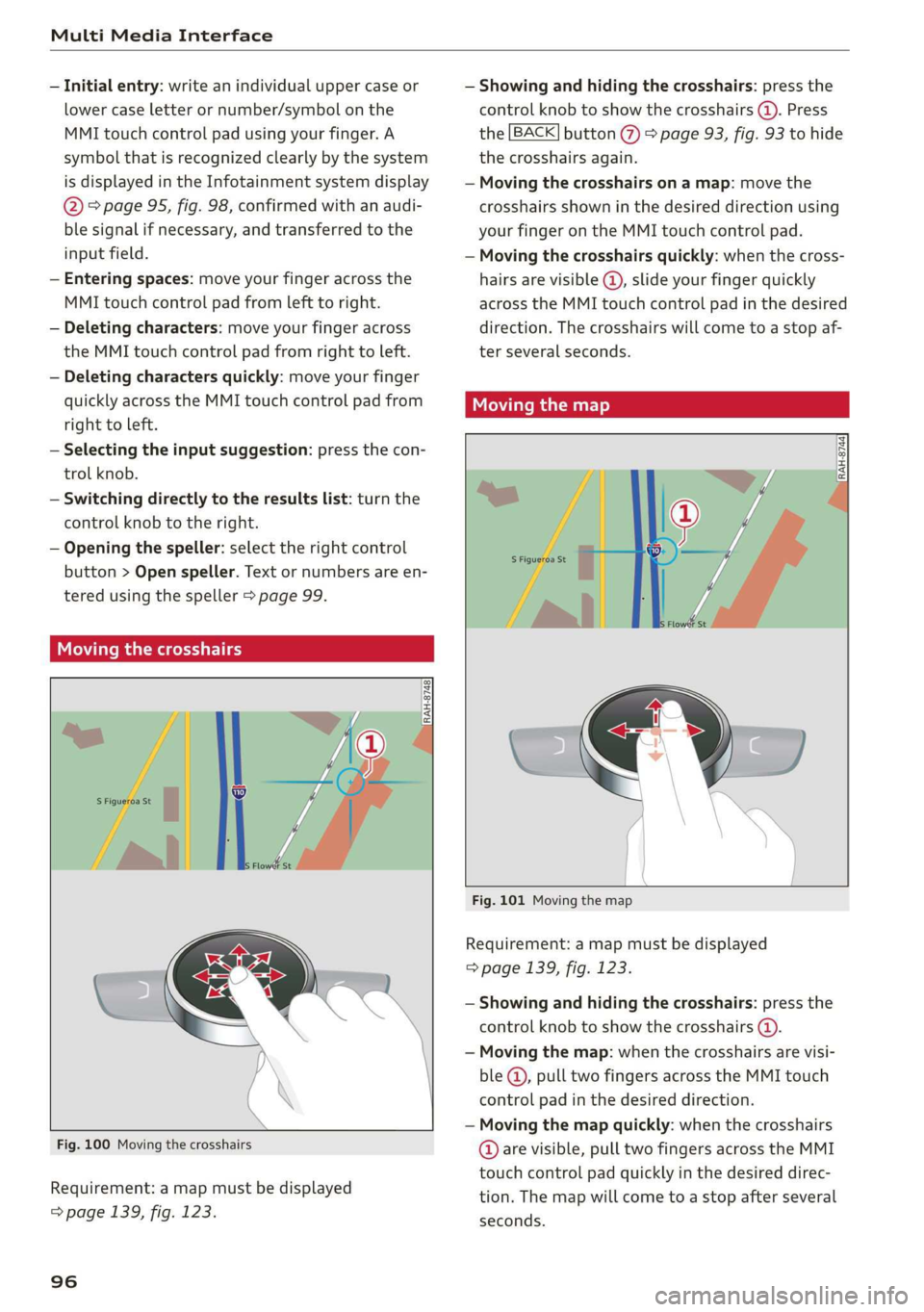
Fig. 100 Moving the crosshairs
Requirement: a map must be displayed
=> page 139, fig. 123.
96
— Showing and hiding the crosshairs: press the
control knob to show the crosshairs (@). Press
the [BACK] button @ > page 93, fig. 93 to hide
the crosshairs again.
— Moving the crosshairs on a map: move the
crosshairs shown in the desired direction using
your finger on the MMI touch control pad.
— Moving the crosshairs quickly: when the cross-
hairs are visible @, slide your finger quickly
across the MMI touch control pad in the desired
direction. The crosshairs will come to a stop af-
ter several seconds.
Moving the map
RAH-8744
Fig. 101 Moving the map
Requirement: a map must be displayed
=> page 139, fig. 123.
— Showing and hiding the crosshairs: press the
control knob to show the crosshairs (4).
— Moving the map: when the crosshairs are visi-
ble @, pull two fingers across the MMI touch
control pad in the desired direction.
— Moving the map quickly: when the crosshairs
@ are visible, pull two fingers across the MMI
touch control pad quickly in the desired direc-
tion. The map will come to a stop after several
seconds.
Page 103 of 308

4S1012721BA
Multi Media Interface
Selecting the input suggestion to complete
the entry
Requirement: a suggestion to complete the entry
@® must be displayed.
> MMI touch input: press the control knob.
> Speller input: push the control knob up.
Selecting an entry from the results list
> MMI touch input: turn the control knob to the
right. Select and confirm an entry from the list.
> Speller input: select and confirm [LIST] @
=> page 99, fig. 105, or
» Push the control knob down. Select and con-
firm an entry from the list.
Menus and symbols
aera ard
Additional station information
v Slide show Preferred picture view
Treble
Radio settings
uae war OF
Telephone
b A olilams inital
LEZ 1
Ralf Schmidt
Fig. 107 Diagram: menus and symbols
Symbol/Description Explanation
@ Selected text Selected function
@ TMC TMC/online traffic information reception > page 142
Network coverage for the active data connection > page 128
2G: GSM network
3G: UMTS network
® 2G/3G/LTE* LTE*: LTE network
When a data connection is established, the symbol for an active da-
ta connection appears in the status line on the Infotainment system
display > page 128
iS)
Data connection signal
strength bars*
Signal strength for the active data connection, or
PIN: Enter PIN (SIM)
PUK: Enter PUK
SIM: Inserting a SIM card > page 125
Jukebox importing proc-
® ess Importing audio/video files to the Jukebox > page 152
© Repeat track The track currently playing is repeated > page 160
All files on the playlist are played in random order > page 160,
huff
@ shuffle Shuffle
Knob Setting for the selected function by turning the control knob
© Arrow Access information by pressing the control knob
101
Page 106 of 308

Voice recognition system
Voice recognition system
Operating
You can operate many Infotainment functions
conveniently by speaking.
Requirement: the ignition and the MMI must be
switched on. A system language supported by
the voice recognition system must be set. There
must be no phone calls in progress and the park-
ing aid must not be active.
> Switching on: briefly press the [2] button @)
=> page 14, fig. 10 on the multifunction steer-
ing wheel and say the desired command after
the Beep.
> Switching off: press and hold the |] button, or
say the command Cancel.
> Pausing: say the command Pause. To resume,
press the |] button.
> Correcting: say the command Correction.
Input assistance
The system guides you through the input with
visual and audio feedback.
— Visual input assistance: after switching on
voice recognition, a display with a selection of
possible commands appears. The command
display can be switched on/off under [MENU] >
Settings > left control button > MMI settings >
Speech dialog system.
— Audio input assistance: to have the possible
commands read, press the [2] button on the
multifunction steering wheel briefly and say
Help.
For the system to understand you:
— Speak clearly and distinctly at a normal volume.
Speak louder when driving faster.
— Emphasize the words in the commands evenly
and do not leave long pauses.
— Do not speak a command when the voice recog-
nition system is making an announcement.
— Close the doors, the windows, and the sunroof*
to reduce background noise. Make sure that
passengers are not speaking when you are giv-
ing a voice command.
104
— Do not direct the vents toward the handsfree
microphone, which is near the front interior
lights on the roof headliner or on the driver's
safety belt*. For additional information on the
safety belt microphone, see > page 122.
— Only use the system from the driver's seat be-
cause the hands-free microphone is directed to-
ward that seat.
Additional settings
See > page 172, Voice recognition system.
ZA\ WARNING
— Direct your full attention to driving. As the
driver, you have complete responsibility for
safety in traffic. Only use the functions in
such a way that you always maintain com-
plete control over your vehicle in all traffic
situations.
— Do not use the voice recognition system in
emergencies because your voice may change
in stressful situations. The system may take
longer to dial the number or may not be
able to dial it at all. Dial the emergency
number manually.
Gi) Tips
— The dialog pauses when there is an incom-
ing phone call and will continue if you ig-
nore the call. The dialog ends if you answer
the call.
— There are no voice guidance prompts when a
dialog is active.
— You can select an item in the list using ei-
ther the voice recognition system or the
control knob.
Command overview
information
The following overviews describe the commands
that can be used to operate the MMI using the
voice recognition system.
Alternative commands are separated using a “/”,
for example say: Telephone / (or) Navigation /
(or) Radio.
Page 117 of 308

4S1012721BA
Telephone
Select and confirm the desired telephone number
from the recent calls list.
Call list symbols > fig. 114:
@ Missed calls
@ Dialed numbers
@® Accepted calls
Select: a contact from the list > right control but-
ton.
— Call: call the selected contact.
— Connect secondary telephone*/Switch primary
and second. phone”: see > page 112.
— Edit phone number before calling: edit a
phone number before dialing it. Select and con-
firm
OK to edit. press the left control button to
return without editing.
— Send text message: write a text message to
the selected contact.
— Delete call list: select and confirm if you would
like to Delete this entry or Delete all entries.
— Store as favorite: store the selected contact as
a favorite.
— Show contact details: See > page 121.
— Connection manager: See > page 168.
— Bluetooth settings: See > page 169.
— Online settings*: See > page 170.
— Wi-Fi settings: See > page 129.
— Telephone settings: See > page 122.
Favorites
Requirement: a phone number or contact must
be stored as a favorite > page 116.
Select and confirm a favorite in the favorites list.
Directory
Requirement: you must have at least one contact
stored in your cell phone.
Select and confirm a phone number from the di-
rectory > page 120.
Enter number
— Entering a phone number as a sequence of
numbers: enter the number using the number
speller > fig. 113.
— Entering the phone number as a sequence of
letters: select and confirm [ABC] above the
number speller. Enter a sequence of letters us-
ing the letter speller, for example AUDISER-
VICE.
— Dialing a phone number: select and confirm &,
or push the control knob downward. Select and
confirm OK.
— Deleting individual characters: select and con-
firm
&l.
— Deleting all characters entered at once: turn
the control knob with the character selection to
and press and hold the control knob, or se-
lect: right control button > Clear input field.
Tone sequences (DTMF) can be entered directly
into the speller during a phone call.
Accepting or ending a call
— Accepting a call: select and confirm Answer.
— Declining a call: select and confirm Decline.
— Muting an active call: select and confirm Mute.
— Ending a phone call or canceling dialing: se-
lect and confirm End call or press the control
knob.
Answering another call: See > page 115, During
a phone call.
Caller information: the name, phone number or
Unknown appears in the Infotainment system
display depending on if the caller has been stored
in the directory and if the phone number has
been transmitted. A picture may also be dis-
played, depending on whether you have assigned
a picture to a contact in your directory and if it
was transferred to your MMI. You can find out if
your mobile device supports this function from
your mobile device network provider, your mobile
device owner's manual, or at www.audiusa.com/
bluetooth.
G) Tips
The radio or media playback is muted during a
phone call.
During a phone call
Requirement: there must be a call in progress.
> Press the right control button.
115
Page 118 of 308

Telephone
The following options may be possible during a
call depending on the mobile device being used
and the type of connection:
— Making an additional call: select: Find contact
> Call list/Directory/Favorites > an entry from
the list.
— Accepting an incoming call when there is an
active call and a call on hold: select Replace.
The active call is replaced with the incoming
call.
— Answering another call: if there is an incoming
call while another call is active, you can select
Answer to put the existing call on hold and an-
swer the incoming call. If you select Decline,
the incoming call will be declined.
Additional functions include:
Mute: if you select and confirm this function, the
other person on the phone cannot hear you. You
will still be able to hear the other person.
Hold call/Resume: you can place the existing call
on hold and resume it again. To resume the call,
select and confirm the call you would like to re-
sume.
Transfer call to mobile device*: select and con-
firm
Transfer call to mobile device to transfer
the existing call from the MMI to your cell phone.
Switch to hands-free mode*: Requirement: you
must have a phone call in progress on your cell
phone. Select and confirm Switch to hands-free
mode to transfer the call from your cell phone to
the MMI.
Swap call: alternate between two phone calls
while one of the calls is on hold. Selecting End
call will end the active phone call. A phone call
on hold can be resumed using the right control
button > Resume.
Add to conference: a party on hold and up to five
active parties (depending on the network) can be
added to a conference call. To make an additional
call, put all participants in the current conference
call on hold using the right control button > Hold
conference. Press the left control button. Select
and confirm Call list/Directory/Favorites > an
entry from the list. You can add called contacts
to the conference using the right control button
116
> Add to conference. Resume takes all parties off
hold.
Multi-party calling: select the right control but-
ton > Tel. settings > Call options. When the func-
tion is switched on [M, you can accept an addi-
tional call using Answer or decline a call using
Decline. When the function is switched off, you
can Replace or Decline a call.
Connection manager: see > page 168.
Telephone settings: see > page 122.
(i) Tips
—To be notified of an incoming call during a
phone call, the call waiting function in your
cell phone must be switched on when using
the hands-free profile (Handsfree).
— You can obtain more information from your
mobile device service provider or from your
mobile device user guide.
— When leaving the vehicle, the Bluetooth
connection to the mobile device will auto-
matically disconnect. Depending on your
mobile device, phone calls in progress may
be automatically redirected from the MMI
to your mobile device so that you can con-
tinue the call on your phone.
— The display of an incoming phone callin the
Infotainment system display may still be
visible for a few seconds depending on the
cell phone in use. Using the Replace or De-
cline functions may then end the active
phone call.
Favorites
Up to 50 contacts, in addition to the voicemail
number, can be stored in any order in the favor-
ites list:
> Select: [MENU] button > Telephone > left con-
trol button.
Storing an existing phone number as a
favorite:
— Select and confirm Call list/Directory.
— Select and confirm a contact or phone number
from the list.