2020 AUDI Q7 trailer
[x] Cancel search: trailerPage 160 of 316

Parking and maneuvering
authorized Audi dealer or authorized Audi Service
Facility to have the malfunction repaired.
If Nvis displayed in the MMI, the ultrasonic sen-
sor indicated is icy or dirty. Clean the area in front
of the sensors > page 120.
if or is displayed when there is a malfunc-
tion, the parking aid functions may be unavaila-
ble or may be limited.
A message that indicates the cause and possible
solution may appear with some displays. The
weather conditions may be too poor or a sensor
may be covered. Clean the area in front of the
sensors > page 120 and try to turn on the sys-
tems again later.
If the malfunction remains, drive to an author-
ized Audi dealer or authorized Audi Service Facili-
ty immediately to have the malfunction correct-
ed.
ZA WARNING
— Follow the safety precautions and note the
limits of the assist systems, sensors, and
cameras > page 118.
— Sensors and cameras have spots in which
the surrounding area cannot be detected.
Objects, animals, and people may only be
detected with limitations may not be detect-
ed at all. Always monitor the traffic and the
vehicle's surroundings directly and do not
become distracted.
@) Note
Keep enough distance from the curb to avoid
damage to the rims.
@) Tips
— Certain settings are stored automatically in
the active personal profile.
— If the distance to an obstacle remains con-
stant, the volume of the distance warning
gradually lowers after a few seconds until it
is muted (this does not apply to the continu-
ous tone). If the obstacle comes closer than
it was before the sound was muted, the
tone will sound again. If the obstacle be-
comes farther away than it was before the
158
sound was muted, no tone will sound. Pay
attention to the vehicle's surroundings
when you start to drive.
— There is no rear distance warning when trail-
er mode is detected. The front sensors re-
main activated. The visual display switches
to trailer mode. There is no guarantee the
functions will be deactivated when using a
retrofitted trailer hitch.
Rearview camera and
peripheral cameras
Introduction
Applies to: vehicles with rearview camera/peripheral cameras
B8V-0629
Fig. 130 Orientation line display when parking
Depending on the vehicle equipment, a rearview
camera or multiple peripheral cameras may be
available.
The rearview camera helps you to park or maneu-
ver using the orientation lines.
The peripheral cameras expand the vehicle over-
view to include various views around the vehicle
that can be selected.
ZX WARNING
Follow the safety precautions and note the
limits of the assist systems, sensors, and
cameras > page 118.
Page 161 of 316
4M1012721BA
Parking and maneuvering
Activating/deactivating
Applies to: vehicles with rearview camera/peripheral cameras
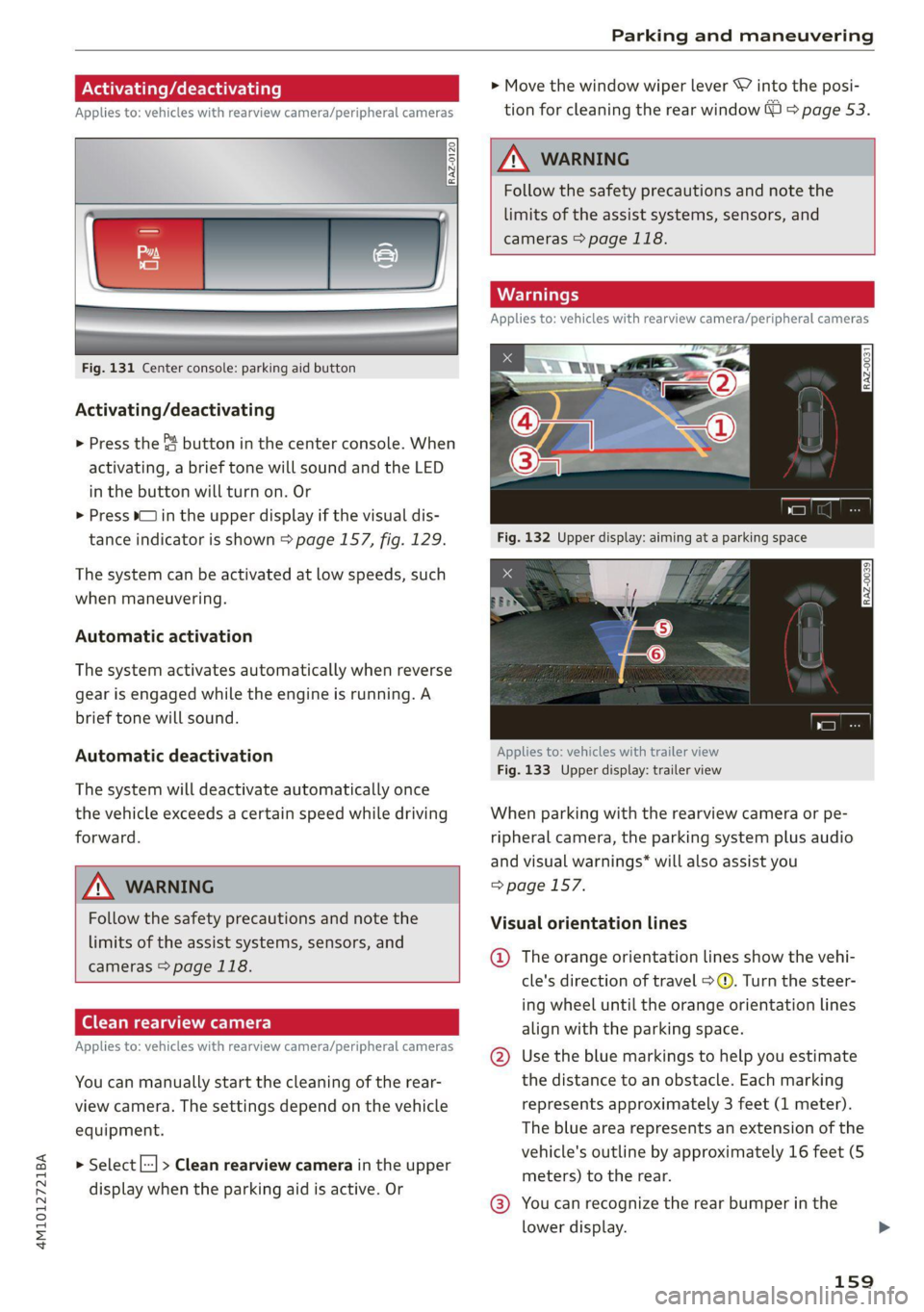
Fig. 131 Center console: parking aid button
Activating/deactivating
> Press the & button in the center console. When
activating, a brief tone will sound and the LED
in the button will turn on. Or
> Press J in the upper display if the visual dis-
tance indicator is shown > page 157, fig. 129.
The system can be activated at low speeds, such
when maneuvering.
Automatic activation
The system activates automatically when reverse
gear is engaged while the engine is running. A
brief tone will sound.
Automatic deactivation
The system will deactivate automatically once
the vehicle exceeds a certain speed while driving
forward.
A WARNING
Follow the safety precautions and note the
limits of the assist systems, sensors, and
cameras > page 118.
(eT awa]
Applies to: vehicles with rearview camera/peripheral cameras
You can manually start the cleaning of the rear-
view camera. The settings depend on the vehicle
equipment.
> Select |--] > Clean rearview camera in the upper
display when the parking aid is active. Or
> Move the window wiper lever S7 into the posi-
tion for cleaning the rear window © & page 53.
ZA WARNING
Follow the safety precautions and note the
limits of the assist systems, sensors, and
cameras > page 118.
Warnings
Applies to: vehicles with rearview camera/peripheral cameras
Applies to: vehicles with trailer view
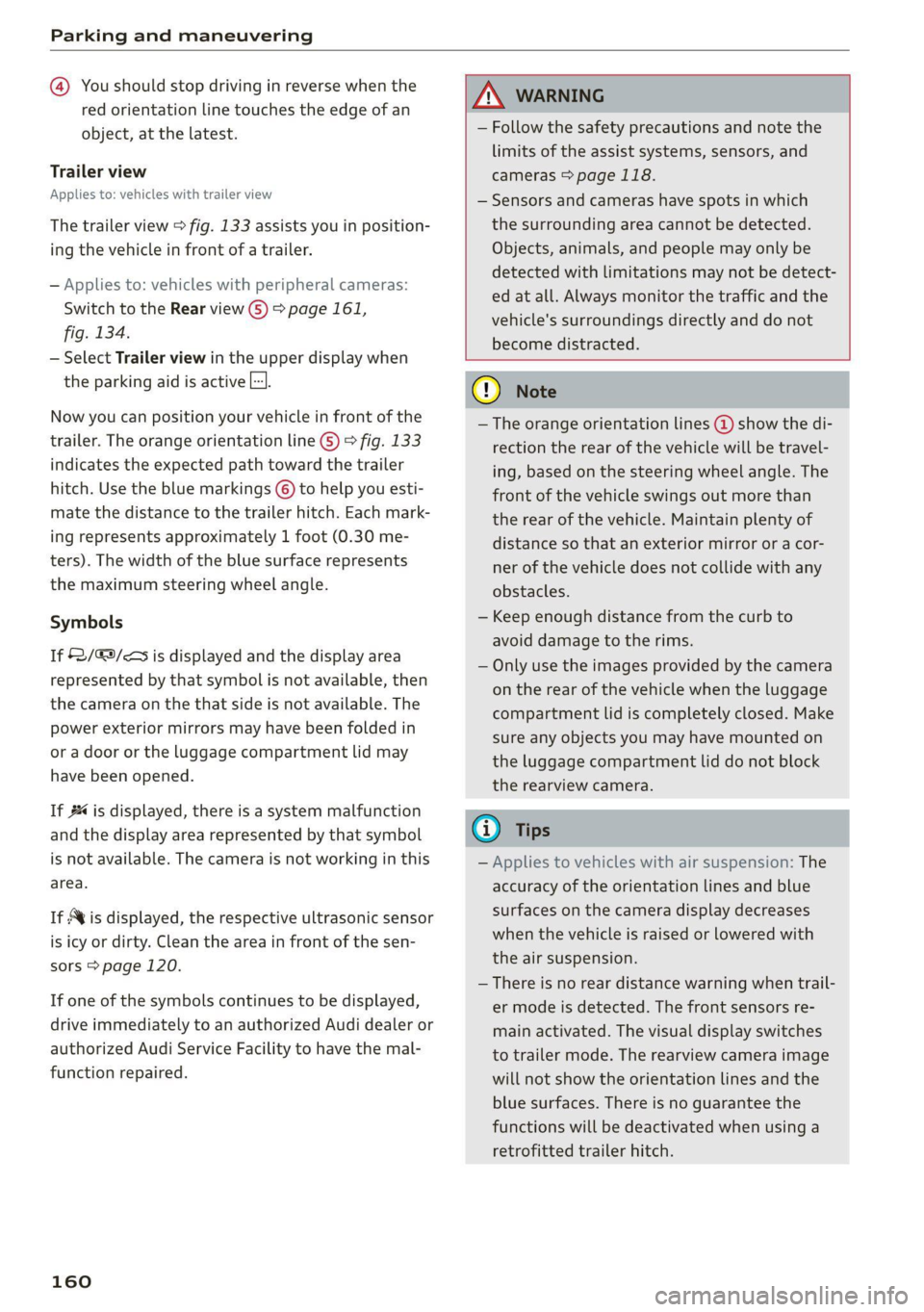
Fig. 133 Upper display: trailer view
When parking with the rearview camera or pe-
ripheral camera, the parking system plus audio
and visual warnings* will also assist you
=> page 157.
Visual orientation lines
@ The orange orientation lines show the vehi-
cle's direction of travel >@. Turn the steer-
ing wheel until the orange orientation lines
align with the parking space.
@ Use the blue markings to help you estimate
the distance to an obstacle. Each marking
represents approximately 3 feet (1 meter).
The blue area represents an extension of the
vehicle's outline by approximately 16 feet (5
meters) to the rear.
@® You can recognize the rear bumper in the
lower display.
159
Page 162 of 316
Parking and maneuvering
@ You should stop driving in reverse when the
red orientation line touches the edge of an
object, at the latest.
Trailer view
Applies to: vehicles with trailer view
The trailer view > fig. 133 assists you in position-
ing the vehicle in front of a trailer.
— Applies to: vehicles with peripheral cameras:
Switch to the Rear view G) > page 161,
fig. 134.
— Select Trailer view in the upper display when
the parking aid is active |].
Now you can position your vehicle in front of the
trailer. The orange orientation line ©) ° fig. 133
indicates the expected path toward the trailer
hitch. Use the blue markings © to help you esti-
mate the distance to the trailer hitch. Each mark-
ing represents approximately 1 foot (0.30 me-
ters). The width of the blue surface represents
the maximum steering wheel angle.
Symbols
If $2/€9/< is displayed and the display area
represented by that symbol is not available, then
the camera on the that side is not available. The
power exterior mirrors may have been folded in
or a door or the luggage compartment lid may
have been opened.
If # is displayed, there is a system malfunction
and the display area represented by that symbol
is not available. The camera is not working in this
area.
If Nvis displayed, the respective ultrasonic sensor
is icy or dirty. Clean the area in front of the sen-
sors > page 120.
If one of the symbols continues to be displayed,
drive immediately to an authorized Audi dealer or
authorized Audi Service Facility to have the mal-
function repaired.
160
Z\ WARNING
— Follow the safety precautions and note the
limits of the assist systems, sensors, and
cameras > page 118.
— Sensors and cameras have spots in which
the surrounding area cannot be detected.
Objects, animals, and people may only be
detected with limitations may not be detect-
ed at all. Always monitor the traffic and the
vehicle's surroundings directly and do not
become distracted.
@) Note
— The orange orientation lines @) show the di-
rection the rear of the vehicle will be travel-
ing, based on the steering wheel angle. The
front of the vehicle swings out more than
the rear of the vehicle. Maintain plenty of
distance so that an exterior mirror or a cor-
ner of the vehicle does not collide with any
obstacles.
— Keep enough distance from the curb to
avoid damage to the rims.
— Only use the images provided by the camera
on the rear of the vehicle when the luggage
compartment lid is completely closed. Make
sure any objects you may have mounted on
the luggage compartment lid do not block
the rearview camera.
@ Tips
— Applies to vehicles with air suspension: The
accuracy of the orientation lines and blue
surfaces on the camera display decreases
when the vehicle is raised or lowered with
the air suspension.
— There is no rear distance warning when trail-
er mode is detected. The front sensors re-
main activated. The visual display switches
to trailer mode. The rearview camera image
will not show the orientation lines and the
blue surfaces. There is no guarantee the
functions will be deactivated when using a
retrofitted trailer hitch.
Page 166 of 316
Parking and maneuvering
your vehicle is pulled too far into the park-
ing space so that it is hidden by adjacent
vehicles.
Gi) Tips
— Certain settings are stored automatically in
the active personal profile.
— Once an automatic brake activation occurs,
the system cannot initiate another activa-
tion for several seconds.
— System functions may not be available if the
ESC is limited or switched off, or if there is a
malfunction.
— If there is an acoustic warning signal from
the rear cross-traffic assist, then the park-
ing aid may not warn you of detected obsta-
cles under certain circumstances.
— The system is not available when the vehicle
detects that you are towing a trailer. There
is no guarantee the functions will be deacti-
vated when using a retrofitted trailer hitch.
Do not use these functions when towing a
trailer.
— For an explanation on conformity with the
FCC regulations in the United States and the
Industry Canada regulations, see
=> page 295.
— The coverage areas of the sensors > fig. 135
are diagrams and do not represent a true-
to-scale image of the sensor ranges.
164
Page 194 of 316

Navigation
Map
Applies to: vehicles with navigation system
Cra ua
2)
Fig. 147 Upper display: marked map item
Opening the map
Applies to: MMI
> Press NAVIGATION on the home screen.
> If necessary, press A to display the map.
The following list gives an overview of the infor-
mation displayed on the map. Press on any func-
tion (for example, alternative routes) to show ad-
ditional options.
Destination input > page 187
Intelligent search > page 187
Cancel route guidance > page 191
Current route
Request spoken prompt
Alternative routes > page 194
COOOOLOO Display active destinations, stopovers, or
route plan. The distance to the destination
including the calculated arrival time is dis-
played > page 191.
© For vehicles with trailer mode, the symbol in-
dicates that the function is switched on.
= page 200
© Traffic information > page 198
D_ Only applies to vehicles without camera-based speed limit
display.
192
@ Altitude
@) Displays the maximum permitted speed):
within city limits, on expressways, and on
highways.
Current vehicle position
Route information > page 200
Name of the street on which you are current-
ly driving
®
®O®8
Start route guidance for the marked destina-
tion @2) > page 191, Selecting a destination
from the map
Display details for the destination
=> page 190
POI search within the vicinity of a marking
®@®
®
Adjust the map orientation. Also see
=> page 199
Navigation settings > page 199
®©©® Adjust the scale. Set scale. Or: Press the
magnifying glass to switch automatic zoom
=> page 199 on or off directly on the map. The
symbol appears when this function is
switched on.
® Marked destination. See > page 191, Select-
ing a destination from the map
® Map contents (points of interest, favorites).
When there are multiple map contents in the
immediate vicinity, the symbols are shown
stacked on the map. To display a list of indi-
vidual symbols, press @9 > fig. 147. Press on
a POT in the list.
@3) Center the map to the current vehicle posi-
tion
Additional possible symbols on the map
Description |
Home address > page 195, Favor-
ites
Business address > page 195, Fa-
vorites
Presets > page 195
@| Previous destinations display >
Page 202 of 316
Navigation
Map settings
Satellite map: see > page 196.
Traffic: you can display current traffic informa-
tion on the map. See > page 193, Traffic infor-
mation display on the map or map preview
— Free flow of traffic
— Traffic obstructions
— Traffic information
Map colors
— Automatic: the map display adapts to the light-
ing conditions (for example, by changing from
day to night when driving through a tunnel).
— Day or Night
Map orientation
— 2D map or 2D north: the current vehicle posi-
tion is displayed. The map is oriented in the di-
rection of travel or to the north.
— 3D map: the current vehicle position is shown
on a three-dimensional map and is oriented in
the direction of travel.
— Overview: the entire route from the vehicle po-
sition to the destination or the next stopover is
displayed on the map. The map is oriented to
the north.
Automatic zoom
— On: the map scale is adapted automatically de-
pending on the type of road being traveled (ex-
pressway, highway, other roads) so that you al-
ways have an optimal overview of the road
ahead. When route guidance is active, the scale
is adjusted automatically for a better detailed
view when there are upcoming maneuvers.
— Intersection: when route guidance is active, the
scale is adjusted automatically for a better de-
tailed view when there are upcoming maneu-
vers.
— Off
MMI map contents/Map content: you can switch
the display of additional information (such as
POIs) on the map in the upper display on or off.
Note the following for the 3D city model > ©.
Voice guidance
Voice guidance: you can adjust the navigation
prompts. With the Traffic setting, the MMI will
200
only give prompts if there are traffic incidents on
your route.
Voice guidance during phone call
Entertainment fader during navigation: the au-
dio playback volume is temporarily lowered when
navigation prompts are active.
Route criteria
You can adjust which route criteria should be al-
lowed or avoided for the route calculation.
HOV/carpool lanes
Highways
Toll roads
Ferries
Route information
When this function is switched on and route
guidance is active, route information ®
=> page 192, fig. 146 is displayed. The next ma-
neuver will be displayed at the bottom. POIs and
traffic information will also be displayed. Press
route information to display a preview of the next
maneuver on the map. You can switch the follow-
ing information on or off in route information.
— POIs along the route
— Traffic information
Personal route assistance
Personal route assistance is switched off at the
factory.
Your trips are recorded and destinations are sug-
gested by the MMI when this function is switched
on > page 194.
Trailer mode
Trailer mode is switched off at the factory.
When the function is switched on, the maximum
permitted speed for vehicles with trailers is in-
cluded during route guidance and the calculated
arrival time is adjusted accordingly. When the
function is switched on, the symbol @)
=> page 192, fig. 146 is displayed on the map. >
Page 261 of 316

4M1012721BA
Wheels
intended to carry (“seating ca-
pacity”) with an assumed weight
of 150 lbs. (68 kg) for each pas-
senger at a designated seating
position and the total weight of
any luggage in the vehicle. If you
tow a trailer, the weight of the
trailer hitch and the tongue
weight of the loaded trailer must
be included as part of the vehicle
load.
The Gross Axle Weight Rating
(“GAWR”) is the maximum load
that can be applied at each of the
vehicle’s two axles.
The fact that there is an upper
limit to your vehicle’s Gross Vehi-
cle Weight Rating means that the
total weight of whatever is being
carried in the vehicle (including
the weight of a trailer hitch and
the tongue weight of the loaded
trailer) is limited. The more pas-
sengers in the vehicle or passen-
gers who are heavier than the
standard weights assumed mean
that less weight can be carried as
luggage.
The Gross Vehicle Weight Rating
and the Gross Axle Weight Rating
are listed on the safety compli-
ance sticker label located on the
driver’s side B-pillar.
AN WARNING
Overloading a vehicle can cause
loss of vehicle control, a crash
or other accident, serious per-
sonal injury, and even death.
—Carrying more weight than
your vehicle was designed to
carry will prevent the vehicle
from handling properly and in-
crease the risk of the loss of
vehicle control.
—The brakes on a vehicle that
has been overloaded may not
be able to stop the vehicle
within a safe distance.
—Tires ona vehicle that has
been overloaded can fail sud-
denly, including a blowout and
sudden deflation, causing loss
of control and a crash.
—Always make sure that the to-
tal load being transported -
including the weight of a trail-
er hitch and the tongue
weight of a loaded trailer -
does not make the vehicle
heavier than the vehicle’s
Gross Vehicle Weight Rating.
259
Page 262 of 316

Wheels
Determining correct load
limit
Use the example below to calcu-
late the total weight of the pas-
sengers and luggage or other
things that you plan to transport
so that you can make sure that
your vehicle will not be overload-
ed.
Steps for Determining Correct
Load Limit
1. Locate the statement “THE
COMBINED WEIGHT OF OCCU-
PANTS AND CARGO SHOULD
NEVER EXCEED XXX KG OR XXX
LBS” on your vehicle’s placard
(tire inflation pressure label)
=> page 256, fig. 175.
2. Determine the combined
weight of the driver and pas-
sengers that will be riding in
your vehicle.
3. Subtract the combined weight
of the driver and passengers
from “XXX” kilograms or “XXX”
pounds shown on the sticker
=> page 256, fig. 175.
4. The resulting figure equals the
available amount of cargo and
luggage load capacity. For ex-
ample, if the “XXX” amount
equals 1400 lbs. and there will
260
be five 150 lbs. passengers in
your vehicle, the amount of
available cargo and luggage
oad capacity is 650 lbs.
(1400-750 (5 x 150) = 650
bs.)
5. Determine the combined
weight of luggage and cargo
being loaded on the vehicle.
That weight may not safely ex-
ceed the available cargo and
uggage load capacity calculat-
ed in Step 4.
6. If your vehicle will be towing a
trailer, load from your trailer
will be transferred to your vehi-
cle. Consult this manual to de-
termine how this reduces the
available cargo and luggage
load capacity of your vehicle.
>Check the tire sidewall
(=> page 247, fig. 172) to deter-
mine the designated load rating
for a specific tire.
Wheel bolts and rims
Wheel bolts
Wheel bolts must be clean and loosen/tighten
easily.
Rims
Rims with a bolted rim ring* or with bolted wheel
covers* consist of multiple pieces. These compo-
nents were bolted together using special bolts
and a special procedure. You must not repair or
disassemble them > A\.