2020 AUDI A4 ignition
[x] Cancel search: ignitionPage 146 of 296

Driver assistance
when the detected object is in the “blind
spot”, at the latest.
@ You are slowly passing another vehicle. If the
difference in speed between the two vehicles
is less than 9 mph (15 km/h), the display in
the exterior mirror will turn on.
Information stage
If you do not activate a turn signal, the system
will inform you about objects classified as critical
by turning on the display in the respective exteri-
or mirror. The display remains dim in the infor-
mation stage so that you are not distracted while
looking forward.
Warning stage
Once you activate a turn signal, the system will
inform you about objects classified as critical by
turning on the display in the respective exterior
mirror.
Depending on vehicle equipment, the display
may also provide a warning when the turn signal
is not activated: if driver assist systems detect
that your vehicle is about to leave a lane, the dis-
play will blink to warn you about objects classi-
fied as critical. You can also be warned with cor-
rective steering > page 137, Audi active lane as-
sist.
System limitations
The system uses the data from the radar sensors
at the rear corners of the vehicle > page 116,
fig. 107. They are designed to detect the left and
right adjacent lanes when the road lanes are the
normal width. In some situations, the system
may react to vehicles in your own lane or lanes
that are not directly adjacent to yours, or to ob-
jects on the side of the road. In this case, the dis-
play will turn on even though there is no vehicle
in the critical area. These situations may include:
— Driving on the edge of your own lane
— Narrow lanes
— Curves
— High barriers on the side of the road
144
AN WARNING
— Follow the safety precautions and note the
limits of the assist systems, sensors, and
cameras > page 114.
— The display may not appear on time when
vehicles are approaching or being passed
very quickly.
G) Tips
— If the window glass in the driver's door or
front passenger's door has been tinted, the
display in the exterior mirror may be incor-
rect.
— For an explanation on conformity with the
FCC regulations in the United States and the
Industry Canada regulations, see
=>page 275.
Adjusting side assist
Applies to: vehicles with side assist
You can adjust the side assist to your preferences.
The settings depend on the vehicle equipment.
> Applies to: MMI: Select on the home screen:
VEHICLE > Driver assistance > Side assist.
Possible settings:
The system can be switched on and off. If the sys-
tem is switched on, the displays in the exterior
mirrors will turn on briefly each time the ignition
is switched on.
Brightness - Change the brightness only when
side assist is switched on, so that the selected
setting can be checked in the exterior mirror dis-
plays. Adjust the brightness to a level where the
display will not interfere with your view ahead.
Because the display brightness automatically
adapts to the ambient light, it may have already
been adjusted to the highest or lowest setting
during the automatic adaptation.
G) Tips
— If you switch side assist on or off, the exit
warning will also switch on or off.
Page 148 of 296
Driver assistance
— The exit warning system can be available for
up to approximately three minutes after un-
locking the vehicle and opening the door as
well as after switching off the ignition. Then
the displays flash briefly and the system
switches off.
— The display brightness for the exit warning
system cannot be adjusted.
— For an explanation on conformity with the
FCC regulations in the United States and the
Industry Canada regulations, see
=> page 275.
146
Page 150 of 296

Parking and maneuvering
forward faster than approximately 6 mph (10
km/h).
ZA\ WARNING
Follow the safety precautions and note the
limits of the assist systems, sensors, and
cameras > page 114.
@) Note
Keep enough distance from the curb to avoid
damage to the rims.
G) Tips
— If the parking aid is switched off, it can only
be reactivated automatically when one of
the following conditions is met:
— The vehicle speed exceeds 6 mph (10 km/h)
— The ignition was switched off and back on
again
— The parking brake was set and then released
— The “P” gear was engaged and released
again
Applies to: vehicles with parking aid plus
Fig. 129 Center display: distance display
If the sensors detect an obstacle, audible and vis-
ual signals will warn you.
Visual warnings
The visual warnings in the center display help you
to detect the critical vehicle area and to estimate
the distance to an obstacle.
Red segments (2) show detected obstacles that
are in your vehicle's path. The red lines 2) mark
the expected direction of travel based on the
steering angle. A white segment (8) indicates a
detected obstacle that is outside of the vehicle's
148
path. The closer your vehicle comes to the obsta-
cle, the closer the segments will move to the ve-
hicle. The collision area has been reached when
the next to last segment is displayed. Obstacles
in the collision area, including those outside of
the vehicle's path, are shown in red. Do not con-
tinue driving farther.
Audio signals
The closer your vehicle gets to a detected obsta-
cle, the shorter the time between the audible sig-
nals. A continuous tone sounds when an obstacle
is less than approximately 1 foot (0.30 m) away
from the front or rear of the vehicle. A continu-
ous tone sounds when an obstacle is less than
approximately 0.7 feet (0.20 m) away from the
sides* of the vehicle. Do not continue driving for-
ward or in reverse >@).
> To deactivate audio signals while parking, press
(Jin the center display. The audio signals will
be automatically activated again the next time
the parking aid is activated.
Adjusting the volume
You can adjust the volume to your preferences.
The settings depend on the vehicle equipment.
> Applies to: MMI: Select on the home screen:
VEHICLE > Parking aid. Or:
> Press L-] in the center display when the parking
aid is active.
Possible settings:
Front volume - Volume for the front and side*
area.
Rear volume - Volume for the rear area.
Entertainment fader - The volume of the audio/
video source is lowered when the parking aid is
activated.
The new level is demonstrated briefly* when the
volume is adjusted.
Error messages
If P4 appears, the sensor in the respective area
or the speaker is faulty. Drive immediately to an
authorized Audi dealer or authorized Audi Service
Facility to have the malfunction repaired.
Page 151 of 296

8W1012721BB
Parking and maneuvering
iff or is displayed when there is a malfunc-
tion, the parking aid functions may be unavaila-
ble or may be limited.
A message that indicates the cause and possible
solution may appear with some displays. The
weather conditions may be too poor or a sensor
may be covered. Clean the area in front of the
sensors > page 116, fig. 106 and try to turn on
the systems again later.
If the malfunction remains, drive to an author-
ized Audi dealer or authorized Audi Service Facili-
ty immediately to have the malfunction correct-
ed.
Z\ WARNING
— Follow the safety precautions and note the
limits of the assist systems, sensors, and
cameras > page 114.
— Sensors and cameras have spots in which
the surrounding area cannot be detected.
Objects, animals, and people may only be
detected with limitations may not be detect-
ed at all. Always monitor the traffic and the
vehicle's surroundings directly and do not
become distracted.
©) Note
— Keep enough distance from the curb to
avoid damage to the rims.
— Applies to: vehicles with park assist: If you
park in short parking spaces using park as-
sist, a continuous tone will sound from the
parking aid when the distance to an object is
less than approximately 0.7 ft (0.20 m). Do
not continue driving farther.
@ Tips
— The segments in the side area* are detected
and analyzed when passing. If you switch
the ignition off and on again or open the
door, or if the vehicle is stationary for a peri-
od of time, the surrounding area may have
changed in the meantime. In this scenario,
the side area* will appear black until the
area has been detected and evaluated.
— If the distance to an obstacle remains con-
stant, the volume of the distance warning
gradually lowers after a few seconds until it
is muted (this does not apply to the continu-
ous tone). If the obstacle comes closer than
it was before the sound was muted, the
tone will sound again. If the obstacle be-
comes farther away than it was before the
sound was muted, no tone will sound. Pay
attention to the vehicle's surroundings
when you start to drive.
Rearview camera and
peripheral cameras
Introduction
Applies to: vehicles with rearview camera/peripheral cameras
B8V-0629
Fig. 130 Orientation line display when parking
Depending on the vehicle equipment, a rearview
camera or multiple peripheral cameras may be
available.
The rearview camera helps you to park or maneu-
ver using the orientation lines.
The peripheral cameras expand the vehicle over-
view to include various views around the vehicle
that can be selected.
Z\ WARNING
Follow the safety precautions and note the
limits of the assist systems, sensors, and
cameras > page 114.
Activating/deactivating
Applies to: vehicles with rearview camera/peripheral cameras
Activating/deactivating
> Press the Pt button in the center console.
When activating, a brief tone will sound and
the LED in the button will turn on. Or
149
Page 160 of 296
Telephone
Telephone
Introduction
Applies to: vehicles with telephone
You can operate various telephone functions easi-
ly through the MMI in your vehicle.
Depending on the country and the vehicle equip-
ment, the following options may be available:
— Connecting a mobile phone with Bluetooth
— Using two telephones
— Using the Audi phone box
ZA\ WARNING
— Medical experts warn that mobile devices
can interfere with the function of pacemak-
ers. Always maintain a minimum distance of
about 7.9 inches (20 cm) between the mo-
bile device antennas and the pacemaker.
— Do not carry the mobile device in a pocket
directly over the pacemaker when the
phone is switched on.
— Switch the mobile device off immediately
if you suspect it may be interfering with
the pacemaker.
— Do not use the voice recognition system*
=> page 24 in emergencies because your
voice may change in stressful situations. The
system may take longer to dial the number
or may not be able to dial it at all. Dial the
emergency number manually.
— Switch your mobile device off in areas where
there is a risk of an explosion. These loca-
tions are not always clearly marked. This
may include gas stations, fuel and chemical
storage facilities or transport vehicles, or lo-
cations where fuel vapors (such as propane
or gasoline vapor in vehicles or buildings),
chemicals or large quantities of dust parti-
cles (such as flour, sawdust or metal) may
be present in the air. This also applies to all
other locations where you would normally
turn your vehicle engine off.
— The demands of traffic require your full at-
tention. Always read the chapter > page 18,
Traffic safety information.
158
@) Note
Read the information about Audi connect, and
be sure to note the connectivity costs section
=> page 169.
@) Tips
— The Bluetooth connection range is limited
to inside the vehicle.
—Aselection of supported Bluetooth devices
can be found in the database for tested mo-
bile devices at www.audi.com/bluetooth.
Setup
Connecting a mobile phone via Bluetooth
Applies to: vehicles with telephone
Requirement: the vehicle must be stationary and
the ignition must be switched on. The Bluetooth
settings must be open on your mobile device dur-
ing the connection setup. The mobile device to be
connected must not be actively connected to any
other Bluetooth device. The MMI must only be
connected to one mobile device.
> Enable the Bluetooth function and visibility on
the MMI = page 206 and the mobile phone.
> Applies to: MMI: Select on the home screen:
PHONE.
> Follow the system instructions. The available
Bluetooth devices will be displayed after sever-
al seconds.
> Press on the desired mobile device in the list of
displayed Bluetooth devices.
> To update the list, press OQ.
A PIN for a secure Bluetooth connection will be
generated.
> Confirm the PIN on your mobile device.
> Follow the system instructions.
>» Pay attention to any other system prompts on
the MMI and on your mobile phone.
After connecting successfully
The mobile phone contacts are automatically
loaded in the MMI. This process can take several
minutes, depending on the number of contacts.
Depending on your mobile phone and the connec-
tion type, you can use the following functions: >
Page 161 of 296
8W1012721BB
Telephone
Handsfree
Requirement: your mobile phone must be con-
nected to the MMI via a Bluetooth Hands Free
Profile (Bluetooth HFP).
You can use the hands-free system. You can make
calls using the antenna on your mobile device.
Sending and receiving messages
See > page 166.
@ Tips
— Pay attention to any system prompts dis-
played on your mobile device or the MMI,
for example if the system should connect
automatically in the future. Depending on
the mobile device, you may need to down-
load contacts and confirm access to your
messages separately.
— You can also search for the MMI on your mo-
bile device using the Bluetooth device
search.
— You only have to pair your device one time.
Bluetooth devices that are already paired
automatically connect to the MMI when the
Bluetooth function is switched on, when
they are within range, and when the ignition
is switched on. The last connected mobile
device is given first priority.
— You can manage additional settings for con-
nected mobile devices in the Connected de-
vices menu > page 207.
— When leaving the vehicle, the Bluetooth
connection to the mobile device will auto-
matically disconnect. Depending on your
mobile device, phone calls in progress may
be automatically redirected from the MMI
to your mobile device so that you can con-
tinue the call on your phone.
Using two telephones
Applies to: vehicles with telephone, and Audi phone box
You can connect two mobile phones to the MMI
at the same time using the Bluetooth HFP, for ex-
ample a business phone and a private phone. You
can be reached in your vehicle through both mo-
bile phones.
Applies to: mobile devices with Bluetooth Mes-
sage Access Profile (MAP): You can send and re-
ceive messages with both mobile devices
=> page 166.
Connecting another mobile device
Requirement: a mobile device must be connected
to the MMI.
> Applies to: MMI: Select on the home screen:
PHONE > [?. Follow the system instructions, or
> Applies to: MMI: Select on the home screen:
SETTINGS > Connected devices > Telephone 1
or Telephone 2 > New connection.
See > page 158, Connecting a mobile phone via
Bluetooth.
Switching between two mobile devices
Requirement: phone 1 and phone 2 must be con-
nected to the MMI.
> Applies to: MMI: Select on the home screen:
PHONE >
Read the information about Audi connect, and
be sure to note the connectivity costs section
=> page 169.
Disconnecting a mobile device
Applies to: vehicles with telephone
> To disconnect a Bluetooth device from the MMI,
use the Connected devices menu > page 207.
159
Page 162 of 296
Telephone
Using the Audi phone
box
(eee eleurl ela)
Applies to: vehicles with Audi phone box
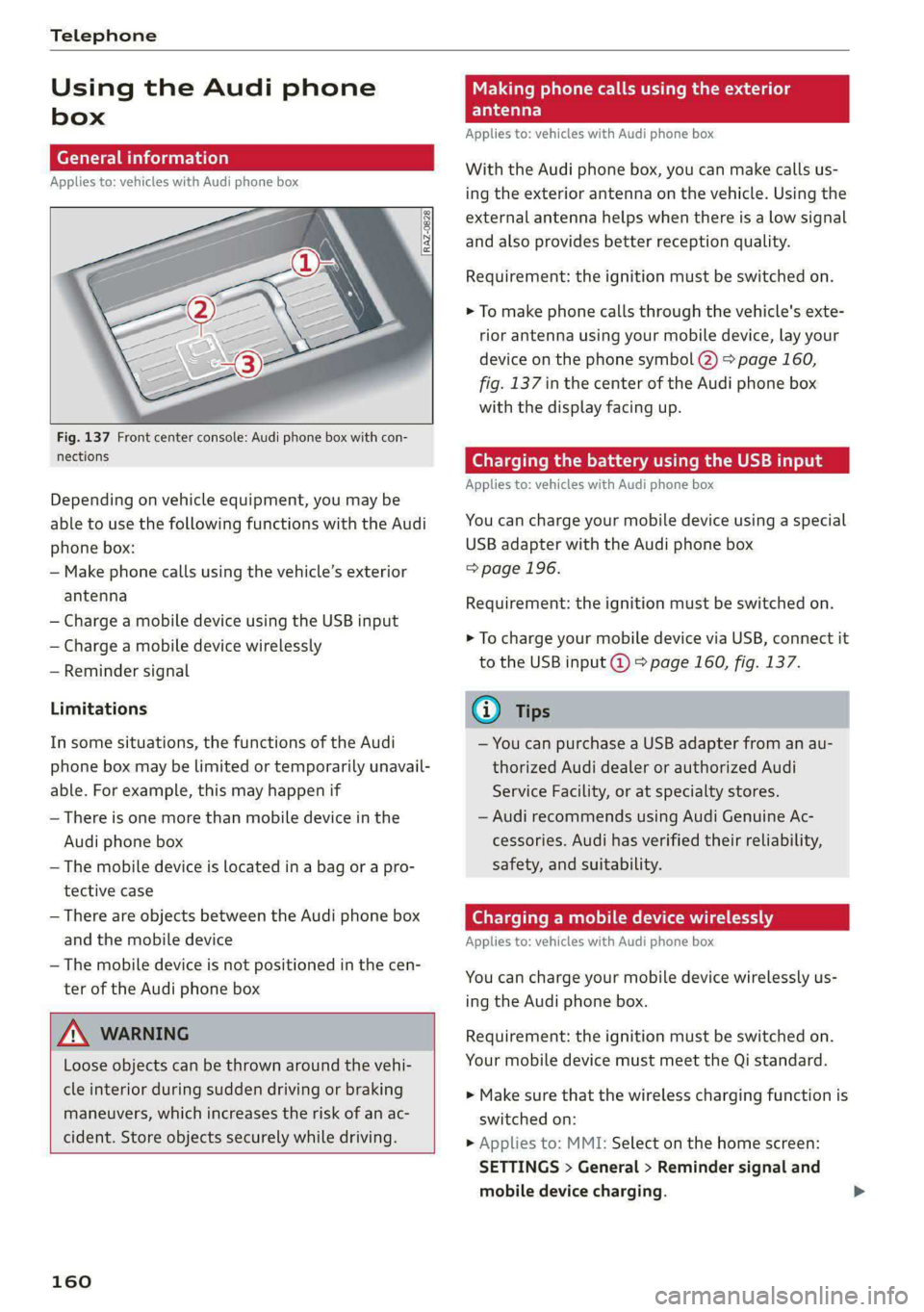
Fig. 137 Front center console: Audi phone box with con-
nections
Depending on vehicle equipment, you may be
able to use the following functions with the Audi
phone box:
— Make phone calls using the vehicle’s exterior
antenna
— Charge a mobile device using the USB input
— Charge a mobile device wirelessly
— Reminder signal
Limitations
In some situations, the functions of the Audi
phone box may be limited or temporarily unavail-
able. For example, this may happen if
— There is one more than mobile device in the
Audi phone box
— The mobile device is located in a bag or a pro-
tective case
— There are objects between the Audi phone box
and the mobile device
— The mobile device is not positioned in the cen-
ter of the Audi phone box
ZA WARNING
Loose objects can be thrown around the vehi-
cle interior during sudden driving or braking
maneuvers, which increases the risk of an ac-
cident. Store objects securely while driving.
160
Making phone calls using the exterior
antenna
Applies to: vehicles with Audi phone box
With the Audi phone box, you can make calls us-
ing the exterior antenna on the vehicle. Using the
external antenna helps when there is a low signal
and also provides better reception quality.
Requirement: the ignition must be switched on.
> To make phone calls through the vehicle's exte-
rior antenna using your mobile device, lay your
device on the phone symbol @) > page 160,
fig. 137 in the center of the Audi phone box
with the display facing up.
ema a mem mesma
Applies to: vehicles with Audi phone box
You can charge your mobile device using a special
USB adapter with the Audi phone box
=> page 196.
Requirement: the ignition must be switched on.
> To charge your mobile device via USB, connect it
to the USB input @ > page 160, fig. 137.
@ Tips
— You can purchase a USB adapter from an au-
thorized Audi dealer or authorized Audi
Service Facility, or at specialty stores.
— Audi recommends using Audi Genuine Ac-
cessories. Audi has verified their reliability,
safety, and suitability.
Charging a mobile device wirelessly
Applies to: vehicles with Audi phone box
You can charge your mobile device wirelessly us-
ing the Audi phone box.
Requirement: the ignition must be switched on.
Your mobile device must meet the Qi standard.
> Make sure that the wireless charging function is
switched on:
> Applies to: MMI: Select on the home screen:
SETTINGS > General > Reminder signal and
mobile device charging.
Page 165 of 296
8W1012721BB
Telephone
Managing favorites
Applies to: vehicles with telephone
You can store contacts for all connected mobile
devices as shortcuts in the favorites list.
Selecting favorites using the MMI
> Applies to: MMI: Select on the home screen:
PHONE > Favorites.
Opening favorites using the multifunction
steering wheel
> Select in the instrument cluster: Telephone tab
> ) button > Favorites.
Storing favorites
> Press Y¥ > page 163 in the details, or
> Press Store as favorite in the options
=> page 162.
Deleting a favorite
> Press W > page 163 in the details, or
> Select: Favorites > Z > one or multiple favor-
ites or Select all > Delete > Done.
Managing the directory
Applies to: vehicles with telephone
You can manage up to four directories in the
MMI.
Requirement: a mobile device must be connected
to the MMI.
Opening the directory
> Applies to: MMI: Select on the home screen:
PHONE > Contacts.
The contacts will be displayed. You can change
the sort order > page 166, Sort order.
Deleting imported contacts
Requirement: you must have imported at least
one contact.
> Select: Contacts > Z > one or more text mes-
sages > Delete > Done. The imported contacts
are deleted.
Directory options
Press and hold a contact in the directory until the
Options menu appears.
Depending on your mobile device, the following
options may be available:
— Store as favorite > page 163
— Send text message > page 166.
— Send e-mail > page 167.
G) Tips
— Pay attention to any synchronization
prompts on your mobile device when down-
loading contacts.
— The contacts from the mobile device may
not be transferred in alphabetical order. If
there are too many entries, contacts with
different first letters may be missing in the
MMI.
— Only the contacts from the active connected
mobile device are displayed.
— The contacts in the local MMI memory are
always visible and can be accessed by other
users.
— After switching off the ignition and exiting
the vehicle, the mobile device directory will
be loaded when the MMI is started again if
the mobile device is within range and the
Bluetooth function is switched on in the mo-
bile device and the MMI.
— Only the contacts in the local MMI memory
can be deleted.
oy eY em Lee
Applies to: vehicles with telephone
The business card shows you details about a con-
tact.
> To open a business card, press on a contact in
the directory, or
> Press @ in the call list ©) > page 162, fig. 139.
Possible options in the business card:
> Call: press on a phone number.
> Storing a favorite: press YY.
> Deleting a favorite: press W.
> Sending a text message: press S—.
> Starting navigation: press on an address.
163
>