Page 260 of 657
Continued259
uuAudio System Basic Operation uAudio/Information Screen
Features
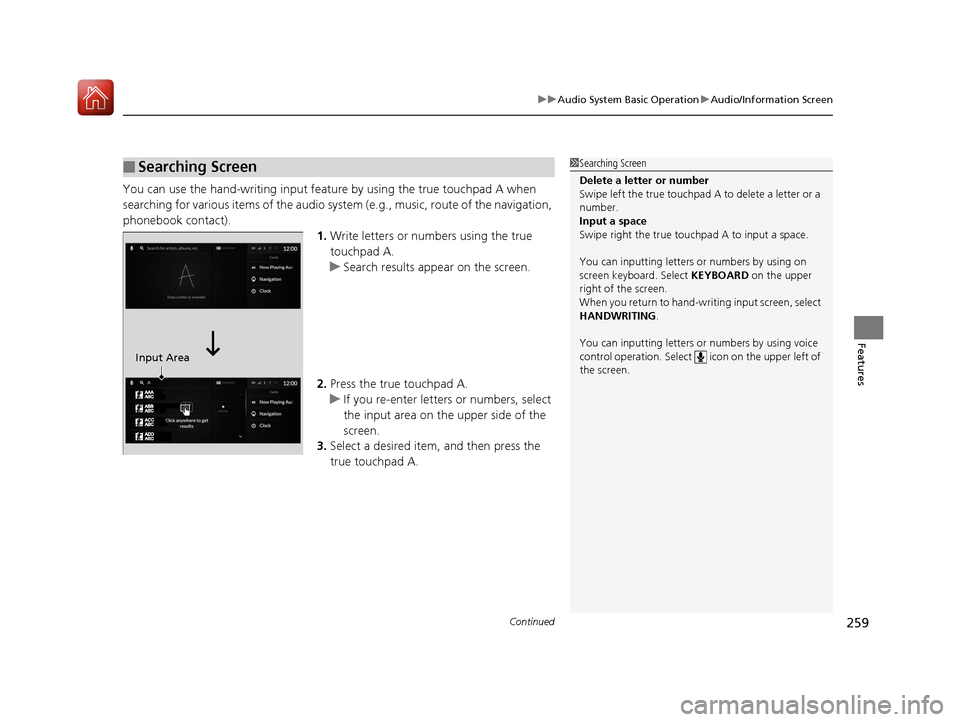
You can use the hand-writing input feature by using the true touchpad A when
searching for various items of the audio system (e.g., music, route of the navigation,
phonebook contact).
1.Write letters or numbers using the true
touchpad A.
u Search results appear on the screen.
2. Press the true touchpad A.
u If you re-enter letters or numbers, select
the input area on the upper side of the
screen.
3. Select a desired item, and then press the
true touchpad A.
■Searching Screen1Searching Screen
Delete a letter or number
Swipe left the true touchpad A to delete a letter or a
number.
Input a space
Swipe right the true touchpad A to input a space.
You can inputting letters or numbers by using on
screen keyboard. Select KEYBOARD on the upper
right of the screen.
When you return to hand-wr iting input screen, select
HANDWRITING.
You can inputting letters or numbers by using voice
control operation. Select icon on th e upper left of
the screen.
Input Area
20 ACURA RDX-31TJB6111.book 259 ページ 2020年2月11日 火曜日 午後2時6分
Page 313 of 657

312
uuAudio Error Messages uApple CarPlay/Android Auto
Features
Apple CarPlay/Android Auto
If an error occurs while us ing the Apple CarPlay or Android Auto, you may see the
following error messages. If you cannot clear the error message, contact a dealer.
Error MessageSolution
Error
Appears when Apple CarPlay or Android Auto fails to recognize your device.
Check if your device is compatible with Apple CarPlay or Android Auto, or the latest
version of the app is installed on your device.
Maximum Number of Apple Carplay
Devices ExceededAppears when the number of stored Apple CarPlay devices or Android Auto devices
exceeds the limitation. Select Replace and Continue and delete a registered device to
connect a new device for the Apple CarPlay connection or Android Auto connection.
Maximum Number of Android Auto
Devices Exceeded
Phone Call ActiveAppears when the Android Auto device becomes connected to USB during an active
Bluetooth ® hands-free phone call.
(connected device name) ConnectedAppears when the paired device is disc onnected from the HFL function. Reconnect
device and try again.
Bluetooth OffAppears when the Bluetooth setting is off. Select Turn Bluetooth On to turn on the
Bluetooth ® feature.
Maximum Number of Bluetooth Devices
ExceededAppears when the number of stored Bluetooth® devices exceeds the limitation.
Select Replace and Continue and delete a registered device to connect a new device
for the Bluetooth ® connection.
Bluetooth Connection ErrorAppears when Bluetooth® connection is failed.
Check the Bluetooth® connection of this audio system and your connected device.
Other Devices Connected to BluetoothAppears when another registered phone is paired with the audio system. Select OK to
select the Android Auto device.
20 ACURA RDX-31TJB6111.book 312 ページ 2020年2月11日 火曜日 午後2時6分
Page 346 of 657
345
uuCustomized Features u
Continued
Features
*1:Default SettingSetup Group Customizable Features
Description Selectable Settings
Connections Bluetooth Options
Turns the Bluetooth® on and off. On
*1/Off
+ Connect New Device Pairs a new phone to HFL.
2
Phone Setup P. 367—
(Saved Devices) Connects, disconnects, or deletes a
paired phone.
2
Phone Setup P. 367
—
20 ACURA RDX-31TJB6111.book 345 ページ 2020年2月11日 火曜日 午後2時6分
Page 367 of 657
366
uuBluetooth ® HandsFreeLink ®u HFL Menus
Features
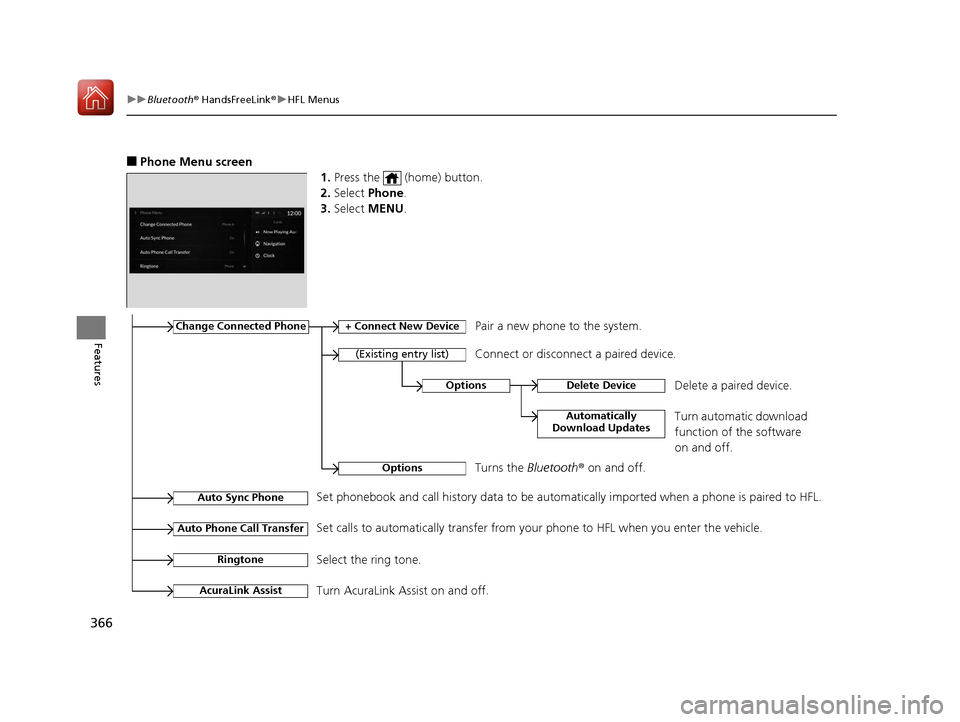
■Phone Menu screen
1.Press the (home) button.
2. Select Phone .
3. Select MENU .
Change Connected Phone+ Connect New DevicePair a new phone to the system.
Connect or disconnect a paired device.
RingtoneSelect the ring tone.
Auto Sync PhoneSet phonebook and call history data to be automa tically imported when a phone is paired to HFL.
Auto Phone Call TransferSet calls to automatically transfer from your phone to HFL when you enter the vehicle.
AcuraLink AssistTurn AcuraLink Assist on and off.
OptionsDelete Device
Automatically
Download Updates
Delete a paired device.
Turn automatic download
function of the software
on and off.
OptionsTurns the Bluetooth® on and off.
(Existing entry list)
20 ACURA RDX-31TJB6111.book 366 ページ 2020年2月11日 火曜日 午後2時6分
Page 371 of 657
uuBluetooth ® HandsFreeLink ®u HFL Menus
370
Features
■To delete a paired phone
1. Go to the Phone Menu screen.
2Phone Menu screen P. 366
2.Select Change Connected Phone .
3. Select a phone you want to delete.
4. Select Options.
5. Select Delete Device .
6. A confirmation message appears on the
screen. Select Delete.
1To delete a paired phone
You can also delete a pair ed phone by the following
procedure.
1. Press the (home) button.
2. Select Settings .
3. Select Connections .
4. Select Bluetooth .
5. Select a phone you want to delete.
6. Select Options .
7. Select Delete Device .
8. A confirmation message appears on the screen.
Select Delete .
20 ACURA RDX-31TJB6111.book 370 ページ 2020年2月11日 火曜日 午後2時6分
Page 375 of 657

uuBluetooth ® HandsFreeLink ®u HFL Menus
374
Features
■To edit a Favorite Contact
1. Go to the phone screen.
2 Phone screen P. 365
2.Select and hold a desired favorite contact.
3. Select the following options:
• Remove Favorite : Delete the favorite
contact.
• Add to Home Page : Add a favorite
contact shortcut icon to the home
screen.
• Add to Heads-Up Display
*: Add a
favorite contact shortcut icon to the
head-up display menu.
4. Press the (back) button on the true
touchpad A.
u The screen will return to the previous
screen.
You can make calls by inputting any phone
number, or by using the imported
phonebook, call history, or Favorite Contact
entries.
■Making a Call1 Making a Call
Once a call is connected, you can hear the voice of
the person you are call ing through the audio
speakers.
While there is an active connection with Apple
CarPlay, phone calls ca nnot be made with
HandsFreeLink ® and are only made from Apple
CarPlay.
* Not available on all models
20 ACURA RDX-31TJB6111.book 374 ページ 2020年2月11日 火曜日 午後2時6分
Page 385 of 657
uuBluetooth ® HandsFreeLink ®u Text Message
384
Features
1. Press the (home) button.
2. Select Messages.
3. Select Inbox.
4. Select a message.
u The message information is displayed.
5. Select View Message .
u The text message is displayed.
■Displaying Messages1Displaying Messages
The icon appears next to an unread message.
If you delete a message on the phone, the message
will also be dele ted from the system. If you send a
message from the system, the message goes to your
phone’s outbox.
To see the previous or next message, select Prev or
Next on the message screen.
Message List
Message
Information
20 ACURA RDX-31TJB6111.book 384 ページ 2020年2月11日 火曜日 午後2時6分
Page 386 of 657

Continued385
uuBluetooth ® HandsFreeLink ®u Text Message
Features
■Read or Stop reading a message
1. Display the message information.
2. Select .
u The system starts reading the message
aloud.
3. Select to stop reading.
Select again to start reading the
message.
u While listen to the message, select to
start reading the message from the
beginning.
■Reply to a message
1. Display the message information.
2. Select Reply.
3. Select the reply message.
u The pop-up menu appears on the screen.
4. Select Send to send the message.
u Message sent appears on the screen
when the reply message was successfully
sent.
1 Reply to a message
The available reply messages are as follows:
•I’m on my way.
•I’m running late.
•No•OK
•Talk to you later, I'm driving.
•Yes
The display language of th e default reply message
depends on the connected phone. 2 To edit a reply message P. 386
You can add or delete a re ply message by selecting
Saved Replies.
2 To edit a reply message P. 386
2 To delete a reply message P. 386
Only certain phones receiv e and send messages when
paired and connected. For a list of compatible
phones:
•U.S.: Visit www.handsfreeli nk.com/Acura, or call 1-
888-528-7876.
•Canada: For more info rmation on smartphone
compatibility, call 1-855-490-7351.
20 ACURA RDX-31TJB6111.book 385 ページ 2020年2月11日 火曜日 午後2時6分