Page 240 of 657

239
uuAudio System uUSB Ports
Continued
Features
USB Ports
Install the device USB connector or the USB flash drive to the USB port.
■In the consol e compartment
The USB port (2.5A) is for charging devices,
playing audio files and connecting compatible
phones with Apple CarPlay or Android Auto. u To prevent any potenti al issues, be sure
to use an Apple MFi Certified Lightning
Connector for Apple CarPlay, and for
Android Auto, the USB cables should be
certified by USB-IF to be compliant with
USB 2.0 Standard.
1 USB Ports
•Do not leave the iPod or USB flash drive in the
vehicle. Direct sunlight and high temperatures may
damage it.
•We recommend using an ex tension cable with the
USB port.
•Do not connect the iPod or USB flash drive using a
hub.
•Do not use a device such as a card reader or hard
disk drive, as the device or your files may be
damaged.
•We recommend backing up yo ur data before using
the device in your vehicle.
•Displayed messages may vary depending on the
device model and software version.
If the audio system does not recognize the iPod, try
reconnecting it a few times or reboot the device. To
reboot, follow the manufac turer’s instructions
provided with the iPod or visit www.apple.com/ipod.
The USB port can supply up to 2.5A of power. It does
not output 2.5A unless the device requests.
For amperage details, read the operating manual of
the device that ne eds to be charged.
Set the power mode to ACCESSORY or ON first.
Under certain condi tions, a device connected to the
port may generate noise in the radio you are listening
to.
USB charge
20 ACURA RDX-31TJB6111.book 239 ページ 2020年2月11日 火曜日 午後2時6分
Page 241 of 657
uuAudio System uUSB Ports
240
Features
■On the front panel
The USB port (2.5A) is only for charging
devices.
■On the back of the console
compartment*
The USB ports (2.5A) are only for charging
devices.
1 On the front panel
This port is for battery charge only. You cannot play
music even if you have connected music players to
them.
Under certain condi tions, a device connected to the
port may generate noise in the radio you are listening
to.
1 On the back of the console compartment*
These ports are for battery charge only. You cannot
play music even if you ha ve connected music players
to them.
Under certain condi tions, a device connected to the
port may generate noise in the radio you are listening
to.
* Not available on all models
20 ACURA RDX-31TJB6111.book 240 ページ 2020年2月11日 火曜日 午後2時6分
Page 303 of 657
302
uuAudio System Basic Operation uApple CarPlay
Features
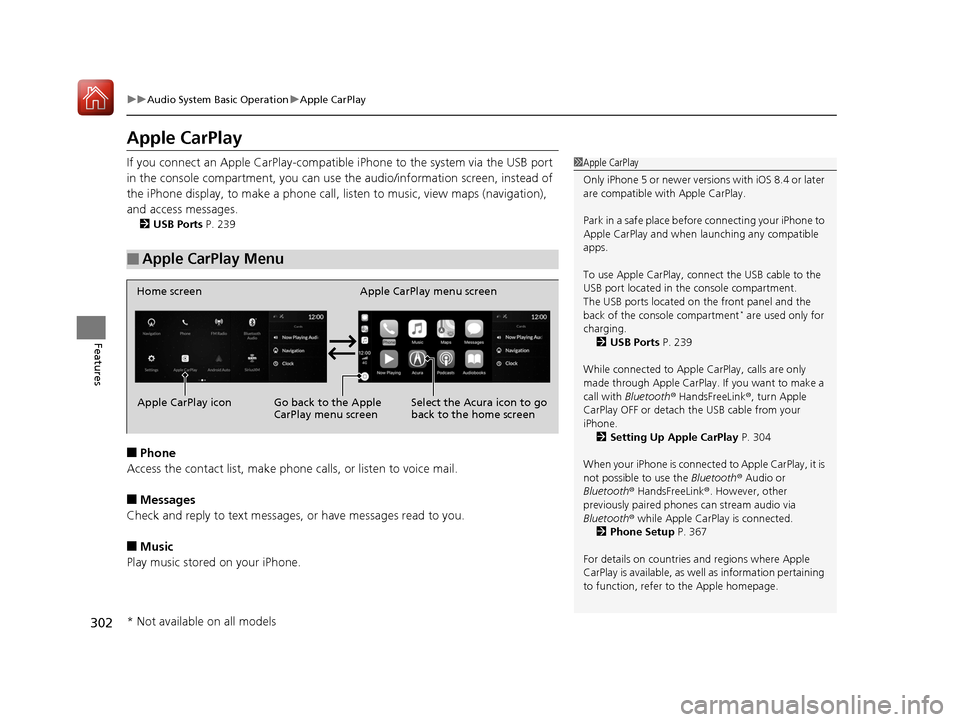
Apple CarPlay
If you connect an Apple CarPlay-compatible iPhone to the system via the USB port
in the console compartment, you can use the audio/information screen, instead of
the iPhone display, to make a phone call, listen to music, view maps (navigation),
and access messages.
2 USB Ports P. 239
■Phone
Access the contact list, make phone calls, or listen to voice mail.
■Messages
Check and reply to text messages, or have messages read to you.
■Music
Play music stored on your iPhone.
■Apple CarPlay Menu
1 Apple CarPlay
Only iPhone 5 or newer versi ons with iOS 8.4 or later
are compatible with Apple CarPlay.
Park in a safe place before connecting your iPhone to
Apple CarPlay and when launching any compatible
apps.
To use Apple CarPlay, connect the USB cable to the
USB port located in the console compartment.
The USB ports located on the front panel and the
back of the console compartment
* are used only for
charging. 2 USB Ports P. 239
While connected to Apple CarPlay, calls are only
made through Apple CarPlay. If you want to make a
call with Bluetooth ® HandsFreeLink ®, turn Apple
CarPlay OFF or detach th e USB cable from your
iPhone.
2 Setting Up Apple CarPlay P. 304
When your iPhone is connected to Apple CarPlay, it is
not possible to use the Bluetooth® Audio or
Bluetooth ® HandsFreeLink ®. However, other
previously paired phones can stream audio via
Bluetooth ® while Apple CarPlay is connected.
2 Phone Setup P. 367
For details on c ountries and regions where Apple
CarPlay is available, as well as information pertaining
to function, refer to the Apple homepage.
Home screen
Apple CarPlay icon Apple CarPlay menu screen
Go back to the Apple
CarPlay menu screen
Select the Acura icon to go
back to the home screen
* Not available on all models
20 ACURA RDX-31TJB6111.book 302 ページ 2020年2月11日 火曜日 午後2時6分
Page 307 of 657

306
uuAudio System Basic Operation uAndroid Auto
Features
Android Auto
When you connect an Android phone to the audio system via the USB port in the
console compartment, Android Auto is auto matically initiated. When connected via
Android Auto, you can use the audio/information screen to access the Phone,
Google Maps (Navigation), Google Play Music, and Google Now functions. When
you first use Android Auto, a tuto rial will appear on the screen.
We recommend that you complete this tuto rial while safely parked before using
Android Auto.
2 USB Ports P. 239
2 Auto Pairing Connection P. 308
1Android Auto
To use Android Auto, you need to download the
Android Auto app from Google Play to your
smartphone.
Only Android 5.0 (Lollipop) or later versions are
compatible with Android Auto.
Bluetooth A2DP cannot be used with Android Auto
phone.
Park in a safe place befo re connecting your Android
phone to Android Auto and when launching any
compatible apps.
To use Android Auto, connect the USB cable to the
USB port located in the console compartment. The
USB ports located on the front panel and the back of
the console compartment
* are used only for
charging.
2 USB Ports P. 239
When your Android phone is connected to Android
Auto, it is not possible to use the Bluetooth® Audio.
However, other previously paired phones can stream
audio via Bluetooth ® while Android Auto is
connected. 2 Phone Setup P. 367
* Not available on all models
20 ACURA RDX-31TJB6111.book 306 ページ 2020年2月11日 火曜日 午後2時6分
