Page 382 of 505
381
5
12
8
6
13
14
15
9
7
10
11
1
1
1
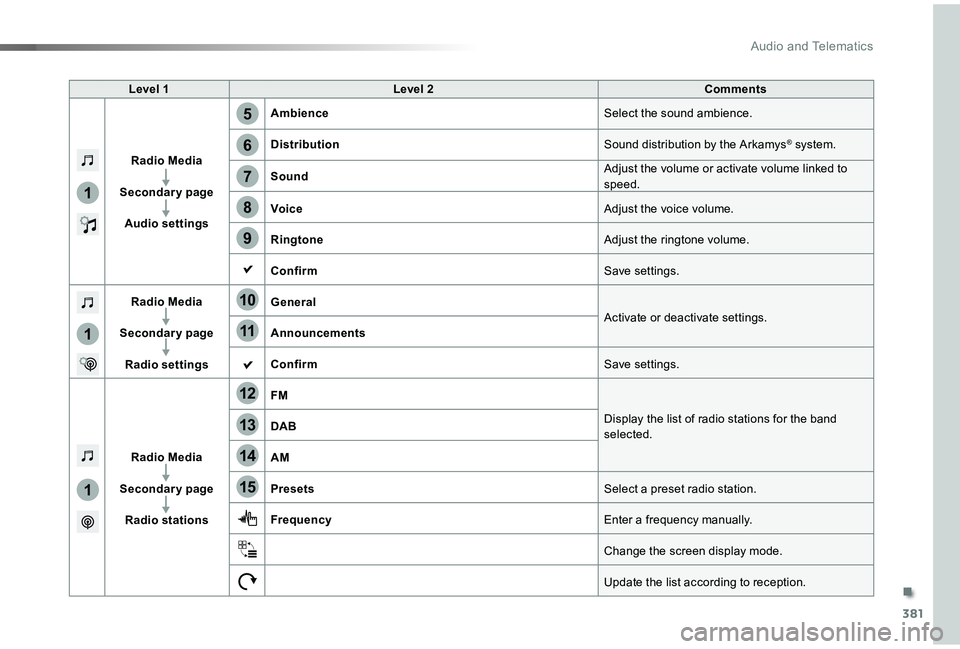
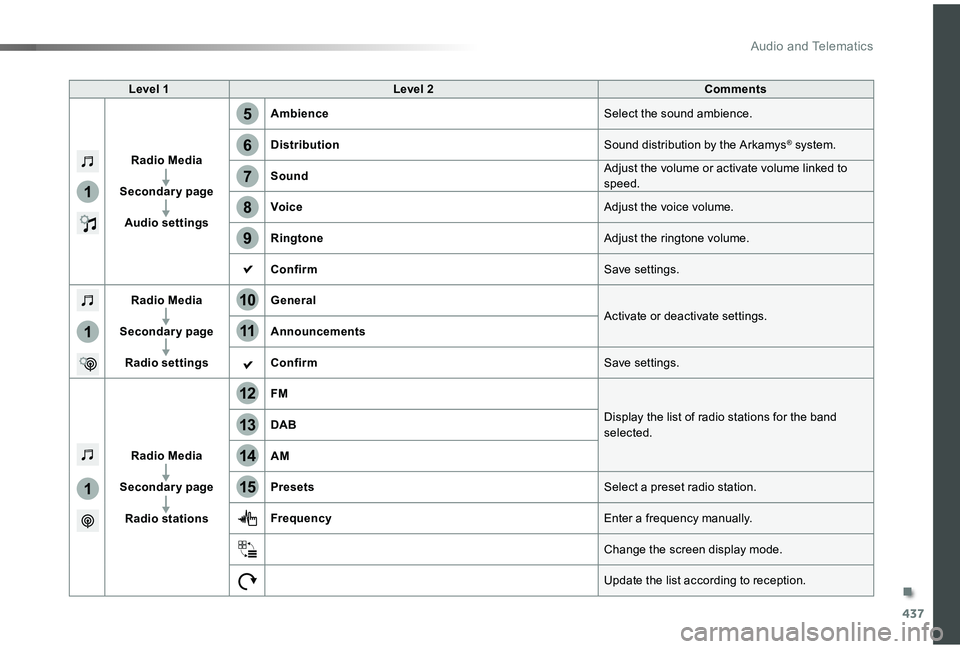
Level 1Level 2Comments
Radio Media
Secondary page
Audio settings
AmbienceSelect the sound ambience.
DistributionSound distribution by the Arkamys® system.
SoundAdjust the volume or activate volume linked to speed.
VoiceAdjust the voice volume.
RingtoneAdjust the ringtone volume.
ConfirmSave settings.
Radio Media
Secondary page
Radio settings
GeneralActivate or deactivate settings.Announcements
ConfirmSave settings.
Radio Media
Secondary page
Radio stations
FM
Display the list of radio stations for the band selected.DAB
AM
PresetsSelect a preset radio station.
FrequencyEnter a frequency manually.
Change the screen display mode.
Update the list according to reception.
.
Audio and Telematics
Page 385 of 505
384
1
2
2
2
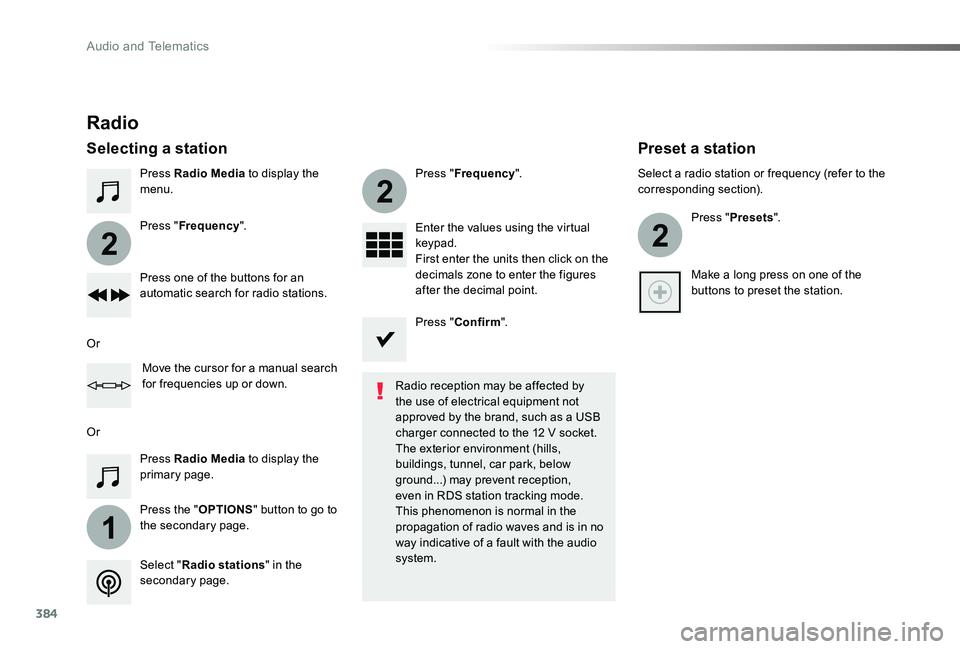
Press Radio Media to display the menu.
Press the "OPTIONS" button to go to the secondary page.
Press "Frequency".
Press "Frequency".
Enter the values using the virtual keypad.First enter the units then click on the decimals zone to enter the figures after the decimal point.Press one of the buttons for an automatic search for radio stations.
Press Radio Media to display the primary page.
Radio
Selecting a station
Radio reception may be affected by the use of electrical equipment not approved by the brand, such as a USB charger connected to the 12 V socket.The exterior environment (hills, buildings, tunnel, car park, below ground...) may prevent reception, even in RDS station tracking mode. This phenomenon is normal in the propagation of radio waves and is in no way indicative of a fault with the audio system.Select "Radio stations" in the secondary page.
Or
Or
Move the cursor for a manual search for frequencies up or down.
Select a radio station or frequency (refer to the corresponding section).
Press "Presets".
Make a long press on one of the buttons to preset the station.
Preset a station
Press "Confirm".
Audio and Telematics
Page 387 of 505
386
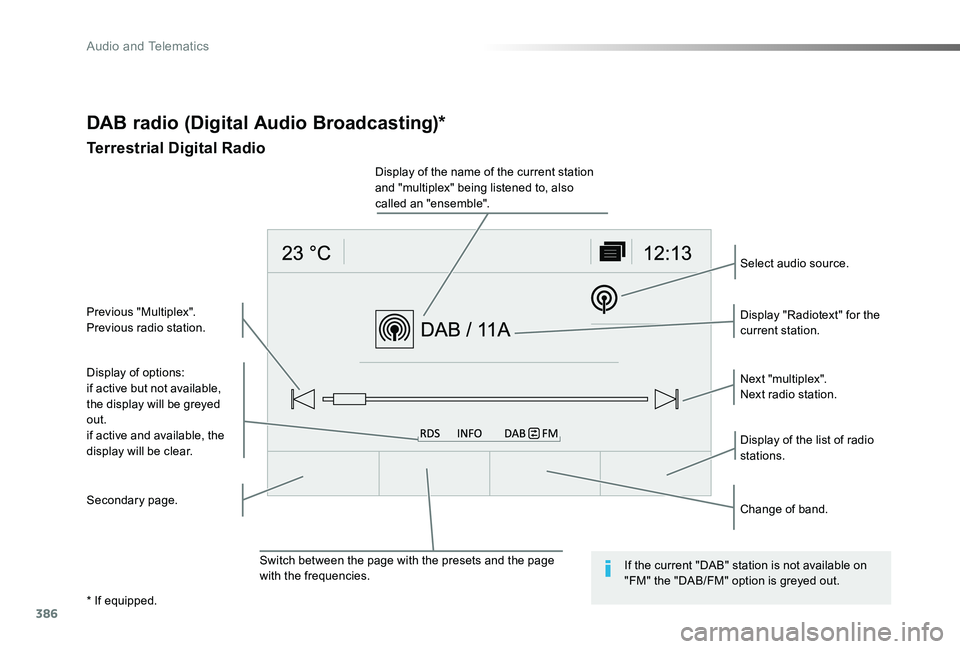
Display of options:if active but not available, the display will be greyed out.if active and available, the display will be clear.
Display "Radiotext" for the current station.
Switch between the page with the presets and the page with the frequencies.
Change of band.
Display of the name of the current station and "multiplex" being listened to, also called an "ensemble".
Display of the list of radio stations.
Next "multiplex".Next radio station.
Secondary page.
Select audio source.
Previous "Multiplex".Previous radio station.
DAB radio (Digital Audio Broadcasting)*
Terrestrial Digital Radio
If the current "DAB" station is not available on "FM" the "DAB/FM" option is greyed out.
* If equipped.
Audio and Telematics
Page 422 of 505
421
12:13
23 °C531 kHz
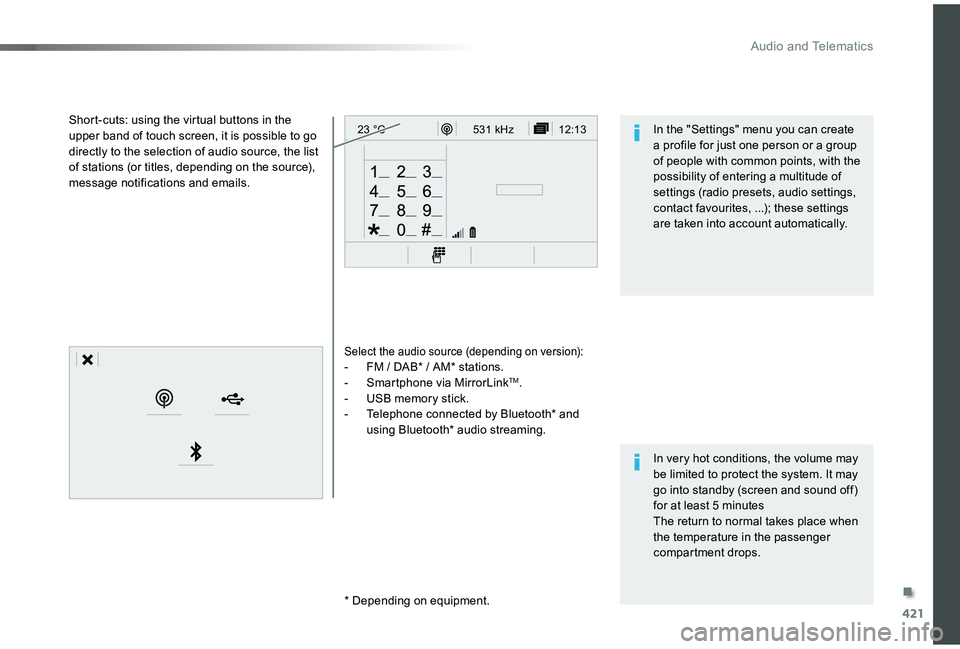
Select the audio source (depending on version):- FM / DAB* / AM* stations.- Smartphone via MirrorLinkTM.- USB memory stick.- Telephone connected by Bluetooth* and using Bluetooth* audio streaming.
* Depending on equipment.
Short-cuts: using the virtual buttons in the upper band of touch screen, it is possible to go directly to the selection of audio source, the list of stations (or titles, depending on the source), message notifications and emails.
In very hot conditions, the volume may be limited to protect the system. It may go into standby (screen and sound off) for at least 5 minutesThe return to normal takes place when the temperature in the passenger compartment drops.
In the "Settings" menu you can create a profile for just one person or a group of people with common points, with the possibility of entering a multitude of settings (radio presets, audio settings, contact favourites, ...); these settings are taken into account automatically.
.
Audio and Telematics
Page 423 of 505
422
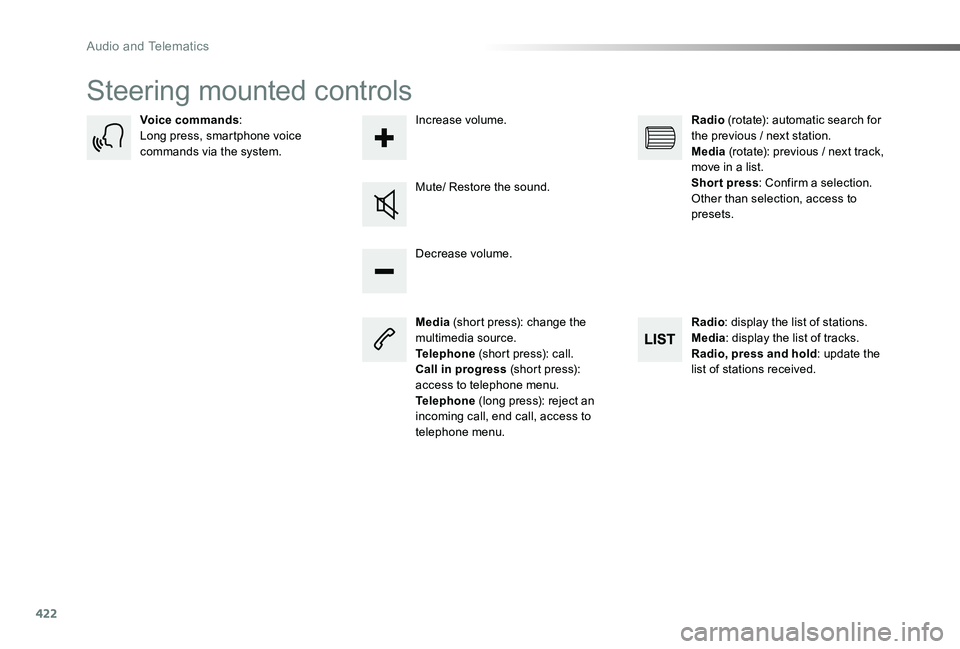
Steering mounted controls
Media (short press): change the multimedia source.Telephone (short press): call.Call in progress (short press): access to telephone menu.Telephone (long press): reject an incoming call, end call, access to telephone menu.
Decrease volume.
Voice commands:Long press, smartphone voice commands via the system.
Mute/ Restore the sound.
Radio (rotate): automatic search for the previous / next station.Media (rotate): previous / next track, move in a list.Short press: Confirm a selection. Other than selection, access to presets.
Radio: display the list of stations.Media: display the list of tracks.Radio, press and hold: update the list of stations received.
Increase volume.
Audio and Telematics
Page 436 of 505
435
3
2
4
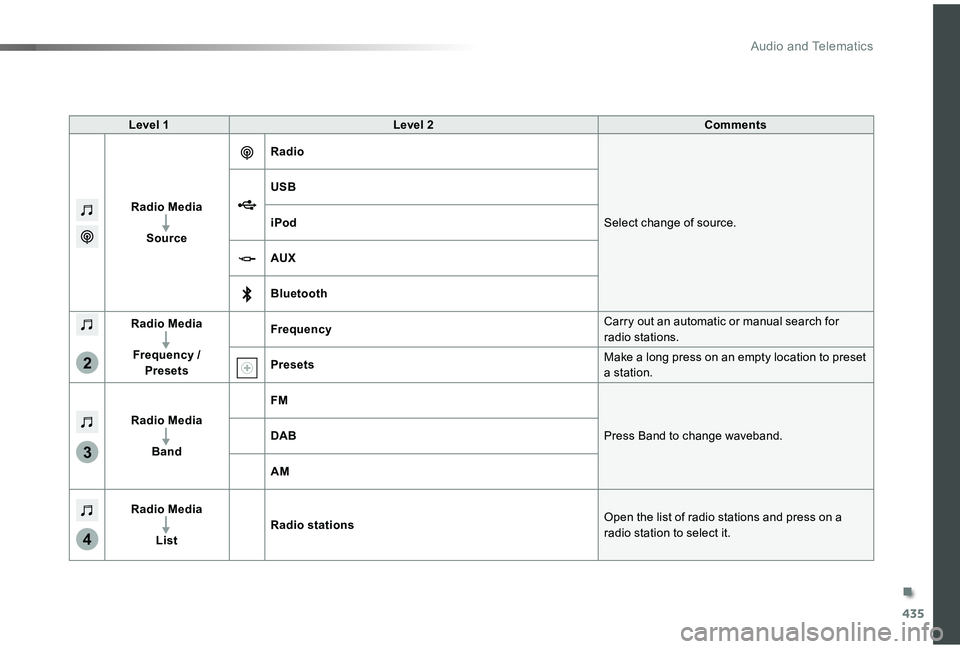
Level 1Level 2Comments
Radio Media
Source
Radio
Select change of source.
USB
iPod
AUX
Bluetooth
Radio Media
Frequency / Presets
FrequencyCarry out an automatic or manual search for radio stations.
PresetsMake a long press on an empty location to preset a station.
Radio Media
Band
FM
Press Band to change waveband.DAB
AM
Radio Media
ListRadio stationsOpen the list of radio stations and press on a radio station to select it.
.
Audio and Telematics
Page 438 of 505
437
1
1
1
5
12
8
6
13
14
15
9
7
10
11
Level 1Level 2Comments
Radio Media
Secondary page
Audio settings
AmbienceSelect the sound ambience.
DistributionSound distribution by the Arkamys® system.
SoundAdjust the volume or activate volume linked to speed.
VoiceAdjust the voice volume.
RingtoneAdjust the ringtone volume.
ConfirmSave settings.
Radio Media
Secondary page
Radio settings
GeneralActivate or deactivate settings.Announcements
ConfirmSave settings.
Radio Media
Secondary page
Radio stations
FM
Display the list of radio stations for the band selected.DAB
AM
PresetsSelect a preset radio station.
FrequencyEnter a frequency manually.
Change the screen display mode.
Update the list according to reception.
.
Audio and Telematics
Page 441 of 505
440
1
2
2
2
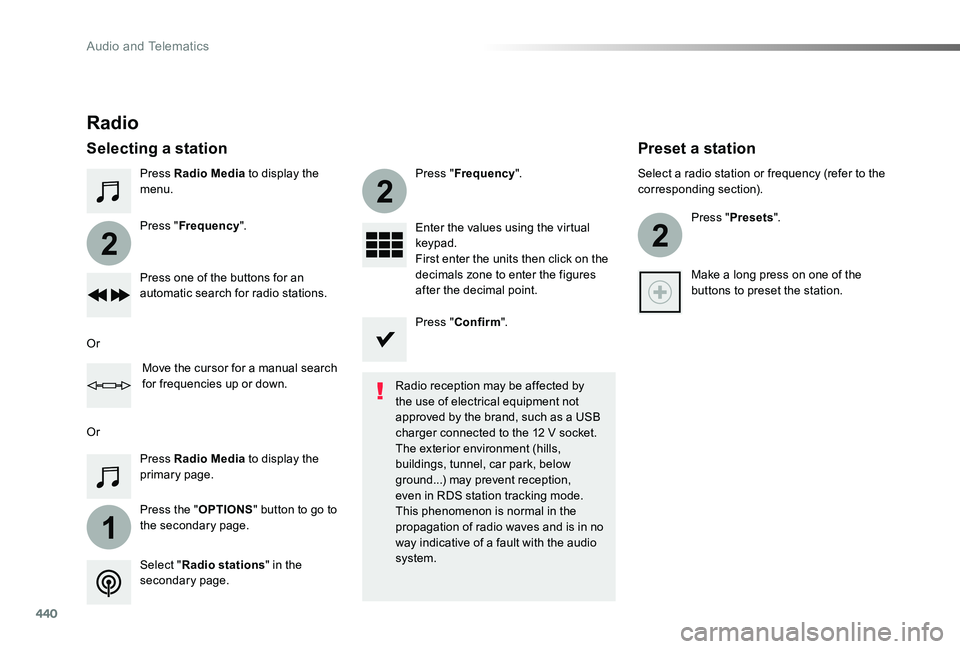
Press Radio Media to display the menu.
Press the "OPTIONS" button to go to the secondary page.
Press "Frequency".
Press "Frequency".
Enter the values using the virtual keypad.First enter the units then click on the decimals zone to enter the figures after the decimal point.Press one of the buttons for an automatic search for radio stations.
Press Radio Media to display the primary page.
Radio
Selecting a station
Radio reception may be affected by the use of electrical equipment not approved by the brand, such as a USB charger connected to the 12 V socket.The exterior environment (hills, buildings, tunnel, car park, below ground...) may prevent reception, even in RDS station tracking mode. This phenomenon is normal in the propagation of radio waves and is in no way indicative of a fault with the audio system.Select "Radio stations" in the secondary page.
Or
Or
Move the cursor for a manual search for frequencies up or down.
Select a radio station or frequency (refer to the corresponding section).
Press "Presets".
Make a long press on one of the buttons to preset the station.
Preset a station
Press "Confirm".
Audio and Telematics