2019 TOYOTA PROACE CITY VERSO android auto
[x] Cancel search: android autoPage 218 of 272
218
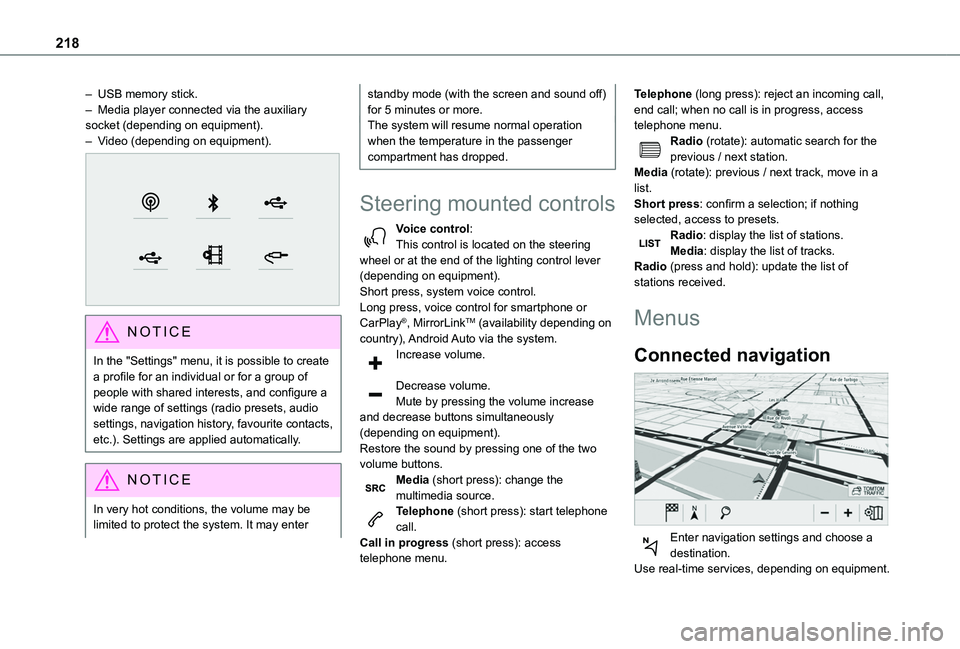
– USB memory stick.– Media player connected via the auxiliary socket (depending on equipment).– Video (depending on equipment).
NOTIC E
In the "Settings" menu, it is possible to create a profile for an individual or for a group of people with shared interests, and configure a wide range of settings (radio presets, audio settings, navigation history, favourite contacts, etc.). Settings are applied automatically.
NOTIC E
In very hot conditions, the volume may be limited to protect the system. It may enter
standby mode (with the screen and sound off) for 5 minutes or more.The system will resume normal operation when the temperature in the passenger compartment has dropped.
Steering mounted controls
Voice control:This control is located on the steering wheel or at the end of the lighting control lever (depending on equipment).Short press, system voice control.Long press, voice control for smartphone or CarPlay®, MirrorLinkTM (availability depending on country), Android Auto via the system.Increase volume.
Decrease volume.Mute by pressing the volume increase and decrease buttons simultaneously (depending on equipment).
Restore the sound by pressing one of the two volume buttons.Media (short press): change the multimedia source.Telephone (short press): start telephone call.Call in progress (short press): access telephone menu.
Telephone (long press): reject an incoming call, end call; when no call is in progress, access telephone menu.Radio (rotate): automatic search for the previous / next station.Media (rotate): previous / next track, move in a list.Short press: confirm a selection; if nothing selected, access to presets.Radio: display the list of stations.Media: display the list of tracks.Radio (press and hold): update the list of stations received.
Menus
Connected navigation
Enter navigation settings and choose a
destination.Use real-time services, depending on equipment.
Page 219 of 272
219
TOYOTA Connect Nav
12
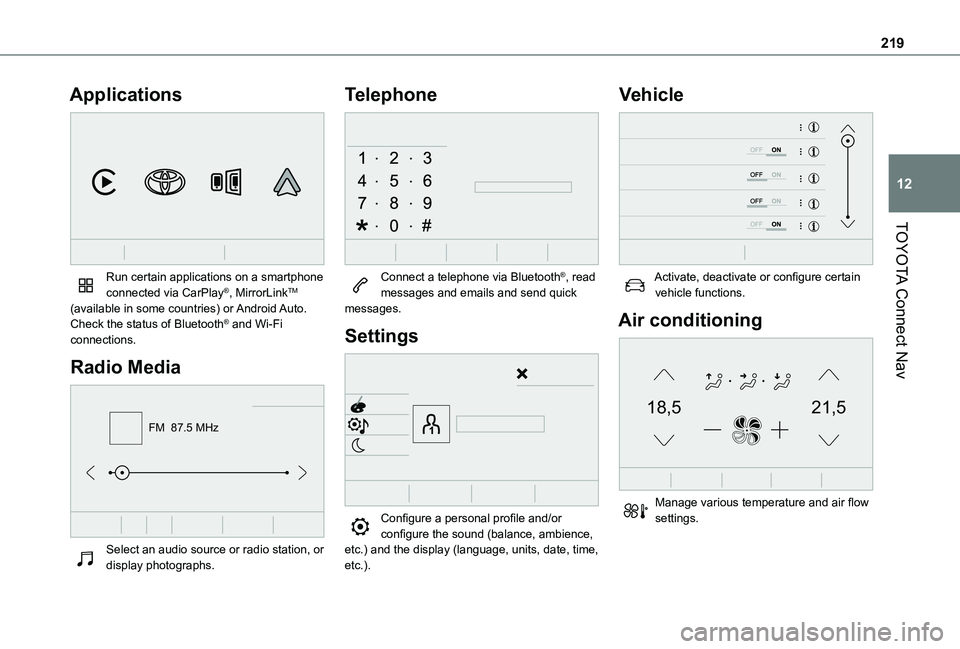
Applications
Run certain applications on a smartphone connected via CarPlay®, MirrorLinkTM (available in some countries) or Android Auto.Check the status of Bluetooth® and Wi-Fi connections.
Radio Media
FM 87.5 MHz
Select an audio source or radio station, or display photographs.
Telephone
Connect a telephone via Bluetooth®, read messages and emails and send quick messages.
Settings
Configure a personal profile and/or configure the sound (balance, ambience,
etc.) and the display (language, units, date, time, etc.).
Vehicle
Activate, deactivate or configure certain vehicle functions.
Air conditioning
21,518,5
Manage various temperature and air flow settings.
Page 229 of 272
229
TOYOTA Connect Nav
12
Applications
USB ports
Depending on equipment, for more information on the USB ports compatible with CarPlay®, MirrorLinkTM or Android Auto applications, refer to the "Ease of use and comfort" section.
NOTIC E
For the list of suitable smartphones, visit the Brand's national website.
NOTIC E
Synchronising a smartphone enables users to display applications that support the smartphone’s MirrorLinkCarPlay®, TM or Android Auto technology on the vehicle’s screen. For CarPlay® technology, the CarPlay® function must first be activated on the smartphone.In all cases, the smartphone must be unlocked, to enable the communication process between the smartphone and the system to function.As principles and standards are constantly changing, we recommend keeping the smartphone's operating system up-to-
date, together with the date and time on the smartphone and the system.
Connectivity
Press Applications to display the main page.Press "Connectivity" to access the CarPlay®, MirrorLinkTM or Android Auto functions.
CarPlay® smartphone
connection
Connect a USB cable. The smartphone charges when connected by a USB cable.Press "Telephone" to display the CarPlay® interface.OrConnect a USB cable. The smartphone charges when connected by a USB cable.From the system, press "Applications" to display the main page.Press "Connectivity" to access the "CarPlay®” function.Press "CarPlay" to display the CarPlay® interface.
NOTIC E
On connecting the USB cable, the CarPlay® function deactivates the system's Bluetooth® mode.
NOTIC E
When the USB cable is disconnected and the ignition is switched off then back on, the
system will not automatically switch to Radio Media mode; the source must be changed manually.
MirrorLinkTM smartphone
connection
NOTIC E
The "MirrorLinkTM" function requires a compatible smartphone and compatible applications.You can check that your telephone is compatible on the Brand's website (services).
When connecting a smartphone to the system, we recommend enabling Bluetooth® on the smartphone.Connect a USB cable. The smartphone charges when connected by a USB cable.From the system, press "Applications" to display the main page.Press "Connectivity" to access the "MirrorLinkTM” function.Press "MirrorLinkTM" to start the application in the system.Depending on the smartphone, it may be necessary to activate the "MirrorLinkTM" function.During the procedure, several screen pages relating to certain features are displayed.
Page 230 of 272
230
Accept to start and complete the connection.Once the connection is established, a page is displayed, showing the applications already downloaded to the smartphone that are compatible with MirrorLinkTM technology.Access to the different audio sources remains available in the margin of the MirrorLinkTM display, using the touch buttons located in the upper bar.Access to the menus for the system is possible at any time using the dedicated buttons.
NOTIC E
There may be a pause before applications become available, depending on the quality of the network.
Android Auto smartphone
connection
NOTIC E
Install the "Android Auto" application on the smartphone via "Google Play".The "Android Auto" function requires the use of a compatible smartphone and applications.
Connect a USB cable. The smartphone
charges when connected by a USB cable.From the system, press "Applications" to display the main page.
Press "Connectivity" to access the "Android Auto” function.Press "Android Auto" to start the application in the system.During the procedure, several screen pages relating to certain features are displayed.Accept to start and complete the connection.Access to the different audio sources remains available in the margin of the Android Auto display, using the touch buttons located in the upper bar.Access to the menus for the system is possible at any time using the dedicated buttons.
NOTIC E
In Android Auto mode, the function that displays rolling menus by briefly pressing the screen with three fingers is disabled.
NOTIC E
There may be a pause before applications become available, depending on the quality of the network.
Car Apps
Press Applications to display the main page.Press "Car Apps" to display the applications home page.
Internet Browser
Press Applications to display the main page.Press "Connectivity" to access the "Connected Apps” function.Press "Connected Apps" to display the browser home page.Select the country of residence.
Press "OK" to save and start the browser.
NOTIC E
Connection to the internet is via one of the network connections provided by the vehicle or the user.
Bluetooth connection®
WARNI NG
The services available depend on the network, the SIM card and the compatibility of the Bluetooth devices used. Consult the smartphone user guide and the service provider to check which services are available.
Page 244 of 272
244
A
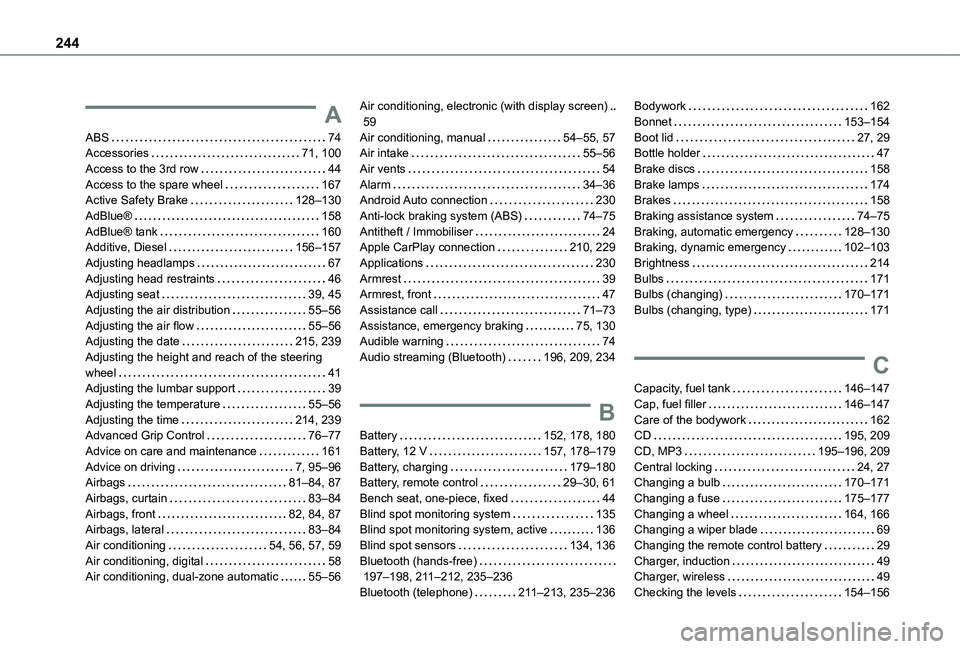
ABS 74Accessories 71, 100Access to the 3rd row 44Access to the spare wheel 167Active Safety Brake 128–130AdBlue® 158AdBlue® tank 160Additive, Diesel 156–157Adjusting headlamps 67Adjusting head restraints 46Adjusting seat 39, 45Adjusting the air distribution 55–56Adjusting the air flow 55–56Adjusting the date 215, 239Adjusting the height and reach of the steering wheel 41Adjusting the lumbar support 39Adjusting the temperature 55–56Adjusting the time 214, 239Advanced Grip Control 76–77
Advice on care and maintenance 161Advice on driving 7, 95–96Airbags 81–84, 87Airbags, curtain 83–84Airbags, front 82, 84, 87Airbags, lateral 83–84Air conditioning 54, 56, 57, 59Air conditioning, digital 58Air conditioning, dual-zone automatic 55–56
Air conditioning, electronic (with display screen) 59Air conditioning, manual 54–55, 57Air intake 55–56Air vents 54Alarm 34–36Android Auto connection 230Anti-lock braking system (ABS) 74–75Antitheft / Immobiliser 24Apple CarPlay connection 210, 229Applications 230Armrest 39Armrest, front 47Assistance call 71–73Assistance, emergency braking 75, 130Audible warning 74Audio streaming (Bluetooth) 196, 209, 234
B
Battery 152, 178, 180
Battery, 12 V 157, 178–179Battery, charging 179–180Battery, remote control 29–30, 61Bench seat, one-piece, fixed 44Blind spot monitoring system 135Blind spot monitoring system, active 136Blind spot sensors 134, 136Bluetooth (hands-free) 197–198, 2 11–212, 235–236Bluetooth (telephone) 2 11–213, 235–236
Bodywork 162Bonnet 153–154Boot lid 27, 29Bottle holder 47Brake discs 158Brake lamps 174Brakes 158Braking assistance system 74–75Braking, automatic emergency 128–130Braking, dynamic emergency 102–103Brightness 214Bulbs 171Bulbs (changing) 170–171Bulbs (changing, type) 171
C
Capacity, fuel tank 146–147Cap, fuel filler 146–147Care of the bodywork 162CD 195, 209
CD, MP3 195–196, 209Central locking 24, 27Changing a bulb 170–171Changing a fuse 175–177Changing a wheel 164, 166Changing a wiper blade 69Changing the remote control battery 29Charger, induction 49Charger, wireless 49Checking the levels 154–156