2019 RAM CHASSIS CAB instrument panel
[x] Cancel search: instrument panelPage 390 of 607

388 IN CASE OF EMERGENCY
F80 – 10 Amp Red Universal Garage Door Opener / Compass /
Anti-Intrusion Module (DS 1500 Only)
ASSY Overhead Console / SW Assist / SW 911 – If
Equipped (HD Only)
F81 – 20 Amp Yellow Trailer Tow Right Turn / Stop Lights - If Equipped
F82 – 10 Amp Red Steering Column Control Module / Cruise Control
F83 – – No Connection
F84 – 15 Amp Blue ASBM / HVAC / ICS / Rear Heated Seat Switches
F85 – 10 Amp Red Airbag Module
F86 – 10 Amp Red Airbag Module
F87 – 10 Amp Red Air Suspension / ITBM / Steering Column Control
Module / MOD Gateway CAN-C Trailer TPM (HD
Only)
Air Suspension / Trailer Tow / DC/DC Converter
(Voltage Stabilizer) / Steering Column Control Module
/ Occupant Classification Sensor (DS 1500 Only)
F88 – 15 Amp Blue Instrument Panel Cluster
F90/F91 – 20 Amp Yellow IGN or BATT Customer Selectable – If Equipped
(HD Only)
Power Outlet (Rear Seats) Customer Selectable (DS 1500
Only)
F93 – 20 Amp Yellow Cigar Lighter - If EquippedCavity Cartridge Fuse Micro Fuse Description
Page 392 of 607

390 IN CASE OF EMERGENCY
(Continued)JACKING AND TIRE CHANGING F102 – 20 Amp Yellow Rear Heated Seat Left / Run RLY #3 Coil (HD Only)
F103 – 10 Amp Red HeadLamp AFLS (HD Only)
F104 – 20 Amp Yellow Power Outlets (Instrument Panel / Center Console) /
Trunk – If Equipped (DS 1500 Only)
UCI Port / USB Rear (HD Only)Cavity Cartridge Fuse Micro Fuse Description
CAUTION!
• When installing the power distribution center cover, it
is important to ensure the cover is properly positioned
and fully latched. Failure to do so may allow water to
get into the power distribution center and possibly
result in an electrical system failure.
• When replacing a blown fuse, it is important to use
only a fuse having the correct amperage rating. The use
of a fuse with a rating other than indicated may result
in a dangerous electrical system overload. If a properly
rated fuse continues to blow, it indicates a problem in
the circuit that must be corrected. WARNING!
• Do not attempt to change a tire on the side of the vehicle
close to moving traffic. Pull far enough off the road to
avoid the danger of being hit when operating the jack
or changing the wheel.
• Being under a jacked-up vehicle is dangerous. The
vehicle could slip off the jack and fall on you. You
could be crushed. Never put any part of your body
under a vehicle that is on a jack. If you need to get
under a raised vehicle, take it to a service center where
it can be raised on a lift.
• Never start or run the engine while the vehicle is on a
jack.
Page 412 of 607

410
SERVICING AND MAINTENANCESCHEDULED SERVICING
Your vehicle is equipped with an automatic oil change indicator
system. The oil change indicator system will remind you that it
is time to take your vehicle in for scheduled maintenance.
Based on engine operation conditions, the oil change indi -
cator message will illuminate. This means that service is
required for your vehicle. Operating conditions such as
frequent short-trips, trailer tow, extremely hot or cold
ambient temperatures, and E85 fuel usage will influence
when the “Oil Change Required” message is displayed.
Severe Operating Conditions can cause the change oil
message to illuminate as early as 3,500 miles (5,600 km) since
last reset. Have your vehicle serviced as soon as possible,
within the next 500 miles (805 km).
Your authorized dealer will reset the oil change indicator
message after completing the scheduled oil change. If a sched -
uled oil change is performed by someone other than your autho -
rized dealer, the message can be reset by referring to the steps
described under “Instrument Cluster Display” in “Getting To
Know Your Instrument Panel” for further information. Gasoline Engines:
Under no circumstances should oil change intervals exceed
8,000 miles (13,000 km), twelve months or 350 hours of
engine run time, whichever comes first. The 350 hours of
engine run or idle time is generally only a concern for fleet
customers.
Severe Duty:
Change Engine Oil at 4,000 miles (6,500 km) or 350 hours of
engine run time if the vehicle is operated in a dusty and off
road environment or is operated predominately at idle or
very low engine RPM’s. This type of vehicle use is consid -
ered Severe Duty.
Page 477 of 607

475
TECHNICAL SPECIFICATIONSIDENTIFICATION DATA
Vehicle Identification Number
The Vehicle Identification Number (VIN) is found on the left
front corner of the instrument panel, visible through the
windshield. This number also appears on the vehicle frame
etched on right hand center rail, as well as the Automobile
Information Disclosure Label affixed to a window on your
vehicle, the vehicle registration and title.
Vehicle Identification Number
NOTE:
It is illegal to remove or alter the VIN.
8
Page 491 of 607

MULTIMEDIA 489
The risk of unauthorized and unlawful access to your vehicle
systems may still exist, even if the most recent version of
vehicle software (such as Uconnect software) is installed. NOTE:
• FCA US LLC or your dealer may contact you directly
regarding software updates.
• To help further improve vehicle security and minimize the
potential risk of a security breach, vehicle owners should:
• Routinely check www.driveuconnect.com (U.S. Resi -
dents) or www.driveuconnect.ca (Canadian Residents)
to learn about available Uconnect software updates.
• Only connect and use trusted media devices (e.g.
personal mobile phones, USBs, CDs).
Privacy of any wireless and wired communications cannot
be assured. Third parties may unlawfully intercept informa -
tion and private communications without your consent. For
further information, refer to “Data Collection & Privacy” in
your Uconnect Owner’s Manual Supplement or “Onboard
Diagnostic System (OBD II) Cybersecurity” in “Getting To
Know Your Instrument Panel”.WARNING!
• It is not possible to know or to predict all of the
possible outcomes if your vehicle’s systems are
breached. It may be possible that vehicle systems,
including safety related systems, could be impaired or
a loss of vehicle control could occur that may result in
an accident involving serious injury or death.
• ONLY insert media (e.g., USB, SD card, or CD) into
your vehicle if it came from a trusted source. Media of
unknown origin could possibly contain malicious soft -
ware, and if installed in your vehicle, it may increase
the possibility for vehicle systems to be breached.
• As always, if you experience unusual vehicle behavior,
take your vehicle to your nearest authorized dealer
immediately.
9
Page 492 of 607
490 MULTIMEDIA
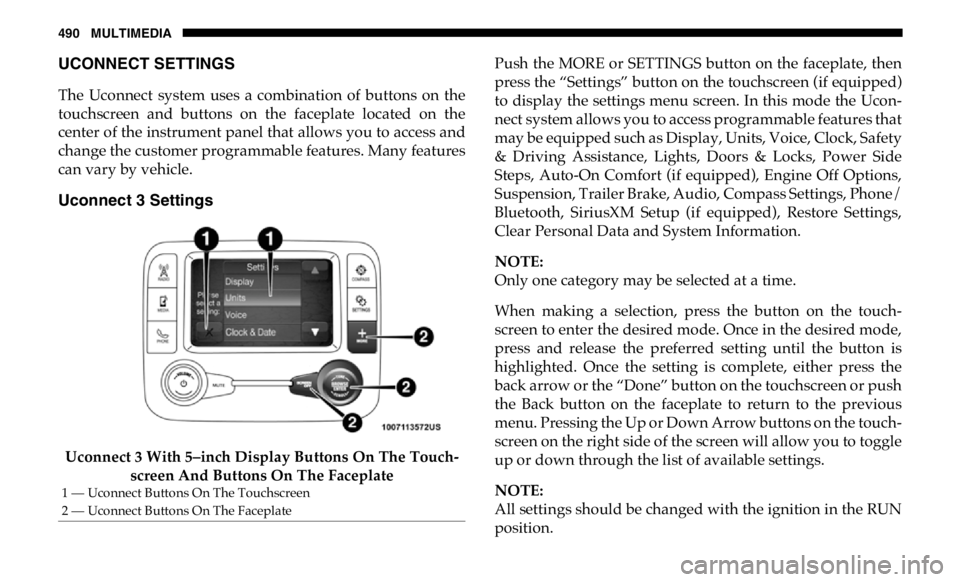
UCONNECT SETTINGS
The Uconnect system uses a combination of buttons on the
touchscreen and buttons on the faceplate located on the
center of the instrument panel that allows you to access and
change the customer programmable features. Many features
can vary by vehicle.
Uconnect 3 Settings
Uconnect 3 With 5–inch Display Buttons On The Touch -
screen And Buttons On The Faceplate Push the MORE or SETTINGS button on the faceplate, then
press the “Settings” button on the touchscreen (if equipped)
to display the settings menu screen. In this mode the Ucon -
nect system allows you to access programmable features that
may be equipped such as Display, Units, Voice, Clock, Safety
& Driving Assistance, Lights, Doors & Locks, Power Side
Steps, Auto-On Comfort (if equipped), Engine Off Options,
Suspension, Trailer Brake, Audio, Compass Settings, Phone/
Bluetooth, SiriusXM Setup (if equipped), Restore Settings,
Clear Personal Data and System Information.
NOTE:
Only one category may be selected at a time.
When making a selection, press the button on the touch -
screen to enter the desired mode. Once in the desired mode,
press and release the preferred setting until the button is
highlighted. Once the setting is complete, either press the
back arrow or the “Done” button on the touchscreen or push
the Back button on the faceplate to return to the previous
menu. Pressing the Up or Down Arrow buttons on the touch -
screen on the right side of the screen will allow you to toggle
up or down through the list of available settings.
NOTE:
All settings should be changed with the ignition in the RUN
position.1 — Uconnect Buttons On The Touchscreen
2 — Uconnect Buttons On The Faceplate
Page 506 of 607

504 MULTIMEDIA
Compass Settings — If Equipped
After pressing the “Compass Settings” button on the touchscreen, the following settings will be available:
Setting Name Selectable Options
Variance 1 2 3 4 5 6 7 8 9 10 11 12 13 14 15
NOTE:
• Compass Variance is the difference between Magnetic North and Geographic North. To compensate for the differences the
variance should be set for the zone where the vehicle is driven, per the zone map. Once properly set, the compass will auto -
matically compensate for the differences, and provide the most accurate compass heading.
• Keep magnetic materials away from the top of the instrument panel, such as iPod's, Mobile Phones, Laptops and Radar
Detectors. This is where the compass module is located, and it can cause interference with the compass sensor, and it may
give false readings.
Perform Compass
Calibration On Off
NOTE:
Press the “Calibration” button on the touchscreen to change this setting. This compass is self-calibrating, which eliminates
the need to manually reset the compass. When the vehicle is new, the compass may appear erratic until it is calibrated. You
may also calibrate the compass by pressing the “ON” button on the touchscreen and completing one or more 360-degree
turns (in an area free from large metal or metallic objects). The compass will now function normally.
Page 553 of 607

MULTIMEDIA 551
Media Mode
Pushing the top of the switch once will go to the next track
on the selected media (AUX/USB/Bluetooth/CD). Pushing
the bottom of the switch once goes to the beginning of the
current track, or to the beginning of the previous track if it is
within eight seconds after the current track begins to play.
IPOD/USB/MP3 CONTROL — IF EQUIPPED
Located on the center stack, just below the instrument panel,
is the main media hub. There are four total USB Ports : Two
Mini-USBs (Type C) and two Standard USBs (Type A). There
is also an AUX Port located in the middle of the USB Ports.
All four of the USB Ports include a USB Trident and a numer -
ical value one through three, which indicates that the vehicle
can support three fully-functioning USB Ports at a time. Each
USB Port will support media and charging simultaneously.
NOTE:
• The Type C USB port is the primary media port for the
radio. Two devices can be plugged in at the same time and
both ports provide charging capabilities, but only one port
can transfer data to the head unit at a time.
• Both ports share a single data connection. However, the
user cannot switch between Type A or Type C. For example, if a device is plugged into the Type A USB port
and another device is plugged into the Type C port, connec -
tion to the Type A port will be lost. Alternatively, if a device
is plugged into the Type C port and another device is
plugged into the Type A port, the Type C device maintains
primary connection.
Center Stack USB/AUX Media Hub 1 — Standard USB Type A Port #1
2 — AUX Port
3 — Standard USB Type A Port #2
9