2019 Peugeot Partner Mirror screen
[x] Cancel search: Mirror screenPage 138 of 312

136
- obsolete or incorrect mapping,
- h idden road signs (other vehicles,
vegetation, snow),
-
s
peed limit signs that do not conform to the
standard, are damaged or distorted.
If an app on your smart phone is used
via Mirror Screen, the sign displayed by
the system may be temporarily hidden. It
will be redisplayed as soon as you pass
another sign.
Recommendation
For more information on the Speed
limiter , Cruise control or Adaptive
cruise control , refer to the corresponding
sections.
Steering mounted controls
1. Select speed limiter/cruise control mode.
2. Memorise a speed setting.
Display in the instrument panel
3.Speed limit indication.
4. Offer to memorise the speed.
5. Current speed setting.
Memorising the speed
On detection of a sign offering a new speed
limit, the system displays the value and MEM
flashes for a few seconds to offer to make it a
new speed setting.
In addition to Speed Limit recognition and
recommendation , the driver can keep the
speed displayed as a speed setting for the
speed limiter or cruise control using the speed
limiter or cruise control stalk storage button. If there is a difference of less than 6
mph
(10
km/h) between the speed setting and
the speed displayed by the Speed Limit
recognition and recommendation, the
MEM symbol is not displayed.
Depending on the road conditions, several
speeds may be displayed.
F
M
ake an initial press on button 2 to request
saving of the speed suggested.
A message is displayed to confirm the request.
F
P
ress button 2 again to confirm and save
the new speed setting.
After a predetermined period, the screen
returns to the current display.
Extended Traffic Sign
Recognition
F Switch on the speed limiter/cruise control.
Speed limiter/cruise control information is
displayed.
Driving
Page 165 of 312

163
Malfunction
If a fault occurs when shifting to
reverse, this warning lamp comes on
in the instrument panel, accompanied
by a message and an audible signal
(short beep).
Contact a PEUGEOT dealer or a qualified
workshop to have the system checked.
Reversing camera
With the ignition on, this system uses a camera
located near the third brake lamp to display a
view of the rear of your vehicle on the output
screen (if it is a panel van or has a solid
partition).
The reversing camera is activated automatically
when reverse gear is engaged. The image is
displayed on the output screen. The output
screen switches off when the gearbox is in
neutral or in a for ward gear. The blue lines 1 represent the general direction
of the vehicle (the gap corresponds to the width
of your vehicle with the mirrors).
The red line 2 represents a distance of about
30
cm beyond the edge of your vehicle's rear
b u m p e r.
The green lines 3 represent distances of
about 1 and 2
metres beyond the edge of your
vehicle's rear bumper.
The turquoise blue curves 4 represent the
maximum turning circle.
The reversing camera is a driving aid which
cannot, in any circumstances, replace the
need for vigilance on the part of the driver.
Some objects may not be seen by the
camera. Certain vehicles may be difficult to see
(dark colours, headlamps off) when the
brightness of the screen is reduced by the
vehicle’s lighting dimmer.
The image quality may be affected by the
environment, the exterior conditions (rain,
dirt, dust), the driving mode, the lighting
conditions (night, low sun).
In the presence of areas in shade, or in
conditions of bright sunlight or inadequate
lighting, the image may be darkened and
with lower contrast.
Obstacles may appear further away than
they actually are in reality.
During parking manoeuvres and lane
changes, it is important to check the sides
of the vehicle using the mirrors.
The rear parking sensors also provide
information on the vehicle's surroundings.
6
Driving
Page 167 of 312

165
The blue dimension lines 1 represent the width
of your vehicle with the mirrors unfolded.
The red line 2 represents a distance of 30 cm
from the rear bumper; the two green lines 3 and
4 represent 1
m and 2 m, respectively.
The blue cur ves 5 appear successively; they
are based on the position of the steering wheel
and represent the turning circle radius of your
vehicle.
The orange dashes 6 represent the opening
radii of the rear doors. - The
visual reversing aid : allows a view of
the area close to the rear of the vehicle. Some items may not be seen by the rear
camera.
Certain vehicles may be difficult to see
(dark colours, headlamps off) when the
brightness of the screen is reduced by the
vehicle’s lighting dimmer.
The image quality may be affected by the
environment, the exterior conditions (rain,
dirt, dust), the driving mode, the lighting
conditions (night, low sun).
In the presence of areas in shade, or in
conditions of bright sunlight or inadequate
lighting, the image may be darkened and
with lower contrast.Obstacles may appear further away than
they actually are in reality.
During parking manoeuvres and lane
changes, it is important to check the sides
of the vehicle using the mirrors.
The rear parking sensors also provide
information on the vehicle's surroundings.
Activation/Deactivation
The system starts when the ignition is switched
on.
This system is a driving aid which cannot,
in any circumstances, replace the need for
vigilance on the part of the driver.
Please routinely check your exterior
mirrors while driving and during
manoeuvres.
F
W
ith the ignition on, press the
corresponding button below the screen to
switch the output screen on/off.
A message appears.
6
Driving
Page 204 of 312

202
Fuse No.Rating (A) Functions
F1 10Wireless smartphone charger, electrochrome interior mirror.
F4 15Horn.
F6 20Screenwash pump.
F7 1012
V socket (rear).
F10 30Electric locks module.
F13 10Telematics and radio controls.
F14 5Alarm, overload indicator, advanced telematic unit.
F19 3Trailer inter face unit.
F22 3Surround Rear Vision display screen.
F23 5Generic trailer interface unit.
F27 5Additional heating.
F29 20Audio system, touch screen.
F32 1512
V socket (front).
F34 5Mirrors control.
F36 5USB port.
For more information on installing a
towbar or equipment of the TA XI type,
contact a PEUGEOT dealer.
Dashboard fuses
The fusebox is placed in the lower dashboard
(left-hand side).
Access to the fuses
F Unclip the cover by pulling at the top left,
then right.
The fuses described below vary according to
the equipment in your vehicle.
In the event of a breakdown
Page 249 of 312
11
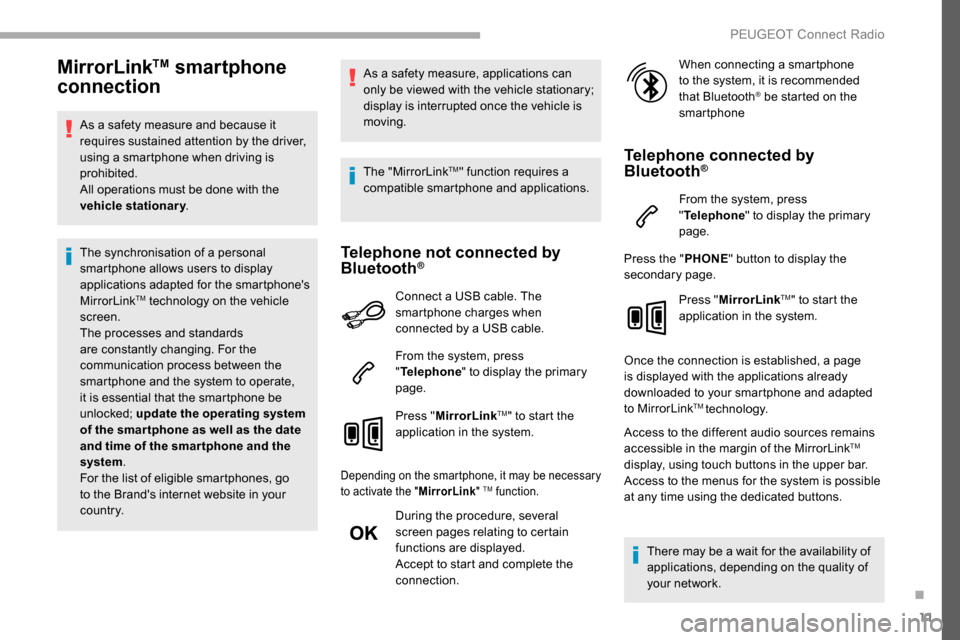
MirrorLinkTM smartphone
connection
As a safety measure and because it
requires sustained attention by the driver,
using a smartphone when driving is
prohibited.
All operations must be done with the
vehicle stationary .
The synchronisation of a personal
smartphone allows users to display
applications adapted for the smartphone's
MirrorLink
TM technology on the vehicle
sc
reen.
The processes and standards
are constantly changing. For the
communication process between the
smartphone and the system to operate,
it is essential that the smartphone be
unlocked; update the operating system
of the smar tphone as well as the date
and time of the smar tphone and the
system .
For the list of eligible smartphones, go
to the Brand's internet website in your
c o u nt r y. As a safety measure, applications can
only be viewed with the vehicle stationary;
display is interrupted once the vehicle is
moving.
The "MirrorLink
TM" function requires a
compatible smartphone and applications.
Telephone not connected by
Bluetooth®
Connect a USB cable. The
smartphone charges when
connected by a USB cable.
From the system, press
" Telephone " to display the primary
page.
Press " MirrorLink
TM" to start the
application in the system.
Depending on the smartphone, it may be necessary
to activate the " MirrorLink" TM function.
During the procedure, several
screen pages relating to certain
functions are displayed.
Accept to start and complete the
connection. When connecting a smartphone
to the system, it is recommended
that Bluetooth
® be started on the
smartphone
Telephone connected by
Bluetooth®
From the system, press
" Telephone " to display the primary
page.
Press the " PHONE" button to display the
secondary page.
Press "MirrorLink
TM" to start the
application in the system.
Once the connection is established, a page
is displayed with the applications already
downloaded to your smartphone and adapted
to MirrorLink
TM technology.
Access to the different audio sources remains
accessible in the margin of the MirrorLink
TM
display, using touch buttons in the upper bar.
Access to the menus for the system is possible
at any time using the dedicated buttons.
There may be a wait for the availability of
applications, depending on the quality of
your network.
.
PEUGEOT Connect Radio
Page 279 of 312

19
The synchronisation of a personal
smartphone allows users to display
applications compatible with the
smartphone's CarPlay
® technology on the
v
ehicle screen when the smartphone's
CarPlay
® function has been previously
activated.
As the processes and standards are
constantly changing, it is recommended
that you keep your smar tphone's
operating system updated .
For the list of eligible smartphones, go
to the Brand's internet website in your
c o u nt r y.
Connect a USB cable. The
smartphone charges when
connected by a USB cable.
Press on " Telephone " to display the
CarPlay
® inter face.
Or Connect a USB cable. The
smartphone charges when
connected by a USB cable.
From the system, press
"Applications " to display the
primary page.
Press " Connectivity " to go to the CarPlay
®
function. Press "
CarPlay " to display the
CarPlay
® inter face.
On connecting the USB cable, the
CarPlay
® function deactivates the
system's Bluetooth® mode.
MirrorLinkTM smartphone
connection
Available depending on the country of sale.
As a safety measure and because it
requires sustained attention by the driver,
using a smartphone when driving is
prohibited.
All operations must be done with the
vehicle stationary . The synchronisation of a personal
smartphone allows users to display
applications adapted for the smartphone's
MirrorLink
TM technology on the vehicle
sc
reen.
The processes and standards
are constantly changing. For the
communication process between the
smartphone and the system to operate,
it is essential that the smartphone be
unlocked; update the operating system
of the smar tphone as well as the date
and time of the smar tphone and the
system .
For the list of eligible smartphones, go
to the Brand's internet website in your
c o u nt r y.
As a safety measure, applications can
only be viewed with the vehicle stationary;
display is interrupted once the vehicle is
moving.
The MirrorLink
TM function requires the
use of a compatible smartphone and
applications.
When connecting a smartphone
to the system, it is recommended
that Bluetooth
® be started on the
smartphone
.
PEUGEOT Connect Nav
Page 280 of 312
20
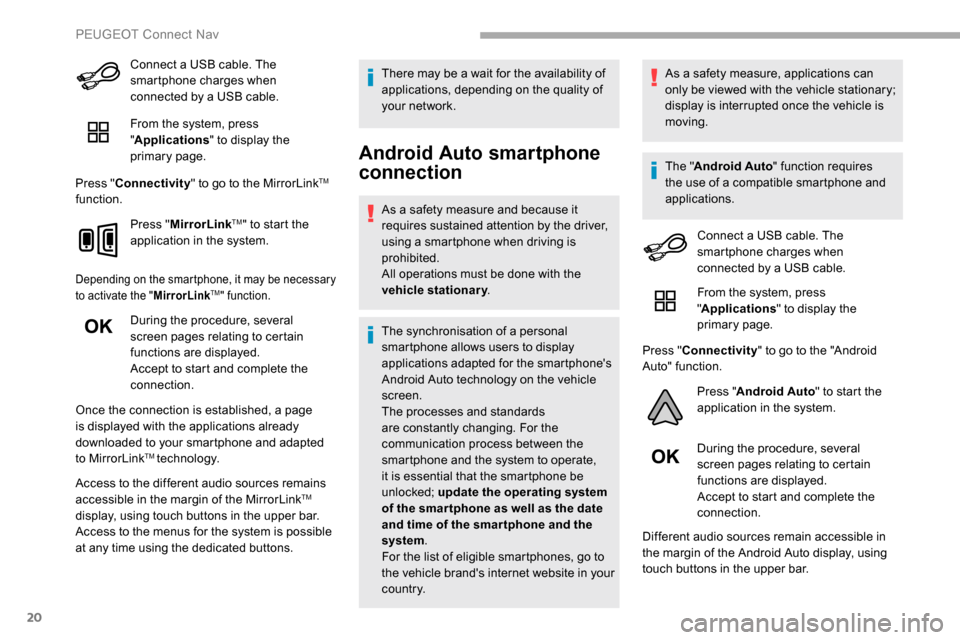
Connect a USB cable. The
smartphone charges when
connected by a USB cable.
From the system, press
"Applications " to display the
primary page.
Press " Connectivity " to go to the MirrorLink
TM
function.
Press "MirrorLink
TM" to start the
application in the system.
Depending on the smartphone, it may be necessary
to activate the " MirrorLinkTM" function.
During the procedure, several
screen pages relating to certain
functions are displayed.
Accept to start and complete the
connection.
Once the connection is established, a page
is displayed with the applications already
downloaded to your smartphone and adapted
to MirrorLink
TM technology.
Access to the different audio sources remains
accessible in the margin of the MirrorLink
TM
display, using touch buttons in the upper bar.
Access to the menus for the system is possible
at any time using the dedicated buttons. There may be a wait for the availability of
applications, depending on the quality of
your network.
Android Auto smartphone
connection
As a safety measure and because it
requires sustained attention by the driver,
using a smartphone when driving is
prohibited.
All operations must be done with the
vehicle stationary
.
The synchronisation of a personal
smartphone allows users to display
applications adapted for the smartphone's
Android Auto technology on the vehicle
screen.
The processes and standards
are constantly changing. For the
communication process between the
smartphone and the system to operate,
it is essential that the smartphone be
unlocked; update the operating system
of the smar tphone as well as the date
and time of the smar tphone and the
system .
For the list of eligible smartphones, go to
the vehicle brand's internet website in your
c o u nt r y. As a safety measure, applications can
only be viewed with the vehicle stationary;
display is interrupted once the vehicle is
moving.
The "
Android Auto " function requires
the use of a compatible smartphone and
applications.
Connect a USB cable. The
smartphone charges when
connected by a USB cable.
From the system, press
"Applications " to display the
primary page.
Press " Connectivity " to go to the "Android
Auto" function.
Press "Android Auto " to start the
application in the system.
During the procedure, several
screen pages relating to certain
functions are displayed.
Accept to start and complete the
connection.
Different audio sources remain accessible in
the margin of the Android Auto display, using
touch buttons in the upper bar.
PEUGEOT Connect Nav
Page 303 of 312

221
Hill Assist Descent Control (HADC) ....26 , 102-103Hill Descent Control ...............................102-103
Hill start assist ........................................ 124 -125
Horn ................................................................. 97
IIdentification, vehicle .................................... 217
Ignition ................ .............................. 11 9 -12 0, 29
Ignition on ...................................................... 120
Immobiliser, electronic
......................44, 47 , 120
Indicator, AdBlue
® range ................................. 31
Indicator, coolant temperature ..................28-30
Indicator, engine oil level
................................ 30
Indicator lamps, operation
................... 1
5 -16, 85
Indicator lamps, status
.................................... 15
I
ndicators, direction
........................................ 86
Inflating tyres
................................................ 183
Inflating tyres and accessories (using the kit)
................................................. 189, 191
Instrument panel
............................................. 11
Instrument panels
........................................... 29
Internet browser
.............................................. 21
JJack .........................................................191, 25
Jump starting ................................................ 204
KKey ................................................ 37, 39 , 42, 47
Key, electronic ......................................... 37, 120
Keyless Entry and Starting .................
3 7- 4 0, 42, 44 , 47- 4 8 , 11 8 -11 9
Key with remote control
......................37,
42, 44
Kit, hands-free
..................... 1
0 -11, 13 -14 , 27-2 8
Kit, temporary puncture repair
....... 18
8 -189, 191
LLabels ................................................................ 4
Labels, identification ..................................... 217
Lamps, front
........................................... 197-19 9
Lamps, parking
............................................... 87
Lamps, rear
................................................... 19 9
Lane departure warning active
............... 20,
15 3
LEDs - Light-emitting diodes
..........................87
Level, brake fluid
........................................... 18 0
Level, Diesel additive
.............................181-182
Level, engine coolant
........................28-30, 18 0
Level, engine oil
.............................. 30, 179 -18 0
Levels and checks
..............................
...178 -181
Level, screenwash fluid
...................92,
18 0 -181
Light-emitting diodes - LEDs
..........................87
Lighting
............................................................ 85
Lighting, cornering
.................................... 90 -91
Lighting, directional
......................................... 90
Lighting, guide-me home
................................88
Lighting, welcome
........................................... 88
Loading
................................................... 68, 17 7
Load reduction mode
.................................... 17 7
Load restraint
...............................
...................67
Locating your vehicle
...................................... 44
Locking
...............................
.................37, 42 , 47
Locking from the inside
.............................48-49
Low fuel level
......................................... 17
1-172
Lumbar
............................................................ 60
MMarkings, identification .................................217
Mat .................................................... 64-65, 11 8
Memorising a speed
..............................1
4 9 -15 0
Menu
............................................................... 12
Menu, main
....................................................... 4
M
enus (audio) ........................................ 4-5, 4-5
Messages
........................................................ 30
Messages, quick
............................................. 3
0
Mirror, rear view
.............................................. 58
Mirrors, door ......................... 57- 5 8, 79, 157-15 8
Misfuel prevention
......................................... 172
MP3 CD
............................................................. 9
NNumber plate lamps ...................................... 200
OObstacle detection ........................................ 160
Oil change .............................................. 17
9 -18 0
Oil consumption
..................................... 179 -18 0
Oil, engine
.............................................. 179 -18 0
On-board tools
....................................... 187-188
Opening the bonnet
...............................17 7-178
Opening the boot
............................................ 37
Opening the doors
.......................................... 37
Opening the fuel filler flap
.............................171
Overhead storage
........................................... 65
O
verload indicator
........................................... 21
.
Alphabetical index