2019 Peugeot 508 start with key
[x] Cancel search: start with keyPage 129 of 320
127
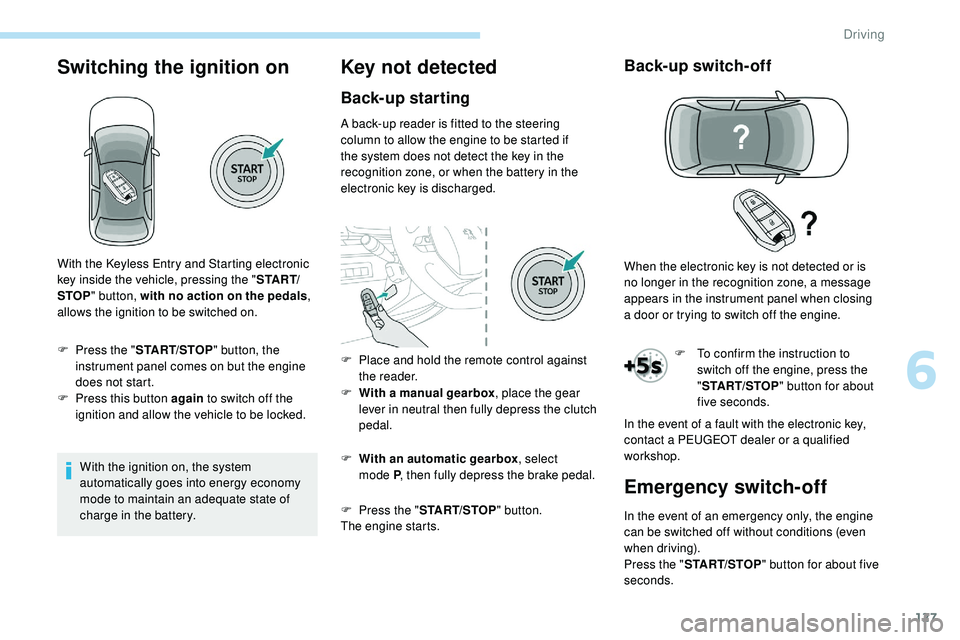
Switching the ignition on
With the ignition on, the system
automatically goes into energy economy
mode to maintain an adequate state of
charge in the battery.
Key not detected
Back-up starting
A back-up reader is fitted to the steering
column to allow the engine to be started if
the system does not detect the key in the
recognition zone, or when the battery in the
electronic key is discharged.
F
W
ith a manual gearbox , place the gear
lever in neutral then fully depress the clutch
pedal.
F
W
ith an automatic gearbox , select
mode
P, then fully depress the brake pedal.
F
P
ress the " START/STOP " button.
The engine starts.
Back-up switch-off
F To confirm the instruction to switch off the engine, press the
"START/STOP " button for about
five seconds.
With the Keyless Entry and Starting electronic
key inside the vehicle, pressing the "
S TA R T/
STOP " button, with no action on the pedals ,
allows the ignition to be switched on.
F
P
ress the "
START/STOP " button, the
instrument panel comes on but the engine
does not start.
F
P
ress this button again to switch off the
ignition and allow the vehicle to be locked. F
P
lace and hold the remote control against
the reader. When the electronic key is not detected or is
no longer in the recognition zone, a message
appears in the instrument panel when closing
a
door or trying to switch off the engine.
In the event of a fault with the electronic key,
contact a PEUGEOT dealer or a qualified
workshop.
Emergency switch-off
In the event of an emergency only, the engine
can be switched off without conditions (even
when driving).
Press the " START/STOP " button for about five
seconds.
6
Driving
Page 140 of 320

138
Choice of a mode
When the message goes off, the selected
mode is activated and remains indicated in the
instrument panel (except for "Normal" mode). ECO, Comfor t, Normal, Spor t, Manual.
Pressing the control displays the modes in the
instrument panel.
Gear shift indicator
Operation
Depending on the driving situation and your
vehicle's equipment, the system may advise
you to skip one (or more) gear(s). You can
follow this instruction without engaging the
intermediate gears.
Gear efficiency recommendations are for
information only. In fact, the road layout, the
traffic density and safety remain the deciding
factors when choosing the best gear. The driver
therefore remains responsible for deciding
whether or not to follow the indications issued
by the system.
This function cannot be deactivated.With an automatic gearbox, the system is
only active in manual mode. The information appears in the
instrument panel in the form of an
ascending or descending arrow and
a recommended gear.
The system adapts its gear efficiency
recommendation according to the driving
conditions (slope, load, etc.) and the
driver’s requirements (power, acceleration,
b r a k i n g , e t c .) .
The system never suggests:
-
e
ngaging first gear,
-
enga
ging reverse gear.
Stop & Start
The Stop & Start system puts the engine
t emporarily into standby – STOP mode – during
stops in the traffic (red lights, traffic jams, etc.).
The engine restarts automatically – START
mode – as soon as you want to move off.
The restart takes place instantly, quickly and
silently.
Per fect for urban use, the Stop & Start system
reduces fuel consumption and exhaust
emissions as well as the noise level when
stationary.
Never refuel with the engine in STOP
mode; you must switch off the ignition with
the key or the " START/STOP" button.
Operation
Going into engine STOP mode
This indicator lamp comes on in the
instrument panel and the engine
goes into standby automatically:
-
w
ith a manual gearbox, at a speed below
2 mph (3
km/h), when you place the gear
lever in neutral and release the clutch pedal,
-
w
ith an automatic gearbox:
Depending on version, the choice of
a driving mode is also managed by
the i-Cockpit® Amplify
function;
refer to the corresponding section.
System which reduces fuel consumption by
recommending the most appropriate gear.
Driving
Page 214 of 320

212
In the event of an AdBlue® breakdown,
confirmed by the message "Add AdBlue:
Starting impossible", you must top up with
at least 5 litres.
Never pour AdBlue
® into the Diesel fuel
tank.
If any AdBlue
® is splashed, or if there are
any spillages on the side of the body, rinse
immediately with cold water or wipe with a
damp cloth.
If the fluid has crystallised, clean it off
using a sponge and hot water.
Important: in the event of a top-up after
an AdBlue breakdown, you must wait
about five minutes before switching on the
ignition, without opening the driver's
door, unlocking the vehicle or bringing
the electronic key into the passenger
compartment.
Switch on the ignition, then wait for
10
seconds before starting the engine.
F
W
ith Keyless Entry and Starting, press the
" START/STOP " button to switch off the
engine. F
O btain an AdBlue® container. After first
checking the use-by date, read the
instructions on the label carefully before
pouring the contents of the container into
your vehicle's AdBlue tank.
Or
F
I
nsert the AdBlue
® pump nozzle and refill
the tank until the nozzle stops automatically. Important:
-
T
o avoid over flowing the AdBlue
® tank,
i
t is recommended:
•
T
o top up between 10 and 13 litres
using AdBlue
® containers.
Or
•
T
hat you stop after the nozzle’s first
automatic cut-out if you are refilling
at a ser vice station.
-
I
f your vehicle's AdBlue
® tank is
completely empty – which is confirmed
by the alert messages and the
impossibility of starting the engine –
you must add at least 5 litres.
After refilling
F Refit the blue cap to the tank filler and turn it 1/6 of a turn clockwise, to its stop.
F
C
lose the fuel filler flap.
Do not dispose of AdBlue
® containers in
the household waste.
Place them in a suitable container or
take them to your dealer.
F
W
ith the vehicle unlocked and the fuel filler
flap open, turn the blue cap of the AdBlue
®
tank 1/6 of a turn anti-clockwise.
F
R
elease the blue cap.
Practical information
Page 281 of 320
13
Select "My destinations ".
Select the " Recent" tab.
Select the address chosen in the list to display
the " Guidance criteria ".
Press " OK" to start navigation.
Select " Position " to visualise the arrival
point geographically.
To "My home" or "My work"
Press Navigation to display the
primary page.
Press the " MENU" button to go to the
secondary page.
Select "My destinations ".
Select the " Preferred" tab.
Select " My home ".
Or Select "My work ".
Or
Select a preset favourite destination.
Towards a contact
Press Navigation to display the
primary page.
Press the " MENU" button to go to the
secondary page.
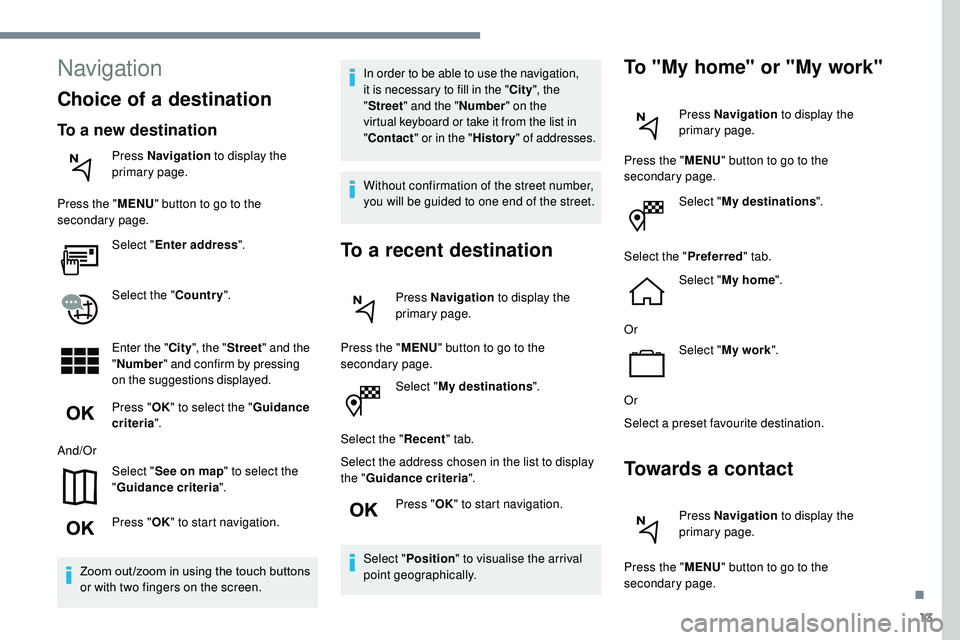
Navigation
Choice of a destination
To a new destination
Press Navigation to display the
primary page.
Press the " MENU" button to go to the
secondary page.
Select "Enter address ".
Select the " Country".
Enter the " City", the " Street " and the
" Number " and confirm by pressing
on the suggestions displayed.
Press " OK" to select the " Guidance
criteria ".
And/Or Select "See on map " to select the
" Guidance criteria ".
Press " OK" to start navigation.
Zoom out /zoom in using the touch buttons
or with two fingers on the screen. In order to be able to use the navigation,
it is necessary to fill in the "
City", the
" Street " and the " Number" on the
virtual keyboard or take it from the list in
" Contact " or in the " History" of addresses.
Without confirmation of the street number,
you will be guided to one end of the street.
To a recent destination
Press Navigation to display the
primary page.
Press the " MENU" button to go to the
secondary page.
.
Page 282 of 320
14
Select "My destinations ".
Select the " Contact" tab.
Select a contact in the list to start navigation.
Towards points of interest
(POI)
Points of Interest (POI) are listed in different
categories. Press Navigation to display the
primary page.
Press the " MENU" button to go to the
secondary page.
Select "Points of interest ".
Select the " Tr a v e l", or "Leisure "
or " Commercial" or " Public" or
" Geographic " tab.
Or Select "Search" to enter the name
and address of a POI. Press "
OK" to start calculation of
the route.
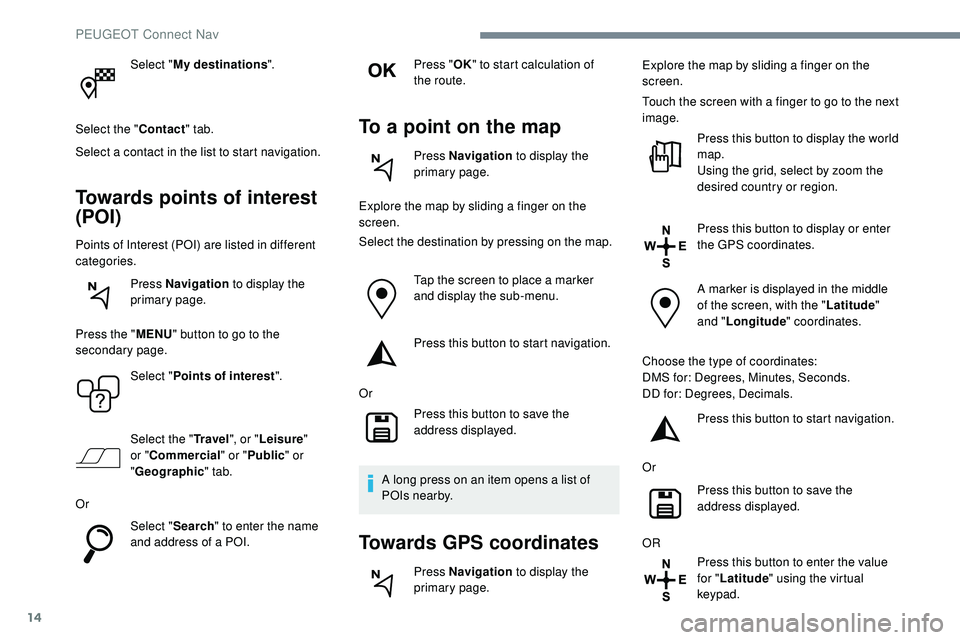
To a point on the map
Press Navigation to display the
primary page.
Explore the map by sliding a finger on the
screen.
Select the destination by pressing on the map.
Tap the screen to place a marker
and display the sub-menu.
Press this button to start navigation.
Or Press this button to save the
address displayed.
A long press on an item opens a list of
POIs nearby.
Towards GPS coordinates
Press Navigation to display the
primary page. Explore the map by sliding a finger on the
screen.
Touch the screen with a finger to go to the next
image.
Press this button to display the world
map.
Using the grid, select by zoom the
desired country or region.
Press this button to display or enter
the GPS coordinates.
A marker is displayed in the middle
of the screen, with the " Latitude"
and " Longitude " coordinates.
Choose the type of coordinates:
DMS for: Degrees, Minutes, Seconds.
DD for: Degrees, Decimals. Press this button to start navigation.
Or Press this button to save the
address displayed.
OR Press this button to enter the value
for "Latitude " using the virtual
keypad.
PEUGEOT Connect Nav
Page 284 of 320

16
Select a Wi-Fi network found by the
system and connect.
Wi-Fi connection
This function is only available if it has been
activated either via the "Notifications" or
via the "Applications" menu. Press " Notifications ".
Select Wi-Fi to activate it.
OR Press Applications to display the
primary page.
Press the " OPTIONS" button to go to the
secondary page.
Select "Wi- Fi network
connection ".
Select the " Secured" or "Not
secured " or "Stored " tab.
Select a network. Using the virtual keypad, enter the
"
Key " for the Wi-Fi network and the
" Password ".
Press " OK" to start the connection.
Restrictions of use:
-
W
ith CarPlay
®, connection sharing is
only with a Wi-Fi connection.
-
W
ith MirrorLink™, connection sharing
is only with a USB connection.
The quality of ser vices depends on the
quality of the network connection.
With the arrival of "TOMTOM
TR AFFIC", the ser vices are available.
The ser vices offered with connected
navigation are as follows.
A Connected Services pack:
-
Weather,
-
F
illing stations,
-
C
ar park,
-
Tr a f f i c ,
-
P
OI local search.
A Danger zone pack (option). The processes and standards are
constantly changing; for the communication
process between the smartphone and the
system to work correctly, we recommend
that you update the operating system of
the smar tphone as well as the date and
time of the smar tphone and the system.
Settings specific to
connected navigation
In the "Settings" menu you can create
a profile for just one person or a group
of people with common points, with the
possibility of entering a multitude of
settings (radio presets, audio settings,
navigation history, contact favourites,
etc.); these settings are taken into account
automatically.
Press Navigation to display the
primary page.
Press the " MENU" button to go to the
secondary page.
Select "Settings ".
PEUGEOT Connect Nav
Page 290 of 320
22
Connection sharing
The system offers to connect the telephone with
3 profiles:
- "Telephone " (hands-free kit, telephone only),
-
"Streaming " (streaming: wireless playing of
the audio files on the telephone),
-
"Mobile internet data ".
The "Mobile internet data " profile
must be activated for connected
navigation (where the vehicle does not
have "Emergency and assistance call"
services), having first activated sharing of
this connection on your smartphone.
Select one or more profiles.
Press " OK" to confirm.
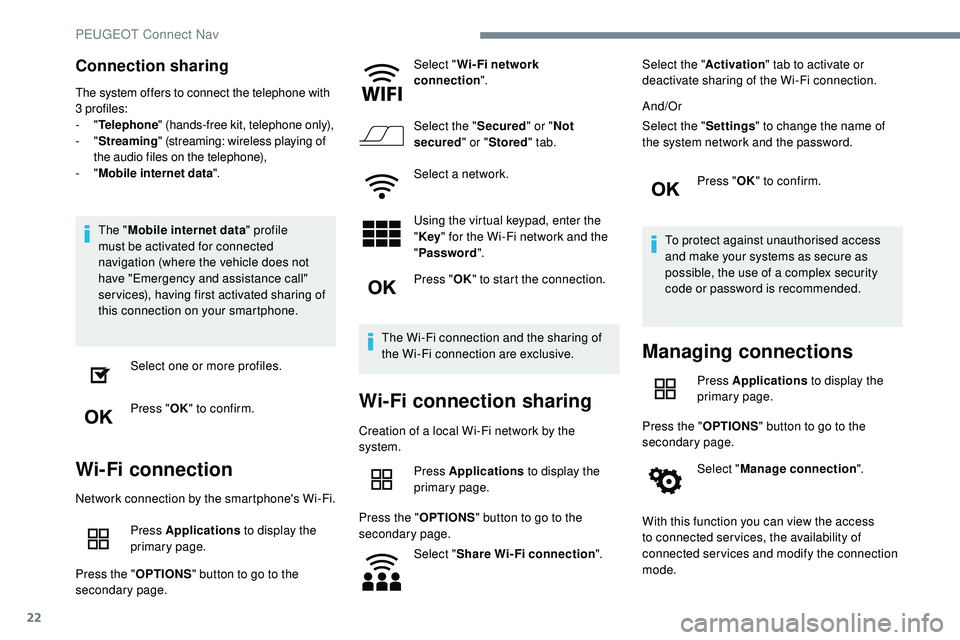
Wi-Fi connection
Network connection by the smartphone's Wi-Fi.
Press Applications to display the
primary page.
Press the " OPTIONS" button to go to the
secondary page. Select "
Wi- Fi network
connection ".
Select the " Secured" or "Not
secured " or "Stored " tab.
Select a network.
Using the virtual keypad, enter the
" Key " for the Wi-Fi network and the
" Password ".
Press " OK" to start the connection.
The Wi-Fi connection and the sharing of
the Wi-Fi connection are exclusive.
Wi-Fi connection sharing
Creation of a local Wi-Fi network by the
system. Press Applications to display the
primary page.
Press the " OPTIONS" button to go to the
secondary page.
Select "Share Wi-Fi connection ".Select the "
Activation" tab to activate or
deactivate sharing of the Wi-Fi connection.
And/Or
Select the " Settings" to change the name of
the system network and the password.
Press "OK" to confirm.
To protect against unauthorised access
and make your systems as secure as
possible, the use of a complex security
code or password is recommended.
Managing connections
Press Applications to display the
primary page.
Press the " OPTIONS" button to go to the
secondary page.
Select "Manage connection ".
With this function you can view the access
to connected ser vices, the availability of
connected services and modify the connection
mode.
PEUGEOT Connect Nav
Page 299 of 320
31
Settings
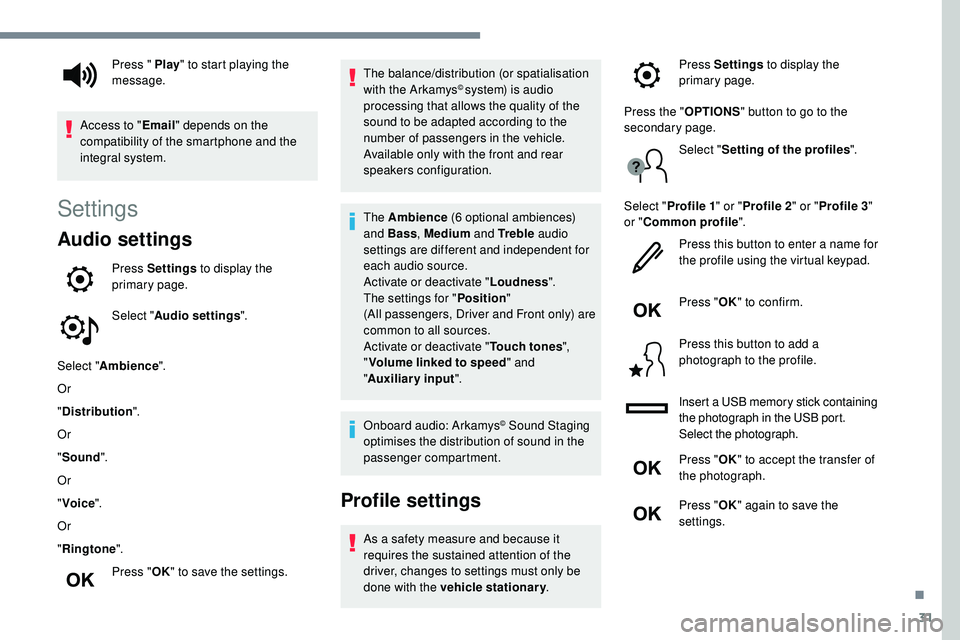
Audio settings
Press Settings to display the
primary page.
Select " Audio settings ".
Select " Ambience ".
Or
" Distribution ".
Or
" Sound ".
Or
" Voice ".
Or
" Ringtone ".
Press " OK" to save the settings. The balance/distribution (or spatialisation
with the Arkamys
© system) is audio
processing that allows the quality of the
sound to be adapted according to the
number of passengers in the vehicle.
Available only with the front and rear
speakers configuration.
The Ambience (6 optional ambiences)
and Bass , Medium and Tr e b l e audio
settings are different and independent for
each audio source.
Activate or deactivate " Loudness".
The settings for " Position"
(All
passengers, Driver and Front only) are
common to all sources.
Activate or deactivate " Touch tones",
" Volume linked to speed " and
" Auxiliary
input ".
Onboard audio: Arkamys
© Sound Staging
optimises the distribution of sound in the
passenger compartment.
Profile settings
As a safety measure and because it
requires the sustained attention of the
driver, changes to settings must only be
done with the vehicle stationary .
Press " Play
" to start playing the
message.
Access to " Email" depends on the
compatibility of the smartphone and the
integral system. Press Settings
to display the
primary page.
Press the " OPTIONS" button to go to the
secondary page.
Select "Setting of the profiles ".
Select " Profile 1 " or "Profile 2 " or "Profile 3 "
or " Common profile ".
Press this button to enter a name for
the profile using the virtual keypad.
Press " OK" to confirm.
Press this button to add a
photograph to the profile.
Insert a USB memory stick containing
the photograph in the USB port.
Select the photograph.
Press " OK" to accept the transfer of
the photograph.
Press " OK" again to save the
settings.
.