Page 187 of 444
(brightness control) BUTTON
To change the display brightness, press
the
button. Pressing the button again
will change the display to the day or the
night display.
Press and hold the
button for more
than 2 seconds to turn the display off. Press
and hold the button again to turn the dis-
play on.
HOW TO USE THE VOL (volume)
KNOB / PUSH
(power)
BUTTON
Press the PUSH(power) button to
turn audio function on and off. Turn the VOL
(volume) knob to adjust audio volume.SELECTING MENU FROM LAUNCH
BAR
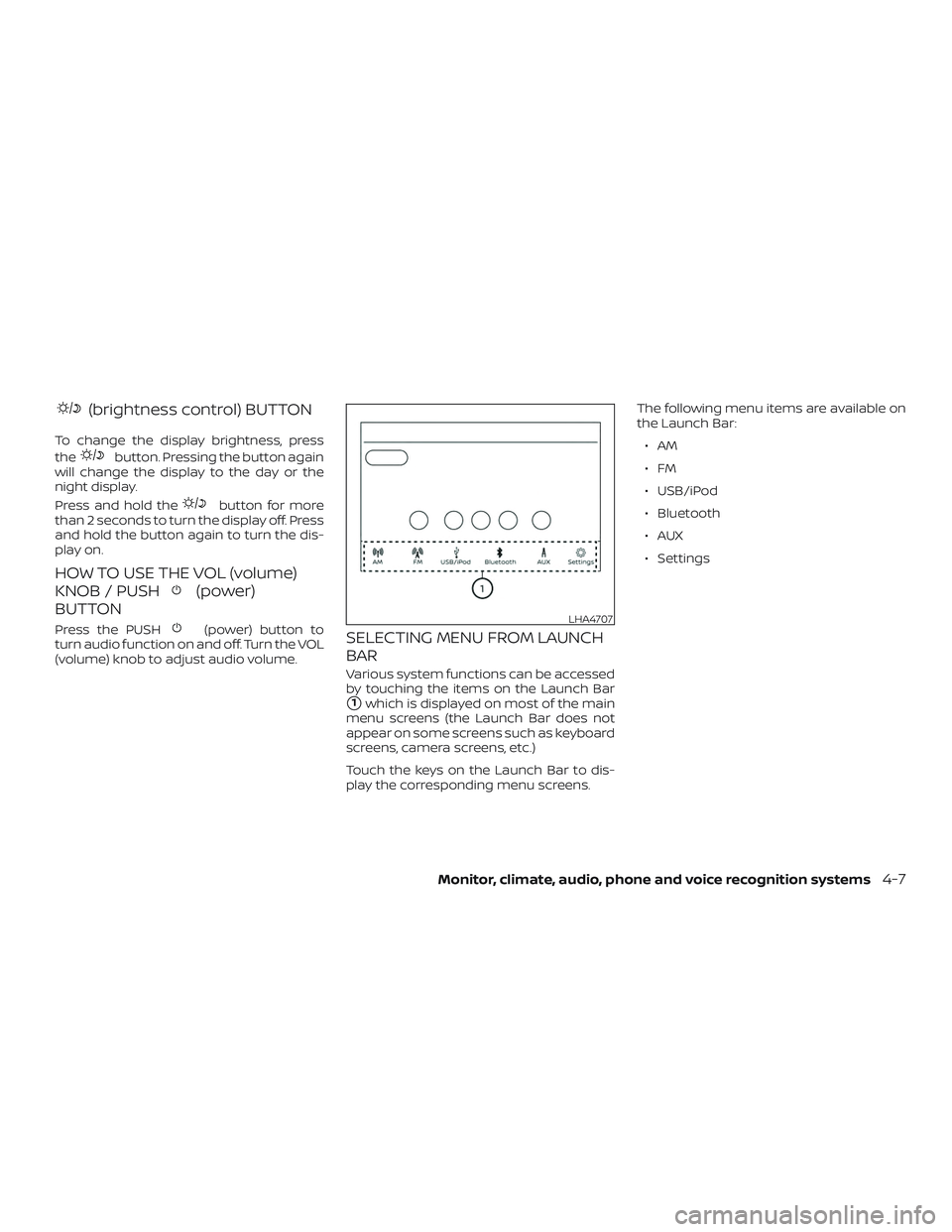
Various system functions can be accessed
by touching the items on the Launch Bar
�1which is displayed on most of the main
menu screens (the Launch Bar does not
appear on some screens such as keyboard
screens, camera screens, etc.)
Touch the keys on the Launch Bar to dis-
play the corresponding menu screens. The following menu items are available on
the Launch Bar:
∙AM
∙FM
∙ USB/iPod
∙ Bluetooth
∙AUX
∙ Settings
LHA4707
Monitor, climate, audio, phone and voice recognition systems4-7
Page 192 of 444
Backing up behind a projecting
object
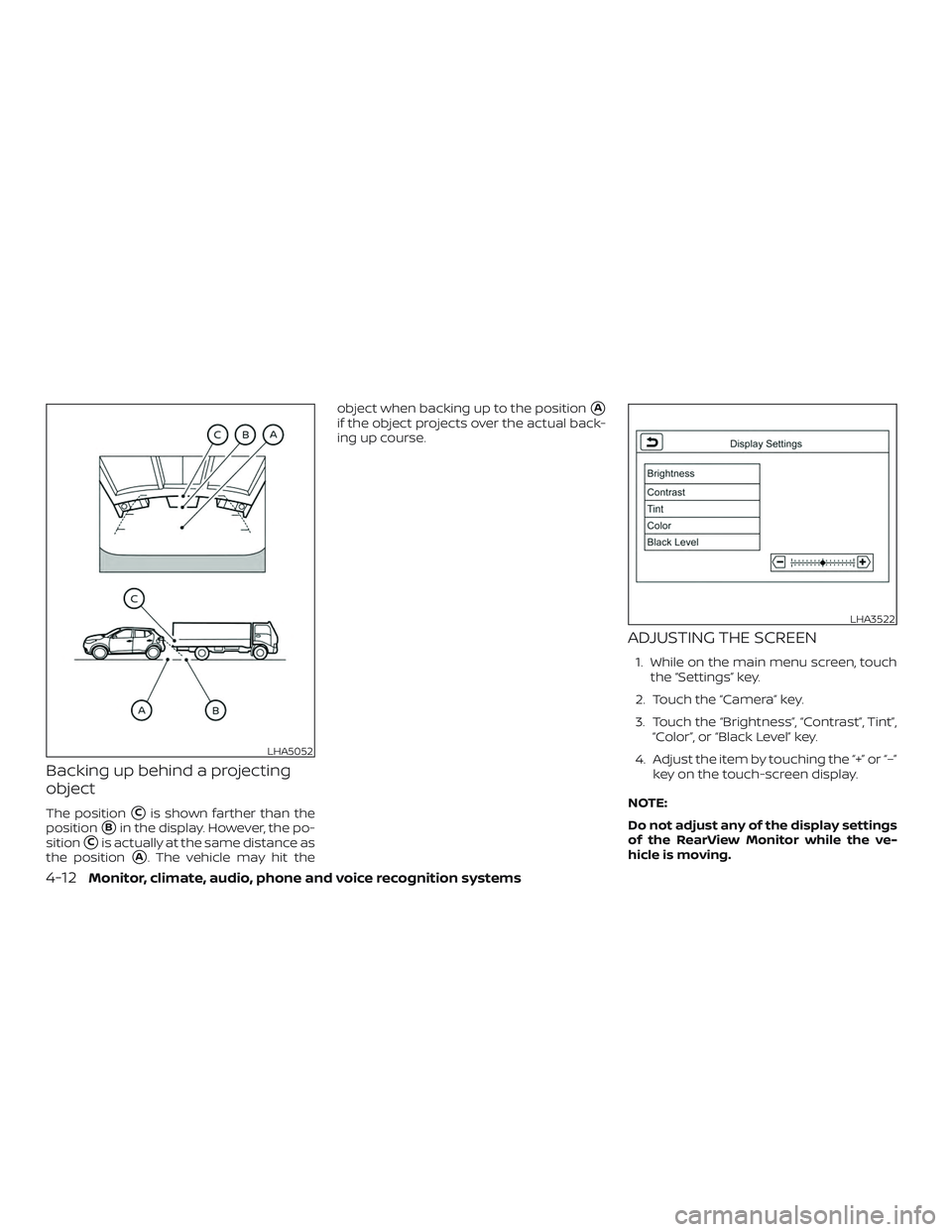
The position�Cis shown farther than the
position
�Bin the display. However, the po-
sition
�Cis actually at the same distance as
the position
�A. The vehicle may hit the object when backing up to the position
�A
if the object projects over the actual back-
ing up course.
ADJUSTING THE SCREEN
1. While on the main menu screen, touch
the “Settings” key.
2. Touch the “Camera” key.
3. Touch the “Brightness”, “Contrast”, Tint”, “Color”, or “Black Level” key.
4. Adjust the item by touching the “+” or “–” key on the touch-screen display.
NOTE:
Do not adjust any of the display settings
of the RearView Monitor while the ve-
hicle is moving.
LHA5052
LHA3522
4-12Monitor, climate, audio, phone and voice recognition systems
Page 203 of 444
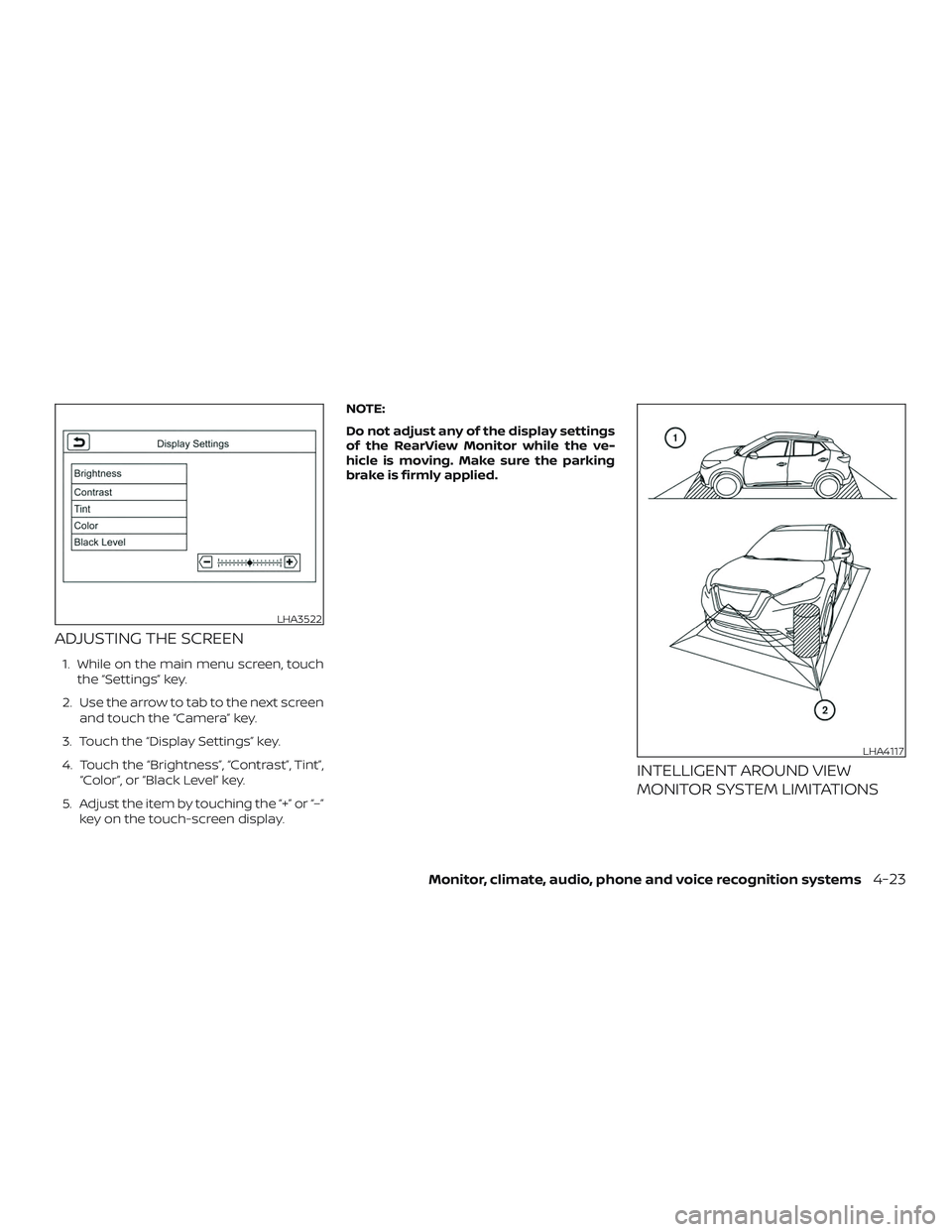
ADJUSTING THE SCREEN
1. While on the main menu screen, touchthe “Settings” key.
2. Use the arrow to tab to the next screen and touch the “Camera” key.
3. Touch the “Display Settings” key.
4. Touch the “Brightness”, “Contrast”, Tint”, “Color”, or “Black Level” key.
5. Adjust the item by touching the “+” or “–” key on the touch-screen display. NOTE:
Do not adjust any of the display settings
of the RearView Monitor while the ve-
hicle is moving. Make sure the parking
brake is firmly applied.
INTELLIGENT AROUND VIEW
MONITOR SYSTEM LIMITATIONS
LHA3522
LHA4117
Monitor, climate, audio, phone and voice recognition systems4-23
Page 227 of 444
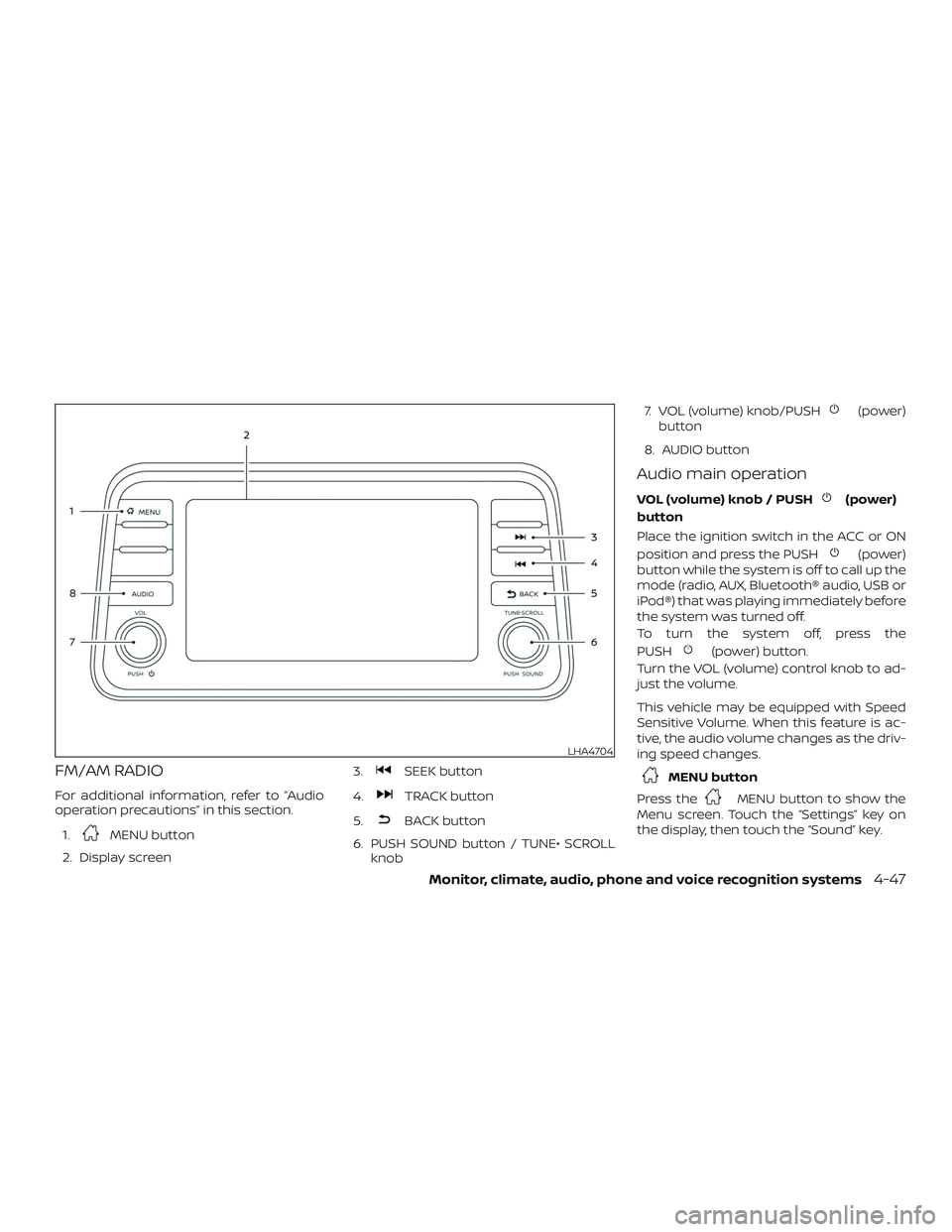
FM/AM RADIO
For additional information, refer to “Audio
operation precautions” in this section.1.
MENU button
2. Display screen 3.
SEEK button
4.
TRACK button
5.
BACK button
6. PUSH SOUND button / TUNE• SCROLL knob 7. VOL (volume) knob/PUSH
(power)
button
8. AUDIO button
Audio main operation
VOL (volume) knob / PUSH(power)
button
Place the ignition switch in the ACC or ON
position and press the PUSH
(power)
button while the system is off to call up the
mode (radio, AUX, Bluetooth® audio, USB or
iPod®) that was playing immediately before
the system was turned off.
To turn the system off, press the
PUSH
(power) button.
Turn the VOL (volume) control knob to ad-
just the volume.
This vehicle may be equipped with Speed
Sensitive Volume. When this feature is ac-
tive, the audio volume changes as the driv-
ing speed changes.
MENU button
Press the
MENU button to show the
Menu screen. Touch the “Settings” key on
the display, then touch the “Sound” key.
LHA4704
Monitor, climate, audio, phone and voice recognition systems4-47
Page 228 of 444
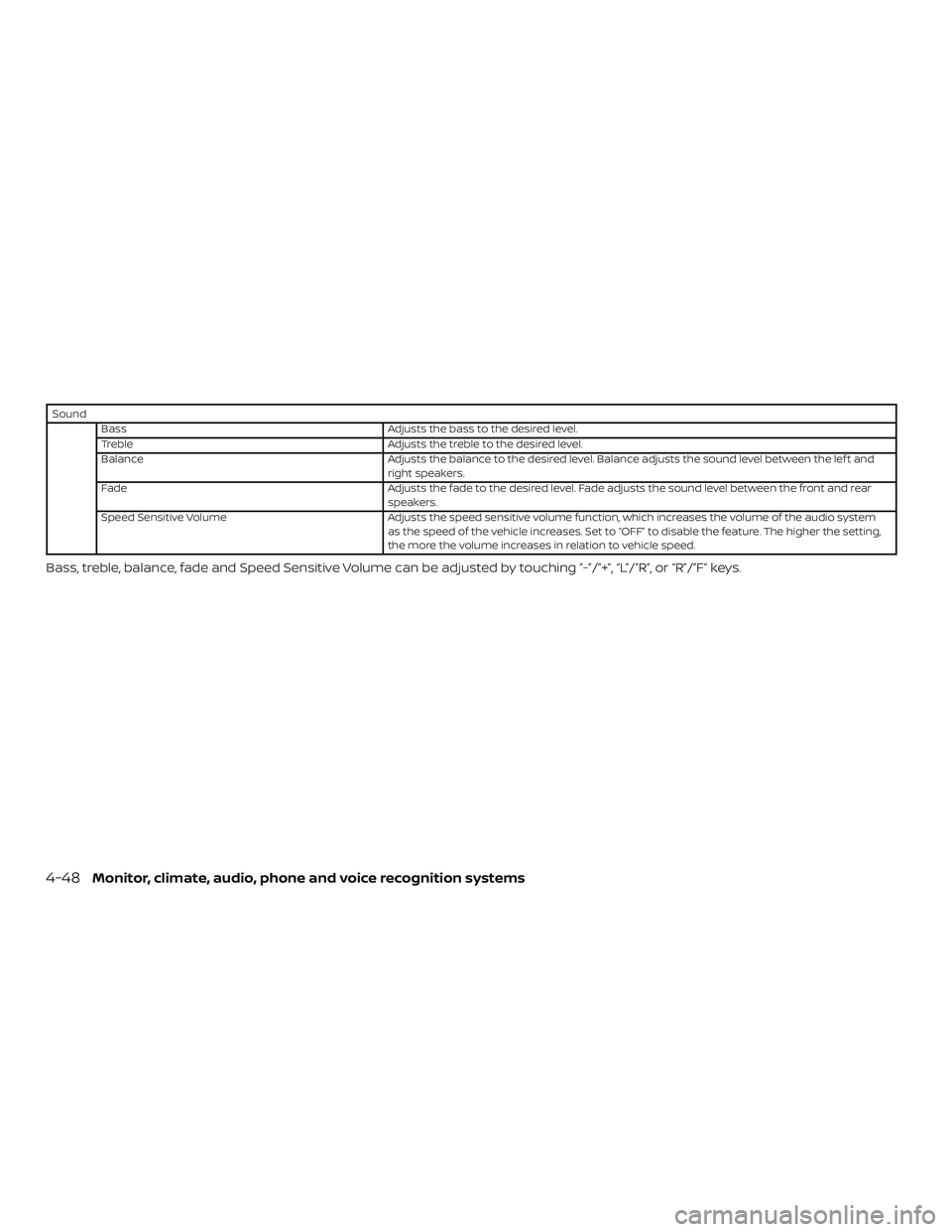
SoundBass Adjusts the bass to the desired level.
Treble Adjusts the treble to the desired level.
Balance Adjusts the balance to the desired level. Balance adjusts the sound level between the lef t and
right speakers.
Fade Adjusts the fade to the desired level. Fade adjusts the sound level between the front and rear
speakers.
Speed Sensitive Volume Adjusts the speed sensitive volume function, which increases the volume of the audio system
as the speed of the vehicle increases. Set to “OFF” to disable the feature. The higher the setting,
the more the volume increases in relation to vehicle speed.
Bass, treble, balance, fade and Speed Sensitive Volume can be adjusted by touching ”-”/”+”, “L”/”R”, or “R”/”F” keys.
4-48Monitor, climate, audio, phone and voice recognition systems
Page 229 of 444
BACK button
Press the
BACK button to return to
the previous menu screen.
AUDIO button
Press to display the audio screen. When
this button is pressed while the audio
screen is not displayed, the last audio
source played will play.
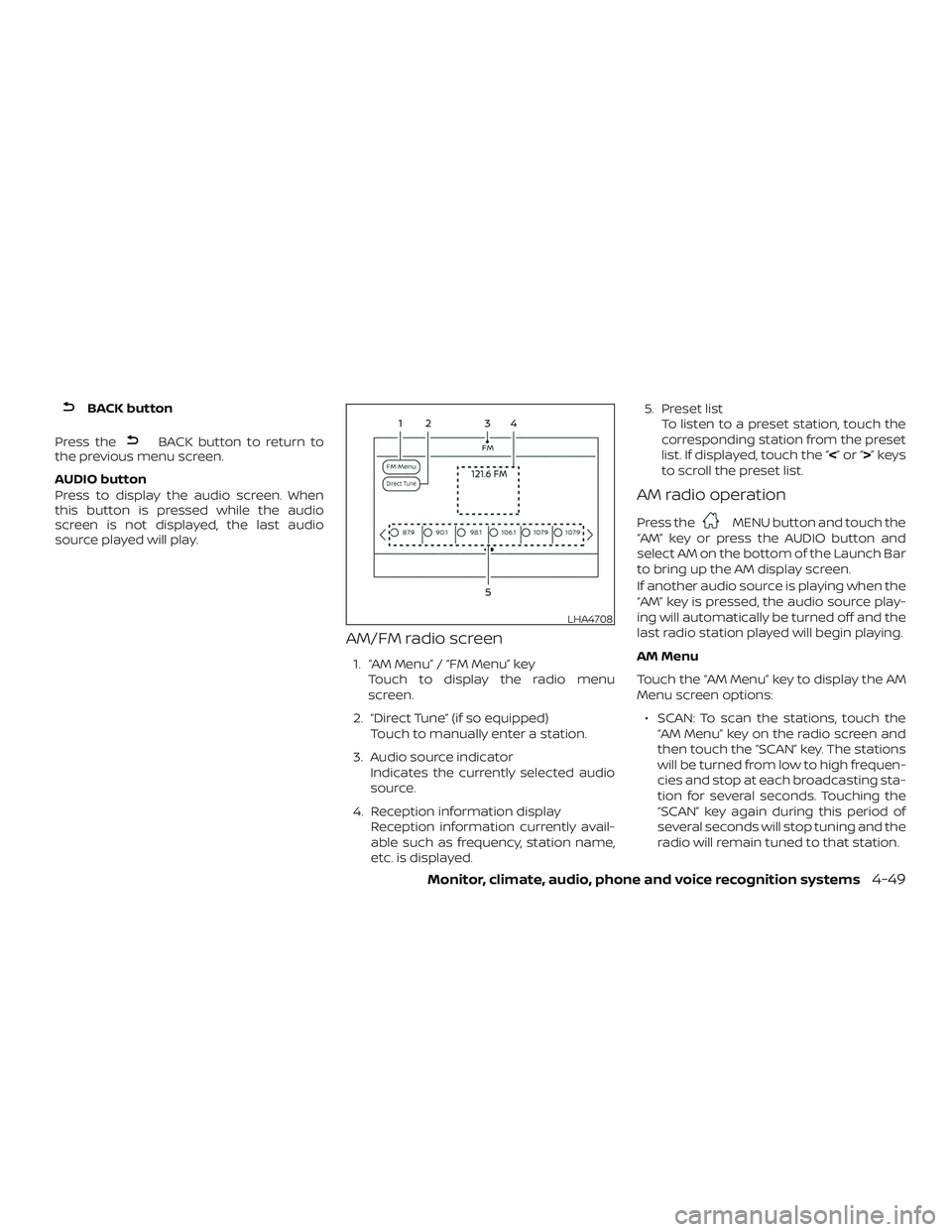
AM/FM radio screen
1. “AM Menu” / “FM Menu” key
Touch to display the radio menu
screen.
2. “Direct Tune” (if so equipped) Touch to manually enter a station.
3. Audio source indicator Indicates the currently selected audio
source.
4. Reception information display Reception information currently avail-
able such as frequency, station name,
etc. is displayed. 5. Preset list
To listen to a preset station, touch the
corresponding station from the preset
list. If displayed, touch the “ <”or“>”keys
to scroll the preset list.
AM radio operation
Press theMENU button and touch the
“AM” key or press the AUDIO button and
select AM on the bottom of the Launch Bar
to bring up the AM display screen.
If another audio source is playing when the
“AM” key is pressed, the audio source play-
ing will automatically be turned off and the
last radio station played will begin playing.
AM Menu
Touch the “AM Menu” key to display the AM
Menu screen options:
∙ SCAN: To scan the stations, touch the “AM Menu” key on the radio screen and
then touch the “SCAN” key. The stations
will be turned from low to high frequen-
cies and stop at each broadcasting sta-
tion for several seconds. Touching the
“SCAN” key again during this period of
several seconds will stop tuning and the
radio will remain tuned to that station.
LHA4708
Monitor, climate, audio, phone and voice recognition systems4-49
Page 230 of 444
∙ Refresh: Touch the “Refresh” key to up-date the station list displayed on the
right side of the AM Menu screen.
(SEEK/TRACK) buttons
Press the
orbuttons to tune
from low to high or high to low frequencies
and to stop at the next broadcasting sta-
tion.
Direct Tune
Touch the “Direct Tune” key to display the
Direct Tune menu and manually enter a
station.
1 to 6 station memory operations
Up to six stations can be registered in the
preset list.
1. Select the AM radio band.
2. Tune to the station you wish to store.
3. Touch and hold one of the preset num- bers in the preset list.
The information such as frequency will be
displayed on the preset list. To select and listen to the preset stations,
press
oron the steering wheel
briefly or touch a preferred station on the
preset list on the radio screen.
FM radio operation
Press theMENU button and touch the
“FM” key or press the AUDIO button and
select FM on the bottom of the Launch Bar
to bring up the FM display screen.
If another audio source is playing when the
“FM” key is pressed, the audio source play-
ing will automatically be turned off and the
last radio station played will begin playing.
The FM stereo indicator (STEREO) is shown
on the screen during FM stereo reception.
When the stereo broadcast signal is weak,
the radio automatically changes from ste-
reo to monaural reception. FM Menu
Touch the “FM Menu” key to display the FM
Menu screen options:
∙ SCAN: To scan the stations, touch the “FM Menu” key on the radio screen and
then touch the “SCAN” key. The stations
will be tuned from low to high frequen-
cies and stop at each broadcasting sta-
tions for several seconds. Touching the
“SCAN” key again during this period of
several seconds will stop tuning and the
radio will remain tuned to that station.
∙ Refresh: Touch the “Refresh” key to up- date the station list displayed on the
right side of the FM Menu screen.
∙ RDS Info: Radio station and song infor- mation can be displayed on the FM dis-
play screen.
(SEEK/TRACK) buttons
Press the
orbuttons to tune
from low to high or high to low frequencies
and to stop at the next broadcasting sta-
tion.
1 to 12 station memory operations
Up to 12 stations can be registered in the
preset list.
4-50Monitor, climate, audio, phone and voice recognition systems
Page 231 of 444
1. Select the FM radio band.
2. Tune to the station you wish to store.
3. Touch and hold one of the preset num-bers in the preset list.
The information such as frequency will be
displayed on the preset list.
To select and listen to the preset stations,
press
oron the steering wheel
briefly or touch a preferred station on the
preset list on the radio screen.
Auxiliary (AUX) devices operation
Connecting auxiliary devices
Connect an AUX device into the AUX input
jack located on the center console below
the heater and air conditioner controls.
The AUX input jack accepts any standard
analog audio input such as from a portable
cassette player, CD player, MP3 player or
phone.
Insert a 1/8 in (3.5 mm) stereo mini plug in
the audio input jack. If a cable with a mono
plug is used, the audio output may not
function normally. Activation and playing
Turn on the AUX device. Connect an AUX
cable to the AUX device and the AUX input
jack. Select AUX mode from the audio
source menu screen or by pressing the
Source button on the steering wheel.
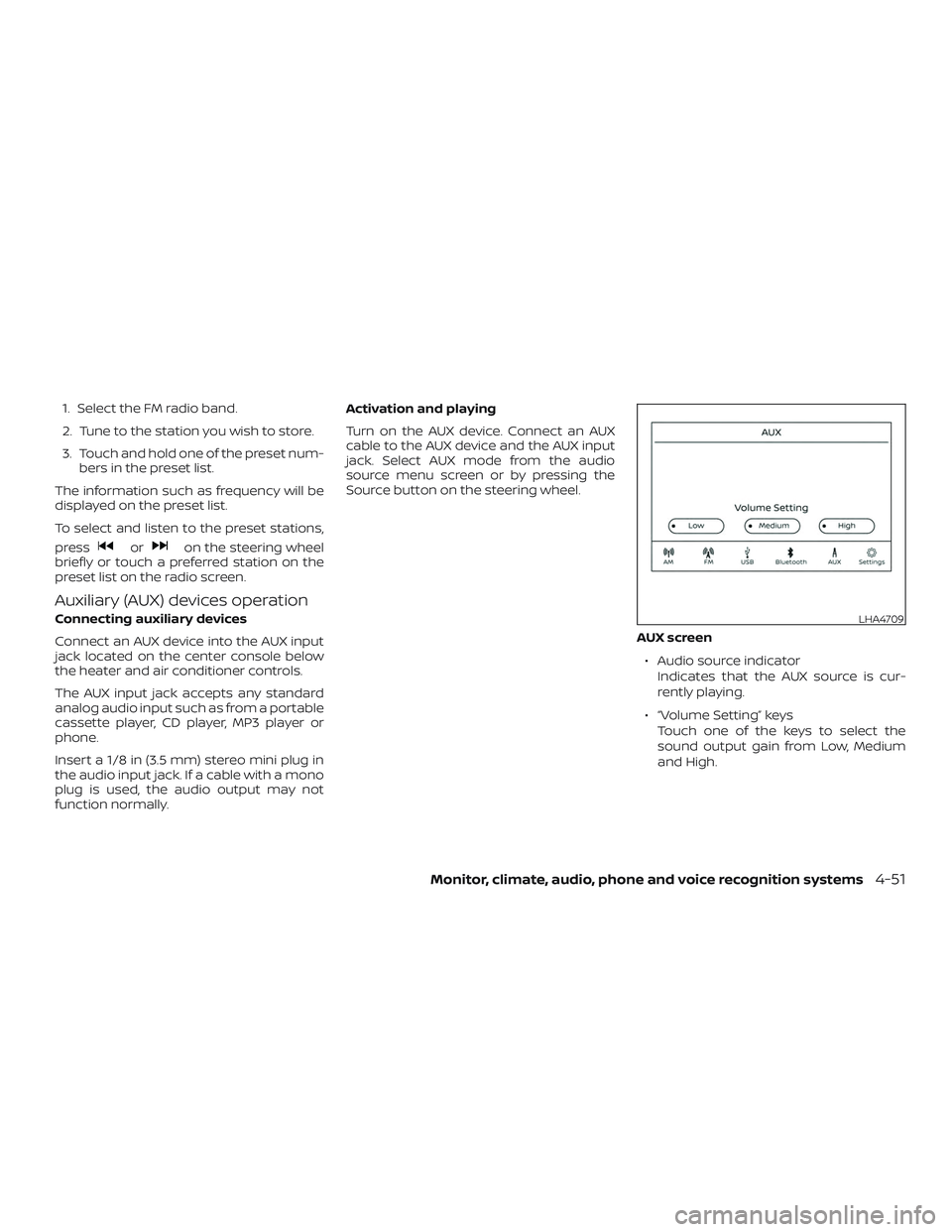
AUX screen∙ Audio source indicator Indicates that the AUX source is cur-
rently playing.
∙ “Volume Setting” keys Touch one of the keys to select the
sound output gain from Low, Medium
and High.LHA4709
Monitor, climate, audio, phone and voice recognition systems4-51