2019 NISSAN KICKS display
[x] Cancel search: displayPage 225 of 444
∙ Improperly plugging in the iPod® maycause a checkmark to be displayed on
and off (flickering). Always make sure
that the iPod® is connected properly.
∙ An iPod® nano (1st Generation) may re- main in fast forward or rewind mode if it
is connected during a seek operation. In
this case, please manually reset the
iPod®.
∙ An iPod® nano (2nd Generation) will continue to fast-forward or rewind if it is
disconnected during a seek operation.
∙ An incorrect song title may appear when the Play Mode is changed while
using an iPod® nano (2nd Generation).
∙ Audiobooks may not play in the same order as they appear on an iPod®.
∙ Large video files cause slow responses in an iPod®. The vehicle center display
may momentarily black out, but will
soon recover.
∙ If an iPod® automatically selects large video files while in the shuffle mode, the
vehicle center display may momen-
tarily black out, but will soon recover.iPod®* player
∙ Some characters used in other lan-
guages (Chinese, Japanese, etc.) are not
displayed properly on the vehicle center
screen. We recommend using English
or Spanish language characters with an
iPod®.
∙ Large video podcast files cause slow responses in the iPod®. The vehicle cen-
ter display may momentarily black out,
but it will soon recover.
∙ If the iPod® automatically selects large video podcast files while in the shuffle
mode, the vehicle center display may
momentarily black out, but it will soon
recover.
∙ Improperly plugging in the iPod® may cause a checkmark to be displayed on
and off (flickering). Always make sure
that the iPod® is connected properly.
∙ The iPod® nano (2nd Generation) will continue to fast forward or rewind if it is
disconnected during a seek operation.
∙ An incorrect song title may appear when the Play Mode is changed while
using the iPod® nano (2nd Generation). ∙ Audiobooks may not play in the same
order as they appear on the iPod®.
∙ The iPod® nano (1st Generation) may remain in fast forward or rewind mode if
it is connected during a seek operation.
In this case, please manually reset the
iPod®.
∙ If you are using an iPod® (3rd Generation with Dock connector), do not use very
long names for the song title, album
name or artist name to prevent the
iPod® from resetting itself.
∙ Be careful not to do the following, or the cable could be damaged and a loss of
function may occur:
∙ Bend the cable excessively (1.6 in (40 mm) radius maximum).
∙ Twist the cable excessively (more than 180 degrees).
∙ Pull or drop the cable.
∙ Do not force the iPod® cable connec- tor into the device port.
∙ Close the center console lid on the cable or connectors.
∙ Store objects with sharp edges in the storage where the cable is stored.
Monitor, climate, audio, phone and voice recognition systems4-45
Page 227 of 444
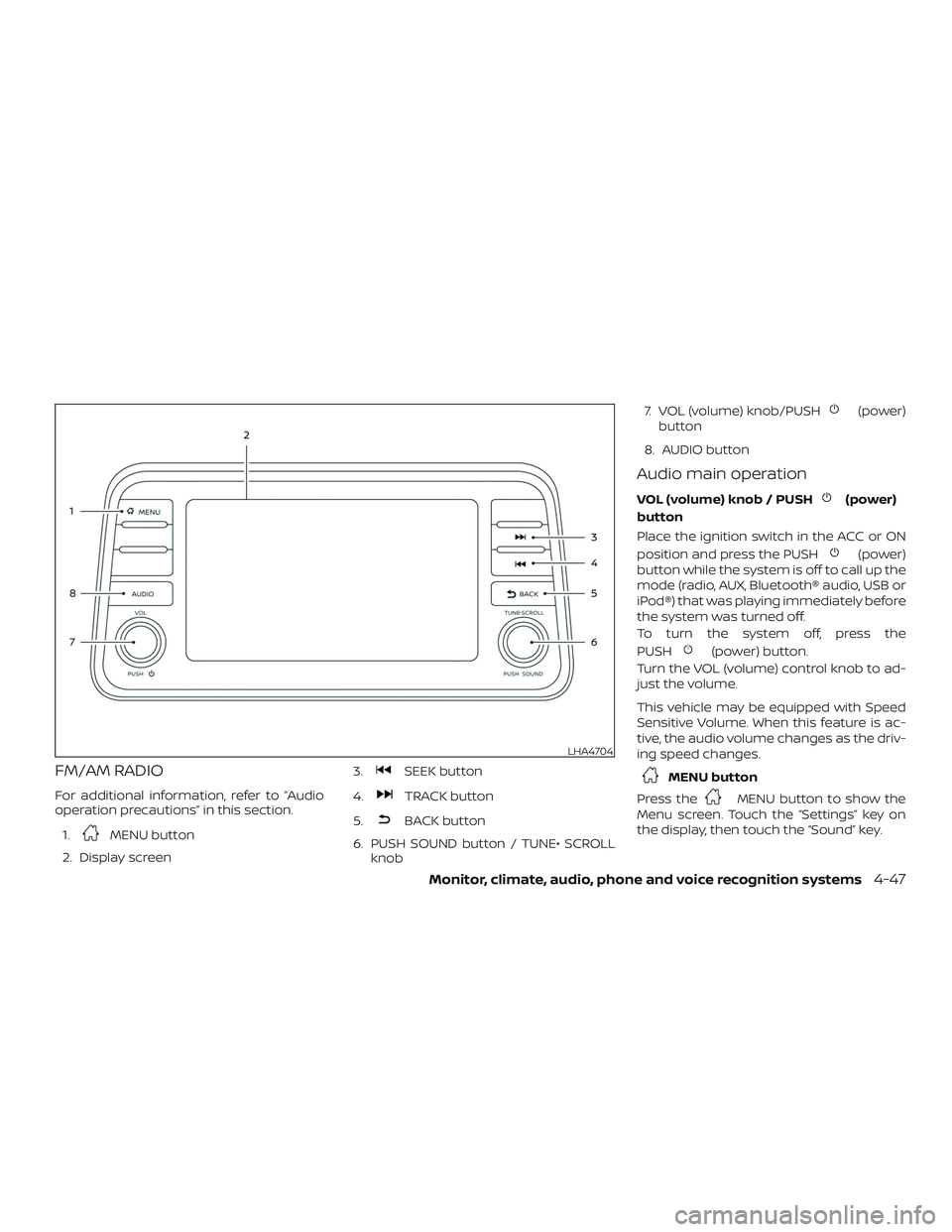
FM/AM RADIO
For additional information, refer to “Audio
operation precautions” in this section.1.
MENU button
2. Display screen 3.
SEEK button
4.
TRACK button
5.
BACK button
6. PUSH SOUND button / TUNE• SCROLL knob 7. VOL (volume) knob/PUSH
(power)
button
8. AUDIO button
Audio main operation
VOL (volume) knob / PUSH(power)
button
Place the ignition switch in the ACC or ON
position and press the PUSH
(power)
button while the system is off to call up the
mode (radio, AUX, Bluetooth® audio, USB or
iPod®) that was playing immediately before
the system was turned off.
To turn the system off, press the
PUSH
(power) button.
Turn the VOL (volume) control knob to ad-
just the volume.
This vehicle may be equipped with Speed
Sensitive Volume. When this feature is ac-
tive, the audio volume changes as the driv-
ing speed changes.
MENU button
Press the
MENU button to show the
Menu screen. Touch the “Settings” key on
the display, then touch the “Sound” key.
LHA4704
Monitor, climate, audio, phone and voice recognition systems4-47
Page 229 of 444
BACK button
Press the
BACK button to return to
the previous menu screen.
AUDIO button
Press to display the audio screen. When
this button is pressed while the audio
screen is not displayed, the last audio
source played will play.
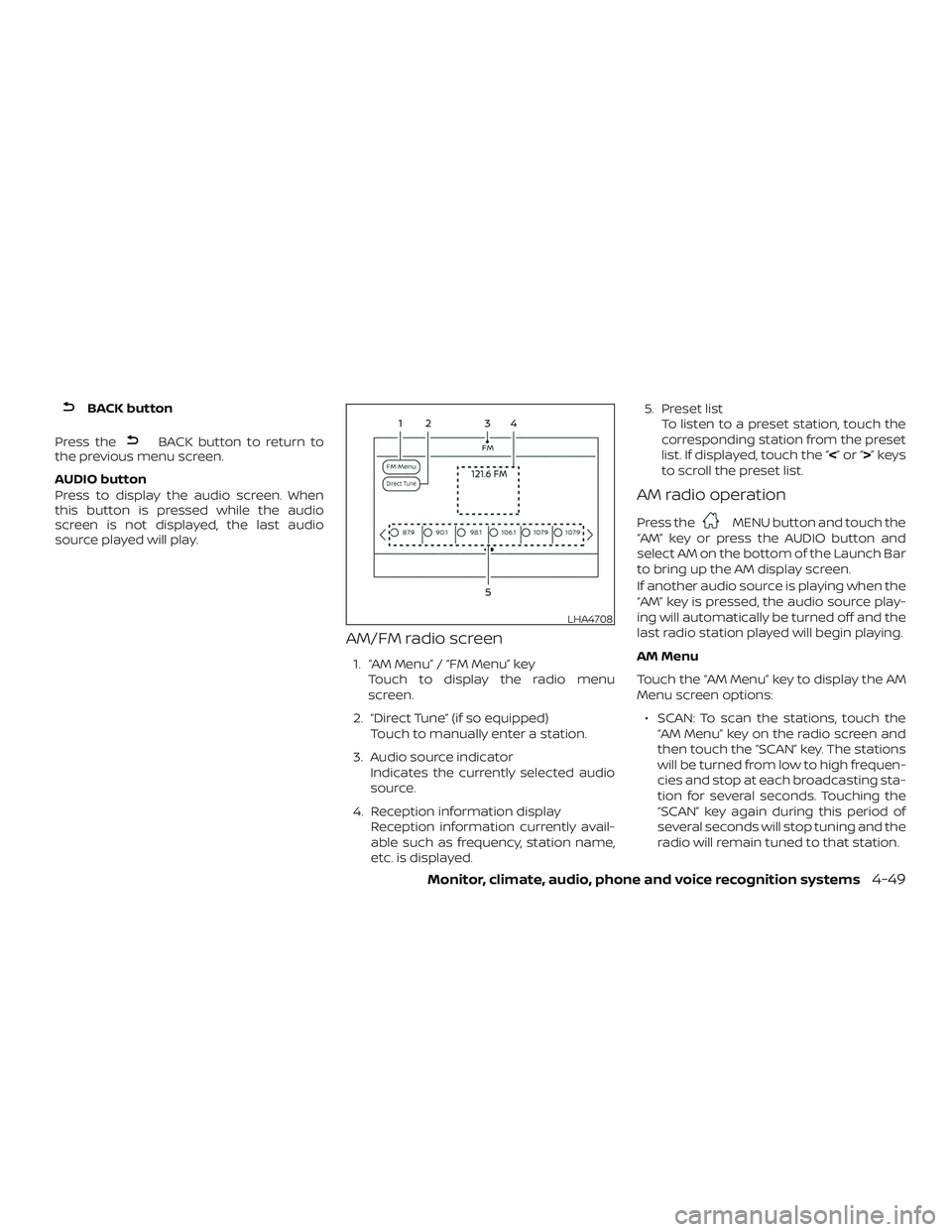
AM/FM radio screen
1. “AM Menu” / “FM Menu” key
Touch to display the radio menu
screen.
2. “Direct Tune” (if so equipped) Touch to manually enter a station.
3. Audio source indicator Indicates the currently selected audio
source.
4. Reception information display Reception information currently avail-
able such as frequency, station name,
etc. is displayed. 5. Preset list
To listen to a preset station, touch the
corresponding station from the preset
list. If displayed, touch the “ <”or“>”keys
to scroll the preset list.
AM radio operation
Press theMENU button and touch the
“AM” key or press the AUDIO button and
select AM on the bottom of the Launch Bar
to bring up the AM display screen.
If another audio source is playing when the
“AM” key is pressed, the audio source play-
ing will automatically be turned off and the
last radio station played will begin playing.
AM Menu
Touch the “AM Menu” key to display the AM
Menu screen options:
∙ SCAN: To scan the stations, touch the “AM Menu” key on the radio screen and
then touch the “SCAN” key. The stations
will be turned from low to high frequen-
cies and stop at each broadcasting sta-
tion for several seconds. Touching the
“SCAN” key again during this period of
several seconds will stop tuning and the
radio will remain tuned to that station.
LHA4708
Monitor, climate, audio, phone and voice recognition systems4-49
Page 230 of 444
∙ Refresh: Touch the “Refresh” key to up-date the station list displayed on the
right side of the AM Menu screen.
(SEEK/TRACK) buttons
Press the
orbuttons to tune
from low to high or high to low frequencies
and to stop at the next broadcasting sta-
tion.
Direct Tune
Touch the “Direct Tune” key to display the
Direct Tune menu and manually enter a
station.
1 to 6 station memory operations
Up to six stations can be registered in the
preset list.
1. Select the AM radio band.
2. Tune to the station you wish to store.
3. Touch and hold one of the preset num- bers in the preset list.
The information such as frequency will be
displayed on the preset list. To select and listen to the preset stations,
press
oron the steering wheel
briefly or touch a preferred station on the
preset list on the radio screen.
FM radio operation
Press theMENU button and touch the
“FM” key or press the AUDIO button and
select FM on the bottom of the Launch Bar
to bring up the FM display screen.
If another audio source is playing when the
“FM” key is pressed, the audio source play-
ing will automatically be turned off and the
last radio station played will begin playing.
The FM stereo indicator (STEREO) is shown
on the screen during FM stereo reception.
When the stereo broadcast signal is weak,
the radio automatically changes from ste-
reo to monaural reception. FM Menu
Touch the “FM Menu” key to display the FM
Menu screen options:
∙ SCAN: To scan the stations, touch the “FM Menu” key on the radio screen and
then touch the “SCAN” key. The stations
will be tuned from low to high frequen-
cies and stop at each broadcasting sta-
tions for several seconds. Touching the
“SCAN” key again during this period of
several seconds will stop tuning and the
radio will remain tuned to that station.
∙ Refresh: Touch the “Refresh” key to up- date the station list displayed on the
right side of the FM Menu screen.
∙ RDS Info: Radio station and song infor- mation can be displayed on the FM dis-
play screen.
(SEEK/TRACK) buttons
Press the
orbuttons to tune
from low to high or high to low frequencies
and to stop at the next broadcasting sta-
tion.
1 to 12 station memory operations
Up to 12 stations can be registered in the
preset list.
4-50Monitor, climate, audio, phone and voice recognition systems
Page 231 of 444
1. Select the FM radio band.
2. Tune to the station you wish to store.
3. Touch and hold one of the preset num-bers in the preset list.
The information such as frequency will be
displayed on the preset list.
To select and listen to the preset stations,
press
oron the steering wheel
briefly or touch a preferred station on the
preset list on the radio screen.
Auxiliary (AUX) devices operation
Connecting auxiliary devices
Connect an AUX device into the AUX input
jack located on the center console below
the heater and air conditioner controls.
The AUX input jack accepts any standard
analog audio input such as from a portable
cassette player, CD player, MP3 player or
phone.
Insert a 1/8 in (3.5 mm) stereo mini plug in
the audio input jack. If a cable with a mono
plug is used, the audio output may not
function normally. Activation and playing
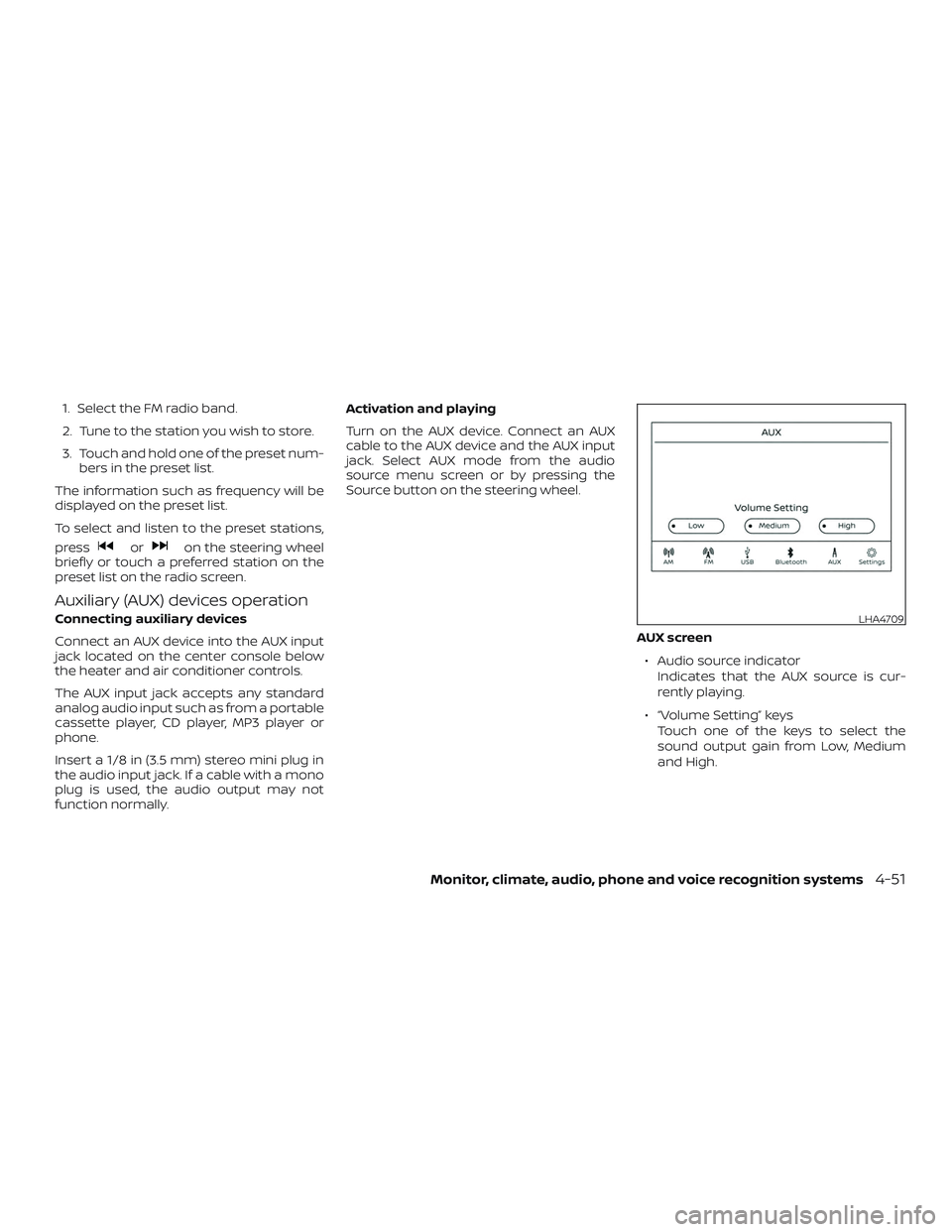
Turn on the AUX device. Connect an AUX
cable to the AUX device and the AUX input
jack. Select AUX mode from the audio
source menu screen or by pressing the
Source button on the steering wheel.
AUX screen∙ Audio source indicator Indicates that the AUX source is cur-
rently playing.
∙ “Volume Setting” keys Touch one of the keys to select the
sound output gain from Low, Medium
and High.LHA4709
Monitor, climate, audio, phone and voice recognition systems4-51
Page 233 of 444
When a compatible storage device is
plugged into the connection port, compat-
ible audio files on the storage device can be
played through the vehicle’s audio system.
The port is illuminated for better visibility
when the headlight switch is in the ON po-
sition.
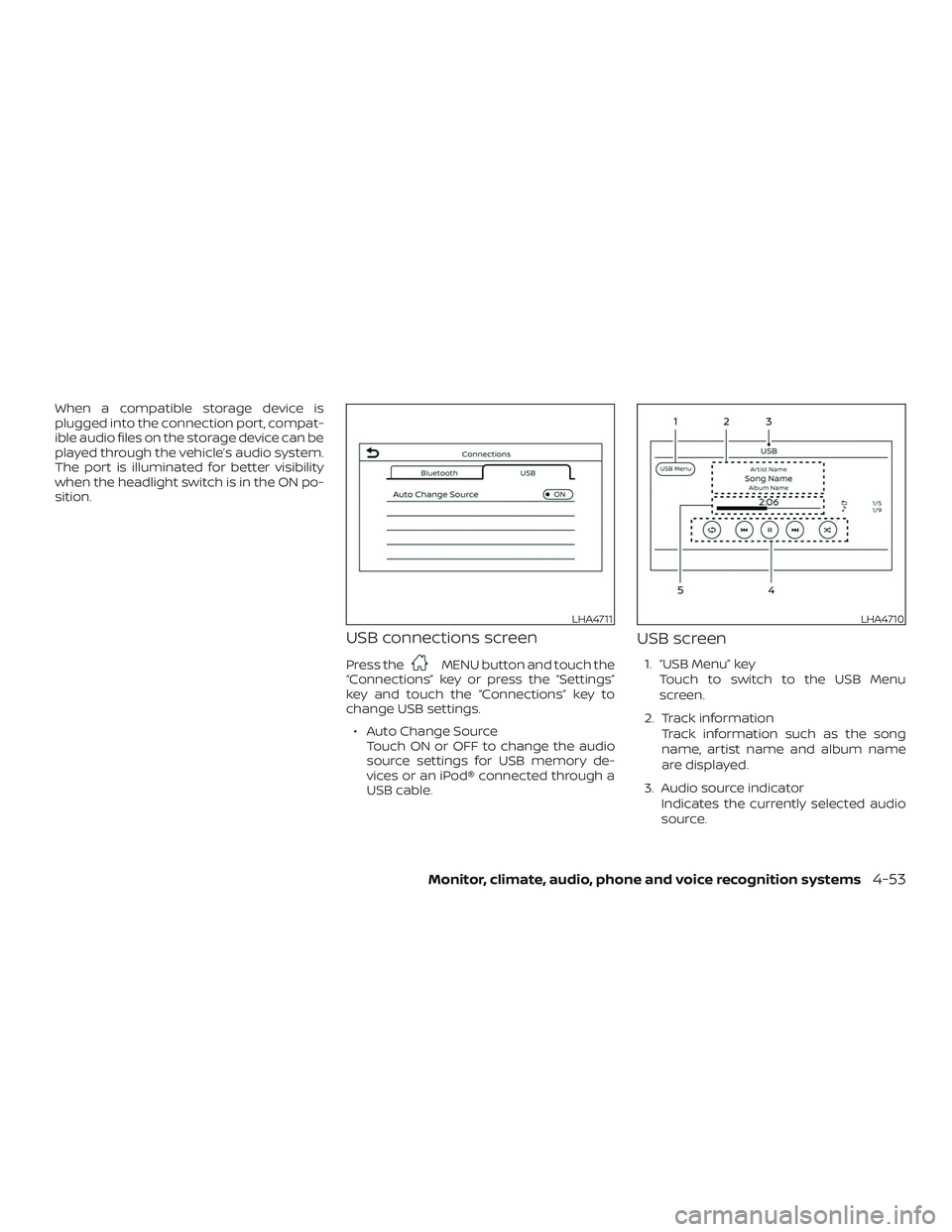
USB connections screen
Press theMENU button and touch the
“Connections” key or press the “Settings”
key and touch the “Connections” key to
change USB settings.
∙ Auto Change Source Touch ON or OFF to change the audio
source settings for USB memory de-
vices or an iPod® connected through a
USB cable.
USB screen
1. “USB Menu” key
Touch to switch to the USB Menu
screen.
2. Track information Track information such as the song
name, artist name and album name
are displayed.
3. Audio source indicator Indicates the currently selected audio
source.
LHA4711LHA4710
Monitor, climate, audio, phone and voice recognition systems4-53
Page 234 of 444
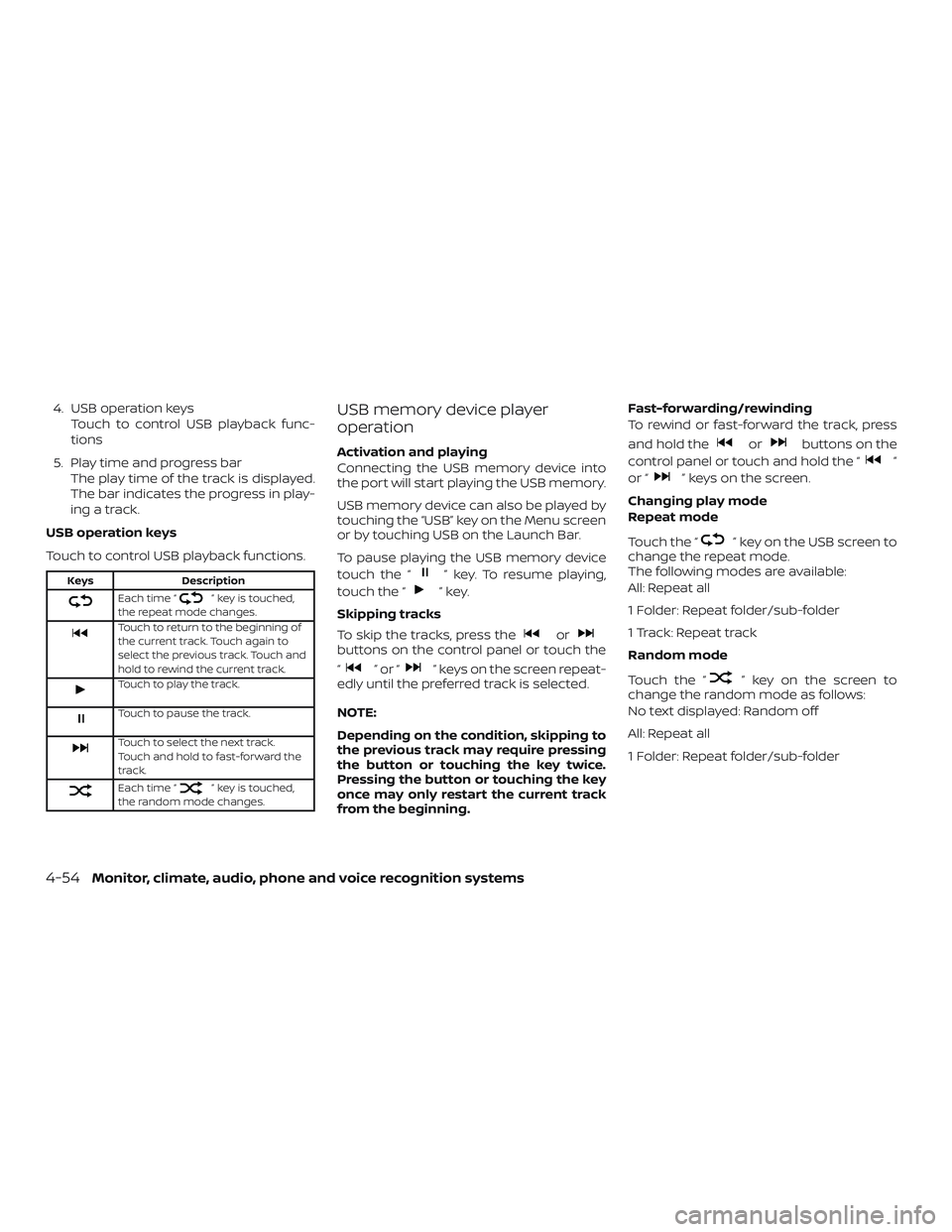
4. USB operation keysTouch to control USB playback func-
tions
5. Play time and progress bar The play time of the track is displayed.
The bar indicates the progress in play-
ing a track.
USB operation keys
Touch to control USB playback functions.
Keys Description
Each time “” key is touched,
the repeat mode changes.
Touch to return to the beginning of
the current track. Touch again to
select the previous track. Touch and
hold to rewind the current track.
Touch to play the track.
Touch to pause the track.
Touch to select the next track.
Touch and hold to fast-forward the
track.
Each time “” key is touched,
the random mode changes.
USB memory device player
operation
Activation and playing
Connecting the USB memory device into
the port will start playing the USB memory.
USB memory device can also be played by
touching the “USB” key on the Menu screen
or by touching USB on the Launch Bar.
To pause playing the USB memory device
touch the “
” key. To resume playing,
touch the “
”key.
Skipping tracks
To skip the tracks, press the
orbuttons on the control panel or touch the
“
”or“” keys on the screen repeat-
edly until the preferred track is selected.
NOTE:
Depending on the condition, skipping to
the previous track may require pressing
the button or touching the key twice.
Pressing the button or touching the key
once may only restart the current track
from the beginning. Fast-forwarding/rewinding
To rewind or fast-forward the track, press
and hold the
orbuttons on the
control panel or touch and hold the “
”
or “
” keys on the screen.
Changing play mode
Repeat mode
Touch the “
” key on the USB screen to
change the repeat mode.
The following modes are available:
All: Repeat all
1 Folder: Repeat folder/sub-folder
1 Track: Repeat track
Random mode
Touch the “
” key on the screen to
change the random mode as follows:
No text displayed: Random off
All: Repeat all
1 Folder: Repeat folder/sub-folder
4-54Monitor, climate, audio, phone and voice recognition systems
Page 235 of 444
USB menu
Touch the “USB Menu” key on the USB
screen to display the USB Menu screen.
“Now Playing” key Touch to display the USBscreen.
“Folder List” key Touch to display the folder list. Touch an item on the list
to select the folder. The sub-
folder or track list will be
displayed. Select a sub-folder
or track from the list.
“Album Artwork” Touch to run on/off the al- bum artwork display on the
USB screen.
iPod®* PLAYER OPERATION
Connecting iPod®
WARNING
Do not connect, disconnect, or operate
the USB device while driving. Doing so
can be a distraction. If distracted you
could lose control of your vehicle and
cause an accident or serious injury.
CAUTION
∙ Do not force the USB device into theUSB port. Inserting the USB device
tilted or up-side-down into the port
may damage the port. Make sure that
the USB device is connected correctly
into the USB port.
∙ Do not grab the USB port cover (if so equipped) when pulling the USB de-
vice out of the port. This could dam-
age the port and the cover.
∙ Do not leave the USB cable in a place where it can be pulled unintentionally.
Pulling the cable may damage the
port.
For additional information, refer to your de-
vice manufacturer’s owner information re-
garding the proper use and care of the
device.
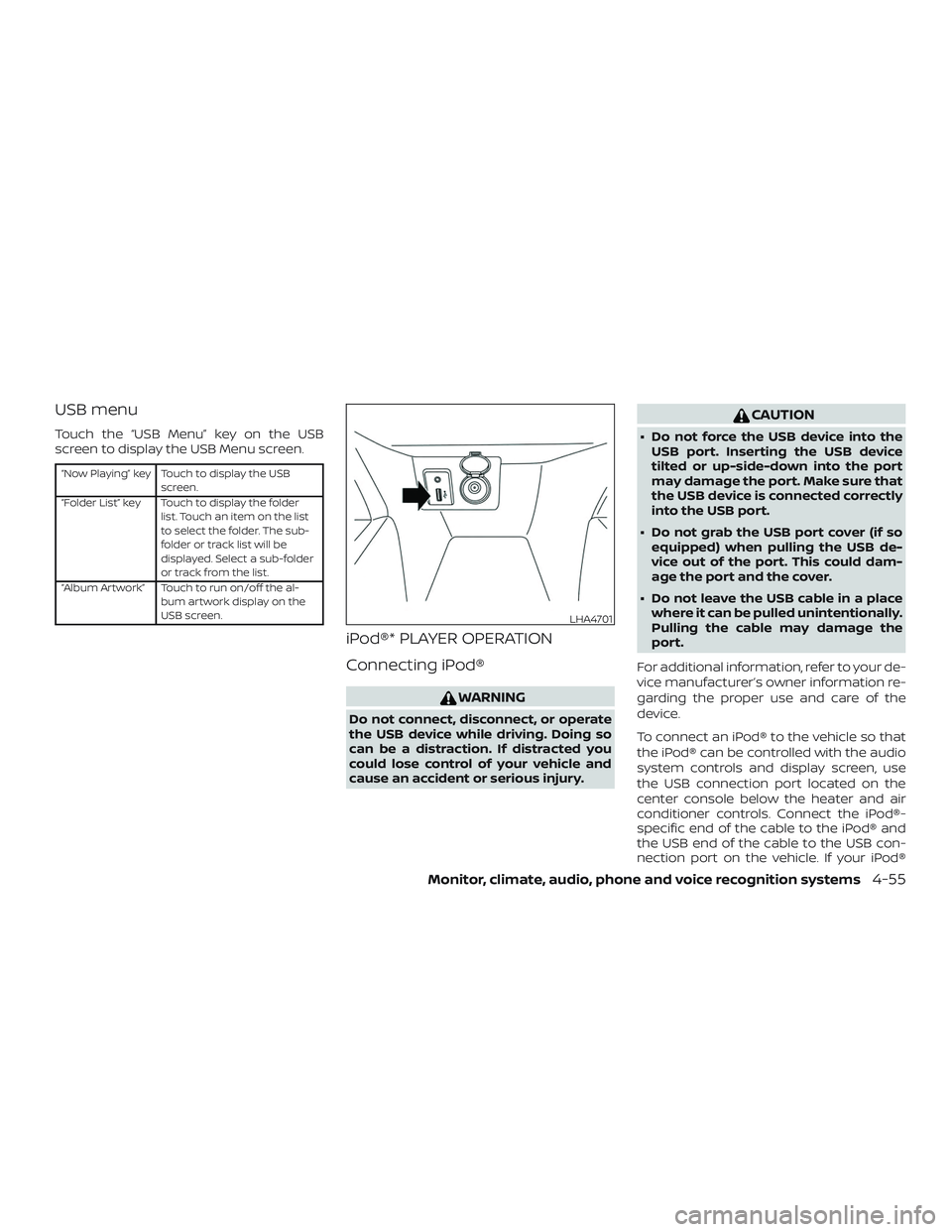
To connect an iPod® to the vehicle so that
the iPod® can be controlled with the audio
system controls and display screen, use
the USB connection port located on the
center console below the heater and air
conditioner controls. Connect the iPod®-
specific end of the cable to the iPod® and
the USB end of the cable to the USB con-
nection port on the vehicle. If your iPod®
LHA4701
Monitor, climate, audio, phone and voice recognition systems4-55