2019 MERCEDES-BENZ METRIS phone
[x] Cancel search: phonePage 186 of 318
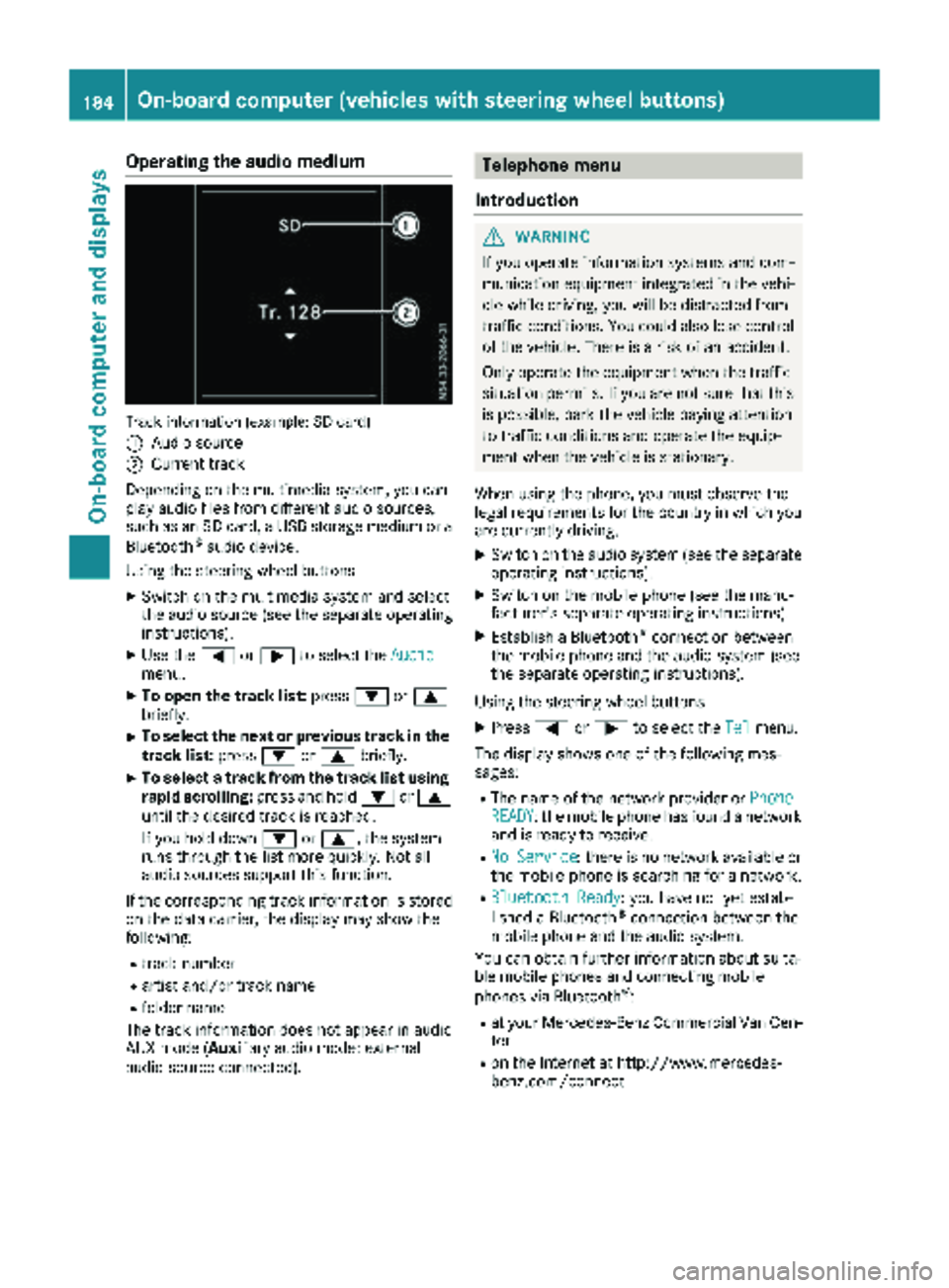
Operating the audio medium
Track information (example: SD card)
:
Audio source
;Current track
Depending on the multimedia system, you can
play audio files from different audio sources,
such as an SD card, a USB storage medium or a Bluetooth
®audio device.
Using the steering wheel buttons
XSwitch on the multimedia system and select
the audio source (see the separate operating
instructions).
XUse the =or; to select the Audiomenu.
XTo open the track list: press:or9
briefly.
XTo select the next or previous track in the
track list: press:or9 briefly.
XTo select a track from the track list using
rapid scrolling: press and hold:or9
until the desired track is reached.
If you hold down :or9, the system
runs through the list more quickly. Not all
audio sources support this function.
If the corresponding track information is stored
on the data carrier, the display may show the
following:
Rtrack number
Rartist and/or track name
Rfolder name
The track information does not appear in audio
AUX mode (Aux iliary audio mode: external
audio source connected).
Telephone menu
Introduction
GWARNING
If you operate information systems and com-
munication equipment integrated in the vehi-
cle while driving, you will be distracted from
traffic conditions. You could also lose control
of the vehicle. There is a risk of an accident.
Only operate the equipment when the traffic
situation permits. If you are not sure that this
is possible, park the vehicle paying attention
to traffic conditions and operate the equip-
ment when the vehicle is stationary.
When using the phone, you must observe the
legal requirements for the country in which you
are currently driving.
XSwitch on the audio system (see the separate
operating instructions).
XSwitch on the mobile phone (see the manu-
facturer's separate operating instructions).
XEstablish a Bluetooth®connection between
the mobile phone and the audio system (see
the separate operating instructions).
Using the steering wheel buttons
XPress =or; to select the Telmenu.
The display shows one of the following mes-
sages:
RThe name of the network provider or PhoneREADY: the mobile phone has found a network
and is ready to receive.
RNo Service: there is no network available or
the mobile phone is searching for a network.
RBluetooth Ready: you have not yet estab-
lished a Bluetooth®connection between the
mobile phone and the audio system.
You can obtain further information about suita-
ble mobile phones and connecting mobile
phones via Bluetooth
®:
Rat your Mercedes-Benz Commercial Van Cen-
ter
Ron the Internet at http://www.mercedes-
benz.com/connect
184On-board computer (vehicles with steering wheel buttons)
On-board computer and displays
Page 187 of 318

Accepting a call
XPress the6 buttonto answer acall .
If someon ecall syou when you are in th eTel
menu, acorresponding display message
appear sin th emultifunction display.
Rejecting orending a call
XPress th e~ steering whee lbutton.
Dialing a number fr omthe phone book
Using thesteering whee lbuttons
XPress =or; to select th eTelmenu.
XPress :, 9ora to switch to th e
phone book .
XPress:or9 to select names succes-
sively.
If you press and hold th ebutto nfor longer
than on esecond, th enames in th ephone
book are shown rapidly on eafter another.
or
XPress and hold :or9 for longer than
fiv eseconds.
Rapid scrollin g —thenam ethat start swit hth e
next lette ror th eprevious lette rin th ealpha-
bet is displayed. Rapid scrollin gstops when
you release th ebutto nor reac hth een dof th e
list .
XIf only one telephone number is store dfor
a name: press6ora to start dialing.
or
XIf there is mor ethan one number for a
particular name: press the6 ora
butto nto display th enumbers.
XPress :or9 to select atelephon e
number .
XPress6ora to start dialing. or
XTo exit th
ephone book :press ~or%.
Redialing
The on-board computer saves th elast names or
number sdialed in th eredial memory. Using th e
steering whee lbuttons
XPress =or; to select th eTelmenu.
XPress th e6 buttonto switch to th eredial
memory.
XPress :or9 to select names or tele-
phone numbers.
XPress th e6 ora buttonto start dialing.
or
XTo exit th eredial memory :press th e~
or % button.
Assistance menu
Introd uction
Dependin gon th evehicle’s equipment, you hav e
th efollowin goption sin th eAssist .menu:
RDisplaying th estatus overview
(Ypage 186)
RDeactivating or activating ES P®
(Ypage 186)
RActivating or deactivating theCOLLISION
PREVENTION ASSIST distanc ewarning func-
tion (
Ypage 187)
RSetting th eATTENTION ASSIST sensitivit y
(Ypage 187)
RActivating or deactivating Blind Spot Assis t
(Ypage 187)
RSetting th esensitivit yof Lan eKeepin gAssis t
(Ypage 187)
On-board computer (vehicles with steering wheel buttons)185
On-board computer and displays
Z
Page 223 of 318

Display messagesPossible causes/consequences andMSolutions
ÒThe tailgateis open .
XCloseth etailgate.
ÑThe rear door is open .
XCloseth erear door(s).
ÓAn additional warning tone sounds. The hoo dis open .
GWARNIN G
The open hoo dmay then bloc kyour vie wwhen th evehicl eis in motion .
There is aris kof an accident.
XStop th evehicl eimmediately, payin gattention to roa dand traffic
conditions.
XSecur eth evehicl eto preven tit from rollin gaway (Ypage 135).
XCloseth ehood.
CAn additional warning tone sounds while th evehicl eis in motion .The
display shows th eopen door(s).
XClos eall doors.
Ð
Power Steering Mal ‐function See Oper.Manual
An additional warning tone sounds. The steering powe rassistanc e
could be malfunctioning .You may need to steer mor eforcefully.
XCarefully continu eto aqualified specialist workshop and hav eth e
steering checke dimmediately.
Â
Obtain aNew Key
The ke yneeds to be replaced.
XVisit aqualified specialist workshop .
Phone No ServiceYour vehicleis outside th enetwork provider' stransmitter/receiver
range.
¥
Check Washer Fluid
The washer flui dlevel in th ewasher flui dreservoir has dropped belo w
th eminimum .
XAddwasher flui d (Ypage 258).
Indicatorand warning lamps in the instrume nt cluster
General notes
Whe nswitching on th eignition ,som esystems carry out aself-test .Some indicator and warning
lamp smay temporarily tur non or start to flash. This is no tan indication of any problem .Only when
these indicator and warning lights tur non or start flashin gafter th eengin ehas started or during th e
journey has amalfunction occurred .
Indicator and warning lamps in the instrument cluster221
On-board computer and displays
Z
Page 238 of 318

OperationMenu
SD memory cardSD
Music
Media
Sound
USB deviceUSB
Music
Media
Sound
AUXAUX
Volume
Sound
BT AudioBT Audio
Media
Sound
TelephoneTelephone
Call lists
SystemSettings
Display off
Bluetooth®settings
Requirements for a Bluetooth
®connec-
tion
You can connect Bluetooth®-compatible mobile
phones and other audio equipment to the mul-
timedia system.
To do so, the following conditions must be met:
RThe Bluetooth®device must be located inside
the vehicle in the vicinity of the multimedia
system.
RBluetooth®must be activated on both the
multimedia system and on the respective
Bluetooth
®device.
Rthe Bluetooth®device must be visible for the
multimedia system.
iYou can obtain further information about
suitable mobile phones and connecting
mobile phones via Bluetooth
®at any qualified
specialist workshop.
iYou can obtain further information about
suitable mobile phones and connecting mobile phones via Bluetooth
®at any author-
ized Sprinter Dealer.
Activating/deactivating the Bluetooth®
function
XPress the ibutton.
XPress the :button repeatedly until the
menu bar is selected.
XSelect Settings.
XSelectActivate Bluetooth.
XActivate or deactivate the Bluetooth®func-
tion using the control knob.
A tick in front of the Activate Bluetooth
message indicates that the Bluetooth®func-
tion is activated.
iThe Bluetooth®function will remain
switched on until you switch it off again.
Searching for and pairing with a Blue-
tooth®device
XPress the %button.
or
XSelect the Bluetooth®audio function.
XPress the :button repeatedly until the
menu bar is selected.
XSelect Telephone/BT Audio.
XBluetooth telephones/Bluetoothdevice list.
XSelectUpdate.
The multimedia system searches for Blue-
tooth
®devices within range for a certain
period of time.
If at least one Bluetooth
®device is found, the
display shows the Bluetooth®name of the
device.
If the multimedia system does not find a Blue-
tooth
®device, the SearchforBluetoothdevices failed.message is shown in the
display.
XTo search again: select Update.
XTo select a Bluetooth®device:select the
desired Bluetooth®device using the control
knob.
The display shows the input menu for the
passkey.
236Audio 15
Multimedia systems in brief
Page 239 of 318

XTo enter the passkey:enter an easy to
remember, four-digit number using the x
to s number keys.
XTo confirm the entry: select OK.
The Bluetooth®device is authorized.
XSelect Bluetooth®device name MB Blue-
tooth on the device.
XEnter the four-digit number selected previ-
ously on the Bluetooth®device, and confirm.
XConfirm possible prompts using the Blue-
tooth®device.
The Authorization successful.message
is shown in the display. You will see the Blue-
tooth
®name of the Bluetooth®device in the
display/selection window.
iWhen the Authorization failed.mes-
sage is displayed, you may have exceeded the
prescribed time period. Repeat the proce-
dure.
If the pairing process was successful, the
Bluetooth
®device is automatically connected
to the multimedia system.
Unpairing a Bluetooth®device
XPress the %button.
or
XSelect the Bluetooth®audio function.
XPress the :button repeatedly until the
menu bar is selected.
XSelect Telephone/BT Audio.
XBluetooth telephones/Bluetoothdevice list.
The display shows all paired Bluetooth®devi-
ces. The current Bluetooth®device is identi-
fied by the #dot.
XSelect the Bluetooth®device to be unpaired.
XSelect the list symbol next to the entry using
the ; button.
XSelect De-authorize.
A prompt appears in the display asking
whether the Bluetooth
®device should be de-
authorized.
XTo unpair: select Yes.
The Bluetooth®device is unpaired and
deleted from the device list.
XTo cancel the unpairing process : selectNo.
The Bluetooth®device is not unpaired from
the multimedia system. You have canceled
the process.
Ending a Bluetooth®connection
iIf you end the Bluetooth®connection, the
Bluetooth®device is not deleted from the
multimedia system memory.
A Bluetooth
®connection can be ended in the
following ways:
Rdeactivate the Bluetooth®function of the
multimedia system.
Rdeactivate the Bluetooth®function of your
Bluetooth®device.
Rswitch off the multimedia system.
Rswitch off the Bluetooth®device.
Media mode
Memory card audio playback
XTo insert the SD memory card: insert the
SD memory card into the SD slot with the
contacts at the front and facing downwards.
XPress the Õbutton repeatedly, until the
display in the menu bar shows SD.
Playback starts.
iIf the multimedia system cannot find any
readable files on the SD memory card, the
display shows No Playable Files
.
XTo remove the SD memory card: press the
SD memory card.
The multimedia system ejects the SD memory
card.
USB device audio playback
The connection for USB devices is located in the
left-hand stowage compartment, next to the
multimedia system.
Audio 15237
Multimedia systems in brief
Z
Page 240 of 318

XConnect the USB device to the USB portinthe
correct position.
XPress the Õbutton repeatedly, unt ilthe
displ ayinthe menu bar shows USB.
Playback starts.
iDue to the widerange of USB devices avail-
able on the market, playback cannot beguar-
anteed for all USB device brands.
Audio playback from a Bluetooth®
device
Requir ement: the Bluetooth®audio device is
paired and connected to the multimedia system.
XPress theÕbutton repeatedly untilBTAudiois shown in thedispl ay.
XPress the :button repeatedly untilthe
menu bar isselected.
XTo start playback: selectMinthe menu bar.
Playback starts.
XTo stop playback: select¯inthe menu bar.
Playback stops.
Audio playback via the AUX jack
XConnect an external device to the AUX jack.
XPress the Õbutton repeatedly untilthe
displ ay shows Aux.
The multimedia system plays the external
device and produces sound through the loud-
speakers again.
Telephone mode
"999" or "112" emergency call
Making emergency calls without entering a PIN
is only possible using the mob ilephone.
The 999 or112 emergency call number isa
public service. Any misuse ispunishable by law.
Making a call
XPress the%button.
XEnter the desired phone number using the
xtos number keys and the lbut-
ton.
XTo delete individual digits: press theí
button.
XTo delete the entire numerical sequence:
press and hold the íbutton until the
entire numerical sequence isdeleted.
XTo make a call: press the6button.
This initiates dialing.
XTo cancel dialing: press the~button
when dialing.
Navigation system
Important safety notes
GWARNING
If you operate information systems and com-
munication equipment integrated in the veh i-
cle while driving, you will be distracted from
traffic conditions. You could also lose control
of the vehicle. There is a risk of an accident.
Only operate the equipment when the traffic
situation permits. If you are not sure that this
is possible, park the vehicle paying attention
to traff icconditions and operate the equip-
ment when the vehicle isstationary.
Observe the legal requirements for the country
you are in.
The multimedia system calculates the route to
the destination without taking account of the
following, for example:
Rtraff iclights
Rstop and giveway signs
Rparking or stopping restrictions
Rroad narrowing
Rother road and traffic rules and regulations
The multimedia system may provide incorrect
navigation announcements if the surroundings
do not correspond to the data on the digital
map. For example, a route may have been diver-
ted or the direction of a one-way street may have
changed.
For this reason, you must always observe road
and traffic rules and regulations during your
jo urney. Road and traffic rules and regulations
always have priority over the system's driving
recommendations.
238Audio 15
Multimedia systems in brief
Page 242 of 318

Useful information
This Operator's Manual describes all models as
well as standard and optional equipment of your
vehicle that were available at the time of going
to print. Country-specific variations are possi-
ble. Note that your vehicle may not be equipped
with all of the described functions. This also
applies to systems and functions relevant to
safety.
Read the information on qualified specialist
workshops (
Ypage 31).
Stowage spaces and stowage com-
partments
Important safety notes
GWARNING
If you transport objects in the vehicle interior
and these are not adequately secured, they
could slip or be flung around and thereby
strike vehicle occupants. In addition, cup
holders, open stowage spaces and mobile
phone brackets may not always be able to
hold the objects placed in them in the event of
an accident. There is a risk of injury, particu-
larly in the event of sharp braking or sudden
changes of direction.
RAlways stow objects in such a way that they cannot be tossed about in these or similar
situations.
RAlways make sure that objects do not pro-
trude out of the stowage spaces, luggage
nets or stowage nets.
REnsure that closable stowage spaces are
shut before beginning your journey.
RAlways stow and secure heavy, hard, poin-
ted, sharp-edged, fragile or large objects in
the cargo compartment.
Observe the "Loading guidelines" (
Ypage 244).
Glove box
Glove box (example: glove box with a lockable lid)
1
Unlocked
2Locked
=Glove box handle
You can lock and unlock the glove box using the mechanical key (
Ypage 70).
When you open the glove box flap, a coin holder,
a pen holder and a credit card holder are inte-
grated on the inside.
XTo open: unlock the glove box lid if neces-
sary.
XPull glove box handle =in the direction of the
arrow.
XTo close: fold the glove box up and press it
until it engages.
Eyeglasses compartment in the over-
head control panel
Eyeglasses compartment (example: luxury over-
head control panel)
240Stowage spaces and stowage compartments
Stowing and features
Page 257 of 318

XOpen the hood (Ypage 253).
XPull out oil dipstick:.
XWipe oil dipstick:using a lint-free cloth.
XInsert oil dipstick :back into the guide tube
as far as it will go and remove it again.
If the level is between MIN mark =and MAX
mark ;, the oil level is adequate.
XIf the oil level has dropped to or below mini-
mum mark =, open cap ?and add engine oil
(
Ypage 255).
The difference in quantity between marks ;
and =is approximately 2 US quarts (2 liters).
XClose the hood.
Add engine oil
GWARNING
Opening the hood when the engine is over-
heated or when there is a fire in the engine
compartment could expose you to hot gases
or other service products. There is a risk of
injury.
Let an overheated engine cool down before
opening the hood. If there is a fire in the
engine compartment, keep the hood closed
and contact the fire department.
GWARNING
Certain components in the engine compart-
ment, such as the engine, radiator and parts
of the exhaust system, can become very hot.
Working in the engine compartment poses a
risk of injury.
Where possible, let the engine cool down and touch only the components described in the
following.
GWARNING
If engine oil comes into contact with hot com- ponents in the engine compartment, it may
ignite. There is a risk of fire and injury.
Make sure that engine oil is not spilled next to
the filler neck. Let the engine cool down and
thoroughly clean the engine oil off the com-
ponents before starting the engine.
HEnvironmental note
When adding oil, take care not to spill any. If
oil enters the soil or waterways, it is harmful to
the environment.
!Do not add too much oil. adding too much
engine oil can result in damage to the engine
or to the catalytic converter. Have excess
engine oil siphoned off.
!Do not use any additives in the engine oil.
This could damage the engine.
Engine oil filler neck (example)
Observe the information regarding approved
motor oil under "Service products and capaci-
ties" (
Ypage 309).
XOpen the hood (Ypage 253).
XUnscrew and remove cap :.
XAdd engine oil.
XReplace cap:on the filler neck and tighten.
When doing so, make sure that the cap
engages correctly.
XCheck the oil level with the oil dipstick
(Ypage 254).
XClose the hood.
Coolant
GWARNING
Service products may be poisonous and haz-
ardous to health. There is a risk of injury.
Comply with instructions on the use, storage
and disposal of service products on the labels
of the respective original containers. Always
store service products sealed in their original
Engine compartment255
Maintenance and care
Z