2019 MASERATI GHIBLI key
[x] Cancel search: keyPage 260 of 384

require cleaning or removal of an
obstruction.
When the condition that created
limited functionality is no longer
present, the ACC and FCW systems will
return to full functionality.
NOTE:
If the windshield wiper warning
message occurs frequently (e.g. more
than once on every trip) without any
snow, rain, mud, or other obstruction,
have the windshield and forward-
facing camera inspected at an
Authorized Maserati Dealer .
Service ACC/FCW Warning
If the ACC and FCW systems turn off,
and the system displays a service
warning, there may be an internal
system fault or a temporary
malfunction that limits functionality.
Although the vehicle is still driveable
under normal conditions, ACC and
FCW will be temporarily unavailable. If
this occurs, try activating ACC and FCW
again later, following a key cycle. If the
problem persists, contact an
Authorized Maserati Dealer .Precautions while Driving with
ACC Offset Driving
ACC may not detect a vehicle in the
same lane that is offset from your
direct line of travel, or a vehicle
merging in from a side lane. There
may not be sufficient distance to the
vehicle ahead. The offset vehicle may
move in and out of the line of travel,
which can cause your vehicle to brake
or accelerate unexpectedly. Turns and Bends
When driving on a curve with ACC
engaged, the system may decrease the
vehicle speed and acceleration for
stability reasons, with no target vehicle
detected. Once the vehicle is out of
the curve the system will resume your
original Set Speed. This is a part of
normal ACC system functionality.
Moreover, the radar sensor might
detect a vehicle on a nearby lane or no
longer detect the target vehicle.Driving
5
256
Page 263 of 384

system will compensate and provide
additional brake force as required.
When the system determines a
collision with the vehicle in front of
you is no longer probable, the
warning messages will be deactivated.
NOTE:
• Bad weather conditions, like heavy
rain, snow, etc., can lead to reduced
system performance. Under these
conditions relevant objects will not
be detected or detected late by the
system.
• FCW is designed to react in specific
situations in typical traffic scenarios
with objects in the same lane driving
in the same direction, but under
certain conditions it can also react
on stationary objects in the same
lane. It is not designed to react to
oncoming traffic or crossing traffic.
• The FCW alerts may be triggered to
objects other than vehicles such as
guard rails or sign posts based on
the course prediction. This is
expected and is a part of normal
FCW activation and functionality.
• It is unsafe to test the FCW system.
To prevent such misuse of the
system, after four Active Braking
events within a key cycle, the Active
Braking portion of FCW will be deactivated until the next key cycle.
The limit of four events applies to
the brake actuation too.
• FCW will automatically deactivated
when
(ESC OFF) button is pressed
(LED light up).
WARNING!
• Forward Collision Warning (FCW) is
not intended to avoid a collision on
its own, nor can FCW detect every
type of potential collision. The
driver has the responsibility to avoid
a collision by controlling the vehicle
via braking and steering. Failure to
follow this warning could lead to
serious injury or death. The driver is
always in charge to safely drive and
to avoid critical situations, and not
rely on the support of the FCW
system. Driver has to keep in mind
that the system and therefore its
intervention is always subject to the
prevailing physical limits.
• Forward Collision Warning (FCW) is
not intended either to warn or to
apply any brake aid/brake
intervention in case of collisions
with pedestrians (if not equipped with PEB sub-system), bicycles and
not licensable vehicles in general.
Speed Range of Use Speed mph (km/h)
Minimum 0 (0)
Engaged/activated 1.12 (1.8)
Maximum 155 (250)
When the speed is outside the
specified limits, the system
automatically disables without turning
on the corresponding warning light
on the instrument cluster.
FCW Status The driver can adjust FCW sensitivity
or enable/disable the brake actuation
with the other emergency brakings by
touching "Controls" soft-key on MTC+
display. The current setting is indicated
beside to the "Forward Collision
Warning" soft-key. If you want to
change the setting, touch the soft-key
on the side to enter FCW page.Driving
5
259
Page 264 of 384
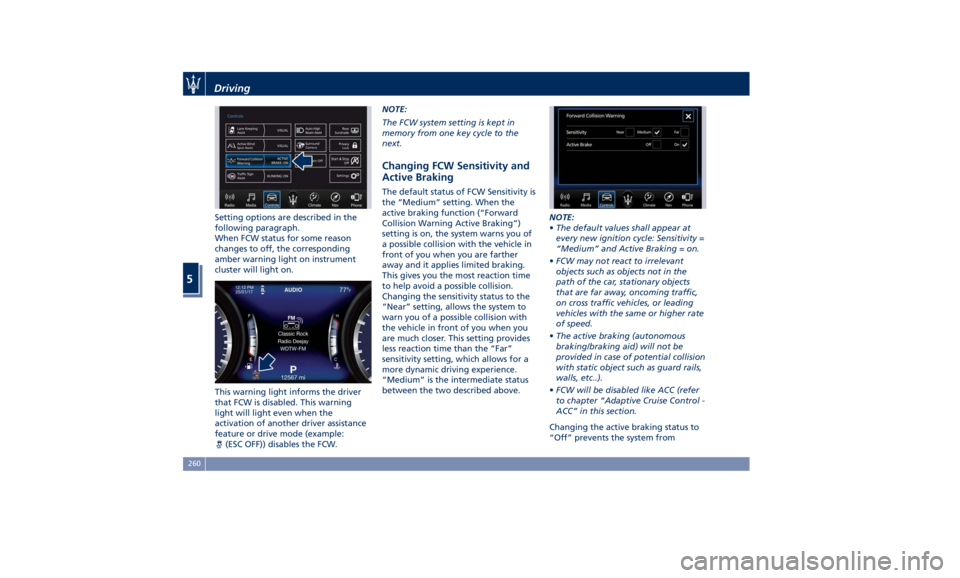
Setting options are described in the
following paragraph.
When FCW status for some reason
changes to off, the corresponding
amber warning light on instrument
cluster will light on.
This warning light informs the driver
that FCW is disabled. This warning
light will light even when the
activation of another driver assistance
feature or drive mode (example:
(ESC OFF)) disables the FCW. NOTE:
The FCW system setting is kept in
memory from one key cycle to the
next.
Changing FCW Sensitivity and
Active Braking The default status of FCW Sensitivity is
the “Medium” setting. When the
active braking function (“Forward
Collision Warning Active Braking”)
setting is on, the system warns you of
a possible collision with the vehicle in
front of you when you are farther
away and it applies limited braking.
This gives you the most reaction time
to help avoid a possible collision.
Changing the sensitivity status to the
“Near” setting, allows the system to
warn you of a possible collision with
the vehicle in front of you when you
are much closer. This setting provides
less reaction time than the “Far”
sensitivity setting, which allows for a
more dynamic driving experience.
“Medium” is the intermediate status
between the two described above. NOTE:
• The default values shall appear at
every new ignition cycle: Sensitivity =
“Medium” and Active Braking = on.
• FCW may not react to irrelevant
objects such as objects not in the
path of the car, stationary objects
that are far away, oncoming traffic,
on cross traffic vehicles, or leading
vehicles with the same or higher rate
of speed.
• The active braking (autonomous
braking/braking aid) will not be
provided in case of potential collision
with static object such as guard rails,
walls, etc..).
• FCW will be disabled like ACC (refer
to chapter “Adaptive Cruise Control -
ACC” in this section.
Changing the active braking status to
“Off” prevents the system fromDriving
5
260
Page 266 of 384

NOTE:
In case of wet road or raining
conditions the function could be
disabled by the system in order to
minimize the risks.
Speed Range of Use Speed mph (km/h)
Minimum 37 (60)
Engaged/activated 37 (60)
Maximum 112 (180)
Customized Settings LKA is configurable by the driver in
order to maximize its efficiency based
on the driver driving style and the
expectation of the system, reducing at
the same time the possible
invasiveness.
Entering "Controls" page on MTC+
display the driver can see the current
setting beside the "Lane Keeping
Assist" soft-key.
Touching “Lane Keeping Assist”
soft-key can disable or enable the
system. Touching the soft-key on the side the
driver can change the setting.
Driver warnings can be only "Visual"
or "Visual & Haptic" (default mode).
System response can be set to "Early",
"Medium" (default mode) or "Late".
System reaction force can be set to
"Low", "Medium" (default mode) or
"High".
Meanings of Settings
• "Visual" only: the system will not
request any steering torque/vibration to correct the car trajectory. The
system will only show on the TFT
display when the vehicle is passing
the lane.
• "Visual & Haptic": the system will
apply steering torque when lane
departure is detected while showing
at the same time the proper cluster
indication, adding to this steering
vibration when the departure is very
imminent.
When "Visual & Haptic" is selected and
LKA is enabled then the following
menu will be used by the system.
• "LKA Sensitivity": it tunes the
distance to the lane boundary where
the system will start to apply steering
torque.
• "LKA Strength": it tunes the steering
torque value to have a stronger or
weaker directional correction/
deviation.
WARNING!
In rare cases, Lane Keeping Assist
(LKA) may make an inappropriate
steering torque application. LKA may
be interrupted at any time counter
steering. Lack of attention may lead to
serious injury or death.Driving
5
262
Page 273 of 384

NOTE:
In a parking lot situation, oncoming
vehicles can be obscured by vehicles
parked on either side. If the sensors
are blocked by other structures or
vehicles, the system will not be able to
alert the driver.
Proceed slowly and cautiously out of
the parking space until the rear end of
the vehicle is moderately exposed.
The RCP system will then have a clear
view of the cross traffic. If an
oncoming vehicle is detected, the RCP
system will alert the driver using both
the visual and audible alarms. If the
radio is on, it will also reduce the
radio volume.
WARNING!
RCP is not a Back Up Aid system. More specifically, it is intended to be used
to help a driver detect an oncoming
vehicle in a parking lot situation.
Drivers must be careful when backing
up, even when using RCP. Always
check carefully behind your vehicle,
look behind you, and be sure to check
for pedestrians, animals, other
vehicles, obstructions, and blind spots
before backing up. Failure to do so
can result in serious injury or death.
BSA and RCP Setting Setting modes can be selected from
the MTC+ System.
Touch “Controls” soft-key and then
“Blind Spot Assist” soft-key to enter
the setting page.
Refer to chapter “MTC+ “Controls”
Screen” in section “Dashboard
Instruments and Controls” for further
information. BSA in Visual Mode
When operating in “Visual” mode, the
BSA system will provide a visual alert
in the appropriate side view mirror
when it detects a vehicle or an object
in the detection areas monitored by its
sensors: depending on the status of
the relative turn indicator, the
warning light can be fixed or flashing.
However, when the system is
operating in RCP mode, it will respond
with both visual and audible alerts
when an oncoming vehicle or an
object approaching the rear end side
of the vehicle is detected.
Whenever an audible alert is
requested, the radio is muted (if the
radio is on).
BSA in Visual and Acoustic Mode
When operating in “Visual & Acoustic”
mode, the BSA system will provide a
visual alert in the appropriate side
view mirror based on a detected
vehicle or object.Driving
5
269
Page 276 of 384

Speed Range of Use Speed mph (km/h)
Minimum 37 (60)
Engaged/activated 37 (60)
Maximum 112 (180)
System Limitation Because of physical limits the system to
properly operate needs good visibility
(it might not work or not properly
operate in case of heavy rain, snow,
wet roads, fog, direct sun on the
camera, dirty windshield, low
illumination etc.)
Sharp turns, slopes and change in
slopes, poor lane boundaries, as well
as construction areas and all the
scenarios described in this paragraph
may challenge the system, therefore
be always ready to prevent any
unexpected behaviour of the car.
Damaged front bumper, windshield
replaced without proper technical
intervention may also lead to system
malfunction or system unavailability.
Other conditions such as faults, but
not explicitly indicated here may also
prevent/interrupt the system
intervention. ABSA Setting ABSA is configurable by the customer
in order to maximize its efficiency
based on the driver driving style and
his/her expectation of the system,
reducing at the same time the possible
invasiveness.
Setting modes can be selected from
the MTC+ System (see "MTC+
"Controls" Screen" in section
"Dashboard Instruments and Controls"
for further information).
Touch "Controls" soft-key to display
the current status of the ABSA system,
if it was in the on state.
To change status, touch the "Active
Blind Spot Assist" soft-key.
To change the system setting, touch
the soft-key on the side.
Driver warnings can be only "Visual",
"Visual & Acoustic" (default mode) or
"Visual & Haptic". System sensitivity can be set to “Early”,
“Medium” (default mode) or “Late”.
System strength can be set to "Low",
"Medium" (default mode) or "High".
NOTE:
The ABSA system will store the current
operating mode when the vehicle is
shut off. Each time the vehicle is
started, the previously-stored mode
will be recalled and used.
Meanings of Settings
When "Visual & Haptic" is selected and
of course ABSA is enabled, then two
following menus will be used by the
system.
• ABSA “Sensitivity": it tunes the
distance to the lane boundary where
the system will start to apply steering
torque.Driving
5
272
Page 284 of 384

(Continued)
• The performance of TSA depends on
the update degree of navigation
system’s maps.
Customised Settings TSA is configurable by the customer
regarding the display mode on the
instrument cluster and the warning
sensitivity.
Entering "Controls" page on MTC+
display the driver can see the current
setting beside the "Traffic Sign Assist"
soft-key.
Touching “Traffic Sign Assist” soft-key
can disable or enable the system.
Touching the soft-key on the side the
driver can change the setting.
The display of the traffic signs can be
blinking or static.
The system can be set to display the
traffic signs when the speed of the vehicle is equal to the speed limit
allowed, or when it is higher than 5 or
10 mph (5 or 10 km/h).
Signs Monitoring on
Instrument Cluster
If TSA feature is set and a sign or a
speed limit is detected, the related
icons are displayed in the upper area
of the instrument cluster beside of the
main menu number and scroll arrows. The display area is divided in three
different sectors:
1 Conditioned speed limit area.
2 Unconditioned speed limit area.
3 Overtaking restriction area.
NOTE:
Overtaking restriction sign will be
displayed only in markets where this is
allowed.
If “Blinking On” warning mode is set,
when the visual warning is provided
only the unconditioned speed limit (in
sector 2 ) will start blinking when the
vehicle speed exceeds to the detected
unconditioned speed limit (“+0 mph”
or “+0 km/h” option) or when it
exceeds the set sensitivity value
(“+5 mph” - “+5 km/h” or “+10 mph” -
“+10 km/h” options). If the vehicleDriving
5
280
Page 300 of 384
(Continued)
with proper maintenance. Have the
exhaust system inspected every time
the vehicle is raised. Have any
abnormal conditions repaired
promptly. Until repaired, drive with
all side windows fully open.
WARNING!
California Proposition 65
Operating, servicing and maintaining
a passenger vehicle or off-road vehicle
can expose you to chemicals including
such as, engine exhaust, carbon
monoxide, phthalates and lead, that
which are known to the State of
California to cause cancer and birth
defects or other reproductive harm. To
minimize exposure, avoid breathing
exhaust, do not idle the engine except
as necessary, service your vehicle in a
well-ventilated area and wear gloves
or wash your hands frequently when
servicing your vehicle. For more
information go to:
www.P65Warnings.ca.gov/passenger-
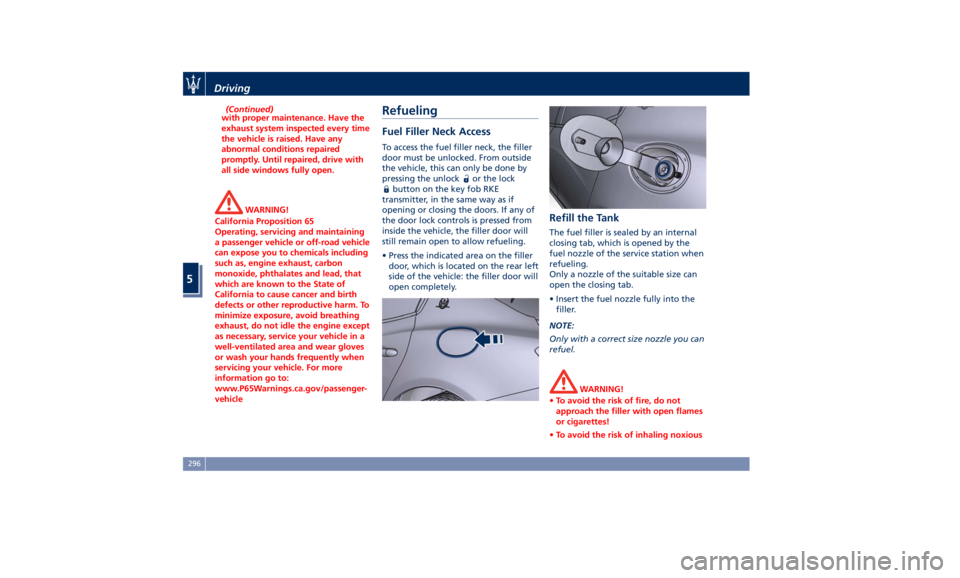
vehicle Refueling Fuel Filler Neck Access To access the fuel filler neck, the filler
door must be unlocked. From outside
the vehicle, this can only be done by
pressing the unlock
or the lock
button on the key fob RKE
transmitter, in the same way as if
opening or closing the doors. If any of
the door lock controls is pressed from
inside the vehicle, the filler door will
still remain open to allow refueling.
• Press the indicated area on the filler
door, which is located on the rear left
side of the vehicle: the filler door will
open completely. Refill the Tank The fuel filler is sealed by an internal
closing tab, which is opened by the
fuel nozzle of the service station when
refueling.
Only a nozzle of the suitable size can
open the closing tab.
• Insert the fuel nozzle fully into the
filler.
NOTE:
Only with a correct size nozzle you can
refuel.
WARNING!
• To avoid the risk of fire, do not
approach the filler with open flames
or cigarettes!
• To avoid the risk of inhaling noxiousDriving
5
296