2019 LINCOLN NAVIGATOR wheel
[x] Cancel search: wheelPage 271 of 645
Intensity: This setting affects the intensity ofthe steering wheel vibration used for the alertand alert and aid modes. This setting doesnot affect the aid mode.
•Low.
•Medium.
•High.
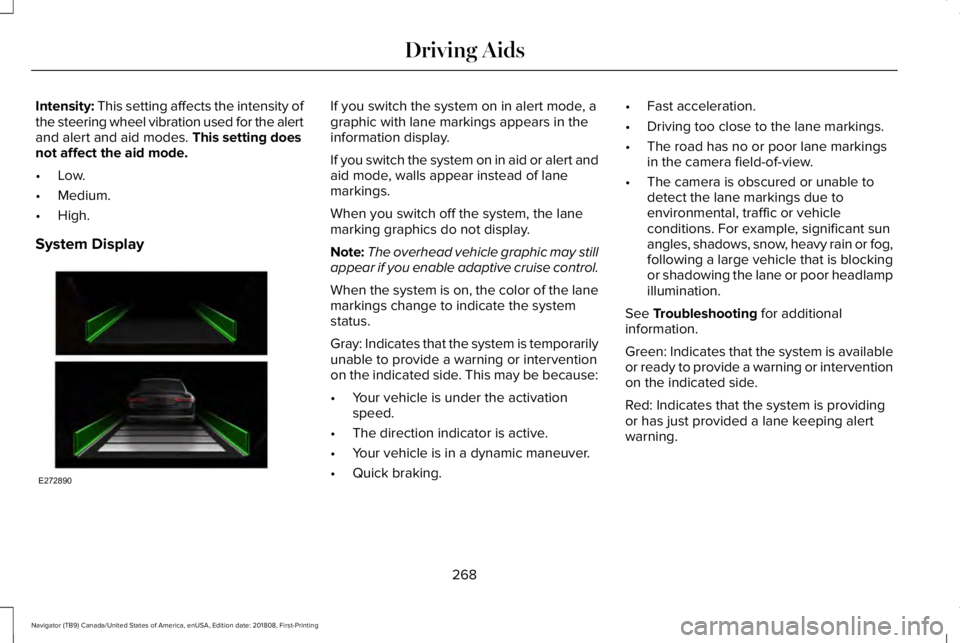
System Display
If you switch the system on in alert mode, agraphic with lane markings appears in theinformation display.
If you switch the system on in aid or alert andaid mode, walls appear instead of lanemarkings.
When you switch off the system, the lanemarking graphics do not display.
Note:The overhead vehicle graphic may stillappear if you enable adaptive cruise control.
When the system is on, the color of the lanemarkings change to indicate the systemstatus.
Gray: Indicates that the system is temporarilyunable to provide a warning or interventionon the indicated side. This may be because:
•Your vehicle is under the activationspeed.
•The direction indicator is active.
•Your vehicle is in a dynamic maneuver.
•Quick braking.
•Fast acceleration.
•Driving too close to the lane markings.
•The road has no or poor lane markingsin the camera field-of-view.
•The camera is obscured or unable todetect the lane markings due toenvironmental, traffic or vehicleconditions. For example, significant sunangles, shadows, snow, heavy rain or fog,following a large vehicle that is blockingor shadowing the lane or poor headlampillumination.
See Troubleshooting for additionalinformation.
Green: Indicates that the system is availableor ready to provide a warning or interventionon the indicated side.
Red: Indicates that the system is providingor has just provided a lane keeping alertwarning.
268
Navigator (TB9) Canada/United States of America, enUSA, Edition date: 201808, First-Printing
Driving AidsE272890
Page 276 of 645

The system is designed to detect vehiclesthat may have entered the blind spot zone(A). The detection area is on both sides ofyour vehicle and trailer, extending rearwardfrom the exterior mirrors to the end of yourtrailer.
The system turns on when all of the followingoccur:
•You attach a trailer to your vehicle.
•You have set up the trailer to work withthe system through the informationdisplay.
•You start your vehicle.
•You shift into drive (D).
•The vehicle speed is greater than 6 mph(10 km/h).
Note:If you switch the Blind Spot InformationSystem off, the Blind Spot InformationSystem with Trailer Tow automatically turnsoff.
Note:If you connect a trailer to your vehicleand do not set up the trailer through theinformation display, the system turns off anda warning message appears. SeeInformation Messages (page 125).
Note:When towing a trailer, the extendedblind spot zone range decreases to a shortfixed or non-variable distance behind thetrailer. The extended blind spot zone rangereturns to 59 ft (18 m) when the trailer isdisconnected.
Setting up a Trailer
Trailer lengthA
Trailer widthB
Trailer hitch ballC
You can set-up a trailer to work with thesystem through the information display. SeeGeneral Information (page 120). Whensetting up a trailer, a sequence of screensappear asking for trailer information.
•Select type of trailer screen -Conventional, fifth wheel or gooseneck.
The system only supports conventionaltrailers. If you select fifth wheel orgooseneck, the system automatically turnsoff.
•Do you want to set up BLIS with trailerscreen?
If no, the system turns off.
If yes, the menu goes to the next screen.
•Is the width less than 9 ft (2.7 m) andlength less than 33 ft (10.1 m)?
If no, the system turns off.
If yes, the menu goes to the next screen.
•Trailer width measurement:
The width of the trailer is measured at thefront of the trailer. It is not measured at thewidest point of the trailer. The maximumwidth at the front of the trailer that the systemcan support is 8.5 ft (2.6 m).
273
Navigator (TB9) Canada/United States of America, enUSA, Edition date: 201808, First-Printing
Driving AidsE225008
Page 288 of 645

Changing the drive mode automaticallychanges the functionality of the followingsystems:
•Electronically power-assisted steeringsystem adjusts steering effort and feelbased on the mode you select. SeeSteering (page 279).
•Electronic stability control and tractioncontrol maintain your vehicle control inadverse conditions or high performancedriving. See Stability Control (page 232).
•Electronic throttle control enhances thepowertrain response to your inputs.
•Transmission controls optimize with shiftschedules tuned to each mode.
•Driveline settings optimize for eachmode.
Using the System
The system automatically tailors your vehicleconfiguration for each mode you select.
To change the drive mode setting, use thedrive mode selector on the center console.
Note:Mode changes are not available whenthe vehicle ignition is off or when the engineis not running.
•NORMAL – For everyday driving. Thismode is a perfect balance of excitement,comfort and convenience.
•EXCITE – For aggressive on-road driving.This mode increases throttle response,provides a sportier steering feel, alongwith quicker shifting. The suspensionstiffens, with an emphasis on handlingand control. The transmission also holdsgears longer, helping your vehicleaccelerate faster when shifting gears.
•CONSERVE – Enables efficient andresponsible driving. It helps delivermaximum fuel efficiency and increasesdriving range.
•NORMAL 4A – For general on-roaddriving. Use this mode on normal firmsurfaces such as dry or wet pavementand hard packed dirt or gravel roads.Delivers power to all four wheels, asrequired.
285
Navigator (TB9) Canada/United States of America, enUSA, Edition date: 201808, First-Printing
Driving AidsE246604
Page 290 of 645

REAR UNDER FLOOR STORAGE
Cargo Management System
A storage area is located in the floor of therear cargo area. There are two types ofstorage systems depending on your vehicle.
Short Wheel Base System
Lift up on the handle to open the cover.
Note:The board operates with frictionhinges, which allows it to be put in anyposition between a 0° and a 90° angle.
To close, lower the cover.
Long Wheel Base System
The long wheel base system has twoseparate storage compartments. To accessthese compartments, there is a bifoldingcover.
Lift up on the handle and fold back to openthe cover.
Note:The board operates with frictionhinges, which allows it to be put in anyposition between a 0° and a 90° angle.
To access the second storage compartment,fold the cover back a second time.
To close, lower the cover.
287
Navigator (TB9) Canada/United States of America, enUSA, Edition date: 201808, First-Printing
Load CarryingE250821 E250823 E250822 E250824 E250825
Page 291 of 645

Advanced System: Forward Divider,Cargo Shelf and Rear Barrier (BulkheadPosition) (If Equipped)
WARNING: Do not load any objectson the shelf that may obstruct your visionor strike occupants of the vehicle in thecase of a sudden stop or collision.
WARNING: Do not place people orpets on or under the parcel shelf.
The board moves to the same positions forboth the short wheel base and long wheelbase advanced systems.
Advanced Short Wheel Base System
A storage compartment is located in the floorof the rear cargo area. The cover operateson friction hinges. Lift up on the handle toopen the cover. To close, lower the cover.
Advanced Long Wheel Base System
With the advanced long wheel base system,there is an additional cover with an extrastorage compartment underneath. This coveralso operates on friction hinges. Lift up onthe handle to open the cover. To close, lowerthe cover.
Forward Divider
To move the board into the divider position,lift up on the handle and position the boardvertically at a 90° angle.
Note:The board operates on friction hinges,which allows it to be put in any positionbetween a 0° and a 90° angle.
288
Navigator (TB9) Canada/United States of America, enUSA, Edition date: 201808, First-Printing
Load CarryingE250826 E250827 E250828
Page 292 of 645

Cargo Shelf
To move the board into the shelf position,lift the board and move it to the horizontalposition. Once the board is horizontal, insertthe forward facing nubs into the hooks oneither side.
For the short wheel base system, it isnecessary for the second panel locatedtoward the front of the vehicle to be raisedup when the seats are folded down.
For the long wheel base system, it isnecessary for the second panel locatedtoward the front of the vehicle to be raisedup.
Note:Before moving the board into the shelfposition, you may need to flip down thehooks.
Note:Do not put more than 50 lb (22 kg) onshelf.
Rear Barrier (Bulkhead Position)
To move the board into the rear barrier orbulkhead position, lift the board and move itto the vertical position. Once the board isvertical, insert the rearward facing nubs intothe hooks on either side.
Note:Before moving the board into the rearbarrier or bulkhead position, you may needto flip down the hooks.
CARGO NETS (IF EQUIPPED)
WARNING: This net is not designedto restrain objects during a collision orheavy braking.
The cargo net secures lightweight objectsin the cargo area.
1. Fold down the hooks on the top of therear quarter trim panel.
289
Navigator (TB9) Canada/United States of America, enUSA, Edition date: 201808, First-Printing
Load CarryingE250829 E250830 E275127
Page 294 of 645

Maximum Recommended Load Amounts
Maximum Recommended LoadDescription
125 lb (56 kg)Vehicles with moonroof.
200 lb (90 kg)Vehicles without moonroof.
125 lb (56 kg)Vehicles equipped with 20 in (50 cm) wheels and without moonroof.
Note:The maximum recommended load isbased on the load being evenly distributedon the crossbars.
Adjusting the Crossbar (If Equipped)
Note:For less wind noise and betteraerodynamics, only install the crossbarswhen you need them for carrying cargo. Thefront crossbar is fixed. There are twooptional positions for the rear crossbar.Follow the steps to reposition or remove therear crossbar.1.Remove the crossbar bolts at both sidesof the rear crossbar by using the suppliedtorx tool or a similar tool.
2. Move the crossbar to the new position.
3. Replace and tighten the bolts at bothsides of the crossbar by using thesupplied torx tool or a similar tool.
Note:There may be snap caps in the newside rail position, which must be removedbefore installing the crossbar. These capscan be removed by using the supplied torxtool or a similar tool.
291
Navigator (TB9) Canada/United States of America, enUSA, Edition date: 201808, First-Printing
Load CarryingE203063
Page 302 of 645

You have to set up each trailer you use withyour vehicle. You must accurately follow thesetup process to make sure you correctlyplace the sticker.
Contact your dealership if you needassistance in setting up your trailer.
Setting Up Pro Trailer Backup Assist
Note:Once you enter a trailer's information,the system stores it for easy recall. You canadd a maximum of 10 trailers to the system.
Step 1: Position your Vehicle and Trailer
Hitch the conventional trailer to your vehicle.See Essential Towing Checks (page 311).
Park your vehicle and trailer on a levelsurface.
For best results, make sure that your trailerrides level with the ground when you hitchyour vehicle. More information on selectingyour tow bar is available in the Towingsection. See Towing (page 297).
Make sure your vehicle and the trailer are inline with each other. You can do this bydriving straight forward.
Step 2: Follow the Information DisplayPrompts
Press the button to turn the system on.
1. Select the option to add a trailer in theinformation display using the steeringwheel control. See General Information(page 120).
299
Navigator (TB9) Canada/United States of America, enUSA, Edition date: 201808, First-Printing
TowingE247482 E247481 E246984