2019 LINCOLN MKZ radio
[x] Cancel search: radioPage 392 of 595
GENERAL INFORMATION
WARNING: Driving while distractedcan result in loss of vehicle control, crashand injury. We strongly recommend that youuse extreme caution when using any devicethat may take your focus off the road. Yourprimary responsibility is the safe operationof your vehicle. We recommend against the
use of any hand-held device while drivingand encourage the use of voice-operatedsystems when possible. Make sure you areaware of all applicable local laws that mayaffect the use of electronic devices whiledriving.
Radio Frequencies and ReceptionFactors
AM and FM frequencies are established bythe Federal Communications Commission(FCC) and the Canadian Radio andTelecommunications Commission (CRTC).Those frequencies are:
•AM: 530-1710 kHz
•FM: 87.9-107.9 MHz
Note:Listening to loud audio for longperiods of time could damage your hearing.
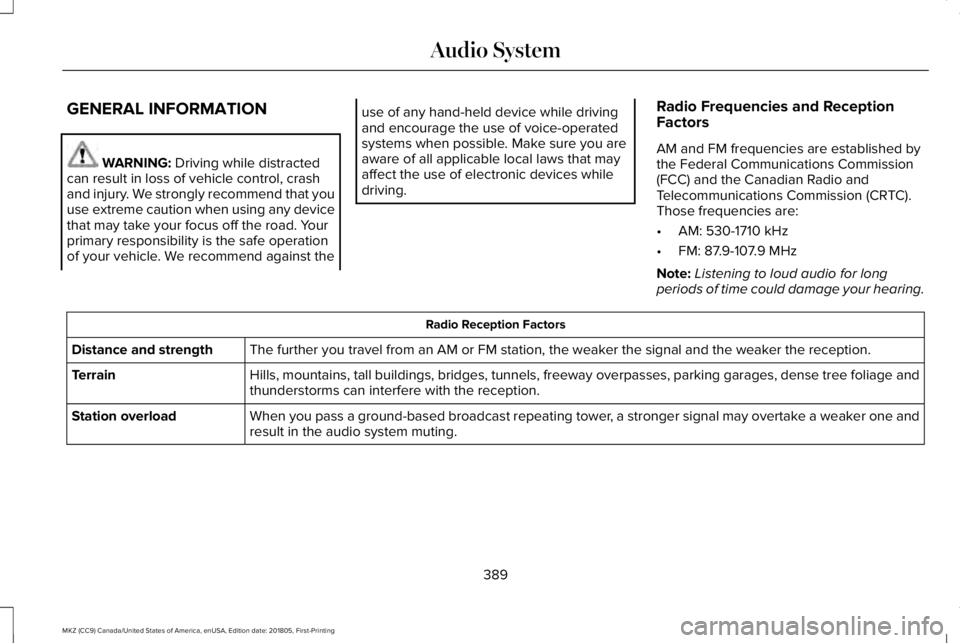
Radio Reception Factors
The further you travel from an AM or FM station, the weaker the signal and the weaker the reception.Distance and strength
Hills, mountains, tall buildings, bridges, tunnels, freeway overpasses, parking garages, dense tree foliage andthunderstorms can interfere with the reception.Terrain
When you pass a ground-based broadcast repeating tower, a stronger signal may overtake a weaker one andresult in the audio system muting.Station overload
389
MKZ (CC9) Canada/United States of America, enUSA, Edition date: 201805, First-Printing
Audio System
Page 393 of 595

CD and CD Player Information
Note:CD units play commercially pressed4.7 in (12 cm) audio compact discs only. Dueto technical incompatibility, certainrecordable and re-recordable compact discsmay not function correctly when used in thevehicle’s CD player.
Note: Do not insert CDs with homemadepaper (adhesive) labels into the CD playeras the label may peel and cause the CD tobecome jammed. You should use apermanent felt tip marker rather thanadhesive labels on your homemade CDs. Ballpoint pens may damage CDs. Ask anauthorized dealer for more information.
Note:Do not use any irregularly shapeddiscs or discs with a scratch protection filmattached.
Always handle discs by their edges only. Clean the disc with an approved CD cleaneronly. Wipe it from the center of the disctoward the edge. Do not clean in a circularmotion.
Do not expose discs to direct sunlight or heatsources for extended periods.
MP3 and WMA Track and FolderStructure
Audio systems capable of recognizing andplaying MP3 and WMA individual tracks andfolder structures work as follows:
•There are two different modes for MP3and WMA disc playback: MP3 and WMAtrack mode (system default) and MP3 andWMA folder mode.
•MP3 and WMA track mode ignores anyfolder structure on the MP3 and WMAdisc. The player numbers each MP3 andWMA track on the disc (noted by the MP3or WMA file extension) from T001 to amaximum of T255. The maximum numberof playable MP3 and WMA files may beless depending on the structure of theCD and exact model of radio present.
•MP3 and WMA folder mode representsa folder structure consisting of one levelof folders. The CD player numbers allMP3 and WMA tracks on the disc (notedby the MP3 or WMA file extension) andall folders containing MP3 and WMA files,from F001 (folder) T001 (track) to F253T255.
•Creating discs with only one level offolders helps with navigation through thedisc files.
If you are burning your own MP3 and WMAdiscs, it is important to understand how thesystem reads the structures you create. Whilevarious files may be present (files withextensions other than MP3 and WMA), onlyfiles with the MP3 and WMA extension areplayed; other files are ignored by the system.This enables you to use the same MP3 andWMA disc for a variety of tasks on your workcomputer, home computer and yourin-vehicle system.
390
MKZ (CC9) Canada/United States of America, enUSA, Edition date: 201805, First-Printing
Audio System
Page 394 of 595

In track mode, the system displays and playsthe structure as if it were only one level deep(all MP3 and WMA files play, regardless ofbeing in a specific folder). In folder mode,the system only plays the MP3 and WMA filesin the current folder.
AUDIO UNIT
WARNING: Driving while distractedcan result in loss of vehicle control, crashand injury. We strongly recommend that youuse extreme caution when using any devicethat may take your focus off the road. Yourprimary responsibility is the safe operationof your vehicle. We recommend against theuse of any hand-held device while drivingand encourage the use of voice-operatedsystems when possible. Make sure you areaware of all applicable local laws that mayaffect the use of electronic devices whiledriving.
Note: The touchscreen system controls mostof the audio features.
Adjusting the Volume
Turn to adjust the volume.
Changing Radio Stations
In radio mode, turn to search through theradio frequency band.
In satellite radio mode, turn to find theprevious or next available satellite radiostation.
Ejecting the CD (If Equipped)
Press and release the button toeject a CD.
391
MKZ (CC9) Canada/United States of America, enUSA, Edition date: 201805, First-Printing
Audio SystemE265373 E265696 E265032
Page 395 of 595
Inserting a CD (If Equipped)
Insert a CD into the CD slot.
Selecting the Audio Modes
Press and release the button toaccess different audio modes, forexample AM, FM and CD.
Switching the Audio Unit On and Off
Press and release the button.
Using Seek, Fast Forward and Reverse
In radio mode, select a frequency band andpress and release either button. The systemstops at the first station it finds in thatdirection.
In CD mode, press and release to select thenext or previous track. Press and hold tomove quickly forward or backward throughthe current track.
In satellite radio mode, press and release toselect the next or previous satellite radiostation. If you select a specific category (suchas jazz, rock or news), press to find the nextor previous station in the category you select.
USB PORT
WARNING: Driving while distractedcan result in loss of vehicle control, crashand injury. We strongly recommend that youuse extreme caution when using any devicethat may take your focus off the road. Yourprimary responsibility is the safe operationof your vehicle. We recommend against theuse of any hand-held device while drivingand encourage the use of voice-operatedsystems when possible. Make sure you areaware of all applicable local laws that mayaffect the use of electronic devices whiledriving.
The USB port allows you to plug in mediaplaying devices, memory sticks and chargedevices, if supported.
MEDIA HUB
WARNING: Driving while distractedcan result in loss of vehicle control, crashand injury. We strongly recommend that youuse extreme caution when using any devicethat may take your focus off the road. Yourprimary responsibility is the safe operationof your vehicle. We recommend against the
392
MKZ (CC9) Canada/United States of America, enUSA, Edition date: 201805, First-Printing
Audio SystemE265276 E201595
Page 402 of 595

Messages may also appear in the status barto provide you with notifications. You canselect the message to view the associatedfeature.
Feature Bar
FunctionsFeature Bar Item
Allows you to control the media playing in your vehicle. You cancontrol all audio features including AM, FM and satellite radio, CDs,and media streaming over a Bluetooth device or through a USBconnection.
Audio
Allows you to adjust the temperature, fan speed and airflow withinthe vehicle.Climate
Allows you to make calls, receive calls, and access the phonebookof your connected device.Phone
Allows you to see your vehicle's location on a virtual road map, getdriving directions to your destination and find points of interest alongyour route.
Navigation
(If equipped)
399
MKZ (CC9) Canada/United States of America, enUSA, Edition date: 201805, First-Printing
SYNC™ 3
Page 405 of 595

Note:If your vehicle is not equipped withnavigation, compass appears in the displayinstead of navigation. If you press the rightarrow to go into the compass menu, you cansee the compass graphic. The compassdisplays the direction in which the vehicle istraveling, not true direction (for example, ifthe vehicle is traveling west, the middle ofthe compass graphic displays west; northdisplays to the left of west though its truedirection is to the right of west).
Using the Controls on the SteeringWheel
Depending on your vehicle and optionpackage, you can use different controls onyour steering wheel to interact with thetouchscreen system in different ways.
VOL: Control the volume of audio output.
Mute: Mute the audio output.
Voice: Press to start a voice session. Pressagain to stop the voice prompt andimmediately begin speaking. Press and holdto end a voice session.
SEEK NEXT:
•While in radio mode, press to seekbetween memory presets.
•While in USB, Bluetooth Audio or CDmode, press to seek between songs orpress and hold to fast seek.
SEEK PREVIOUS:
•While in radio mode, press to seekbetween memory presets.
•While in USB, Bluetooth Audio or CDmode, press to seek between songs orpress and hold to fast seek.
PHONE ACCEPT: Press to answer a call orswitch between calls.
PHONE REJECT: Press to end a call or rejectan incoming call.
Note:On some models, SEEK NEXT may becombined with PHONE REJECT and SEEKPREVIOUS may be combined with PHONEACCEPT.
M: Touch the control repeatedly to switchbetween media sources (modes).
See Steering Wheel (page 80).
Using Your Bezel Controls
Depending on your vehicle and optionpackage, you may also have these controlson your instrument panel:
•Power: Switch the audio system on andoff.
•VOL: Control the volume of playingaudio.
•Seek and Tune: Use as you normallywould in audio modes.
•Eject: Eject a CD from the audio system.
•SOURCE or MEDIA: Press repeatedly toadvance through available media modes.
•SOUND: Press to access the Soundmenu where you can adjust sound andother audio settings.
•1-6: Press and hold to store or press toselect an AM, FM or SIRIUS memorypreset. See Audio System (page 389).
402
MKZ (CC9) Canada/United States of America, enUSA, Edition date: 201805, First-Printing
SYNC™ 3
Page 416 of 595
Audio Voice Commands
___ is a dynamic listing, meaning that foraudio voice commands it can be the name
of a Sirius channel or a channel number, aradio frequency number, or the name of anartist, album, song or a genre.
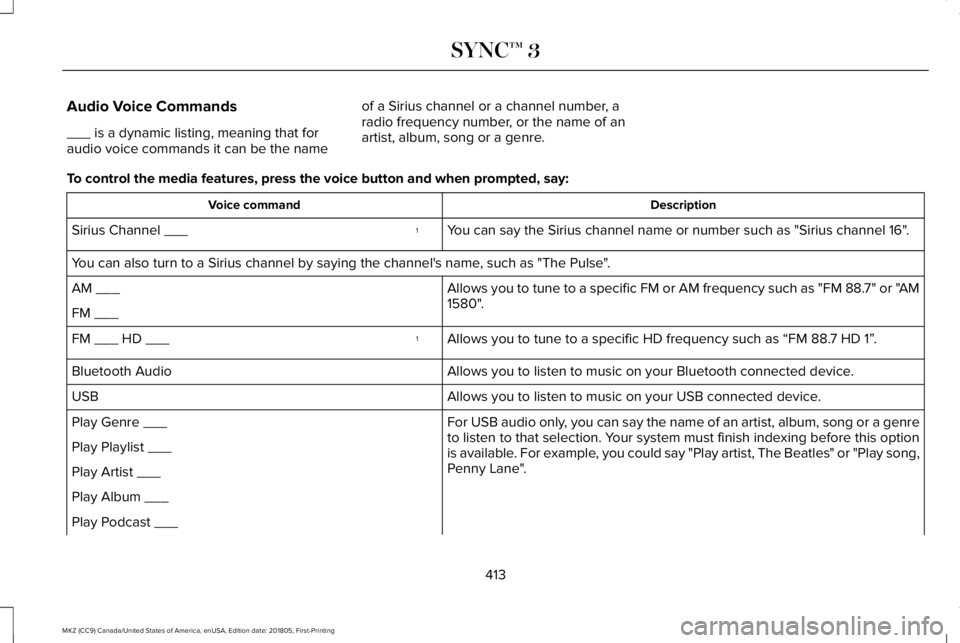
To control the media features, press the voice button and when prompted, say:
DescriptionVoice command
You can say the Sirius channel name or number such as "Sirius channel 16".1Sirius Channel ___
You can also turn to a Sirius channel by saying the channel's name, such as "The Pulse".
Allows you to tune to a specific FM or AM frequency such as "FM 88.7" or "AM1580".AM ___
FM ___
Allows you to tune to a specific HD frequency such as “FM 88.7 HD 1”.1FM ___ HD ___
Allows you to listen to music on your Bluetooth connected device.Bluetooth Audio
Allows you to listen to music on your USB connected device.USB
For USB audio only, you can say the name of an artist, album, song or a genreto listen to that selection. Your system must finish indexing before this optionis available. For example, you could say "Play artist, The Beatles" or "Play song,Penny Lane".
Play Genre ___
Play Playlist ___
Play Artist ___
Play Album ___
Play Podcast ___
413
MKZ (CC9) Canada/United States of America, enUSA, Edition date: 201805, First-Printing
SYNC™ 3
Page 427 of 595

Menu item
Bluetooth Stereo
If you have SYNC 3 compatible apps on your connected smart phone, they display here as individual source selections.Apps
1 This feature may not be available in all markets and requires an active subscription.
AM/FM Radio
Tuning a Station
You can use the tune or seek controls on theradio bezel to select a station.
To tune a station using the touchscreen,select:
Menu item
Direct Tune
A pop up appears, allowing you to type inthe frequency of a station. You can only entera valid station for the source you arecurrently listening to.
You can press the backspace button todelete the previously entered number.
Once you have entered the station's callnumbers, you can select:
Action and descriptionMenu item
Press to beginplaying the stationyou have entered.
Enter
Press to exit withoutchanging the station.Cancel
Presets
To set a new preset, tune to the station andthen press and hold one of the memorypreset buttons. The audio mutes briefly whilethe system saves the station and thenreturns.
There are two preset banks available for AMand three banks for FM. To access additionalpresets, tap the preset button. The indicatoron the preset button shows which bank ofpresets you are currently viewing.
SiriusXM® Satellite Radio (If Activated)
Note: This feature may not be available inall markets and requires an activesubscription.
424
MKZ (CC9) Canada/United States of America, enUSA, Edition date: 201805, First-Printing
SYNC™ 3E234451