2019 LINCOLN MKZ alerts
[x] Cancel search: alertsPage 442 of 595
PHONE
WARNING: Driving while distractedcan result in loss of vehicle control, crashand injury. We strongly recommend that youuse extreme caution when using any devicethat may take your focus off the road. Yourprimary responsibility is the safe operationof your vehicle. We recommend against theuse of any hand-held device while drivingand encourage the use of voice-operatedsystems when possible. Make sure you areaware of all applicable local laws that mayaffect the use of electronic devices whiledriving.
Hands-free calling is one of the main featuresof the system. Once you pair your cell phone,you can access many options using thetouchscreen or voice commands. While thesystem supports a variety of features, manyare dependent on your cell phone’sfunctionality.
Pairing Your Cell Phone for the FirstTime
Pair your Bluetooth enabled phone with thesystem before using the functions inhands-free mode.
Switch on Bluetooth on your device to beginpairing. See your phone’s manual ifnecessary.
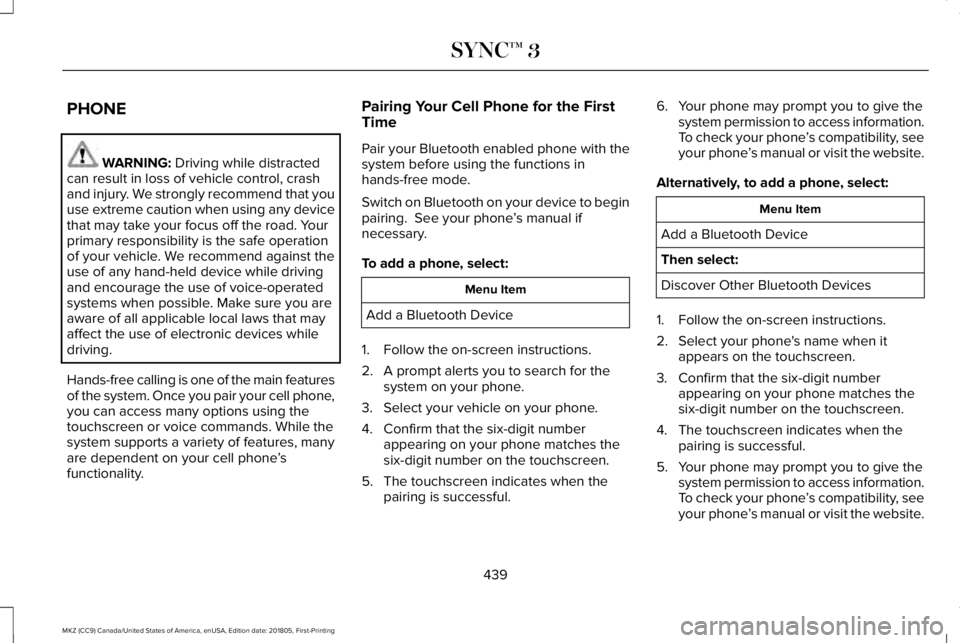
To add a phone, select:
Menu Item
Add a Bluetooth Device
1. Follow the on-screen instructions.
2. A prompt alerts you to search for thesystem on your phone.
3. Select your vehicle on your phone.
4. Confirm that the six-digit numberappearing on your phone matches thesix-digit number on the touchscreen.
5. The touchscreen indicates when thepairing is successful.
6. Your phone may prompt you to give thesystem permission to access information.To check your phone’s compatibility, seeyour phone’s manual or visit the website.
Alternatively, to add a phone, select:
Menu Item
Add a Bluetooth Device
Then select:
Discover Other Bluetooth Devices
1. Follow the on-screen instructions.
2. Select your phone's name when itappears on the touchscreen.
3. Confirm that the six-digit numberappearing on your phone matches thesix-digit number on the touchscreen.
4. The touchscreen indicates when thepairing is successful.
5. Your phone may prompt you to give thesystem permission to access information.To check your phone’s compatibility, seeyour phone’s manual or visit the website.
439
MKZ (CC9) Canada/United States of America, enUSA, Edition date: 201805, First-Printing
SYNC™ 3
Page 445 of 595

Action and DescriptionMenu ItemItem
You can place a call by selecting an entry from this list.You can also sort the calls by selecting the drop down menu at the top of the screen. Youcan choose:
MissedOutgoingIncomingAll
All of your contacts from your phone display in alphabetical order.ContactsB
Selecting this button allows you to choose aspecific letter to view.A-Z Jump
Displays the name of your phone and takes you to the phone settings options.Phone SettingsCFrom this menu, you can pair subsequent devices, set ring tones and alerts.
Gives you access to the list of paired or connected Bluetooth devices allowing you to changeor select a device.Change DeviceD
Displays all recent text messages.Text MessagesE
Use this keypad to dial in a phone number.Phone KeypadFUse the backspace button to delete numbers.
Press this button to begin a call.Call
Touch this button to reject all incoming calls automatically. Text message notifications donot display on the screen. All ringtones and alerts are set to silent.Do Not DisturbG
442
MKZ (CC9) Canada/United States of America, enUSA, Edition date: 201805, First-Printing
SYNC™ 3
Page 460 of 595

cityseeker, when available, is a service thatprovides more information about certainpoints of interest such as restaurants, hotelsand attractions.
When you have selected a point of interest,the location and information appear, such asaddress, phone number and a star rating.
Press More Information to see a photo, areview, a list of services and facilities, theaverage room or meal price and the webaddress. This screen displays the point ofinterest icons.
For restaurants, cityseeker can provideinformation such as star rating, average cost,review, handicap access, hours of operation,and website address.
For hotels, cityseeker can provideinformation such as star rating, pricecategory, review, check-in and checkouttimes, hotel service icons and websiteaddress. Hotel service icons include:
•Restaurant
•Business center
•Handicap facilities
•Laundry
•Refrigerator
•24 hour room service
•Fitness center
•Internet access
•Pool
•Wi-Fi
Attractions include nearby landmarks,amusement parks, historic buildings andmore. cityseeker can provide informationsuch as star rating, reviews, hour of operationand admission price.
SiriusXM Traffic and Travel Link (If
Equipped)
SiriusXM Traffic and Travel Link is availableon vehicles equipped with navigation andonly in select markets. You must activate andsubscribe to receive SiriusXM Traffic andTravel Link information. It helps you locatethe best gas prices, find movie listings, getcurrent traffic alerts, view the weather map,get accurate ski conditions and see currentsports scores. See Apps (page 458).
The system calculates a reasonable efficientroute based on available speed limits, traffic,and road conditions. You may know a localshort cut that is more efficient at a given timethan the route provided by SYNC 3, but youshould expect a slight difference in minutesor miles with the SYNC 3 route.
Navigation Map Updates
Annual navigation map updates are availablefor purchase through your dealership, bycalling 1-866-462-8837 in the United Statesand Canada or 01-800-557-5539 in Mexico.You can also visit:
Website
www.navigation.com/sync
You need to specify the make and model ofyour vehicle to determine if there is anupdate available.
457
MKZ (CC9) Canada/United States of America, enUSA, Edition date: 201805, First-Printing
SYNC™ 3
Page 463 of 595

of your vehicle. We recommend against theuse of any hand-held device while drivingand encourage the use of voice-operatedsystems when possible. Make sure you areaware of all applicable local laws that mayaffect the use of electronic devices whiledriving.
Note:SiriusXM Traffic and Travel Link maynot be available in all markets.
Note:In order to use SiriusXM Traffic andTravel Link, your vehicle must havenavigation.
Note:A paid subscription is required toaccess and use these features. Go towww.siriusxm.com/travellink for moreinformation.
Note:Visit www.siriusxm.com/traffic and clickon Coverage map and details for a completelisting of all traffic areas covered by SiriusXMTraffic and Travel Link.
Note:Neither Sirius nor Lincoln isresponsible for any errors or inaccuracies inthe SiriusXM Traffic and Travel Link servicesor its use in vehicles.
When you subscribe to SiriusXM Traffic andTravel Link, it can help you locate the bestgas prices, find movie listings, get currenttraffic alerts, view the current weather map,get accurate ski conditions and see scoresto current sports games.
Action and DescriptionMenu Item
Touch these buttons to identify traffic incidents on your route, near your vehicle’s current locationor near any of your favorite places, if programmed.Traffic on Route
Traffic Nearby
Touch this button to view fuel prices at stations close to your vehicle’s location or on an activenavigation route.Fuel Prices
Touch this button to view nearby movie theaters and their show times, if available.Movie Listings
Touch this button to view the nearby weather, current weather, or the five-day forecast for thechosen area.Weather
Select to see the weather map, which can show storms,radar information, charts and winds.Map
460
MKZ (CC9) Canada/United States of America, enUSA, Edition date: 201805, First-Printing
SYNC™ 3
Page 468 of 595

To add a phone, select:
Menu Item
Add Phone
1. Follow the on-screen instructions.
2. A prompt alerts you to search for thesystem on your phone.
3.Select your vehicle's make and model asit displays on your phone.
4. Confirm that the six-digit numberappearing on your phone matches thesix-digit number on the touchscreen.
5. The touchscreen indicates when thepairing is successful.
6. Your phone may prompt you to give thesystem permission to access information.To check your phone’s compatibility, seeyour phone’s manual or visit the website.
Alternatively, to add a phone, select:
Menu Item
Add Phone
Then select:
Discover Other Bluetooth Devices
1. Follow the on-screen instructions.
2. Select your phone's name when itappears on the touchscreen.
3. Confirm that the six-digit numberappearing on your phone matches thesix-digit number on the touchscreen.
4. The touchscreen indicates when thepairing is successful.
5. Your phone may prompt you to give thesystem permission to access information.To check your phone’s compatibility, seeyour phone’s manual or visit the website.
Other features, such as text messaging usingBluetooth and automatic phonebookdownload, are phone-dependent features.
Once you have paired a device you canadjust the following options.
To check your phone’s compatibility, seeyour phone’s manual or visit the website:
Website
owner.lincoln.comwww.syncmyride.cawww.syncmaroute.ca
Once you have paired a device you canadjust the following options.
465
MKZ (CC9) Canada/United States of America, enUSA, Edition date: 201805, First-Printing
SYNC™ 3
Page 471 of 595
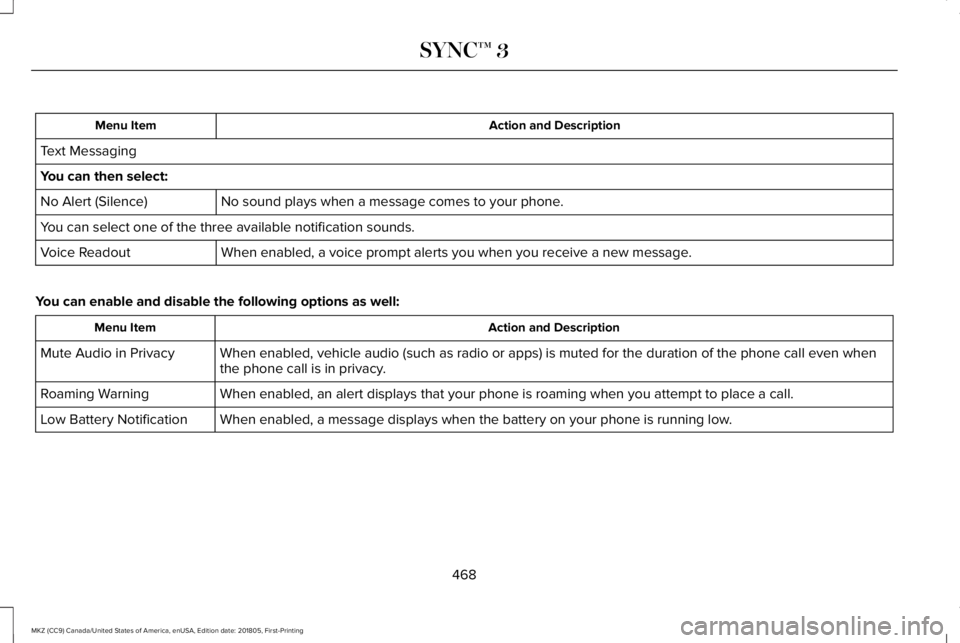
Action and DescriptionMenu Item
Text Messaging
You can then select:
No sound plays when a message comes to your phone.No Alert (Silence)
You can select one of the three available notification sounds.
When enabled, a voice prompt alerts you when you receive a new message.Voice Readout
You can enable and disable the following options as well:
Action and DescriptionMenu Item
When enabled, vehicle audio (such as radio or apps) is muted for the duration of the phone call even whenthe phone call is in privacy.Mute Audio in Privacy
When enabled, an alert displays that your phone is roaming when you attempt to place a call.Roaming Warning
When enabled, a message displays when the battery on your phone is running low.Low Battery Notification
468
MKZ (CC9) Canada/United States of America, enUSA, Edition date: 201805, First-Printing
SYNC™ 3
Page 474 of 595

SiriusXM
This button is available if SiriusXM is the
active audio source. Pressing the buttonallows you to access the following features:
Action and DescriptionMenu Item
If you select a category, seek functions only stop on channels in that category.Set Category for Seek
Select to create a personal identification number (PIN), which allows you to lock or unlock channels. Your initialPIN is 1234.Parental Lockout
Select to switch on or off songs, artists or teams alerts or delete an alert or delete all alerts.Edit Alerts
You can also view your satellite radioElectronic Serial Number (ESN) from thisscreen. You need this number whencommunicating with SiriusXM to activate,modify or track your account.
Navigation
You can adjust many of the Navigationpreferences by selecting the followingmenus.
Map Preferences
Action and DescriptionMenu Item
Map Preferences
Then select any of the following:
When this option is active, the system shows 3D renderings of buildings.3D City Model
When enabled, your vehicle’s previously traveled route displays with white dots.Breadcrumbs
471
MKZ (CC9) Canada/United States of America, enUSA, Edition date: 201805, First-Printing
SYNC™ 3
Page 480 of 595

Action and DescriptionMenu Item
Enable this option to connect to Wi-Fi for SYNC 3 vehicle software updates.Wi-Fi
This provides you with a list of available Wi-Fi networks within range.Available Networks
Clicking on a network from the list allows you to connect or disconnect from that network. The system mayrequire a security code to connect.
When you click the information button next to a network, more information about the network displays suchas the signal strength, connection status and security type.
The system alerts you when your vehicle is parked and a Wi-Fi network is within range if SYNC is not alreadyconnected.Wi-Fi Available Notifications
Vehicle Hotspot
You can access the following:
Action and DescriptionMenu Item
Allows you to turn the hotspot on and off.Wi-Fi Hotspot On/Off
Allows you to view and edit hotspot settings such as the SSID and password.Settings
Allows you to view your vehicle's hotspot plan and data usage.Data Usage
Allows you to manage devices connected to your hotspot.Manage Devices
477
MKZ (CC9) Canada/United States of America, enUSA, Edition date: 201805, First-Printing
SYNC™ 3