2019 LINCOLN CONTINENTAL climate control
[x] Cancel search: climate controlPage 360 of 627

The tires on your vehicle may have
all-weather treads to provide traction in rain
and snow. However, in some climates you
may need to use snow chains.
Your vehicle may not be compatible with
snow chain or cable usage with the
factory-fitted wheels and tires. Only certain
chains or snow cables have been approved
by Ford as safe for use on your vehicle with
the following tire size: 235/50R18. You
should only install chains or cables sized at
10 mm or less in dimension as measured on
the sidewall of your tire. Not all S-class snow
chains meet these restrictions. Chains of this
size restriction will include a tensioning
device. The chains should be mounted in
pairs on the front tires only. If you need to
use chains, it is recommended that steel
wheels (of the same size and specification)
be used, as chains may chip aluminum
wheels.
Follow these guidelines when using traction
devices:
•
If possible, avoid fully loading your
vehicle
• Purchase chains or cables from a
manufacturer that clearly labels body to
tire dimension restrictions.
• When driving with snow chains or cables,
do not exceed 30 mph (48 km/h) or the
maximum speed recommended by the
chain manufacturer; whichever is less.
• Drive cautiously. If you hear the chains
or cables rub or bang against the vehicle,
stop and retighten them. If this does not
work, remove the chains or cables and
prevent vehicle damage.
• Remove the chains or cables when they
are no longer needed. Do not use the
chains or cables on dry roads.
• If a temporary spare tire is mounted on
your vehicle, do not use snow chains on
the axle with the temporary spare tire.
If you have any questions regarding snow
tires or snow chains, please contact your
authorized dealer. TIRE PRESSURE MONITORING
SYSTEM WARNING:
The tire pressure
monitoring system is not a substitute for
manually checking tire pressures. You
should periodically check tire pressures
using a pressure gauge. Failure to correctly
maintain tire pressures could increase the
risk of tire failure, loss of control, vehicle
rollover and personal injury.
Note: You should only use tire sealants in
roadside emergencies as they could cause
damage to the tire pressure monitoring
system sensor.
Note: If the tire pressure monitoring system
sensor becomes damaged, it will not
function.
357
Continental (CPL) Canada/United States of America, enUSA, Edition date: 201807, Second-Printing Wheels and Tires
Page 421 of 627

GENERAL INFORMATION
WARNING: Driving while distracted
can result in loss of vehicle control, crash
and injury. We strongly recommend that
you use extreme caution when using any
device that may take your focus off the
road. Your primary responsibility is the safe
operation of your vehicle. We recommend
against the use of any hand-held device
while driving and encourage the use of
voice-operated systems when possible.
Make sure you are aware of all applicable
local laws that may affect the use of
electronic devices while driving. Getting to Know Your System
The SYNC 3 system allows you to interact
with a variety of features using the
touchscreen and voice commands. By
integrating with your Bluetooth enabled
phone, the touchscreen provides easy
interaction with audio, multimedia, climate
control, navigation, and your phone's SYNC
3 compatible apps.
Using the Touchscreen
To operate the touchscreen, you can simply
touch the item or option that you want to
select. The button changes color when you
select it.
The SYNC 3 layout allows you to quickly
select the feature you wish to use.
418
Continental (CPL) Canada/United States of America, enUSA, Edition date: 201807, Second-Printing SYNC™ 3
Page 423 of 627

Action and Description
Menu Item
Item
This bar displays icons and messages pertaining to current system activi\
ties including climate
settings, voice commands and phone functions such as text messages.
Status Bar
A
This button is available on the main screens. Pressing it takes you to the home screen view.
Home
B
This shows the current time. You can set the clock manually or have it controlled by the vehicle's
GPS location. See Settings (page 485).
Clock
C
This displays the current outside temperature.
Outside Temperature
D
You can touch any of the buttons on this bar to select a feature.
Feature Bar
E
The touchscreen allows you quick access to
all of your comfort, navigation,
communication and entertainment options.
Using the status and feature bar you can
quickly select the feature you want to use. Note:
Your system is equipped with a feature
that allows you to access and control audio
features for 10 minutes after you switch the
ignition off (and no doors open). The Status Bar
Additional icons also display in the status bar
depending on market, vehicle options and
current operation. If a feature is not active,
the icon does not display. Certain icons may
move to the left or right depending on what
options are active.
420
Continental (CPL) Canada/United States of America, enUSA, Edition date: 201807, Second-Printing SYNC™ 3
Page 426 of 627

Messages may also appear in the status bar
to provide you with notifications. You can
select the message to view the associated
feature.
Feature Bar Functions
Feature Bar Item
Allows you to control the media playing in your vehicle. You can
control all audio features including AM, FM and satellite radio, CDs,
and media streaming over a Bluetooth device or through a USB
connection.
Audio
Allows you to adjust the temperature, fan speed and airflow within
the vehicle.
Climate
Allows you to make calls, receive calls, and access the phonebook
of your connected device.
Phone
Allows you to see your vehicle's location on a virtual road map, get
driving directions to your destination and find points of interest along\
your route.
Navigation
(If equipped)
423
Continental (CPL) Canada/United States of America, enUSA, Edition date: 201807, Second-Printing SYNC™ 3
Page 430 of 627

•
DISP: Switch the display on or off. You
can also touch the screen to switch the
display back on.
• Temperature, fan and climate control
buttons:
Control the temperature, fan
speed or settings of the climate control
system.
911 Assist WARNING:
Unless the 911 Assist
setting is set on before a crash, the system
will not dial for help which could delay
response time, potentially increasing the
risk of serious injury or death after a crash. WARNING:
Do not wait for 911 Assist
to make an emergency call if you can do
it yourself. Dial emergency services
immediately to avoid delayed response
time which could increase the risk of
serious injury or death after a crash. If you
do not hear 911 Assist within five seconds
of the crash, the system or phone may be
damaged or non-functional. WARNING: Always place your phone
in a secure location in your vehicle so it
does not become a projectile or get
damaged in a crash. Failure to do so may
cause serious injury to someone or
damage the phone which could prevent
911 Assist from working properly.
Note: The SYNC 911 Assist feature must be
set on before the incident.
Note: The SYNC 911 Assist feature only
operates in the U.S., Canada or in a territory
in which 911 is the emergency number.
Note: Before setting this feature on, make
sure that you read the 911 Assist Privacy
Notice later in this section for important
information.
Note: If any user sets 911 Assist to on or off,
that setting applies for all paired phones. If
911 Assist is switched off and the phone is
connected to SYNC, an icon displays on the
status bar. Note:
Every phone operates differently.
While SYNC 911 Assist works with most
cellular phones, some may have trouble
using this feature.
If a crash deploys an airbag (excluding knee
airbags and rear inflatable safety belts [if
equipped]) or activates the fuel pump
shut-off, your SYNC-equipped vehicle may
be able to contact emergency services by
dialing 911 through a paired and connected
Bluetooth enabled phone. You can learn
more about the 911 Assist feature, by visiting: Website
www.owner.lincoln.com
www.syncmyride.ca
www.syncmaroute.ca
For important information about airbag
deployment and the fuel pump shut-off
please see the Supplementary Restrains and
Roadside Emergencies sections of your
owner manual.
To switch 911 Assist on and off please view
the settings information. See Settings (page
485
).
427
Continental (CPL) Canada/United States of America, enUSA, Edition date: 201807, Second-Printing SYNC™ 3
Page 438 of 627

Home screen display
Tile
Item
Shows the active media source.
Audio
A
If your vehicle does not have navigation, this space contains the compas\
s.
The name of the connected phone appears on the screen. The status of the\
phone
features also appear. This includes signal strength, battery charge, 911 assist setting
state (On or Off ), text messaging and roaming.
Phone
B
This map displays your current location or current route in real time.
Navigation 1
C
When you have navigation active, you also see the next turn and the length of time
and distance to your destination.
If your vehicle does not have navigation, this space contains the audio \
information.
1 If equipped.
You can touch any of the feature displays to
access that feature.
Anytime you select the home button, the
system returns you to this screen. USING VOICE RECOGNITION
The SYNC 3 system allows you to use voice
commands, to control features like audio and
climate controls. By using voice commands,
you can keep your hands on the wheel and
your eyes on the road.
You can access each feature controlled by
SYNC 3 through a variety of commands. To activate the SYNC 3 voice
commands push the voice button
on the steering wheel and wait for
the prompt.
___ is a dynamic listing, meaning that it can
be the name of anything, such as artist, the
name of contact or number. The context and
the description of the command tell you what
to say for this dynamic option.
There are some commands that work for
every feature, these commands are:
435
Continental (CPL) Canada/United States of America, enUSA, Edition date: 201807, Second-Printing SYNC™ 3E142599
Page 441 of 627
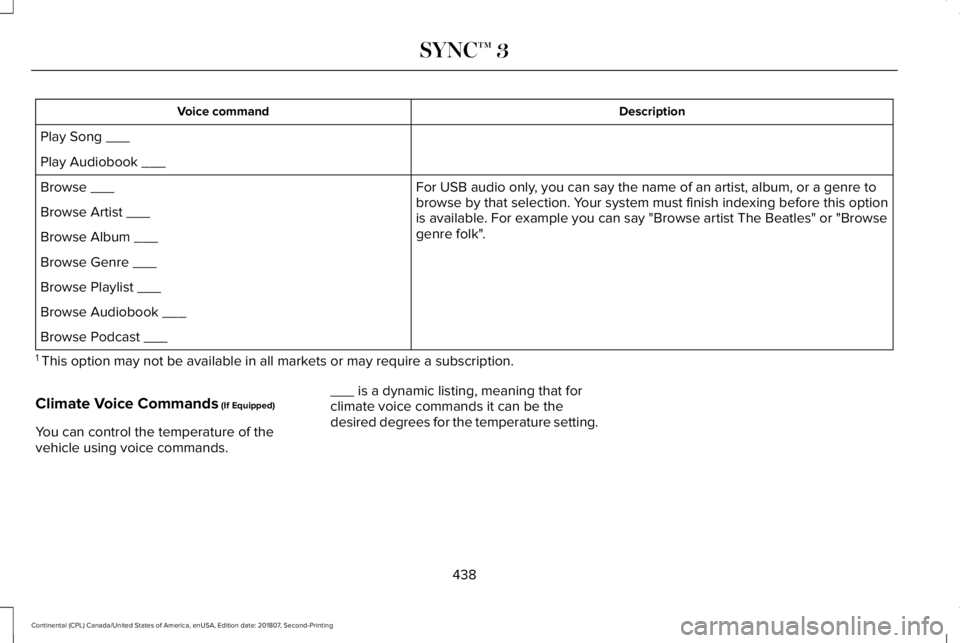
Description
Voice command
Play Song ___
Play Audiobook ___ For USB audio only, you can say the name of an artist, album, or a genre to
browse by that selection. Your system must finish indexing before this option
is available. For example you can say "Browse artist The Beatles" or "Browse
genre folk".
Browse ___
Browse Artist ___
Browse Album ___
Browse Genre ___
Browse Playlist ___
Browse Audiobook ___
Browse Podcast ___
1 This option may not be available in all markets or may require a subscription.
Climate Voice Commands (If Equipped)
You can control the temperature of the
vehicle using voice commands. ___ is a dynamic listing, meaning that for
climate voice commands it can be the
desired degrees for the temperature setting.
438
Continental (CPL) Canada/United States of America, enUSA, Edition date: 201807, Second-Printing SYNC™ 3
Page 448 of 627
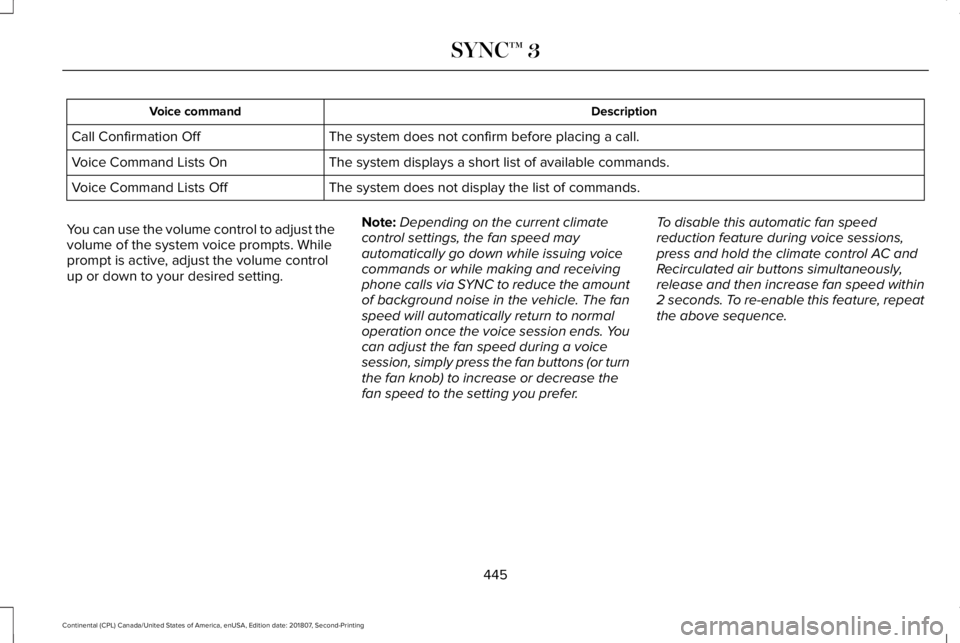
Description
Voice command
The system does not confirm before placing a call.
Call Confirmation Off
The system displays a short list of available commands.
Voice Command Lists On
The system does not display the list of commands.
Voice Command Lists Off
You can use the volume control to adjust the
volume of the system voice prompts. While
prompt is active, adjust the volume control
up or down to your desired setting. Note:
Depending on the current climate
control settings, the fan speed may
automatically go down while issuing voice
commands or while making and receiving
phone calls via SYNC to reduce the amount
of background noise in the vehicle. The fan
speed will automatically return to normal
operation once the voice session ends. You
can adjust the fan speed during a voice
session, simply press the fan buttons (or turn
the fan knob) to increase or decrease the
fan speed to the setting you prefer. To disable this automatic fan speed
reduction feature during voice sessions,
press and hold the climate control AC and
Recirculated air buttons simultaneously,
release and then increase fan speed within
2 seconds. To re-enable this feature, repeat
the above sequence.
445
Continental (CPL) Canada/United States of America, enUSA, Edition date: 201807, Second-Printing SYNC™ 3