2019 LEXUS UX250H set
[x] Cancel search: setPage 88 of 476

882-1. Instrument cluster
■Opening image display
When the power switch is in ACC or ON,
the opening image is di splayed on the multi-
information display.
While the opening image is being dis-
played, the meter display cannot be
changed even if the drive mode is changed.
When the opening image is finished, the
meter display for the currently selected
mode will be displayed.
■Liquid crystal display
Small spots or light spots may appear on the
display. This phenomenon is characteristic
of liquid crystal displays, and there is no
problem continuing to use the display.
The multi-information display is oper-
ated using the meter control switches.
/ : Select menu icons
/ : Change displayed con-
tent, scroll up/down the screen or
move the cursor up/down
Press: Enter/Set
Press and hold: Reset
Move the main meter
* or return to
the previous screen
*: F SPORT models
■Display items (except F SPORT
models)
Press or of the meter control
switches and select . Then press
or to display the following items:
Drive information 1
Drive information 2
Energy monitor ( P.97)
Tire pressure
Display off
Driving information display
( P.88)
Navigation system-linked dis-
play (if equipped) ( P.90)
Audio system-linked display
( P.90)
Driving support system infor-
mation display ( P.90)
Warning message display
( P.395)
Settings display ( P.91)
WARNING
■Caution for use while driving
●When operating the multi-information
display while driving, pay extra atten-
tion to the safety of the area around the
vehicle.
●Do not look continuously at the multi-
information display while driving as
you may fail to see pedestrians, objects
on the road, etc. ahead of the vehicle.
■The information display at low tem-
peratures
P.80, 85
Changing the meter display
Drive information
A
B
C
Page 89 of 476

892-1. Instrument cluster
2
Vehicle status information and indicators
■Display items (F SPORT models)
When the main meter is in the cen-
ter position
Press or of the meter control
switches to display the following items:
Drive information 1
Drive information 2
Tire pressure
Units
Display off
When the main meter is in the side
position
Press or of the meter control
switches and select . Then press
or to display the following items:
Drive information 1
Drive information 2
Energy monitor ( P.97)
G-force
Tire pressure
Display off
■Drive information 1/Drive infor-
mation 2
2 of the following drive information can
be displayed in each screen.
Displayed items can be changed on . ( P.87)
Use the displayed values as a reference
only.
Current fuel consumption
Displays instantaneous current fuel con-
sumption
Average fuel economy
After reset: Displays average fuel con-
sumption since the display was reset
*1
After start: Displays average fuel con-
sumption since the hybrid system was
started
After refuel: Displays average fuel con-
sumption since refuel
Average vehicle speed
After reset: Displays average vehicle
speed since the display was reset
*1
After start: Displays average vehicle speed
since the hybrid system was started
Driven distance
Displays the distance driven since the
hybrid system was started
Elapsed time
After reset: Displays elapsed time since the
display was reset
*1
After start: Displays elapsed time since the
hybrid system was started
Driving range
Displays driving range with remaining
fuel
*2, 3
Other
No item
*1: To reset, display the desired item and
press and hold “OK” of the meter con-
trol switches.
*2: This distance is computed based on your average fuel consumption. As a
result, the actual distance that can be
driven may differ from that displayed.
*3: When only a small amount of fuel is added to the tank, the display may not
be updated.
When refueling, turn the power switch
off. If the vehicle is refueled without
turning the power switch off, the display
Page 90 of 476

902-1. Instrument cluster
may not be updated.
■G-force (F SPORT models)
Displays lateral G-forces on the vehi-
cle.
Acceleration G-force on the vehi-
cle
Current G-force value (analyzed
value of front/rear and left/right G-
forces)
Record of the maximum G-forces
This display is intended for use as a guide-
line. Depending on factors such as the road
surface condition, temperature and vehicle
speed, the display may not show the actual
condition of the vehicle.
Resetting the record of maximum
G-forces
Press and hold “OK” of the meter control
switches to reset the record.
Peak hold function
If lateral G-forces of 0.5 G or greater are
generated, the G-forc e value display will
turn amber and be held for 2 seconds.
■Tire pressure
P.348
■Units (F SPORT models)
The units of measure used can be
changed while driving.
Unlike the units sett ing performed on the
settings display, th e units setting per-
formed on the drive information display
can be changed while driving.
■Display OFF
Displays a blank screen.
Select to display the following naviga-
tion system-linked information.
Route guidance to destination
Compass display
■Route guidance to destination display
When the route guidance to destination
display is enabled on th e head-up display, it
will not be displayed on the multi-informa-
tion display. ( P.93)
Select to enable se lection of an audio
source or track on the meter using the
meter control switches.
Select to display the operational status
of the following systems:
LTA (Lane Tracing Assist)
( P.205)
Dynamic radar cruise control with
full-speed range ( P.216)
RSA (Road Sign Assist) (if
equipped) ( P.214)
A
B
C
Navigation system-linked dis-
play (if equipped)
Audio system-linked display
Driving support system informa-
tion display
Page 91 of 476

912-1. Instrument cluster
2
Vehicle status information and indicators
Select to display warning messages
and measures to be taken if a malfunc-
tion is detected. (P.395)
■Meter display settings that can be
changed
Language
Select to change th e language displayed.
Units
Select to change the units of measure dis-
played.
Speedometer display (except F
SPORT models)
Select to set the display of the speedome-
ter to digital/analog.
Drive information 1/Drive informa-
tion 2
Select to select up to 2 items ( P.89) that
will be displayed on ea ch Drive information
screen (Drive information 1 screen and
Drive information 2 screen) respectively.
Clock
Select to switch be tween 12-hour display
and 24-hour display.
Pop-up display
Select to enable/disable some pop-up dis-
plays for each relevant system.
Accent color
Select to change the accent color on the
screen, such as the cursor color.
Tachometer setting
Select to set the display of the Hybrid Sys-
tem Indicator or tachometer for each driv- ing mode.
Rev indicator (F SPORT models)
• Select to enable/disable the rev indica-
tor.
• Select to set the engine speed at which the rev indicator (amber) will begin to be
displayed.
Rev peak (F SPORT models)
Select to enable/disable the rev peak.
EV indicator
Select to enable/disable the EV indicator.
Default setting
Select to reset the meter display settings to
the default setting.
■Suspension of the settings display
●Some settings cannot be changed while
driving. When changing settings, park
the vehicle in a safe place.
●If a warning message is displayed, opera-
tion of the settings display will be sus-
pended.
Warning message display
Settings display
WARNING
■Cautions during setting up the dis-
play
As the hybrid system needs to be operat-
ing during setting up the display, ensure
that the vehicle is parked in a place with
adequate ventilation. In a closed area
such as a garage, ex haust gases includ-
ing harmful carbon monoxide (CO) may
collect and enter the vehicle. This may
lead to death or a serious health hazard.
NOTICE
■During setting up the display
To prevent 12-volt battery discharge,
ensure that the hybrid system is operat-
ing while setting up the display features.
Page 94 of 476
942-1. Instrument cluster
a garage, tunnel, etc.)
●When “--” or “E” is displayed, the system
may be malfunctioning. Take your vehicle
to your Lexus dealer.
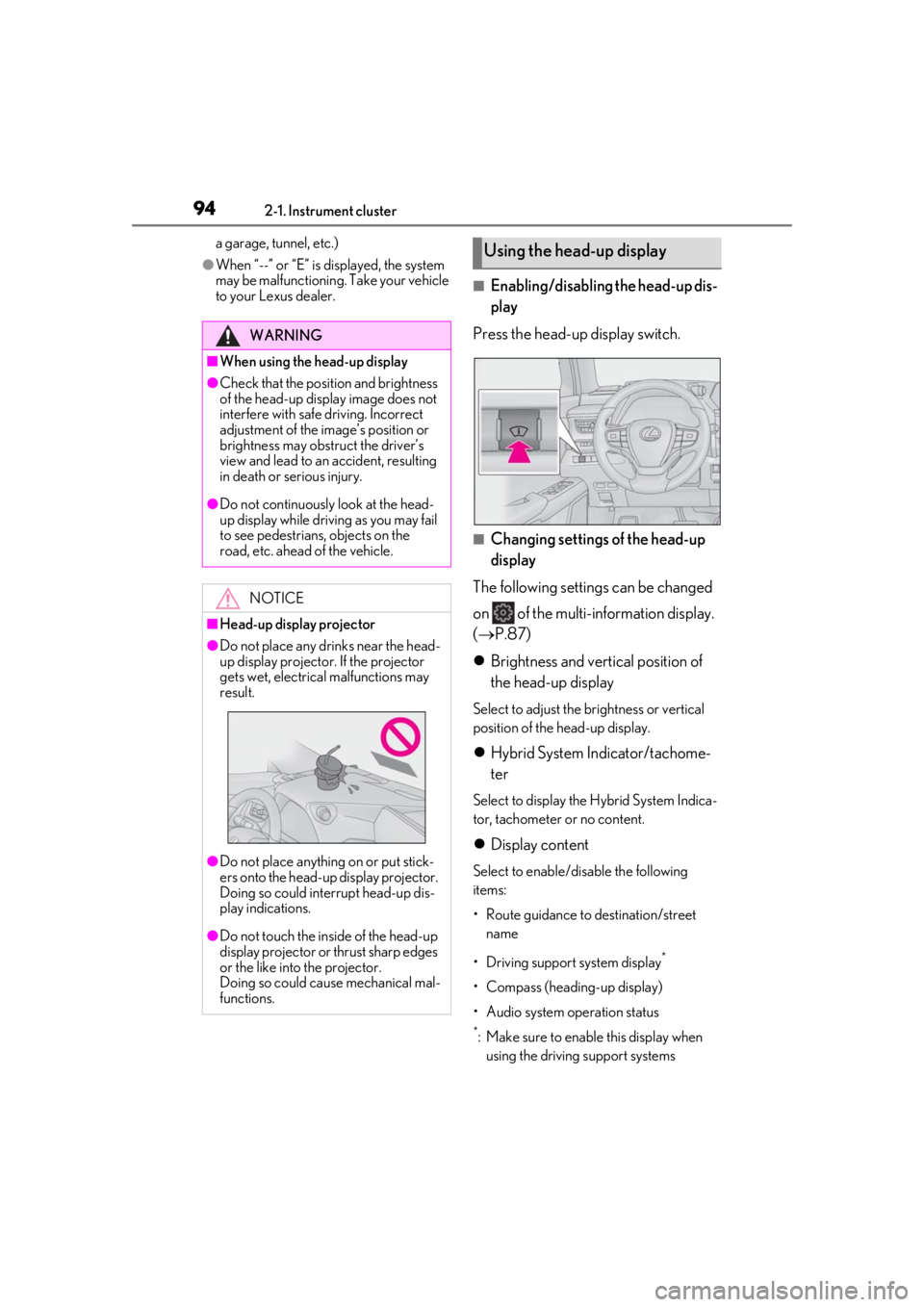
■Enabling/disabling the head-up dis-
play
Press the head-up display switch.
■Changing settings of the head-up
display
The following settings can be changed
on of the multi-information display.
( P.87)
Brightness and vert ical position of
the head-up display
Select to adjust the brightness or vertical
position of the head-up display.
Hybrid System Indicator/tachome-
ter
Select to display the Hybrid System Indica-
tor, tachometer or no content.
Display content
Select to enable/disable the following
items:
• Route guidance to destination/street
name
• Driving support system display
*
• Compass (heading-up display)
• Audio system operation status
*: Make sure to enable this display when using the driving support systems
WARNING
■When using the head-up display
●Check that the position and brightness
of the head-up display image does not
interfere with safe driving. Incorrect
adjustment of the image’s position or
brightness may obstruct the driver’s
view and lead to an accident, resulting
in death or serious injury.
●Do not continuously look at the head-
up display while driving as you may fail
to see pedestrians, objects on the
road, etc. ahead of the vehicle.
NOTICE
■Head-up display projector
●Do not place any drinks near the head-
up display projector. If the projector
gets wet, electrical malfunctions may
result.
●Do not place anything on or put stick-
ers onto the head-up display projector.
Doing so could interrupt head-up dis-
play indications.
●Do not touch the inside of the head-up
display projector or thrust sharp edges
or the like into the projector.
Doing so could cause mechanical mal-
functions.
Using the head-up display
Page 95 of 476

952-1. Instrument cluster
2
Vehicle status information and indicators
Display angle
Select to adjust the angle of the head-up
display.
■Enabling/disabling of the head-up dis-
play
If the head-up display is disabled, it will
remain disabled when the power switch is
turned off then back to ON.
■Display brightness
The brightness of the head-up display can
be adjusted on of the multi-information
display. Also, it is automatically adjusted
according to the ambient brightness.
■Head-up display automatic position
adjustment (vehicles with driving posi-
tion memory)
If the display position is recorded into mem-
ory, the head-up display will be automati-
cally adjusted to the desired position.
( P.133)
■When the 12-volt battery is discon-
nected
The customize settings of the head-up dis-
play will be reset.
Displays the operational status of the
following systems:
LTA (Lane Tracing Assist)
( P.205)
Dynamic radar cruise control with
full-speed range ( P.216)
Details of content displayed on the head-
up display may differ from that displayed
on the multi-inform ation display. For
details, refer to the explanation of each sys-
tem.
Pop-up displays for the following sys-
tems will be displayed when necessary.
■Driving support systems
Displays a warning/suggestion/advice
message or the operating state of a rel-
evant system.
PCS (Pre-Collision System)
( P.198)
Intuitive parking assist (if equipped)
( P.232)
Parking Support Brake function (for
static objects) (if equipped)
( P.247)
Brake Override System ( P.152)
WARNING
■Caution for changing settings of the
head-up display
As the hybrid system needs to be operat-
ing while changing th e settings of the
head-up display, ensure that the vehicle
is parked in a place with adequate venti-
lation. In a closed area such as a garage,
exhaust gases including harmful carbon
monoxide (CO) may collect and enter
the vehicle. This may lead to death or a
serious health hazard.
NOTICE
■When changing the settings of the
head-up display
To prevent 12-volt battery discharge,
ensure that the hybrid system is operat-
ing while changing th e settings of the
head-up display.
Driving support system display
area
Pop-up display
Page 100 of 476

1002-1. Instrument cluster
High
Multi-information displayLow
High
These images are examples only, and may
vary slightly from actual conditions.
Press the “MENU” button on the
Remote Touch, and then select on
the screen.
■Trip information
If a screen other than “Trip Information”
is displayed, select “Trip Information”.
Resetting the consumption data
Fuel consumption in the past 15
minutes
Current fuel consumption Regenerated energy in the past 15
minutes
One symbol indicates 30 Wh. Up to 5
symbols are shown.
Average vehicle speed since the
hybrid system was started.
Elapsed time since the hybrid sys-
tem was started.
Cruising range
Average fuel consumption for the past 15
minutes is divided by color into past aver-
ages and averages attained since the
power switch was last turned to ON. Use
the displayed average fuel consumption as
a reference.
The image is an example only, and may
vary slightly from actual conditions.
■History
If a screen other than “History” is dis-
played, select “History”.
Best recorded fuel consumption
Latest fuel consumption
Previous fuel consumption record
Resetting the history data
Updating the latest fuel consump-
tion data
The average fuel consumption history is
divided by color into past averages and the
Consumption
B
A
B
A
B
C
D
E
F
G
A
B
C
D
E
Page 101 of 476
1012-1. Instrument cluster
2
Vehicle status information and indicators
average fuel consumption since the last
updated. Use the displayed average fuel
consumption as a reference.
The image is an example only, and may
vary slightly from actual conditions.
■Updating the history data
Update the latest fuel consumption by
selecting “Clip” to measure the current fuel
consumption again.
■Resetting the data
The fuel consumption data can be deleted
by selecting “Clear”.
■Cruising range
Displays the estimated maximum distance
that can be driven with the quantity of fuel
remaining.
This distance is comp uted based on your
average fuel consumption.
As a result, the actual distance that can be
driven may differ from that displayed.
Display the vehicle information on the
side display ( P.273), and then select
or to display the desired
screen.
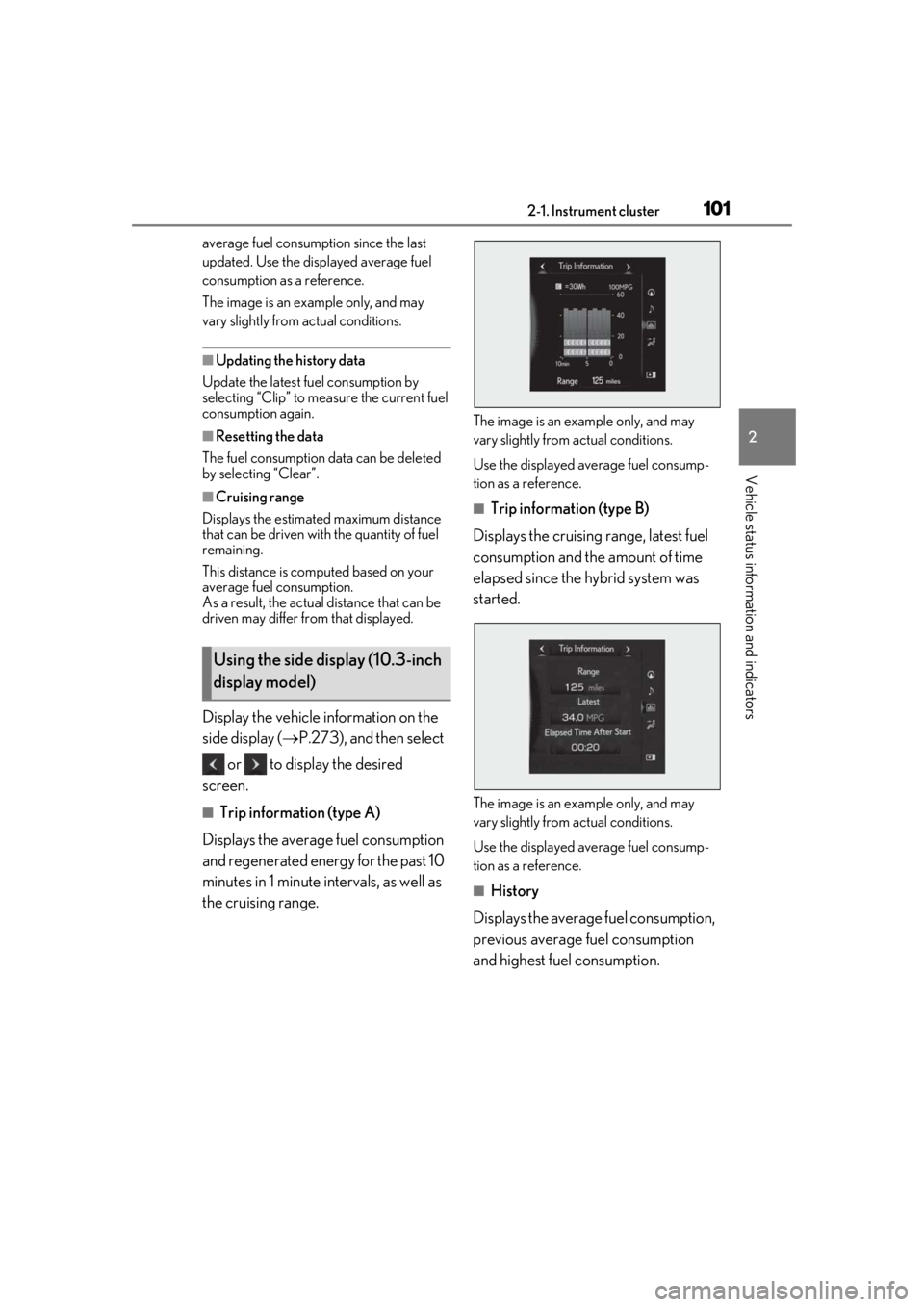
■Trip information (type A)
Displays the average fuel consumption
and regenerated energy for the past 10
minutes in 1 minute intervals, as well as
the cruising range.
The image is an example only, and may
vary slightly from actual conditions.
Use the displayed average fuel consump-
tion as a reference.
■Trip information (type B)
Displays the cruising range, latest fuel
consumption and the amount of time
elapsed since the hybrid system was
started.
The image is an example only, and may
vary slightly from actual conditions.
Use the displayed average fuel consump-
tion as a reference.
■History
Displays the average fuel consumption,
previous average fuel consumption
and highest fuel consumption.
Using the side display (10.3-inch
display model)