Page 405 of 792
4055-1. Basic Operations
5
Lexus Display Audio system
RX450h_RX450hL_U
■When using the screen
●Under extremely cold conditions, the Lexus Display Audio controller may react slowly.
●If the screen is cold, the display may be dark, or the system may seem to be operating
slightly slower than normal.
●The screen may seem dark and hard to see when viewed through sunglasses. Change
your angle of viewing, adjust the display on the “Display” screen (P. 417) or remove
your sunglasses.
■Using cellular phones
Interference may be heard through the audi o system’s speakers if a cellular phone is
being used inside or close to the vehicle while the audio system is operating.
WARNING
■Using the Lexus Display Audio controller
Be careful when touching the Lexus Display Audio controller in extreme temperatures
as it may become very hot or cold due to the temperature inside the vehicle.
■Laser product
●CAUTION
USE OF CONTROL OR ADJUSTMENT OR PERFORMANCE OF PROCE-
DURES OTHER THAN THOSE SPECIFIED HEREIN MAY RESULT IN HAZARD-
OUS RADIATION EXPOSURE.
●CAUTION
THE USE OF OPTICAL INSTRUMENTS WITH THIS PRODUCT WILL
INCREASE EYE HAZARD.
NOTICE
■To prevent Lexus Display Au dio controller malfunction
●Do not allow the Lexus Display Audio controll er to come into contact with food, liq-
uid, stickers or lit cigarettes as doing so may cause it to change color, emit a strange
odor or stop functioning.
●Do not subject the Lexus Display Audio controller to excessive pressure or strong
impact as the controller may bend or break off.
■To prevent battery discharge
Do not leave the audio system on longer than necessary when the engine is off.
■To avoid damaging the audio system
Take care not to spill drinks or other fluids on the audio system.
Page 408 of 792

4085-1. Basic Operations
RX450h_RX450hL_U
■Adjusting the volume
The volume of the Mobile Assist ant can be adjusted using the
“PWR·VOL” knob or
steering wheel volume switch es. The Mobile Assistant and phone call volumes are syn-
chronized.
■Microphone
It is not necessary to speak directly into the microphone when using the Mobile Assis-
tant.
●Wait for the listening beeps before using the Mobile Assistant.
●The Mobile Assistant may not recognize commands in the following situations:
• When spoken too quickly.
• When spoken at a low or high volume.
• When the roof or windows are open.
• When passengers are talking while th e Mobile Assistant is being used.
• When the air conditioning syst em’s fan speed is set high.
• When the air conditioning vents are turned toward the microphone.
■Mobile Assistant precautions
●The available features and functions may vary based on the iOS version installed on the
connected device.
●Some Siri features are limited in Eyes Free mode. If you attempt to use an unavailable
function, Siri will inform you that the function is not available.
●If Siri is not enabled on the ce llular phone connected via Bluetooth, an error message
will be displayed on the screen.
●While a phone call is active, the Mobile Assistant cannot be used.
●If using the navigation feature of the cellular phone, ensure the active audio source is
Bluetooth audio or iPod in order to hear turn by turn direction prompts.
Page 409 of 792
4095-1. Basic Operations
5
Lexus Display Audio system
RX450h_RX450hL_U
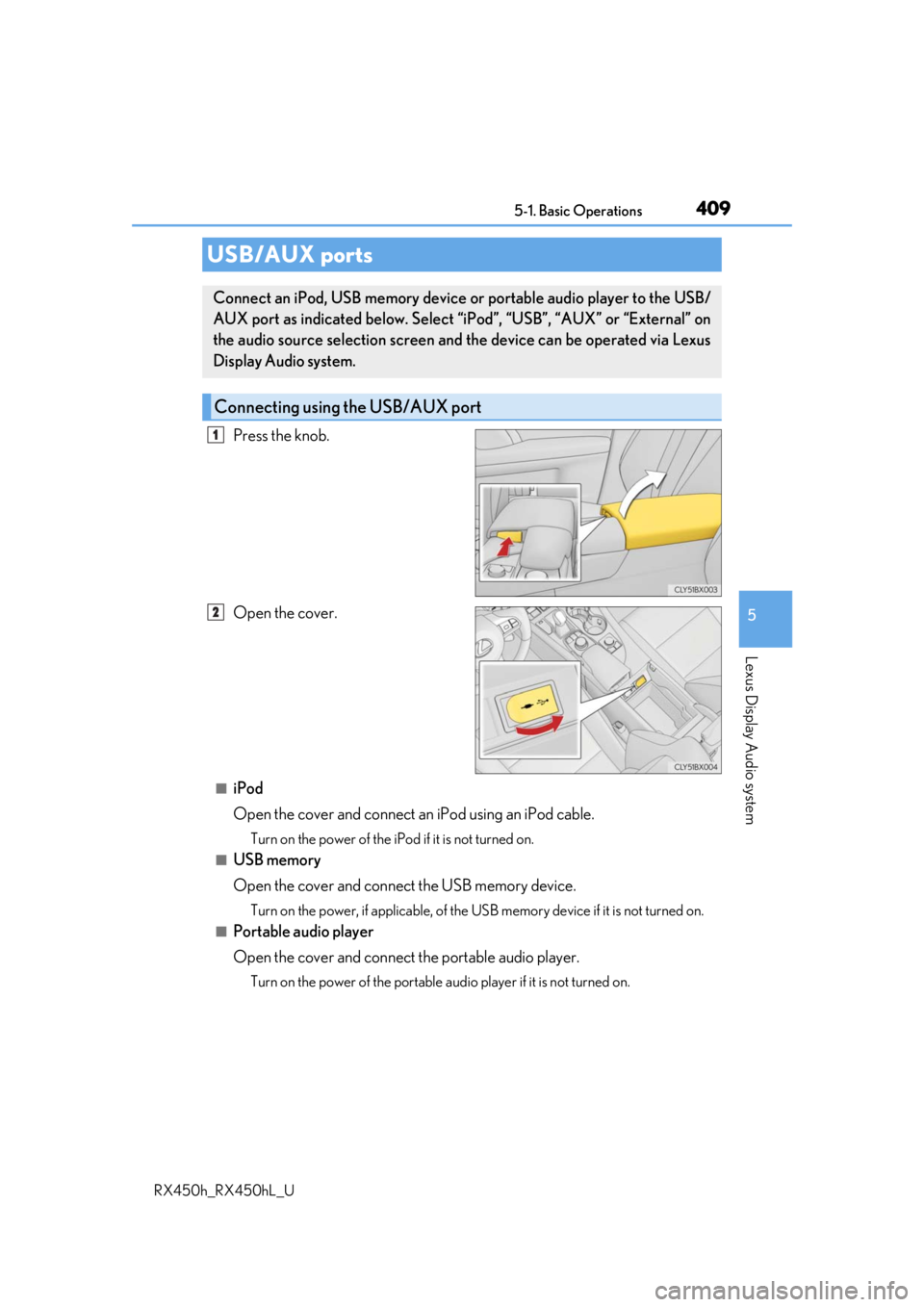
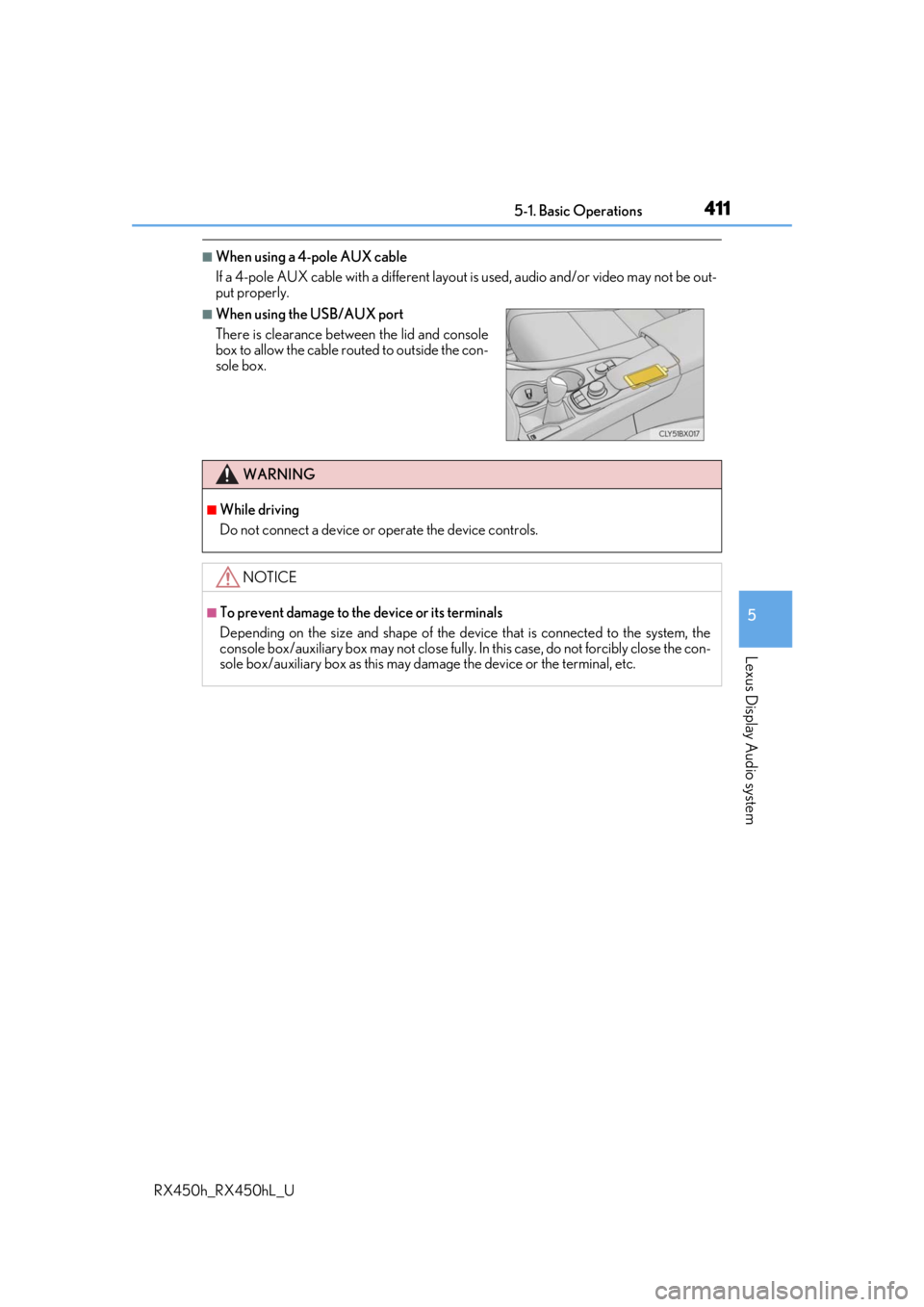
Press the knob.
Open the cover.
■iPod
Open the cover and connect an iPod using an iPod cable.
Turn on the power of the iPod if it is not turned on.
■USB memory
Open the cover and connect the USB memory device.
Turn on the power, if applicable, of the US B memory device if it is not turned on.
■Portable audio player
Open the cover and connect the portable audio player.
Turn on the power of the portable audio player if it is not turned on.
USB/AUX ports
Connect an iPod, USB memory device or portable audio player to the USB/
AUX port as indicated below. Select “iPod”, “USB”, “AUX” or “External” on
the audio source selection screen and the device can be operated via Lexus
Display Audio system.
Connecting using the USB/AUX port
1
2
Page 411 of 792
4115-1. Basic Operations
5
Lexus Display Audio system
RX450h_RX450hL_U
■When using a 4-pole AUX cable
If a 4-pole AUX cable with a different layout is used, audio and/or video may not be out-
put properly.
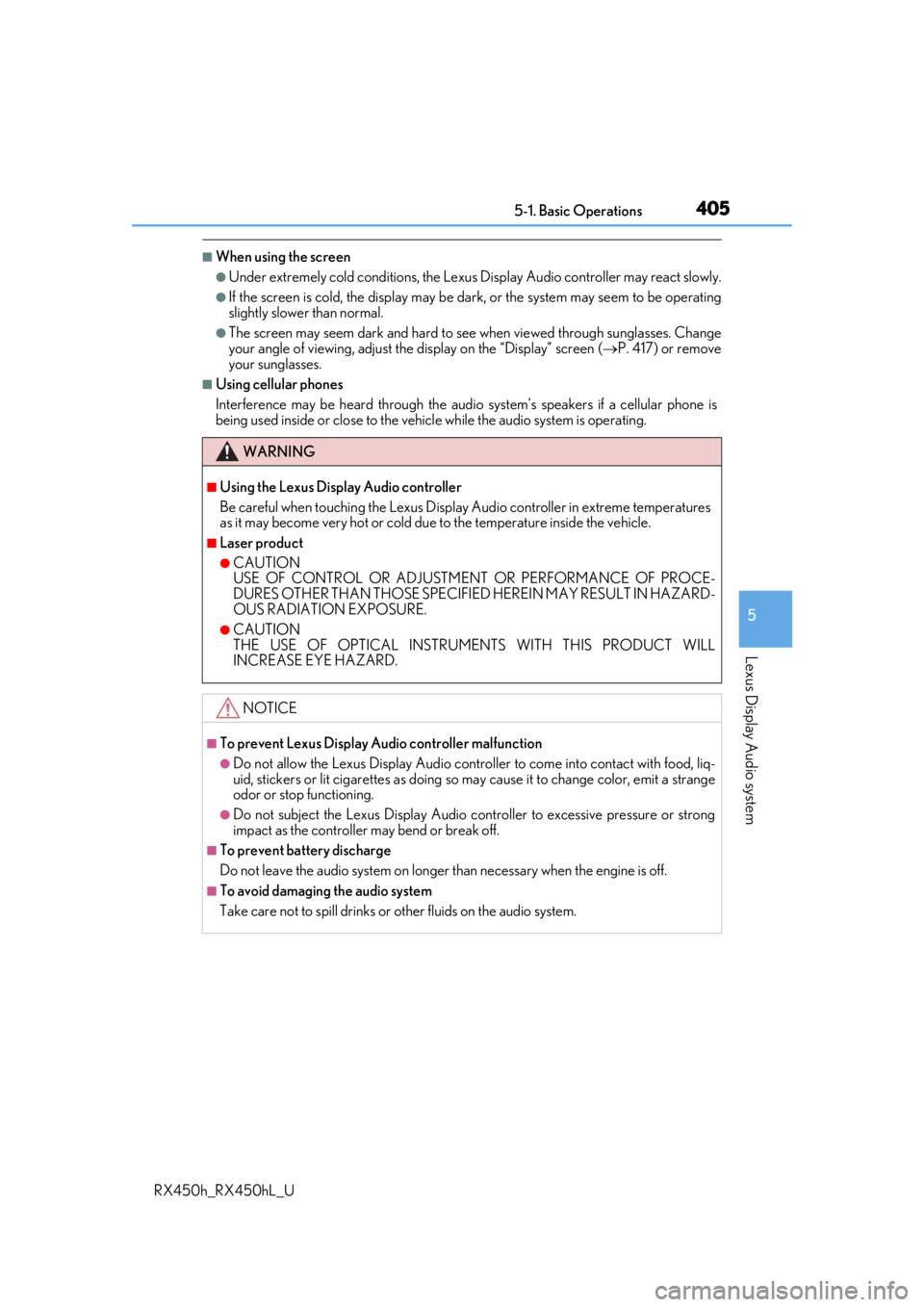
■When using the USB/AUX port
There is clearance between the lid and console
box to allow the cable routed to outside the con-
sole box.
WARNING
■While driving
Do not connect a device or operate the device controls.
NOTICE
■To prevent damage to the device or its terminals
Depending on the size and shape of the device that is connected to the system, the
console box/auxiliary box may not close fully. In this case, do not forcibly close the con-
sole box/auxiliary box as this may da mage the device or the terminal, etc.
Page 414 of 792
4145-2. Setup
RX450h_RX450hL_U
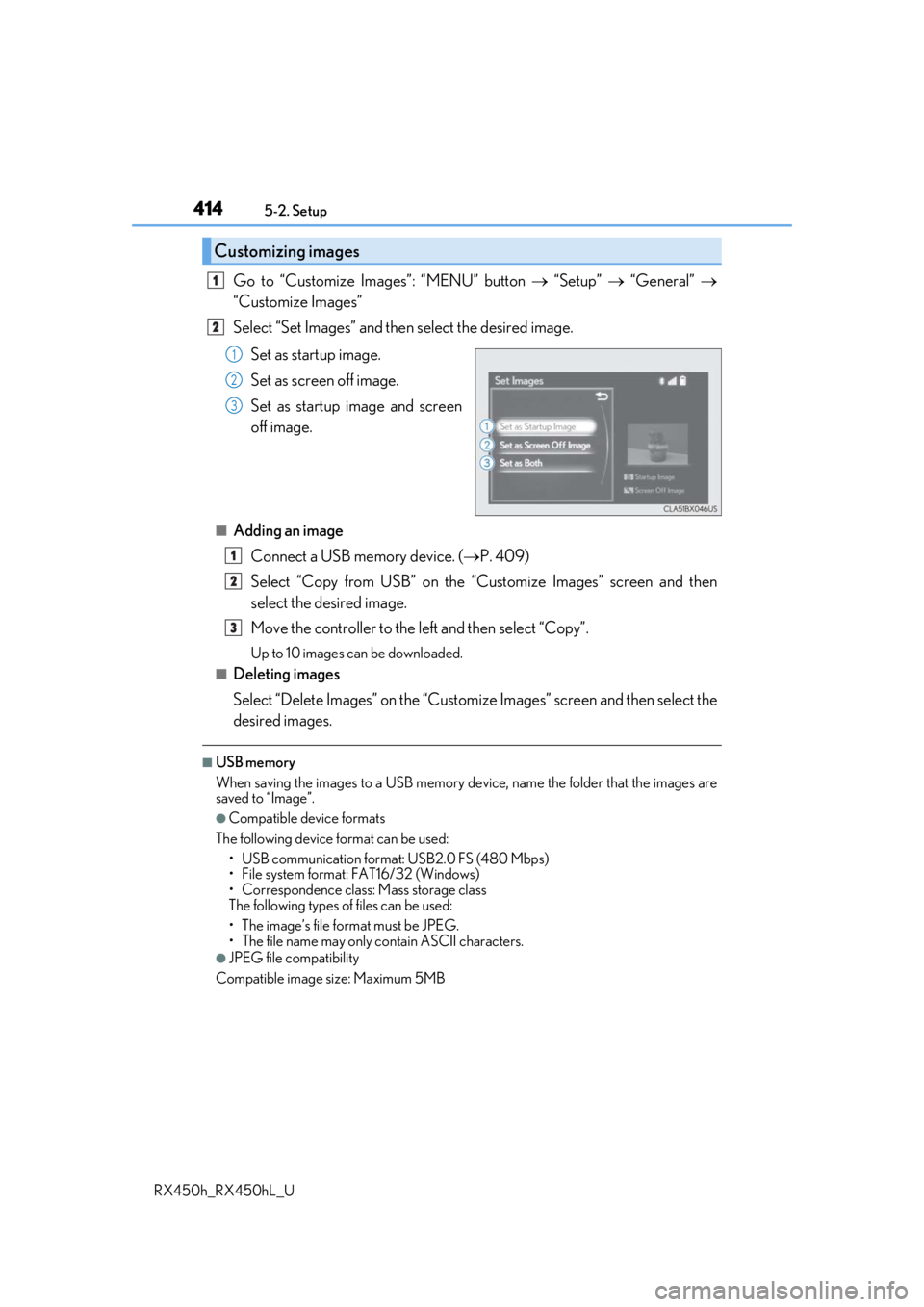
Go to “Customize Images”: “MENU” button “Setup” “General”
“Customize Images”
Select “Set Images” and then select the desired image.
Set as startup image.
Set as screen off image.
Set as startup image and screen
off image.
■Adding an imageConnect a USB memory device. ( P. 409)
Select “Copy from USB” on the “Customize Images” screen and then
select the desired image.
Move the controller to the left and then select “Copy”.
Up to 10 images can be downloaded.
■Deleting images
Select “Delete Images” on the “Customize Images” screen and then select the
desired images.
■USB memory
When saving the images to a USB memory de vice, name the folder that the images are
saved to “Image”.
●Compatible device formats
The following device format can be used: • USB communication format: USB2.0 FS (480 Mbps)
• File system format: FAT16/32 (Windows)
• Correspondence class: Mass storage class
The following types of files can be used:
• The image’s file fo rmat must be JPEG.
• The file name may only contain ASCII characters.
●JPEG file compatibility
Compatible image size: Maximum 5MB
Customizing images
1
2
1
2
3
1
2
3
Page 415 of 792
4155-2. Setup
5
Lexus Display Audio system
RX450h_RX450hL_U
Go to “Delete Personal Data”: “MENU” button “Setup” “General”
“Delete Personal Data”
Select “Delete”.
Check carefully beforeha nd, as data cannot be retrieved once deleted.
The following personal data will be dele ted or changed to its default settings.
• Phonebook data
• Call history data
•Favorite data
•Bluetooth
® devices data
• Phone sound settings
• Detailed Bluetooth
® settings
• Audio/video setting
• Customized image data
•FM info setting
• iPod tagging information
• Software update history
• Software update detail information
• Phone display setting
• Contact/call history setting
• Messaging setting
• Traffic information map
• Weather information
• Phonebook data for voice recognition
• Music data for voice recognition
NOTICE
■To prevent damage to the USB me mory device or its terminals
P. 447
Deleting personal data
1
2
Page 426 of 792
426
RX450h_RX450hL_U5-4. Using the radio
Pressing the “RADIO” button displays the radio top screen from any screen of
the selected source.
■Menu screen
P. 423
Tune in to the desired station using one of the following methods.
■Seek tuning
Press and hold then release the “ PRST” or “TRACK ” button.
Seek tuning can also be operated on the menu screen. ( P. 423)
The radio will begin seeking up or down for a station of the nearest frequency
and will stop when a station is found.
■Manual tuning
Turn the “TUNE•SCROLL” knob.
■Preset stations
Select the desired preset station by pressing the “ PRST” or “TRACK ” but-
ton, or turning and pressing the controller.
■Station list
Move the controller to the right and selecting “Station List”.
AM radio: Selectin g a desired station.
FM radio: Selecting a desired type of station and selecting a desired st\
a-
tion.
To refreshing the station list, select “Refresh”. Select “Source” on the refresh
screen, can be change to the othe r audio source while refreshing.
Radio operation
Select “AM”, “FM” or “SAT” on the audi o source selection screen to begin lis-
tening to the radio.
Radio top screen
Selecting a station (AM or FM radio)
1
2
Page 427 of 792
4275-4. Using the radio
5
Lexus Display Audio system
RX450h_RX450hL_U
When “HD Radio” is set to “On”, available stations with HD Radio channels are
marked with “HD)”.In AM or FM mode, select a station marked with “HD)”.
Turn the “TUNE•SCROLL” knob to select an HD Radio channel.
HD Radio channels can also be selected by selecting “Mul ticast” on the menu screen.
( P. 423)
Select in to the desired channel using one of the following methods.
■Turning up/down the channel
Press and hold the “ PRST” or “TRACK ” button or turn the
“TUNE•SCROLL” knob.
■Preset channels
Select the desired preset channel by pressing the “ PRST” or “TRACK ”
button or controller.
■Channel list
Move the controller to the right and selecting “Select a SAT Category”.
Selecting a desired category of cha nnel and selecting a desired channel.
Search for desired stations or channel.
Select and hold one of the pr eset until you hear a beep.
■Display the song information
Move the controller to the right and selecting “Text”.
■Display the Additional information (HD radio)
Move the controller to the right and selecting “Additional Information”.
Selecting an HD Radio channel
Selecting a channel (XM Satellite Radio)
Setting presets
Display the text message
1
2
1
2
1
2