Page 405 of 792
4055-1. Basic Operations
5
Lexus Display Audio system
RX450h_RX450hL_U
■When using the screen
●Under extremely cold conditions, the Lexus Display Audio controller may react slowly.
●If the screen is cold, the display may be dark, or the system may seem to be operating
slightly slower than normal.
●The screen may seem dark and hard to see when viewed through sunglasses. Change
your angle of viewing, adjust the display on the “Display” screen (P. 417) or remove
your sunglasses.
■Using cellular phones
Interference may be heard through the audi o system’s speakers if a cellular phone is
being used inside or close to the vehicle while the audio system is operating.
WARNING
■Using the Lexus Display Audio controller
Be careful when touching the Lexus Display Audio controller in extreme temperatures
as it may become very hot or cold due to the temperature inside the vehicle.
■Laser product
●CAUTION
USE OF CONTROL OR ADJUSTMENT OR PERFORMANCE OF PROCE-
DURES OTHER THAN THOSE SPECIFIED HEREIN MAY RESULT IN HAZARD-
OUS RADIATION EXPOSURE.
●CAUTION
THE USE OF OPTICAL INSTRUMENTS WITH THIS PRODUCT WILL
INCREASE EYE HAZARD.
NOTICE
■To prevent Lexus Display Au dio controller malfunction
●Do not allow the Lexus Display Audio controll er to come into contact with food, liq-
uid, stickers or lit cigarettes as doing so may cause it to change color, emit a strange
odor or stop functioning.
●Do not subject the Lexus Display Audio controller to excessive pressure or strong
impact as the controller may bend or break off.
■To prevent battery discharge
Do not leave the audio system on longer than necessary when the engine is off.
■To avoid damaging the audio system
Take care not to spill drinks or other fluids on the audio system.
Page 423 of 792
4235-3. Using the audio system
5
Lexus Display Audio system
RX450h_RX450hL_U
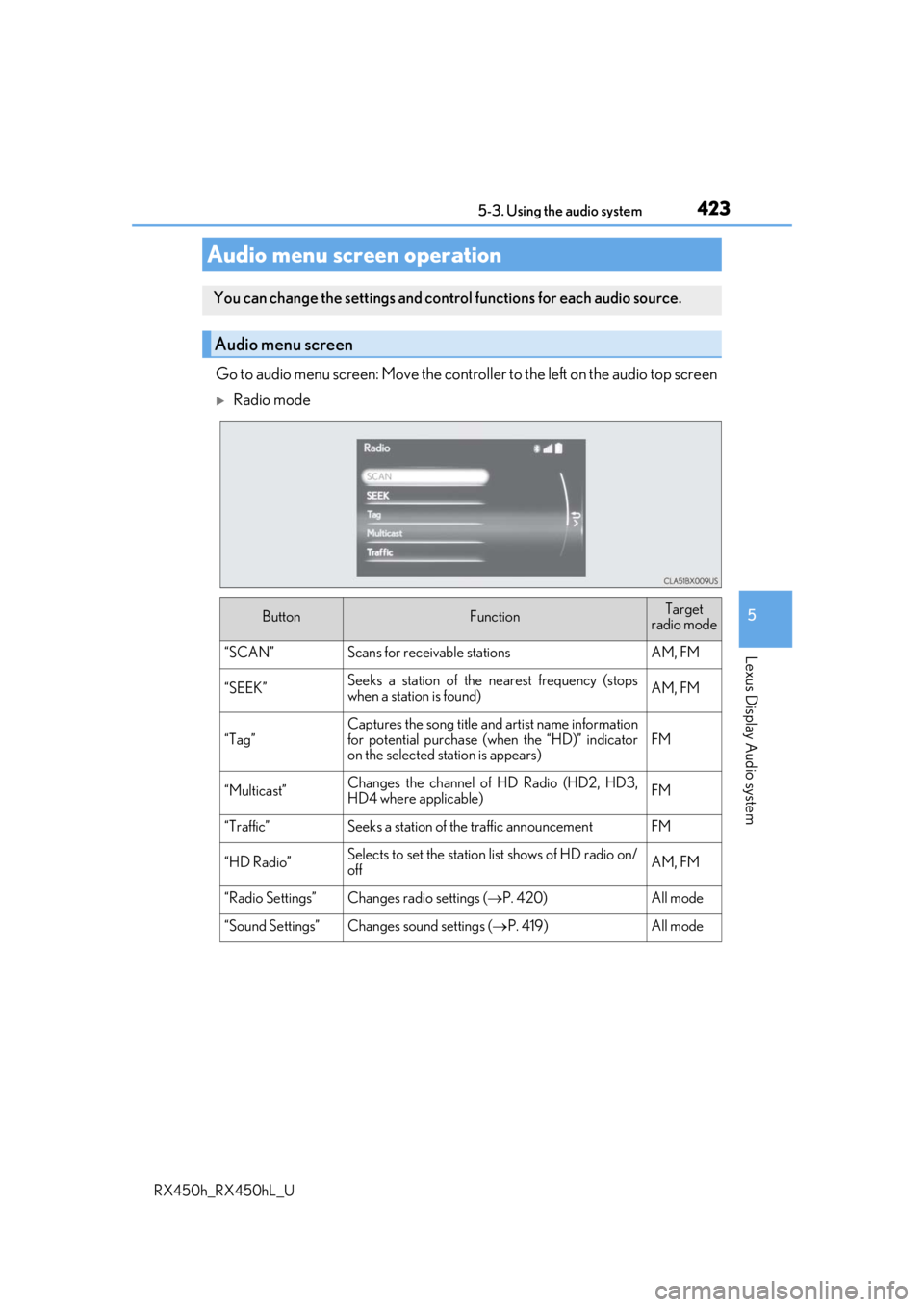
Go to audio menu screen: Move the controller to the left on the audio top screen
Radio mode
Audio menu screen operation
You can change the settings and control functions for each audio source.
Audio menu screen
ButtonFunctionTarget
radio mode
“SCAN”Scans for receivable stationsAM, FM
“SEEK”Seeks a station of the nearest frequency (stops
when a station is found)AM, FM
“Tag”
Captures the song title and artist name information
for potential purchase (when the “HD)” indicator
on the selected st ation is appears)
FM
“Multicast”Changes the channel of HD Radio (HD2, HD3,
HD4 where applicable)FM
“Traffic”Seeks a station of th e traffic announcementFM
“HD Radio”Selects to set the station list shows of HD radio on/
offAM, FM
“Radio Settings”Changes radio settings ( P. 420)All mode
“Sound Settings”Changes sound settings (P. 419)All mode
Page 426 of 792
426
RX450h_RX450hL_U5-4. Using the radio
Pressing the “RADIO” button displays the radio top screen from any screen of
the selected source.
■Menu screen
P. 423
Tune in to the desired station using one of the following methods.
■Seek tuning
Press and hold then release the “ PRST” or “TRACK ” button.
Seek tuning can also be operated on the menu screen. ( P. 423)
The radio will begin seeking up or down for a station of the nearest frequency
and will stop when a station is found.
■Manual tuning
Turn the “TUNE•SCROLL” knob.
■Preset stations
Select the desired preset station by pressing the “ PRST” or “TRACK ” but-
ton, or turning and pressing the controller.
■Station list
Move the controller to the right and selecting “Station List”.
AM radio: Selectin g a desired station.
FM radio: Selecting a desired type of station and selecting a desired st\
a-
tion.
To refreshing the station list, select “Refresh”. Select “Source” on the refresh
screen, can be change to the othe r audio source while refreshing.
Radio operation
Select “AM”, “FM” or “SAT” on the audi o source selection screen to begin lis-
tening to the radio.
Radio top screen
Selecting a station (AM or FM radio)
1
2
Page 434 of 792

4345-5. Playing an audio CD and MP3/WMA/AAC discs
RX450h_RX450hL_U
■Error messages
If the following error messages appear on th e screen, refer to the table and take the
appropriate measures. If the pr oblem is not rectified, take the vehicle to your Lexus
dealer.
■Discs that can be used
Discs with the marks sh own below can be used.
Playback may not be possible depending on recording format or disc features, or due to
scratches, dirt or deterioration.
CDs with copy-protection feat ures may not play correctly.
■CD player protection feature
To protect the internal components, playback is automatically stopped when a problem is
detected.
■If a disc is left inside the CD player or in the ejected position for extended periods
Disc may be damaged and may not play properly.
■Lens cleaners
Do not use lens cleaners. Doing so may damage the CD player.
■MP3, WMA and AAC files
MP3 (MPEG Audio LAYER3) is a standard audio compression format.
Files can be compressed to approximately 1/10 of their original size by using MP3 com-
pression.
WMA (Windows Media Audio) is a Microsoft audio compression format.
This format compresses audio data to a si ze smaller than that of the MP3 format.
AAC is short for Advanced Audio Coding and refers to an audi o compression technol-
ogy standard used with MPEG2 and MPEG4.
MP3, WMA and AAC file and media/formats compatibility are limited.
MessageCauseCorrection procedures
“Check disc”
• The disc is dirty or dam- aged.
• The disc is inserted upside down.
•The disc is not playable with the player.
•Clean the disc.
• Insert the disc correctly.
•Confirm the disc is play-able with the player.
“DISC Error”There is a malfunction
within the system.Eject the disc.
“No music files found.”No playable data is
included on the disc.Eject the disc.
Page 454 of 792

4545-7. Connecting Bluetooth®
RX450h_RX450hL_U
When you register a phone, auto connection will be activated. It is recom-
mended to have the system set to this mode and leave the Bluetooth® phone in a
place where a good connection can be established.
When the power switch is turned to ACCESSORY or ON mode, the system will
search for a nearby cellular phone you have registered.
Next, the system automatically connects with the most recent phone that was
connected. The connected result is displayed.
When automatic connection priority is set to on and there is more than one reg-
istered Bluetooth
® phone available, the system will automatically connect to the
Bluetooth® phone with the highest priority. ( P. 456)
When auto connection has failed or “Bluetooth
*1 Power” is turned off, you must
connect the Bluetooth® device manually.
Go to “Bluetooth
*1 Setup”: “MENU” button “Setup” “Bluetooth*1”
Select the device to connect.
Select “Connect XX
*2”, “Connect as a Phone” or “Connect as an Audio
Player”.
If the desired Bluetooth
® device is not displayed, register the device.
( P. 451)
*1: Bluetooth is a registered trademark of Bluetooth SIG, Inc.
*2: XX represents the selected device name.
■Reconnecting a Bluetooth® phone
If the system cannot connect due to poor signal strength with the power switch in
ACCESSORY or ON mode, the system will automatically attempt to reconnect.
■Connecting a phone while Bluetooth® audio is playing
●Bluetooth® audio will stop temporarily.
●It may take time to connect.
Connecting a Bluetooth® phone
There are two connecting methods available: automatic and manual.
Auto connection
Manual connection
1
2
3
Page 469 of 792

4695-9. Bluetooth® Phone
5
Lexus Display Audio system
RX450h_RX450hL_U
Go to message screen: “MENU” button “Phone” “Messages”
Select a message.
Moving the controller to the left while on the message list screen displays the setting
screen. ( P. 477)
Move the controller to the right while on the message screen and then select an
account to display a message list for the selected account.
Selecting “Next” or “Previous” disp lays the next or previous message.
If a message is too long, select “R ead More” to display the full text.
■Option menu
Move the controller to the left while on the message screen.
Select a prepared message and
send a reply message
Call a sender
If more than one phone number is
registered for a sender, a phone
number selection screen will be dis-
played.
Call a phone number written in a message
Select “Play” to have a message read out loud.
Select “Stop” to stop this function.
Select “Mark Unread” to mark E-mail th at has been read as unread. Select
“Mark Read” to mark E-mail that has not been read as read.
Using a Bluetooth® phone message
Once a MAP-profile compatible Bluetooth® phone is registered, you can
check the E-mail/SMS/MMS and reply to a message using the following pro-
cedures:
Checking messages
Message screen
1
2
1
2
3
4
5
Page 481 of 792
4815-11. Bluetooth®
5
Lexus Display Audio system
RX450h_RX450hL_U
In other situations
Even though all conceivable measures have been taken, the symptom status does not
change.
The cellular phone is not close enough to this system.
Bring the cellular phone closer to this system.
The cellular phone is the most likely cause of the symptom.
Turn the cellular phone off, remove and reinstall the battery pack, and then
restart the cellular phone.
Enable the cellular phone’s Bluetooth
® connection.
Stop the cellular phone’s security software and close all applications.
Before using an application installed on the cellular phone, carefully check its
source and how its operation might affect this system.
Page 502 of 792
5026-1. Basic operation of the Remote Touch screen
RX450h_RX450hL_U
■Screen display during low temperatures
When the ambient temperature is extremely low, screen response may be delayed even
if the Remote Touch is operated.
WARNING
■When using the Remote Touch
●Do not allow fingers, fingernails or hair to become caught in the Remote Touch as this
may cause an injury.
●Be careful when selecting the Remote Touch in extreme temperatures as it may
become very hot or cold due to the temperature inside the vehicle.
NOTICE
■To prevent damage to the Remote Touch
●Do not allow the Remote Touch to come into contact with food, liquid, stickers or lit
cigarettes as doing so may cause it to change color, emit a strange odor or stop func-
tioning.
●Do not subject the Remote Touch to excessive pressure or strong impact as the knob
may bend or break off.
●Do not allow coins, contact lenses or ot her such items to become caught in the
Remote Touch as this may cause it to stop functioning.
●Items of clothing may rip if they become caught on the Remote Touch knob.
●If your hand or any object is on the Remo te Touch knob when the power switch is in
ACCESSORY mode, the Remote Touch knob may not operate properly.