2019 KIA SORENTO phone
[x] Cancel search: phonePage 205 of 573

4117
Features of your vehicle
✽ ✽NOTICE
• This system can only sense objects
within the range and location of
the sensors; It can not detect
objects in other areas where sen-
sors are not installed. Also, small
or slim objects, such as poles or
objects located between sensors
may not be detected by the sen-
sors. Always visually check behind
the vehicle when backing up.
• Be sure to inform any drivers of the vehicle that may be unfamiliar
with the system regarding the sys-
tems capabilities and limitations.
Non-operational conditions of
parking assist system
Parking assist system may not
operate normally when:
1. Moisture is frozen to the sensor. (It will operate normally when mois-
ture melts.)
2. Sensor is covered with foreign matter, such as snow or water, or
the sensor cover is blocked. (It will
operate normally when the materi-
al is removed or the sensor is no
longer blocked.)
3. Sensor is stained with foreign mat- ter such as snow or water.
(Sensing range will return to nor-
mal when removed.)
4.The parking assist button is off.
There is a possibility of parking assist system malfunction when:
1. Driving on uneven road surfaces such as unpaved roads, gravel,
bumps, or gradient.
2. Objects generating excessive noise such as vehicle horns, loud
motorcycle engines, or truck air
brakes can interfere with the sen-
sor.
3. Heavy rain or water spray.
4. Wireless transmitters or mobile phones present near the sensor.
5. Sensor is covered with snow.
Page 263 of 573
4175
Features of your vehicle
Sunvisor
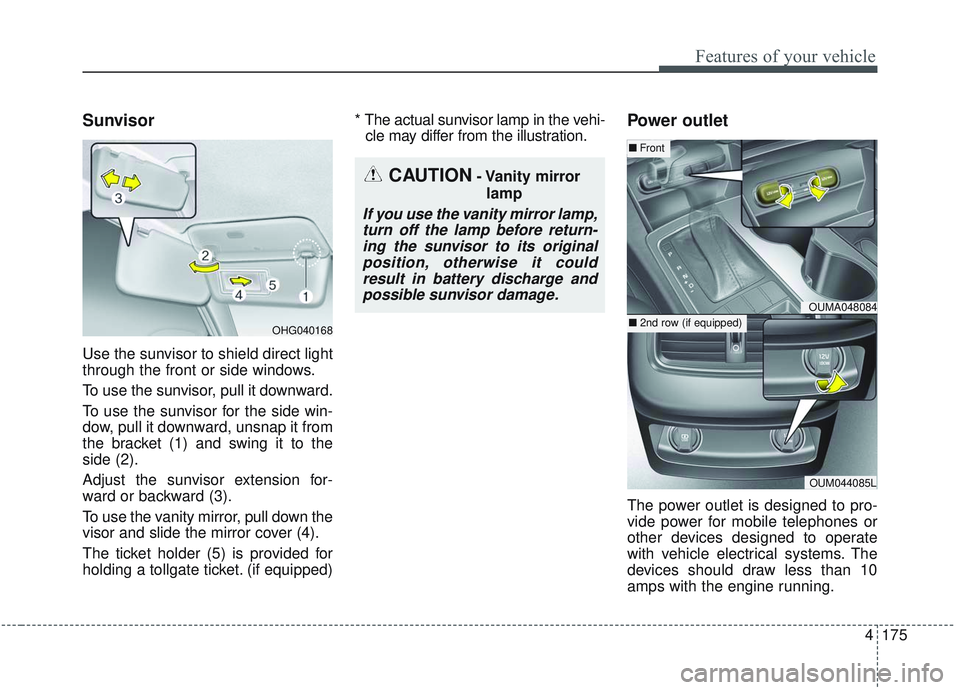
Use the sunvisor to shield direct light
through the front or side windows.
To use the sunvisor, pull it downward.
To use the sunvisor for the side win-
dow, pull it downward, unsnap it from
the bracket (1) and swing it to the
side (2).
Adjust the sunvisor extension for-
ward or backward (3).
To use the vanity mirror, pull down the
visor and slide the mirror cover (4).
The ticket holder (5) is provided for
holding a tollgate ticket. (if equipped)* The actual sunvisor lamp in the vehi-
cle may differ from the illustration.
Power outlet
The power outlet is designed to pro-
vide power for mobile telephones or
other devices designed to operate
with vehicle electrical systems. The
devices should draw less than 10
amps with the engine running.
OHG040168
CAUTION- Vanity mirror
lamp
If you use the vanity mirror lamp,turn off the lamp before return-ing the sunvisor to its originalposition, otherwise it couldresult in battery discharge andpossible sunvisor damage.
OUMA048084
OUM044085L
■ Front
■ 2nd row (if equipped)
Page 267 of 573
4179
Features of your vehicle
Wireless smart phone charg-
ing system (if equipped)
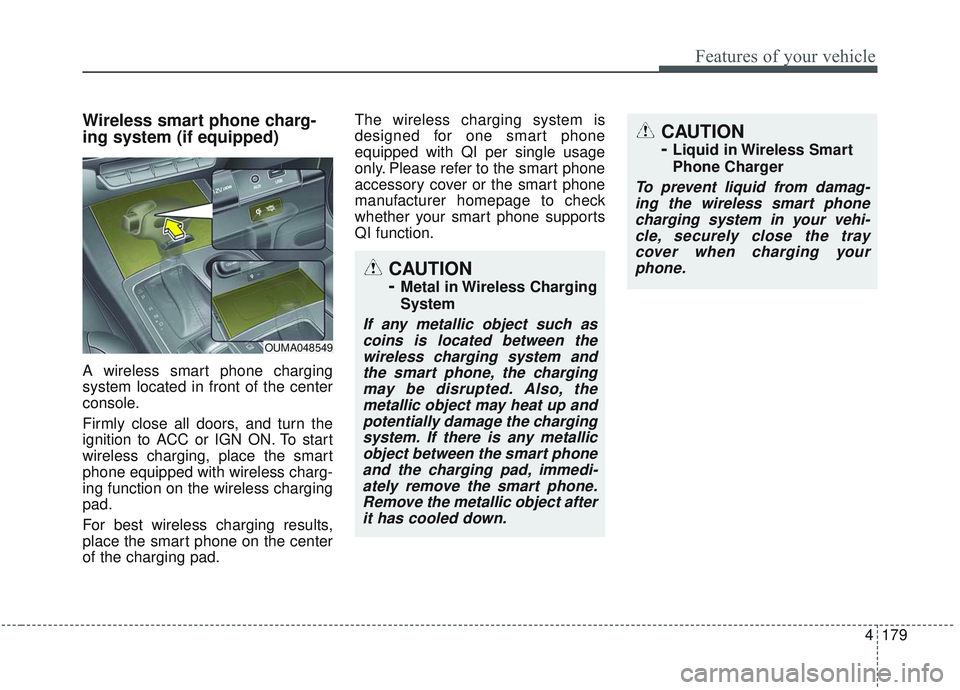
A wireless smart phone charging
system located in front of the center
console.
Firmly close all doors, and turn the
ignition to ACC or IGN ON. To start
wireless charging, place the smart
phone equipped with wireless charg-
ing function on the wireless charging
pad.
For best wireless charging results,
place the smart phone on the center
of the charging pad.The wireless charging system is
designed for one smart phone
equipped with QI per single usage
only. Please refer to the smart phone
accessory cover or the smart phone
manufacturer homepage to check
whether your smart phone supports
QI function.
OUMA048549
CAUTION
-
Metal in Wireless Charging
System
If any metallic object such as
coins is located between thewireless charging system andthe smart phone, the chargingmay be disrupted. Also, themetallic object may heat up andpotentially damage the chargingsystem. If there is any metallicobject between the smart phoneand the charging pad, immedi-ately remove the smart phone.Remove the metallic object afterit has cooled down.
CAUTION
-
Liquid in Wireless Smart
Phone Charger
To prevent liquid from damag-ing the wireless smart phonecharging system in your vehi-cle, securely close the traycover when charging yourphone.
Page 268 of 573
Features of your vehicle
180
4
Wireless smart phone charging
1. Remove any object on the smart
phone charging pad including the
smart key. If there is any foreign
object on the pad other than a
smart phone, the wireless charging
function may not operate properly.
2. Place the smart phone on the cen- ter of the wireless charging pad.
3. The indicator light will change to orange once the wireless charging
begins. After the charging is com-
plete, the orange light will change
to green.
4. You can choose to turn the wireless charging function to either ON or
OFF by selecting the USM on the
instrument cluster. (Please refer to
“Instrument Cluster” for details).
If the wireless charging is not func-
tioning properly, the orange light will
blink and flash for ten seconds then
turn off. In such cases, remove the
smart phone from the pad and
replace it on the pad again, or double
check the charging status. If you leave the smart phone on the
charging pad when the vehicle igni-
tion is in OFF, the vehicle will alert
you through warning messages and
sound (applicable for vehicles with
voice guidance function).
✽ ✽
NOTICE
• Securely close the tray cover when
using the wireless smart phone
charge function.
• Close the tray cover when the smart phone is placed in it at all
times. If the vehicle is in motion
without the tray cover closed, it is
more likely that the driver may
use the smart phone. The use of
smart phones while driving may
lead to possible injuries and acci-
dents.
• If it is not possible to close the tray cover due to the size of the smart
phone, do not use the wireless smart
phone charging function at all.
• When the tray cover is broken, do not use the wireless charging func-
tion before the tray cover is
repaired. (Continued)(Continued)
• When the interior temperature of
the wireless charging system rises
above a set temperature, the wire-
less charging will cease to func-
tion. After the interior tempera-
ture drops below the threshold,
the wireless charging function will
resume.
• The wireless charging may not function properly when there is a
heavy accessory cover on the
smart phone.
The wireless charging will stop
when the smart phone is not in
complete contact with the wireless
charging pad.
• The smart key detection feature in operation could temporarily stop
charging.
(When turning on ignition, open-
ing doors, or closing doors)
• The wireless charging will stop when the vehicle is turned OFF. (Continued)
Page 269 of 573
4181
Features of your vehicle
(Continued)
• Items equipped with magneticcomponents such as credit card,
telephone card, bankbook, any
transportation ticket and such
may become damaged during
wireless charging.
• Place the smart phone on the cen- ter of the charge pad for best
results. The smart phone may not
charge when placed near the rim
of the charging pad. When the
smart phone does get charged, it
may heat up excessively.
• For smart phones without built-in wireless charging system, an
appropriate accessory has to be
equipped.
• Cellphones without the certifica- tion for wireless charging ( )
could fail to charge.
• The self-protection feature equipped in some mobile phones
could slow down or stop charging. (Continued)(Continued)
• The indicator light of some manu-
facturers’ smart phones may still
be yellow after the smart phone is
fully charged. This is due to the
particular characteristic of the
smart phone and not a malfunc-
tion of the wireless charging.
• When any smart phone without a wireless charging function or a
metallic object is placed on the
charging pad, a small noise may
sound. This small sound is due to
the vehicle discerning compatibili-
ty of the object placed on the
charging pad. It does not affect
your vehicle or the smart phone in
any way. This device complies with
Industry Canada licence-exempt
RSS standard(s).
Operation is subject to the following
two conditions:
(1) This device may not cause inter-
ference, and
(2) This device must accept any
interference, including interfer-
ence that may cause undesired
operation of the device.
Page 275 of 573
4187
Features of your vehicle
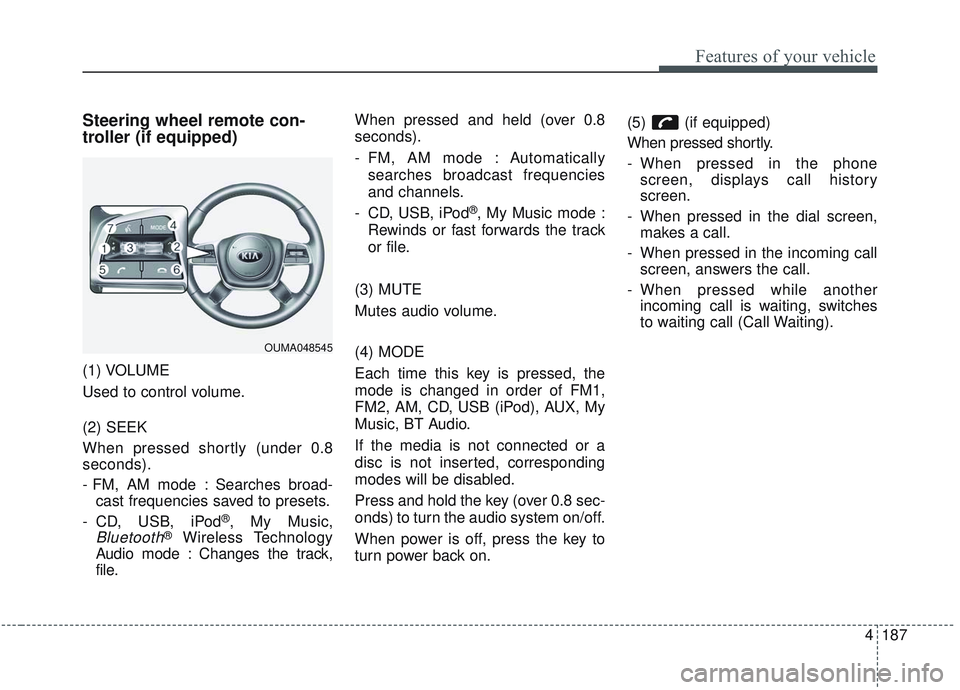
Steering wheel remote con-
troller (if equipped)
(1) VOLUME
Used to control volume.
(2) SEEK
When pressed shortly (under 0.8
seconds).
- FM, AM mode : Searches broad-cast frequencies saved to presets.
- CD, USB, iPod
®, My Music,
Bluetooth®Wireless Technology
Audio mode : Changes the track,
file. When pressed and held (over 0.8
seconds).
- FM, AM mode : Automatically
searches broadcast frequencies
and channels.
- CD, USB, iPod
®, My Music mode :
Rewinds or fast forwards the track
or file.
(3) MUTE
Mutes audio volume.
(4) MODE
Each time this key is pressed, the
mode is changed in order of FM1,
FM2, AM, CD, USB (iPod), AUX, My
Music, BT Audio.
If the media is not connected or a
disc is not inserted, corresponding
modes will be disabled.
Press and hold the key (over 0.8 sec-
onds) to turn the audio system on/off.
When power is off, press the key to
turn power back on. (5) (if equipped)
When pressed shortly.
- When pressed in the phone
screen, displays call history
screen.
- When pressed in the dial screen, makes a call.
- When pressed in the incoming call screen, answers the call.
- When pressed while another incoming call is waiting, switches
to waiting call (Call Waiting).
OUMA048545
Page 276 of 573
Features of your vehicle
188
4
When pressed and held (over 0.8 sec-
onds).
- When pressed in the
Bluetooth®
Wireless Technology Handsfree
wait mode, redials the last call.
- When pressed during a
Bluetooth®
Wireless Technology Handsfree
call, switches call back to mobile
phone (Private).
- When pressed while calling on the mobile phone, switches call back to
Bluetooth®Wireless Technology
Handsfree (Operates only when
Bluetooth®Wireless Technology
Handsfree is connected). (6) (if equipped)
Ends phone call.
(7) (if equipped)
When pressed shortly.
- Starts voice recognition.
- When selected during a voice
prompt, stops the prompt and con-
verts to voice command waiting
state.
When pressed and held (over 0.8 sec-
onds).
- Ends voice recognition.
❈ The Bluetooth®word mark and
logos are registered trademarks
owned by Bluetooth
®SIG, Inc. and
any use of such marks by Kia is
under license. Other trademarks
and trade names are those of their
respective owners. A compatible
Bluetooth
®enabled cell phone is
required to use
Bluetooth®
Wireless Technology.
Refer to a separately supplied A
VN manual for detailed informa-
tion.
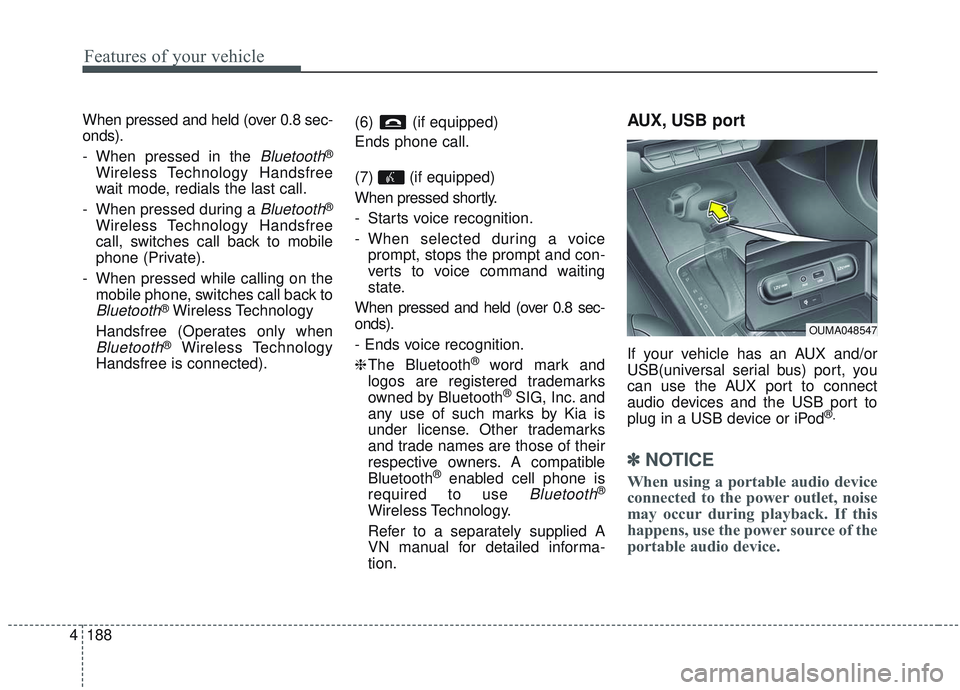
AUX, USB port
If your vehicle has an AUX and/or
USB(universal serial bus) port, you
can use the AUX port to connect
audio devices and the USB port to
plug in a USB device or iPod
®.
✽ ✽ NOTICE
When using a portable audio device
connected to the power outlet, noise
may occur during playback. If this
happens, use the power source of the
portable audio device.
OUMA048547
Page 496 of 573
753
Maintenance
✽ ✽NOTICE- Remodeling
Prohibited
Do not rewire your vehicle in any
way as doing so may affect the per-
formance of several safety features
in your vehicle. Rewiring your vehi-
cle may also void your warranty and
cause you to be responsible for any
subsequent vehicle damage which
may result.
✽ ✽ NOTICE- Window tinting pre-
caution
Window tint (especially metallic
film) might cause communication
errors or poor radio reception, and
malfunctioning automatic lighting
system due to reflections from the
mirror tint inside the vehicle. The
solution used might also leak into
the electronic components, causing
malfunctions or damage.
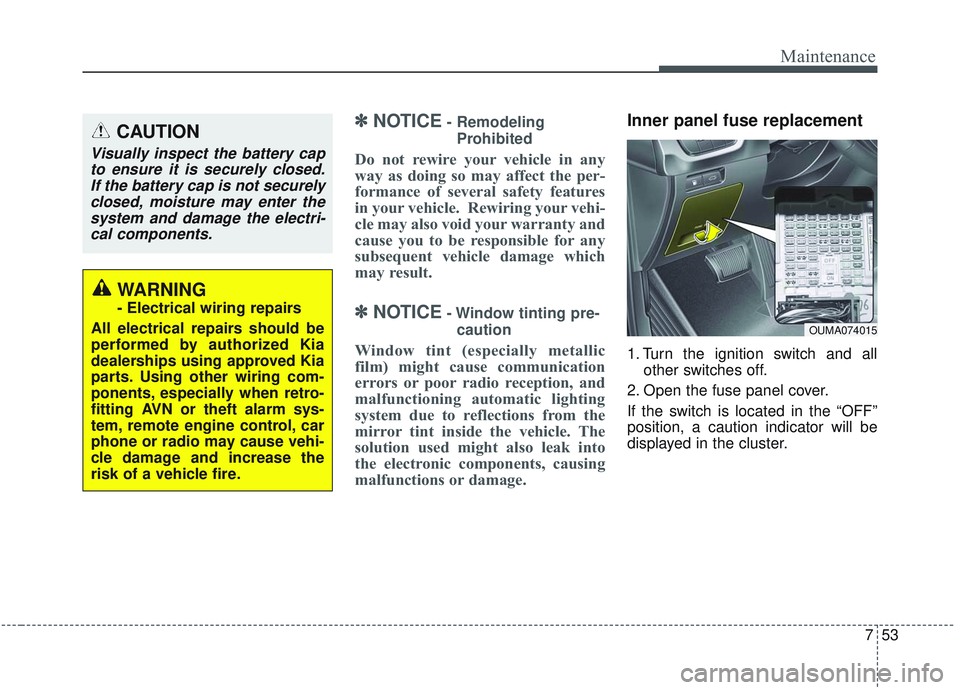
Inner panel fuse replacement
1. Turn the ignition switch and all other switches off.
2. Open the fuse panel cover.
If the switch is located in the “OFF”
position, a caution indicator will be
displayed in the cluster.
CAUTION
Visually inspect the battery cap to ensure it is securely closed.If the battery cap is not securelyclosed, moisture may enter thesystem and damage the electri-cal components.
WARNING
- Electrical wiring repairs
All electrical repairs should be
performed by authorized Kia
dealerships using approved Kia
parts. Using other wiring com-
ponents, especially when retro-
fitting AVN or theft alarm sys-
tem, remote engine control, car
phone or radio may cause vehi-
cle damage and increase the
risk of a vehicle fire.
OUMA074015