2019 Hyundai Tucson Smart key
[x] Cancel search: Smart keyPage 205 of 546
3-114
Convenient features of your vehicle
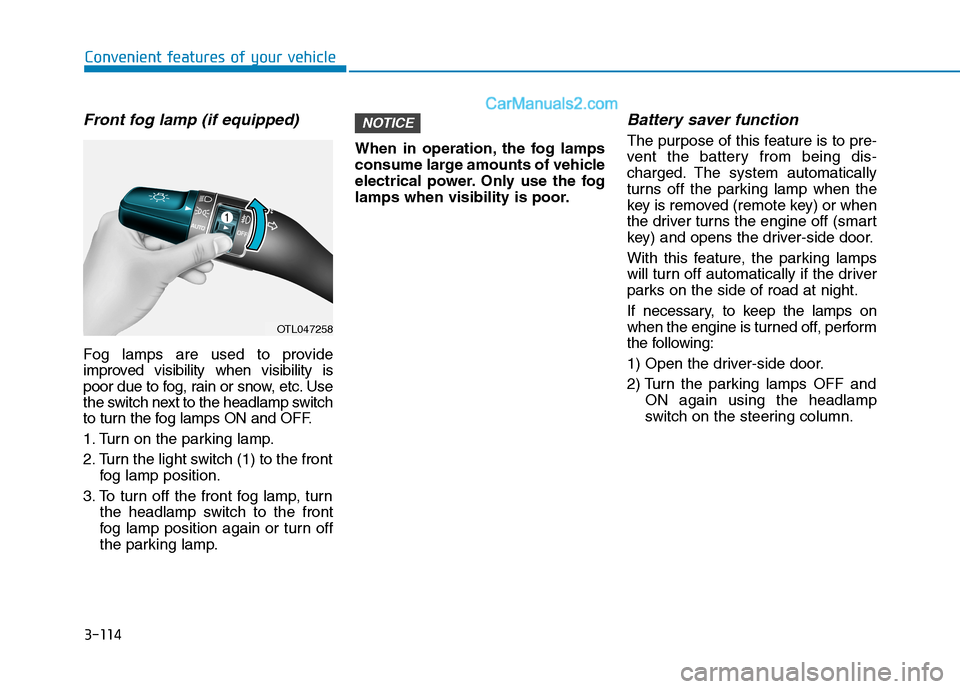
Front fog lamp (if equipped)
Fog lamps are used to provide
improved visibility when visibility is
poor due to fog, rain or snow, etc. Use
the switch next to the headlamp switch
to turn the fog lamps ON and OFF.
1. Turn on the parking lamp.
2. Turn the light switch (1) to the front
fog lamp position.
3. To turn off the front fog lamp, turn
the headlamp switch to the front
fog lamp position again or turn off
the parking lamp.When in operation, the fog lamps
consume large amounts of vehicle
electrical power. Only use the fog
lamps when visibility is poor.
Battery saver function
The purpose of this feature is to pre-
vent the battery from being dis-
charged. The system automatically
turns off the parking lamp when the
key is removed (remote key) or when
the driver turns the engine off (smart
key) and opens the driver-side door.
With this feature, the parking lamps
will turn off automatically if the driver
parks on the side of road at night.
If necessary, to keep the lamps on
when the engine is turned off, perform
the following:
1) Open the driver-side door.
2) Turn the parking lamps OFF and
ON again using the headlamp
switch on the steering column.
NOTICE
OTL047258
Page 206 of 546
3-115
Convenient features of your vehicle
3
Headlamp delay function
If the key is removed from the ignition
switch or placed in the ACC position
or the LOCK/OFF position with the
headlamps ON, the headlamps
(and/or parking lamps) remain on for
about 5 minutes. However, if the dri-
ver's door is opened and closed, the
headlights are turned off after 15
seconds. Also, with the engine off if
the driver's door is opened and
closed, the headlamps (and/or park-
ing lamps) are turned off after 15
seconds.
The headlamps (and/or parking
lamps) can be turned off by pressing
the lock button on the remote key or
smart key twice or turning the light
switch to the OFF or AUTO position.
However, if you turn the light switch
to the AUTO position when it is dark
outside, the headlamps will not be
turned off.You can activate or deactivate the
Headlamp Delay function from the
User Settings Mode on the LCD dis-
play.
For more details, refer to the "LCD
Display" section in this chapter.
If the driver gets out of the vehicle
through other doors (except dri-
ver’s door), the battery saver func-
tion does not operate and the
headlamp delay function does not
turn off automatically. Therefore, It
causes the battery to be dis-
charged. In this case, make sure
to turn off the headlamp switch
before getting out of the vehicle.
Welcome System (if equipped)
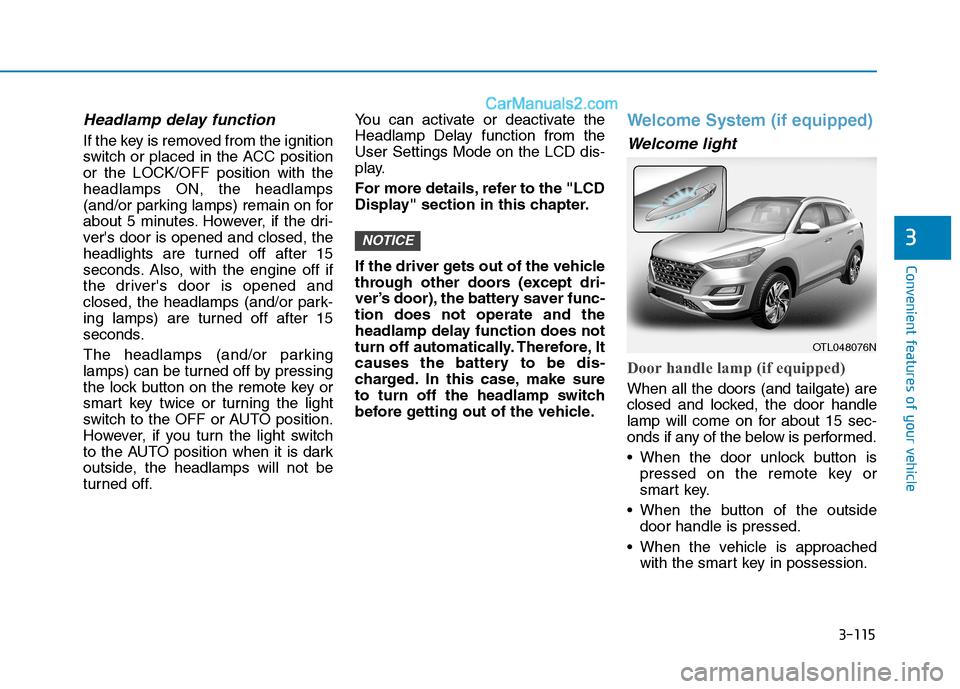
Welcome light
Door handle lamp (if equipped)
When all the doors (and tailgate) are
closed and locked, the door handle
lamp will come on for about 15 sec-
onds if any of the below is performed.
When the door unlock button is
pressed on the remote key or
smart key.
When the button of the outside
door handle is pressed.
When the vehicle is approached
with the smart key in possession.
NOTICE
OTL048076N
Page 207 of 546
3-116
Convenient features of your vehicle
Headlamp and Parking lamp
When the headlamp (lamp switch in
the headlamp or AUTO position) is
on and all doors (and tailgate) are
locked and closed, the parking lamp
and headlamp will come on for 15
seconds when the door unlock but-
ton is pressed on the remote key or
smart key.
At this time, if you press the door lock
or unlock button, the parking lamp
and headlamp will turn off immedi-
ately.
You can activate or deactivate the
Welcome Light from the User
Settings Mode on the LCD display.
For more details, refer to the "LCD
Display" section in this chapter.
Interior lamp
When the interior lamp switch is in
the DOOR position and all doors (and
tailgate) are closed and locked, the
room lamp will come on for 30 sec-
onds if any of the below is performed.
When the door unlock button is
pressed on the remote key or
smart key.
When the button of the outside
door handle is pressed.
At this time, if you press the door lock
or unlock button on the remote key or
smart keythe room lamp will turn off
immediately.
Interior Lights
Do not use the interior lights for
extended periods when the engine
is turned off or the battery will dis-
charge.
NOTICE
Do not use the interior lights
when driving in the dark. The inte-
rior lights may obscure your view
and cause an accident.
WARNING
Page 208 of 546
3-117
Convenient features of your vehicle
3
Interior lamp AUTO cut
The interior lamps will automatically
go off approximately 20 minutes after
the engine is turned off and the
doors closed. If a door is opened, the
lamp will go off 40 minutes after the
engine is turned off. If the doors are
locked by the remote key or smart
key and the vehicle enters the armed
stage of the theft alarm system, the
lamps will go off five seconds later.
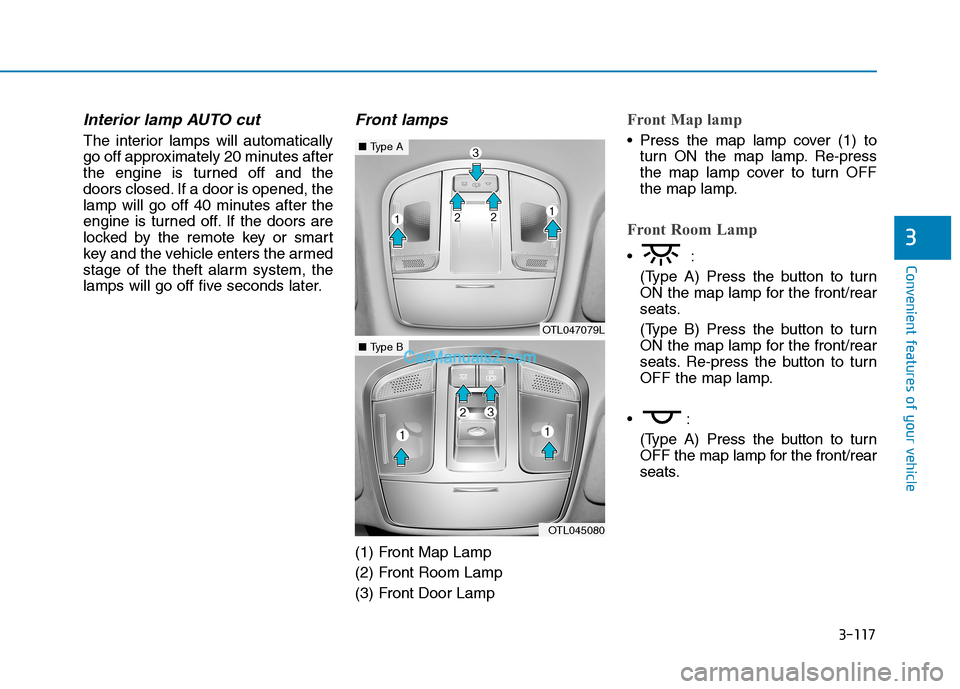
Front lamps
(1) Front Map Lamp
(2) Front Room Lamp
(3) Front Door Lamp
Front Map lamp
Press the map lamp cover (1) to
turn ON the map lamp. Re-press
the map lamp cover to turn OFF
the map lamp.
Front Room Lamp
(Type A) Press the button to turn
ON the map lamp for the front/rear
seats.
(Type B) Press the button to turn
ON the map lamp for the front/rear
seats. Re-press the button to turn
OFF the map lamp.
(Type A) Press the button to turn
OFF the map lamp for the front/rear
seats.
OTL047079L
■Type A
OTL045080
■Type B
Page 209 of 546
3-118
Convenient features of your vehicle
Front Door Lamp
The map lamp for the front/rear
seats is automatically turned ON
for approximately 30 seconds,
when a door is opened.
The map lamp for the front/rear
seats is automatically turned ON
for approximately 15 seconds,
when the remote key (smart key)
unlocks the doors. The map lamp
fades out, when the ignition switch
is pressed to the ON position in 15
seconds. The map lamp remains
ON up to 20 minutes, when a door
is opened with the ignition switch in
the either the ACC or OFF position.
Rear lamps
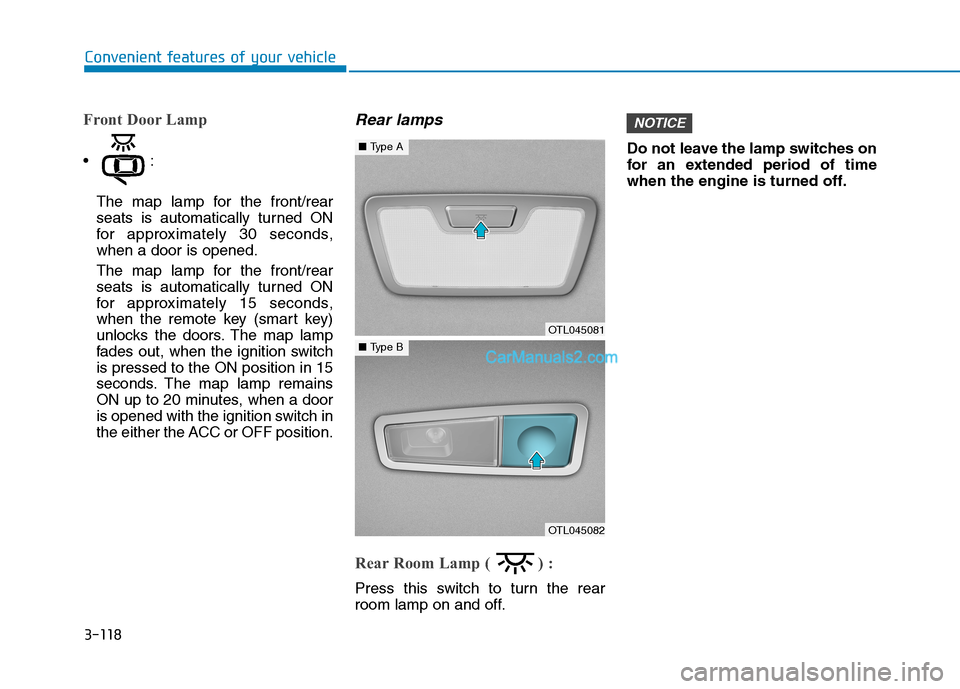
Rear Room Lamp ( ) :
Press this switch to turn the rear
room lamp on and off.Do not leave the lamp switches on
for an extended period of time
when the engine is turned off.
NOTICE
OTL045081
■Type A
OTL045082
■Type B
Page 254 of 546
3-163
Convenient features of your vehicle
3
To charge a cellular phone
The wireless cellular phone charging
system charges only the Qi-enabled
cellular phones ( ). Read the label
on the cellular phone accessory
cover or visit your cellular phone
manufacturer's website to check
whether your cellular phone supports
the Qi technology.
The wireless charging process starts
when you put a Qi-enabled cellular
phone on the wireless charging unit.
1. Remove other items, including the
smart key, from the wireless
charging unit. If not, the wireless
charging process may be inter-
rupted. Place the cellular phone
on the center of the charging pad
().
2. The indicator light is orange when
the cellular phone is charging. The
indicator light turns green when
phone charging is complete.
3. You can turn ON or OFF the wire-
less charging function in the user
settings mode on the instrument
cluster. For further information,
refer to the "LCD Display Modes"
in this chapter.If your cellular phone is not charging:
- Slightly change the position of the
cellular phone on the charging
pad.
- Make sure the indicator light is
orange.
The indicator light will blink orange
for 10 seconds if there is a malfunc-
tion in the wireless charging system.
In this case, temporarily stop the
charging process, and re-attempt to
charge your cellular phone again.
The system warns you with a mes-
sage on the LCD display if the cellu-
lar phone is still on the wireless
charging unit after the engine is
turned OFF and the front door is
opened.
Information
For some manufacturer's cellular
phones, the system may not warn you
even though the cellular phone is left
on the wireless charging unit. This is
due to the particular characteristic of
the cellular phone and not a malfunc-
tion of the wireless charging. The wireless cellular phone
charging system may not sup-
port certain cellular phones,
which are not verified for the Qi
specification ( ).
When placing your cellular
phone on the charging mat,
position the phone in the middle
of the mat for optimal charging
performance. If your cell phone
is off to the side, the charging
rate may be less and in some
cases the cell phone may experi-
ence higher heat conduction.
In some cases, the wireless
charging may stop temporarily
when the Remote Key or Smart
Key is used, either when starting
the vehicle or locking/unlocking
the doors, etc.
When charging certain cellular
phones, the charging indicator
may not change to green when
the cell phone is fully charged.
NOTICE
i
Page 275 of 546
5-9
Driving your vehicle
5
Engine Start/Stop Button
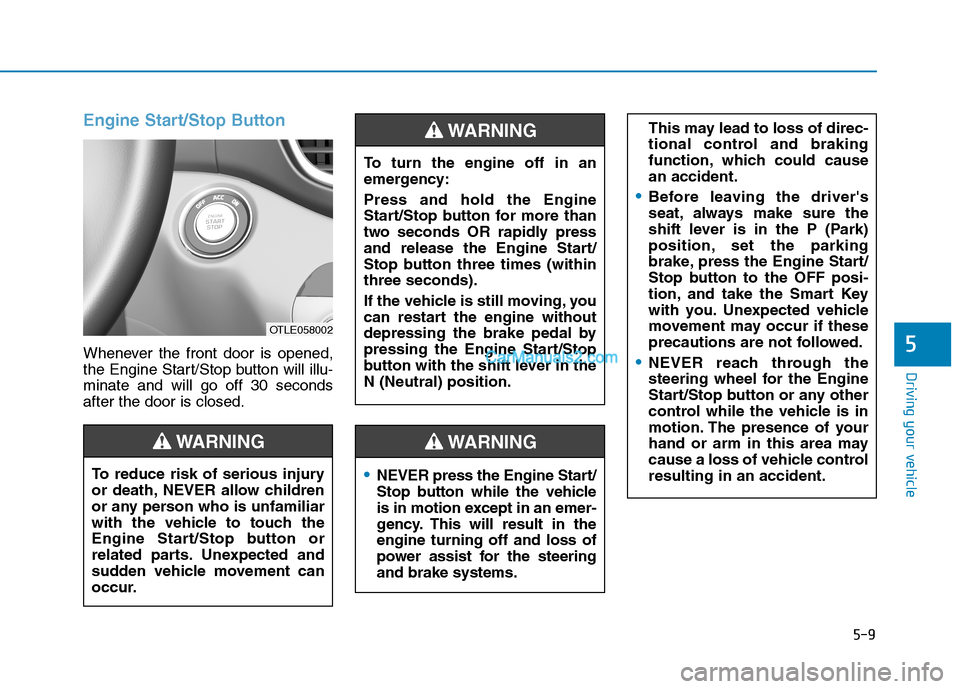
Whenever the front door is opened,
the Engine Start/Stop button will illu-
minate and will go off 30 seconds
after the door is closed.
NEVER press the Engine Start/
Stop button while the vehicle
is in motion except in an emer-
gency. This will result in the
engine turning off and loss of
power assist for the steering
and brake systems.
WARNING
To turn the engine off in an
emergency:
Press and hold the Engine
Start/Stop button for more than
two seconds OR rapidly press
and release the Engine Start/
Stop button three times (within
three seconds).
If the vehicle is still moving, you
can restart the engine without
depressing the brake pedal by
pressing the Engine Start/Stop
button with the shift lever in the
N (Neutral) position.
This may lead to loss of direc-
tional control and braking
function, which could cause
an accident.
Before leaving the driver's
seat, always make sure the
shift lever is in the P (Park)
position, set the parking
brake, press the Engine Start/
Stop button to the OFF posi-
tion, and take the Smart Key
with you. Unexpected vehicle
movement may occur if these
precautions are not followed.
NEVER reach through the
steering wheel for the Engine
Start/Stop button or any other
control while the vehicle is in
motion. The presence of your
hand or arm in this area may
cause a loss of vehicle control
resulting in an accident.
WARNING
To reduce risk of serious injury
or death, NEVER allow children
or any person who is unfamiliar
with the vehicle to touch the
Engine Start/Stop button or
related parts. Unexpected and
sudden vehicle movement can
occur.
WARNING
OTLE058002
Page 278 of 546
5-12
Driving your vehicle
Always wear appropriate shoes
when operating your vehicle.
Unsuitable shoes, such as
high heels, ski boots, sandals,
flip-flops, etc., may interfere
with your ability to use the
brake and accelerator pedals.
Do not start the vehicle with the
accelerator pedal depressed.
The vehicle can move and lead
to an accident.
Wait until the engine rpm is
normal. The vehicle may sud-
denly move if the brake pedal
is released when the rpm is
high.
WARNING
Starting the engine Information
• The engine will start by pressing the
Engine Start/Stop button, only when
the smart key is in the vehicle.
• Even if the smart key is in the vehi-
cle, if it is far away from the driver,
the engine may not start.
• When the Engine Start/Stop button
is in the ACC or ON position, if any
door is open, the system checks for
the smart key. If the smart key is not
in the vehicle, the " " indicator
will blink and the warning "Key not
in vehicle" will come on and if all
doors are closed, the chime will also
sound for about 5 seconds. Keep the
smart key in the vehicle when using
the ACC position or if the vehicle
engine is ON.1. Always carry the smart key with
you.
2. Make sure the parking brake is
applied.
3. Make sure the shift lever is in P
(Park).
4. Depress the brake pedal.
5. Press the Engine Start/Stop but-
ton.
Information
• Do not wait for the engine to warm
up while the vehicle remains station-
ary. Start driving at moderate
engine speeds. (Aggressive accelerat-
ing and decelerating should be
avoided.)
• Always start the vehicle with your
foot on the brake pedal. Do not
depress the accelerator while start-
ing the vehicle. Do not race the
engine while warming it up.
i
i