2019 HONDA RIDGELINE battery
[x] Cancel search: batteryPage 311 of 624

309
uuGeneral Information on the Audio System uHonda App License Agreement
Continued
Features
E. Information Collection and Storage
1. Information Collection, Us e, Transmission and Storage of Data. Consent to Use of Data: You agree that HONDA and PROVIDERS may
collect and use your information gathered in any manner as part of product support services related to the SOFTWARE or related services.
HONDA may share such information with third parties, including, without limitation, PR OVIDERS, third party software and services
suppliers, their affiliates and/or their designated agents, solely to improve their products or to provide services or technolo gies to you.
HONDA, third party software and syst ems suppliers, their affiliates and/or their de signated agent may disclose this information to others,
but not in a form that pe rsonally identifies you.
2. Information Storage. Depending on the type of multimedia system you have in your VEHICLE, certain information may be stored fo r ease
of use of the SOFTWARE including, without limitation, search hi story, location history in certain applications, previous and saved
destinations, map locations within certain applicat ions, and device numbers and contact information.
(a) Vehicle Health Information. Your VEHICL E may remotely transmit information regardi ng the status and health of your VEHICLE
(“VEHICLE INFORMATION”) to HONDA without notification to you. VEHICLE INFORMATION may contain VEHICLE maintenance and
malfunction status that is derived from VEHICLE diagnostic data and includes, but is not limited to, status of powered doors and windows,
battery life data, battery charging data, VE HICLE speed, coolant temperature, air comp ressor revolution, output power, warning codes,
diagnostic trouble codes, fuel injection volume, and engine rota tions per minute. VEHICLE HEALTH INFORMATION may be used by HON DA
for research and development, to deliver HONDA SERVICES and informat ion to you, and to contact you, and is retained only for a period
of time necessary to fulfill these goals.
(b) VEHICLE Geolocation Data (non-navigation/map based). If you opt-in to geolocation-based SERVICES, your vehicle’s geolocatio n data
(latitude and longitude) will be automatically sent from your VEHICLE to HONDA and PROVIDERS.
(c) You understand that the inputting or uploading of information to your VEHICLE’s multimedia system or the SOFTWARE or SERVIC ES is
at your own risk and that HONDA is not responsible for unauthori zed access to or use of any personal or other information. All information
uploaded to the SOFTWARE and SERVICES may be stored on your VEHICLES’s multimedia system and you understand that the security and
safety of your VEHICLE’s multimedia system is your sole responsibility.
Page 355 of 624
353
uuBluetooth ® HandsFreeLink ®u Using HFL
Features
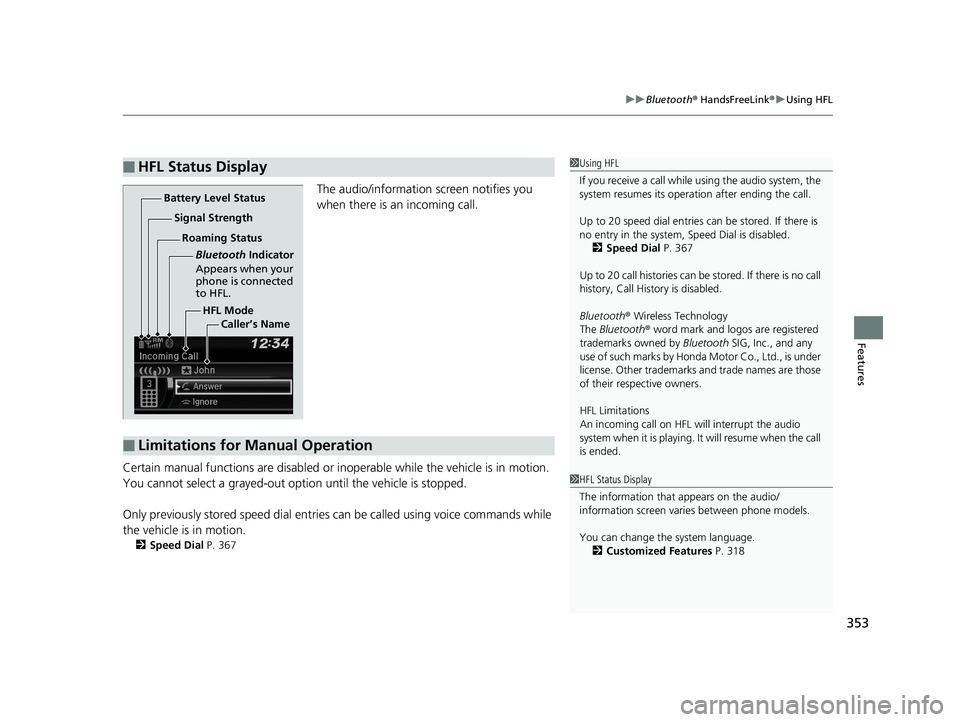
The audio/information screen notifies you
when there is an incoming call.
Certain manual functions are disabled or inoperable while the vehicle is in motion.
You cannot select a grayed-out option until the vehicle is stopped.
Only previously stored speed dial entrie s can be called using voice commands while
the vehicle is in motion.
2 Speed Dial P. 367
■HFL Status Display1Using HFL
If you receive a call while using the audio system, the
system resumes its operati on after ending the call.
Up to 20 speed dial entries can be stored. If there is
no entry in the system, Speed Dial is disabled. 2 Speed Dial P. 367
Up to 20 call histories can be stored. If there is no call
history, Call History is disabled.
Bluetooth ® Wireless Technology
The Bluetooth ® word mark and logos are registered
trademarks owned by Bluetooth SIG, Inc., and any
use of such marks by Honda Motor Co., Ltd., is under
license. Other trademarks and trade names are those
of their respective owners.
HFL Limitations
An incoming call on HFL will interrupt the audio
system when it is playing. It will resume when the call
is ended.
HFL Mode
Battery Level Status
Signal Strength
Bluetooth Indicator
Appears when your
phone is connected
to HFL.
Roaming Status
Caller’s Name
■Limitations for Manual Operation
1HFL Status Display
The information that appears on the audio/
information screen vari es between phone models.
You can change the system language. 2 Customized Features P. 318
Page 360 of 624
uuBluetooth ® HandsFreeLink ®u HFL Menus
358
Features
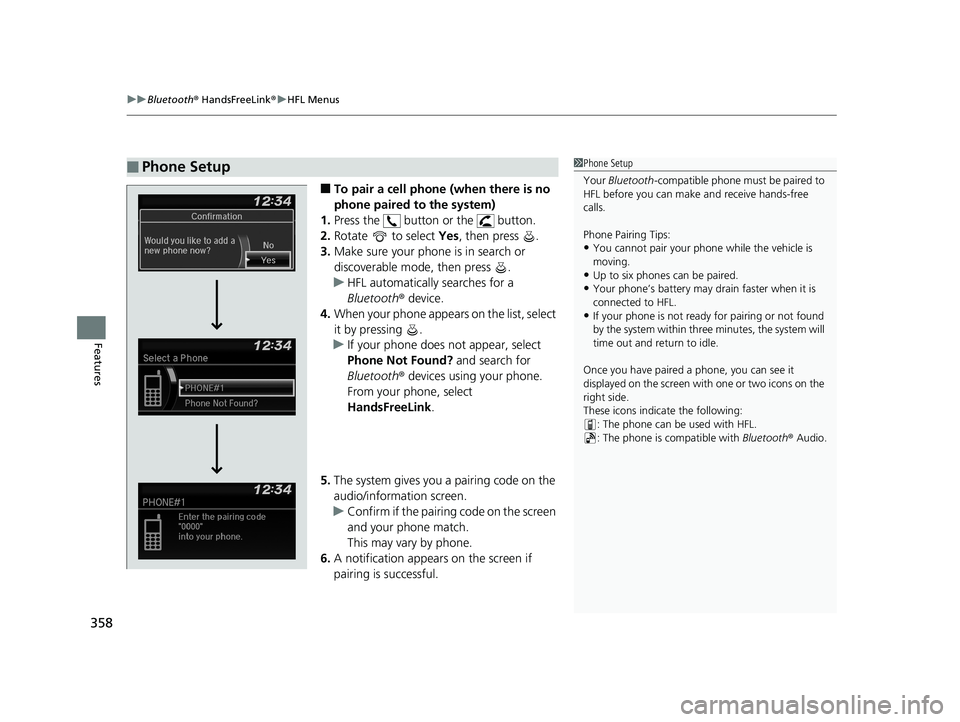
■To pair a cell phone (when there is no
phone paired to the system)
1. Press the button or the button.
2. Rotate to select Yes, then press .
3. Make sure your phone is in search or
discoverable mode, then press .
u HFL automatically searches for a
Bluetooth ® device.
4. When your phone appears on the list, select
it by pressing .
u If your phone does not appear, select
Phone Not Found? and search for
Bluetooth ® devices using your phone.
From your phone, select
HandsFreeLink .
5. The system gives you a pairing code on the
audio/information screen.
u Confirm if the pairing code on the screen
and your phone match.
This may vary by phone.
6. A notification appears on the screen if
pairing is successful.
■Phone Setup1Phone Setup
Your Bluetooth -compatible phone must be paired to
HFL before you can make and receive hands-free
calls.
Phone Pairing Tips:
•You cannot pair your phone while the vehicle is
moving.
•Up to six phones can be paired.
•Your phone’s battery may dr ain faster when it is
connected to HFL.
•If your phone is not ready for pairing or not found
by the system within three minutes, the system will
time out and return to idle.
Once you have paired a phone, you can see it
displayed on the screen with one or two icons on the
right side.
These icons indicate the following: : The phone can be used with HFL.
: The phone is compatible with Bluetooth® Audio.
Page 381 of 624
379
uuBluetooth ® HandsFreeLink ®u Using HFL
Features
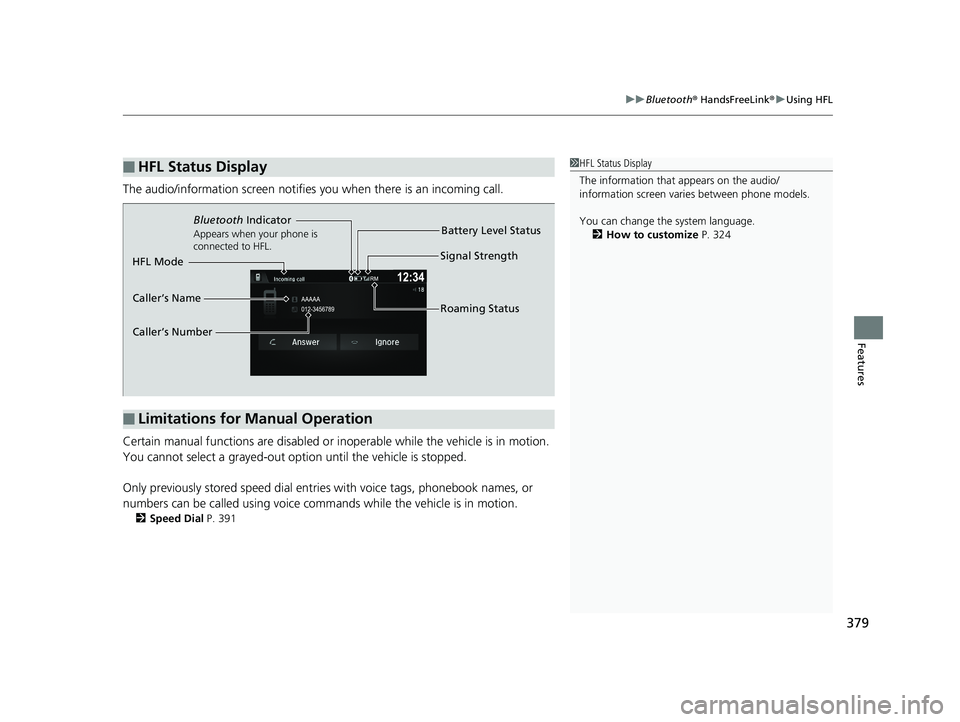
The audio/information scr een notifies you when there is an incoming call.
Certain manual functions are disabled or inoperable while the vehicle is in motion.
You cannot select a grayed-out option until the vehicle is stopped.
Only previously stored speed dial entries with voice tags, phonebook names, or
numbers can be called using voice commands while the vehicle is in motion.
2 Speed Dial P. 391
■HFL Status Display1HFL Status Display
The information that appears on the audio/
information screen vari es between phone models.
You can change the system language. 2 How to customize P. 324
■Limitations for Manual Operation
Bluetooth Indicator
Appears when your phone is
connected to HFL.
Signal Strength
HFL Mode Battery Level Status
Caller’s Name
Caller’s Number Roaming Status
Page 387 of 624

Continued385
uuBluetooth ® HandsFreeLink ®u HFL Menus
Features
■To pair a cell phone (when there is no
phone paired to the system)
1. Select .
2. Select Phone.
3. Select Yes.
4. Make sure your phone is in search or
discoverable mode, then select Continue.
u HFL automatically searches for a
Bluetooth ® device.
5. Select your phone when it appears on the
list.
u If your phone does not appear, you can
select Refresh to search again.
u If your phone still do es not appear, select
Phone Not Found and search for
Bluetooth ® devices using your phone.
From your phone, search for
HandsFreeLink .
6. The system gives you a pairing code on the
audio/information screen.
u Confirm if the pairing code on the screen
and your phone match.
This may vary by phone.
■Phone Setup1Phone Setup
Your Bluetooth -compatible phone must be paired to
the system before you ca n make and receive hands-
free calls.
Phone Pairing Tips:
•You cannot pair your phone while the vehicle is
moving.
•Up to six phones can be paired.
•Your phone’s battery may dr ain faster when it is
paired to the system.
•If your phone is not ready for pairing or not found
by the system within three minutes, the system will
time out and return to idle.
Once you have paired a phone, you can see it
displayed on the screen with one or two icons on the
right side.
These icons indicate the following: : The phone can be used with HFL.
: The phone is compatible with Bluetooth® Audio.
If there is an active connection to Appl e CarPlay or
Android Auto, pairing of additional Bluetooth
compatible devices is unavailable and Add
Bluetooth Device is grayed out from the Bluetooth
device list screen.
Page 410 of 624
uuBluetooth ® HandsFreeLink ®u HFL Menus
408
Features
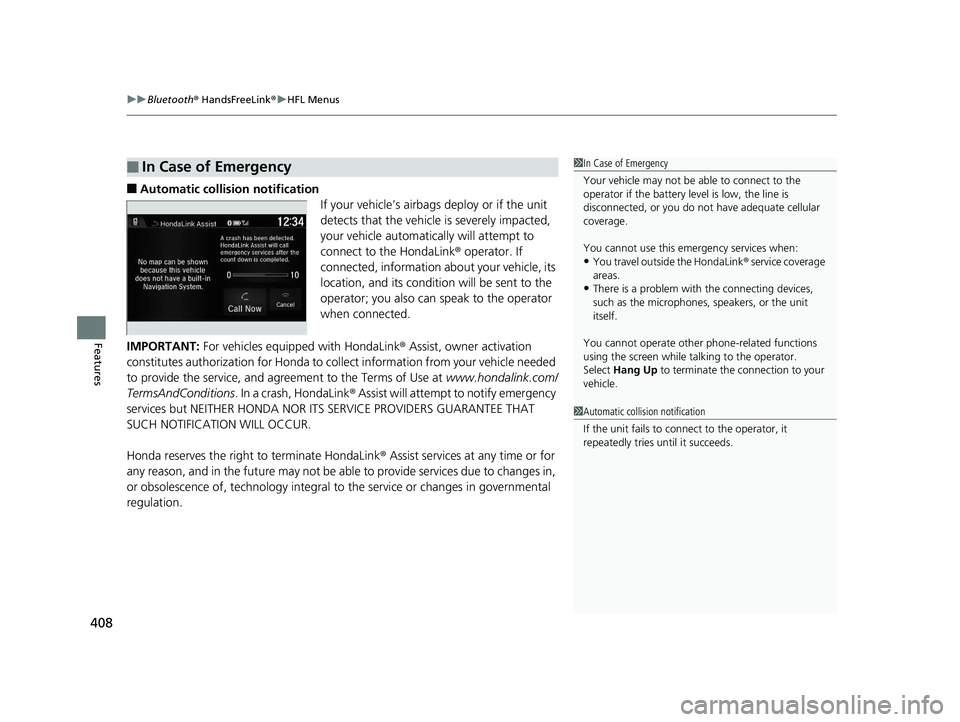
■Automatic collisi on notification
If your vehicle’s airbags deploy or if the unit
detects that the vehicle is severely impacted,
your vehicle automatically will attempt to
connect to the HondaLink ® operator. If
connected, information about your vehicle, its
location, and its condition will be sent to the
operator; you also can speak to the operator
when connected.
IMPORTANT: For vehicles equipp ed with HondaLink® Assist, owner activation
constitutes authorization for Honda to collect information from your vehicle needed
to provide the service, and agr eement to the Terms of Use at www.hondalink.com/
TermsAndConditions . In a crash, HondaLink ® Assist will attempt to notify emergency
services but NEITHER HONDA NOR ITS SERVICE PROVIDERS GUARANTEE THAT
SUCH NOTIFICATION WILL OCCUR.
Honda reserves the right to terminate HondaLink ® Assist services at any time or for
any reason, and in the future may not be ab le to provide services due to changes in,
or obsolescence of, technology integral to the service or changes in governmental
regulation.
■In Case of Emergency1 In Case of Emergency
Your vehicle may not be able to connect to the
operator if the battery level is low, the line is
disconnected, or you do not have adequate cellular
coverage.
You cannot use this emergency services when:
•You travel outside the HondaLink ® service coverage
areas.
•There is a problem with the connecting devices,
such as the microphones, speakers, or the unit
itself.
You cannot operate othe r phone-related functions
using the screen while talking to the operator.
Select Hang Up to terminate the connection to your
vehicle.
1 Automatic collision notification
If the unit fails to connect to the operator, it
repeatedly tries until it succeeds.
Page 436 of 624

434
Driving
When Driving
Starting the Engine
1.Make sure the parking brake is applied.
2. Check that the shift lever is in
(P, then
depress the brake pedal.
u Although it is possibl e to start the vehicle
in
(N, it is safer to start it in (P.
3. Press the ENGINE START/STOP button
without depressing the accelerator pedal.
The engine will crank until it starts.
1 Starting the Engine
Keep your foot firmly on the brake pedal when
starting the engine.
The engine is harder to st art in cold weather and in
thinner air found at altitudes above 8,000 feet (2,400
meters).
When starting the engine in cold weather, turn off all
electrical accessories such as the lights, heating and
cooling system
*/climate control system*, and rear
defogger in order to reduce battery drain.
If you live in a region where winter is extremely cold,
an engine block heater will improve starting and
warming of the engine. Cons ult a dealer for details.
Bring the smart entry remote close to the ENGINE
START/STOP button if the battery in the smart entry
remote is weak. 2 If the Smart Entry Remote Battery is Weak
P. 579
The engine may not start if the smart entry remote is
subjected to strong radio waves.
Do not hold the ENGINE START/STOP button to
start the engine.
If the engine does not start, wait at least 30 seconds
before trying again.
Parking Brake
Brake Pedal
* Not available on all models
Page 439 of 624

Continued437
uuWhen Driving uStarting the Engine
Driving
■To start the engine
The engine runs for up to 10 minu tes without you starting the vehicle.
To extend the run time for another 10 mi nutes during the first run, press the
button, then press an d hold the button.
u Some exterior lights come back on three times, twice, if a 10-minute extension
request was transmitted successfully.1 Remote Engine Start*
•There is any antenna failure.•The door is unlocked with the built-in key.
•The engine oil pressure is low.
•The engine coolant temper ature is extremely high.•The telematics unit malfunctions.
•The security system alarm is not set.
The engine may stop whil e it is running if:
•You do not start the vehicl e within 10 minutes of
starting the engine with the smart entry remote.
•The engine is stopped by using the smart entry
remote.
•There is any antenna failure.•The security system alarm is not set.
•The door is unlocked with the built-in key.
•The hood is open, or any door, or the trunk is
unlocked.
•You press the shift lever release button.
•The telematics unit malfunction.
•The engine coolant temper ature is extremely high.•The battery is low.
•The engine oil pressure is low.
•The Malfunction Indicator Lamp (MIL) comes on if
there is a problem with the emissions control
systems.
Press the button, then press and hold
the button.
Some exterior lights flash once.
LED: Blinks when any button is pressed. Go within the range,
and try again.
Some exterior lights flash six
times if the engine runs
successfully. Some exterior lights will not
flash if the engine does not
start.
* Not available on all models