Page 276 of 675
uuAudio System Basic Operation uAudio/Information Screen
274
Features
■To remove icons on the home screen
You can delete the icons on the home screen. 1.Select and hold an icon.
u The screen switches to the customization
screen.
2. Drag and drop the icon you want to remove
to the Hide icon.
u The icon is removed from the home
screen.
3. Select Done.
u The screen will return to the home
screen.1To remove icons on the home screen
Apps will not be deleted by deleting the icon on the
home screen.
Select Tips to show tips. To hide them, select it again.
Select and hold.
Drag and drop to
Hide icon.
19 INSIGHT HMIN-31TXM6000.book 274 ページ 2018年4月20日 金曜日 午後4時22分
Page 277 of 675
Continued275
uuAudio System Basic Operation uAudio/Information Screen
Features
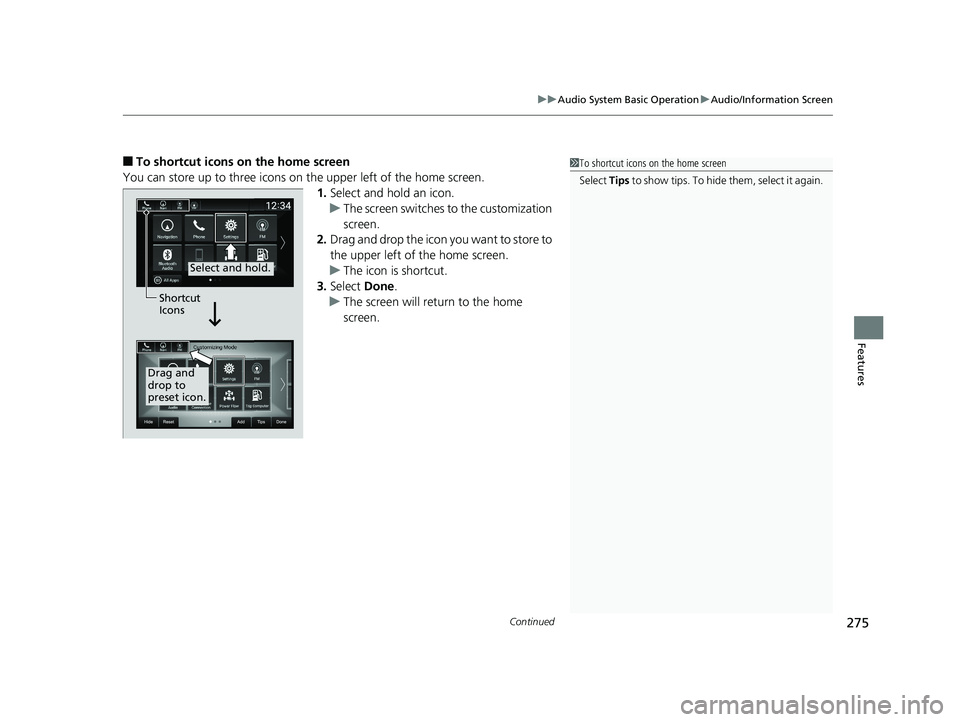
■To shortcut icons on the home screen
You can store up to three icons on the upper left of the home screen. 1.Select and hold an icon.
u The screen switches to the customization
screen.
2. Drag and drop the icon you want to store to
the upper left of the home screen.
u The icon is shortcut.
3. Select Done.
u The screen will return to the home
screen.1To shortcut icons on the home screen
Select Tips to show tips. To hide them, select it again.
Select and hold.
Drag and
drop to
preset icon.Shortcut
Icons
19 INSIGHT HMIN-31TXM6000.book 275 ページ 2018年4月20日 金曜日 午後4時22分
Page 278 of 675
276
uuAudio System Basic Operation uAudio/Information Screen
Features
1. Select the system status icon.
u The status area appears.
2. Select an item to see the details.
3. Press the button or the system status
icon to close the area.
■Status Area
System
Status Icon
Status Area
19 INSIGHT HMIN-31TXM6000.book 276 ページ 2018年4月20日 金曜日 午後4時22分
Page 279 of 675

277
uuAudio System Basic Operation uAudio/Information Screen
Features
You can edit, show, or hide the meter co ntents on the driver information interface.
1. Press the button.
2. Select Settings .
3. Select System.
4. Select Config. of Instrument Panel .
5. Select and hold the content you wish to
show or hide.
u The checked items are displayed on the
driver information interface.
■Editing order
To change the order of the contents on th e driver information interface, first select:
1. Press the button.
2. Select Settings .
3. Select System.
4. Select Config. of Instrument Panel .
5. Select Reorder .
6. Select and hold the contents you want to
move.
7. Drag and drop the contents to where you
want it to be.
8. Select Done.
■Customizing the Meter1Customizing the Meter
You can store up to three customized configurations.
To select or customize a configuration, select Select
configuration .
When you select Select configuration during
customization, the settings you changed will be
saved.
19 INSIGHT HMIN-31TXM6000.book 277 ページ 2018年4月20日 金曜日 午後4時22分
Page 280 of 675
278
uuAudio System Basic Operation uSystem Updates
Features
System Updates
The audio system’s firmware can be updated with a Wi-Fi connection, or with a USB
device.
■Wireless connection mode setup
1.Press the button.
2. Select System Updates .
3. Select Settings .
4. Select Connection Setup .
5. Select Change Mode .
6. Select Network, then Confirm.
u The display returns to the network list.
7. Select an access point from the network list,
then Save.
u If the audio system requires a password,
enter a password.
■How to Update Wirelessly
1Wireless connection mode setup
If your vehicle has a telema tics control unit (TCU), you
do not need the wireless connection mode setup.
19 INSIGHT HMIN-31TXM6000.book 278 ページ 2018年4月20日 金曜日 午後4時22分
Page 281 of 675
Continued279
uuAudio System Basic Operation uSystem Updates
Features
■How to update
When the audio system update is available, the notification is shown on the audio/
information screen. Use the following procedure to update the system.
1.Press the button.
2. Select System Updates .
3. Select via Wireless .
u If a notification is displayed on the
screen, the screen of step 5 will be
displayed.
4. Select Download Now .
u A notification appears on the screen.1How to update
You can update the system vi a Wi-Fi, but cannot use
the captive portal that requi re login or agreement the
terms of use on the browser.
Your download will be canceled if:
•Your Wi-Fi connection is severed.
•You turn off the power system when the 12-volt
battery is low on power.
Your download will recomme nce the next time a Wi-
Fi connection is established.
Notification
19 INSIGHT HMIN-31TXM6000.book 279 ページ 2018年4月20日 金曜日 午後4時22分
Page 282 of 675
uuAudio System Basic Operation uSystem Updates
280
Features
5. Select Install Now or Install while
Vehicle OFF .
u A notification appears on the screen if
the update is successful.1How to update
For the 12-volt battery protection, Install while
Vehicle OFF cannot be selected when the battery is
low on power. If you want to install the updated
data, recharge the battery or select Install Now.
19 INSIGHT HMIN-31TXM6000.book 280 ページ 2018年4月20日 金曜日 午後4時22分
Page 283 of 675
281
uuAudio System Basic Operation uSystem Updates
Continued
Features
■Automatic down load settings
Use the following procedure to change to the automatic download setting.
1. Press the button.
2. Select System Updates .
3. Select Settings .
4. Select Auto Download .
5. Select the access point, then Yes.
■View a version and update status
Use the following procedure to confirm the version and update status.
1. Press the button.
2. Select System Updates .
3. Select Settings .
4. Select Version Status .
19 INSIGHT HMIN-31TXM6000.book 281 ページ 2018年4月20日 金曜日 午後4時22分