2019 HONDA CLARITY FUEL CELL steering wheel
[x] Cancel search: steering wheelPage 271 of 551
269
uuAudio System Basic Operation uSiri ® Eyes Free
Features
Siri® Eyes Free
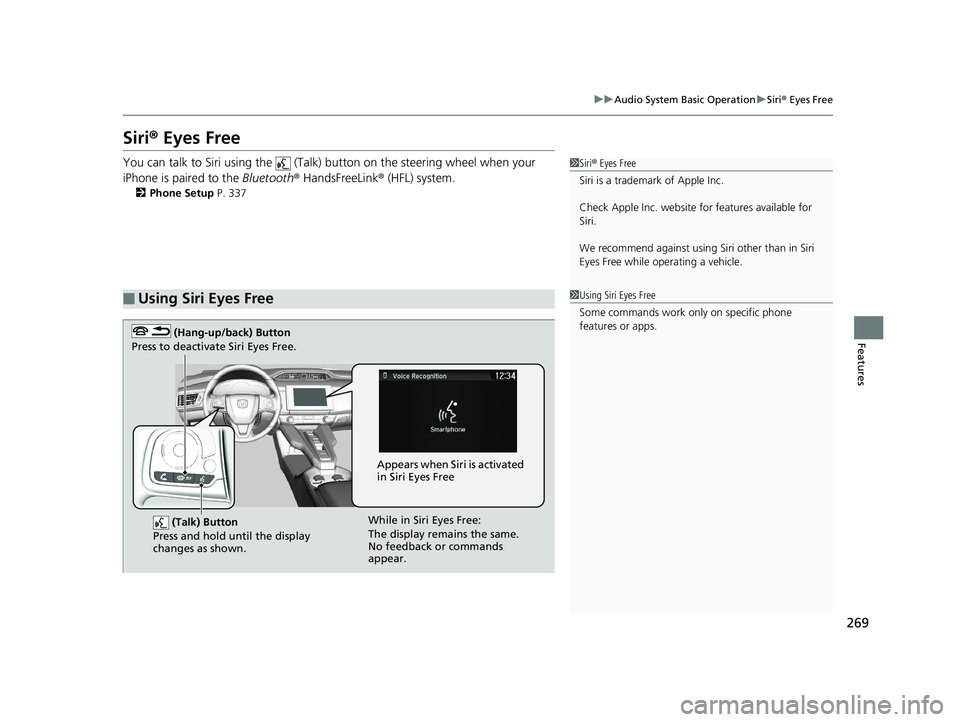
You can talk to Siri using the (Talk) button on the steering wheel when your
iPhone is paired to the Bluetooth® HandsFreeLink ® (HFL) system.
2Phone Setup P. 337
■Using Siri Eyes Free
1Siri ® Eyes Free
Siri is a trademark of Apple Inc.
Check Apple Inc. website for features available for
Siri.
We recommend against using Si ri other than in Siri
Eyes Free while operating a vehicle.
1 Using Siri Eyes Free
Some commands work only on specific phone
features or apps.
(Talk) Button
Press and hold until the display
changes as shown.
(Hang-up/back) Button
Press to deactivate Siri Eyes Free.
While in Siri Eyes Free:
The display remains the same.
No feedback or commands
appear. Appears when Siri is activated
in Siri Eyes Free
19 CLARITY FCV CSS-31TRT6200.book 269 ページ 2019年1月17日 木曜日 午前11
時54分
Page 283 of 551
281Continued
Features
General Information on the Audio System
SiriusXM® Radio Service
1.You need your radio ID ready before registering for subscription. To see the ID on
the screen, select Channel 0.
2. Have your radio ID ready, and either call SiriusXM ® or visit the SiriusXM® website
to subscribe.
Switch to the SiriusXM ® mode by using the or button on the steering wheel,
or through the audio/information screen, and stay in this mode for about 30
minutes until the service is activated. Make su re your vehicle is in an open area with
good reception.
■Subscribing to SiriusXM ® Radio
■Receiving SiriusXM ® Radio
1 Subscribing to SiriusXM ® Radio
Contact Information for SiriusXM ® Radio:
SiriusXM ® Radio at www.siriusxm.com/
subscribenow , or 1-866-635-2349
1Receiving SiriusXM ® Radio
The SiriusXM ® satellites are in orbit over the equator;
therefore, objects south of the vehicle may cause
satellite rece ption interruptions. Sa tellite signals are
more likely to be blocked by tall buildings and
mountains the farther north you travel from the
equator.
You may experience rece ption problems under the
following circumstances:
•In a location with an obstruction to the south of
your vehicle.
•In tunnels
•On the lower level of a multi-tiered road•Large items carried on the roof rack
34
19 CLARITY FCV CSS-31TRT6200.book 281 ページ 2019年1月17日 木曜日 午前11 時54分
Page 313 of 551
311
uuCustomized Features u
Continued
Features
*1:Default SettingSetup
Group Customizable Features Desc
ription Selectable Settings
Camera
Rear
Camera
Fixed Guideline
Selects whether the fixed guidelines come on the
rear camera monitor.
2Multi-View Rear Camera P. 442
On*1/Off
Dynamic Guideline
Selects whether the guidelines adjust to the
movement of the steering wheel.
2 Multi-View Rear Camera P. 442
On*1/Off
DefaultCancels/Resets all cust omized items in the Rear
Camera setting group as default.Yes/No
LaneWatch
Show with Turn Signal
Selects whether the LaneWatch display comes on
when you move the turn si gnal lever to indicate a
right turn.
On*1/ Off
Display Time after Turn
Signal OffChanges the length of time the LaneWatch
display stays on after the turn signal lever returns
to the center.
0 second*1/2 seconds
Reference LineSelects whether the reference lines come on the
LaneWatch monitor.On*1/ Off
DefaultCancels/Resets all cust omized items in the
LaneWatch group as default.Yes/No
19 CLARITY FCV CSS-31TRT6200.book 311 ページ 2019年1月17日 木曜日 午前11 時54分
Page 331 of 551
329Continued
Features
Bluetooth® HandsFreeLink ®
Bluetooth® HandsFreeLink ® (HFL) allows you to place and receive phone calls using
your vehicle’s audio system, without handling your cell phone.
Using HFL
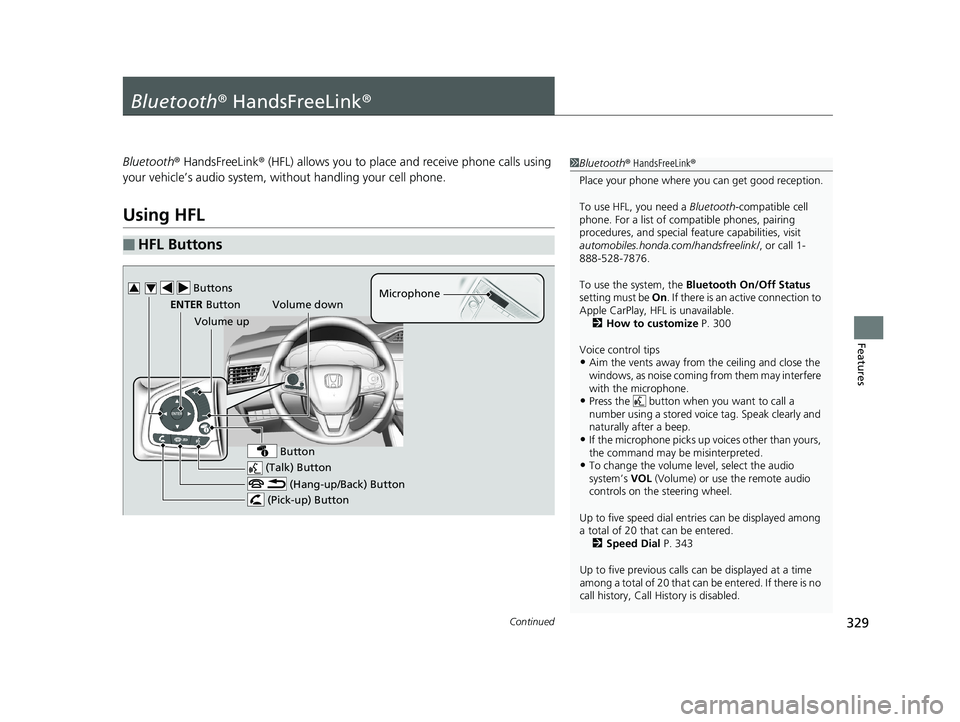
■HFL Buttons
1 Bluetooth ® HandsFreeLink ®
Place your phone where y ou can get good reception.
To use HFL, you need a Bluetooth-compatible cell
phone. For a list of compatible phones, pairing
procedures, and special fe ature capabilities, visit
automobiles.honda.com /handsfreelink/, or call 1-
888-528-7876.
To use the system, the Bluetooth On/Off Status
setting must be On . If there is an active connection to
Apple CarPlay, H FL is unavailable.
2 How to customize P. 300
Voice control tips
•Aim the vents away from the ceiling and close the
windows, as noise coming fr om them may interfere
with the microphone.
•Press the button when you want to call a
number using a stored voic e tag. Speak clearly and
naturally after a beep.
•If the microphone picks up vo ices other than yours,
the command may be misinterpreted.
•To change the volume level, select the audio
system’s VOL (Volume) or use the remote audio
controls on the steering wheel.
Up to five speed dial entries can be displayed among
a total of 20 that can be entered.
2 Speed Dial P. 343
Up to five previous calls can be displayed at a time
among a total of 20 that can be entered. If there is no
call history, Call History is disabled. (Talk) Button
Volume up Microphone
(Hang-up/Back) Button
(Pick-up) Button
ENTER Button
Button
Buttons34
Volume down
19 CLARITY FCV CSS-31TRT6200.book 329 ページ 2019年1月17日 木曜日 午前11 時54分
Page 367 of 551
Continued365
uuBefore Driving uDriving Preparation
Driving
• Store or secure all items on board properly.
u Carrying too much cargo, or improperly storing it, can affect your vehicle’s
handling, stability, sto pping distance, and tires, and make it unsafe.
2Maximum Load Limit P. 367
•Do not pile items higher than the seat height.
u They can block your view and may be thrown forward in the event of sudden
braking.
• Do not place anything in the front seat footwells. Make sure to secure the floor
mat.
u An object or unsecured floor mat can in terfere with your brake and accelerator
pedal operation while driving.
• If you have any animals on board, do not let them move around in the vehicle.
u They may interfere with driv ing and a crash could occur.
• Securely close and lock all doors and the trunk.
2 Locking/Unlocking the Doors from the Inside P. 142
•Adjust your seating position properly.
u Adjust the head restraint, too.
2Adjusting the Seats P. 172
2 Adjusting the Front Head Restraints Positions P. 174
•Adjust the mirrors and steering wheel properly.
u Adjust them while sitting in the proper driving position.
2 Adjusting the Mirrors P. 170
2 Adjusting the Steering Wheel P. 169
■Interior Checks1Interior Checks
The headlight aim is set by the factory, and does not
need to be adjusted. Howeve r, if you regularly carry
heavy items in the trunk, have the aiming readjusted
at an authorized Honda Clar ity Fuel Cell dealer or by
a qualified technician.
19 CLARITY FCV CSS-31TRT6200.book 365 ページ 2019年1月17日 木曜日 午前11 時54分
Page 375 of 551
373
uuWhen Driving uPrecautions While Driving
Continued
Driving
Precautions While Driving
Avoid driving in deep water and on flooded roads. This can damage the power
system or driveline, or caus e electrical component failure.
■In Rain1Precautions While Driving
NOTICE
Do not select a shift button while pressing the
accelerator pedal.
NOTICE
The following can damage the rear frames and rear
suspensions. Be careful when driving.
•Backing up the vehicle into a space with a parking
block or road shoulder
•Driving up or down to a different surface level
(such as a road shoulder)
•Driving on a road with potholes
NOTICE
If you repeatedly turn the steering wheel at an
extremely low speed, or hold the steering wheel in
the full left or right position for a while, the electric
power steering (EPS) system heats up. The system
goes into a protective mode, and limits its
performance. The steering wheel becomes harder
and harder to operate. Once the system cools down,
the EPS system is restored.
Repeated operation under these conditions can
eventually damage the system.
If the power mode is set to ACCESSORY while
driving, the power system will shut down and all
steering and brake power a ssist functions will stop,
making it difficult to control the vehicle.
19 CLARITY FCV CSS-31TRT6200.book 373 ページ 2019年1月17日 木曜日 午前11 時54分
Page 387 of 551
385
uuWhen Driving uRoad Departure Mitigation (RDM) System
Continued
Driving
Road Departure Mitigation (RDM) System
Alerts and helps to assist you when the system detects a possibility of your vehicle
unintentionally crossing over detected lane markings and/or leaving the roadway
altogether.
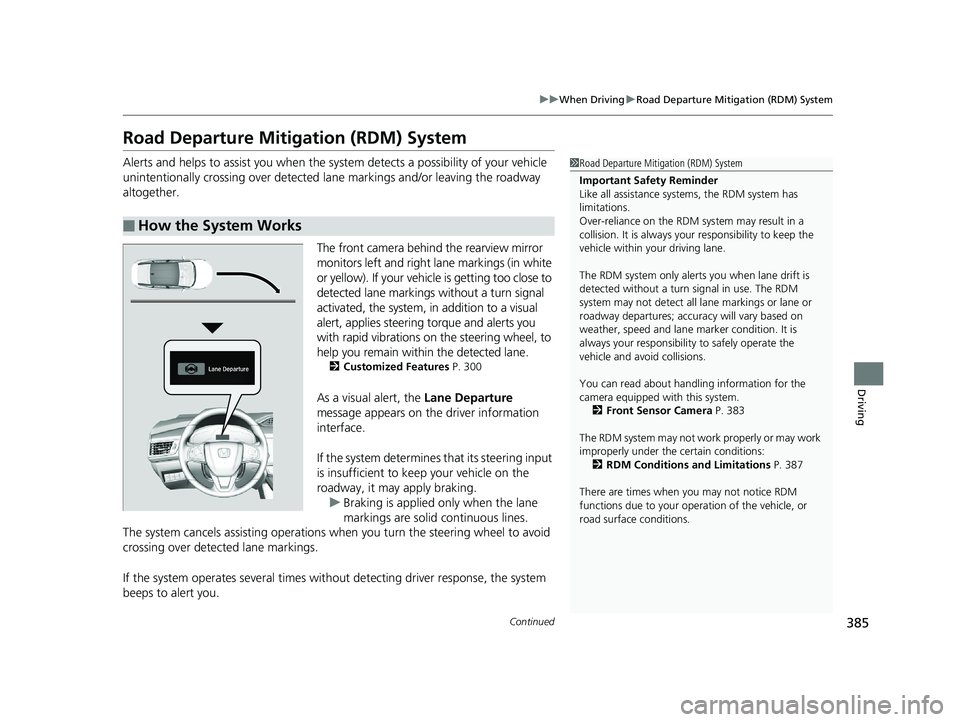
The front camera behind the rearview mirror
monitors left and right lane markings (in white
or yellow). If your vehicl e is getting too close to
detected lane markings without a turn signal
activated, the system, in addition to a visual
alert, applies steering torque and alerts you
with rapid vibrations on the steering wheel, to
help you remain within the detected lane.
2 Customized Features P. 300
As a visual alert, the Lane Departure
message appears on the driver information
interface.
If the system determines that its steering input
is insufficient to keep your vehicle on the
roadway, it may apply braking.
u Braking is applied only when the lane
markings are solid continuous lines.
The system cancels assisting operations wh en you turn the steering wheel to avoid
crossing over detected lane markings.
If the system operates several times with out detecting driver response, the system
beeps to alert you.
■How the System Works
1 Road Departure Mitigation (RDM) System
Important Safety Reminder
Like all assistance systems, the RDM system has
limitations.
Over-reliance on the RDM system may result in a
collision. It is always your responsibility to keep the
vehicle within your driving lane.
The RDM system only alerts you when lane drift is
detected without a turn signal in use. The RDM
system may not detect all la ne markings or lane or
roadway departures; accu racy will vary based on
weather, speed and lane marker condition. It is
always your responsibilit y to safely operate the
vehicle and avoid collisions.
You can read about handling information for the
camera equipped with this system.
2 Front Sensor Camera P. 383
The RDM system may not wo rk properly or may work
improperly under the certain conditions: 2 RDM Conditions and Limitations P. 387
There are times when you may not notice RDM
functions due to your opera tion of the vehicle, or
road surface conditions.
19 CLARITY FCV CSS-31TRT6200.book 385 ページ 2019年1月17日 木曜日 午前11 時54分
Page 388 of 551
uuWhen Driving uRoad Departure Mitigation (RDM) System
386
Driving
The system becomes ready to start sear ching for lane markings when all the
following conditions are met:
• The vehicle is traveling between about 45 and 90 mph (72 and 145 km/h).
• The vehicle is on a straight or slightly curved road.
• The turn signals are off.
• The brake pedal is not depressed.
• The wipers are not in continuous operation.
• The vehicle is not accelerating or braking, and the steering wheel is not being
turned.
• The system makes a determination that the driver is not actively accelerating,
braking or steering.
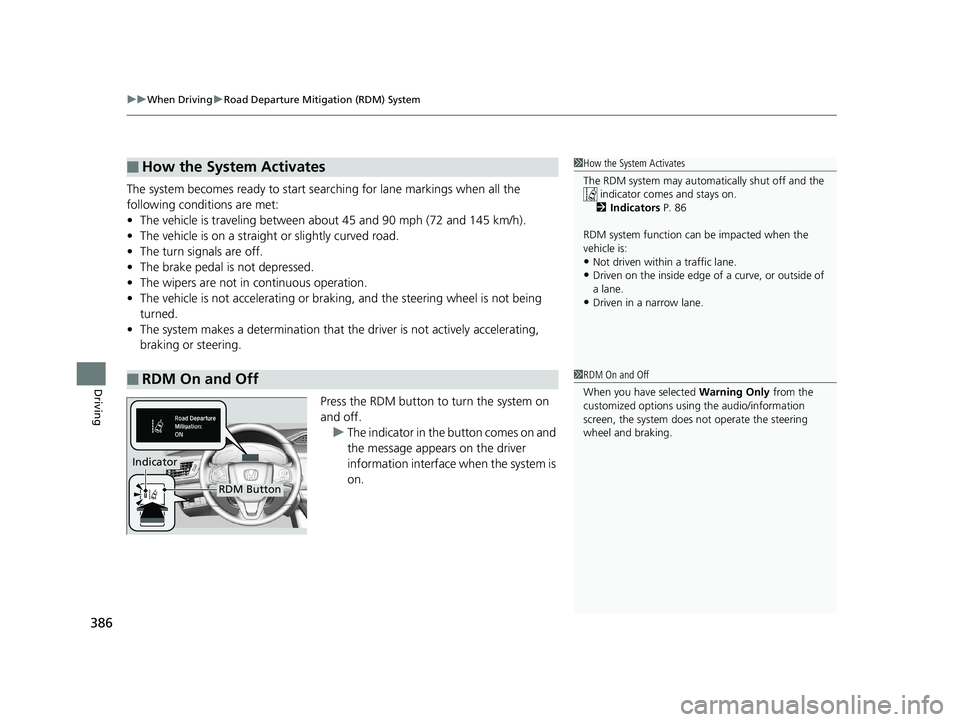
Press the RDM button to turn the system on
and off.u The indicator in the button comes on and
the message appears on the driver
information interface when the system is
on.
■How the System Activates
■RDM On and Off
1How the System Activates
The RDM system may automa tically shut off and the
indicator comes and stays on.
2 Indicators P. 86
RDM system function can be impacted when the
vehicle is:
•Not driven within a traffic lane.•Driven on the inside edge of a curve, or outside of
a lane.
•Driven in a narrow lane.
1 RDM On and Off
When you have selected Warning Only from the
customized options using the audio/information
screen, the system does not operate the steering
wheel and braking.
RDM Button
Indicator
19 CLARITY FCV CSS-31TRT6200.book 386 ページ 2019年1月17日 木曜日 午前11 時54分