2019 GMC TERRAIN brakes
[x] Cancel search: brakesPage 223 of 434

GMC Terrain/Terrain Denali Owner Manual (GMNA-Localizing-U.S./Canada/
Mexico-12146071) - 2019 - crc - 7/27/18
222 Driving and Operating
Ride Control Systems
Traction Control/
Electronic Stability
Control
System Operation
The vehicle has a Traction Control
System (TCS) and StabiliTrak/
Electronic Stability Control (ESC),
an electronic stability control
system. These systems help limit
wheel slip and assist the driver in
maintaining control, especially on
slippery road conditions.
TCS activates if it senses that any
of the drive wheels are spinning or
beginning to lose traction. When this
happens, TCS applies the brakes to
the spinning wheels and reduces
engine power to limit wheel spin.
StabiliTrak/ESC activates when the
vehicle senses a difference between
the intended path and the direction
the vehicle is actually traveling.
StabiliTrak/ESC selectively applies
braking pressure to any one of thevehicle wheel brakes to assist the
driver in keeping the vehicle on the
intended path.
If cruise control is being used and
TCS or StabiliTrak/ESC begins to
limit wheel spin, cruise control will
disengage. Cruise control may be
turned back on when road
conditions allow.
Both systems come on
automatically when the vehicle is
started and begins to move. The
systems may be heard or felt while
they are operating or while
performing diagnostic checks. This
is normal and does not mean there
is a problem with the vehicle.
It is recommended to leave both
systems on for normal driving
conditions, but it may be necessary
to turn TCS off if the vehicle gets
stuck in sand, mud, ice, or snow.
See
If the Vehicle Is Stuck 0190
and “Turning the Systems Off and
On” later in this section.
The indicator light for both systems
is in the instrument cluster. This
light will:
.
Flash when TCS is limiting
wheel spin
. Flash when StabiliTrak/ESC is
activated
. Turn on and stay on when either
system is not working
If either system fails to turn on or to
activate, a message displays in the
Driver Information Center (DIC), and
dcomes on and stays on to
indicate that the system is inactive
and is not assisting the driver in
maintaining control. The vehicle is
safe to drive, but driving should be
adjusted accordingly.
Page 227 of 434
GMC Terrain/Terrain Denali Owner Manual (GMNA-Localizing-U.S./Canada/
Mexico-12146071) - 2019 - crc - 7/27/18
226 Driving and Operating
The HDC switch is on the center
console.
Press
5to enable or disable HDC.
Vehicle speed must be below
50 km/h (31 mph).
The HDC light displays on the
instrument cluster when enabled.
HDC can maintain vehicle speeds
between 3 and 22 km/h (2 and
14 mph) on an incline greater than
or equal to a 10% grade. A blinking
HDC light indicates the system is
actively applying the brakes to
maintain vehicle speed.
When HDC is activated, the initial
HDC speed is set to the current
driving speed. It can be increased or
decreased by pressing +RES
or –SET on the steering wheel or by applying the accelerator or brake
pedal. This adjusted speed
becomes the new set speed.
HDC will remain enabled between
22 and 60 km/h (14 and 37 mph);
however vehicle speed cannot be
set or maintained in this range.
It will automatically disable if the
vehicle speed is above 80 km/h
(50 mph) or above 60 km/h
(37 mph) for at least 30 seconds.
Press
5again to re-enable HDC.
Driver Mode Control
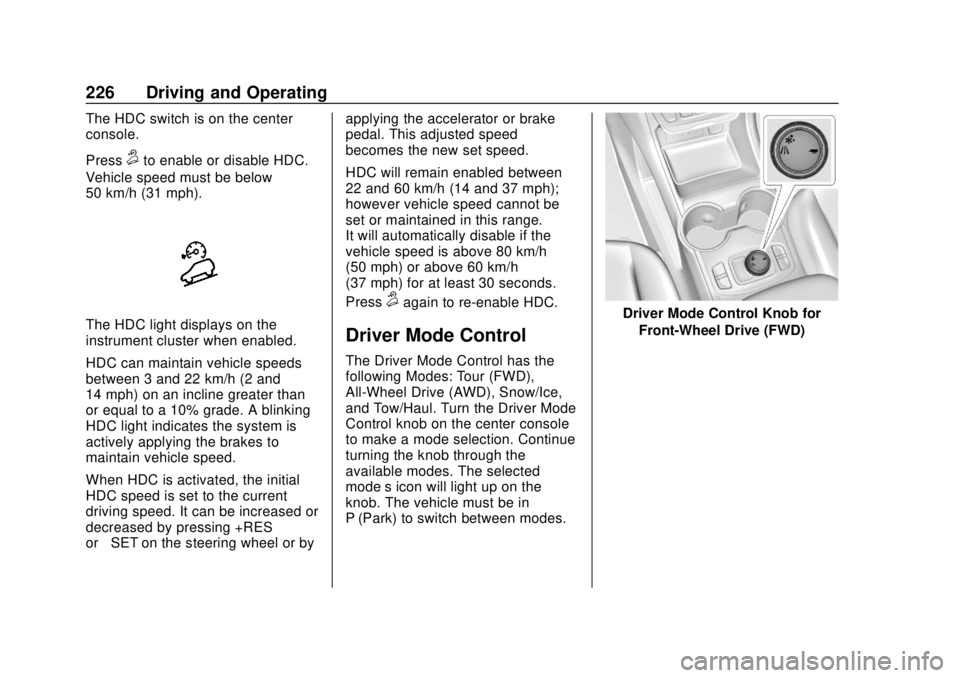
The Driver Mode Control has the
following Modes: Tour (FWD),
All-Wheel Drive (AWD), Snow/Ice,
and Tow/Haul. Turn the Driver Mode
Control knob on the center console
to make a mode selection. Continue
turning the knob through the
available modes. The selected
mode’s icon will light up on the
knob. The vehicle must be in
P (Park) to switch between modes.
Driver Mode Control Knob for
Front-Wheel Drive (FWD)
Page 231 of 434

GMC Terrain/Terrain Denali Owner Manual (GMNA-Localizing-U.S./Canada/
Mexico-12146071) - 2019 - crc - 7/27/18
230 Driving and Operating
Cruise Control
The cruise control lets the vehicle
maintain a speed of about 40 km/h
(25 mph) or more without keeping
your foot on the accelerator. Cruise
control does not work at speeds
below 40 km/h (25 mph).
{Warning
Cruise control can be dangerous
where you cannot drive safely at
a steady speed. Do not use
cruise control on winding roads or
in heavy traffic.
Cruise control can be dangerous
on slippery roads. On such roads,
fast changes in tire traction can
cause excessive wheel slip, and
you could lose control. Do not use
cruise control on slippery roads.
With the Traction Control System
(TCS) or StabiliTrak/Electronic
Stability Control (ESC), the system
may begin to limit wheel spin while
you are using cruise control. If this
happens, the cruise control will automatically disengage. See
Traction Control/Electronic Stability
Control
0222. If a collision alert
occurs when cruise control is
activated, cruise control is
disengaged. See Forward Collision
Alert (FCA) System 0250. When
road conditions allow you to safely
use it again, cruise control can be
turned back on.
Cruise control will disengage if
either TCS or StabiliTrak/ESC is
turned off.
If Hill Descent Control (HDC) is
engaged, cruise control disengages.
See Hill Descent Control (HDC)
0 225.
If the brakes are applied, cruise
control disengages.
5: Press to turn the cruise control
system on and off. A white indicator
comes on in the instrument cluster
when cruise control is turned on.
*: Press to disengage cruise
control without erasing the set
speed from memory.
+RES : If there is a set speed in
memory, press briefly to resume that
speed or press and hold to
accelerate. If cruise control is
already active, use to increase
vehicle speed.
Page 232 of 434

GMC Terrain/Terrain Denali Owner Manual (GMNA-Localizing-U.S./Canada/
Mexico-12146071) - 2019 - crc - 7/27/18
Driving and Operating 231
–SET :Press briefly to set the
speed and activate cruise control.
If cruise control is already active,
use to decrease vehicle speed.
Setting Cruise Control
If
5is on when not in use, –SET or
+RES could get bumped and go into
cruise when not desired. Keep
5
off when cruise is not being used.
To set a speed:
1. Press
5to turn the cruise
system on.
2. Get up to the desired speed.
3. Press and release –SET. The
desired set speed briefly
appears in the instrument
cluster.
4. Remove your foot from the accelerator pedal.
The cruise control indicator on the
instrument cluster turns green after
cruise control has been set to the
desired speed.
See Instrument Cluster (Base and
Midlevel) 0122 orInstrument
Cluster (Uplevel) 0125. Resuming a Set Speed
If the cruise control is set at a
desired speed and then the brakes
are applied or
*is pressed, the
cruise control is disengaged without
erasing the set speed from memory.
Once the vehicle speed reaches
about 40 km/h (25 mph) or more,
briefly press +RES. The vehicle
returns to the previous set speed.
Increasing Speed While Using
Cruise Control
If the cruise control system is
already activated:
. Press and hold +RES on the
steering wheel until the vehicle
accelerates to the desired
speed, then release it.
. To increase the speed in small
increments, briefly press +RES.
For each press, the vehicle goes
about 1 km/h (1 mph) faster.
The speedometer reading can be
displayed in either English or metric
units.
See Instrument Cluster (Base and
Midlevel) 0122 orInstrument Cluster (Uplevel)
0125. The
increment value used depends on
the units displayed.
Reducing Speed While Using
Cruise Control
If the cruise control system is
already activated:
. Press and hold –SET until the
desired lower speed is reached,
then release it.
. To slow down in small
increments, briefly press –SET.
For each press, the vehicle goes
about 1 km/h (1 mph) slower.
The speedometer reading can be
displayed in either English or metric
units.
See Instrument Cluster (Base and
Midlevel) 0122 orInstrument
Cluster (Uplevel) 0125. The
increment value used depends on
the units displayed.
Passing Another Vehicle While
Using Cruise Control
Use the accelerator pedal to
increase the vehicle speed. When
you take your foot off the pedal, the
Page 234 of 434
GMC Terrain/Terrain Denali Owner Manual (GMNA-Localizing-U.S./Canada/
Mexico-12146071) - 2019 - crc - 7/27/18
Driving and Operating 233
Warning (Continued)
a collision with another vehicle
you are following. This can occur
when vehicles suddenly slow or
stop ahead, or enter your lane.
Also see“Alerting the Driver” later
in this section. Complete attention
is always required while driving
and you should be ready to take
action and apply the brakes. See
Defensive Driving 0181.
{Warning
ACC will not detect or brake for
children, pedestrians, animals,
or other objects.
Do not use ACC when:
. On winding and hilly roads
or when the camera sensor
is blocked by snow, ice,
or dirt. The system may not
(Continued)
Warning (Continued)
detect a vehicle ahead.
Keep the windshield and
headlamps clean.
. When visibility is poor due
to rain, snow, fog, dirt,
insect residue, or dust;
when other foreign objects
obscure the camera’s view;
or when the vehicle in front
or oncoming traffic causes
additional environmental
obstructions, such as road
spray. ACC performance is
limited under these
conditions.
. On slippery roads where
fast changes in tire traction
can cause excessive
wheel slip
. With extremely heavy cargo
loaded in the cargo area or
rear seat
. When towing a trailer
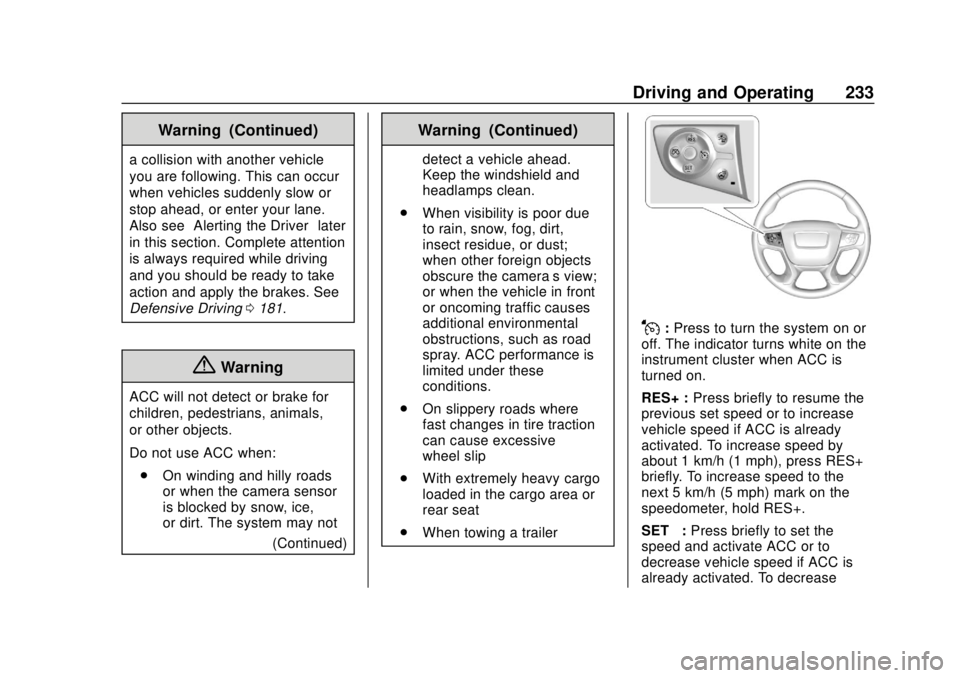
J:Press to turn the system on or
off. The indicator turns white on the
instrument cluster when ACC is
turned on.
RES+ : Press briefly to resume the
previous set speed or to increase
vehicle speed if ACC is already
activated. To increase speed by
about 1 km/h (1 mph), press RES+
briefly. To increase speed to the
next 5 km/h (5 mph) mark on the
speedometer, hold RES+.
SET– :Press briefly to set the
speed and activate ACC or to
decrease vehicle speed if ACC is
already activated. To decrease
Page 235 of 434

GMC Terrain/Terrain Denali Owner Manual (GMNA-Localizing-U.S./Canada/
Mexico-12146071) - 2019 - crc - 7/27/18
234 Driving and Operating
speed by about 1 km/h (1 mph),
press SET–briefly. To decrease
speed to the next 5 km/h (5 mph)
mark on the speedometer,
hold SET–.
*: Press to disengage ACC
without erasing the selected set
speed.
[: Press to select a following gap
setting for ACC of Far, Medium,
or Near.
The speedometer reading can be
displayed in either English or metric
units.
See Instrument Cluster (Base and
Midlevel) 0122 orInstrument
Cluster (Uplevel) 0125. The
increment value used depends on
the units displayed.
Switching Between ACC and
Regular Cruise Control
To switch between ACC and regular
cruise control, press and hold
*.
A Driver Information Display (DIC)
message displays. See Vehicle
Messages 0151.
ACC IndicatorRegular Cruise
Control Indicator
When ACC is engaged, a green
o
indicator will be lit on the instrument
cluster and the following gap will be
displayed. When the regular cruise
control is engaged, a green
J
indicator will be lit on the instrument
cluster; the following gap will not
display.
When the vehicle is turned on, the
cruise control mode will be set to
the last mode used before the
vehicle was turned off.
{Warning
Always check the cruise control
indicator on the instrument cluster
to determine which mode cruise (Continued)
Warning (Continued)
control is in before using the
feature. If ACC is not active, the
vehicle will not automatically
brake for other vehicles, which
could cause a crash if the brakes
are not applied manually. You and
others could be seriously injured
or killed.
Setting Adaptive Cruise Control
If
Jis on when not in use,
SET–/RES+ could be pressed by
mistake and engage ACC when not
desired. Keep
Joff when cruise is
not being used.
Select the set speed desired for
ACC. This is the vehicle speed
when no vehicle is detected in
your path.
While the vehicle is moving, ACC
will not set at a speed less than 25
km/h (15 mph), although it can be
resumed when driving at lower
speeds.
Page 236 of 434

GMC Terrain/Terrain Denali Owner Manual (GMNA-Localizing-U.S./Canada/
Mexico-12146071) - 2019 - crc - 7/27/18
Driving and Operating 235
To set ACC while moving:1. Press
J.
2. Get up to the desired speed.
3. Press and release SET–.
4. Remove foot from the accelerator.
After ACC is set, it may immediately
apply the brakes if a vehicle ahead
is detected closer than the selected
following gap.
The ACC indicator displays on the
instrument cluster. When ACC is
turned on, the indicator will be lit
white.
Be mindful of speed limits,
surrounding traffic speeds, and
weather conditions when selecting
the set speed. Resuming a Set Speed
If the ACC is set at a desired speed
and then the brakes are applied,
ACC is disengaged without erasing
the set speed from memory.
To begin using ACC again, press
RES+ briefly while moving more
than 5 km/h (3 mph). The vehicle
returns to the previous set speed.
A green ACC indicator and the set
speed display on the instrument
cluster. The vehicle ahead indicator
may be flashing if a vehicle ahead
was present and moved. See
“Approaching and Following a
Vehicle”
later in this section.
Once ACC has resumed, if there is
no vehicle ahead, if the vehicle
ahead is beyond the selected
following gap, or if the vehicle has
exited a sharp curve, then the
vehicle speed will increase to the
set speed.
Increasing Speed While ACC Is at
a Set Speed
If ACC is already activated, do one
of the following: .
Use the accelerator to get to the
higher speed. Press SET–.
Release SET– and the
accelerator pedal. The vehicle
will now cruise at the higher
speed.
When the accelerator pedal is
pressed, ACC will not brake
because it is overridden. The
ACC indicator will turn blue on
the instrument cluster.
. Press and hold RES+ until the
desired set speed is displayed,
then release it.
. To increase vehicle speed in
smaller increments, press RES+
briefly. For each press, the
vehicle goes about 1 km/h (1
mph) faster.
. To increase vehicle speed in
larger increments, hold RES+.
While holding RES+, the vehicle
speed increases to the next
5 km/h (5 mph) step, then
continues to increase by 5 km/h
(5 mph) at a time.
Page 238 of 434

GMC Terrain/Terrain Denali Owner Manual (GMNA-Localizing-U.S./Canada/
Mexico-12146071) - 2019 - crc - 7/27/18
Driving and Operating 237
Alert Seat will pulse five times. See
“Collision/Detection Systems”under
Vehicle Personalization 0152.
See Defensive Driving 0181.
Approaching and Following a
Vehicle
The vehicle ahead indicator is in the
instrument cluster. It only displays
when a vehicle is detected in your
vehicle’s path moving in the same
direction. If this symbol is not
displaying, ACC will not respond to
or brake for vehicles ahead.
ACC automatically slows the vehicle
down and adjusts vehicle speed to
follow a detected vehicle ahead at
the selected following gap. The
vehicle speed increases or
decreases to follow a detected
vehicle in front of your vehicle when
that vehicle is traveling slower than your vehicle set speed. It may apply
limited braking, if necessary. When
braking is active, the brake lamps
will come on. The automatic braking
may feel or sound different than if
the brakes were applied manually.
This is normal.
Stationary or Very Slow-Moving
Objects
{Warning
ACC may not detect and react to
stopped or slow-moving vehicles
ahead of you. For example, the
system may not brake for a
vehicle it has never detected
moving. This can occur in
stop-and-go traffic or when a
vehicle suddenly appears due to
a vehicle ahead changing lanes.
Your vehicle may not stop and
could cause a crash. Use caution
when using ACC. Your complete
attention is always required while
driving and you should be ready
to take action and apply the
brakes.
Irregular Objects Affecting ACC
ACC may have difficulty detecting
the following objects:
.
Vehicles in front of your vehicle
that have a rear aspect that is
low, small, or irregular
. An empty truck or trailer that has
no cargo in the cargo bed
. Vehicles with cargo extending
from the back end
. Non-standard shaped vehicles,
such as vehicle transport,
vehicles with a side car fitted,
or horse carriages
. Vehicles that are low to the road
surface
. Objects that are close to the
front of your vehicle
. Vehicles on which extremely
heavy cargo is loaded in the
cargo area or rear seat