2019 FORD TRANSIT reset
[x] Cancel search: resetPage 451 of 529

Cell phone issues
Possible solution
Possible cause
Issue
Check your cell phone's compatibility.
This is a cell phone-
dependent feature.
I am having
trouble
connecting my
cell phone to
SYNC 3. Try switching your cell phone off, resetting
it or removing the battery, then try again.
Possible cell phone
malfunction. Try deleting your device from SYNC 3 and
deleting SYNC from your device, then trying
again.
Always check the security and auto accept
prompt settings relative to the SYNC 3
Bluetooth connection on your cell phone.
Update your cell phone's firmware.
Switch the auto download setting off.
Check your cell phone's compatibility.
This is a cell phone-
dependent feature.
Text messaging
is not working
on SYNC 3. Try switching your cell phone off, resetting
it or removing the battery, then try again.
Possible cell phone
malfunction.
iPhone
•Go to your cell phone's Settings.
• Go to the Bluetooth Menu.
• Press the blue circle to the right of the
device named with your vehicle make
and model to enter the next menu.
• Turn Show Notifications on.
• Disconnect then reconnect your iPhone
from the SYNC 3 system to activate this
settings update.
Your iPhone is now set up to forward
incoming text messages to SYNC 3.
Repeat these steps for every other SYNC 3
vehicle that you connect. Your iPhone will
only forward incoming text messages to
SYNC 3 if the iPhone is not unlocked in the
messaging application.
Replying to text messages using SYNC 3 is
not supported by iPhone.
448
2019 Transit (TTH) Canada/United States of America, Vehicles Built From: 02-01-2019, KK3J 19A321 AB enUSA, Edition date: 201812, First-Printing SYNC™ 3
Page 452 of 529

Cell phone issues
Possible solution
Possible cause
Issue
Text messages from WhatsApp and Face-
book Messenger are not supported.
Your cell phone must support downloading
text messages through Bluetooth to receive
incoming text messages.
This is a cell phone-
dependent feature.
Audible text
messages do
not work on my
cell phone. Because each cell phone is different, refer
to your device's manual for the specific cell
phone you are pairing. In fact, there can be
differences between cell phones due to
brand, model, service provider and software
version.
This is a cell phone limita-
tion. USB and Bluetooth Stereo issues
Possible solution
Possible cause
Issue
Disconnect the device from SYNC 3. Try
switching your device off, resetting it or
removing the battery, then reconnect it to
SYNC 3.
Possible device malfunc-
tion.
I am having
trouble
connecting my
device. Make sure you are using the manufacturer's
cable.
Make sure to correctly insert the USB cable
into the device and your vehicle's USB port.
Make sure that the device does not have
an auto-install program or active security
settings.
Make sure your device is unlocked before
connecting it to SYNC 3.
The device has a lock
screen enabled.
Make sure you are not leaving the device in
your vehicle during very hot or cold
temperatures.
This is a device limitation.
SYNC 3 does
not recognize
my device when
I start my
vehicle.
Make sure you connect the device to SYNC
3 and that you have started the media
player on your device.
This is a device-
dependent feature.
Bluetooth audio
does not
stream.
449
2019 Transit (TTH) Canada/United States of America, Vehicles Built From: 02-01-2019, KK3J 19A321 AB enUSA, Edition date: 201812, First-Printing SYNC™ 3
Page 453 of 529
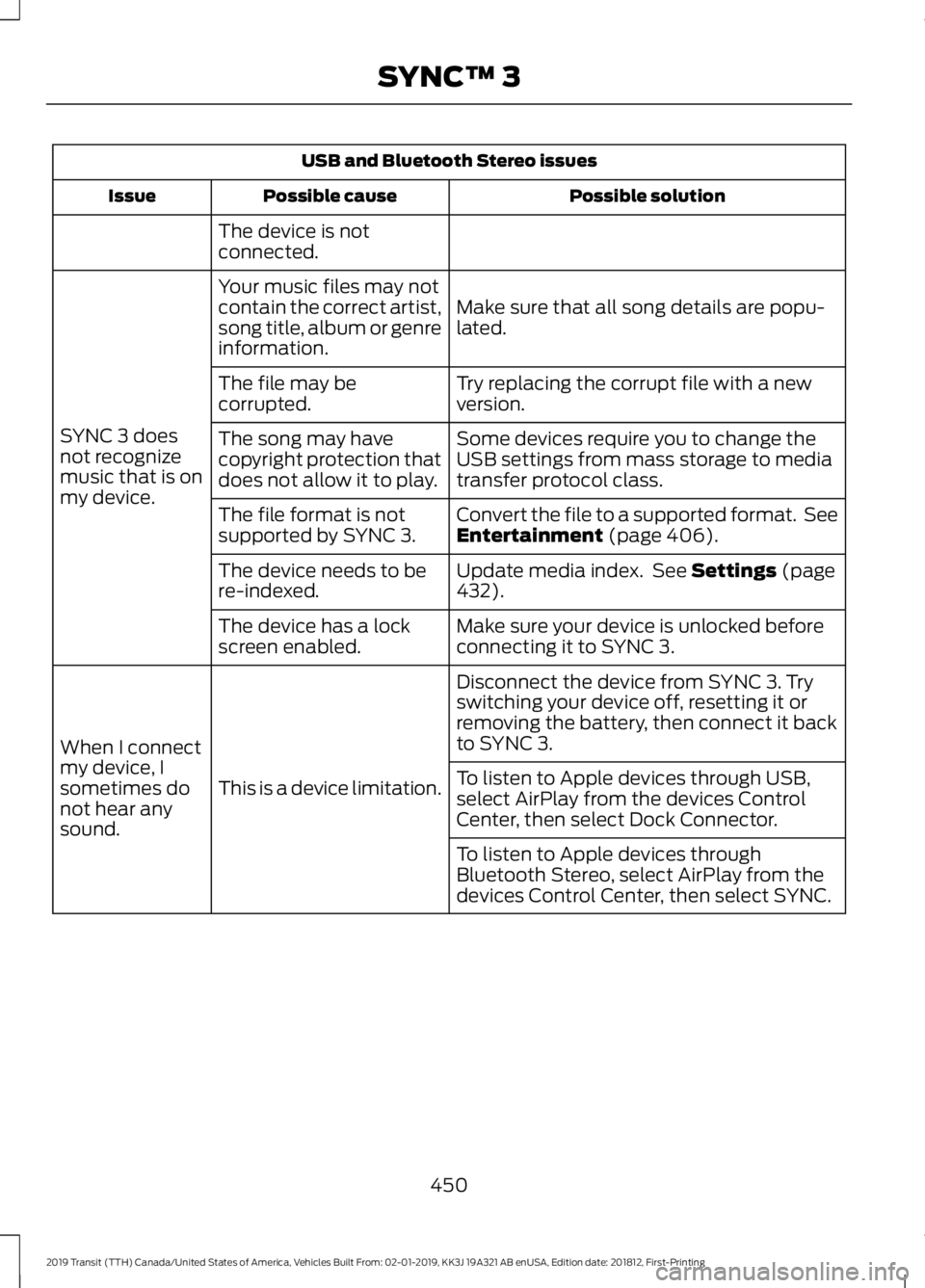
USB and Bluetooth Stereo issues
Possible solution
Possible cause
Issue
The device is not
connected.
Make sure that all song details are popu-
lated.
Your music files may not
contain the correct artist,
song title, album or genre
information.
SYNC 3 does
not recognize
music that is on
my device. Try replacing the corrupt file with a new
version.
The file may be
corrupted.
Some devices require you to change the
USB settings from mass storage to media
transfer protocol class.
The song may have
copyright protection that
does not allow it to play.
Convert the file to a supported format. See
Entertainment (page 406).
The file format is not
supported by SYNC 3.
Update media index. See
Settings (page
432).
The device needs to be
re-indexed.
Make sure your device is unlocked before
connecting it to SYNC 3.
The device has a lock
screen enabled.
Disconnect the device from SYNC 3. Try
switching your device off, resetting it or
removing the battery, then connect it back
to SYNC 3.
This is a device limitation.
When I connect
my device, I
sometimes do
not hear any
sound. To listen to Apple devices through USB,
select AirPlay from the devices Control
Center, then select Dock Connector.
To listen to Apple devices through
Bluetooth Stereo, select AirPlay from the
devices Control Center, then select SYNC.
450
2019 Transit (TTH) Canada/United States of America, Vehicles Built From: 02-01-2019, KK3J 19A321 AB enUSA, Edition date: 201812, First-Printing SYNC™ 3
Page 457 of 529
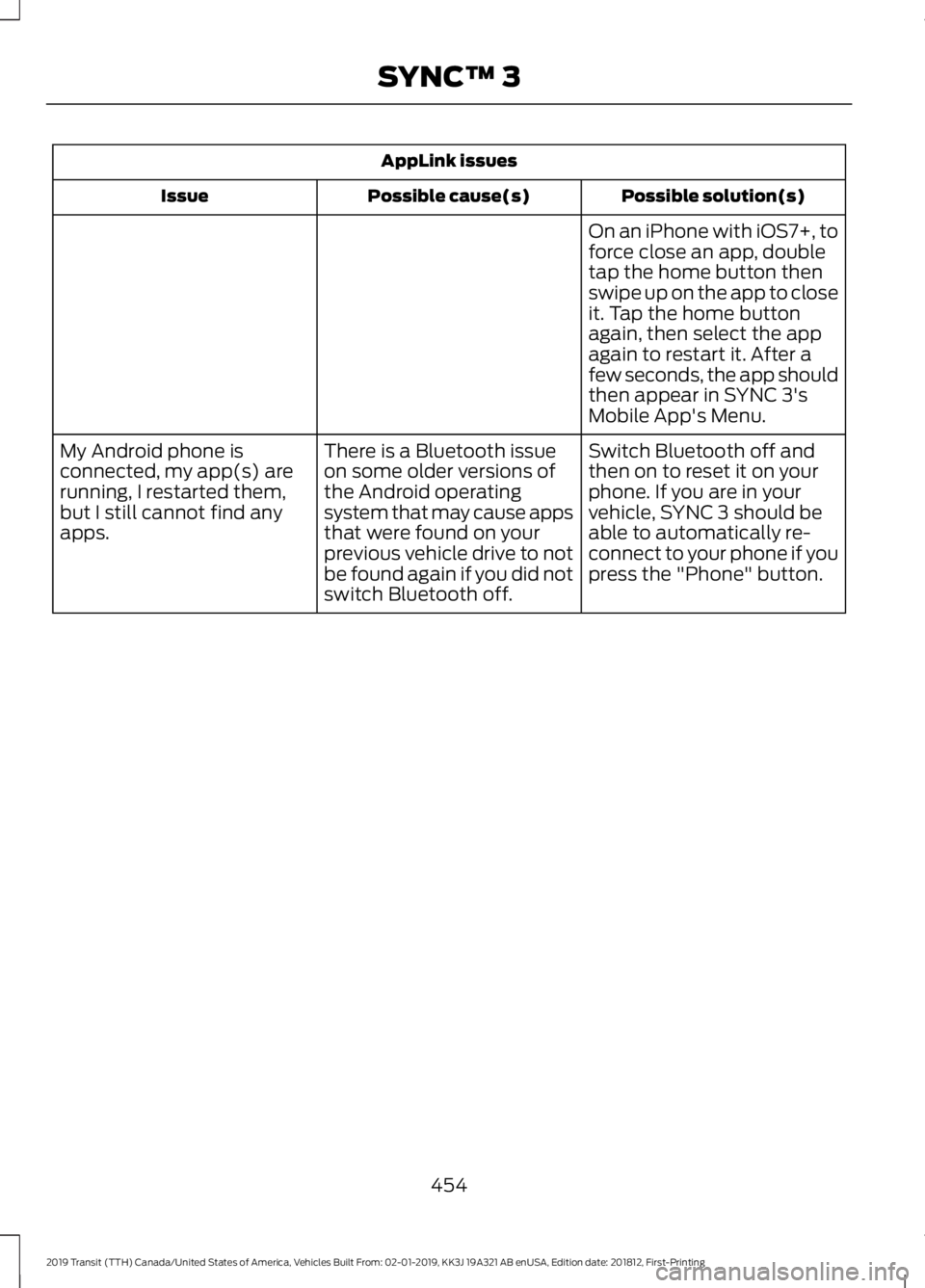
AppLink issues
Possible solution(s)
Possible cause(s)
Issue
On an iPhone with iOS7+, to
force close an app, double
tap the home button then
swipe up on the app to close
it. Tap the home button
again, then select the app
again to restart it. After a
few seconds, the app should
then appear in SYNC 3's
Mobile App's Menu.
Switch Bluetooth off and
then on to reset it on your
phone. If you are in your
vehicle, SYNC 3 should be
able to automatically re-
connect to your phone if you
press the "Phone" button.
There is a Bluetooth issue
on some older versions of
the Android operating
system that may cause apps
that were found on your
previous vehicle drive to not
be found again if you did not
switch Bluetooth off.
My Android phone is
connected, my app(s) are
running, I restarted them,
but I still cannot find any
apps.
454
2019 Transit (TTH) Canada/United States of America, Vehicles Built From: 02-01-2019, KK3J 19A321 AB enUSA, Edition date: 201812, First-Printing SYNC™ 3
Page 458 of 529

AppLink issues
Possible solution(s)
Possible cause(s)
Issue
Unplug the USB cable from
the phone, wait a moment,
and plug the USB cable
back in to the phone. After a
few seconds, the app should
appear in SYNC 3's Mobile
Apps Menu. If not, "Force
Close" the application and
restart it.
You may need to reset the
USB connection to SYNC 3.
My iPhone is connected, my
app is running, I restarted
the app but I still cannot find
it on SYNC 3.
Increase the Bluetooth
volume of the device by
using the device's volume
control buttons which are
most often found on the
side of the device.
The Bluetooth volume on
the phone may be low.
I have an Android phone. I
found and started my media
app on SYNC 3, but there is
no sound or the sound is
very low.
Force close or uninstall the
apps you do not want SYNC
3 to find. If the app has a
"Ford SYNC" setting, disable
that setting in the app's
settings menu on the phone.
Some Android devices have
a limited number of
Bluetooth ports that apps
can use to connect. If you
have more AppLink apps on
your phone than the number
of available Bluetooth ports,
you will not see all of your
apps listed in the SYNC 3
mobile apps menu.
I can only see some of the
AppLink apps running on my
phone listed in the SYNC 3
Mobile Apps Menu. Voice command issues
Possible solution
Possible cause
Issue
Review the cell phone voice commands
and the media voice commands at the
beginning of their respective sections.
You may be using the
wrong voice commands.
SYNC 3 does
not understand
what I am
saying. Refer to the audio display during an active
voice session to find a list of voice
commands there.
Wait for the system to prompt you before
you state your command.
You may be speaking too
soon or at the wrong
time.
455
2019 Transit (TTH) Canada/United States of America, Vehicles Built From: 02-01-2019, KK3J 19A321 AB enUSA, Edition date: 201812, First-Printing SYNC™ 3
Page 461 of 529

General
Possible solution
Possible cause
Issue
SYNC 3 supports multiple languages in a
single module for text display, voice control
and voice prompts. The country where you
bought your vehicle dictates the languages
based on the most popular languages
spoken. If the selected language is not
available, SYNC 3 remains in the current
active language.
SYNC 3 does not support
the currently selected
language for the instru-
ment cluster and inform-
ation and entertainment
display.
The language
selected for the
instrument
cluster and
information and
entertainment
display does not
match the
SYNC 3
SYNC 3 offers several new voice control
features for a wide range of languages.
Dialing a contact name directly from the
phonebook without pre-recording (for
example,
“call John Smith ”) or selecting a
track, artist, album, genre or playlist directly
from your media player (for example, "play
artist Madonna").
language
(phone, USB,
Bluetooth
audio, voice
control and
voice prompts). SYNC 3 System Reset
The system has a System Reset feature that can be performed if the function of a SYNC
3 feature is lost. This reset is intended to restore functionality and will not erase any
information previously stored in the system (such as paired devices, phonebook, call
history, text messages, or user settings). To perform a System Reset, press and hold
the Seek Up (>>|) button while pressing and holding the Radio Power button. After
approximately 5 seconds the screen will go black. Allow 1-2 minutes for the system
reset to complete. You may then resume using the SYNC 3 system.
For additional assistance with SYNC 3
troubleshooting please call or visit the Ford
Website. Ford Support
United States: 1-800-392-3673
Customer Relation-
ship Center
Canada: 1-800-565-3673
owner.ford.com
Website
www.syncmyride.ca
www.syncmaroute.ca
458
2019 Transit (TTH) Canada/United States of America, Vehicles Built From: 02-01-2019, KK3J 19A321 AB enUSA, Edition date: 201812, First-Printing SYNC™ 3
Page 468 of 529

At every oil change interval as indicated by the information display
*
Inspect the exhaust system and heat shields.
Inspect front axle and U-joints. Lubricate if equipped with grease fittings.
Inspect the steering linkage, ball joints, suspension, tire-rod ends, driveshaft and U-
joints. Lubricate any areas with grease fittings.
Diesel engine fill diesel exhaust fluid.
Inspect the wheels and related components for abnormal noise, wear, looseness or
drag.
* Do not exceed one year or 10000 miles (16000 kilometers) between service intervals.
** Reset the Intelligent Oil-Life Monitor after engine oil and filter changes. Other maintenance items
1
Torque rear axle U-bolts to specification.
Every 30000 miles (48000
km) Diesel engine replace fuel filter. 2
Replace engine air filter.
Change diesel foam air filter.
Every 45000 miles (70000
km)
Replace spark plugs.
Every 100000 miles
(160000 km) Inspect accessory drive belt(s). 3
Change automatic transmission fluid and filter.
Every 150000 miles
(240000 km) Change rear axle fluid.
465
2019 Transit (TTH) Canada/United States of America, Vehicles Built From: 02-01-2019, KK3J 19A321 AB enUSA, Edition date: 201812, First-Printing Scheduled Maintenance
Page 470 of 529

Convenience
Many dealerships have extended evening
and Saturday hours to make your service
visit more convenient and they offer one
stop shopping. They can perform any
services that are required on your vehicle,
from general maintenance to crash repairs.
Note:
Not all dealers have extended hours
or body shops. Please contact your dealer
for details.
Protecting Your Investment
Maintenance is an investment that pays
dividends in the form of improved
reliability, durability and resale value. To
maintain the correct performance of your
vehicle and its emission control systems,
make sure you have scheduled
maintenance performed at the designated
intervals.
Vehicles with a 3.2L, 3.5L or 3.7L Engine
Your vehicle is equipped with the
Intelligent Oil-Life Monitor system, which
displays a message in the information
display at the correct oil change interval.
This interval may be up to one year or
10,000 mi (16,000 km).
When the oil change message appears in
the information display, it is time for an oil
change. Make sure you perform the oil
change within two weeks or 500 miles
(800 kilometers) of the message
appearing. Make sure you reset the
Intelligent Oil-Life Monitor after each oil
change. See
Changing the Engine Oil
and Oil Filter (page 235).
If your information display resets
prematurely or becomes inoperative, you
should perform the oil change interval at
six months or
5,000 mi (8,000 km) from
your last oil change. Never exceed one year
or
10,000 mi (16,000 km) between oil
change intervals. All Vehicles
Your vehicle is very sophisticated and built
with multiple, complex, performance
systems. Every manufacturer develops
these systems using different
specifications and performance features.
That is why it is important to rely upon your
dealership to correctly diagnose and repair
your vehicle.
Ford Motor Company has recommended
maintenance intervals for various parts
and component systems based upon
engineering testing. Ford Motor Company
relies upon this testing to determine the
most appropriate mileage for replacement
of oils and fluids to protect your vehicle at
the lowest overall cost to you and
recommends against maintenance
schedules that deviate from the scheduled
maintenance information.
We strongly recommend the use of only
genuine Ford, Motorcraft or
Ford-authorized re-manufactured
replacement parts engineered for your
vehicle.
Additives and Chemicals
This owner's manual and the Ford
Workshop Manual list the recommended
additives and chemicals for your vehicle.
We do not recommend using chemicals or
additives not approved by us as part of
your vehicle
’s normal maintenance. Please
consult your warranty information.
467
2019 Transit (TTH) Canada/United States of America, Vehicles Built From: 02-01-2019, KK3J 19A321 AB enUSA, Edition date: 201812, First-Printing Scheduled Maintenance